
A journal is a balanced set of debit and credit lines, and posting it is how a value movement reaches the general ledger. Most journals are created for you when a document posts — an invoice, bill, payment, expense voucher, payroll run, depreciation run and so on. You enter a journal yourself for opening balances, accruals, reclassifications and corrections. Once a journal is posted it cannot be changed; to correct it, you reverse it and post a new one.
Overview
Every journal has a header (company, branch, document date, status) and two or more lines. Each line names a GL account and carries either a debit or a credit. When you choose Post, xMatix checks that the lines balance and finds the fiscal period that contains the journal's date. It then fills in the totals and updates the period balances that the trial balance and the financial statements read. Reverse posts a mirror journal (every debit becomes a credit and every credit a debit) and marks the original Reversed.
Journals that documents produce are read-only evidence: their Source Entity Name and Source Record point back to the document, and Posting Purpose says which of that document's postings it is (for example the main invoice journal or its cost-of-goods journal).
When to use it
- Opening balances when you start using xMatix for a company.
- Accruals and provisions at month end, for example rent or audit fees owed but not yet billed.
- Reclassifications that move an amount from one GL account to another.
- Corrections of a posted journal: reverse it, then post the right entry.
- Fixed entries that repeat, such as monthly rent or a standing provision of the same amount: set up a recurring journal (steps 7 to 9) and let it post on schedule.
Do not use a manual journal to change what a document posted. Correct the document instead (cancel, credit note, debit note), so that the document and its ledger entries stay in step.
How xMatix handles it
- One posting pipeline. Manual journals, document postings, recurring journals and reversals all post through the same checks: at least two lines, one side per line, no negative amounts, a GL account on every line, no inactive accounts, a party on every control-account line, and equal debit and credit totals.
- The period comes from the date. The journal's Document Date decides the fiscal period. xMatix assigns the period when the journal is first saved and assigns it again when you post, so a draft that you re-date posts into the period of its final date. The period, and the fiscal year it belongs to, must both be Open.
- Missing calendar. If the company has no fiscal period covering the date, xMatix creates an April–March fiscal year with open monthly periods and posts into it. Set up your own fiscal years first if your year runs differently (see Fiscal years and periods).
- Dimensions are filled in at posting. A line without a branch takes the journal's branch, then the GL account's default branch. A line without a business unit takes the journal's business unit, then its branch's business unit, then the GL account's Default Business Unit. A line's GST registration comes from its branch, or else from the company's default registration. See Business units.
- Append-only ledger. After posting, the lines cannot be edited, deleted or moved to another journal, and the journal cannot be deleted. The correction is always a reversal.
Prerequisites
- A security profile that can create journals and run Post and Reverse (see Permissions).
- The company's chart of accounts, with the GL accounts you need active (see GL accounts).
- An Open fiscal period for the date you are posting to (see Fiscal years and periods).
- For a line on a receivables or payables control account: the customer or supplier account.
Procedure
Step 1 — Find a journal
In the Finance app, open Journals. The default view, All Journals, shows Name, Journal Date, Partner Account, Branch, Journal Type Name, Source Entity Name, Total Credit, Total Debit, Source Record, Status and the audit columns. Posted Journals shows only journals whose Status is Posted.
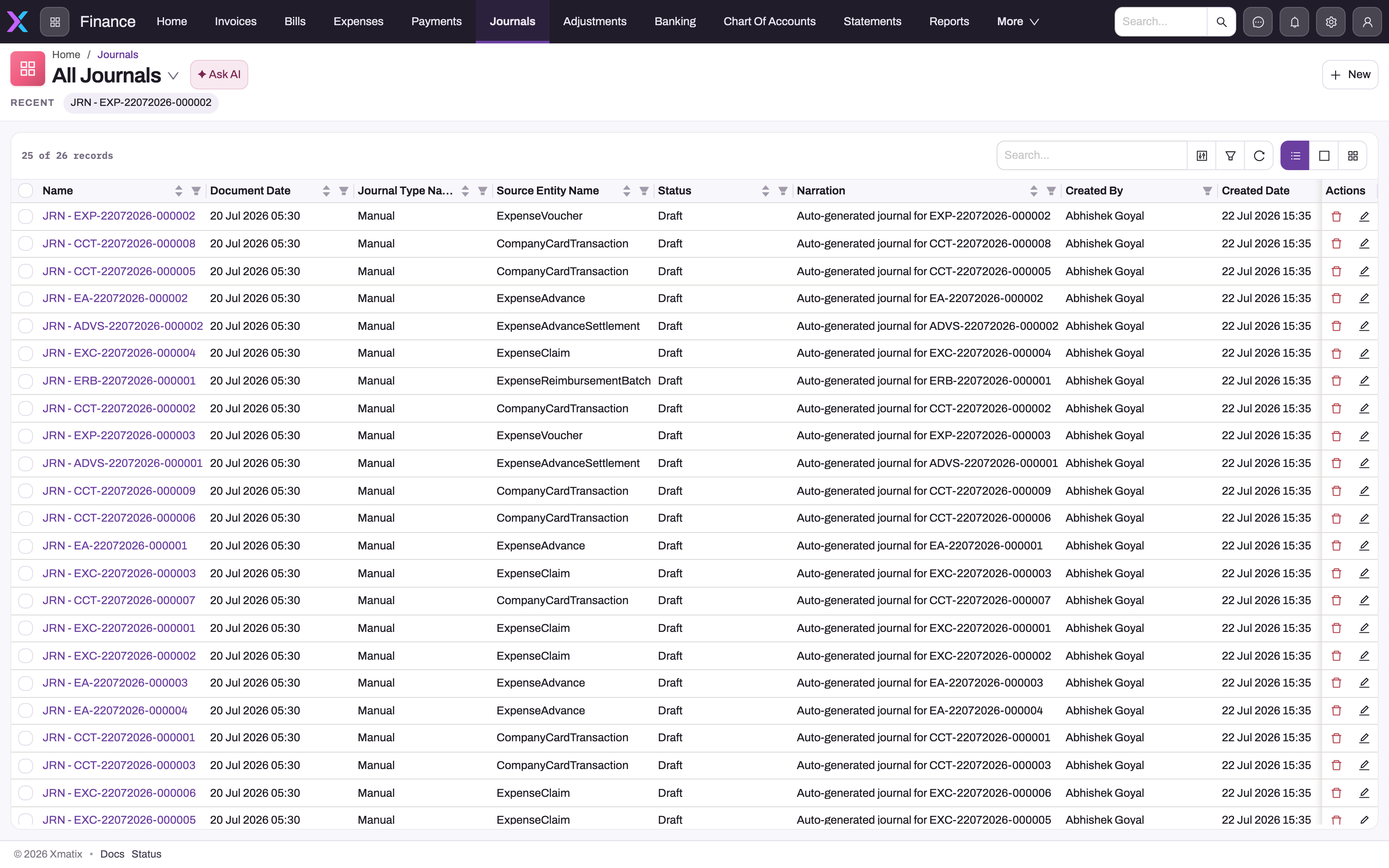
To find the journal a document produced, search or filter on Source Entity Name and then open the row whose Source Record is your document. Journal Type Name alone does not tell you whether a person or a document created the journal: document postings and recurring journals can both carry Manual. Look at Source Entity Name instead.
Step 2 — Create the journal header
- On the Journals list, select New.
- Choose the Partner Account. This is your own company (the legal entity whose books the journal belongs to), not a customer or supplier. Only active accounts marked as partner accounts are offered.
- Optionally choose a Branch. Only that company's branches are offered.
If your organization runs a single company, the Partner Account field is hidden; if it runs a single location, the Branch field is hidden.
- Leave Journal Type Name as Manual.
- On the Details tab, set the Document Date, which is the accounting date. It defaults to today. Leave Source Entity Name empty; it is used by journals that documents create.
- Select Save.
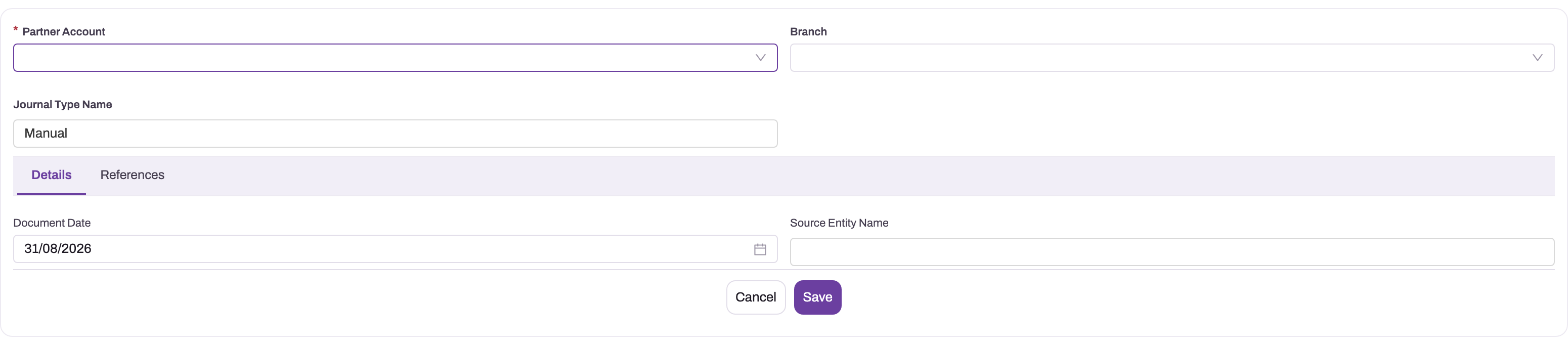
- 1
Partner Account is required and determines which organization's ledger receives the journal.
- 2
Branch is the optional branch dimension shown on this header layout.
- 3
Journal Type Name defaults to Manual on a user-created journal.
- 4
Document Date determines which fiscal period posting validation will inspect.
- 5
Source Entity Name is system provenance, not a free-form human reference. The References tab holds system document links after creation.
The journal opens with Status Draft. xMatix gives it a document number from your Journal numbering setting (see Configuration) and assigns the fiscal period for the date. If that period or its fiscal year is closed, the save is refused. The page header shows Document Date, Partner Account, Business Unit, Branch and Journal Type Name, and the record has the tabs Lines, Details and Related.
Step 3 — Add the lines
- On the Lines tab, select Quick Add.
- Choose the GL Account.
- Fill in Debit or Credit, never both, and never a negative amount. To reduce an account, use the other side.
- If the GL account is a receivables or payables control account, choose the Party Account (the customer or supplier).
- Save the line, then repeat for every account movement.
The Quick Add form has only GL Account, Party Account, Debit and Credit. The Lines tab shows five lines at a time, so page through it on a longer journal. To change a line, use Edit on its row; to remove it, use Delete. To add a line narration, open the line and edit Narration there.
A line's own page. Each line also has a record page of its own. Its header shows the line's Business Unit, Branch and Journal Date, with Edit and Delete. The body has four sections:
- Transaction Details: Party Account, Open Transaction, GL Account and Journal Date.
- Amount Details: Debit, Credit and Narration.
- Related Documents: the parent Journal and the GST Registration.
- System Information: who created and last changed the line, and when.
Edit on a line opens the same four fields as Quick Add. Branch, business unit and GST registration are not on any line form: a line keyed in by hand gets them when the journal posts (see How xMatix handles it). Lines are reached only through their journal. Journal Line is in no app menu of its own.
Before you post, add up the debits and the credits yourself. The journal's Total Debit and Total Credit are filled in only when it posts, so they are empty on a draft you keyed in.
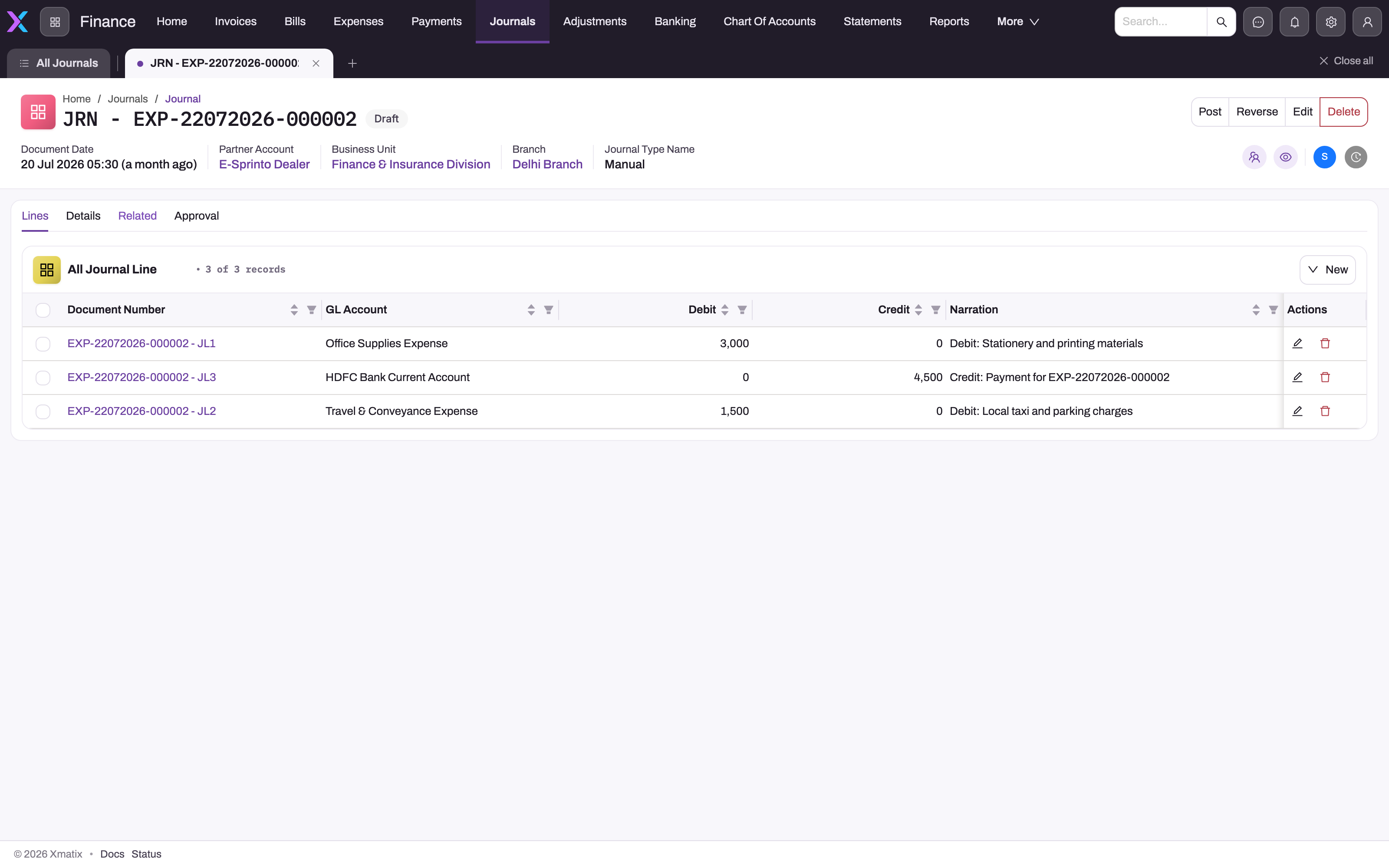
Step 4 — Post the journal
On the journal, select Post. When posting succeeds:
- Status becomes Posted;
- Fiscal Period, Total Debit, Total Credit, Posted By and Posted Date Time are filled in (open the Details tab to see them);
- the lines are filled in with branch, business unit and GST registration where they were empty;
- the period balances of each GL account, and of each customer or supplier on a control-account line, move by the line amounts.
If posting is refused, nothing is saved. Fix the cause named in the message (see Common problems) and post the same draft again. Do not create a second journal.
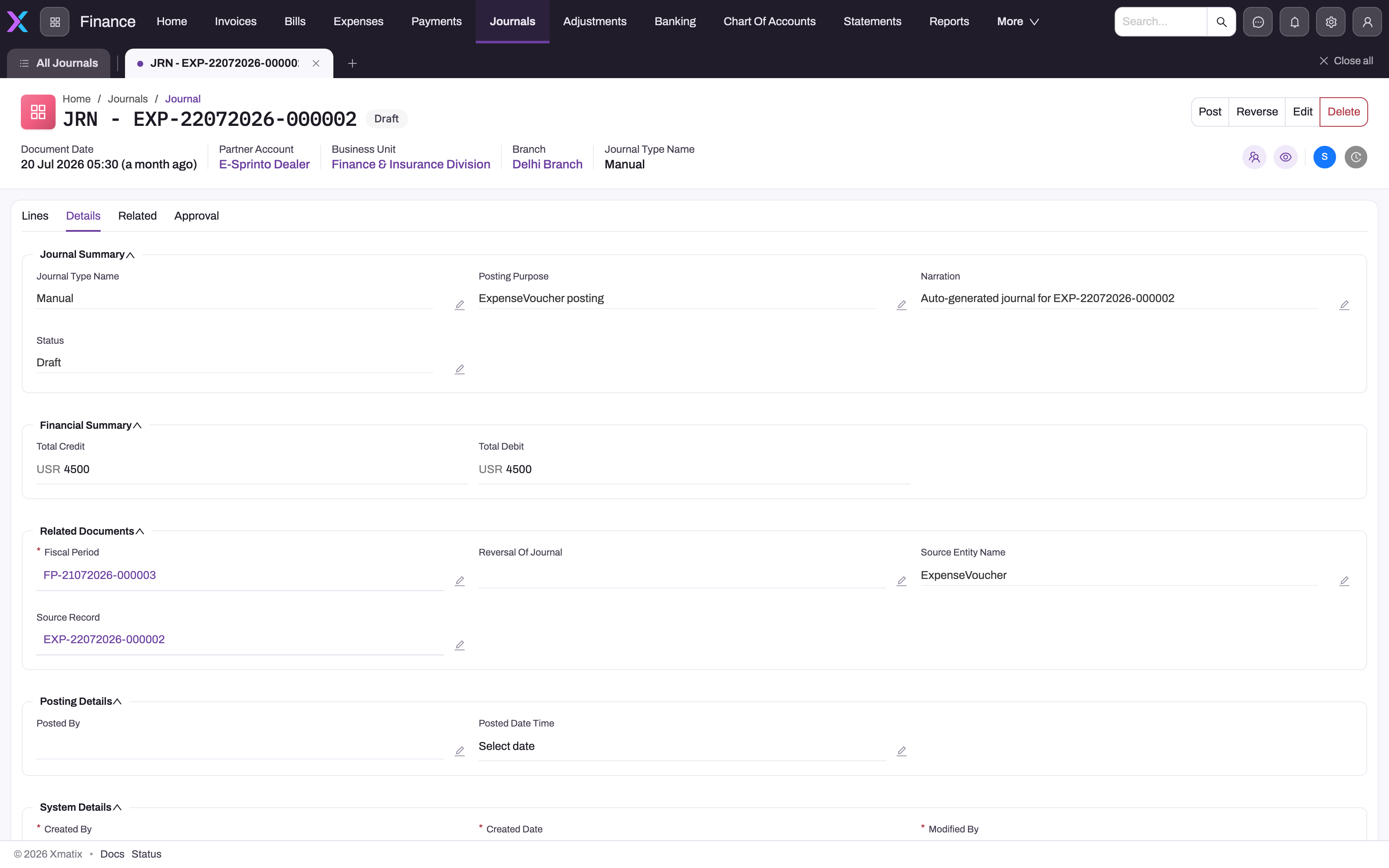
Step 5 — Reverse a posted journal
- Open the posted journal and select Reverse.
- xMatix creates and posts a new journal of type Reversal, labelled Reversal of followed by the original's label or number, and numbered by your Journal numbering setting like any other journal. Its lines are the original lines with the sides swapped, and its Reversal Of Journal field points to the original.
- The original's Status becomes Reversed.
From the journal page, the reversal is always dated today, with the narration Reversal of followed by the original number. It therefore lands in the current open period, even if the original's period has since closed. If the correction must land in an earlier period that is still open, enter it as a new manual journal dated in that period instead. Do not post an unlinked opposite journal to undo an entry that is already reversed.
Then, if the entry is still needed in a corrected form, create and post a new journal (steps 2 to 4).
Step 6 — Delete a draft you no longer need
On a Draft journal, select Delete. A Posted or Reversed journal cannot be deleted.
Step 7 — Make recurring journals available (administrator, once)
A recurring journal is a template that posts the same entry on a schedule, such as monthly rent or a standing provision. The run job ships ready, but the screens do not, so an administrator prepares them once in Setup → Design Studio → Entities:
- Open Recurring Journal. Under Experience → Layouts, add these fields to its Create and View layouts: Name, Label, Frequency, Status, Branch and Narration. The shipped forms carry only Partner Account, Is Active, Start Date, End Date and Next Run Date. Name is required on save and no numbering is shipped for templates, so without the Name field every save is refused.
- On the Recurring Journal View layout, add a related list of Recurring Journal Line records over the Lines relation.
- Open Recurring Journal Line. Under Logic → Actions, add the New, Edit and Delete actions the lines list should offer (the entity ships with only Clone). Then, under Experience → Layouts, create a Create layout and a View layout with Name, Line Number, GL Account, Debit, Credit, Party Account and Narration. Finally, list the new actions on the related list from item 2.
- Go to Setup → Design Studio → Apps, open the Finance app and use Manage Items to add Recurring Journals to its navigation.
See Design a form layout and Create an entity for how each of these screens works.
Step 8 — Create a recurring journal template
- Open Recurring Journals in the app where your administrator placed them and select New.
- Fill in Name and Label, choose your company as Partner Account and, optionally, a Branch.
- Type the Frequency: Monthly, Quarterly, HalfYearly or Yearly. The field is free text. Anything else, including a blank, is treated as Monthly.
- Type Active in Status, exactly as written. The scheduler runs only templates with that status.
- Set Next Run Date to the date of the first journal. It is the date the scheduler acts on, and Start Date is for your reference only. Set End Date if the entry should stop, for example at the end of a lease.
- Add a Narration for the generated journals, and save.
- Add the lines: for each account movement, choose the GL Account and fill in Debit or Credit with a positive amount. Add the Party Account on a control-account line, a Line Number to fix the order, and a Narration. Debits and credits must be equal across the lines.
Nothing posts when you save. The template simply waits for its Next Run Date.
Step 9 — Check, pause or stop the runs
- Check a run. On or after Next Run Date, a posted journal appears in Finance → Journals. It carries Source Entity Name RecurringJournal, Journal Type Name Manual and a label such as Office rent (2026-11). On the template, Next Run Date has moved on by one period.
- Change future runs. Edit the template or its lines. Each run reads them afresh, and journals already posted do not change. To correct a posted run, reverse that journal (step 5).
- Pause. Change Status to any other text, such as Paused. Clearing Is Active does not stop the runs. To resume, type Active again and check Next Run Date: if it is in the past, the scheduler posts a journal for every missed period.
- Stop for good. Set End Date. Once a run moves Next Run Date past it, Status becomes Completed and no further runs happen.
Fields
Journal
| Field | What it means | Notes |
|---|---|---|
| Partner Account | Your company: the legal entity whose ledger receives the journal. | Required. Decides the fiscal calendar and the company's GL accounts. Not the customer or supplier, which go on the line. |
| Branch | The branch the journal belongs to. | Optional. Fills in each line that has no branch of its own. Limited to the selected company's branches. |
| Journal Type Name | Where the journal came from: Manual, DocumentPosting, OpeningBalance, Reversal, Closing, Depreciation, Payroll or Allocation. | Defaults to Manual. Free text on the form, so keep Manual for journals you enter. A journal of type Reversal cannot itself be reversed. |
| Document Date | The accounting date. | Defaults to today. Decides the fiscal period. Nothing stops you entering a future date, so check it before posting. |
| Source Entity Name | The type of document that produced the journal. | Empty on manual journals. |
| Reversal Of Journal | On a reversal journal, the journal it reverses. | Set by Reverse. On the References tab of the form. |
| Fiscal Period | The period the journal posts into. | Assigned from Document Date on save and again on posting. On the References tab of the form; leave it to the system. |
| Source Record | The document that produced the journal. | Empty on manual journals. |
| Narration | The reason for the entry. | Shown on the Details tab, where you can edit it on the record page; not on the New form. |
| Posting Purpose | Which of a document's journals this is, for example Invoice, InvoiceCOGS or InvoiceTcs. | Set by document posting only. |
| Status | Draft, Posted or Reversed (PendingApproval is also accepted but nothing seeded sets it). | Read-only in practice: changes only through Post and Reverse. |
| Total Debit / Total Credit | The sum of the line debits and credits, rounded to two decimals. | Set on posting, always equal. Include any inter-business-unit clearing lines. |
| Business Unit | The journal's business unit. | Shown in the page header but not on the forms. Fills in lines that have none. |
| Posted By / Posted Date Time | Who posted the journal and when (UTC). | Set on posting. Use Document Date, not this, for period questions. |
Journal line
| Field | What it means | Notes |
|---|---|---|
| Party Account | The customer or supplier the line belongs to. | Required when the GL account is a control account. Drives the party's balance. |
| Open Transaction | The receivable or payable item this line created or settled. | Set by document posting and settlement. A reversal keeps the same link. |
| GL Account | The account this line posts to. | Required on every line. Must be active when you post. |
| Journal Date | A copy of the journal's Document Date. | Calculated. Used by line-level reports. |
| Debit | An amount on the debit side. | Positive only. Leave empty when the line is a credit. |
| Credit | An amount on the credit side. | Positive only. Leave empty when the line is a debit. |
| Narration | The reason for this line. | Up to 2,000 characters. Not on the Quick Add form: edit it from the line's record. |
| Journal | The journal the line belongs to. | Set when you add the line from the journal. Cannot be changed once that journal is posted. |
| GST Registration | The GST registration dimension of the line. | Filled in on posting from the branch or the company. |
| Branch / Business Unit | The line's reporting dimensions. | Shown in the line's page header, on no form. Filled in on posting when empty (see How xMatix handles it). |
| Document Number | The line's own number. | Set by the Journal Line numbering setting. Without one, an automatic name starting with JRNL- is used. |
| Line Number | The order of the line in its journal. | On no form. Lines that documents, recurring runs and reversals create carry one; lines added with Quick Add do not. |
Recurring journal
| Field | What it means | Notes |
|---|---|---|
| Name | The template's identifier. | Required. No automatic numbering is shipped, and the shipped create form lacks the field (see step 7). |
| Label | A readable title. | Each generated journal is labelled with it plus the run month, for example Office rent (2026-11). When empty, Name is used. |
| Partner Account | Your company, whose books receive the journals. | Decides the fiscal period each run posts into. |
| Branch | The branch of the generated journals. | Copied to the journal and to every generated line. |
| Frequency | How far Next Run Date moves after each run. | Free text: Monthly, Quarterly, HalfYearly, Yearly (Annual and Annually also work). Blank or anything else counts as Monthly. |
| Status | Whether the template runs. | Free text. Only Active runs. Completed is set automatically after the last run. |
| Is Active | An on/off switch. | Not read by the scheduler: clearing it does not stop runs. |
| Start Date | When the schedule begins. | For reference only. The scheduler reads Next Run Date. |
| Next Run Date | The date of the next run. | Decides when the template runs and the date of the journal it posts. Moves on after each successful run. A template without it never runs. |
| End Date | The last date a run may fall on. | Optional. Runs stop once Next Run Date is later than it. |
| Narration | The reason for the entry. | Copied onto each generated journal. |
Recurring journal line
| Field | What it means | Notes |
|---|---|---|
| Name | The line's identifier. | Required. Not numbered automatically. |
| Line Number | The order of the line in the generated journal. | Optional. Lines without a number come first. |
| GL Account | The account the line posts to. | A line without one is left out of the run, which usually unbalances it. Must be active. |
| Debit / Credit | The fixed amount, on one side only. | The same amount every run. Positive only. A line with neither is left out of the run, and a line with both makes the run fail. |
| Party Account | The customer or supplier. | Required when the GL account is a control account. Copied to the journal line. |
| Narration | The reason for this line. | Copied to the journal line. |
| Partner Account | A company on the template line. | Not used by the run: the journal's company comes from the template. |
Business rules
- Saving a line. A line with both a debit and a credit, or with a negative amount, is refused when you save it.
- Posting checks, in this order: at least two lines; each line has exactly one of Debit or Credit and no negative amount; each line has a GL account; debits equal credits (to two decimals); no inactive GL account; a party on every control-account line; then an open fiscal period and open fiscal year for the Document Date.
- Status transitions. Draft → Posted only through Post. Posted → Reversed only through Reverse. A journal cannot be created as Posted, and its status cannot be typed in.
- Immutability. Lines of a Posted or Reversed journal cannot be added, changed, deleted or moved. A line also cannot be detached from a posted journal or pointed at another journal. The journal cannot be deleted. Only status changes are guarded on the header, so other header fields of a posted journal can still be edited, but editing them does not re-post anything. Leave posted headers alone.
- Numbering. Every journal, including document postings, reversals and recurring runs, is numbered only by your tenant's document-name setting for Journal, and journal lines by the setting for Journal Line. No such setting ships with xMatix. Without an active one, journals are saved with no number, so set one up before you start posting (see Configuration). Lines without a Journal Line setting get an automatic name instead, starting with JRNL- followed by the time they were saved. When the setting numbers a line, the same number is also written to the line's Label. A generated number that is already taken is skipped in favour of the next free one in the same series.
- Reversal lines. Each reversal line copies the original line's GL account, party, branch, business unit, GST registration, open transaction, narration and line number, with the debit and credit swapped.
- Recurring runs. A run copies the template's usable lines (a GL account and an amount) in Line Number order into a new journal. It sets Document Date to the template's Next Run Date, the label to the template's Label (or Name) plus the run month, and Journal Type Name to Manual. Company, branch and narration come from the template, and each line's party and narration from its template line. The journal posts through the same checks as any other. If it posts, Next Run Date moves on by the frequency, and the template becomes Completed once Next Run Date is later than End Date. If posting fails, nothing is saved and the template stays due.
- Inter-business-unit clearing. If the lines end up in two or more business units and the company has an inter-business-unit clearing GL account, posting adds one clearing line per unit so that each unit balances. These lines carry the narration Inter-business-unit clearing (due-to/due-from).
Example
At the end of August your company owes 45,000 of rent for August that the landlord will bill in September.
- In Finance → Journals, select New. Choose your company as Partner Account and the head-office Branch, set Document Date to 31 August and save. The journal opens as Draft, numbered by your numbering setting.
- On Lines, use Quick Add twice: Rent expense, Debit 45,000; Accrued expenses (not a control account), Credit 45,000.
- Select Post. Status becomes Posted, the Fiscal Period is August, and Total Debit and Total Credit both show 45,000.
- In September the bill arrives and is posted. You open the August accrual and select Reverse. A reversal journal labelled Reversal of plus the accrual's label posts today, in September, with Accrued expenses debited and Rent expense credited, so September does not count the rent twice. The August accrual shows Reversed.
Training
Practice exercise
In a sandbox company with an open current period:
- Create a journal with two lines: debit an expense account 1,000 and credit a bank or cash account 900. Select Post. Expected result: posting is refused with "Journal does not balance: debits 1000.00 ≠ credits 900.00."
- Change the credit to 1,000 and post again. Expected result: Status Posted, both totals 1,000.
- Try to edit a line's amount. Expected result: "Lines of a posted journal are immutable. Reverse the journal to correct it."
- Select Reverse. Expected result: a new journal labelled Reversal of plus the original's label, dated today, of type Reversal and status Posted, while the original shows Reversed.
- Select Reverse on the original again. Expected result: "This Journal has already been reversed and cannot be reversed again."
- If your administrator has made recurring journals available (step 7), create a template with Frequency Monthly, Status Active, Next Run Date today, and two balanced lines of 500. Expected result: after the next scheduler pass, a posted journal labelled with the template's label plus the current month appears in Finance → Journals, and the template's Next Run Date is one month later.
Quick reference
- Partner Account is your company; the customer or supplier goes on the line's Party Account.
- One side per line, positive amounts only.
- Control-account lines need a Party Account.
- Quick Add asks only for GL Account, Party Account, Debit and Credit; branch and business unit are filled in at posting.
- Document Date decides the period; the period and the fiscal year must be Open.
- Totals appear only after posting.
- Posted lines never change: reverse, then re-enter.
- A reversal from the journal page is always dated today.
- A Reversal journal cannot be reversed again.
- Only Draft journals can be deleted.
- A recurring template runs when Status is Active and Next Run Date has arrived; Start Date and Is Active are not read.
- To pause a recurring template, change its Status, not Is Active.
Permissions
| What | Controlled by |
|---|---|
| See the Journals list and records | Read access to the Journal entity in the user's security profile, plus the Finance app. |
| New, Edit, Delete (journals and lines) | Create, edit and delete access to the Journal and Journal Line entities. |
| Post and Reverse | The server actions Post and Reverse on the Journal entity, granted on the profile's Actions tab. |
Among the seeded profiles, Standard User and System Admin hold both actions. A profile with entity access but without the action grants can create and edit draft journals but cannot post or reverse them. Because no approval process is seeded for journals, granting Post only to the people who should post is how you separate preparing a journal from posting it. See Security profiles.
Recurring journals and their lines need only create, edit and delete access to the Recurring Journal and Recurring Journal Line entities. The seeded Standard User, Sales Executive and System Admin profiles all have full access to both. The scheduled run posts the generated journal itself, without the Post grant. So whoever can edit a template decides what posts, and you should limit that access accordingly.
Configuration
- Fiscal calendar. Create the company's fiscal years and periods, and close or lock periods as they finish, in the Finance app under Settings → Fiscal Years (see Fiscal years and periods and Closing a period). A closed or locked period refuses both saving a draft dated in it and posting into it.
- Chart of accounts. Mark receivables and payables accounts as control accounts so their lines require a party. Make sure accounts you post to are active. Set each account's default branch and Default Business Unit if lines should inherit them. See GL accounts.
- Branches and business units. A branch's business unit and GST registration flow onto the lines that post with that branch. See Business units.
- Inter-business-unit clearing account. One GL account per company tagged with the inter-business-unit control type turns on per-unit balancing (see Business units).
- Document numbering. Setup → Feature Hub → Platform → Document Settings: create an active document-name setting for Journal and one for Journal Line. They number every journal and line, whether keyed in, produced by a document, reversed or created by a recurring run. None ships with xMatix. Without them journals have no number, and lines fall back to an automatic JRNL- name. See Email templates and document numbering.
- Approval. No approval process is seeded for journals, and posting does not wait for one.
- Automatic posting of synced journals. Setup → Feature Hub → Modules → Finance → Settings, group Auto-post synced documents: Post synced Journals (Draft, manual) automatically (off by default), together with the required Only documents created on or after (yyyy-MM-dd, UTC), posts draft journals that an accounting integration creates. Journals keyed in by hand are not affected.
- Recurring journals. Out of the box, recurring journals are in no app. Their forms lack Name, Label, Frequency, Status, Branch and Narration, and they have no list of lines. Template lines have no forms and no New, Edit or Delete actions. Step 7 lists what to add. The schedule itself needs no setting: the run job checks for due templates on its own, for tenants licensed for Finance.
- Mobile. The Finance app is part of the mobile app, and Journal has mobile create and record layouts.
Common problems
"A journal needs at least two lines (one debit, one credit)."
The journal has fewer than two lines. Add the missing side on the Lines tab.
"Journal does not balance: debits … ≠ credits …."
The debit and credit totals differ. Correct an amount or add the missing line, then post again.
"Each journal line must have exactly one of Debit or Credit."
A line has no amount (or a zero on both sides). Enter the amount on one side, or delete the line.
"A journal line carries exactly one of Debit or Credit, and never a negative amount."
You tried to save a line with both sides filled or with a negative number. Keep one side, and use the other side instead of a minus sign.
"GL Account '…' is inactive. Please update the Posting Definition or journal line before posting."
The line posts to an account that has been deactivated. Choose an active account on the line, or ask an administrator to reactivate the account.
"Party Account is required on lines posting to a control account."
A line hits a receivables or payables control account without a customer or supplier. Edit the line and choose the Party Account.
"Fiscal period '…' is Closed — posting is not allowed."
The Document Date falls in a closed or locked period. The same message appears for a closed fiscal year ("Financial year for period '…' is Closed"). Re-date the journal into an open period, or ask an administrator whether the period should be reopened (see Fiscal years and periods).
"Fiscal Period cannot be null!"
Despite its wording, this message means the journal's Fiscal Period is closed. Date the journal in an open period.
A recurring journal did not post
Check the template in this order:
- Status must read exactly Active. Clearing Is Active does not matter either way.
- Next Run Date must be filled in and be today or earlier. Start Date is not used.
- End Date, if set, must not be earlier than Next Run Date.
- The template needs at least two lines with a GL account and an amount. If it doesn't, the run fails with "Recurring journal needs at least two lines (one debit, one credit)."
- The lines must pass the posting checks above: one side per line, positive amounts, active accounts, a party on control-account lines, balanced totals, and an open fiscal period for the Next Run Date.
A failed run saves nothing: there is no draft journal, and Next Run Date does not move. Fix the template, and the scheduler tries again on a later pass. Runs happen only for tenants licensed for Finance.
"Name is required" when saving a recurring journal or one of its lines
Neither record is numbered automatically, and the shipped create form has no Name field. Ask an administrator to add Name to the form (step 7), then type a name.
A recurring journal posted several journals at once
Its Next Run Date was in the past, for example after a pause. The scheduler posts one journal per missed period, each dated on its own run date, until Next Run Date is in the future. Reverse any you did not want (step 5). Before resuming a template, move its Next Run Date forward to the next period you want posted.
"Lines of a posted journal are immutable. Reverse the journal to correct it."
The journal is Posted or Reversed. Reverse it and post a corrected journal.
"A line cannot be moved off or detached from a posted journal. Reverse the journal to correct it."
You tried to change a line's Journal, or clear it, while the journal it belongs to is Posted or Reversed, for example through an import or the data API. A posted journal must keep all its lines. Reverse the journal and post a corrected one.
"Posted journals cannot be deleted. Use the ReverseJournal action instead."
Only Draft journals can be deleted. Use Reverse.
"A reversal journal cannot itself be reversed." or "This Journal has already been reversed and cannot be reversed again."
You chose Reverse on a reversal, or on a journal that already has one. To undo a reversal, post a new manual journal with the original entry.
The journal posted to a period I did not expect
The period comes from the Document Date as it stands when you post. Reverse the journal and re-enter it with the right date.
Total Debit and Total Credit are empty
The journal has not posted yet. Totals are filled in on posting.
Common questions
Can I edit or delete a posted journal?
No. Its lines cannot be added, changed or removed, and the journal cannot be deleted. Reverse it to cancel its effect, then post a new journal with the correct entry. The header's status is protected too. Other header fields are not locked, but editing them re-posts nothing, so the header would no longer describe what was posted. Treat a posted header as read-only.
Which period does a journal land in?
The fiscal period that contains its Document Date when you post, for its company. Backdating works the same way as for documents: a journal dated last month posts into last month as long as that period and its fiscal year are still Open. A reversal made from the journal page is dated today, so it lands in the current period.
Why does a journal show "Manual" when a document created it?
Journal Type Name describes the kind of entry, and some posting routes, including recurring journals, label their journals Manual. To tell whether a document created a journal, look at Source Entity Name and Source Record: a journal you entered by hand has both empty.
Can I choose the date of a reversal?
Not from the journal page: Reverse dates the reversal today. If the correction must land in an earlier open period, post a manual journal dated in that period with the sides swapped. That journal is not linked to the original, so note the original's number in its narration.
Can a recurring journal post a different amount each period?
No. Each run copies the fixed Debit and Credit amounts from the template lines, so every journal it posts is identical apart from its date and label. For an amount that changes, edit the template lines before the next run (the change affects only future runs), or enter that period's journal by hand and pause the template. A recurring run posts at once, with no draft stage and no approval. Check the template carefully before its Next Run Date arrives.
Do I need an approval before posting?
Not out of the box: no approval process is seeded for journals. Control who can post by granting the Post action only to the right security profiles.
Where is the General Ledger list?
There isn't one any more. The older General Ledger record type was retired when xMatix moved to the journal ledger, and its storage was removed. It is in no app or menu, and any attempt to read or save one, for example through an import or the data API, fails with "Entity type 'GeneralLedger' not found in model." Every ledger entry is now a line of a posted journal in Finance → Journals. To see an account's movements, run General Ledger on a fiscal year or open the statement screens. The General Ledger lookup that some documents still define is on no shipped form. A document's journal is listed on its Related tab.
Related topics
- Chart of accounts, books and periods
- GL accounts
- Fiscal years and periods
- Business units
- AR and AP subledgers
- Closing a period
- Financial statements
- Journal — entity reference
- Journal Line — entity reference
- Recurring Journal — entity reference
- Recurring Journal Line — entity reference
- General Ledger (retired) — entity reference