
An interest run is the batch that charges interest on overdue open items: as at a cut-off date it works out one interest charge per overdue invoice from your interest policies, lets you review them, and then posts them to the ledger. It sits after invoicing and payment allocation. Invoices post and create open items, payments settle them, and whatever is still overdue on the run's date earns interest. When a receivable charge posts, it becomes a customer debit note with its own open item, and that item ages and is collected like any other.
Overview
Overdue interest uses three records, all in the Finance Setup app under the Overdue Interest group:
| Record | What it is |
|---|---|
| Interest Policies | The terms: rate, method, basis, day count, grace, minimum and maximum charge, and who the terms apply to. |
| Interest Runs | One accrual batch: an as-of date, a direction and an optional scope. You compute it, review it and post it. |
| Interest Charges | One row per overdue item that a run charged, with the full calculation and its status. |
A run is either a preview (a rehearsal that can never post) or a real run. Real runs can also be created and posted automatically by the scheduled job Accrue interest on overdue payments.
When to use it
- Your customer terms include interest on late payment and you want it charged consistently and with an audit trail.
- You want to see what interest your overdue receivables would earn before you commit to charging it (use a preview).
- You need a periodic accrual, monthly or at quarter-end, that never charges the same days twice.
How xMatix handles it
- What is charged. Interest is charged on posted open items: the receivable (or payable) entries that posting creates. An invoice that never posted has no open item and is never charged. Credit balances, reversed items and items for interest that was already charged are left out, so interest is never charged on interest. Ordinary debit notes raised by hand can still be charged.
- Which policy applies. For each item, the most specific active policy wins: a policy for this customer and company, then this customer, then this company, then a policy for everyone. The higher Priority breaks ties, then the later Effective From. A policy is considered only when it is active, its direction matches the run (or it has none), and the run's as-of date falls between its effective dates. The policy chosen on the as-of date prices the item's whole overdue history, so a rate change also re-prices days charged earlier (see Step 1).
- Accrual windows. Each item's interest starts the day after its due date plus the policy's grace days. Each run charges from the day after that item's last charged day up to the run's As Of Date. Windows never overlap and never leave gaps, so monthly, quarterly or yearly runs charge the same total.
- Which charges hold their days. Draft, posted and waived charges keep their days. Cancelled charges and preview charges do not, so a later run charges those days again.
- Part-payments. With the Outstanding Balance basis, the balance drops on the day each payment is allocated. Interest always stops on the day the item is fully paid, whatever the basis.
- Posting. A receivable charge raises an approved customer debit note: receivables is debited, interest income is credited, and GST lines are added where the policy applies GST. The note is posted at once and creates its own open item, dated on the run's as-of date and due on that date. A payable charge posts a journal and an open item directly.
Prerequisites
- Overdue open items. Interest is levied only on posted receivables (see AR and AP subledgers).
- An interest income account. The account is chosen in this order: the policy's Interest GL Account, then a GL account of the company marked with the interest-income control type, then any account of type Other Income. Set one up before the first real post. If you don't, the interest goes to a general income account without any warning, and moving it later takes a manual reclassification journal. Leave the account's Branch empty, because an account pinned to one branch serves only that branch, and charges on other branches fail to post.
- A tax account, if GST applies. Use the policy's Tax GL Account, or an account that the GL marks as tax payable, or one of type Other Current Liability.
- An open fiscal period for the as-of date of any run you intend to post.
Procedure
Step 1 — Create the interest policy
Open Finance Setup → Overdue Interest → Interest Policies and select New. The form has four sections, and every field is explained under Interest Policy in Fields below:
- General: enter a Name (required) and, optionally, a Label and Description. Set Applies To Direction to Receivable for customer interest. Leave Company and Party empty for terms that apply to everyone, pick a Company for company-wide terms, or pick a Party for one customer's negotiated terms. Fill in Effective From and Effective To if the terms are dated, and make sure Is Active is on.
- Rate & Method: enter the Rate % as the contract quotes it and the matching Rate Period (Per Annum, Per Month or Per Day). Choose the Method, Compounding Frequency (compound only), Basis and Day Count.
- Thresholds: set Grace Days, Minimum Days Overdue, Minimum Charge Amount, Maximum Charge % of Principal and Charge On Settled Items.
- Tax & Posting: turn on GST Applicable if GST is charged on interest, and then enter a GST Rate % greater than zero (the policy cannot be saved without one, although the GST actually charged follows the original invoice). Pick the Interest GL Account and, if GST applies, the Tax GL Account.
Select Save. The policy opens with the Rate %, Rate Period, Method, Basis and Is Active shown in its header and the same four sections as tabs. To change a value later, select Edit on the policy and change the field in place, or select Edit on the policy's row in the list.
The All Interest Policies list shows Name, Label, Applies To Direction, Company, Party, Rate %, Rate Period, Method, Basis, Grace Days and Is Active, so you can check at a glance which policies are live and which one is more specific.
Changing the rate. A run uses the policy that is in force on its As Of Date, and prices each item's whole overdue history at that policy's terms. The new charge is that total less what earlier charges already took. So when a successor policy with a higher rate takes over, the next run also charges the difference on days that were charged before. When the new rate is lower, the next run charges less, and an item can show "computed to zero" until the lower total catches up with what was already charged. Nothing already charged is ever refunded. Posting a run on the old policy's last day does not prevent this either, because the next run still re-prices the earlier days at the new terms. If your contract keeps the old rate on the earlier days, preview the first run after the change and handle the difference by hand.
Step 2 — Create a preview run
Open Finance Setup → Overdue Interest → Interest Runs and select New. The form has one section, Scope:
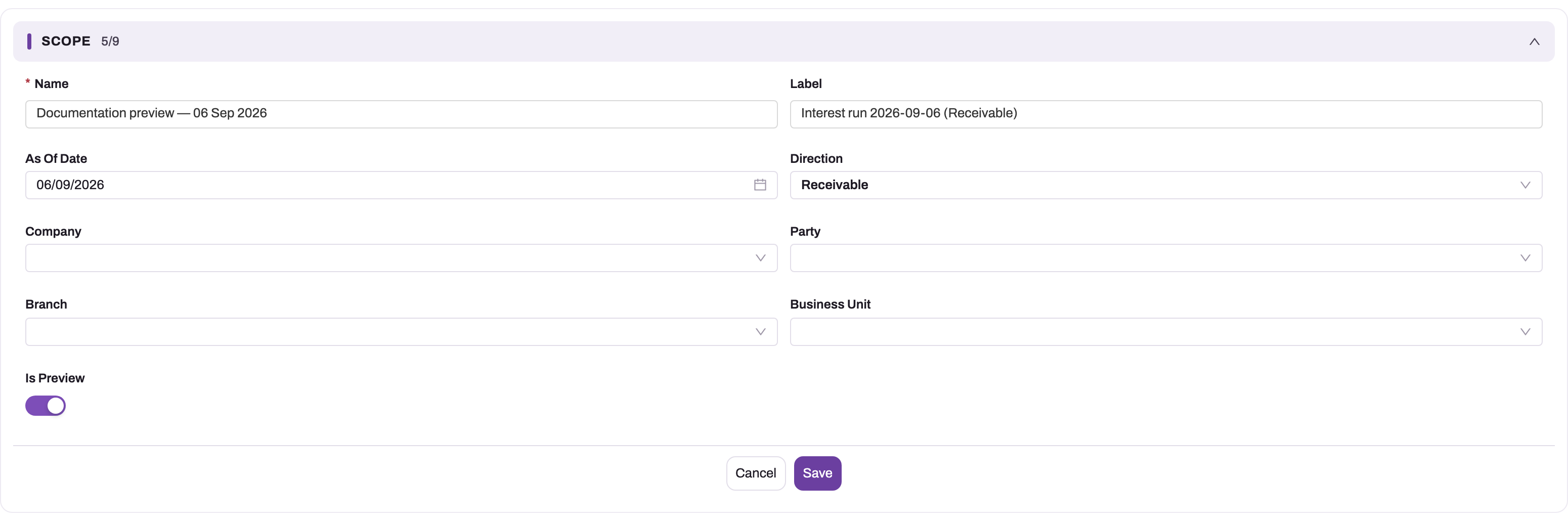
- Enter a Name (required).
- Set the As Of Date, which is the date interest is charged up to.
- Leave Direction as Receivable.
- Optionally narrow the run with Company, Party, Branch or Business Unit. Leave them empty to evaluate everything.
- Turn Is Preview on.
- Select Save. The run opens with Status Draft. If you left Label empty, it is filled in for you.
Step 3 — Compute and check the preview
On the run, select Compute Interest. The run's Status becomes Computed. The header shows As Of Date, Status, Charge Count, Total Interest Amount and Total Charge Amount. The Results tab shows Computed On, Items Evaluated, Charge Count, the four totals and the Message, for example: "Evaluated 42 overdue item(s) as at 2026-09-30; 17 charge(s) computed. Skipped: 20 within grace/tolerance, 5 already charged to date."
Open Finance Setup → Overdue Interest → Interest Charges to read the charges. The All Interest Charges list shows, for each charge, the Document Number, Name, Party, Due Date, Period From, Period To, Charged Days, Principal Amount, Annual Rate % p.a., Interest Amount, Tax Amount, Total Amount, Review Required and Status. The list has no run column, so open a charge to see its Interest Run. Open a few charges and check these tabs:
- Charge: the document, party, due date, status, run, policy and open item.
- Calculation: the window, charged days, principal, annual rate, method, day count and the Calculation Note. The note spells out the arithmetic in words, so you can check a charge by hand in a minute.
- Amounts: interest, tax, total, any capped amount, and the interest charged on this item so far.
- Posting: the journal and open item of a posted payable charge, the waive reason, and the branch, business unit, GST registration and company copied from the overdue item.
Sort or filter the list on Review Required to find charges whose GST was split across a mixed taxable and exempt invoice, and confirm them before you post.
A preview can be recomputed as often as you like, and it never uses up any days.
Step 4 — Create and compute the real run
First open the preview run and select Cancel Run. A live preview charge and a real charge cannot both end on the same day for the same item, so computing a real run for the same as-of date while the preview still holds Draft charges fails. Cancelling the preview costs nothing, because preview charges never use up days.
Then create a new run with the same As Of Date and scope and Is Preview off, and select Compute Interest. Compare its Charge Count and Total Charge Amount with the preview you approved (the preview run keeps its totals after it is cancelled).
Compute can be run again at any time while the run is Draft or Computed. Each time, the run's draft charges are thrown away and rebuilt from current data, and posted charges are left alone. The run's totals always describe the latest compute.
Step 5 — Waive a charge or cancel the run
Use these before you post. They have opposite effects on the days:
- Waive a charge. Open the charge and select Waive Charge. It works only on a Draft charge, whose status becomes Waived. Those days stay used up and are never charged again. Use it when the interest has been agreed away.
- Cancel the run. Open the run and select Cancel Run, then confirm. Every draft charge on the run becomes Cancelled and the run's Status becomes Cancelled. Cancelling releases the days, so a later run charges them again. Use it when the whole computation is wrong. A cancelled run cannot be computed or posted again, so create a new run instead.
Neither button asks for a reason, and Waive Charge asks for no confirmation either: it acts as soon as you select it. A waived charge's Waive Reason reads "Waived". To record why, select Edit on the charge, replace the text on the Posting tab and save. A cancelled run's Message reads "Cancelled: no reason given. N draft charge(s) released.", so record the reason for a cancelled run elsewhere, for example in its Label or in your approval trail.
Step 6 — Post the run
On the real run, select Post Interest and confirm. Every Draft charge is posted, and Waived and Cancelled charges are skipped. For each receivable charge, xMatix raises a customer debit note dated on the run's as-of date. The note's label starts "Interest on" followed by the invoice number. It is linked to the original invoice when that invoice still exists, and it is posted at once. The charge's Status becomes Posted.
The charge form does not show which debit note it raised. To find the note, search the debit notes for the charge's Label (for example "Interest on INV-0042 (02-Aug-26..31-Aug-26)"), which the note carries as its own label. The note's number comes from the debit note numbering setting. For a payable charge, the Posting tab shows the Journal and Interest Open Item it created.
What you see afterwards:
- Every charge posted. The run's Status becomes Posted and the Message reads "Posted N of N charge(s), total …".
- Some charges failed. Those charges stay Draft, the run stays Computed, and the Message lists each failed document with its error. Fix the cause, then select Post Interest again to post only the remaining drafts.
- No charge could be posted. The action stops with "No charge could be posted." followed by each error, and nothing changes.
Step 7 — Verify
Read the run's final Message. Reconcile items evaluated, charges computed, skips by reason, failures and the total posted. Open a sample debit note and check the customer, the original invoice, the amount and any tax lines. Check that the interest appears on the customer's statement and ageing. At month-end, tie the interest income movement in the GL to the posted charges for the same dates.
Step 8 — Let the job do it (optional)
An administrator can schedule the job to create, compute and post runs. See Configuration below. Job-created runs appear in the Interest Runs list like any other and can be read the same way.
Fields
Interest Policy
Fields are listed in form order. A field left blank behaves as its default.
| Field | What it means | Notes |
|---|---|---|
| Name | Your name for the policy. | Required. |
| Label, Description | A title and free text, for example the contract clause. | Not read by the calculation. |
| Applies To Direction | Receivable or Payable. | Blank means both directions. A run considers only policies with its own direction or none. |
| Company | Your own company the terms belong to. | Only company accounts can be picked. Blank means every company. |
| Party | The one customer or supplier the terms were negotiated for. | Blank means every party. It cannot be the same account as the Company. |
| Priority | Breaks a tie between policies with the same scope. | The higher number wins, and blank counts as 0. It never lets a wider policy beat a narrower one. |
| Effective From, Effective To | The dates the policy can apply. | Compared with the run's As Of Date. Effective To cannot be before Effective From. Blank means no limit. |
| Is Active | Whether runs use the policy. | A policy with this off is ignored. Switch it off rather than deleting a policy that charges have used. |
| Rate % | The rate as the contract quotes it, for the Rate Period. | Must be greater than zero. A monthly rate above 100 is refused as a likely typing error. |
| Rate Period | Per Annum, Per Month or Per Day. | Blank means Per Annum. 2% Per Month and 24% Per Annum charge the same. |
| Method | Simple or Compound. | Blank means Simple. Compound rests are counted from the item's first chargeable day, so run frequency doesn't change the result. |
| Compounding Frequency | Monthly, Quarterly, Half Yearly or Yearly. | Used only with Compound. Blank means Monthly. |
| Basis | The principal the rate applies to: Outstanding Balance, Original Amount or Current Open Amount. | Blank means Outstanding Balance, which lowers the balance on the day each payment is allocated. Current Open Amount applies the open amount at the time of the run to every overdue day, so after a part-payment the next run can charge nothing. |
| Day Count | Actual/365, Actual/360, Actual/366, Actual/Actual or 30E/360. | Blank means Actual/365. Actual/Actual uses 366 in a leap year; 30E/360 counts every month as 30 days. |
| Grace Days | Days after the due date before interest starts. | Grace days are never charged. Cannot be negative. |
| Minimum Days Overdue | Extra tolerance after grace. | Nothing is charged until the item is more than grace plus this many days past due. Then interest is charged back to the first day after grace. Cannot be negative. |
| Minimum Charge Amount | The smallest charge worth raising, before tax. | A smaller charge is not raised and its days are not used up, so a later run charges them. Cannot be negative. |
| Maximum Charge % of Principal | Ceiling on all interest one item can bear, as a percentage of its original amount. | Blank means no cap. Zero or less is refused. When the cap cuts a charge, its Capped Amount shows the uncapped figure. |
| Charge On Settled Items | Whether a paid item still owes interest for the days it was late. | On, or blank, means yes. Off skips fully settled items. |
| GST Applicable | Whether GST is charged on the interest. | The rates and HSN/SAC come from the tax recorded on the original invoice. |
| GST Rate % | Required, greater than zero, when GST Applicable is on. | Not used in the calculation. The GST follows the original invoice's own rates. |
| Interest GL Account | The interest income account (expense for payable). | When blank, posting uses the company's account marked with the interest-income (or interest-expense) control type, then an Other Income (or General and Administrative Expense) account. |
| Tax GL Account | The account for GST on the interest. | When blank, posting uses the company's tax-payable (or tax-credit) account, then an Other Current Liability (or Tax Credit) account. |
Posting reads the two accounts from the policy when the run posts, not when it computes, so a change to them also applies to draft charges.
Interest Run — Scope
| Field | What it means | Notes |
|---|---|---|
| Name | Your name for the run. | Required. Job-created runs are named automatically. |
| Label | A descriptive title. | Filled on save as "Interest run" followed by the date and direction, if you leave it empty. |
| As Of Date | The cut-off. Interest is charged up to and including this date. | An item is overdue only if its due date (or its document date, when it has no due date) is before this date. Posted notes are dated on it. Defaults to today. |
| Direction | Receivable or Payable. | Defaults to Receivable. |
| Company | Limits the run to one company's items. | Empty means every company. It also limits the policies considered to this company's and the everyone policies. |
| Party | Limits the run to one customer's (or supplier's) items. | Optional. |
| Branch | Limits the run to one branch's items. | Optional. |
| Business Unit | Limits the run to one business unit's items. | Optional. |
| Is Preview | Makes the run a rehearsal. | A preview can never post, and its charges don't use up any days. |
Interest Run — Results (read-only)
| Field | What it means | Notes |
|---|---|---|
| Status | Draft, Computed, Posted or Cancelled. | Set only by the actions. See Business rules. |
| Computed On | When Compute Interest last ran. | |
| Posted On | When Post Interest last ran. | Set even when some charges failed. |
| Items Evaluated | Overdue items the last compute looked at. | Includes skipped items. |
| Charge Count | Charges the last compute created. | |
| Total Principal Amount | Sum of the charges' principal. | From the last compute. |
| Total Interest Amount | Sum of interest before tax. | From the last compute. |
| Total Tax Amount | Sum of GST on the interest. | Zero or empty when no policy applies GST. |
| Total Charge Amount | Interest plus tax. | What a full post raises. |
| Message | The outcome of the last compute, post or cancel. | Lists skip reasons and posting errors. |
Interest Charge
Every value on a charge is written by Compute Interest and Post Interest. Read them, but don't edit them: posting uses the stored amounts as they stand. If the figures are wrong, fix the policy or the data and compute the run again.
| Field | What it means | Notes |
|---|---|---|
| Name | The charge's identifier. | Built as "INT-", the document number, a short item key and the window's end date. |
| Label | A readable title, such as "Interest on INV-0042 (02-Aug-26..31-Aug-26)". | Copied to the debit note's label when the charge posts. |
| Document Number | The overdue document. | Copied from the open item. |
| Party | The customer or supplier who owes the item. | The debit note is raised against this party. |
| Due Date | The item's due date, or its document date when it has none. | Interest starts the day after this plus the policy's grace days. |
| Status | Draft, Posted, Waived or Cancelled. | Set only by the actions. The list also offers Reversed, which the system never sets. |
| Interest Run | The run that computed the charge. | |
| Interest Policy | The policy that governed the item. | Posting takes the income and tax accounts from it. |
| Open Item | The overdue item the interest is charged on. | Usually a posted invoice. |
| Direction | Receivable or Payable. | Copied from the open item. |
| Source Entity Name, Source Record | The kind of document behind the item, and its internal ID. | Only an Invoice source links the debit note to the invoice. |
| Period From, Period To | The window charged, both days included. | Period To is the run's as-of date, or the day before the item was fully paid. The item's next charge starts the day after. |
| Charged Days | Days in the window. | |
| Total Overdue Days | Days past due on the as-of date. | For information. It includes grace days and days already charged. |
| Principal Amount | The amount the rate was applied to. | On the Outstanding Balance basis this is the average balance over the window, after part-payments. |
| Weighted Principal-Days | Balance multiplied by days, summed over the window. | Shows how part-payments lowered the balance during the window. |
| Annual Rate % p.a. | The policy rate as a yearly rate. | A 2% per month policy shows 24. |
| Method, Day Count, Day Count Denominator | The policy's method and day count at compute time, and the days-in-year figure used. | |
| Calculation Note | The arithmetic in words. | Also the narration of the posted debit note or journal. |
| Interest Amount | Interest for this window, before tax. | The item's total interest to date, less what earlier charges already took. |
| Tax Rate % | The blended GST rate. | For information. The debit note's lines carry each rate and HSN/SAC. |
| Tax Amount | GST on the interest. | Empty when the policy doesn't apply GST. |
| Total Amount | Interest plus tax. | The amount of the debit note or open item. |
| Capped Amount | Filled when the policy's maximum cut the charge down. | Empty means the cap didn't apply. |
| Cumulative Interest | Interest on the item from its first chargeable day to Period To. | On the latest charge it equals the sum of the item's non-cancelled charges. |
| Journal, Interest Open Item | The journal and supplier open item a posted payable charge created. | Empty for receivable charges, whose journal and open item belong to the debit note. |
| Waive Reason | Why the charge was waived. | "Waived" until you edit it. |
| Branch, Business Unit, GST Registration, Company | Copied from the overdue item. | The posted entries keep them. |
Review Required (ticked when GST was split across a mixed taxable and exempt invoice) is not on the form either; it is a column in the Interest Charges list. Its Review Reason is on no standard screen, so an administrator who wants reviewers to read it can add it to the charge form. The form also doesn't show the debit note a receivable charge raised; Step 6 explains how to find it.
Business rules
- Saving a policy is refused with one of these messages when:
- the rate is empty or zero: "Rate must be greater than zero.";
- a Per Month rate is above 100: "A monthly rate above 100% is almost certainly a data-entry error — enter the rate for the period selected in Rate Period.";
- Grace Days, Minimum Days Overdue or Minimum Charge Amount is negative ("… cannot be negative.");
- Maximum Charge % of Principal is zero or less: "Maximum Charge % must be greater than zero, or blank for no cap.";
- Effective To is before Effective From: "Effective To cannot be earlier than Effective From.";
- GST Applicable is on without a GST Rate %: "Enter a GST rate when GST is applicable on interest.";
- the Party is the same account as the Company: "The party cannot be the same account as the company."
- Policies are not checked against each other. Two policies with the same scope and overlapping dates both save. The higher Priority, then the later Effective From, then the name decides which one a run uses.
- Deleting a policy that draft charges came from makes posting choose the interest and tax accounts automatically for those charges. Switch Is Active off instead.
- Status changes. Draft becomes Computed on Compute Interest. Computed becomes Posted on Post Interest when every draft charge posts, and stays Computed when any charge fails. Draft or Computed becomes Cancelled on Cancel Run.
- Compute is refused on a Posted or Cancelled run: "Run is Posted; only a Draft or Computed run can be recomputed."
- Post is refused on a cancelled run ("Run is Cancelled; nothing can be posted."), on a preview ("This is a preview run — it cannot be posted. Create a normal run to charge interest.") and when no draft charge is left ("No Draft charges to post — compute the run first (or all its charges are already posted/waived).").
- Cancel is refused on a posted run: "Run is Posted; reverse the interest journals instead of cancelling the run." Cancelling never touches posted charges.
- Waive works only on a Draft charge: "Charge is Posted; only a Draft charge can be waived."
- Skips. An item is not charged, and its reason is counted in the Message, when it is:
- within grace or tolerance;
- already charged to date;
- settled, and the policy excludes settled items;
- left with no outstanding balance in the window;
- computed to zero;
- below the minimum charge;
- charged GST under a GST policy, but its invoice has no recorded tax detail (it needs manual handling);
- not covered by any policy for its party.
Items below the minimum charge and items with no recorded tax detail keep their days, so a later run reaches them again.
- No double charge. Each charge is unique per open item and window end. Running the same date again reports "already charged to date" instead of charging twice.
- Tax. GST on interest follows the rates and HSN/SAC of the original invoice's recorded tax. The debit note gets one line per rate. A charge whose invoice tax changed after compute fails to post with a message asking you to recompute. When the invoice mixes taxable and exempt lines, GST applies only to the taxable share and the charge is flagged Review Required (a column in the Interest Charges list). The flag doesn't block posting, so confirm such charges before you post.
- One live charge per item and end date. Two charges that are not cancelled or deleted can never end on the same day for the same open item, and preview charges count too. Cancel a preview before you compute a real run with the same as-of date (Step 4).
- Charges come only from a run. New on the Interest Charges list creates an empty charge with no run, item or amount. Post Interest posts only a run's charges, so such a charge is never posted. Don't create charges by hand.
- Deleting a charge releases its days. A deleted charge no longer counts when a run works out what was already charged. Deleting a Posted or Waived charge therefore lets the next run charge the same days again, and deleting a posted charge leaves its debit note in place. Waive or cancel instead of deleting.
- Payable runs compute and post like receivable runs, but post a journal and a supplier open item instead of a debit note. Nothing in the system stops you posting them. Whether you should is a decision for your accounting policy, so check the supplier's own claim first.
Example
A company charges 18% per annum, simple interest, Actual/365, on overdue customer invoices, with no grace. It has one company-wide policy with those terms.
- An invoice of 1,00,000 to a customer, Harbour Retail, falls due on 1 August 2026 and is not paid.
- On 31 August the accountant creates a preview run with As Of Date 31-08-2026 and Is Preview on, then selects Compute Interest. The charge covers 2–31 August, which is 30 days, for about 1,479.45. Its calculation note matches.
- The accountant cancels the preview, creates the real run for 31-08-2026 and selects Compute Interest, then Post Interest. A debit note for about 1,479.45 is raised against the customer and linked to the invoice, and the run becomes Posted.
- The customer pays 40,000 on 10 September. On 30 September the next run charges 1–30 September. It charges 1–9 September on 1,00,000 (9 days) and 10–30 September on 60,000 (21 days), for about 1,065.21 in total. August is not charged again.
Training
Practice exercise
In a sandbox with at least one posted, overdue customer invoice:
- Create a receivable interest policy at 24% per annum, simple, with 0 grace days and Is Active on.
- Create an interest run for today with Is Preview on, and compute it.
- Open one of its charges, then recalculate the interest by hand from the calculation note.
- Cancel the preview run. Create a real run with the same date, compute it, waive one charge, and edit its Waive Reason.
- Post the run, then find the debit note for one charge by searching for the charge's Label.
Expected result. The preview and the real run show the same charge count. The waived charge stays Waived with your reason, every other charge is Posted with a customer debit note that carries its label, and the run is Posted. A second real run for the same date reports the items as "already charged to date".
Quick reference
- The records are in Finance Setup → Overdue Interest: policies, runs, charges.
- Run order: New run, then Compute Interest, review, then Post Interest.
- Is Preview runs never post and never use up days. Cancel the preview before computing the real run for the same date.
- Never create or delete charges by hand. Deleting a charge lets its days be charged again.
- Waive Charge keeps the days used up, and Cancel Run releases them.
- Recompute whenever data changes. It rebuilds the drafts and leaves posted charges alone.
- A failed charge stays Draft. Fix the cause and post again.
- The interest income account comes from the policy, then the GL control type, then Other Income. Set it up first.
- Interest is never charged on interest. Use the Compound method instead.
- A rate change re-prices each item's whole overdue history on the next run. Preview first.
Permissions
The New, Edit and Delete buttons follow the user's entity permissions on Interest Policy, Interest Run and Interest Charge. Interest policies have no actions of their own, so who can change the terms is decided by the Interest Policy entity permission alone. The seeded SystemAdmin, StandardUser, SalesManager and SalesExecutive profiles have full access to it, so narrow it to the people who own your interest terms. The four run and charge actions each need a grant on the Actions tab of the security profile (see Security profiles):
| Action | Record | Seeded profiles that have it |
|---|---|---|
| Compute Interest | Interest Run | SystemAdmin, StandardUser, SalesManager, SalesExecutive |
| Post Interest | Interest Run | SystemAdmin, StandardUser, SalesManager |
| Cancel Run | Interest Run | SystemAdmin, StandardUser, SalesManager, SalesExecutive |
| Waive Charge | Interest Charge | SystemAdmin, StandardUser, SalesManager |
Posting creates ledger entries, so grant Post Interest only to the people who sign off interest. Consider removing it from broad profiles.
Configuration
- Interest policies. Set these up at Finance Setup → Overdue Interest → Interest Policies (Step 1). Policies decide everything about the arithmetic. A run only picks the date and scope. A typical set is one policy for everyone (or per company) with your standard terms, plus one policy per customer with negotiated terms. Changing a policy affects the next compute of every run whose as-of date it covers, including draft charges that are recomputed, and its accounts are read again at posting.
- GL accounts. Set the policy's Interest GL Account and Tax GL Account, or mark company accounts in the chart of accounts with the interest-income and tax-payable control types. Leave the branch empty on these accounts. Interest posts to the same receivables account as the invoice it relates to, so no receivables setting is needed.
- Scheduled accrual. The job Accrue interest on overdue payments (category Finance; it needs the Finance product) creates a run for its date, computes it, and posts it. To schedule it:
- Open Setup → Platform → Monitoring → Jobs.
- On the Schedules tab, add a schedule with that Job type, a Frequency and a Time.
- Optionally fill in Payload JSON. Every key is optional:
| Key | What it does | Default |
|---|---|---|
asOfDate | The run's as-of date. | Today |
direction | Receivable or Payable. | Receivable |
partnerAccountId | Company record ID. | Every company |
partyAccountId | Party record ID. | Every party |
branchId | Branch record ID. | Every branch |
businessUnitId | Business unit record ID. | Every business unit |
previewOnly | true to compute without posting. | Off |
For example, {"previewOnly": true} computes only and posts nothing.
- To run it immediately, use Run now on the schedule.
- How the job behaves.
- A run for the same date, direction, scope and kind is reused rather than duplicated. A rerun of a run that is already posted or cancelled reports "nothing to do".
- If posting fails, the job reports a failure and leaves the charges Draft on its run. You can post them by hand, or the job's retry posts them (up to 3 attempts).
- The job runs one at a time per tenant, with a 30-minute limit.
- Any cadence gives the same total, and a missed run is caught up by the next one.
- Numbering. Debit notes raised by interest take their number from the debit note numbering setting, like any other debit note.
Common problems
The run computed zero charges
Read the Message: it gives the reason for each skipped item. Within grace or tolerance, already charged to date and below minimum charge are all correct behaviour. "No active interest policy applies to this company/direction — nothing computed." means no policy is active, in date and for the run's direction and company. Check the policy's Is Active, Applies To Direction, effective dates and Company. "No overdue receivable items as at …" means nothing in the run's scope is past due on the as-of date.
Items show "GST cannot be determined"
The policy applies GST, but the original invoice has no recorded tax detail to take a rate from. These items are not charged automatically, and they keep appearing in the message until someone deals with them. Raise interest on them by hand if it is due.
Only invoices carry the recorded tax that GST on interest needs. Under a policy with GST Applicable on, supplier bills on a payable run and debit notes raised by hand always land here. For supplier interest, create a Payable policy with GST Applicable off, and give it a higher Priority than any policy for both directions at the same scope.
The new rate was charged on days we had already charged
This is how rate changes work. A run prices each item's whole overdue history at the policy in force on its as-of date and charges the difference from what was already charged (see Step 1). Preview the first run after a rate change. If your contract does not allow the difference, waive the affected charges on the real run and raise the correct interest by hand.
The policy won't save
Read the message next to the field: each one is listed under Business rules. The most common are a missing Rate %, a monthly rate typed as a yearly one, and GST Applicable switched on without a GST Rate %.
A new policy is ignored
Check, in order: Is Active is on; Applies To Direction is the run's direction or empty; the run's As Of Date is within Effective From and Effective To; the Company and Party match the item; and no more specific policy covers the same item. A policy for one party always wins over a company or everyone policy, whatever its Priority.
A charge failed to post
The error is in the run's Message. The usual causes are:
- "No interest income account is configured", or a branch-pinned account. See Prerequisites.
- A closed fiscal period for the as-of date.
- "Apportioned GST … does not match": the invoice's tax changed after compute. Select Compute Interest again, then post.
Fix the cause and select Post Interest again. Charges that already posted are not posted twice.
Compute Interest fails on the real run after a preview
The preview for the same as-of date still holds Draft charges, and a real charge cannot end on the same day for the same item. Open the preview run, select Cancel Run, then select Compute Interest on the real run again. Nothing is lost, because preview charges never use up days.
An item was charged twice for the same days
Check whether someone deleted the earlier charge. A deleted charge no longer holds its days, so the next run charges them again. If the earlier charge had posted, its debit note is still in place: reverse one of the two notes. Waive or cancel charges instead of deleting them.
"This is a preview run — it cannot be posted"
Previews never post. Create a new run with Is Preview off and the same date and scope, then compute and post that run.
Interest went to the wrong income account
No dedicated interest income account existed at posting time, so the interest went to a general Other Income account. Configure the account for future runs, and move the posted history with a reclassification journal.
I need to undo a posted run
Cancel Run is refused on a posted run. Reverse the interest debit notes or journals instead (see journals). Waive or cancel before posting whenever you can.
Common questions
Does a preview cost us the revenue for that period?
No. Preview charges are ignored when xMatix works out which days an item has already been charged for. The days a preview covered remain chargeable by the next real run, and you can preview a period as many times as you like before charging it. Use a preview whenever a policy changes, at the start of each period, or before running the job for the first time, so that the figures are checked before anything reaches a customer's ledger.
What happens if we skip a month?
Nothing is lost. Each run charges an item from the day after its last charged day up to the run's as-of date. If the August run is never made, the September run charges August and September together, for the same total as two monthly runs. If two runs are made for the same date, the second reports the items as already charged to date, so nothing is charged twice. This is why the scheduled job can run on any cadence: nightly, weekly or once a month.
Why is interest posted as a debit note rather than a plain journal?
The customer needs a document to book against. A debit note gives the interest its own document number and its own open item, which ages normally, appears on statements and is settled by an ordinary payment. It also gives a clean trail from the charge to the note to the journal. GST returns classify the transaction by its source document, and a debit note linked to the original invoice reports correctly there.
Can interest be charged on interest?
Not by stacking charges. Open items created for interest are left out of every run, so a posted charge never becomes the principal of a later one. If your contract provides for interest on interest, set the policy's Method to Compound with the agreed Compounding Frequency. The interest then compounds inside a single, correct calculation, rather than through a second charge on the first.
What about interest we owe suppliers?
A Payable run computes interest on your overdue supplier items. If you post it, it creates a journal and a supplier open item. Nothing in the system stops that posting, so treat it as an accounting decision. Many organisations only compute payable interest for disclosure, and record a liability when the supplier actually claims it. Check the supplier's supporting document and your own policy before posting a payable run.