
A Bank Account record describes one account your company holds at a bank and links it to the GL account that carries its book balance. You create it once, before you record payments through the account, import its statements or reconcile it. Bank statements, cheque registers, bank transfers and the Bank Reconciliation workspace all start from this record.
Overview
Each bank account record holds the account's identity (a name, the bank, the account number, the bank's branch and IFSC), its owner inside your organisation (the company and, optionally, the branch) and the GL Account it posts to. The record page has three tabs: Bank Statements (this account's statements), Cheque Register and Details. The Account Insights panel repeats the account number, bank name, currency and IFSC, and an Attachments panel holds files such as a cancelled cheque or a bank letter.
When to use it
- When your company opens a new bank account, or starts recording an existing one in xMatix.
- Before the first payment that should be deposited to, or paid from, that account.
- Before you import the account's first bank statement or open it in the Bank Reconciliation workspace.
- When an account is closed: deactivate the record instead of deleting it.
How xMatix handles it
- The GL account is the book side. Payments, transfers and other postings land on the linked GL account. The Bank Reconciliation workspace calculates the book balance from the Posted and Reversed journal lines on that GL account and compares it with the statements imported for the bank account.
- Payments pick the account. When you record a receipt or payment with a bank-type mode (Bank, Electronic Transfer, UPI, or a card receipt), the Deposited to or Paid from box lists the payment company's active bank accounts that have a GL account. Choosing one sets the GL account the payment posts to and fills Bank Name. Below the box xMatix shows the bank name, the last four digits of the account number and the IFSC.
- Reconciliation lists only qualifying accounts. The workspace lists active bank accounts whose GL account has the account type Bank, for the company and branch chosen at the top.
- Org shape. If your organisation runs one company or one location, the Partner Account and Branch fields are hidden. The bank's own Branch Name always shows, because it is not one of your locations.
- Mobile. Bank accounts are not available in the field app. They are a web-only finance setup record.
Prerequisites
- A GL account for the bank, with the account type Bank and marked active. The GL Account picker on the bank account form offers only such accounts. See GL accounts.
- Access to the Finance Setup app and a security profile that can create bank accounts (see Permissions).
Procedure
Step 1 — Open the bank accounts list
Open the Finance Setup app and, under Books & Posting, open Bank Accounts. The All Bank Account view lists Name, Bank Name, Account Number, Ifsc, Branch Name, Currency and Created. Select a name to open the record.
Step 2 — Create the bank account
Select New. The form asks for:
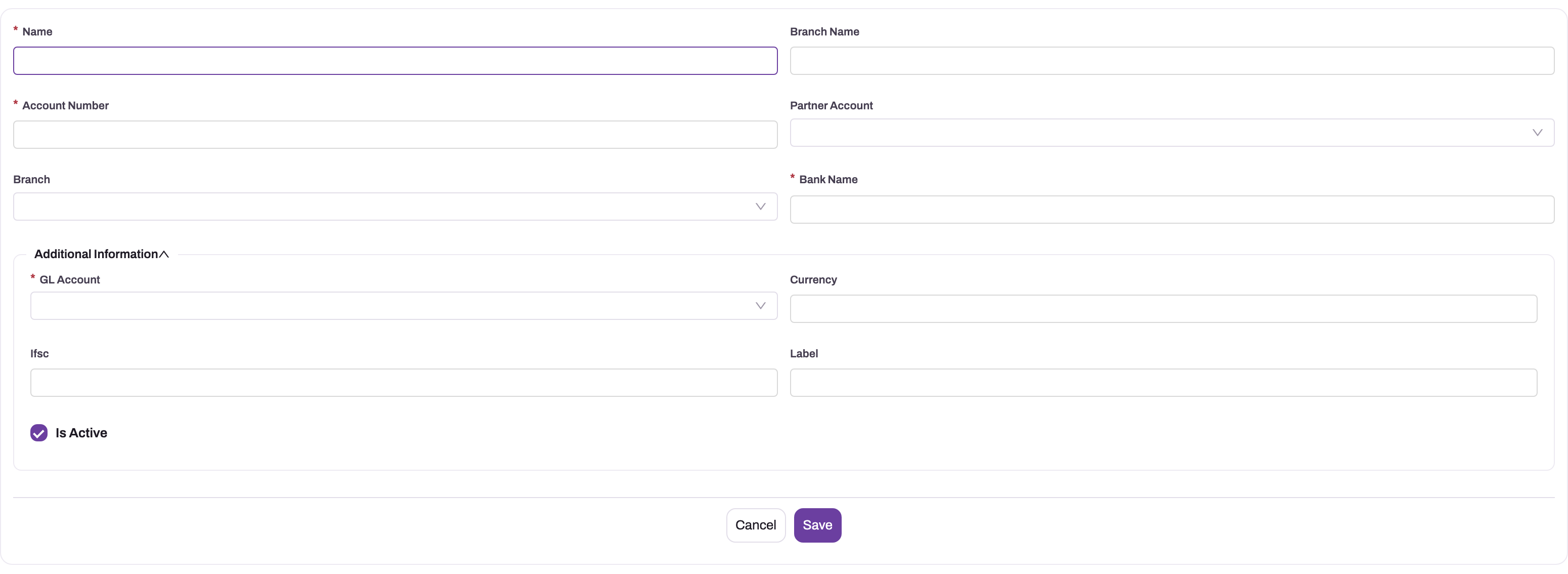
- Name: a name your team will recognise, such as the bank and the account's purpose. It must be unique.
- Account Number and Bank Name: as printed on the bank's documents. Both are required.
- Branch Name: the bank's branch, as free text.
- Partner Account: the company that owns the account. Set it whenever you have more than one company, because payment and reconciliation pickers list only the chosen company's accounts.
- Branch: your own branch that uses the account, if you want reconciliation to show it only under that branch. The picker lists the branches of the chosen Partner Account.
- Under Additional Information, choose the GL Account. It is required, and only active Bank-type GL accounts are offered.
- Optionally enter Currency (a currency code such as INR), Ifsc and Label.
- Make sure Is Active is ticked, then select Save.
If the name or account number is already in use, the save is refused (see Common problems).
Step 3 — Check the record
Open the Details tab. It groups the fields under Bank Information, Branch Details, GL & Partner Linking and System Information. The header shows Partner Account, Branch, Account Number, Currency and Is Active. A dash or N/A means the field is empty. Fill in anything the account still needs with Edit before you use it.
Step 4 — Change the bank account
Select Edit in the header. The same form as Step 2 opens in a dialog. Change the fields and select Save. Changing the GL Account changes which ledger lines reconciliation reads from then on. It doesn't move postings that are already on the old GL account.
Step 5 — Add its statements
On the Bank Statements tab, select New to create a statement for this account; the account is filled in for you. You can also import statements from the Bank Reconciliation workspace. Rows on this tab can be edited or deleted from the row menu. See Bank statements and statement lines.
Step 6 — Add a cheque book
On the Cheque Register tab, select New to register a cheque book range. The tab lists cheque registers from all your bank accounts, not only this one, so read the Bank Account column. A cheque register can be created only for an active bank account whose GL account is active.
Step 7 — Deactivate a closed account
Select Edit, clear Is Active and select Save. The account disappears from the payment Deposited to / Paid from box, from the Bank Reconciliation workspace and from new cheque registers. Its history stays.
Step 8 — Delete an account created by mistake
Select Delete in the header, or Delete from the row menu on the list. Deletion is refused once the account has any bank statement or cheque transaction. Deactivate it instead (Step 7).
Fields
| Field | What it means | Notes |
|---|---|---|
| Name | The name shown in lists, pickers and the reconciliation workspace. | Required. Must be unique across all bank accounts. |
| Branch Name | The bank's own branch. | Free text. It is not one of your branches, and xMatix does not validate it. |
| Account Number | The account number at the bank. | Required. Must be unique across all bank accounts, whatever the bank. Payment screens show only its last four digits. |
| Partner Account | The company that owns the account. | Payment and reconciliation pickers list only the accounts of the chosen company. Hidden when you run one company. |
| Branch | Your own branch that uses the account. | Optional. Lists the branches of the chosen Partner Account. When set, the reconciliation workspace shows the account only for that branch. Hidden when you run one location. |
| Bank Name | The bank. | Required. Copied into Bank Name on a payment that uses this account. |
| GL Account | The ledger account that carries this bank's book balance. | Required. Only active GL accounts of type Bank are offered. Reconciliation reads its posted journal lines. |
| Currency | The account's currency code. | Free text, up to 8 characters. The reconciliation workspace uses it to format amounts and assumes INR when it is empty. It does not convert amounts. |
| Ifsc | The bank branch's IFSC. | Free text. Shown next to the account on payment screens. |
| Label | An extra label for your own use. | Optional. |
| Is Active | Whether the account is available for new work. | Inactive accounts are left out of payment pickers, the reconciliation workspace and new cheque registers. |
| Owner | The user who owns the record. | Shown on the Details tab. |
Business rules
- Unique account number. Account Number must be unique across all bank accounts, so the same number can't be stored twice, even under a different bank name. The same applies to Name.
- Deletion guard. A bank account with any bank statement or cheque transaction can't be deleted. Deactivate it instead.
- No other save checks. xMatix doesn't check that the GL account belongs to the same company as the bank account, or that two bank accounts don't share one GL account. Check both yourself.
- One GL account per bank account. If two bank accounts share a GL account, the payment Deposited to / Paid from box lists only one of them, and both show the same book balance in reconciliation.
- Inactive accounts. A cheque register can't be created for an inactive bank account, or for one whose GL account is inactive.
- Bank transfers. A bank transfer debits the destination account's GL account and credits the source account's GL account. Both accounts need a GL account, they must be different, and they must belong to the same company.
- Statements. Only one statement per bank account per statement date is allowed (see Bank statements).
Example
A distributor opens a current account for collections. The finance lead first checks GL accounts and finds the active Bank-type account "Collections Bank Account". In Finance Setup → Books & Posting → Bank Accounts they select New and enter Name "Collections – Current", Account Number "50200011223344", Bank Name "Sample Bank", Branch Name "Market Road", their own company as Partner Account, GL Account "Collections Bank Account", Currency "INR" and Ifsc "SMPL0001234", then save.
The next day a cashier records a customer receipt with mode Bank. Deposited to offers "Collections – Current · ••3344", and the line under it reads "Sample Bank · ••3344 · IFSC SMPL0001234". At month end the lead imports the statement from the account's Bank Statements tab and reconciles it in the Bank Reconciliation workspace, where the account appears under the company.
Training
Practice exercise
In a sandbox, make sure an active GL account of type Bank exists. Create a bank account "Training Account" with account number "TRAIN-0001", any bank name, that GL account and your company as Partner Account. Then:
- Try to create a second bank account with account number "TRAIN-0001" and a different bank name. Expected result: the save is refused because the account number already exists.
- Record a customer receipt with mode Bank. Expected result: "Training Account" is offered under Deposited to.
- Open Banking → Bank Reconciliation for your company. Expected result: "Training Account" is in the account strip.
- Deactivate the account and repeat step 2. Expected result: it is no longer offered.
Quick reference
- Path: Finance Setup → Books & Posting → Bank Accounts.
- Required: Name, Account Number, Bank Name, GL Account.
- GL Account must be an active account of type Bank.
- Set Partner Account when you run more than one company.
- Account numbers and names are unique across all bank accounts.
- Give each bank account its own GL account.
- Close an account by clearing Is Active; deletion is blocked once it has statements or cheques.
- Currency is a label for display only. It doesn't convert amounts.
Permissions
Bank accounts follow the entity access on the security profile: read, create, edit and delete. The shipped SystemAdmin, StandardUser, SalesManager and SalesExecutive profiles have full access to Bank Account records. The Finance Setup app is visible to the SystemAdmin, StandardUser and SalesManager profiles. A user without the app can't open the list from a menu, and a user without read access doesn't see the account in payment or reconciliation pickers. Using the account in the Bank Reconciliation workspace needs the workspace's own action grants (see Reconciling a bank account). Profiles are set under security profiles.
Configuration
- GL accounts. Create or tag the Bank-type GL account first. The bank account's GL picker is filtered to active accounts of type Bank. See GL accounts.
- Default bank for disbursements. Org Settings → Companies → Set default bank chooses a GL account (Control Type Bank), not a bank account record. Payroll payment batches use it. See GL accounts.
- Payment form. The Deposited to / Paid from box can be switched off with the payment widget's Show Bank Account Picker setting in the layout designer. It is on by default. When it is off, the payment posts to the company's Bank GL account found by type.
- Matching rules. Reconciliation matching rules can be set per bank account or for all accounts. See Bank reconciliation matching rules.
- Form and list. The create form, record page and list are standard layouts and views that an administrator can change in Design Studio.
Common problems
"Account Number '…' already exists"
Another bank account already has this account number, possibly under a different bank name. Search the list for the number. If it is the same real account, use the existing record. If an old record holds the number by mistake, correct that record first.
"Account number already exists."
Another bank account has the same account number at the same bank name. Use the existing record.
"This bank account has associated statements or cheque transactions and cannot be deleted. Deactivate it instead."
The account has history. Select Edit, clear Is Active and save.
The GL Account picker is empty
No active GL account of type Bank exists for you to choose. Create one, or set the account type of the bank's GL account to Bank and make it active, in GL accounts.
The account isn't offered when I record a payment
The box lists only active bank accounts of the payment's company that have a GL account, and only for the modes Bank, Electronic Transfer, UPI and card receipts. Check Is Active and Partner Account on the bank account. If another bank account uses the same GL account, only one of the two is listed. Give each its own GL account.
"No bank accounts for this company and branch…" in Bank Reconciliation
The account is inactive, its GL account is not of type Bank, or its Partner Account or Branch differs from the pickers at the top of the workspace. The message mentions "Settings › Bank Accounts". The records are under Finance Setup → Books & Posting → Bank Accounts.
"The selected bank account is inactive; a cheque register cannot be created against it."
Reactivate the bank account, or choose an active one. A similar message appears when the bank account's GL account is inactive.
Common questions
Can two bank accounts share one GL account?
xMatix lets you save it, but avoid it. Reconciliation computes each account's book balance from all posted lines on the GL account, so both accounts would show the combined balance, and the payment Deposited to box lists only one of them. Create one Bank-type GL account per bank account, so that each statement is compared with that account's own postings.
Does the Currency field make the account a foreign-currency account?
No. Currency is a display label. The reconciliation workspace uses it to format amounts, and it shows INR when the field is empty. Postings, statements and matching are in the amounts entered, and no exchange rate is applied. Record what the bank account holds so your team can read it, but don't rely on it for conversion.
What is the difference between Branch and Branch Name?
Branch is one of your own locations, chosen from your branches; it decides where the account appears in the reconciliation workspace. Branch Name is the bank's branch, as free text, for reference next to the IFSC. If your organisation has a single location, only Branch Name is shown.
How do I close an account?
Clear Is Active and save. The account stops appearing in payment pickers, the reconciliation workspace and new cheque registers, while its statements, matches and cheques remain available. Deletion is only possible for an account that has no statements or cheque transactions, typically one created by mistake.