
This section takes a new user from the invitation email to working comfortably in xMatix. You learn how to sign in, take the short welcome tour, find your way through apps, lists and records, and know where to ask when something is missing. xMatix is the business platform your organization uses for its day-to-day operations, such as sales, field work, inventory, service and finance, on the web and on mobile. Every module is built from the same screens, so what you learn here works in every app you are given.
Overview
Work in xMatix is organized in four layers, from broad to specific:
| Layer | What it is | Where you see it |
|---|---|---|
| App | A workspace for one area of the business, such as Sales or Field Sales | The app launcher (the grid icon beside the logo) and the app name in the top bar |
| Entry | One screen in the app's top navigation, usually a list of one record type | The top bar; entries that don't fit sit under More |
| View | A saved way of looking at a list: its filters, columns and sorting | The heading of a list page; the arrow beside it switches views |
| Record | One item, such as a customer or an order, opened as a full page | Opened from a linked name in a list |
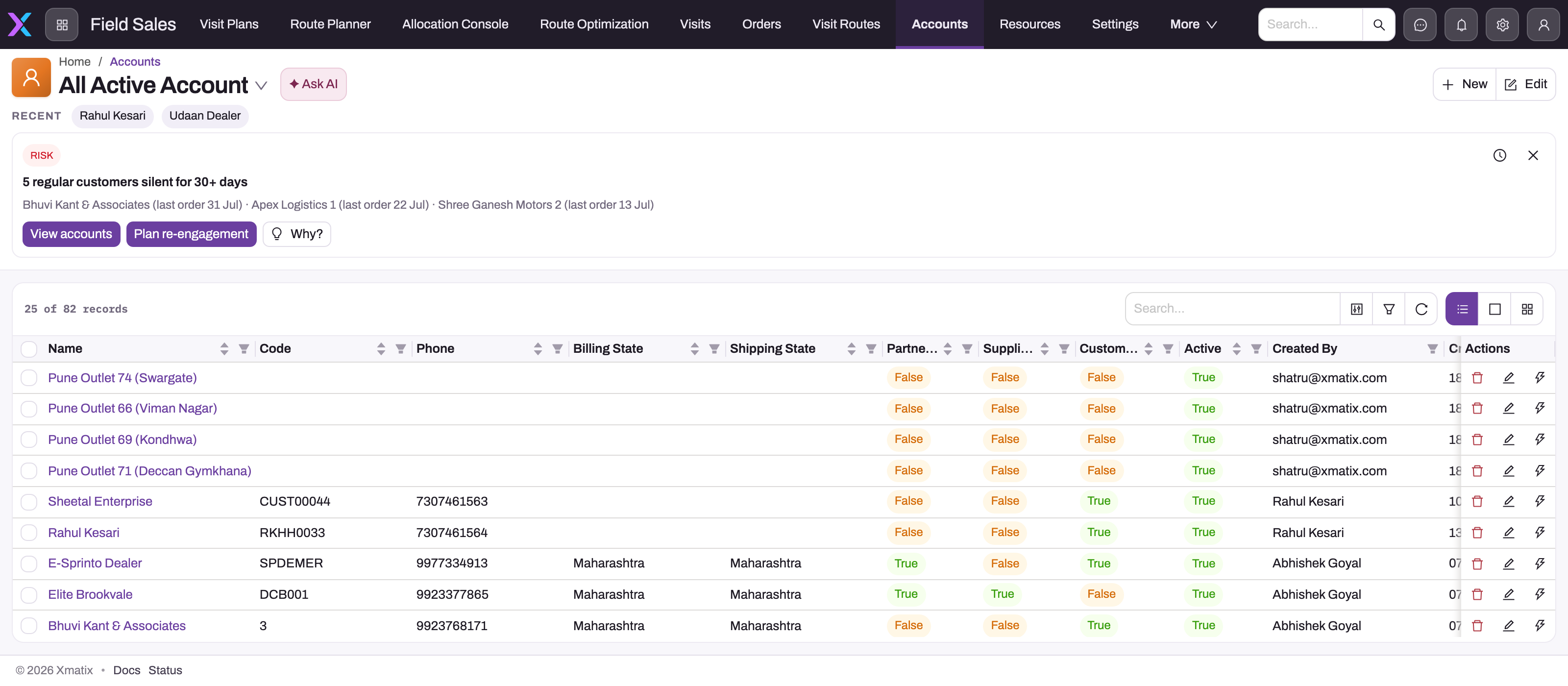
A list page always reads in the same order. The top bar shows the app and its entries. Below it are the breadcrumb and the name of the current view, the Ask AI button, and the page actions such as New and Edit on the right. Next comes the Recent strip with the records of this type you opened last, then any summary cards or insights, and then the table itself. The table header has search, a column chooser, filters and refresh. Navigating xMatix: apps, lists and records explains each part.
When to use it
Start here when:
- you have just received an invitation and are signing in for the first time;
- you have been given a new app or role and want a quick orientation;
- you are training new colleagues and need a short, repeatable route through the basics;
- you are an administrator preparing a rollout and want to know what new users see first.
How xMatix handles it
The first time you open xMatix on a desktop browser, a short welcome tour starts by itself. It highlights one control at a time:
- Apps: the app launcher, where you switch apps and pin the ones you use most.
- Navigation: the entries of the app you have open. They change when you switch apps.
- Sense AI assistant: ask questions about your data in plain language. The assistant has the same permissions you have.
- Notifications: alerts, mentions and the results of background jobs.
- Setup: where administrators configure entities, layouts, automations and integrations.
- Your profile: switch subscriptions, change theme and appearance, or sign out.
If you don't have one of these controls, for example because the assistant is not enabled for you or you are not an administrator, the tour skips that step. When you finish or close the tour, it does not start again on its own. To replay it at any time, open your profile menu at the top right and select Show me around.
The tour does not start on Setup or Design Studio screens, and it is not offered on mobile devices. On a phone or tablet, follow Using xMatix on mobile instead.
What you see in xMatix (apps, entries, buttons and records) depends on the licenses and access your organization gave you. Two colleagues can see different menus, and that is expected.
Prerequisites
- An invitation email from your organization, or an existing xMatix account.
- A supported desktop browser for the web, or the mobile app your organization provides.
- For anything you cannot see or open: the name of your xMatix administrator.
Procedure
Use these steps for a first session. Each step links to the page that covers it in full.
Step 1 — Sign in
Open the invitation, set your password from its link, then sign in. You land in your workspace. See Signing in to xMatix.
Step 2 — Take the welcome tour
Let the welcome tour run through its steps. If you closed it by accident, open your profile menu and select Show me around.
Step 3 — Find your app and a list
Open the app launcher, choose the app you work in, and pin it so it sorts first. Select an entry in the top bar to open its list. The heading shows the name of the view you are looking at. See Navigating xMatix: apps, lists and records.
Step 4 — Switch views before you search
Select the arrow beside the view name and try another view. A record that is missing from one view may be in another. Search and filters only narrow the records the current view already shows.
Step 5 — Open a record
Select a linked name in the list. The record page shows its details, tabs for related records, and the actions that apply to it in its current state. Use the breadcrumb to go back. Open records before you create anything, so you see how complete records look in your organization.
Step 6 — Arrange the list for yourself
Choose columns, sort and filter, and save the arrangement as a personal view. This changes only what you see. See Personalizing lists and views.
Step 7 — Set up mobile, if you use it
Install the app your organization provides, sign in with the same work account and let the first sync finish. See Using xMatix on mobile.
Step 8 — Know where to get help
When an app, record or button you expect is missing, write down where you looked and ask your administrator. See Where to get help.
Example
A new sales coordinator receives an invitation on their first morning. They sign in and set a password. The welcome tour starts, and they step through Apps, Navigation and Notifications. The Setup step is skipped, because they are not an administrator. They open the app launcher, pick Sales and pin it. In the top bar they open Orders, switch the view from the default to one that shows only open orders, and open one order to see its lines and related invoices. They save a personal view with the columns they use most. One app their team lead mentioned is not in their launcher, so they send the administrator the app name and the screen they expected. That afternoon they take the tour again from Show me around to show a colleague.
Training
Practice exercise
In a sandbox or training tenant:
- Sign in, and complete or close the welcome tour.
- Open your profile menu and select Show me around. The tour starts again from Apps.
- In the app launcher, pin one app and confirm it now sorts first.
- Open any list, switch to a second view, and note how the record count changes.
- Open a record from the list, then use the breadcrumb to return.
- Save a personal view with one extra column.
Expected result: the tour replays on demand, the pinned app sorts first, and your personal view appears in the view selector. A colleague's list is unchanged.
Quick reference
- The app launcher is the grid icon beside the logo. Pin the apps you use daily.
- The heading of a list is the name of the view. The arrow beside it switches views.
- Switch views before you search. Search only narrows the current view.
- Recent on every list takes you back to records you opened a moment ago.
- Ask AI on a list opens the Sense assistant with that list as context.
- To replay the welcome tour, use profile menu → Show me around (desktop only).
- Personal views change only what you see.
- If something is missing, it is usually an access question for your administrator.
Configuration
Administrators can add their own guided tours alongside the built-in welcome tour. They are authored in Setup → Feature Hub → Platform → Guided Journeys. Each tour has a title, a version, an optional route on which it starts by itself, and a list of steps. Each step points at a control on the screen and carries a title and an explanation. Raising the version of a tour that starts by itself makes it start again for users who saw an older version. Editing tours needs the same access as the Resources screen in Setup.
What new users see first is decided by the apps and access you give them. See the administration guide for users, security profiles and licensing.
Common problems
The welcome tour never appeared
The tour starts only in a desktop browser, outside Setup and Design Studio, and only once per user. If you closed it or finished it before, it won't start by itself again. Open your profile menu and select Show me around.
An app or entry my colleague has is missing
Apps, entries and buttons follow your licenses and security profile. Ask your administrator, and tell them the exact app or entry and the colleague who can see it.
A record I expect is not in the list
Check the view first. The current view's filters may exclude it, so switch to a broader view. If no view shows it, your access may not cover that record. See Where to get help.
Common questions
Do I need training before I start?
No. The welcome tour and the pages in this section cover the basics in a short session. Every app uses the same list and record pages, so after one app the others feel familiar. Your organization may still run its own training for its processes, such as how it approves orders or which views to use. Those choices belong to your organization, so ask your administrator or team lead where they are written down.
Can I see the welcome tour again?
Yes. Open your profile menu at the top right and select Show me around. The tour runs again from the first step, whether or not you finished it before. The menu item appears only in desktop browsers, because the tour is not offered on mobile devices. On mobile, see Using xMatix on mobile.
Why does my screen look different from the pictures in this documentation?
Your organization decides which apps, entries, fields and buttons each role sees, and administrators can redesign forms and lists. The structure is always the same: an app, its entries, a list with a view, and records. The exact labels and columns, though, can differ from the examples here. When a step names a button you don't have, ask your administrator whether it is available to your role.