
Every list in xMatix can be arranged to match how you work: choose which columns show and in what order, sort and filter the records, pick the view the list should open on, and save an arrangement as a personal view you can return to in one click. Everything on this page changes only what you see — your colleagues' lists stay exactly as they were, and nothing here changes which records you are allowed to see.
Prerequisites
- A signed-in xMatix session and a list you want to arrange — see Navigating xMatix: apps, lists and records for how apps, lists and views fit together.
- Read access to the record type. Personalizing changes how records are shown; fields your profile cannot read are never offered as columns.
What you can personalize
| Setting | Where | Remembered |
|---|---|---|
| Which view a list opens on | Star in the view selector (favourite); within a working session the list returns to the view you last picked | Yes — the favourite is durable, the last-picked view lasts for the session |
| Visible columns and their order | Columns drawer in the register header | Yes, per list, for you |
| Sort order | Column header arrows | Yes, per list, for you |
| Column filters | Funnel on a column header, or the filter drawer | For the current visit only |
| Search text | Search box in the register header | Inside a saved personal view |
| Table, split or board layout | Layout toggles in the register header | Yes, per list, for you |
| Personal views | Save current view in the view selector | Yes — up to 20 per list |
Procedure
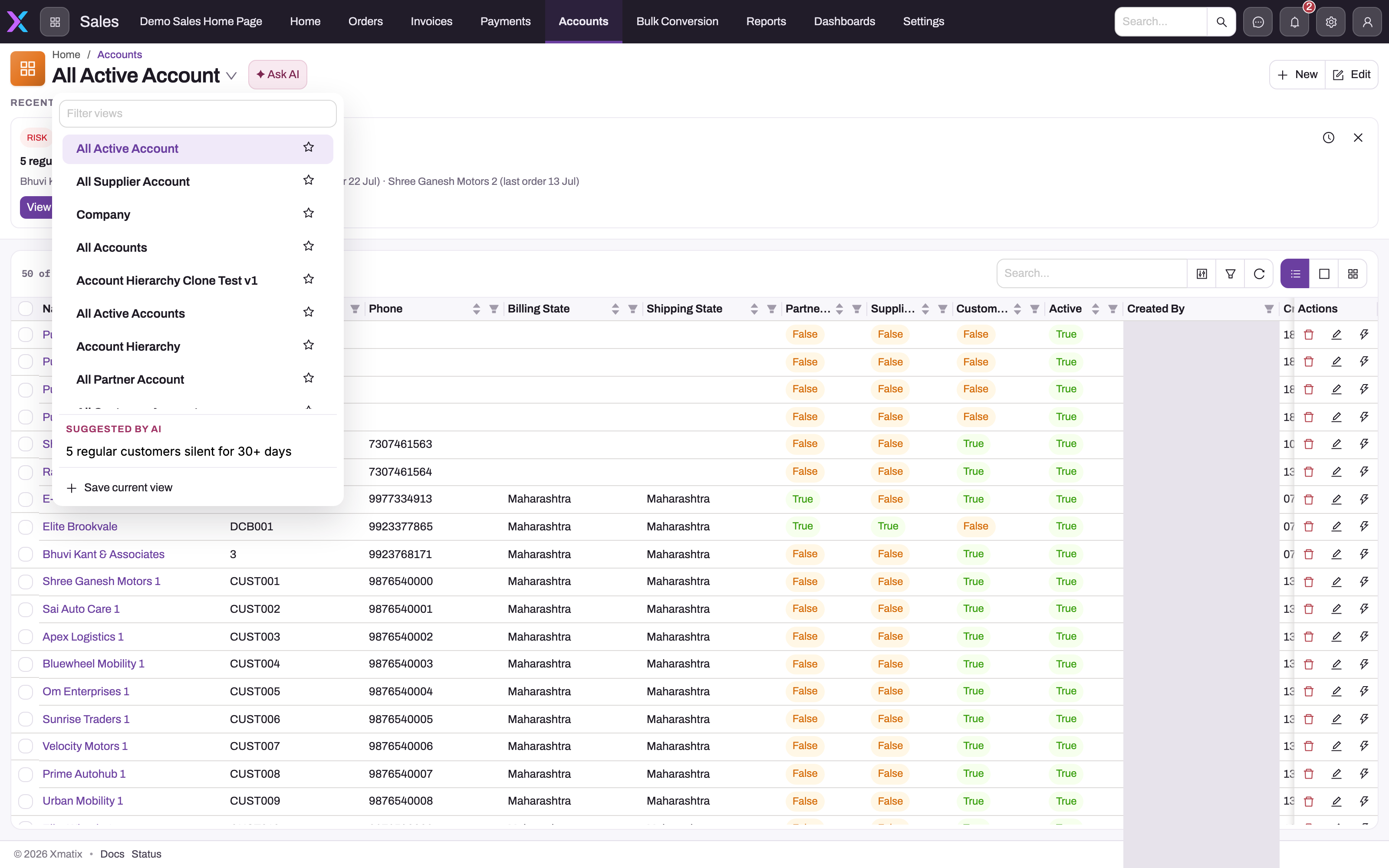
- 1
The list title is the current view; the arrow opens this selector.
- 2
Filter views narrows a long list of views by name.
- 3
Shared views are published by your administrator and identical for everyone who can see them.
- 4
The star marks your favourite view — the one this list opens on next time; it is personal to you.
- 5
Save current view stores your search, sort, visible columns and column order as a personal view layered on the shared view you started from — column filter conditions are not saved.
- 6
Register controls: search the list, open the Columns drawer to show, hide, reorder and group, add column filters, refresh, and switch table, split or board layout.
- 7
Each column header carries its own sort arrows and filter funnel; the header order is what a personal view remembers.
Step 1 — Open the list and read the current view
Open the app and the record type. The list title is the name of the view you are on — for example All Active Account — and the arrow beside it opens the view selector. Note the record count in the register header before changing anything, so an over-restrictive filter is easy to spot later. A list opens on your starred favourite view (or the shared default when nothing is starred); while you keep working, leaving for a record and coming back returns you to the view you last picked rather than snapping back to the favourite.
Step 2 — Choose and reorder columns
Select the Columns icon in the register header. The drawer lists every column the view can show, with a search box to find one quickly: tick or untick columns, drag them into reading order, and use Add field… to bring in a field the view does not list by default. Some lists also offer Group by here. Apply puts the arrangement in place; Reset to defaults returns to the view's own column set. At least one column must stay visible. A field you expect but cannot find is either not on this record type or not readable by your profile.
Step 3 — Sort and filter
Use a column header's arrows to sort, and its funnel to add a condition of the right kind for that field — a status pick, an owner, a date range. Add one condition at a time and watch the record count change; that catches accidental exclusions. The register's search box narrows the filtered result further by the record's name. Sorting and layout are remembered for you; column filters are not — they last for the current visit, so put a filter you use every day into a shared view (ask your administrator) or narrow with search instead.
Step 4 — Save the arrangement as a personal view
Open the view selector and choose Save current view. Give it a specific, outcome-based name (up to 60 characters), such as Customers I own — sorted by last order. The view stores your search text, sort order, visible columns and column order on top of the shared view you started from; saving with a name you already used replaces that view. Each list holds up to 20 personal views, and they are yours alone — they are kept in your user preferences, not in the organization's configuration.
Step 5 — Switch between views and set a favourite
The view selector lists the shared views first, then Suggested by AI views when Sense AI has proposed one for this list, then your personal views. Select a view to switch; use the trash icon beside a personal view to delete it. Star a shared view to make it the one this list opens on. After switching, check the view name, record count and visible headers rather than assuming the previous filter still applies — switching views never edits records.
Expected result
The list opens on your favourite view (or, mid-session, the one you last picked) with your columns, order, sort and layout restored; a saved personal view brings back its search, sort and columns in one click. Colleagues see no change. If a personal view seems to show "too many" records, remember that its column filters were not saved — reapply them.
Common problems
If your list looks different from a colleague's, you are most likely on different views or have personalized columns — nothing is wrong. If a shared view changed under you, an administrator updated it for the team; your personal views are untouched, though a personal view built on a shared view inherits that view's new filters. If a column you expect is not offered, the field may not exist on that record type or your profile may not include it. If Save current view is missing from the selector, the list you are on does not support personal views (some system registers do not).
Common questions
Do my personal views affect what colleagues see?
No. Personal views, favourites, column choices and sort orders are stored in your own preferences. Shared views are published by administrators under Setup → Design Studio → Entities and are the same for everyone they are shared with.
Why did my filter disappear when I came back?
Column filters are applied for the current visit only; they are not stored in your preferences and a personal view does not capture them. Sort order, columns, layout and your favourite view are remembered.
Can filtering show me records I normally cannot see?
No. Views, filters and columns arrange the records your access already allows — they are a presentation layer, not a permission layer. If a record never appears however you filter, that is an access question for your administrator; see Where to get help.