
Everything in xMatix follows the same shape: apps group related work, lists show the records of one type through a chosen view, and each record opens into a full page of details, related items and actions. Learn the shape once and every module — Sales, Field Sales, Inventory, Finance, Service — works the same way, because every screen is generated from the same definitions your administrator maintains.
The building blocks
| Building block | What it is | Example |
|---|---|---|
| App | A workspace for one area of the business, chosen from the app launcher | Sales, Inventory, Finance |
| Entry | One item in an app's top navigation — a record type, a report, a dashboard or a page | Orders, Accounts, Dashboards |
| List | All records of one type that your access allows, with search, columns and filters | The Orders register |
| View | A saved way of looking at a list — its filters, columns and sorting | All Sale Orders, My open orders |
| Record | One item opened as a full page | A single order or customer |
Switching apps
The app launcher (the grid icon beside the logo) lists every app you have access to. Type to search apps — and record types inside them — by name, and pin the apps you use every day so they sort first; apps that do not fit the panel sit behind More. Choosing an app changes the top navigation to that app's entries and remembers your choice, so you return to the same app next time you sign in. Which apps and entries you see depends on your security profile and licenses, so two colleagues may see different launchers; if something you expect is missing, see Where to get help.
Inside an app
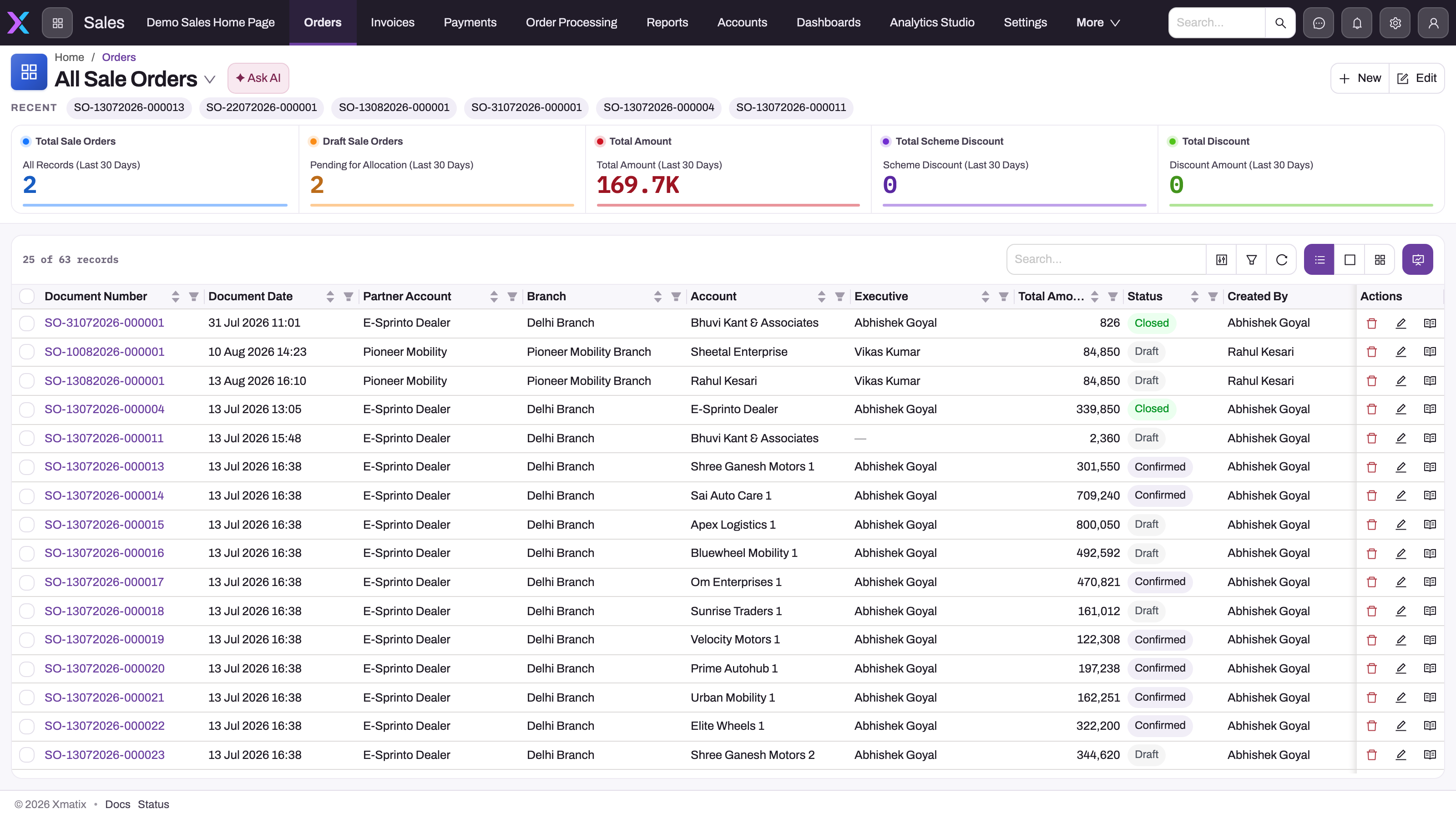
An app's entries run along the top bar; entries beyond the available width collapse under More. Most entries open a list. The list page has a fixed anatomy:
- Breadcrumb and view selector — the title is the name of the saved view you are looking at (for example All Sale Orders), and the arrow beside it switches to another shared view or one of your own personal views.
- Actions — New creates a record; Edit and other buttons apply to the current selection; Ask AI opens the Sense assistant with this list as context, where Sense AI is licensed for you.
- Recent — the records of this type you opened most recently, one click away.
- Summary cards — a few numbers that describe the current view's population and change when the view changes.
- The register — the records themselves, with a search box, a column chooser, column filters and refresh in its header. Depending on the record type you can also switch the register between a table, a split view (list beside the open record) and a board grouped by status.
Use the view selector before search or filters: a record absent from one view may be present in another, while search only narrows the records the view already admits. Column sorting and filtering, and how to save your own view, are covered in Personalizing lists and views.
Finding a record
To find a record, open its list from the app's top bar and type in the list's Search box; it narrows the records the current view shows. When you know more than a name, use column filters to narrow by status, date or owner, or switch to a broader view first. The top bar has no global search box, so to reach a record type that is not in your app's top bar, search for it in the app launcher. The Recent strip on each list is the quickest route back to something you had open a moment ago.
Records are where work happens
Opening a linked name or document number takes you to the record page: its details laid out as your administrator designed them, tabs for related records (an account's orders, an order's lines and invoices), and the actions that apply to it — save, submit, status changes, printing, and any custom buttons. The actions you see depend on the record's state and on your access: an order offers different actions than a customer, and an approver sees options a viewer does not. Related records open from within the record and can be followed onward; the breadcrumb takes you back.
Workspace tabs
On most organizations the workspace works like a console: each record type keeps its open list and records as tabs under the top navigation, and related records opened from inside a record appear as nested tabs within it, so you can keep an order, its account and its invoice open side by side and switch without losing your place. Your administrator can switch the tabbed interface off for the whole organization, in which case links simply navigate and the browser back button returns you.
Common questions
Can I change which columns a list shows?
Yes. Lists let you choose columns, reorder them, sort and filter, and save the result as a personal view so it is one click away next time. Personal views change only what you see; shared views are published by administrators and keep team-wide lists consistent. See Personalizing lists and views.
Why does my colleague see an app or an entry that I don't?
Apps, entries and buttons are all subject to your security profile and licenses. Missing apps are usually a license or app-permission question; missing buttons are usually a permission on that record type. Your administrator can check both from your user record.
How do I get back to something I opened earlier?
Three ways: the Recent strip at the top of that record type's list, the workspace tab if it is still open, or the list's search box by name.