
You sign in to xMatix with your work email address and a password, a one-time code or a passkey. The first time, you follow the link in your invitation email to set a password. After that, you sign in from your organization's sign-in page, and on a device you have used before you can just pick your account from a list.
Overview
Signing in comes after your administrator creates your user account (see Invite a user) and before you start working in your apps (see Navigating xMatix). One sign-in identity covers everything: the same email and password, or passkey, work on the web and in the mobile app. If several organizations use xMatix with you, the same identity reaches all of them.
How xMatix handles it
- Invitation emails. When your administrator saves your active account, xMatix creates your sign-in identity in the background and sends you one of two emails. If you are new to xMatix, the subject reads Create your password to get started, and the link opens your organization's Set your password page. If you already sign in to xMatix for another organization, the subject reads Access granted - login to continue. That email links to the sign-in page and also offers a password-reset link. You keep your existing password or passkey.
- Set-password links from the invitation stay valid for 72 hours. Reset links from Forgot password? are valid for 1 hour. Each link works only once.
- Password policy. At least 8 characters, using at least 3 of the 4 kinds: lowercase letters, uppercase letters, numbers and symbols.
- Sign-in methods. The sign-in card has a Password tab and, where your environment offers it, a One-time code tab. The code is 6 digits and goes to your email. A one-time code only works for accounts that have no password. An account that was set up from an invitation has a password, so use the Password tab with it.
- Passkeys let you sign in with your face, fingerprint, PIN or a security key instead of a password. You can add one after you have signed in at least once.
- Remembered accounts. When Remember me is ticked, the browser keeps your email address so the sign-in page can show it on a Welcome back list next time. It stores only the address, never your password, and lists up to four accounts.
Prerequisites
- An invitation email from your organization's administrator, or an existing xMatix sign-in.
- Access to your work mailbox. Set-password and reset links, and one-time codes, are sent there.
- A current web browser. To use a passkey, the browser and device must support passkeys.
Procedure
Step 1 — Set your password from the invitation
Open the newest invitation email and select its link. The Set your password page shows the address it is for, partly masked (Choose a password for your address). Enter a New password that meets the policy and type it again in Confirm password. Then select Set password. If the password is too weak, or the two entries differ, the page says so under the field.
When it is done, the page shows Password set with two buttons. Sign in and set up a passkey signs you in and then takes you straight to passkey registration. Go to sign in just takes you to the sign-in page.
If the invitation says Access granted - login to continue, you already have a password. Skip to Step 2 and sign in as usual.
Step 2 — Sign in with your password
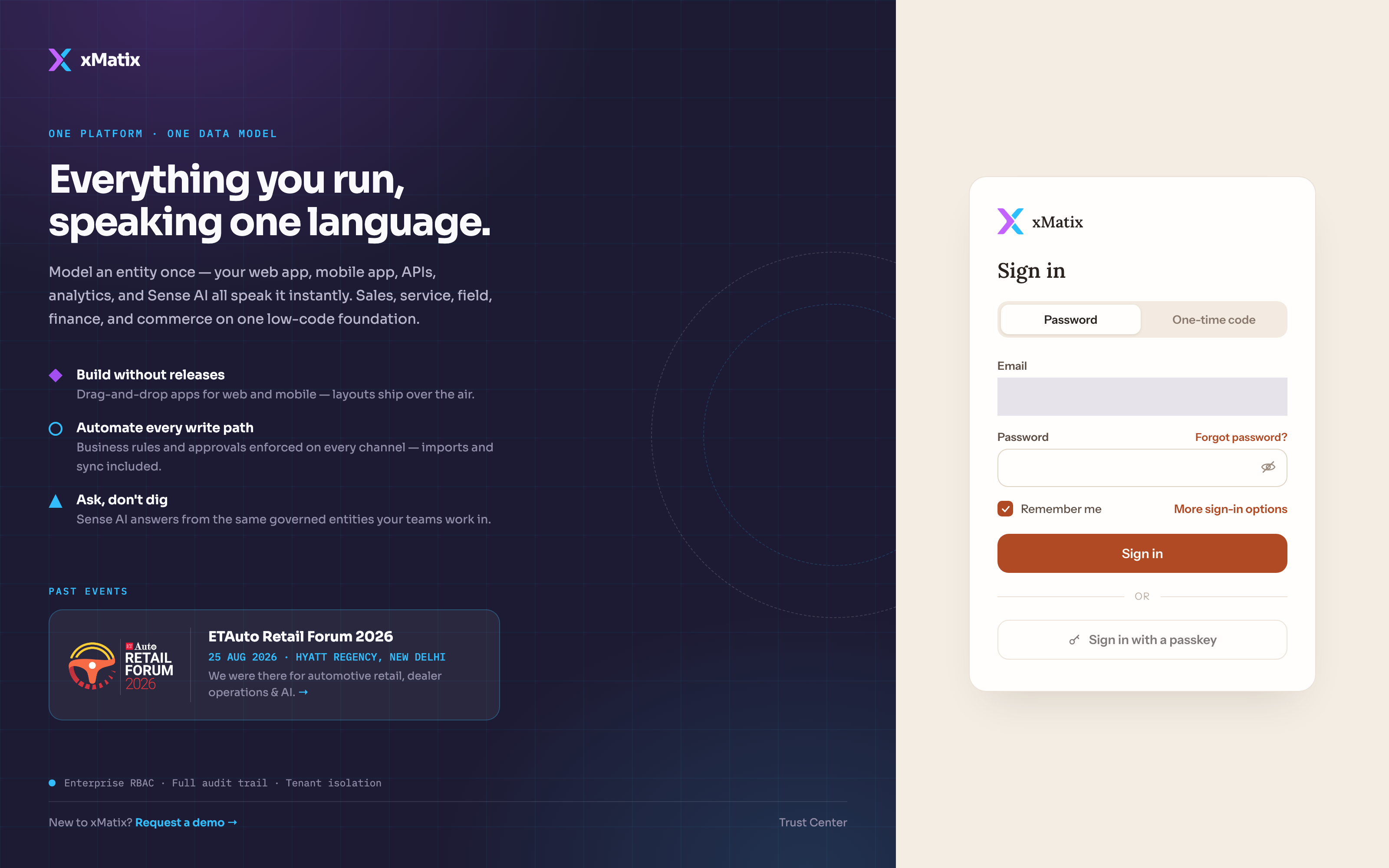
On the Sign in card, keep the Password tab selected. Enter your Email and Password, and select Sign in. Use the eye icon to show or hide what you typed. Leave Remember me ticked only on a device you trust.
While xMatix checks your details, the button reads Signing in…. When sign-in succeeds, you land in your organization's workspace. If the password is wrong, the card says That password doesn't match this account. Try again or reset your password. The button then reads Try again.
More sign-in options opens a hosted sign-in page with your email already filled in. Some accounts are sent there automatically, for example accounts that need an extra verification step.
Step 3 — Sign in with a one-time code (where offered)
Select the One-time code tab, enter your Email and select Send code. The card shows We sent a 6-digit code to your address. Type or paste the 6 digits into the boxes and select Verify code. If the email doesn't arrive, look in your junk or spam folder. You can use Resend code again after a 60-second countdown.
If your account has a password, the code is not sent. Go back to the Password tab.
Step 4 — Add a passkey
The first time you sign in, xMatix may show Set up a passkey. Select Set up now and follow your browser's prompt: your device's face or fingerprint sign-in, its PIN, or a security key. The page then confirms Passkey added, with a button to return to the app. If you select Not now, xMatix asks again after a quiet period of 7 days, unless your environment sets a different one.
If your organization requires a passkey, the prompt says Your organisation requires a passkey to sign in and has no Not now button. In that case it appears on every page load until you add one.
To manage your passkeys later, open /account/passkeys on your organization's xMatix address. That page has no menu link, so type the address. It lists your passkeys, with Add a passkey and a remove button on each passkey. Removing a passkey takes effect immediately, without a confirmation step.
Step 5 — Sign in with a passkey
On the Sign in card, enter your Email and select Sign in with a passkey. You can also pick a remembered account marked Face, fingerprint or PIN on the Welcome back list. Your browser then asks for your face, fingerprint, PIN or security key. The passkey button stays disabled until the email field contains an address.
Step 6 — Pick a remembered account
On a device you have signed in from before with Remember me ticked, the sign-in page opens on Welcome back with your accounts listed. Each row shows the address and either Last signed in … or Face, fingerprint or PIN. Select a row to continue:
- an account with a passkey goes straight to the passkey prompt;
- any other account opens the password form with the email filled in.
Use Use another account to sign in with an address that is not on the list. Use the × on a row to remove that account from the list on this device.
Step 7 — Reset a forgotten password
Select Forgot password? on the sign-in card. The Reset your password card opens with your email filled in. Select Send reset link. The confirmation reads If an account exists for your address a reset link is on its way. It looks the same whether or not the account exists, so nobody can use it to check which addresses have accounts.
Open the email within 1 hour and select its link. It opens the same Set your password page as Step 1. Choose a new password and sign in. A passkey you already have keeps working while you reset.
Step 8 — Switch organization or sign out
If you work for more than one organization, open your profile menu (your avatar, top right). The Subscriptions section lists the organizations your account can reach, and the current one is marked Active. Select another one to switch to it. To end your session, select Logout in the same menu. You return to your organization's sign-in page.
Expected result: you are signed in to the right organization and see the apps your administrator granted you. Next time, a single step gets you back in: a remembered account or a passkey.
Example
A new field-sales coordinator joins on a Monday. The administrator creates the account on Friday with Active off, then switches it on Monday morning. Within a couple of minutes the coordinator gets Create your password to get started. They open it on their work laptop, choose a 12-character password with letters, numbers and a symbol, and select Sign in and set up a passkey. They sign in with the new password, and the browser asks for a fingerprint. The page shows Passkey added, they return to the app and land in their workspace. The next morning the sign-in page opens on Welcome back with their address marked Face, fingerprint or PIN. One touch of the sensor signs them in.
Training
Practice exercise
In a sandbox organization, ask an administrator to invite a test user whose mailbox you can read. Then:
- Set the password from the invitation, deliberately entering two different passwords first. You should see The passwords do not match.
- Sign in with Remember me ticked, select Logout, and confirm the account appears on Welcome back.
- Use Forgot password?, set a new password from the reset email, and sign in with it.
- Try the old reset link a second time. You should see Link not valid.
Quick reference
- Invitation set-password link: 72 hours. Reset link: 1 hour. Each works once.
- Password: 8+ characters, 3 of lowercase / uppercase / number / symbol.
- A one-time code works only for accounts without a password.
- Remember me stores your address on this device, never your password.
- Add a passkey from the prompt or at
/account/passkeys. - Forgot password? is the way back in whenever an invitation link has expired.
- Switch organization from the profile menu → Subscriptions; sign out with Logout.
Permissions
Signing in needs no capability. It needs an active, provisioned user account in the organization. On the Users list (Setup → Access Control → Users), the Sign-in column shows Ready once the identity exists. What you can see after signing in comes entirely from your security profiles. An account with no active profile signs in to an empty workspace (see Why can't a user see something?). Creating and inviting users needs the user-administration capability described in Invite a user.
Configuration
Organization administrators control who can sign in, not how the sign-in page behaves:
- Who gets an invitation, and when. An invitation is sent when an active account is first provisioned. Create accounts with Active off to prepare them before go-live, and switch them on when people should get their emails. See Invite a user.
- Removing access. See Offboard or suspend a user.
The sign-in methods are set for the whole xMatix environment by the platform operator, and no setup screen in an organization changes them. That covers whether the One-time code tab appears, whether passkeys are available, whether the passkey prompt is shown, and how many Not now answers it allows before it becomes required. Portal visitors sign in on the portal's own pages instead. See Portal visitors and sign-up.
Common problems
"This link has expired or has already been used"
The set-password or reset link was used already or is too old (72 hours for an invitation, 1 hour for a reset). On the sign-in page, select Forgot password? and use the new link. Once your account exists, an administrator can't send the invitation again, so the reset is the way in.
"That password doesn't match this account"
Check that the email is the invited work address, then retype the password or select reset your password in the message. The message only appears when the identity service actually rejected the password, not for an empty field.
The one-time code never arrives
Your account has a password, so no code is sent. Use the Password tab. If you have no password yet, check your junk folder and use Resend code after the countdown.
"This account cannot be signed in here"
In some environments only passwords and passkeys are accepted on the sign-in card. Accounts that need another kind of sign-in, such as an extra verification step or a sign-in through another organization's directory, are refused there. Use your password or passkey, or ask your administrator.
"We could not reach the sign-in service"
The sign-in service didn't answer. Wait a moment and try again. If it keeps happening for everyone, tell your administrator.
"No subscription available"
You signed in successfully, but your account isn't linked to an active organization. Select Sign out and try the account you were invited with, or ask your administrator to check your account.
"Workspace locked" or "Workspace is read-only"
The organization itself is restricted. Locked blocks sign-in to that workspace. Read-only lets you browse, but saving is turned off. The message may show a reason. Only your administrator or the platform operator can change this.
"This browser does not support passkeys"
Use a current browser on a device with a fingerprint reader, face recognition, a PIN or a security key, or keep using your password.
Common questions
Can I sign in on my phone?
Yes. Your account works on the web and in the xMatix mobile app, with the same email and the same password or passkey. Your administrator tells you whether your organization uses the mobile app and where to get it. Installing it and signing in on mobile are covered in Using xMatix on mobile. If sign-in fails on both web and mobile, it's an account question for your administrator. If it fails on mobile only, it's an app question.
What does "Remember me" actually remember?
Only your email address, on this browser, so the Welcome back list can offer it next time. It never stores your password. If you untick it before signing in, your address isn't added to the list. You can remove an address at any time with the × next to it. On a shared or public computer, untick Remember me, and select Logout when you finish.
I work for two organizations. Do I need two accounts?
No. One identity reaches every organization that has invited you. When the second organization adds you, you get the Access granted email instead of a set-password email, and you keep your password or passkey. After signing in, switch between organizations from the profile menu under Subscriptions. Each organization grants its own access, and nothing carries over from one to the other.
What happens if I forget my password?
Select Forgot password?, then Send reset link, and use the link within 1 hour. If you have a passkey, you can keep signing in with it while you reset. If you can't get into your work mailbox at all, contact your administrator.