
Help with xMatix comes from five places: this documentation, the welcome tour inside the product, help written into the forms you use, the Sense assistant, and your organization's administrator. Each one answers a different kind of question. This page explains which one to use, and how to report a problem so that it can be fixed the first time.
Overview
| Help surface | Good for | Where you find it |
|---|---|---|
| This documentation | "How does this work?" How each module behaves, what each field means, step-by-step procedures | The Knowledge Center. Use Search docs… at the top of the side menu |
| Welcome tour | A first look around the screen: apps, navigation, the assistant, notifications, your profile | Starts by itself the first time you sign in on a desktop browser. To replay it, use Show me around in your profile menu |
| Field help | What one field on a form expects, written by your organization | A help link or a short text under the field, on forms where your administrator has added it |
| Sense assistant | Questions about your own data, in plain language | The Open assistant button in the top bar |
| Your administrator | Access, accounts, your organization's own setup, and problems that need fixing | Your organization's internal channel |
Your organization's own decisions are not in this documentation: which apps you have, what a custom field is for, or why a screen looks different from the pictures here. Those are questions for your administrator.
When to use it
- You want to learn how something works. Read the module's page in this documentation. Most module pages end with Common problems and Common questions. The troubleshooting hub links every module's troubleshooting page.
- You are new, or the screen layout is unfamiliar. Replay the welcome tour, then read Getting started.
- You don't know what to type in a field. Look for field help under the field. For a shipped field, the entity reference describes it. For a business term, see the glossary.
- You want an answer from your data. Ask the Sense assistant, for example "which of my orders are still unapproved?"
- Something is missing, blocked or broken. Ask your administrator. Include the details listed in Step 5.
How xMatix handles it
What you see depends on your access. Your organization decides which apps, records and actions you can use. A missing app, a record that will not open, or an action that is not offered is almost always about access, not a fault. Only an administrator can check or change your access.
The Sense assistant works as you. It reads only the records your security profiles let you open, so it never shows you data you could not open yourself. It cannot change your access. See xMatix Sense.
Errors carry a tracking number. When the server rejects a request, the error usually includes a reference code. The error dialog shows it as Tracking Number, with a copy button. A form that fails to save may show it as a line starting Ref: or Reference:. The code identifies the request that failed, so your report can be matched to it.
Prerequisites
- You can sign in to xMatix. If you can't, see Signing in to xMatix and Access and sign-in problems.
- For the assistant, Sense must be switched on for you. It is on by default.
- The welcome tour and Show me around are available only in a desktop browser.
Procedure
Step 1 — Look it up in this documentation
Open the Knowledge Center and type a few words into Search docs…, or browse the section for your module. Each page shows its type (OVERVIEW, CONCEPT, HOW-TO, REFERENCE, TROUBLESHOOTING or FAQ) and the date it was last reviewed. When a page and the product disagree, the product is right, and the difference is worth reporting.
Step 2 — Replay the welcome tour
Open your profile menu at the top right and select Show me around. The tour starts again from the first step and points out Apps, Navigation, the Sense AI assistant, Notifications, Setup and Your profile. It skips any step for a control you don't have. Your administrator may also have added tours of your own organization's screens. A tour like that can start by itself the first time you open the screen it covers.
Step 3 — Read a field's help
On a form, look under the field for a help link (it is often labelled Help) or a short line of help text. Selecting the link opens a side panel with your organization's explanation. Some help links also offer Run, which fetches details or fills fields for you. Help text that your organization adds is not covered by this documentation.
Step 4 — Ask the Sense assistant
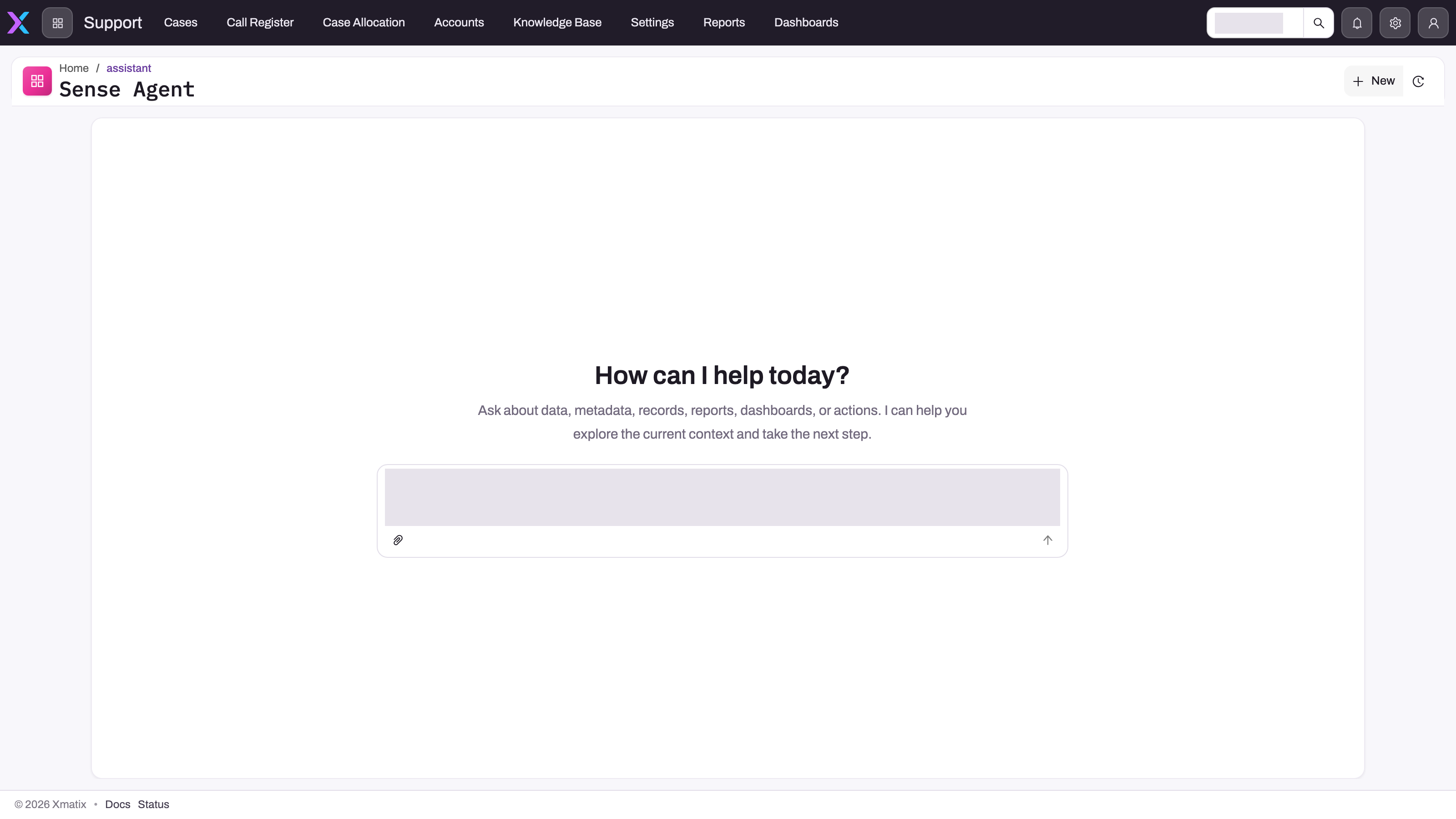
Select Open assistant in the top bar. The assistant opens in a drawer beside the page you are on. Ask your question in plain language: name the subject, the time period and the result you want. Use New chat when you change subject, so that the earlier conversation doesn't affect the answer. See Asking Sense about your data.
Step 5 — Report a problem with its tracking number
When something behaves wrongly, report it to your administrator with:
- What you were doing, and what you expected to happen instead.
- Where you were: the app, the list or view, and the record's name or number.
- When it happened, including your time zone, and whether it happens every time.
- The exact message shown, copied word for word.
- The tracking number. In an error dialog, select the copy button beside Tracking Number. If you open Details, the copy button there copies the full technical text. On a form, copy the Ref: or Reference: line.
Check any screenshot before you send it. Remove customer names, email addresses, phone numbers and amounts, and send screenshots of real records only through the channels your organization approves.
Example
A sales coordinator tries to approve an order and sees a Permission denied dialog saying "You do not have permission to perform this action." It also shows a Reference: line. First they check the Sales documentation to confirm that approving orders is a normal step. Then they ask a colleague who can approve. The colleague sees the same order without the error, so the difference must be in their access. The coordinator sends their administrator the app (Sales), the order number, the action (Approve), the time, the exact message and the reference code. The administrator recognises the action, adds it to the coordinator's security profile, and the coordinator approves the order a few minutes later.
Training
Practice exercise
In a sandbox, without changing any data:
- Open your profile menu and select Show me around. Expected result: the tour starts at Apps, and steps for controls you don't have are skipped.
- Select Open assistant and ask "how many open orders do I have?" Expected result: an answer built from the records you can open. If there is no Open assistant button, note that as an access question for your administrator.
- Search this documentation for "credit limit" and open the first result. Expected result: the page shows its type label and its last-reviewed date.
- Write a practice problem report for an imaginary error, using the five items in Step 5.
Quick reference
- How it works → this documentation (Search docs…).
- Your organization's setup, access and accounts → your administrator.
- Questions about your data → Open assistant.
- Replay the tour → profile menu → Show me around (desktop only).
- What a field expects → help under the field, or the entity reference.
- Always copy the Tracking Number or Ref: code into a problem report.
- An app, record or button is missing → that is an access question, not a fault.
Permissions
The documentation is public and needs no sign-in. The welcome tour and Show me around are available to every signed-in user on a desktop browser. Open assistant appears only when Sense is switched on for your organization and your security profiles hold Sense AI; see Permissions in xMatix Sense. Field help appears to anyone who can see the field. Only an administrator can change what you can see and do.
Configuration
Administrators can add help inside the product as well as answer questions:
- Organization tours. Setup → Feature Hub → Platform → Guided Journeys holds your own guided tours, which run alongside the built-in welcome tour. Each step points at a control and explains it. A tour can be set to start by itself on a chosen screen; raising its version makes it start again for users who saw an earlier version. Editing tours needs the same access as the Resources screen. See Getting started → Configuration.
- Field help. In the layout designer, select a field and switch on Help button, then select Configure. Choose Type Help, write the Help text, and decide whether to show it in a side panel with your own Label or as text directly under the field. Save the layout. Server action help, which runs an action and can fill empty fields, is described where a module uses it, for example in Conversion definitions.
- The Sense assistant. The Enable Sense AI switch and the Sense AI product on each security profile control the Open assistant button. See xMatix Sense → Configuration.
- Help for administrators. Setup Copilot, a tab on the Setup home page, answers configuration questions and can make setup changes from a conversation. See Setup Copilot.
When a user reports a problem, start with their access: compare their security profiles with those of a colleague who doesn't have the problem. If it is a genuine fault, pass the tracking number, time and steps on to whoever supports xMatix for your organization.
Common problems
"Something went wrong on this page"
The page failed to display. Select Retry to reload it. If the same error comes back, select Clear cache in the dialog and then Retry. If it still fails, report it using Step 5. Logout in the same dialog signs you out so you can start a fresh session.
"Unable to reach the server. Check your internet connection and try again."
Your browser could not reach xMatix. The title of the dialog is Network Error. Check your connection, then select Retry. If you were saving a record, open it again afterwards to check whether your change was kept before you repeat it.
"Permission denied"
Your access does not allow the action, for example "You do not have permission to perform this action." This is not a fault. Send your administrator the action, the record and the Reference: line.
"Your changes were not saved." on a workspace that is read-only or locked
Your organization's workspace is in a read-only or locked state, and the dialog explains why. Only your administrator can resolve this.
There is no Open assistant button
Sense is switched off for your organization or not included in your security profiles. The button is also hidden on the Sense Agent page itself, because the conversation is already open there. See There is no Open assistant button.
There is no Show me around in my profile menu
The tour is offered only in a desktop browser. On a phone or tablet, see Using xMatix on mobile.
Common questions
Who do I ask when I cannot see an app or record?
Your administrator. Your organization controls what you can see in xMatix, so a missing app, list, record or action is an access question, not a fault. Only administrators can check and change access. Say exactly what you expected to see and where you looked. If a colleague can see the item, mention them. That tells the administrator the difference lies between your two accounts. The Sense assistant cannot help here, because it works with your access and cannot change it.
What is the tracking number in an error message?
It is a reference code for the request that failed. It appears as Tracking Number in error dialogs and as Ref: or Reference: on forms. It identifies the one request that failed, so whoever investigates can find the exact failure without guessing the time or the record. Copy it with the copy button rather than retyping it, because a single wrong character makes it useless. Send it with your report, together with the exact message and the time it happened.
Can the Sense assistant answer questions about how xMatix works?
Its job is to answer questions about your organization's data and the screens you are on, using the records you can open. For how a module behaves, what a procedure involves or what a field means, this documentation is the reference to check, and each page shows when it was last reviewed against the product. The assistant cannot change your access, so it cannot fix a missing app or a permission error. Bring those to your administrator.
What makes a good problem report?
What, where, when, the exact message and the tracking number. Describe what you did and what you expected. Name the exact place: the app, the list, and the record's name or number. Say when it happened and whether it happens again. Copy the message word for word and include the tracking number. The goal is that someone who isn't looking over your shoulder can retrace your steps. Reports like that get fixed much faster than "it doesn't work".