
xMatix Sense is the AI layer of xMatix: an assistant you can ask about your data in plain language, nudges that point out what needs attention, and the admin screens that decide which agents answer, which tools they may use and how much AI each person can use. Sense works inside the apps you already use — the assistant opens beside the page you are on, and nudges appear on the records and lists they concern — so it sits alongside your normal work rather than in a separate product.
Overview
Sense is made of several parts. Each has its own page in this section:
| Part | What it does | Where you find it |
|---|---|---|
| Assistant (Sense Agent) | Answers questions about your records, reports and dashboards, draws charts, and can propose record changes for you to approve | The Open assistant button in the top bar opens a drawer; the drawer's Open Sense Agent page button opens the full page. Also in the mobile app |
| Nudges | Short suggestions computed from your data — an overdue invoice, a stale draft, an order close to a scheme threshold — with buttons that act on them | On record pages, above entity lists, on Sense Home pages and in the mobile app |
| Sense Home | A home page built from Sense widgets: a written brief, key figures, an attention queue and industry headlines | An app page your administrator composes; none is shipped ready-made |
| Shelf Vision | Scores shelf photos taken on a store visit for planogram compliance and share of shelf | On the visit's merchandising activity, once the photo has uploaded |
| Setup Copilot | Configures xMatix from a conversation, for administrators | A tab on the Setup home page |
| Sense AI Studio | Where administrators manage models, agents, knowledge, tools, nudges, external assistants and AI credits | Setup → Sense AI Studio |
| External assistants | Lets people ask Sense from Claude, ChatGPT or Claude Code | Connected per user, allowed by an administrator |
| Page | What it covers |
|---|---|
| Asking Sense about your data | Using the assistant: the drawer and the full page, charts, approvals, daily allowance |
| Sense Home | The morning brief, KPI strip, attention queue and industry pulse widgets |
| The nudge library | What the built-in nudges compute and where they appear |
| Enable and configure Sense nudges | Turning nudges on and tuning each source's thresholds, cooldowns and caps |
| AI Studio | Models, agents, knowledge, tools and credits |
| Create an agent | Building and testing a Sense agent |
| Shelf Vision | Shelf photo analysis and how to switch it on |
| Setup Copilot | Configuring xMatix by asking |
| Extending Sense | Giving agents your own tools |
| Using Sense from Claude, ChatGPT or Claude Code | Connecting an external assistant and the administrator controls |
| Sense on mobile | The assistant and nudges in the mobile app |
When to use it
- Ask the assistant when you want an answer that would otherwise take several list filters or a report: "which invoices are more than 30 days overdue?", "compare this month's orders with last month's by region", "summarize this customer's open service orders".
- Act on nudges when you want the system to point out what has slipped — work you would otherwise find only by checking lists every day.
- Use Sense AI Studio when you are the administrator deciding which agents exist, what they may do, and how much AI usage each person gets.
Sense does not replace the screens. Every answer is built from records you could open yourself, and every change goes through the same rules as a change you make by hand.
How xMatix handles it
Signals are calculated, not guessed. Each built-in nudge is a fixed calculation over your data — for example an invoice past its due date, or a purchase quantity far from the expected quantity. The same data always gives the same nudge, and its thresholds are settings an administrator can see and change. The AI adds the wording: a plain-language explanation of why a nudge fired, an answer assembled from records, a brief written from figures the system has already worked out.
The assistant works as you. A chat turn always runs as the signed-in user. Your security profiles decide which entities, fields and records it can read, exactly as on the screens, so two people asking the same question can get different answers. This holds whichever agent answers: an agent's Execution Account is used only for background runs such as scheduled workflows, never for a chat.
Record changes wait for you. When the assistant proposes to create or change a record, or to run an action on one, it shows an approval card (for example Approve this action?) and nothing happens until you allow it. An agent can change records at all only when it has been granted a record-changing capability and its Supports approvals flag is on; otherwise it has no tools for changing records. Administrators can make further tools wait for approval with the agent's Approval-required tools list. Nudge buttons that change data also ask for confirmation first.
Usage is metered per person. Every user has a free daily allowance of AI tokens — 1,000,000 by default — that resets at midnight UTC. Beyond it, a user needs AI credits, which an administrator assigns from the organization's pool.
Prerequisites
- Your organization has the Sense AI product enabled. Every organization has it by default, and it does not use paid seats.
- The Enable Sense AI master switch is on (it is on by default).
- At least one of your security profiles holds the Sense AI product. Profiles shipped with xMatix hold it.
- For nudges, the Enable Sense AI nudges switch is also on (on by default).
- For the assistant to answer well, at least one active agent with a working chat model. See AI Studio.
Procedure
Step 1 — Open the assistant
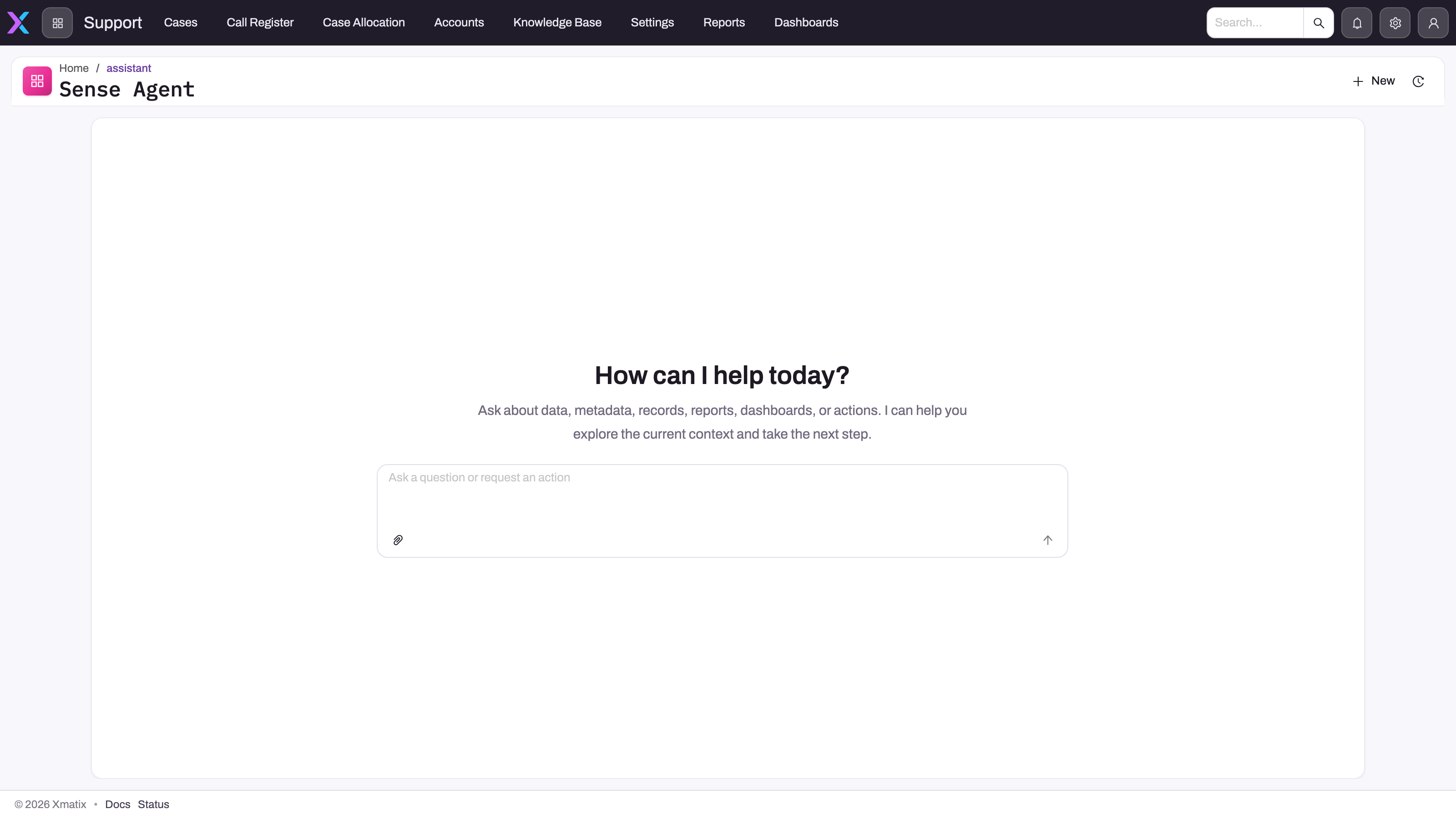
Select Open assistant in the top bar. The Sense Agent drawer opens beside the page you are on, so you can keep the record or list in view. If you do not see the button, Sense is not available to you; see Common problems.
Step 2 — Ask a question
Type your question in the message box and send it. Name the subject, the time range and the result you want — "overdue invoices for the North branch, grouped by customer". Questions about many records come back as a chart; drilling into a bar opens the records behind it.
Step 3 — Approve or reject a proposed change
If the answer proposes a change, an approval card appears. Read what it will do, then allow or reject it. Nothing changes until you allow it.
Step 4 — Move to the full page or start over
In the drawer, Open Sense Agent page continues the conversation on a full page for a longer investigation. New chat starts a clean conversation, Show history lists earlier conversations, and What Sense remembers about you shows the notes Sense keeps about you, where you can forget them.
Step 5 — Work a nudge
On a record page or above a list, open a nudge to see why it fired. Use its button to act, Ask Sense AI to discuss it in the chat, or snooze or dismiss it. See The nudge library.
Example
A sales coordinator opens the Invoices list on Monday morning. Above the list, a nudge reads that several invoices are well past their due date. They select Open assistant and ask: "Which customers have invoices more than 30 days overdue, and how much does each owe?" Sense answers with a bar chart by customer and a short summary; drilling into the largest bar opens those invoices. They then ask Sense to log a follow-up for the top customer. Their organization's agent is allowed to change records, so an approval card appears showing the record it will create. They allow it, and the follow-up is saved under their own name, with the same checks as if they had created it themselves.
Training
Practice exercise
In a sandbox, sign in as a user with a shipped profile. Select Open assistant and ask "How many open sales orders do I have, by status?" Expected result: a chart or table of order counts by status that matches what the Orders list shows for you. Then sign in as a user with a narrower profile and ask the same question. Expected result: a smaller or different answer, because the assistant works with each user's own permissions.
Quick reference
- Open assistant in the top bar opens the Sense Agent drawer; Open Sense Agent page opens the full page.
- Chat always runs as you — it cannot read records you cannot open.
- Record changes from chat always wait for your approval.
- Nudges are calculations over your data; the AI only explains them.
- The free allowance is per user per day and resets at midnight UTC; AI credits top it up.
- Master switches: Enable Sense AI (everything) and Enable Sense AI nudges (nudges only).
- Administrators manage Sense in Setup → Sense AI Studio.
Permissions
| Who | What they need | Without it |
|---|---|---|
| Any user, for the assistant and nudges | A security profile that holds the Sense AI product, with Enable Sense AI on | No Open assistant button and no nudges; a direct link to the assistant page shows Sense AI not available |
| Administrator, for Sense AI Settings | The Manage module settings capability | The settings page cannot be changed |
| Administrator, for models | Manage AI models | The Models item is hidden |
| Administrator, for agents, knowledge, tools, nudges, traces and external assistants | Manage AI agents | Those Sense AI Studio items are hidden |
| Administrator, for AI credits | Licensing administration | The AI Credits item is hidden |
| Administrator, for the Setup Copilot | Use Setup Copilot | No copilot tab on the Setup home page |
Where your organization assigns product seats, the seat counts too: a user who holds seats on other products but none on Sense AI loses the assistant. Add a Sense AI seat on the user's License Allocations tab. See Licensing.
Configuration
Setup → Sense AI Studio → Configuration → Sense AI Settings holds the module switches:
| Setting | Default | What it changes |
|---|---|---|
| Enable Sense AI | On | The master switch. Off removes the assistant and nudges for every user, even users with seats |
| Enable Sense AI nudges | On | Off hides nudges and stops calculating them; the assistant stays available |
| Show AI model in assistant chat | Off | Shows which model answered each turn |
| Remember users across conversations | On | Lets Sense keep notes about each user between conversations |
| Chat welcome settings | Blank | The welcome title, greetings, description and up to three suggested prompts |
| Voice settings | Voice conversations off | Hands-free voice conversations, the assistant voice, speech language and the agent that answers voice |
| AI Mechanic | Off | AI help on the service job card; its profiles are under Sense AI Studio → AI Mechanic |
The rest of Setup → Sense AI Studio:
- Models and Agents — which models are available and which agents answer; see AI Studio and Create an agent.
- Knowledge and Script Tools — documents agents can search and your own tools; see Extending Sense.
- Traces — every Sense turn in the organization, with the agent, models, tokens and credits.
- Configuration → Capabilities and MCP Servers — which tools agents may use.
- Configuration → Nudges — each nudge source's on/off, thresholds, cooldown and cap; see Enable and configure Sense nudges.
- Configuration → External Assistants — whether people may connect Claude, ChatGPT or Claude Code; see Using Sense from Claude, ChatGPT or Claude Code.
- Configuration → AI Credits — the organization's credit pool and each user's share.
Shelf Vision is switched on separately, under Setup → Feature Hub → Sales → Settings; see Shelf Vision.
Common problems
There is no Open assistant button
Check, in order: Enable Sense AI is on in Sense AI Settings; one of the user's security profiles holds the Sense AI product (the profile's Entitlements tab); and, if your organization assigns product seats, the user has a Sense AI seat. The button also does not show on the Sense Agent page itself, because the conversation is already open there. The app reads these settings when it loads, so after an administrator changes them, wait a few minutes and then reload the page or sign in again.
The assistant page says "Sense AI not available"
The full message is You don't have a Sense AI user license. Contact an administrator to request access. The same checks apply as for a missing button.
The assistant stopped answering partway through the day
You have probably used today's free allowance and have no AI credits assigned. The allowance resets at midnight UTC, or an administrator can assign you credits under Sense AI Studio → Configuration → AI Credits.
The assistant works but no nudges appear
Check Enable Sense AI nudges in Sense AI Settings, then the sources in Sense AI Studio → Configuration → Nudges. Some sources run on a schedule, so allow time after switching them on. See Enable and configure Sense nudges.
The assistant described a change but never made it
Changes run only after you allow them on the approval card. If no card appeared, the answering agent has no record-changing capability or does not support approvals; ask your administrator.
Common questions
Can Sense show me records I can't open?
No. A chat turn always runs as the signed-in user, so the assistant reads only the entities, fields and records your security profiles allow — the same as the list and record screens. This is true for every agent, including agents that have an execution account configured, because that account is used only for background runs. If a colleague gets a different answer to the same question, the most likely reason is that their profiles give them different records.
Does Sense change data on its own?
Not from chat or nudges. In a conversation, creating or changing a record or running an action on it always waits for you to approve it, and nudge buttons that change data ask for confirmation. Background runs are different: an agent run on a schedule uses its execution account, so administrators should give such accounts only the access the job needs. See How Sense AI is governed.
Do we have to buy seats for Sense?
No. Every organization has Sense AI, and every user whose profile holds the Sense AI product can use the assistant. Usage is limited by each user's free daily token allowance and by AI credits, which administrators assign from the organization's pool. Some extra agent abilities, such as web search, are separate feature licences.
Can we turn nudges off but keep the assistant?
Yes. Turn off Enable Sense AI nudges in Sense AI Settings. Nudges disappear and stop being calculated, and the assistant stays available. Turning off Enable Sense AI removes both.
Related topics
- How Sense AI is governed
- Licensing
- Security profiles
- Sense on mobile
- Sense AI on the xMatix site — the product overview
- Sense in Claude and ChatGPT — the external-assistant overview
- Agentic AI use cases
- How xMatix approaches AI trust