
Read the Setup Copilot workspace
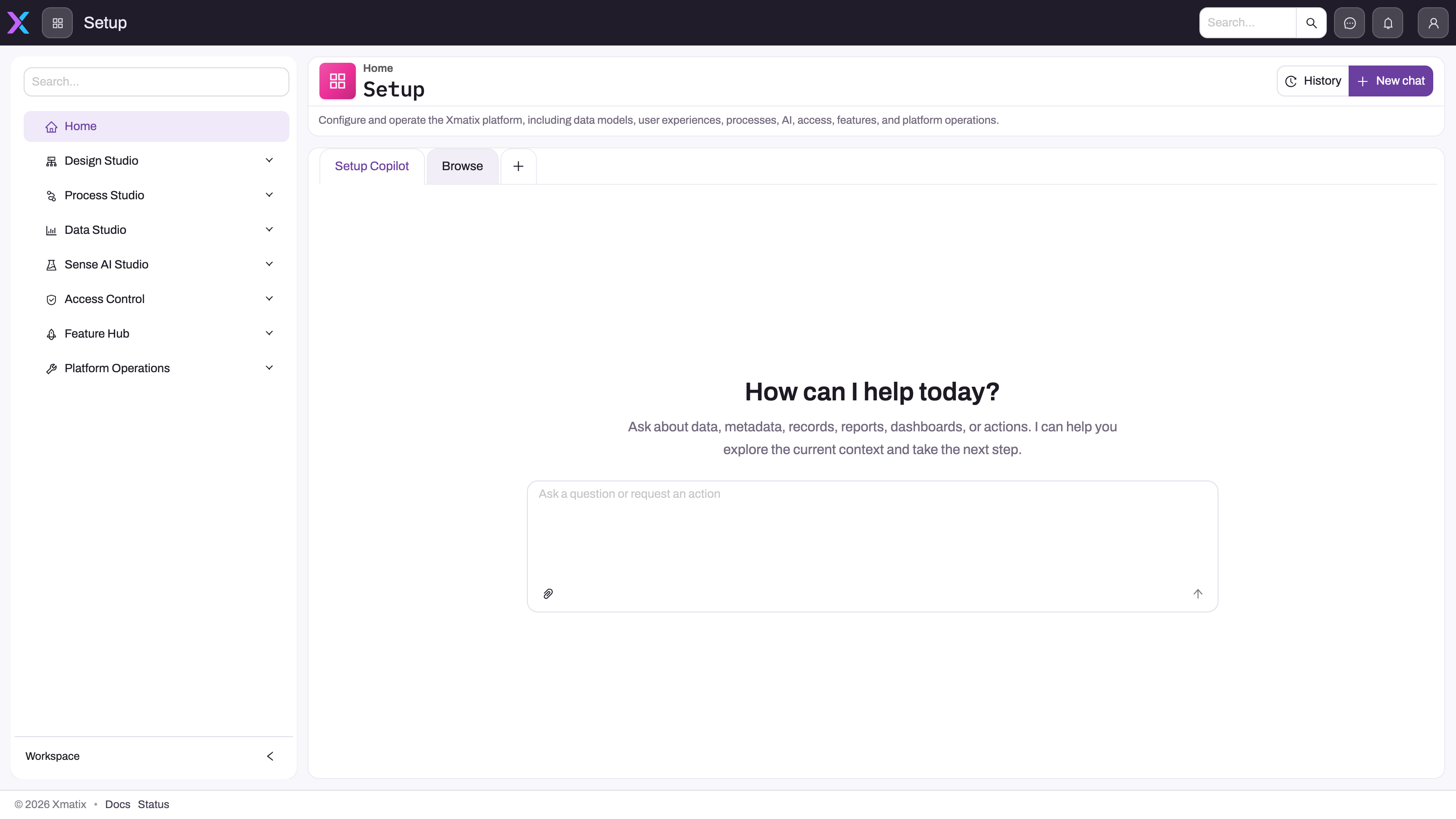
- 1
The Setup navigation remains available so Copilot-created entities, processes, access and feature settings can be inspected directly.
- 2
Setup Copilot is the active conversation tab; Browse switches to direct Setup navigation without ending the task.
- 3
History returns to prior conversations, while New chat starts an independent configuration thread.
- 4
The empty canvas avoids exposing earlier admin work; active turns can show questions, previews, tool progress and protected-action approvals.
- 5
The visible composer accepts the next request; no configuration was submitted while this production screenshot was captured.
The Setup home places Copilot and Browse side by side. Copilot is the conversational task surface; Browse opens the conventional Setup navigation for direct administration; the plus tab and New chat start separate work threads; and History returns to earlier conversations. The shared navigation keeps Design Studio, Process Studio, Data Studio, AI Studio, Access Control, Feature Hub and Platform visible so every completed task can be inspected in its canonical screen.
The screenshot intentionally shows an empty Copilot conversation. It documents the real Setup entry points without exposing an administrator's prior requests, tool output or approval history. Describe one outcome with its target entity and constraints, read every tool step and answer structured question cards promptly. Approval is attached to particular destructive, go-live, high-volume or otherwise protected operations; an ordinary read or an inert draft can proceed without a per-task approval card.
The Setup Copilot is an assistant for administrators: instead of finding every screen under Setup, you can describe an outcome such as "inspect the purchase-order approval configuration" or "draft a field for delivery instructions." It uses a constrained set of platform read and authoring tools under the signed-in administrator's identity. It is a companion to Setup, not a replacement: verify created metadata, layouts, rules and versions in their canonical screens after the turn.
Tool steps and approval boundaries
The copilot plans a request as tool steps. Reads, previews and inert authoring can run without a human pause. Explicit approval is enforced for destructive operations such as metadata or data deletion; go-live operations such as workflow, component, script and integration-flow activation; real integration trigger or replay calls; secret writes; protected system-metadata edits; and high-volume or delete-bearing composites. The precise gate belongs to the tool call, not to a conversational "task," so one request may contain no approval, one approval or several.
An approval timeout is neither consent nor refusal. The runner may continue read-only work and inert changes, but it must not use silence to authorize a live mutation. It should finish safe groundwork, report what is pending and leave the live steps for a later confirmed turn.
Not every setup area is one the copilot drives directly. For some surfaces — AI Studio itself is an example — it instead walks you through the screen step by step: what to open, what to fill in, what the result should look like. The conversation is the constant; whether the copilot's hands or yours are on the controls varies by area.
Question cards
When a task contains a genuine decision — which entity, placement or threshold — the copilot can present a question card with the options laid out. If the question times out, silence is not approval. The runner can use a stated recommended assumption only for read-only work or inert drafts and previews; it must not edit active or enforcing configuration, activate a version, or write existing business records on the strength of that assumption. Remaining live changes should be returned as a plan awaiting an answer.
What it will and won't do
| The Setup Copilot will | It won't |
|---|---|
| Inspect and configure supported data-model, layout, view, rule, workflow, integration and Setup metadata through its registered tools | Treat an unanswered question or lapsed approval as authorization for a live change |
| Answer a business-data question with its read tools while first pointing the administrator to the purpose-built Sense assistant | Guarantee that every authoring call presents approval; many ordinary or inert writes do not |
| Ask via question cards when a decision is material, then narrow timed-out work to safe reads and inert drafts | Wander off topic — clearly unrelated requests are declined by the topic boundary |
| Guide you screen-by-screen through areas it doesn't drive directly | Exceed your own access — it works within what your administrator account can do |
How it's governed
The copilot is included for every organization. Access is gated by its own capability (setup.copilot.use), so an organization decides which administrators get it at all. Each administrator has a free daily allowance of 1,000,000 tokens for it; beyond that its usage runs on its own credit allowance, separate from the end-user assistant's pool — an organization can meter the two independently, and one running out does not affect the other. And because the copilot only ever applies ordinary configuration changes, its work is inspectable the way any admin's work is: the entities, layouts and rules it creates sit in Setup exactly as if you had made them by hand.
Common questions
Is the Setup Copilot the same thing as the Sense assistant?
No. They are separate surfaces with separate gating and credit pools. The Sense assistant is purpose-built for business-data questions. Setup Copilot is built for platform inspection and administration, but it can still use its data-read tools to give a best-effort business-data answer after directing the administrator to Sense. Its authoring tools remain limited to the registered Setup tool surface.
Can it change something without asking me?
Not every change asks. The runner requires explicit approval for its defined destructive, activation, protected and high-volume cases, while ordinary authoring or inert drafts may proceed directly under your existing capability checks. Read the streamed tool steps, use narrowly scoped requests and inspect the canonical Setup records afterwards. A lapsed approval is not executed; a timed-out question permits only read-only or inert continuation.
What happens when it can't do what I asked?
It reports the limitation and can guide you to the relevant screen when no matching tool exists. Clearly unrelated requests are declined. Business-data questions are a special case: it points to Sense, then may still answer with its own read tools. Always distinguish a guidance-only answer from a change the tool timeline shows as completed.