
An agent is a routed runtime profile: model, effective execution identity, behavior flags, limits, instructions, knowledge, capability names and audience/routing configuration. The New Agent dialog creates only the base record and its three collapsible panels. Additional Instructions, Knowledge Collections, detailed routing text, capability grants and intent mappings are completed on the saved agent detail page. Treat creation and readiness as separate stages.
Prerequisites
- The AI Studio agents capability (
setup.aistudio.agents.manage). - At least one active chat-capable model. Ready is preferred, but current runtime selection rejects Failed rather than requiring Ready, so test unknown or unvalidated models explicitly instead of assuming they are blocked.
- If the agent should cite documents: knowledge already ingested on the Knowledge screen, with collection names you know.
- If the agent should call your own tools: the script tools, MCP servers or tenant capabilities registered first.
Procedure
- 1
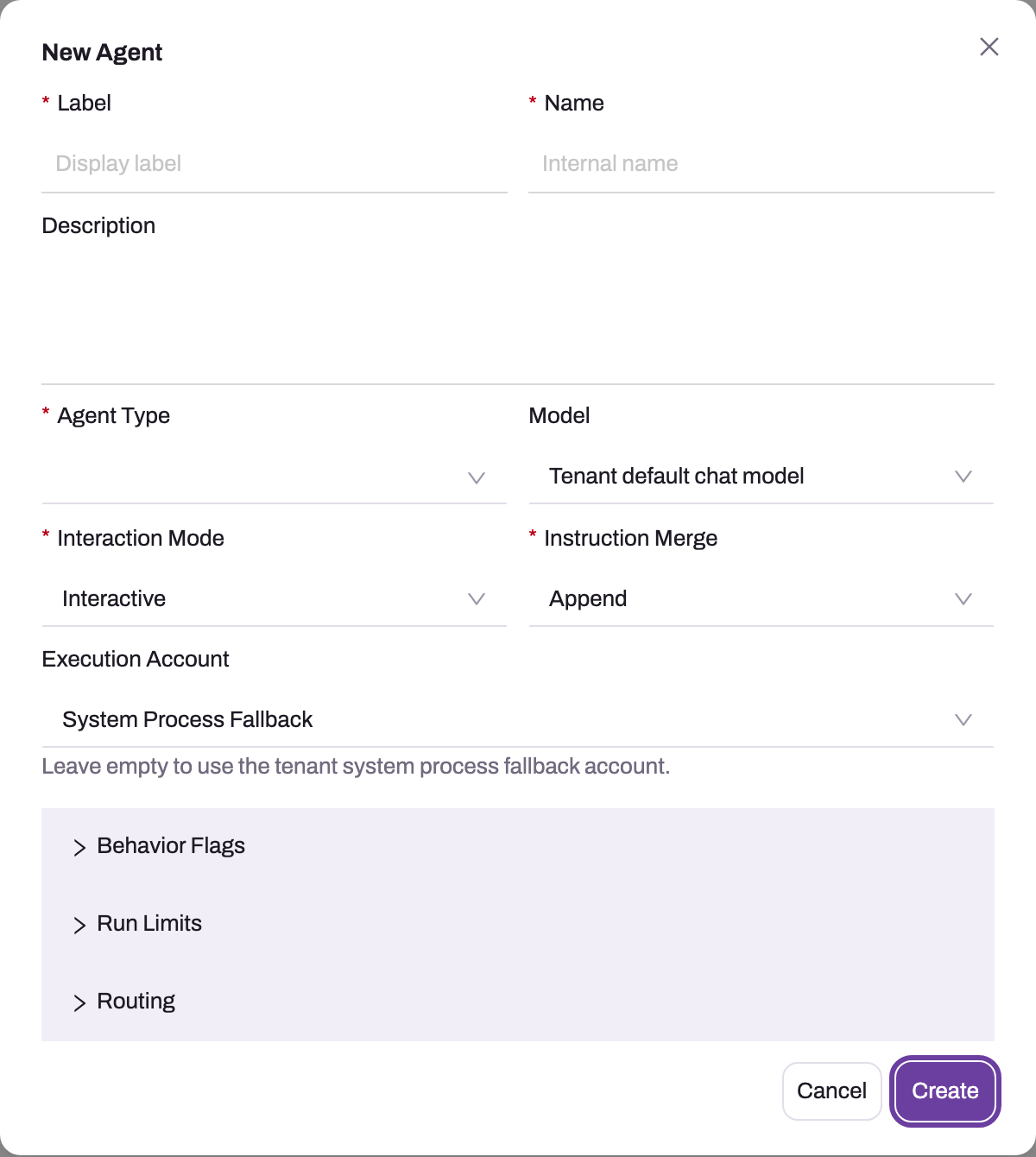
Label is what users see; Name is the stable internal identifier used in configuration and run evidence.
- 2
Agent Type supplies the base instructions and constrains which behavior flags validation accepts.
- 3
Model defaults to the tenant's default chat model; pick an active chat-capable model and validate it before the agent.
- 4
Interaction Mode (Interactive) and Instruction Merge (Append) decide how the agent runs and how its instructions combine with the type's base prompt.
- 5
Execution Account becomes the effective user for every turn; empty means the tenant's system-process fallback, so prefer a dedicated, narrowly profiled account.
- 6
Behavior Flags, Run Limits and Routing are collapsed; open and review each before Create.
The initial capture shows the base fields: Label, Name, Description, Agent Type, Model, Interaction Mode, Instruction Merge and Execution Account. Behavior Flags, Run Limits and Routing are collapsed panels beneath them and must each be opened and reviewed before Create. The dialog does not contain Additional Instructions, Knowledge Collections, capability grants, routing descriptions/keywords/examples or intent mappings; those belong to the saved detail page.
Step 1 — Start the agent
Open Setup → Sense AI Studio → Agents and click New Agent. Set the user-facing Label, stable Name, Description and Agent Type. Select the Interaction Mode and Instruction Merge behavior visible in the base form. The selected type supplies base instructions and constrains supported scheduling, checkpoint and approval flags during validation.
Step 2 — Bind the model and execution identity
Pick the Model (the dialog preselects the tenant's default chat model) and Execution Account. The execution account is the identity the agent uses for background runs, such as scheduled or event-triggered workflows; chat turns always run as the signed-in user, whatever account is set here. Left empty, background runs use the organization's system fallback identity. For an agent that runs unattended, use a dedicated, narrowly profiled account and verify representative record access under that identity.
Step 3 — Review Behavior Flags
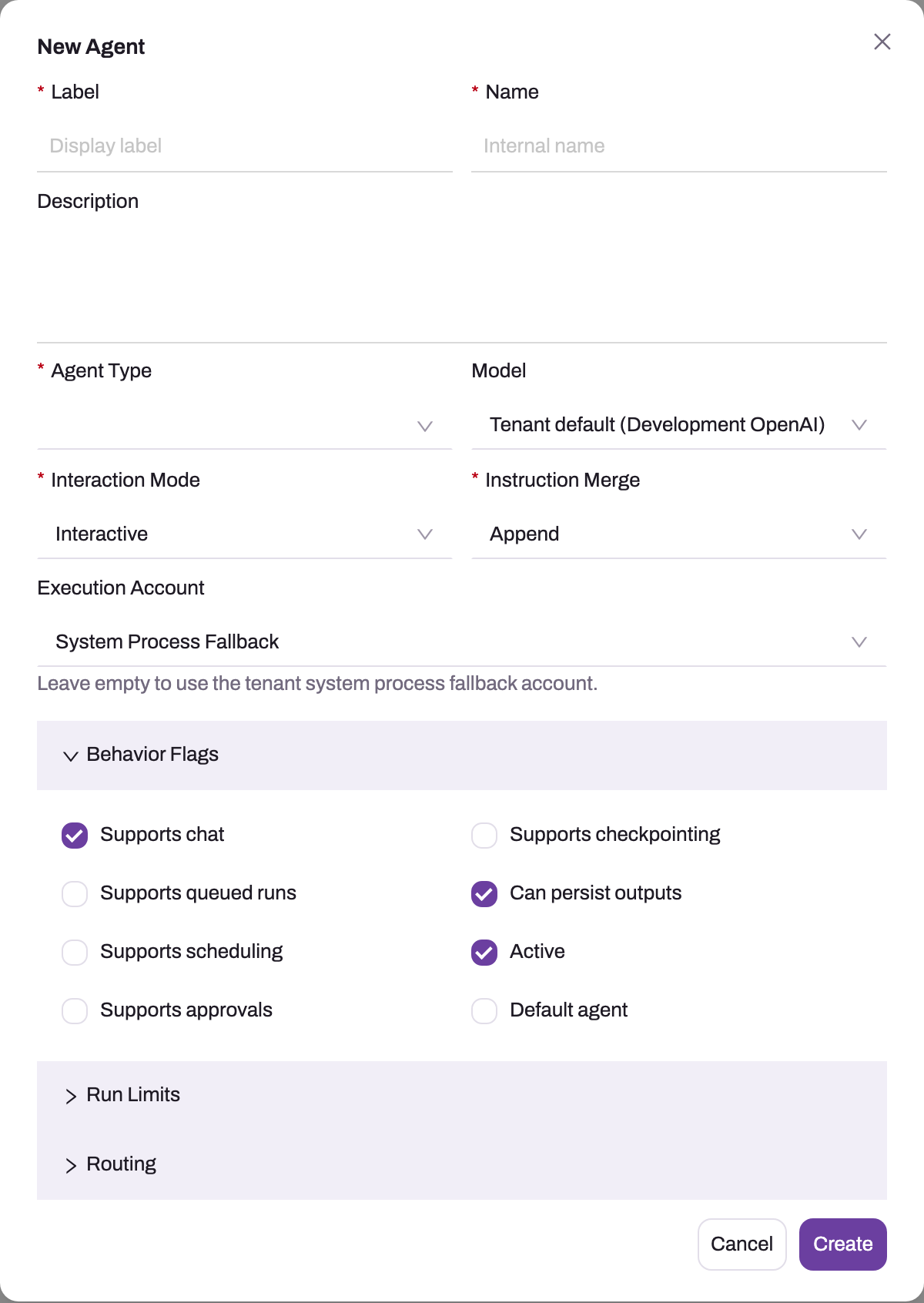
Open Behavior Flags and review Supports chat, Supports queued runs, Supports scheduling, Supports approvals, Supports checkpointing, Can persist outputs, Active and Default agent. These values declare what the agent profile supports; they do not switch on platform human approval by themselves. For example, approval still requires the deployment's approval switch and effective approval-required tool list.
- 1
Supports chat (on by default) makes the profile eligible for the chat assistant; queued runs and scheduling add unattended invocation modes the Agent Type must allow.
- 2
Supports approvals declares that write tools may pause for a human; the deployment's approval switch and tool list decide whether they actually do.
- 3
Supports checkpointing and Can persist outputs govern run state and stored results, not data authorization.
- 4
Active makes the profile routable; Default agent should be set on exactly one general agent — saving it here can clear the flag on a sibling.
Keep a new specialist non-default unless it is intentionally replacing the tenant default. Enable only behaviors supported by the selected Agent Type; validation reports incompatible combinations.
Step 4 — Review Run Limits
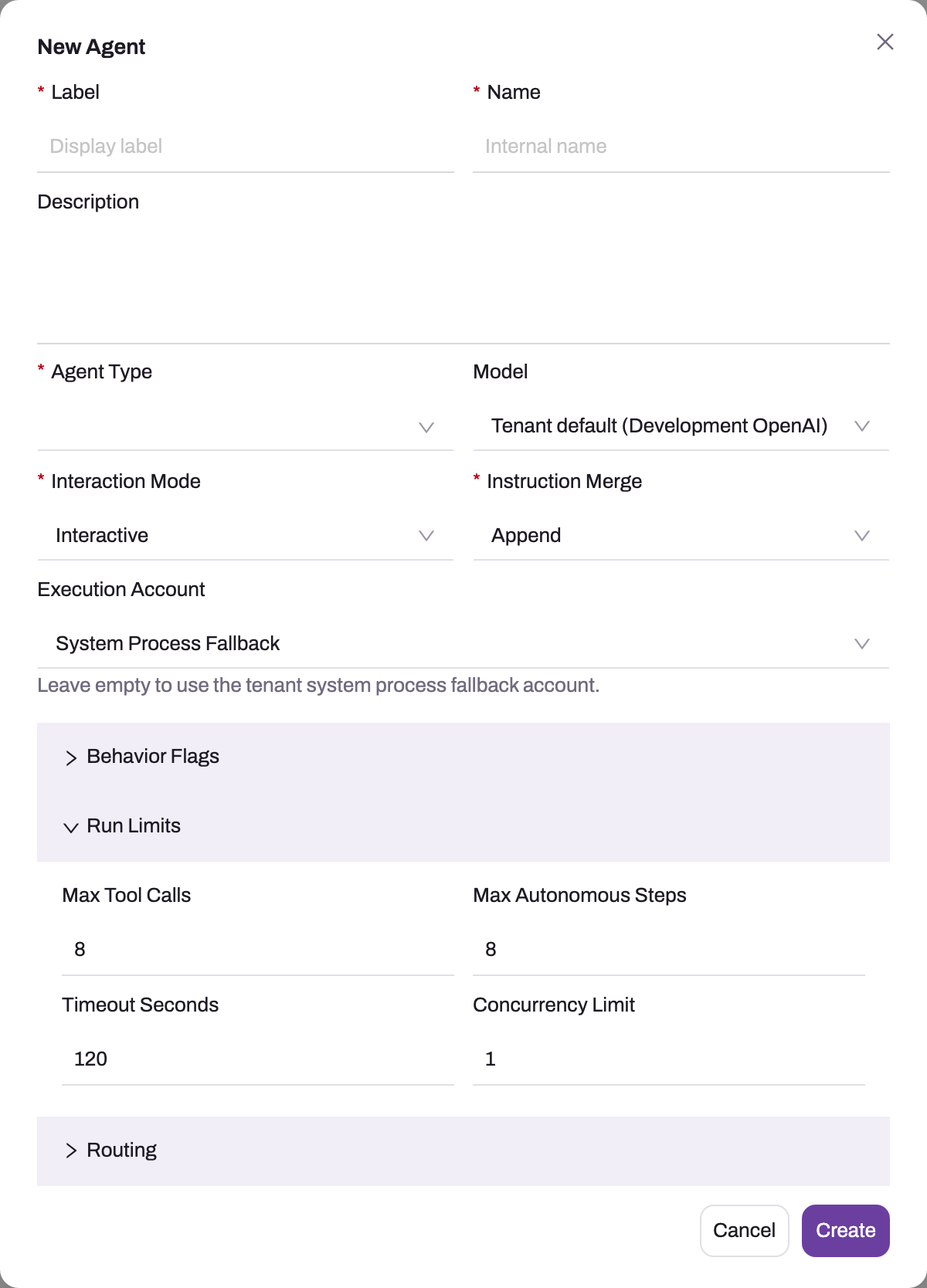
Open Run Limits and set Max Tool Calls, Max Autonomous Steps, Timeout Seconds and Concurrency Limit. The form accepts bounded numeric ranges and seeds 8 tool calls, 8 autonomous steps, 120 seconds and concurrency 1. Start with those conservative defaults and expand only from observed run evidence; these are runtime and cost limits, not permissions.
- 1
Max Tool Calls (default 8) caps callable-tool invocations in one run; raise it only from observed run evidence.
- 2
Max Autonomous Steps (default 8) bounds the planner's unattended loop before it must answer or stop.
- 3
Timeout Seconds (default 120) ends a run that exceeds the elapsed budget.
- 4
Concurrency Limit (default 1) caps simultaneous runs of this profile; queued and scheduled work waits behind it.
Step 5 — Review creation-time Routing
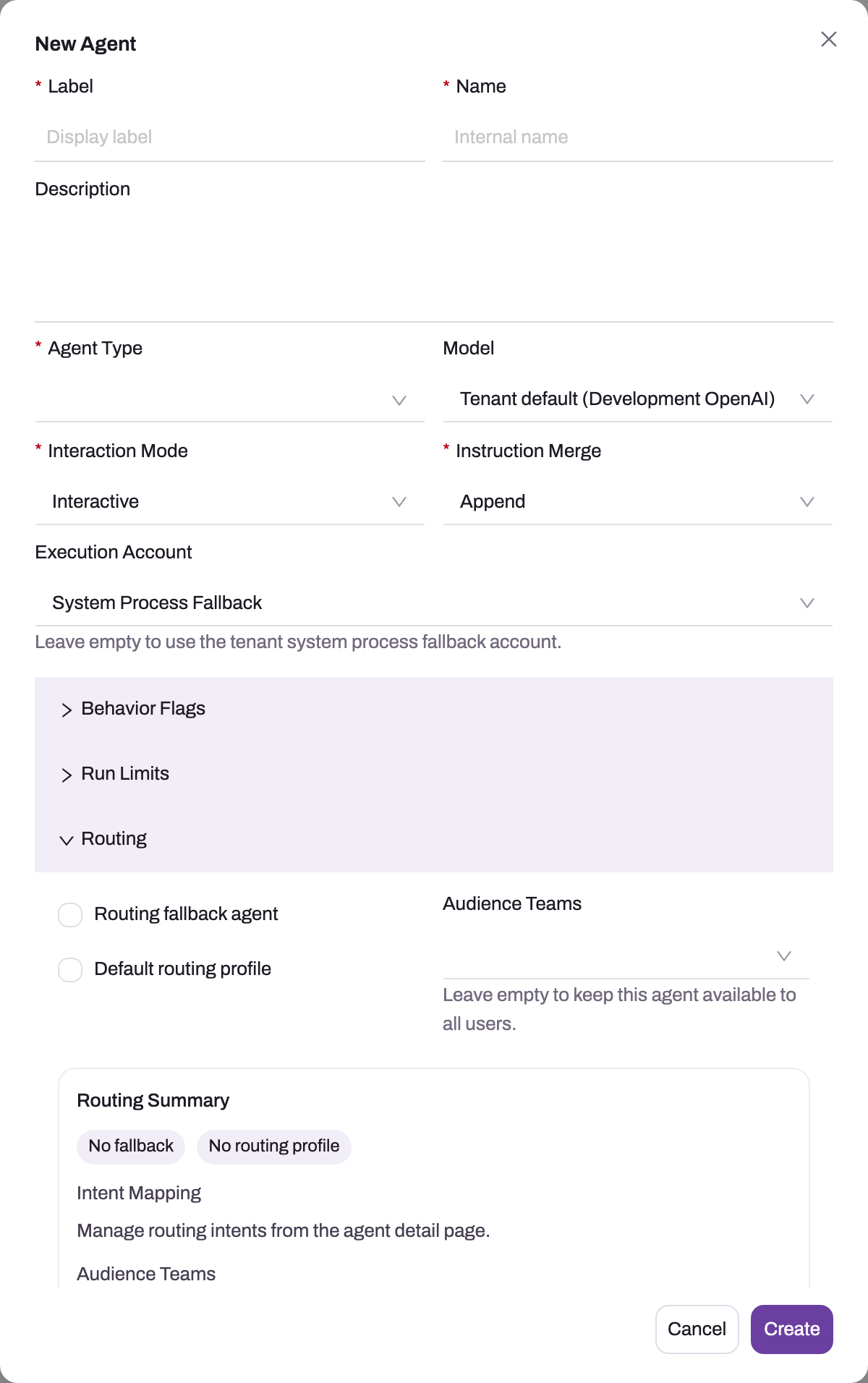
Open Routing. The creation dialog contains Routing fallback agent, Default routing profile and Audience Teams, plus a summary that explicitly sends Intent Mapping to the detail page. Leave Audience Teams empty only when the agent should be eligible for all users. Mark fallback/default flags deliberately because saving one can normalize the corresponding flag off a sibling agent.
- 1
Routing fallback agent answers turns no other agent matches; keep exactly one, because saving it here can clear the flag on the previous fallback.
- 2
Default routing profile marks the tenant's general-purpose routing choice; it is separate from the Default agent behavior flag.
- 3
Audience Teams restricts who can be routed to this agent; empty keeps it available to all users.
- 4
Routing Summary restates the flags (No fallback, No routing profile) and points to the detail page for Intent Mapping.
- 5
Create writes the base record only; instructions, knowledge collections, capability grants and intents follow on the detail tabs.
Click Create only after reviewing all three panels. This writes the agent record; it does not fill detailed instructions or tool grants and it is not proof that a prompt will route here.
Step 6 — Complete the saved detail tabs
Open the created agent. On Instructions & Routing, add Additional Instructions, Knowledge Collections, Routing Description, Routing Keywords, Routing Example Prompts and any routing-system guidance permitted for the record. Add capability names through the saved agent's Tools/Capabilities area, and use Intent Mapping to bind named intents with priorities. These are detail-page settings, not hidden fields in the Create dialog.
Use explicit instructions such as "call the pricing tool for current prices; do not estimate." A blank Knowledge Collections value can resolve to the runtime's unscoped collection behavior, so name collections when the agent must be constrained to a known corpus. Capability grants require separate runtime verification; see Extending Sense.
Step 7 — Validate
Click Validate. It checks name/label, active Agent Type and compatible flags; an active chat-capable model whose validation status is not Failed; and either a valid explicit execution account or a configured system-process fallback. A non-system explicit account must be active and have an active security-profile assignment. Fix reported errors and aim for Ready, but remember the runtime currently excludes Failed rather than strictly requiring Ready. An active Unknown or stale status can still be selected, so readiness also needs a live test.
Step 8 — Test in chat
Start a fresh conversation and send representative matching, ambiguous and out-of-scope prompts. Inspect run evidence to confirm the routed agent, effective execution identity, tools offered and records returned. If it should call a tool, verify both granted and ungranted cases. When human approval is enabled, test approval and rejection; do not assume a prompt appears in every deployment. Test turns consume AI credits.
Expected result
The base record and every creation panel are reviewed, the saved detail tabs contain deliberate instructions, knowledge, capabilities and intent mappings, and validation reports Ready. Representative runs prove the route, effective identity, tool exposure, knowledge citations, approval policy and limits. Keep the execution account no broader than the job and preserve negative tests showing an ungranted agent or out-of-audience user does not reach the specialist.
Common problems
Validation fails on the execution account. The account is missing, inactive or—unless it is the tenant system-process user—has no active security-profile assignment. Assign a narrowly scoped profile. Clear the field only after verifying the tenant has an intended fallback identity and understanding that this identity, not the asking user, will be effective.
The agent never answers, though it validates Ready. Routing. Check in order: the agent is Active; the asking user is inside its audience (empty audience = everyone); an intent, keyword or example actually matches the phrasing; and if nothing matches, whether the fallback agent exists — because that is who answered instead.
Knowledge answers come back empty. The agent is scoped to a collection with no documents in it, or the collection name is misspelled on one side. Collection names must match between the Knowledge screen and the agent's scoping exactly; blank scoping (search everything) is the quickest way to rule the scoping out.
Edits don't seem to apply. Agent changes take effect immediately on save, but grants are read when a conversation turn starts — test in a fresh conversation, not by continuing the old one.
Common questions
Which agent answers a given user's message?
Eligible runtime profiles are active, use an active Agent Type and are not validation Failed. Audience and configured routing metadata then influence specialist selection, while default/fallback flags cover unmatched cases. Because the runtime excludes Failed rather than requiring Ready, an unvalidated profile may remain eligible; inspect actual run routing when troubleshooting.
Does creating an agent widen what users can see?
Not in chat. A chat turn always runs as the signed-in user, so an agent can read only what the person asking could open. Background runs are different: they use the agent's execution account, so an unattended agent with a broad account can read and change more than any one user would. Scope its execution account, tools and external credentials narrowly and test them in the target environment. See How Sense AI is governed.
Should we make many small agents or one big one?
Prefer a few well-scoped agents over one generalist: routing works best when each agent's intents and examples describe a genuinely distinct job, and per-agent capability grants stay minimal. Every organization still wants exactly one fallback agent, so unmatched questions have somewhere sensible to land.