
Shelf Vision analyses the photos taken on a store visit and saves what it measured as a Shelf Audit Result: how much of the shelf your brands hold (share of shelf), how many product facings it saw, and — when a planogram applies to the outlet — a compliance score with findings such as missing or misplaced products. The rep takes the photo during a merchandising audit as usual. Once the photo has uploaded, the analysis runs in the background. The result then appears on the activity, in the Shelf Audit Results list and on the shelf dashboards.
Overview
Every analysed photo produces one new Shelf Audit Result. Results are never overwritten: analysing another photo of the same activity adds another result, so you keep a history of every run. Each result is linked to the visit activity whose photo was analysed, and it also records the visit, the outlet and the planogram used. That is what makes compliance and share of shelf reportable per outlet, per rep and over time.
Three set-up records shape the numbers:
- Planograms say what the shelf should look like: the products you expect, their minimum facings and, optionally, their shelf. Without a planogram there is no compliance score.
- Shelf products and clusters say which recognised products are your own brand, so share of shelf can count them.
- The recognition gallery teaches the model what each pack looks like. Your platform operator maintains it for you.
When to use it
- You run merchandising audits on store visits and want an objective measure of shelf execution next to the rep's own rating.
- Trade marketing wants to track planogram compliance and share of shelf across outlets, outlet types and reps.
- You want a nudge raised automatically when a shelf audit scores low.
How xMatix handles it
- A photo is uploaded. When an image is attached to a visit activity — on the web or by the field app when it syncs — xMatix queues an analysis for that exact photo. A photo taken offline is analysed only after the device syncs it. Completing the activity is not what starts the analysis; the upload is.
- The switches are checked. Nothing is queued unless the Sales module is on and Auto-analyze shelf photos is switched on for your organisation, and Shelf Vision is enabled for your deployment. The switch is checked again when the queued analysis starts, so turning it off also stops analyses that are already waiting.
- The photo is analysed. The recognition model detects every product facing it can see and labels each one. Detections below the model's confidence floor are ignored.
- The planogram is chosen. The analysis looks for an Active planogram whose effective dates include today: first one for this outlet, then one for the outlet's account type, then a default with neither. When several match at the same level, the most recently changed one wins. See Which planogram applies.
- Share of shelf is measured. Your own-brand labels come from the planogram's target labels; if it has none, from the shelf products and clusters marked Is Own Brand; and if there are none of those either, from the Own-brand labels setting. Share of shelf is your labels' part of everything detected — by default measured by the width each pack takes on the shelf.
- Compliance is scored against the planogram's expected products, when a planogram with valid expected entries applied (see Business rules).
- The result is saved as a new Shelf Audit Result named Shelf audit followed by the date and time of the run in UTC, for example Shelf audit 2026-10-28 09:15.
- A nudge is raised or cleared. When the result has a compliance score below 60, a Merchandising nudge is raised on the activity, for example Shelf audit non-compliant — score 42. A later result at 60 or above clears it. Results without a compliance score leave nudges alone.
Prerequisites
- Shelf Vision enabled for your deployment. It is provisioned by your platform operator; if analyses never run although the switch is on, ask them.
- The Sales module switched on, and access to Setup → Feature Hub → Sales → Settings to change the Shelf Vision settings.
- Visits that include a Merchandising Audit activity (or another activity on which reps attach shelf photos).
- For compliance scores: at least one Active planogram with expected products. For share of shelf: own-brand shelf products, planogram target labels or the Own-brand labels setting.
Procedure
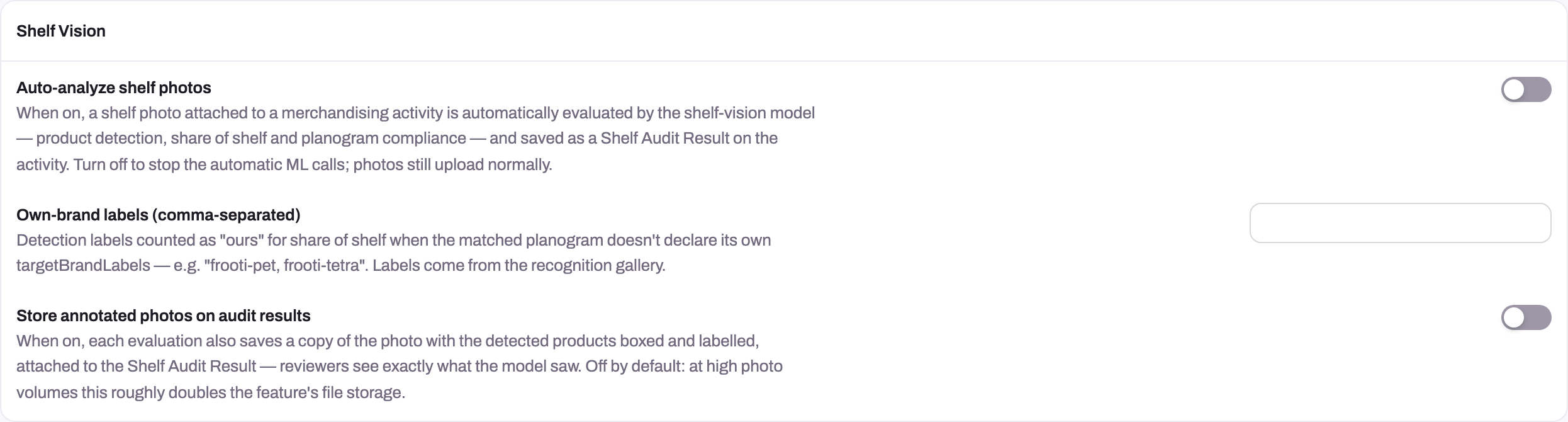
- 1
Shelf Vision settings live under the Sales module and remain independent from ordinary photo upload.
- 2
Auto-analyze is the tenant gate for evaluation; turning it off stops new inference calls.
- 3
Own-brand labels are a CSV fallback after a matched planogram and the tenant's own-brand Shelf Product taxonomy.
- 4
These labels select the share numerator; they do not add recognition crops to the operator-managed gallery.
- 5
Annotated-photo storage is optional and helps reviewers see detections, but roughly doubles image storage.
Step 1 — Switch on automatic analysis
Go to Setup → Feature Hub → Sales → Settings and find the Shelf Vision card. Switch on Auto-analyze shelf photos and save. It is off by default. From now on, every image attached to a visit activity is analysed after it uploads. Photos uploaded before you switched it on are not analysed.
Step 2 — Tell Shelf Vision which brands are yours
Mark your own products or clusters as Is Own Brand under Field Sales → Settings → Shelf Vision (see Shelf products and clusters). If you do not use shelf products, enter the detection labels of your packs, separated by commas, in Own-brand labels (comma-separated) on the Shelf Vision card. Without own-brand labels, results still show the share of every detected label, but Share Of Shelf % stays empty.
Step 3 — Set up planograms for compliance scoring
Create a planogram for each shelf arrangement you want audited, scope it to an outlet, an account type or everyone, and set its Status to Active. The full procedure is in Planograms. Skip this step if you only want share of shelf.
Step 4 — Take the shelf photo on a visit
The rep opens the Merchandising Audit activity on the visit, takes the Before and After photos, counts the facings and selects Submit, as described in The audit on the visit. Nothing extra is needed for Shelf Vision. Each photo is analysed on its own once it has uploaded.
Step 5 — Read the result on the activity
Open the visit and then the merchandising activity — on the web or in the field app. A Shelf vision panel at the top of the activity shows the latest result:
- the Compliance Status (Compliant, Partial, Non-compliant or Unable to Assess) and Compliance score;
- Share of shelf as a percentage and Facings detected;
- Share of shelf by brand: the share of each detected label, largest first, with its facings (the web shows up to 10 labels, the field app up to 6 and a "+N more" count);
- Findings: one line per problem, such as Missing from the shelf. or Only 3 of 6 required facings.
If the activity is completed but no result exists yet, the panel reads Analysis pending — the shelf photos are queued for evaluation. Select the refresh button to check again; results do not appear on their own. In the field app the panel needs a connection; offline it reads Analysis is available when you're back online. When Store annotated photos on audit results is on, the web panel also shows the photo with the detected products boxed and labelled.
Step 6 — Find and review results across outlets
Go to Field Sales → Settings and select Shelf Audit Results in the Shelf Vision group. The All Shelf Audit Results list shows Name, Visit Task Activity, Visit, Account, Planogram, Compliance Status, Compliance Score, Share Of Shelf %, Unknown Rate, Evaluation Source and Analyzed At (UTC). Search, filter and sort it like any list — for example filter Compliance Status to Non-compliant, or sort by Unknown Rate to spot photos the model could not read. Select a result to open its record page, titled Planogram Compliance, with the sections Key Information, Compliance Metrics, Analysis Metadata and Findings Data.
Step 7 — Track compliance on dashboards
Open Dashboards in Field Sales. The delivered Retail Execution dashboard is built for trade marketing: Shelf Audits, Average Compliance Score, Average Share of Shelf, Audits by Compliance Status, Compliance Score by Account, Audits by Planogram, Unknown Rate by Account and Outlets by Shelf Performance. Another delivered dashboard, Shelf Compliance, breaks audits down by compliance status, evaluation source, rep and outlet type. Results are also available to the report designer.
Step 8 — Verify the set-up with a test visit
On a test outlet with an Active planogram, upload a new shelf photo to a merchandising audit and wait a few minutes. Refresh the Shelf vision panel. Expect a new result with Share Of Shelf % (when own-brand labels exist) and a compliance score (when the planogram has expected products). Then try a photo that misses most expected products: the result should be Non-compliant and a Merchandising nudge should appear on the activity.
Fields
The fields of a Shelf Audit Result, in the order of the record page. All of them are filled in by the analysis.
| Field | What it means | Notes |
|---|---|---|
| Name | Shelf audit plus the run's date and time in UTC | Shown in the list, not on the record page |
| Visit | The visit the photo was taken on | Copied from the activity when the result is saved |
| Visit Task Activity | The activity whose photo was analysed | Required. The result belongs to this activity |
| Planogram | The planogram the photo was scored against | Empty when no planogram applied |
| Compliance Status | Compliant, Partial, Non-compliant or Unable to Assess | Empty when no planogram applied, or when its expected entries were all invalid |
| Compliance Score | Points earned as a percentage of the points available, 0–100 | Empty when there is no compliance status |
| Share Of Shelf % | Your own-brand labels' share of everything detected, 0–100 | Empty when no own-brand labels were available. Shown in the list and on the activity panel; the delivered record page does not display it |
| Total Facings | Number of product facings detected with enough confidence | Includes unrecognised products |
| Unknown Rate | Fraction, from 0 to 1, of detections the model could not name | A rising rate means the recognition gallery is missing packs, not that the shelf is wrong |
| Evaluation Source | What produced the result | Filled in by the analysis; all automatic results carry the same value |
| Analyzed At (UTC) | When the analysis ran, in UTC | The activity panel shows the result with the latest value |
| Model Version | Version of the recognition model used | For your platform operator |
| Gallery Version | Version of the recognition gallery used | For your platform operator |
| Findings Json | The compliance findings as JSON: the number of shelves found, then one entry per finding with the label, the issue and its severity (error or warning) | Empty when there is no compliance status |
| Share Of Shelf Brand Json | Share as JSON: the metric used, the share of every detected label and the facings of every label | Always filled. The best place to read the exact detection labels of your packs |
| Account | The outlet of the visit | In the list and on reports; not on the record page |
Field-by-field reference: Shelf Audit Result reference.
Business rules
One photo, one result. The analysis runs once per uploaded photo; a duplicate notification for the same photo is ignored. A Merchandising Audit with a Before and an After photo therefore normally produces two results, and the activity panel shows whichever finished last. Use the list, filtered on the activity, to see both.
Every image on a visit activity is analysed. While Auto-analyze shelf photos is on, any image attached to any visit activity is analysed — not only shelf photos. Images on other kinds of records are not analysed.
How compliance is scored. Each expected product is worth its minimum facings in points. A product found earns one point per facing, up to its minimum; fewer facings give the finding Only 3 of 6 required facings. A product with a shelf counts only the facings on that shelf (shelves are numbered from the top, starting at 1); found only on other shelves, it earns half credit and the finding Expected on shelf 2 but found on shelf 1. A product not found earns nothing: Missing from the shelf. A score of 95 or more is Compliant, 60 or more is Partial, anything lower is Non-compliant.
Unable to Assess with a score of 0 means a planogram applied but no product on the photo was detected with enough confidence. The finding reads No products detected on the photo.
No compliance at all when no planogram applies to the outlet, or when the planogram's layout has no valid expected entries. Share of shelf is still measured.
Share of shelf. The total is every detection above the confidence floor, including unrecognised products. Labels are matched without regard to letter case.
Nudges. A compliance score below 60 raises or refreshes one Merchandising nudge on the activity; a later score of 60 or more clears it. Runs without a score do not change the nudge.
Failed analyses. If the photo cannot be read or the recognition service is unavailable, the analysis is retried once and then given up. No result is saved for a failed analysis.
Results can be edited and deleted by users with the grants (see Permissions), but nothing recalculates them. An edited result simply changes what reports and dashboards show.
Example
A trade-marketing team sells juices under its own brand. The administrator switches on Auto-analyze shelf photos, marks the cluster Our juices as Is Own Brand, and activates a planogram for the account type Supermarket that expects orchard-mango-500 (4 facings, shelf 1) and orchard-guava-1l (2 facings).
- A rep visits Hilltop Fresh Mart, a supermarket, opens the Merchandising Audit, takes the Before and After photos and submits. The phone is offline, so everything waits in the outbox.
- Back in coverage, the app syncs and both photos upload. Two analyses are queued.
- On the After photo the model finds 4
orchard-mango-500facings on the top shelf and oneorchard-guava-1l. The score is (4 + 1) ÷ 6 = 83.33 — Partial, with the finding Only 1 of 2 required facings. Share of shelf is 34%. - The rep's manager opens the activity on the web the next morning. The Shelf vision panel shows Partial, 83.33 and 34%, with the guava finding underneath.
- At the end of the month, trade marketing opens the Retail Execution dashboard and sees Hilltop Fresh Mart among the outlets with a below-target compliance score.
Training
Practice exercise
In a sandbox where Shelf Vision is enabled:
- Switch on Auto-analyze shelf photos under Setup → Feature Hub → Sales → Settings.
- Create an Active planogram for a test outlet that expects one of your packs with 3 facings.
- On a visit to that outlet, open a Merchandising Audit and upload a shelf photo showing that pack.
- After a few minutes, refresh the Shelf vision panel on the activity.
Expected result: a new Shelf Audit Result appears with a Compliance Status, a score and a Share Of Shelf %. In Field Sales → Settings → Shelf Audit Results the same result is listed with your planogram in the Planogram column. Upload a second photo and check that a second result is added rather than the first being changed.
Quick reference
- The upload starts the analysis, not completing the activity.
- One result per photo; results are never overwritten.
- No planogram → share of shelf only, no compliance.
- 95+ Compliant, 60+ Partial, below 60 Non-compliant (and a nudge).
- Unable to Assess = nothing recognised on the photo; retake it.
- Empty Share Of Shelf % = no own-brand labels anywhere.
- High Unknown Rate = the recognition gallery needs new packs; tell your operator.
- Results list: Field Sales → Settings → Shelf Vision → Shelf Audit Results.
Permissions
| What | Who has it in the delivered profiles |
|---|---|
| Open the Field Sales Setup list (where Shelf Audit Results is) | Standard User and System Admin |
| Read results, including the activity panel, dashboards and reports | Sales Executive, Sales Manager, Standard User and System Admin |
| Edit a result | Sales Executive, Standard User and System Admin |
| Delete a result | Sales Executive, Standard User and System Admin |
| New result by hand | Standard User and System Admin |
| Change the Shelf Vision settings | Users with access to Setup → Feature Hub |
On the web, a user without read access to Shelf Audit Results sees Could not load the shelf vision result on the activity instead of the result. Results are meant to be written by the analysis. Consider removing Edit and Delete from field profiles so that results stay as measured.
Configuration
Shelf Vision card (Setup → Feature Hub → Sales → Settings):
| Setting | Default | What it affects |
|---|---|---|
| Auto-analyze shelf photos | Off | Turns automatic analysis of images on visit activities on or off. Off also skips analyses already queued. Photos still upload normally |
| Own-brand labels (comma-separated) | Empty | Detection labels counted as yours, used only when the planogram has no target labels and no shelf product or cluster is marked Is Own Brand |
| Store annotated photos on audit results | Off | Saves a copy of each analysed photo with the detected products boxed and labelled, attached to the result. Roughly doubles the storage Shelf Vision uses |
| Detector for record photos, Record photo analysis mapping and the model-name settings beside them | — | These belong to record photo analysis, a separate feature. They do not change how Shelf Audit Results are produced |
Planograms, Shelf Products and Shelf Product Clusters (Field Sales → Settings → Shelf Vision) decide compliance and share of shelf — see Planograms and Shelf products and clusters.
Set by your platform operator, not in Setup: whether Shelf Vision is available at all, the recognition gallery, the confidence floor, the share-of-shelf measure (width by default; facing count or area are alternatives) and the nudge threshold of 60. The measure used is written into each result's Share Of Shelf Brand Json as metric.
Common problems
The photo uploaded but no result appears
Check, in order: the photo has finished syncing from the device; Auto-analyze shelf photos is on; the Sales module is on; the photo was uploaded after the switch was turned on; and the photo is attached to a visit activity. If all of this is true and still no result appears, Shelf Vision may not be enabled for your deployment or the analysis failed — give your platform operator the visit, the activity and the upload time. Re-uploading the same photo does not help; take a new one.
The panel says "Analysis pending" for a long time
The panel does not update by itself. Select the refresh button. If it still says pending after several minutes, follow the previous problem.
Compliance Status and Compliance Score are empty
No planogram applied to this outlet when the photo was analysed, or the planogram's layout has no valid expected entries. Check the planogram's Status, Effective From / Effective To, scope and Layout Json (see Planograms). Share of shelf is still measured.
The result says Unable to Assess
A planogram applied but nothing on the photo was recognised confidently enough. Have the rep retake the photo closer, straighter and better lit. If it keeps happening for good photos, check Unknown Rate and tell your operator.
Share Of Shelf % is empty
No own-brand labels were available: the planogram has no target labels, no shelf product or cluster is marked Is Own Brand, and Own-brand labels is empty. Set up one of them; new photos will then get a share.
Everything shows up as unknown product
The recognition gallery does not yet know your packs, or the packaging changed. Send your operator some representative photos with the Model Version, Gallery Version and Unknown Rate of an affected result. Changing tenant settings does not teach the model a new pack.
The panel shows "No findings — matches the planogram" but there is no score
On the web, the Findings section shows this text whenever the result has no findings, including results where no planogram applied. Check Compliance Status: if it is empty, the photo was not scored against a planogram at all.
The activity shows the Before photo's result, not the After photo's
Each photo is analysed separately and the panel shows the most recent result. Open Shelf Audit Results, filter on the activity, and compare the results by Analyzed At (UTC).
Common questions
Does the field rep have to do anything differently?
No. The rep takes the photos the activity asks for, online or offline. The analysis starts once each photo has uploaded and the result arrives a little later, so the rep may need to refresh the activity, with a connection, to see it. Completing the activity does not start or speed up the analysis — only the upload does. The rep's own Planogram compliance rating on the Merchandising Audit stays a separate, manual answer and is not changed by the result.
Why does one audit have two results?
Each uploaded image is analysed on its own, and a Merchandising Audit normally has a Before and an After photo. Both results are kept so you can compare them; the activity panel shows the one that finished last. The same applies when a rep retakes a photo: the new photo gets its own result and the earlier result stays. Use the Shelf Audit Results list, filtered on the activity, to see every run, and use Analyzed At (UTC) to tell them apart.
What exactly does share of shelf measure?
By default, the width your own-brand packs take on the shelf as a percentage of the width of every product detected, including products the model could not name. Your operator can switch the measure to facing count or area for your deployment; the measure used is recorded in each result's Share Of Shelf Brand Json. Own-brand labels come from the planogram's target labels first, then from shelf products and clusters marked Is Own Brand, then from the Own-brand labels setting.
Can I change or re-run a result?
You can edit or delete a result if your profile has the grants, but nothing recalculates it and an edited result no longer reflects what the model measured. To analyse a shelf again, upload a new photo to the activity; it creates a new result. Uploading the same photo file again does not create a second analysis of that upload. Your platform operator can also run an analysis by hand.
Is adding a new product a data-science task?
It is an operator task rather than a training run. Your platform operator adds reference images of the new pack to the recognition gallery. After that, check a fresh result: the pack's label should appear in Share Of Shelf Brand Json and the Gallery Version should have changed. Then add the label to your planograms and shelf products.