
A planogram is the record of what a shelf should look like: which products should be on it, with how many facings, and on which shelf. Merchandising audits on store visits are judged against it. An administrator or trade-marketing user sets planograms up in the Field Sales Setup app. A field executive then performs the Merchandising Audit activity on a visit: they count facings, rate compliance and photograph the shelf. When shelf photo analysis is switched on, each photo is scored against the planogram that applies to the outlet. The analysis produces shelf audit results that attach to the same activity. The visit then holds both what the executive observed and what the analysis found.
Overview
The planogram has two jobs:
- On the audit form, it supplies the reference image behind the View planogram button, so the executive can compare the shelf with what is expected.
- In shelf photo analysis, its Layout Json lists the products and minimum facings that the photo is scored against. It can also list which products count as yours for share of shelf.
You never pick a planogram on a visit. xMatix chooses the one that applies to the outlet, as described in Which planogram applies.
Set up a planogram
Before you start
- Access to the Field Sales Setup app and permission to create planograms (see Permissions).
- A way to give new planograms a Name. Every record needs one, and the delivered New form has no Name box. Until an administrator adds a numbering setting or a Name field (see Configuration), saving is refused with "Name is required".
- For compliance scoring: the detection labels of the products you expect on the shelf. These are the names the recognition model gives each pack. You can read them from an existing shelf audit result (see Shelf products and clusters).
Step 1 — Open the planogram list
Open the Field Sales Setup app and, under Shelf Vision, select Planograms. The All Planograms view shows Name, Label, Status, Account, Account Type, Effective From, Effective To and Created Date.
Step 2 — Create the planogram
Select New. The form has these parts:
- Label: the display name, for example Standard beverage shelf.
- Account and Account Type: the scope. Fill in Account for one outlet, or Account Type for every account of that type. Leave both empty for a tenant-wide planogram.
- Validity: Effective From and Effective To, each with a date and a time.
- Details: Description for instructions to merchandisers, and Layout Json for the expected shelf (see Step 3).
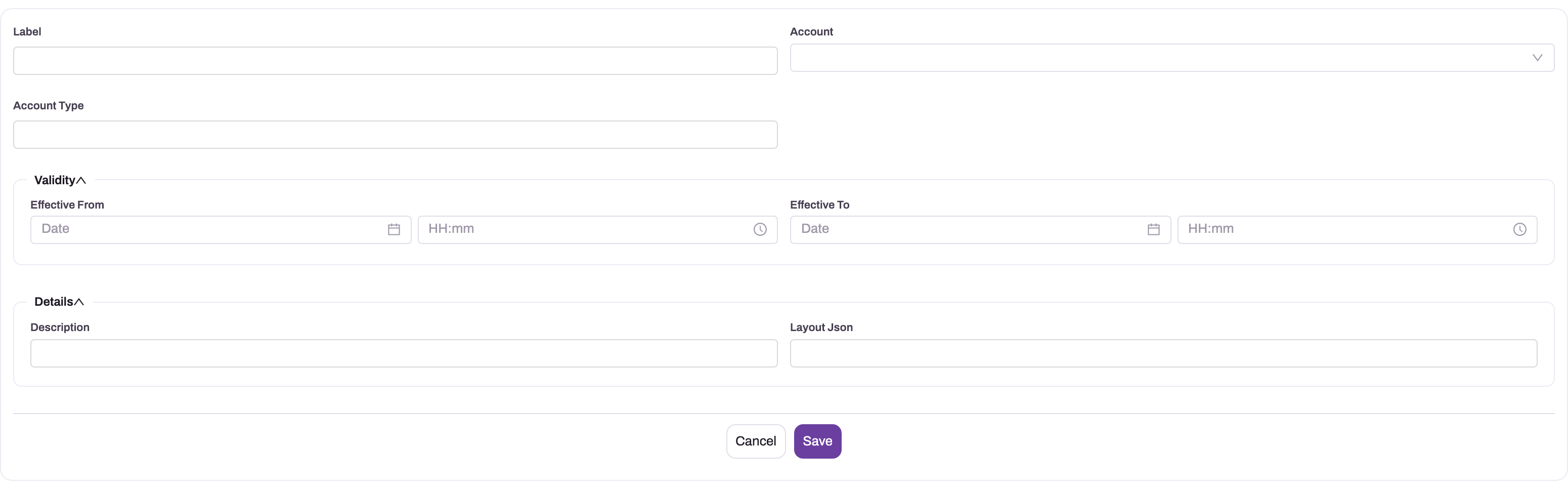
Select Save. The planogram is created with the status Draft, so it is not used yet.
Step 3 — Describe the expected shelf
Enter the expectation in Layout Json. It has two optional parts:
{ "targetBrandLabels": ["orchard-mango-1l", "orchard-orange-1l"],
  "expected": [
    { "label": "orchard-mango-1l", "minFacings": 6, "shelfBand": 2 },
{ "label": "orchard-orange-1l", "minFacings": 4 } ] }- targetBrandLabels: the detection labels that count as yours for share of shelf on outlets this planogram matches. When the list has entries, it replaces your own-brand shelf products for those outlets.
- expected: one entry for each product the shelf must carry. label is the detection label. minFacings is the minimum number of facings, at least 1, and 1 when you leave it out. shelfBand is optional and gives the shelf the product belongs on, counting 1 for the top shelf.
Labels are compared without regard to letter case. Nothing checks the JSON when you save. If it is not valid JSON, or a part is missing, that part is treated as empty. A planogram with no valid expected entries produces no compliance score. Check the JSON in a validator before you activate the planogram.
Step 4 — Attach a reference image (optional)
The View planogram panel on the audit shows the first file attached to the planogram, or This planogram has no reference image. The delivered planogram page has no attachment panel. An administrator can add an Attachments action to the Planogram entity, or a file widget to its layout (see Configuration). Attach one image only, because the panel shows just the first file. The image is for the executive's eyes only and plays no part in scoring.
Step 5 — Activate the planogram
Open the planogram and change Status to Active in place on the record page. You can also change it in the list, because the list columns can be edited in place. Status is not on the New or Edit form.
From now on the planogram is used whenever the current time is inside its validity window and it matches the outlet.
Step 6 — Change or retire a planogram
Use Edit on the record page to change the label, scope, window, description or layout. A change applies to the next audit form that is opened and the next photo that is analysed. Results that were already produced are not recalculated.
When an arrangement is replaced, set the old planogram's Status to Retired, or set its Effective To date. Then create a new planogram rather than rewriting one that audits have already been judged against. Each shelf audit result records the planogram it was scored against. Delete removes a planogram from lists, but Retired keeps the history easy to read.
Which planogram applies
A planogram is a candidate for an outlet only when all of these are true:
- its Status is Active;
- the current time is on or after Effective From (if set) and on or before Effective To (if set);
- it names the visited account, or the account's Account Type, or neither.
Among the candidates, the narrowest scope wins:
| Scope | Set on the planogram | Applies to |
|---|---|---|
| Outlet | Account | That one account. Account Type is ignored when Account is set |
| Outlet class | Account Type only | Every account whose Account Type has the same value, for example Customer - Channel |
| Tenant-wide | Neither | Every outlet that no narrower planogram matches |
The window is checked against the time the audit form opens and the time the photo is analysed. It is not checked against the visit's date. A photo synced after a planogram's window has ended is therefore scored against whatever planogram applies at analysis time.
Avoid two Active planograms with the same scope and overlapping windows. If they overlap, the audit form shows the one with the shorter window. Photo analysis, however, uses the one that was modified most recently. The executive can then see a different reference from the one the photo is scored against.
The audit on the visit
The Merchandising Audit activity captures the human read of the shelf: facings counted per product, a planogram-compliance rating, share-of-shelf and hygiene observations, and the shelf photos. It is a normal visit activity — defined by the task template, completed offline if need be, photos queued for upload like any other capture (see Checklists and tasks).
Unlike most activities, the audit also saves its counts as separate records. Each product you count becomes one Account Stock record holding the number of facings, the outlet, the aisle or display, and the visit it came from. That makes facing counts reportable across outlets and dates, instead of being kept only inside the activity.
Prerequisites
- A task template with a Merchandising Audit activity, used by the visit plan. See Checklists and tasks.
- A started visit at the outlet. Activities unlock only while the visit is in progress.
- Optionally, account locations (aisles, shelves, displays) for the outlet, and an Active planogram that covers it. Both are set up by an administrator; see Configuration.
Step 1 — Open the Merchandising Audit activity
Open the visit on the web or in the mobile app and open the Merchandising Audit activity in its task. The form opens with the line Pick the aisle, photograph it before and after, and count the facings.
Step 2 — Pick the aisle or display
Under Aisle / display, choose the location you are auditing. The list shows the outlet's active account locations, each with its location type after the name. If the outlet has no locations, the list says No locations set up for this outlet and you can carry on without one.
When an Active planogram applies to the outlet today, a View planogram button appears next to the picker. Select it to see the planogram's name and reference image (or This planogram has no reference image.). You do not choose the planogram — the narrowest one that applies is picked for you, using the same rule described in The planogram record.
Step 3 — Count the facings
Under Facings counted, select Add product for each product on the shelf and enter the number of facings in Facings. Add a note in Remarks if the product needs one, for example damaged packs.
- A count of 0 is kept. It records that the product had no facings, which is a finding in itself.
- A line with an empty count is ignored.
- If you add the same product twice, only the last line is saved.
- On the mobile app, the product list offers the same products that Take Order offers for this outlet. On the web the full catalogue is shown, with the note Showing the full catalogue.
Step 4 — Fill in the observations and photos
Complete the remaining fields: Display type, Observations, Planogram compliance (required), Share of shelf % (0–100), FIFO followed (older stock in front), Pricing correct, Shelf hygiene (1–5), Competitor display prominent, Audit score (0–100) and Action needed. Take the two photos, Before and After.
Step 5 — Submit
Select Submit. On the web, the button stays disabled while anything required is missing, and the form shows Required: followed by what is still needed — for example the aisle (when the outlet has locations), at least one counted product, a photo slot, or Planogram compliance.
When the audit is submitted, one Account Stock record is written for each counted product. On the mobile app this works offline: the records wait in the outbox with the activity and are sent when the device reconnects.
Step 6 — Correct an audit you have already submitted
Open the completed activity again, change the counts, add or remove products, and select Submit. The audit's existing records are matched by product: changed counts are updated, new products are added, and the records for products you removed are deleted. You never end up with two counts for the same product from one audit. If you take no new photos, the two you took the first time still satisfy the photo requirement.
Facing-count records (Account Stock)
Each Account Stock record written by an audit is a reporting record only. Nothing in xMatix posts it, totals it or uses it to change stock: the outlet's stock figures and your own inventory are not affected by a facing count.
The records are not in any app in the standard setup. To see them, open the App Launcher, type Account Stock and select it under All Entities. The standard All Account Stocks view shows Name, Partner Account, Branch, Visit Plan, Visit, Visit Task and the created and modified stamps. It does not show the product or the count, so add the Item, Account and UOM Quantity1 columns to a view of your own. A record has no form layout, so opening one shows a plain list of its fields.
| Field | What it means | Notes |
|---|---|---|
| Name | The audit type and product, for example Planogram: Mango Juice 1 L | Cut to 100 characters |
| Account | The outlet that was visited | |
| Item | The product that was counted | One record per product per audit |
| UOM Quantity1 | The number of facings counted | 0 means the product had no facings |
| Visit, Visit Plan, Visit Task, Visit Task Activity | Where the count came from | Visit Task Activity identifies the audit; re-submitting it updates the same records |
| Partner Account, Branch | The selling company and branch | From the visit (web) or the executive's operating company and branch (mobile) |
| Resource | The field executive who did the audit | Filled only when the audit is submitted from the mobile app |
| Quantity, UOM, UOM Quantity, SKU, Item Lot Type, Conversion Ratio 1, UOM1 | Stock fields | Not filled by the audit. A facing count is not on-hand stock |
Each record also stores the audit type (Planogram), the aisle or display, and the line's remarks. These three values have no field definition, so they are not shown on screen and cannot be added as list columns.
A record's details are described field by field in the Account Stock reference.
Planogram fields
| Field | What it means | Notes |
|---|---|---|
| Name | The record's name, shown in lists | Required, but not on the delivered New form. See Configuration |
| Label | The display name, shown on the audit's View planogram panel | Optional. When empty, the panel shows the Name |
| Status | Draft, Active or Retired | New planograms are Draft. Only Active planograms are used. Changed in place on the record page or list, not on the form |
| Effective From | When the planogram starts to apply (date and time) | Empty means no start |
| Effective To | When it stops applying (date and time) | Empty means open-ended |
| Account | One outlet the planogram applies to | Any account can be chosen. When set, Account Type is ignored |
| Account Type | A class of outlets, matched against each account's Account Type | Free text. Type the value exactly as it appears on the account, for example Customer - Channel. Letter case does not matter |
| Description | Instructions or notes for merchandisers | Not used in scoring |
| Layout Json | The expected shelf: target brand labels and expected products | See Step 3. Not checked on save |
The record page shows these fields in two sections, Key Information and Additional Information. The page header offers Edit and Delete. Field-by-field reference: Planogram reference.
Shelf audit results
Once the photos sync, analysis produces a shelf audit result attached to the activity: a compliance score (0–100) and status — Compliant, Partial, Non-compliant, or Unable to Assess — structured findings such as missing or misplaced products and facing shortfalls, the measured share of shelf overall and per brand, and the total facings detected. Each analysis run is kept as its own result row, so a re-analysis adds history rather than overwriting the earlier judgment. Results are also stamped with the visit, the outlet and the planogram that was used, making compliance and share-of-shelf reportable across routes and time. Each photo is analysed on its own, so an audit with a Before and an After photo normally gets two results. Where to read them, every field of a result and how to switch the analysis on are covered in Shelf Vision.
How compliance is scored
The photo is scored against the expected entries of the planogram that applies to the outlet:
- Each entry is worth its minFacings in points.
- A product that is found earns one point per facing, up to its minimum. If fewer facings are found, the finding reads Only 3 of 6 required facings.
- A product with a shelfBand counts only the facings found on that shelf. If it is found only on other shelves, it earns half credit, and the finding reads Expected on shelf 2 but found on shelf 1. Shelves are worked out from the photo, counting 1 for the top shelf.
- A product that is not found earns nothing, and the finding reads Missing from the shelf.
The score is the points earned as a percentage of the points available. A score of 95 or more is Compliant, 60 or more is Partial, and anything lower is Non-compliant. Unable to Assess with a score of 0 means that no product on the photo was recognised confidently enough.
There is no compliance score at all when no planogram applies to the outlet, or when the planogram has no valid expected entries. Share of shelf is still measured in both cases. How photos are analysed, and the switches that control it, are described in Shelf Vision.
The executive sees the latest result as a card on the activity itself. One practical note: results exist only after the photos have synced and the analysis has run server-side, so viewing them needs connectivity — unlike the capture, which works offline.
Shelf products
Share-of-shelf numbers are only as meaningful as the product identities behind them. The shelf product catalog maps each recognized detection label to a display name for reporting, optionally rolls labels up into clusters, and — decisively — flags which products are own brand: that flag is the numerator of share of shelf. A cluster marked own brand makes all of its shelf products count. Setting them up, and how they interact with planogram target labels and the Own-brand labels setting, is covered in Shelf products and clusters. How the photo analysis itself works is covered in Shelf Vision.
Example
An outlet called Lakeview Grocers has two account locations: Aisle 3 – beverages and Front counter display.
- A trade-marketing user opens Field Sales Setup → Shelf Vision → Planograms and selects New. They enter the Label Standard beverage shelf and leave Account and Account Type empty, so the planogram is tenant-wide. In Layout Json they list mango juice with
minFacings6 onshelfBand2 and orange juice withminFacings4. They save, attach a reference photo and change Status to Active. - A field executive starts the visit on the mobile app and opens the Merchandising Audit activity.
- Under Aisle / display they choose Aisle 3 – beverages. They select View planogram and compare the shelf with the reference photo of Standard beverage shelf.
- They add three products under Facings counted: Mango Juice 1 L with 6 facings, Orange Juice 1 L with 4, and Guava Juice 1 L with 0 and the remark out of stock on shelf.
- They set Planogram compliance, fill in the other observations, take the Before and After photos and select Submit. The device is offline, so the activity and the counts wait in the outbox.
- When the device reconnects, three Account Stock records are created: Planogram: Mango Juice 1 L (UOM Quantity1 6), Planogram: Orange Juice 1 L (4) and Planogram: Guava Juice 1 L (0), each stamped with Lakeview Grocers, the visit and the executive.
- Shelf photo analysis is switched on for the tenant. It finds 6 mango facings, but all of them on the top shelf, and 4 orange facings. Mango earns half of its 6 points and orange earns all 4, so the result scores 7 of 10 points, which is 70 and Partial. The finding reads Expected on shelf 2 but found on shelf 1.
- Later the executive notices the orange juice was really 5 facings. They open the activity, change the count to 5 and submit again. The existing Planogram: Orange Juice 1 L record now shows 5; no second record is created.
Training
Practice exercise
Part 1: a planogram. In a sandbox, open Field Sales Setup → Shelf Vision → Planograms and create a planogram with a Label and the Account set to a test outlet. Leave Layout Json empty for now. Save it, then change Status to Active on the record page.
Expected result: the planogram shows Active in the list. When you open a Merchandising Audit on a visit to that outlet, the View planogram button appears next to Aisle / display. Selecting it shows your Label. Set the planogram's Status to Retired and open the audit again: the button is gone, unless a planogram for the outlet's account type or a tenant-wide one applies.
If saving is refused with "Name is required", your sandbox has no numbering setting for planograms yet. See Configuration.
Part 2: an audit. Add one account location to a test outlet (tick Is Active). Start a visit at that outlet whose template includes a Merchandising Audit, and submit the audit with two products: one with 3 facings and one with 0. Then type Account Stock in the App Launcher, open it under All Entities, add the Item and UOM Quantity1 columns to your view, and filter by the visit.
Expected result: two records, named Planogram: followed by each product name, with counts 3 and 0. Re-open the audit, remove the second product and submit again; only one record remains.
Quick reference
- New planograms are Draft. Only Active planograms inside their window are used.
- Account beats Account Type, and Account Type beats tenant-wide.
- Layout Json is not checked on save, so a typo silently means no compliance score.
- 95 or more is Compliant, 60 or more is Partial, below 60 is Non-compliant.
- Retire a planogram rather than rewrite one that audits have used.
- One Account Stock record per counted product per audit.
- A count of 0 is saved; an empty count is ignored.
- The aisle is required only when the outlet has active locations.
- Before and After photos and Planogram compliance are always required.
- Re-submitting updates the same records; removed products' records are deleted.
- The count is in UOM Quantity1; on-hand stock is never changed.
- Audit records are reached through All Entities, not through an app.
Permissions
The audit is written with the field executive's own access, so the executive needs to be allowed to read, create, edit and delete Account Stock records. For the location picker to list anything they need read access to Account Location, and to see View planogram they need read access to Planogram. In the delivered security profiles, System Admin, Sales Manager, Sales Executive, Sales, Service and Standard User have full access to Account Stock and Account Location. A custom profile without Account Stock access cannot submit a Merchandising Audit.
To create, edit, activate, retire or delete planograms, a user needs the matching access to Planogram. In the delivered security profiles, System Admin, Sales Manager, Sales Executive and Standard User have full access to Planogram. Planograms have no other actions that need a separate grant. A user with read-only access can open planograms and use View planogram, but sees no New, Edit or Delete. A user with no access to Planogram never sees the View planogram button. See Security profiles.
Configuration
| What | Where | Effect |
|---|---|---|
| The Merchandising Audit activity | The task template used by the visit plan; see Checklists and tasks | Puts the audit on the visit |
| Planograms | Field Sales Setup app, group Shelf Vision, Planograms | Decides whether View planogram appears, which reference image it shows, and what shelf photos are scored against |
| Name for new planograms | Setup → Feature Hub → Platform → Document Settings. Add a setting for Planogram that writes to the Name field. See document numbering | New planograms get a generated Name, so the delivered New form can save. Alternatively, add the Name field to the planogram's create layout (design a form layout) |
| Reference image upload | Add an Attachments action to the Planogram entity (entity → Logic → Actions, see entity behavior), or add a file widget to the planogram layout | Gives users a place to attach the image that View planogram shows. The delivered setup has none |
| Shelf photo analysis | Setup → Feature Hub → Sales → Settings → Shelf Vision → Auto-analyze shelf photos | Whether shelf photos are scored against planograms at all. Off by default. See Shelf Vision |
| Fallback own-brand labels | Setup → Feature Hub → Sales → Settings → Shelf Vision → Own-brand labels (comma-separated), and shelf products | Used for share of shelf only when the matched planogram lists no targetBrandLabels |
| Account types | The Account Type picklist on the account | The values that an outlet-class planogram's Account Type must match. The delivered values include Customer - Channel and Customer - Direct |
| Account locations | Not in any app in the standard setup. Type Account Location in the App Launcher and open it under All Entities, or add the entity to an app in Design Studio | The aisles and displays offered under Aisle / display |
| Location types | The Location Type picklist on Account Location | Shown after each location's name in the picker. Only Remote is seeded |
| Account Stock list | Type Account Stock in the App Launcher and open it under All Entities, or add the entity to an app in Design Studio | Where supervisors review facing counts |
When you add an account location, fill in Name, choose the outlet in Account and tick Is Active. The picker lists only active locations of the visited outlet, and Is Active has no default, so a location saved with it blank never appears. Account Location has no form layout in the standard setup, so the record opens as a plain field list. Account locations are unrelated to the free-text Account Location field on the account record.
Common problems
The Aisle / display list says "No locations set up for this outlet"
The visited account has no account locations with Is Active ticked. Add a location for the outlet (see Configuration) or tick Is Active on the existing one. You can still submit the audit without a location; the requirement applies only when the outlet has locations to pick.
Submit stays disabled
The form lists what is missing after Required:. The usual gaps are the aisle (when the outlet has locations), at least one product with a count, the Before or After photo, and Planogram compliance. A product line with an empty count does not count; enter 0 if the product had no facings.
There is no View planogram button
No planogram applies to the outlet today. A planogram is used only when its status is Active, today's date is inside its effective window, and it names this outlet, this outlet's account type, or neither (tenant-wide). Check the planogram in Field Sales Setup → Shelf Vision → Planograms. For an outlet-class planogram, compare its Account Type with the account's Account Type character for character. A new planogram is still Draft until you change its Status.
Saving a new planogram fails with "Name is required"
Cause: the delivered New form has no Name field, and no numbering setting for planograms is delivered.
Fix: an administrator adds a document numbering setting for Planogram, or adds the Name field to its create layout. See Configuration.
I cannot find Status on the New or Edit form
Status is not on either form. Open the planogram and change Status in place on the record page, or change it in the list.
Shelf audit results have no compliance score
Either no planogram applied to the outlet when the photo was analysed, or the planogram's Layout Json has no valid expected entries. Invalid JSON is not reported when you save, so check the JSON in a validator, correct it and save. Results that were already produced are not recalculated; the next analysed photo uses the corrected planogram.
The reference image is not the one used for scoring
The two choices can differ when two Active planograms with the same scope overlap in time. The audit form shows the one with the shorter window, and photo analysis uses the one modified most recently. Retire one of them, or set Effective To so that their windows do not overlap.
View planogram says "This planogram has no reference image."
Nothing is attached to the planogram. The delivered planogram page has no attachment panel, so an administrator first adds one (see Configuration). Then attach the image to the planogram.
The Account Stock list does not show the counts
The standard All Account Stocks view has no Item or count column. Add Item, Account and UOM Quantity1 to your own view. The aisle, the remarks and the audit type cannot be shown as columns.
Audits submitted from the web have no Resource
That is expected. An audit submitted from the web leaves Resource empty, because the person at the desk is usually not the executive who did the visit. Use Visit or Visit Plan to see whose audit it was.
Common questions
Do I need a planogram to measure share of shelf?
No. Share of shelf comes from what is detected in the photos and the own-brand flags — an audit without any applicable planogram still yields share-of-shelf results. The planogram is only needed for the compliance judgment.
Who maintains planograms?
Trade-marketing or sales-ops users on the web: they author the layout, scope it (outlet, outlet class, or tenant-wide), set the effective window and activate it. Executives never pick a planogram — the applicable one is resolved automatically for each audit.
Why does a result say "Unable to Assess"?
The analysis could not reach a confident judgment from the submitted photos. Re-shooting the shelf — closer, straighter, better lit — and letting the activity re-sync typically resolves it; each re-analysis lands as a new result row.
Do facing counts change the outlet's stock or my inventory?
No. A facing count is how many product faces were visible on the shelf, not how much stock the outlet holds. The audit writes the count to UOM Quantity1 on an Account Stock record and leaves the Quantity field empty. Nothing in xMatix posts, totals or reads these records, so no inventory ledger, stock figure or order suggestion changes when an audit is submitted. Use the records for reporting: compare facings per product across outlets, or follow one outlet's counts from visit to visit. If you also need the outlet's on-hand stock, record it with a separate stock-check activity on the visit.
What happens to the counts if I delete a product line and submit again?
The record for that product is deleted. Re-submitting an audit makes its Account Stock records match the form exactly: products still on the form are updated, new products are added and removed products' records are deleted. Records are matched by product within that one activity, so other audits at the same outlet are never touched. A second audit on a later visit writes its own set of records, which is what lets you compare counts over time.