
Prospecting turns the outlets you pass during a field day into customers and beat stops. The agenda of a visit plan shows a Nearby to onboard feed of outlets around you that are not on your plan or beat. From it you can propose an existing customer for the beat, onboard a new outlet as an account, or add an outlet by hand. Every outlet you add this way becomes a Proposed stop on the beat, and a planner approves it before it appears in future plans.
Overview
The feed lists two kinds of outlet, each ranked by distance from you:
- Existing accounts. These are customers already in xMatix that have a map position and are on neither today's plan nor your beat. The card is tagged Existing account on the phone and Existing on the web.
- Prospects. These are places that are not customers yet: prospect places. The card is tagged New prospect on the phone and Prospect on the web.
Prospect places come from four sources:
- The nearby outlet search. When your organization turns it on, Find more outlets in the field app looks up businesses around you and saves each one as a prospect place.
- The New Outlet Registration activity. Submitting this activity during a visit registers the outlet as a prospect place.
- Hand entry. An administrator can add prospect places in the Field Sales Setup app, although the delivered form is limited (see Configuration).
- Bulk loading. An administrator can load a purchased or compiled list of places through the data API.
Prospect places are shared across your organization. A place one executive found shows up for anyone who works nearby, until someone onboards it.
When to use it
- You walk past a customer who is not on your beat and should be: propose it with Add to route.
- You find a shop that is not a customer yet: onboard it with Onboard, which creates the account and proposes the stop.
- The outlet in front of you is not in the feed at all: use Add outlet to create it from scratch.
- Your area has gaps and your organization allows it: use Find more outlets to fill the feed with businesses around you.
How xMatix handles it
- Where the feed is measured from. The feed is centred on your current position. If no position is available, it falls back to the visit you are on (or the plan's first visit): its check-in position, or else its planned position.
- How far and how many. By default the feed searches 3,000 m around you and shows up to 8 existing accounts and 8 prospects, nearest first. Existing accounts are listed before prospects. An administrator can change both numbers (see Configuration).
- What is left out. The feed excludes:
- accounts that have a visit on this plan;
- accounts that have a stop on the plan's beat, at any status (Approved, Proposed or Rejected);
- accounts with no Geo Location;
- prospect places whose Status is not New, and prospect places with no Location.
The field app also hides an account card whose name matches a stop already on your agenda.
- Proposals don't change today. Add to route, Onboard and Add outlet each create one stop on the plan's beat with Status Proposed. The remark on the stop reads "Onboard request from Visit Plan agenda". A proposed stop generates no visits and is left out of route optimization until a planner sets it to Approved. It is never added to plans that already exist. See Route stops.
- No duplicate proposals. If the account is already on the beat at any status, the proposal is refused with "This account is already on the route (or already proposed)."
- Onboarding a prospect. In the field app, onboarding fills the new account's fields from the prospect: Name, Billing Address, Phone, Geo Location, and Account Source set to Prospect Onboarding. After you save, the app sets the prospect's Status to Onboarded and links it to the account through Onboarded Account. This takes it out of the feed. Onboarding from the web agenda creates the account and the proposed stop but leaves the prospect at New (see Common problems).
- Repeated searches don't duplicate places. Each place found by Find more outlets is stored once, identified by its source and the source's own place id. Searching again refreshes the name, address, phone, category, rating and position of places already stored. It never changes their status, so an onboarded place stays onboarded.
- Each search is a paid lookup. Find more outlets runs only when you tap it, never automatically. One search returns at most 20 places.
Prerequisites
- A visit plan assigned to you, with a beat (visit route). Without a beat, proposals fail with "This plan has no route to propose onto".
- At least one saved visit on the plan. The feed is measured from a visit, so a plan with only unsynced stops shows no feed.
- In the field app, a network connection. The feed and the search run on the server, so offline you see only Add outlet (when your layout has it switched on).
- Location permission for the app, so the feed is ranked from where you are.
- Permission to create accounts (for Onboard and Add outlet) and route stops. See Permissions.
- For Find more outlets: your administrator has switched on Allow nearby outlet search (see Configuration).
Procedure
Step 1 — Open the feed on your visit plan
In the field app, open Visit Plans and open today's plan (or select Continue on the current plan). Go to the Agenda tab. The Nearby outlets to onboard area is at the top of the agenda. Its status line tells you what is happening:
- Finding your location…, then Finding outlets near you…;
- 3 near you (the number of outlets found) or None found near you;
- Couldn't load. Tap to retry if the request failed.
If location is off you see Nearby outlets unavailable — location is off. Tap to enable. Tap it and allow location. The feed reloads, ranked from your position.
On the web, open the visit plan record. The agenda shows a Nearby to onboard row, under the stop that is in progress or at the top when nothing is in progress. If the browser has no location, the row says Location off, ranking by last known position.
Each card shows the outlet's name, its category and its distance (for example 450 m or 1.2 km). Tap the card body to open the account or prospect details.
Step 2 — Find more outlets (field app)
If your organization allows it, the area shows Find more outlets. Tap it once and wait while the button reads Searching…. The app then shows Found 3 new outlets nearby (with the actual count), or No new outlets found nearby when every place found was already stored. The feed reloads with the new prospects.
Searches cost money, so search once per spot, not repeatedly. A failed search shows Nearby outlet search failed.
Step 3 — Propose an existing customer for your beat
On an Existing account card, check the name and distance against the shop in front of you, then tap Add to route. The card shows Proposed straight away and the app confirms "name proposed for the route". Without a connection the proposal is saved on the phone and sent when you are back online: "name proposed for the route (will sync)". If the save fails, the card goes back to its normal state and you see Onboard request failed with the reason.
On the web, existing-account cards have an Onboard button that does the same thing.
Step 4 — Onboard a new outlet
On a New prospect card, tap Onboard. The Onboard New Account form opens with the name, billing address, phone and map position taken from the prospect.
- Check every prefilled value with the shop owner. Place data from external sources can be outdated.
- Search your accounts first to make sure the outlet is not already a customer under another name.
- Fill the fields your form requires and save.
The account is created and proposed for your beat, and the card shows Proposed. The prospect changes to Onboarded and disappears from the feed the next time it loads.
Step 5 — Add an outlet that isn't in the feed
When the shop is in neither list, tap Add outlet. In the field app it sits inside the nearby area, or on its own as one full-width button where the area would be when your organization has switched the nearby feed off. The Add Outlet form opens. Its Account Source is already set to Prospect Onboarding, and in the field app its map position is taken from your phone when a recent position is available. Fill in the account and save. The new account is proposed for your beat. In the field app this works offline too: the account and the proposal sync later.
On the web, the add-outlet form takes no map position from your browser. Add the account's Geo Location afterwards, or the outlet will never appear in any distance-ranked list.
Step 6 — Register a prospect during a visit
Sometimes you want to record an outlet now and onboard it later. In that case, use a New Outlet Registration activity in the visit's tasks, if your task template includes one. Enter the Outlet name, the address, phone and category, and the Outlet location. If you leave the location empty, the app uses your phone's position when it can. Submitting creates a prospect place with Status New and Source Field visit. It then appears in the feed for anyone working nearby.
Step 7 — Review proposals and prospects (planner or administrator)
Proposed stops wait on the beat's Visit Route Stops tab. Set each one to Approved to put the outlet on the beat, or to Rejected to decline it. The delivered stop forms don't show Status, so an administrator adds it first. Both tasks are covered in Route stops.
To review the prospect pool on the web, open the Field Sales Setup app. Prospect Places is under Customers & Prospects. The All Prospect Places list shows the Name, Category, Address, Status, Source, Rating, Visit Route, Onboarded Account and Visit Plan of each place. To take a place out of the feed without onboarding it, set its Status to Dismissed or delete it.
Fields
The prospect place record has these fields. The New form shows Category, Address, Phone and Rating, and then a Related Sources section with Onboarded Account, Onboarded Route Stop, Source, Source Place Id, Visit Plan and Visit Route. Location and Status are on the record page only.
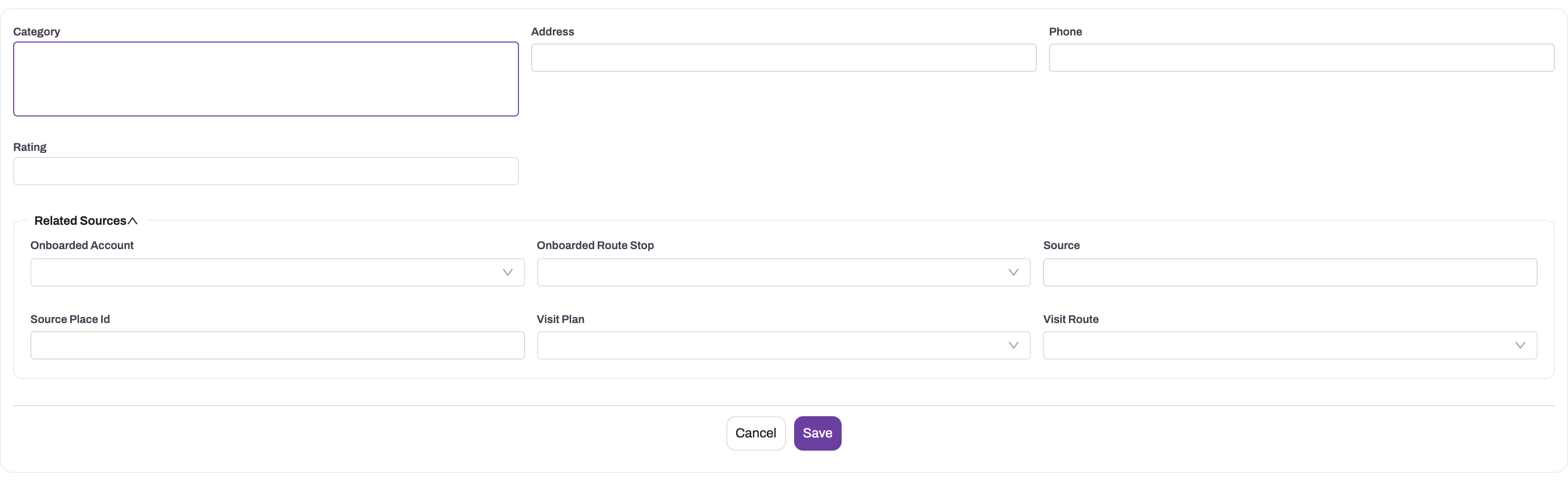
| Field | What it means | Notes |
|---|---|---|
| Name | The place's name | Shown on the feed card and the list. Copied to the new account's Name on onboarding. Comes from the search, the registration activity or the data you load; it is not on the delivered New form. |
| Category | The kind of business | From the external source or typed in. Shown on the card next to the distance. |
| Address | The address as one line of text | Copied to the account's Billing Address on onboarding. |
| Phone | The place's phone number | Copied to the account's Phone. Verify it before use. |
| Rating | The public rating from the external source | For information only. It does not change the ranking. |
| Location | The place's map position | Required for the place to appear in the feed. Not on the New form, so set it on the record page or load it with the data. |
| Status | Where the place is in onboarding | New (default; shown in the feed), Onboarded (set by the field app when an account is created), Dismissed (never set automatically; use it to retire a place). |
| Onboarded Account | The account created from the place | Set by the field app together with Onboarded. Not set when onboarding from the web. |
| Onboarded Route Stop | Meant for the proposed stop | Not filled by onboarding. Find the stop on the beat instead. |
| Source | Where the place came from | The search provider's key, Field visit, or whatever an import sets. |
| Source Place Id | The source's own id for the place | With Source, it stops a repeated search from creating a duplicate. |
| Visit Plan, Visit Route | The plan and beat on which a search first found the place | Audit only. Executives on other beats nearby still see the place. |
The reference page lists the stored type of each field: Prospect Place entity reference.
Business rules
- Only New places with a Location appear as prospects. Only accounts with a Geo Location appear as existing accounts.
- Exclusion uses the beat as well as the plan. Once an account has a stop on the beat, at any status (Approved, Proposed or Rejected), it no longer appears in the feed.
- Proposals are Proposed stops. They generate no visits until approved, and approval affects only plans generated afterwards.
- One proposal per account per beat. A second proposal for the same account on the same beat is refused.
- Onboarding in the field app marks the place Onboarded and links the account. If that update fails, the account and the proposal still stand, and the place stays New.
- A repeated search updates the place details but keeps Status, Visit Plan and Visit Route as they were.
- Search limits. The feed radius can be 100 m to 50,000 m and up to 25 results per kind; one external search returns up to 20 places.
Example
On Tuesday afternoon a sales executive is working the Riverside beat and has just finished a visit at Green Basket Mart. The Nearby outlets to onboard area reads 2 near you. One card is Sunrise Provisions, an existing customer 350 m away that belongs on no beat; the other is Corner Daily Needs, a prospect 600 m away.
The executive taps Add to route on Sunrise Provisions and sees "Sunrise Provisions proposed for the route". Then they tap Find more outlets, and the app reports Found 2 new outlets nearby. They walk to Corner Daily Needs, tap Onboard, and confirm the phone number with the owner. They correct the address and save. The new account is proposed for the beat, and the prospect drops out of the feed.
On Wednesday the planner opens the Riverside beat and finds both Proposed stops. The planner sets each to Approved and gives them Sequence Numbers 7 and 8. From the next generated plan on, both outlets are on the executive's agenda.
Training
Practice exercise
In a sandbox:
- Create an account with a Geo Location within 1 km of where you'll be, and make sure it is not on your test beat.
- Create a prospect place with a name, Status New and a Location close to the same spot. Either submit a New Outlet Registration activity on a test visit, or have an administrator load it through the data API.
- Sign in to the field app as an executive with a plan for the test beat. Open the plan's Agenda and tap Add to route on the account card.
- Tap Onboard on the prospect card, complete the form and save.
- Back on the web, open the beat's Visit Route Stops tab and the prospect place.
Expected result: the beat has two new stops with Status Proposed and the remark "Onboard request from Visit Plan agenda". The prospect place now has Status Onboarded, and its Onboarded Account is the account you created. Tapping Add to route for the same account again (from a second device or plan) is refused with "This account is already on the route (or already proposed)."
Quick reference
- The feed sits on the plan's Agenda: Nearby outlets to onboard on the phone, Nearby to onboard on the web.
- Default reach: 3,000 m, 8 accounts and 8 prospects, nearest first.
- Accounts already on the plan or the beat (at any stop status) never show.
- Add to route proposes a customer; Onboard creates the account, then proposes it; Add outlet starts from a blank form.
- Every proposal is a Proposed stop and needs approval before it reaches future plans.
- Find more outlets is a paid search: use it once per spot. Online only.
- Onboard prospects in the field app: that's where the place is marked Onboarded.
- Set a place to Dismissed to remove it from the feed without onboarding it.
- Nearby to onboard and Add outlet are separate switches on the Visit Plan Agenda widget; an unset Add outlet follows the feed.
Permissions
- Viewing the feed runs the Get Nearby To Onboard server action on the visit. The delivered Sales Executive, Sales Manager, Standard User and System Admin profiles are granted it. A user without the grant sees the feed status Couldn't load. Tap to retry.
- Find more outlets runs the Discover Nearby Outlets server action on the visit. It needs a grant on the profile's Actions tab, like any custom server action. See Security profiles.
- Add to route creates a Visit Route Stop; Onboard and Add outlet also create an Account. The user needs create access to both entities.
- Marking the place Onboarded updates the Prospect Place. The four delivered profiles have full access to Prospect Places.
- Approving proposals needs edit access to Visit Route Stops.
- Record security still applies. A user sees only the accounts their profile and sharing rules allow, so two executives in the same spot can see different existing-account cards.
Configuration
Switch the feed on or off and set its reach
The feed is part of the Visit Plan Agenda widget on the Visit Plan layout, and it is on by default in the delivered layouts. In the mobile designer, select the Visit Plan Agenda widget on the Visit Plan detail layout. Its properties include:
| Property | What it does | Default |
|---|---|---|
| Nearby to onboard | Shows or hides the feed: the status line, the suggestion cards and Find more outlets. Off, the app makes no nearby lookup and shows no "location is off" banner | On |
| Add outlet | Shows or hides the Add outlet button on the Agenda tab. With Nearby to onboard off and this on, Add outlet appears alone as one full-width button | Follows Nearby to onboard until you set it |
| Nearby radius (m) | How far around the executive to look, 100–50,000 m. Shown only while Nearby to onboard is on | 3000 |
| Max nearby results | How many accounts and how many prospects to show, 1–25 each. Shown only while Nearby to onboard is on | 8 |
| Account create layout | The account form opened by Onboard and Add outlet. Always offered, because Add outlet uses it even with the feed off | The account's default create layout |
| Account details layout | The form opened when an existing-account card is tapped | Default |
| Prospect details layout | The form opened when a prospect card is tapped | Default |
| Nearby card fields | Extra account fields printed on existing-account cards | None |
Add outlet has its own switch so that you can keep manual outlet creation without the nearby feed, or the feed without manual creation. A layout saved before the switch existed has it unset, so Add outlet shows only inside the nearby area and disappears with it. To offer Add outlet alone, switch Nearby to onboard off and switch Add outlet on. With Add outlet off, the button is removed from the nearby area. A plan with no stops then says "No outlets in this plan yet." without pointing to a button. Field app versions released before the switch ignore it and show Add outlet with the nearby area only.
The web agenda uses the same radius and result defaults and always offers its Add outlet card; the Add outlet switch applies to the field app. See Configuring the mobile app for the mobile designer.
Allow the nearby outlet search
Open Setup → Design Studio → Apps → Mobile Apps, open your Mobile App record and go to the Settings tab. Switch on Allow nearby outlet search and save. Devices pick up the change the next time they fetch their configuration, and Find more outlets appears in the feed. Each use is a paid external lookup, so the switch is off by default.
The search also needs two things outside this switch. First, the external places search must be enabled for your xMatix environment; if it isn't, the search fails with "Nearby outlet discovery is not configured for this environment." Contact xMatix support to enable it. Second, the Visit entity needs an active server action named DiscoverNearbyOutlets, granted to the profiles that will use it. Check it under the Visit entity's Logic → Actions (see Entity behavior). Without that action, every search fails.
The web agenda doesn't offer the search button in the delivered layout.
Use the New Outlet Registration activity
To let executives register prospects during visits, add an activity with Activity Type New Outlet Registration to a visit task template. See Checklists and visit tasks.
Load or maintain prospects
Prospect places are in the Field Sales Setup app under Customers & Prospects → Prospect Places. The delivered New form has no Name or Location field. A place added there needs its Location set on the record page, or it never appears in the feed. Its name isn't captured at all, so the data API or the New Outlet Registration activity is the better way to add places. To load a list, write Prospect Place records through the data API with Name, Address, Phone, Category, Location and Status New. Give each a Source and Source Place Id if you plan to reload the same list.
Account Source value
Onboarding sets the new account's Account Source to Prospect Onboarding. That value is not in the delivered Account Source picklist, so add it to the picklist if you want to filter and report on onboarded outlets by source.
Approving proposals
Add Status to the Visit Route Stop layout and to the list view used on the beat's Visit Route Stops tab, so planners can find and approve Proposed stops. See Route stops.
Common problems
The feed is empty or says "None found near you"
Outlets on today's plan or on your beat are left out by design, so you may already be fully covered. Accounts without a Geo Location and prospects without a Location never appear. Also check that your position is current. Without one, the feed is measured from the visit's check-in or planned position, which may be far from where you are.
The feed area doesn't appear at all
In the field app the feed needs a connection and a plan with at least one saved visit. Offline, only Add outlet is offered, and only when it is switched on. If the feed never appears for anyone, the Nearby to onboard property may be switched off on the Visit Plan Agenda widget. When Add outlet is still on, you see a lone Add outlet button in the feed's place.
There is no "Add outlet" button
In the field app, Add outlet follows the Add outlet switch on the Visit Plan Agenda widget. If the layout never set that switch, the button follows Nearby to onboard, so switching the feed off removes the button too. Ask your administrator to switch Add outlet on in the mobile designer. You also need a field app version that supports the separate switch.
"Couldn't load. Tap to retry"
The feed request failed. Tap to retry once you have a signal. If it always fails, ask your administrator to check that your profile is granted the Get Nearby To Onboard action on Visit.
There is no "Find more outlets" button
The Allow nearby outlet search setting is off in your Mobile App configuration, you are offline, or you are on the web agenda, which doesn't offer the search in the delivered layout.
"Nearby outlet search failed"
The search could not run. The most common causes are that the Visit entity has no active DiscoverNearbyOutlets server action or your profile has no grant for it, and that the places search is not enabled for your environment ("Nearby outlet discovery is not configured for this environment."). An administrator can check both; see Configuration.
"This plan has no route to propose onto"
The plan has no beat, so there is nowhere to put the stop. Ask your planner to set the plan's visit route, or add the outlet to a beat on the web.
"This account is already on the route (or already proposed)."
The account already has a stop on this beat, at some status. A rejected stop also counts. Ask the planner to review the existing stop instead of proposing again.
A prospect I onboarded on the web still shows in the feed
Onboarding from the web agenda creates the account and the proposed stop but doesn't update the prospect place. Open the place in Field Sales Setup → Prospect Places, set Status to Onboarded and choose the account in Onboarded Account.
"Account creation is unavailable here"
The screen you opened the agenda from cannot open an account form. Open the plan from Visit Plans and try again.
Common questions
What is the difference between Add to route and Onboard?
Add to route is for a shop that is already your customer but is not on this beat. It creates only a proposed stop. Onboard is for a shop that is not a customer yet. It opens a prefilled account form, and once you save, it proposes the new account for the beat and marks the prospect Onboarded. The card type decides which button you see. On the web agenda both card types use an Onboard button, and on an existing-account card it does what Add to route does.
Will a proposed outlet appear on today's plan?
No. Every proposal is a Proposed stop on the beat, and proposed stops generate no visits. A planner reviews it and sets it to Approved. From then on, every plan generated for the beat includes a visit to the outlet. Plans that already exist, including today's, are not changed, so if you need to visit the outlet today, do it as an unplanned stop.
Do repeated searches create duplicate prospects?
No. Each place found by Find more outlets is stored once, identified by its source and the source's own place id. Searching the same area again refreshes the stored details (name, address, phone, category, rating and position) and adds only places that were not stored yet. That is why the app may report No new outlets found nearby even though the feed shows prospects. Places entered by hand or through the New Outlet Registration activity have no source place id, so these checks don't apply to them.
Can other executives see prospects I found?
Yes. A prospect place isn't tied to the person or beat that found it. Visit Plan and Visit Route record where it was first found, for audit only. Anyone whose feed covers the place sees it while its Status is New. Once one executive onboards it, it disappears for everyone.
Can I remove a prospect without onboarding it?
Yes. Open it in Field Sales Setup → Prospect Places and set its Status to Dismissed, or delete it. Only New places appear in the feed. A later search that finds the same place refreshes its details but keeps it Dismissed.