
A visit plan is one executive's field day: a dated record that holds one visit for each outlet the executive should reach, assigned to the person who will walk it. Plans sit between planning and execution. A beat (visit route) says who visits which outlets on which days. The visit plan is one dated instance of that, and the executive works through its visits on the mobile app, where orders, checklists and photos are captured.
Overview
You get a visit plan in one of four ways:
- Automatic generation from a beat's schedule. This is the usual case once an administrator switches it on. The plan is waiting when the executive opens the app.
- By hand on the Visit Plan list in the Field Sales app. You can pick a beat, an account group or the Order Delivery purpose, and xMatix builds the visits for you.
- From the Route Planner page in the Field Sales app, by picking outlets on a map.
- From a van run, for van-sales days (see Van sales).
Whichever way it is created, the plan carries the same header: the beat, the purpose, the task template, the assigned executive and the planned dates. It also holds a set of visits, and moves through a short lifecycle: it is started, optionally paused, ended, and then either completed or swept up as lapsed.
When to use it
- Every working day of a beat. Let automatic generation create the plans, and only touch the ones that need an exception.
- One-off days. Examples are a product launch round, a collection drive, or covering for an absent colleague. Create a plan by hand, either from a beat or from an account group.
- Delivery days. A plan with the purpose Order Delivery collects the branch's undelivered delivery orders as visits.
If the same outlets are visited on a regular rhythm, set up a beat instead of creating plans by hand every week.
How xMatix handles it
Building the visits. When a plan is saved for the first time, xMatix creates its visits from whichever sources the plan names. A plan can name several sources, and each one adds its own visits.
| Source on the plan | Visits created |
|---|---|
| Visit Route | One visit per stop on the beat whose status is Approved, or that has no status. Proposed stops are skipped. Each visit gets the stop's start and end time, the stop's position in the beat, the stop's visit purpose, and the plan's task template. Its planned date is the plan's start date. |
| Account Group | One visit for every member of the group, with the plan's task template. The member's active flag is not checked. |
| Visit Purpose = Order Delivery | One visit per delivery order that matches the plan's Branch and Partner Account, is not marked delivered, and is not linked to a visit yet. The order must also have no scheduled delivery date, or be scheduled on the plan's day. Each visit takes the delivery address. Its planned time is the scheduled delivery time, and its end is one hour later. |
Visit tasks and activities are not created at this point. Each visit carries the task template, and the app creates the tasks and activities the first time the executive opens the visit.
Copying from the beat. When a plan names a beat, saving it copies the beat's Partner Account, Visit Purpose and Visit Task Template onto the plan. Any values you typed in those fields are replaced, including with an empty value if the beat has none. If Assigned To Resource is empty, it is filled with the beat's executive, or with the person holding the beat's position for a seat-owned beat. A plan with no beat is assigned to you when you create it, if your user has a resource record.
Stop order. Every visit built from a beat carries three orders, which the agenda lets the executive switch between:
- Planned — the beat's own stop order.
- Optimized — the beat's stored road-optimized order.
- Mostly Followed — the order learned from past days.
Optimize a route explains where these come from.
Executing. Executing a plan means starting it, pausing it, ending it, or stamping its actual times or executor. Only the plan's assigned executive can do that. Anyone with edit rights can still reassign, reschedule or cancel a plan. Users who have no resource record, such as back-office planners, are never blocked. Neither are plans with nobody assigned.
Ending. When a plan's Status changes to Completed, xMatix cancels every visit on it that is not already Completed, Cancelled or Rescheduled. Visits that were done keep their outcome.
Prerequisites
- The Field Sales app, and a security profile that gives access to Visit Plan (see Permissions).
- For a plan built from a beat: an active beat with at least one approved stop. See Route stops.
- For an assignee to execute the plan on the mobile app: the executive's user must be linked to an active resource.
- For Order Delivery plans: delivery orders for the same branch and partner account.
Procedure
Step 1 — Create a visit plan by hand
- In the Field Sales app, open the Visit Plan list and select New.
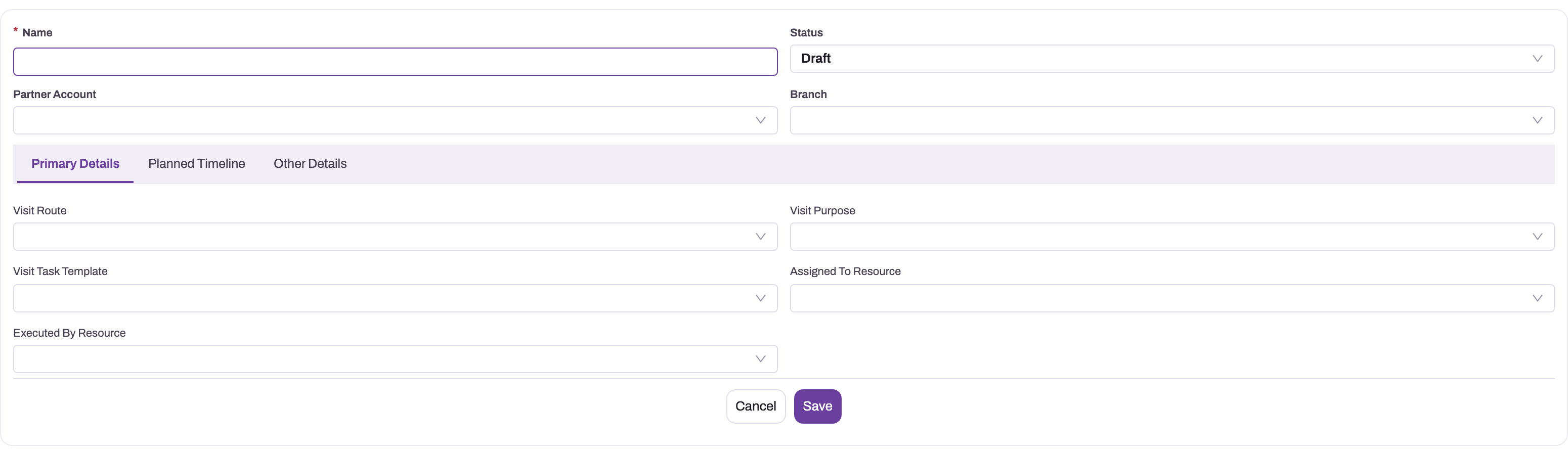
- Enter a Name. It is the only required field. Visit plans have no automatic numbering unless an administrator switches it on (see Configuration).
- Leave Status at Draft.
- On Primary Details, choose a Visit Route if the day follows a beat. Partner Account, Visit Purpose and Visit Task Template are copied from the beat when you save, so you don't need to fill them.
- Without a beat, choose Partner Account and Branch yourself. The Branch list shows only branches of the chosen partner account. Then choose Visit Purpose and a Visit Task Template.
- Choose Assigned To Resource, or leave it empty for a beat and let xMatix fill it.
- On Planned Timeline, set Plan Start Date and Plan End Date. The start date becomes each visit's planned date. The end date is the one the stale-plan cleanup measures from.
- Select Save. The plan opens. Its agenda lists the visits that were created.
The seeded form has no Account Group field. To build a plan from an account group, an administrator has to add the field to the form first (see Configuration).
Step 2 — Find a plan
- Web: in the Field Sales app, open the Visit Plan list. The All Visit Plans view shows Plan Name, Partner Account, Branch, Visit Route, Visit Task Template, Visit Purpose, Assigned To Resource, Plan Start Date, Plan End Date and the audit columns. It has no Status column; add one through the list's column controls if you need it.
- Mobile: the Visit Plans screen shows the executive's plans in three sections: Current, Upcoming and Past. The current plan is shown as a large card with Continue.
Field executives only see plans assigned to them. Their managers also see their team's plans. Unassigned plans are visible to everyone. Users without a resource record see all plans.
Step 3 — Review the day's agenda
Open the plan. The record page header shows Partner Account, Branch, Assigned To Resource, Visit Route, Plan Start Date, Plan End Date and Status, with the buttons Optimise Route, View All Visits, Edit and Delete.
Below the header, the agenda lists the plan's visits. Use Agenda, Timeline and Map to switch views, Search outlets to filter, and Refresh to reload. On the Timeline, choose between the Planned, Optimised and Mostly Followed orders. You can also reorder stops with the arrows, which saves the new position on each visit.
View All Visits opens a dialog that lists the plan's visits as cards. It changes nothing. Close it when you are done.
Step 4 — Optimise the stop order
Select Optimise Route in the header. xMatix asks the configured routing service for the shortest road order through the plan's visits. It then saves that order as the plan's working order, and visits without coordinates go to the end. The route starts from the plan's Start Location and ends at its End Location when these are set; neither field is on the seeded form.
If no routing service is configured, you see "Route optimization is not configured for this environment." If no visit has a location, you see "This plan has no stops with coordinates, so there is nothing to optimize."
Step 5 — Start, pause and end the plan
The executive does this on the mobile app: open the plan and select Start plan. The same buttons are on the web agenda.
- Start plan sets Status to In Progress and stamps Actual Plan Start Date.
- Pause sets Paused and pauses the visit that is running. Resume puts both back.
- End plan asks for confirmation and tells you how many outlets are not completed yet. It then sets Status to Completed and stamps Actual Plan End Date. Every visit that is not completed, cancelled or rescheduled is cancelled.
Work the visits in between as described in Complete a visit. Orders taken on a plan's visit are linked to the plan.
Step 6 — Reassign, reschedule or cancel a plan
Select Edit and change Assigned To Resource, the dates or Status. A supervisor can do this for anyone's plan, because these changes are not execution. To call off a day, set Status to Cancelled. This doesn't change the plan's visits. Cancel any open ones yourself, or let the visit cleanup do it. A cancelled plan still counts as that beat's plan for the day, so the day is not generated again.
Change Visit Route, Visit Purpose, the plan dates or the account group only on a plan that has no visits yet. Saving such a change adds visits again from the changed source, and existing visits are not removed. If it happens, delete the duplicates from the plan's agenda or the Visit list.
Step 7 — Delete a plan
Select Delete on the plan, or use Delete in the list. Delete a plan only if it was created by mistake. Cancelling keeps the day's history and still blocks regeneration for that day. A deleted plan for a beat and date can be generated again on the next run if the date is still in the generation window.
Fields
| Field | What it means | Notes |
|---|---|---|
| Name | The day's name | Required on the form. Generated plans are named after the beat and date, for example North Market - 14 Oct 2026. |
| Status | Where the plan is in its life | Picklist values: Draft (default), Assigned, Started, Executed, Lapsed, Cancelled, Completed. xMatix itself writes Planned (generated, Route Planner and van-run plans), In Progress, Paused, Completed and Lapsed. Only the assigned executive can move a plan into an execution status. |
| Partner Account | The distributor or company the day serves | Copied from the beat when a beat is set. Used to match delivery orders. |
| Branch | The branch the day belongs to | Only branches of the chosen partner account can be picked. Generated plans take the executive's default branch. Required in practice for Order Delivery plans. |
| Visit Route | The beat the plan comes from | Setting it builds the visits from the beat's approved stops. |
| Visit Purpose | Why the outlets are visited | Order Capture, Courtesy Visit, Order Delivery, Field Service, Product Demo, Service Touch, Payment Collection. Copied from the beat. Order Delivery adds visits for pending delivery orders. |
| Visit Task Template | The work each visit carries | Copied from the beat, and stamped on every visit. |
| Assigned To Resource | The executive who will walk the day | Filled from the beat (or its seat holder) if empty. On a plan without a beat, filled with your resource. Only this person can execute the plan. |
| Executed By Resource | Who actually ran the day | Set on van-run plans. On other plans it can be filled with the creating user's resource; correct it if it shouldn't be. Used for execution checks when nobody is assigned. |
| Plan Start Date | The planned day | Becomes the planned date of every visit. Generated plans use the beat's start time on that day. |
| Plan End Date | When the day is planned to end | Generated plans use the latest stop end time. The stale-plan cleanup measures from this date, or from the start date when it is empty. |
| Actual Plan Start Date | When the executive started | Stamped by Start plan. |
| Actual Plan End Date | When the day ended | Stamped by End plan, or by the cleanup when it lapses the plan. |
| Total Visit | Number of visits on the plan | Calculated. |
| Visit Compliance | Share of visits completed, in percent | Calculated: completed visits × 100 ÷ all visits. |
Fields stored on the plan but not on the delivered forms:
| Field | What it means | Notes |
|---|---|---|
| Plan Type | Order Taking (default), Van Sales or Field Service | Set by van runs and the Route Planner. On mobile, a Van Sales or Field Service plan shows the Van Run card. |
| Account Group | Build one visit per member of this group | Adds visits when set. |
| Visit Route Group | The beat's group | Copied by generation. |
| Start Location / End Location | Fixed start and end points for Optimise Route | Map points. |
| Include Pending Delivery Orders, Include Pending Delivery Checkouts | Switches | Stored only. Delivery visits are driven by Visit Purpose, not by these switches. |
| Acceptance Status, Route Method, Mode of Transport, Item Group, City, State, Postal Code, Remarks, PlanName | Descriptive fields | Stored and reportable. Nothing in plan processing reads them. |
The complete list is in the entity reference.
Business rules
- One plan per beat per day. Automatic generation skips any beat and date that already has a plan, whether generated, created by hand, or cancelled.
- Visits are copies. Plans keep the visits they were built with. Editing the beat changes only plans created afterwards.
- Re-saving a source adds visits. Changing Visit Route, Account Group, Visit Purpose or the plan dates on an existing plan runs visit creation again for that source, without removing existing visits.
- Only the assignee executes. Moving Status into In Progress, Started, Paused, Completed or Executed, or changing Actual Plan Start Date, Actual Plan End Date or Executed By Resource, is refused for anyone except the assigned executive. Users with no resource record are not checked.
- Completing cancels open visits. Changing Status to Completed cancels visits that are not Completed, Cancelled or Rescheduled. Cancelling a plan doesn't touch its visits.
- Stale plans lapse. An open plan whose end date is older than the cleanup margin becomes Lapsed. Its Actual Plan End Date is stamped if empty, and its open visits are cancelled. Plans that are Completed, Executed, Cancelled or Lapsed are never touched.
- No start gate for van days. A Van Sales plan can be started before the van stock is taken in. Take-in is a separate step on the Van Run card.
Example
A sales manager covers a holiday. On Monday, executive Field Executive 07 is on leave, and the beat North Market already has Tuesday's plan North Market - 14 Oct 2026 with six visits.
- The manager opens the plan, selects Edit, changes Assigned To Resource to Field Executive 12, and saves. The six visits stay as they are.
- On Tuesday morning, Field Executive 12 opens Visit Plans on the phone. The plan is under Current. They select Continue, then Start plan. Status becomes In Progress.
- They complete five outlets. The sixth is closed, so they select End plan. The confirmation says 1 outlet is not completed yet. They confirm. Status becomes Completed, the sixth visit is cancelled, and Visit Compliance shows about 83.
- Had Field Executive 07 tried to start the plan from their own phone after the change, the app would have stopped them with Assigned to another resource.
Training
Practice exercise
In a sandbox with a beat that has three approved stops and a resource linked to your user:
- Create a visit plan named Practice Day. Choose the beat and leave Assigned To Resource empty. Set Plan Start Date and Plan End Date to today, and save.
- Open the plan and check the agenda.
- Set Assigned To Resource to yourself, then select Start plan, then End plan with at least one visit still open.
Expected result: after step 1 the plan shows three visits. Partner Account, Visit Purpose and Visit Task Template match the beat, and Assigned To Resource shows the beat's executive. After step 3, Status is Completed, Actual Plan Start Date and Actual Plan End Date are stamped, and the open visits are Cancelled.
Quick reference
- A plan is one executive's day; a beat is the recurring template.
- Saving a plan with a beat copies the beat's Partner Account, Visit Purpose and Task Template, replacing what you typed.
- Only approved stops become visits.
- Purpose Order Delivery adds the branch's undelivered delivery orders as visits.
- Only the assigned executive can start, pause or end a plan.
- End plan cancels every visit that isn't done.
- A cancelled plan still blocks generation for that beat and day.
- Don't change the beat, purpose or dates on a plan that already has visits.
- Open plans lapse after 72 hours past their end date unless an administrator changes the margin.
Permissions
The seeded Sales Executive, Sales Manager, Standard User and System Admin profiles have full access to Visit Plan, which covers creating, editing and deleting. The record buttons that run server actions need a grant on the profile's Actions tab:
| Action | Sales Executive | Sales Manager | Standard User | System Admin |
|---|---|---|---|---|
| Optimise Route | — | Yes | Yes | Yes |
| View All Visits | — | Yes | Yes | Yes |
A user without the grant doesn't see the button. See Security profiles.
Two further controls apply on top of the profile:
- Who sees which plans. The Visit Plan security policy has a rule, ScopeToAssignedResource. Under it, a user linked to a resource sees only plans assigned to them or to people below them in the hierarchy, plus unassigned plans. Users without a resource see all plans. Manage it under Setup → Access Control → Policies, on the Visit Plan policy's Rules. Turning the rule off makes every plan visible to everyone with read access. See Record security.
- Who executes. The assignee check is built in and can't be turned off. Managers can read a team member's plan but can't start or end it for them.
Configuration
Automatic generation and cleanup
Go to Setup → Feature Hub → Sales → Settings, Schedulers group. Changing these settings needs setup.featurehub.settings.manage.
| Setting | Default | What it changes |
|---|---|---|
| Auto-create Visit Plans from route schedules | Off | Turns automatic generation on. The schedule rules are explained in Beats and routes. |
| Visit Plan generation lead (days ahead) | 1 | How many days ahead plans are created (0–30). |
| Visit Plan generation run days (CSV, blank = every hour) | Blank | Blank runs generation every hour. Weekday names run it weekly. |
| Visit Plan generation run hour (local, 0–23) | 0 | Used only with run days. |
| Auto-cancel Visit Plan after (hours, 0 = off) | 72 | An open plan whose Plan End Date (or start date, when there is no end date) is older than this becomes Lapsed, and its open visits are cancelled. 0 turns the plan sweep off. Maximum 8760. |
| Auto-cancel Visit after (hours, 0 = off) | 48 | Any open visit whose planned date is older than this is Cancelled, even if its plan is still open. 0 turns the visit sweep off. |
The cleanup runs at most once an hour. Both margins are on by default. Raise them, or set them to 0, if your teams close days late or back-date plans.
Forms, lists and the record page
- Forms. Edit and New use the Visit Plan Create layout, which has Name, Status, Partner Account and Branch, then Primary Details and Planned Timeline. To build plans from account groups, or to set Plan Type or the optimization start and end points by hand, add Account Group, Plan Type, Start Location or End Location to this layout in the form designer. See Design a form layout.
- Record page. The record page is the Visit Plan View layout. Its header lists Optimise Route, View All Visits, Edit and Delete.
- Unrendered widget. The record page layout includes an incentive widget that isn't rendered on the web, so you can remove it from the layout.
- List. The list's only view is All Visit Plans. Its summary cards count plans from the last 30 days.
Numbering
A Visit Plan Document Name Setting is delivered but switched off. Its series is VP, with a six-digit counter and a date part. To have plan names numbered, switch it on under Setup → Feature Hub → Platform → Document Settings. See Email templates and document numbering.
Agenda options
The agenda widget on the record page shows Pause by default. Optimise on the agenda timeline and the paid Find outlets search are off unless an administrator enables them in the widget's properties in the form designer.
On the phone, a plan opens with Brief, Agenda, Timeline and Map tabs. In the mobile designer, select the Visit Plan Agenda widget on the Visit Plan detail layout to rename any tab (for example, Agenda to Outlets) or to switch Timeline or Map off. Agenda is always shown. Switching Timeline off also removes its Reorder button and route optimisation, because they are only on that tab.
To let reps change the order of the day's stops on the Agenda tab itself, switch on Drag to reorder on the Agenda in the same widget's properties. The rep holds a stop for a moment, drags it to its new place and lets go; a quick tap still opens the visit. The new order is saved on the plan's visits straight away, also when the phone is offline. Visits already done or in progress stay where they are, and dragging is off while a search is active. Only that plan changes: the route's own stop order, which new plans copy, stays as it is. The Allow visit re-sequencing setting in Setup ▸ Mobile App ▸ Settings must be on (it is by default); switching it off turns dragging off everywhere.
On the Agenda tab, the same widget can colour the bottom of each outlet card by the outlet's productivity: green when it buys focus products, amber when it buys but not focus products, and red when it is unproductive. The colours come from three productivity flags on the outlet's account. Switch on Outlet productivity stripe to show the line, then Show band name to print the band's name in it, for example Productive But Non Focused Product. Use Green band name, Amber band name and Red band name to change the wording; an empty name keeps the default. An outlet with no flag shows no line and no name.
To mark stops with a small icon, such as a pin when a location has been captured, add an indicator to the Visit view's card: open the Visit entity, Experience → Views, the row action Design card, then the Indicators tab. Choose the field the icon checks, the icon and its colour, and whether it shows when the field has a value or when it is empty. The icon appears at the right of every stop on the Agenda tab, beside its arrow, and on the Visits list on the phone. Tapping a location pin opens that place in Google Maps, just like the directions button. Visit Location is only filled when the rep starts the visit with a location fix, so its pin marks stops already started. To mark outlets that are geo-tagged, choose Account › Geo Location instead; a field read through the account shows on the Agenda tab only.
Common problems
"This visit plan is assigned to … Only the assigned resource can execute it."
You tried to start, pause or end a plan, or to change its actual times, and the plan is assigned to someone else. On the mobile app the same check shows Assigned to another resource. On the web agenda it shows Action failed. Ask a supervisor to change Assigned To Resource to you, or run the day from the assignee's login.
No visits appeared on my new plan
- Check that the beat has stops with status Approved; Proposed stops are skipped.
- For an Order Delivery plan, check that Branch and Partner Account match the delivery orders, and that the orders are not delivered and not already linked to a visit. Delivery orders scheduled for another day are skipped.
- Check whether the plan came from an external system. Those plans don't build visits in xMatix.
My plan has every outlet twice
The plan's Visit Route, Account Group, Visit Purpose or dates were changed after the visits were created, and the change added a second set. Delete the duplicate visits. In future, create a new plan instead of changing those fields.
The Partner Account or purpose I entered changed after saving
The plan names a beat, and saving copies the beat's Partner Account, Visit Purpose and Task Template. Change them on the beat, or remove the beat from the plan.
"Route optimization is not configured for this environment."
No routing service is set up for your environment, so Optimise Route can't run. The agenda can still show the stored Optimized order of the beat.
A plan turned to Lapsed on its own
The stale-plan cleanup found it open more than Auto-cancel Visit Plan after hours past its end date. Its unfinished visits were cancelled too. To give teams more time, raise the margin.
Common questions
Can I add an outlet to today's plan?
The web agenda has no button for adding a visit to an existing plan. To cover an extra outlet, create a visit for it that points to this plan, or create a separate plan for the day. To change the beat permanently, add the outlet as a route stop. Outlets that executives propose from the field stay out of plans until someone approves them, and only plans created after the approval include them.
What is the difference between Assigned To Resource and Executed By Resource?
Assigned To Resource is the person the day is planned for. It decides who can see and execute the plan. Executed By Resource records who actually ran it, and plans created from a van run carry the run's executive in both fields. When a plan has no assignee, the executor is used for the execution check instead. Reports can put the two side by side to show cover arrangements.
Why does my plan say Planned when that isn't in the Status list?
Plans created by automatic generation, the Route Planner and van runs are saved with the status Planned, and the mobile app writes In Progress and Paused. These values are valid but are not in the seeded picklist. An administrator can add them to the Status picklist so they show cleanly in filters and on the form.
Does completing a plan delete the unfinished visits?
No. They are kept and set to Cancelled, so coverage reports still show what was planned and missed. Visits already completed keep their outcome. A visit that was rescheduled to another plan is left alone.