
Attendance in xMatix is a check-in and check-out that a field user makes on the mobile app at the start and end of the working day. Each check-in or check-out is stored as a punch, and the punches of one person's working day are grouped into one Resource Availability record, the attendance day. An administrator decides who must check in, what a valid check-in needs (location, selfie, working day and hours, holidays, approved leave), and whether forgotten check-outs are closed automatically. Attendance comes before the day's visit plan. It is separate from checking in at an outlet during a visit.
Overview
Three records carry attendance:
| Record | What it holds | Who writes it |
|---|---|---|
| Resource Availability Data (a punch) | One check-in or check-out: the resource, its Type (Check-In or Check-Out), the Attendance Time and the resource's default branch | The mobile app and the automatic checkout. It can also be added or corrected by hand on the web |
| Resource Availability (the attendance day) | One resource's working day: Resource, Date, Availability Type, the first check-in, the last check-out, Penalty Hours and Duration | Created automatically by the day's first punch, or by Mark Absent on the mobile app. It can also be added or edited by hand |
| Resource Availability Check In | A check-in and check-out session | Nothing in xMatix. The table is kept for data brought over from an earlier system |
When to use it
- Field users check in before starting the day and check out when it ends.
- Supervisors and administrators read the attendance day to see when someone started and finished, and correct it when a punch is missing or wrong.
- Administrators set up the gates for a field team, choose which security profiles must check in and switch on automatic checkout.
Use availability requests when a field user needs to ask for a correction rather than edit attendance directly.
How xMatix handles it
- One day record per person per day. When a punch is saved, xMatix looks for that resource's attendance day on the punch's local date. If there is none, it creates one with Availability Type Present and links the punch to it. Later punches that day join the same record.
- The local day. The date comes from the time zone of the resource's own Business Hours. If the resource has none, the default branch's business hours are used. If neither is set, the UTC date is used. A late-evening check-in therefore lands on the local day it belongs to. See Business hours.
- First check-in and last check-out are worked out from the day's punches each time a punch is added, changed or deleted.
- Several sessions in a day. A user can check out and check in again on the same day. When a check-in follows a check-out, the gap between them is added to Penalty Hours, so a break isn't counted as work.
- Duration is the time from the first check-in to the last check-out, minus Penalty Hours. While the day has no check-out, it runs up to the current time.
- The gates are checked on the server for every check-in and check-out. A refused online punch isn't saved.
- Offline punches are queued on the device and sent when the connection returns. A queued punch is checked against the same gates, but if it fails a gate it is still recorded, flagged with a warning, instead of being dropped.
What the system does not fill in
Mobile check-in and the automatic checkout fill only Resource, Date, Availability Type (Present) and the calculated times on the attendance day. Mark Absent fills Resource, Date and Availability Type Absent. These fields stay empty unless someone enters them by hand or imports them:
- Check-In and Check-Out. The punch times are in First Check-In Time and Last Check-Out Time instead.
- Branch, Check-In Branch and Check-Out Branch on the day. Each punch records the resource's default branch at the time of the punch, not the place it was made. The device location is used only to check the location gate and isn't stored on the punch.
- Leave Request, and the Availability Type values Leave, Holiday, Weekend and Half Day. Approving leave doesn't create or change an attendance day.
Prerequisites
- The user is linked to an active Resource (see Resources). Without one, the app shows "Your user is not linked to a resource — contact your administrator."
- The user's security profile is assigned to the Mobile App configuration with Check-in required on, and Enable check-in / check-out is on for that configuration (see Configuration).
- For the location gate, the resource has a default branch with a geo location.
- For the working day and working hours gates, the resource or its default branch has business hours.
Procedure
Step 1 — Check in on the mobile app
What you see depends on how your administrator set the gate:
- With the gate on the whole app, opening the app shows Check in to start your day, with the line "app name requires an attendance check-in before it opens." Two buttons, Switch Workspace and Sign out, let you leave the screen.
- With the gate on specific records, you are asked to check in when you open one of those records.
The screen lists the checks that apply to you: Resource tagged, Location, Selfie, Working day, Working hours, Holiday and Leave. Allow location access, take the selfie if one is asked for, and select Check in. When the punch is accepted, the app opens. If you are offline, the punch is queued and the app opens straight away.
Step 2 — Fix a refused check-in
If a check fails, the app shows "Check-in requirements not met." and marks the failing check. The server gives the reason, for example:
| Check | Message |
|---|---|
| Location | "distance m from branch (allowed radius m)." or "Device location was not provided." |
| Working day | "Day is not a working day." |
| Working hours | "time is outside the working window start–end." |
| Holiday | The name of the holiday |
| Leave | "You have an approved leave covering today." |
Move closer to your branch, wait for your working hours, or ask your administrator if the calendar or branch location is wrong.
Step 3 — Mark yourself absent, or skip check-in
These options appear only when your administrator has turned them on.
- Mark Absent. Below Check in, select Mark Absent and confirm Mark Absent for today? The app records today as an attendance day with Availability Type Absent. You can still use the app, but the window reads "You're marked Absent for today, so check-in is closed until tomorrow." The button is shown only while you are online, not checked in, and nothing is recorded for you today yet. If your administrator also turned on Block visits when absent, you can't start or resume a visit plan or a visit for the rest of the day ("Marked Absent for today"), and one that is running is paused. You can still end one that was left open.
- Skip. When the whole app is gated, select Skip at the top right of the check-in screen and confirm Skip check-in. You get into the app for the rest of the day without checking in. Nothing is recorded in attendance. To check in later, select Check in in the menu ("You skipped check-in today"). The check-in screen shows again the next day.
Step 4 — Check out at the end of the day
Open the side menu and select Check out. The item appears only while you are checked in and your profile requires check-in. The same checks as at check-in apply, including location. If you check in again later that day, a new session starts on the same attendance day.
Step 5 — Review an attendance day on the web
Open the person's Resource record and its Resource Availability tab to see a calendar of their attendance days, coloured by Availability Type. Switch between Month, Week and Day, or use Today and Select Custom Date. The Day view shows each record's type and its Duration in hours and minutes.
To open the day record itself, open the Resource Availability list. The list isn't in any app menu in the standard setup. Your administrator can add it to an app (see Configuration). The list shows Name, Resource, Date, Availability Type, Check-In and Check-Out.
The record page shows Resource, Availability Type, Check-In and Check-Out in the header. The Related tab lists the day's punches first (Resource, the day and Type), then any Resource Availability Check In sessions. The Information section holds Document Number, Resource, Date, Availability Type, Check-In and Check-Out. The Availability Details section holds First Check-In Time, Last Check-Out Time, Check-In Branch, Check-Out Branch, Duration, Penalty Hours, Created By and Modified By.
Step 6 — Correct an attendance day
The record page has no Edit button. Its fields are edited in place: select the pencil beside a field, for example Availability Type or Penalty Hours, change it and save. To fix the times, correct the punches instead of the day. On the Related tab, select Edit on a punch row and change its Attendance Time, delete a wrong punch, or select New to add a missing one. The punch form has Name, Resource Availability, Branch, Attendance Time, Type and Resource. Fill in Name (the next RAD number replaces it), Resource, Attendance Time and Type, and choose Check-In or Check-Out as the Type, never Auto-Check-Out. The first check-in and last check-out are worked out again when you save. Changing the day's Check-In or Check-Out fields doesn't change Duration.
Adding a missing Check-In to a day that already has a check-out also adds the time between the two to Penalty Hours (see Business rules). After adding one, check Penalty Hours and set it back to the real break time.
If a user raised a regularization request for the day, approving it doesn't change the attendance day. Correct the day by hand as described here. See Availability requests and attendance regularization.
Step 7 — Add a day by hand
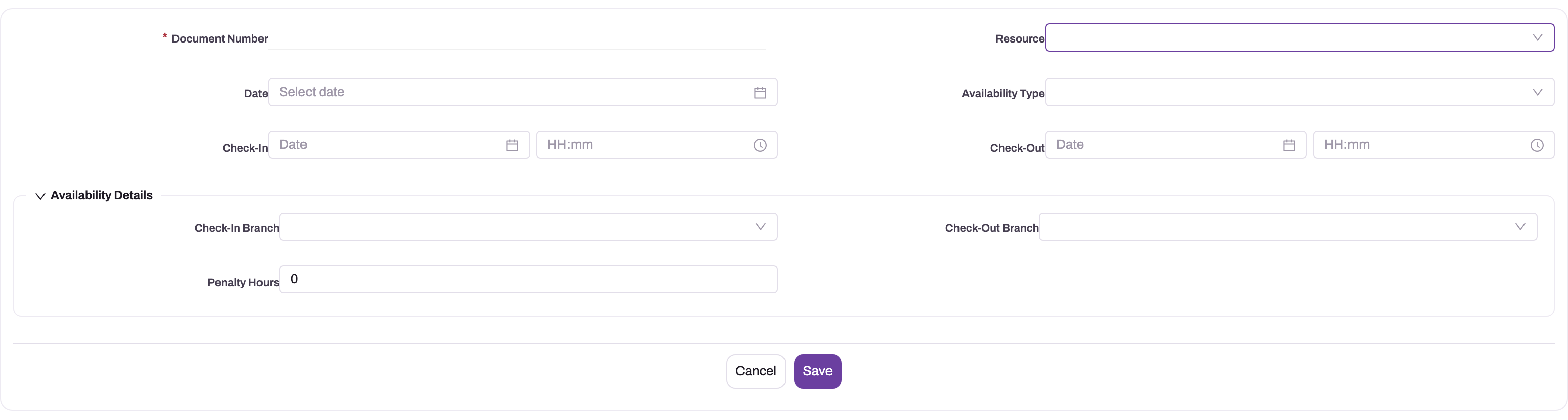
To record a day with no punches, for example a day of leave or a holiday, select New on the Resource Availability list. Fill in Document Number, Resource, Date and Availability Type, and optionally Check-In, Check-Out, the branches and Penalty Hours, then select Save. While the RA numbering setting is active, the next number from that series replaces the Document Number you typed. xMatix doesn't stop you from adding a second day for the same resource and date, so check the calendar first.
Fields
The fields of the attendance day, in the order of the New form:
| Field | What it means | Notes |
|---|---|---|
| Document Number | The record's reference | Required. While the RA numbering setting is active, the next number from the series replaces what you type when the record is first saved. |
| Resource | The person the day belongs to | Filled by the system for punched days. |
| Date | The local calendar day | Worked out from the resource's business-hours time zone for punched days. |
| Availability Type | What kind of day it is | Present, Leave, Weekend, Holiday, Absent or Half Day. A punch writes Present and Mark Absent writes Absent. The other values are only set by hand. |
| Check-In | A check-in date and time typed by hand | Not filled by the mobile app, and not used in Duration. |
| Check-Out | A check-out date and time typed by hand | Not filled by the mobile app, and not used in Duration. |
| Check-In Branch | The branch for the check-in | In the Availability Details section. Only filled by hand. |
| Check-Out Branch | The branch for the check-out | Only filled by hand. |
| Penalty Hours | Hours deducted from Duration | Defaults to 0. The system adds the break between a check-out and the next check-in on the same day. You can change it. |
Fields shown on the record page only:
| Field | What it means | Notes |
|---|---|---|
| First Check-In Time | The day's earliest punch | Calculated from the punches. Read-only. |
| Last Check-Out Time | The day's latest check-out | Calculated from the punches. Read-only. |
| Duration | Hours worked | Last check-out minus first check-in, minus Penalty Hours. While no check-out exists, it counts to the current time. |
| Created By, Modified By | Audit stamps | Read-only. |
Branch, Partner Account, Employee, Leave Request and Attendance Hours are on no standard form, and nothing in xMatix fills them. Attendance Hours has no calculation. Use Duration.
The fields of a punch, in the order of its form:
| Field | What it means | Notes |
|---|---|---|
| Name | The punch's reference | Required. While the RAD numbering setting is active, the next number from that series replaces what you type, for example RAD-10072026-000001. Don't search for punches by a name pattern. |
| Resource Availability | The attendance day the punch belongs to | Leave it empty: on save, xMatix finds or creates the day for the punch's resource and local date. A day you pick by hand is kept as given, even if the time is on another date. |
| Branch | The resource's default branch when the punch was made | Filled by the mobile app. An automatic checkout copies it from the check-in it closes. It isn't the place the punch was made. |
| Attendance Time | When the punch happened | Stored as a point in time and shown in your time zone. The punch counts towards the resource's local day. This is the time that First Check-In Time, Last Check-Out Time and Penalty Hours use. |
| Type | Check-In or Check-Out | The list also offers Auto-Check-Out, but attendance ignores a punch of that type. Automatic checkouts are saved as Check-Out. |
| Resource | The person who punched | Required for the punch to join an attendance day. A punch without a Resource or an Attendance Time joins no day. |
A punch also carries fields that aren't on its form. Time is a second copy of the moment of the punch, kept for punches recorded before times were stored this way. If you correct Attendance Time on the web, Attendance Time wins. Label marks how a punch arrived: "Offline" for a punch sent from the offline queue, "Flagged:" followed by the failed checks (for example geo or workingHours) for an offline punch that failed a gate. Label isn't shown on the standard screens, so recognise an automatic checkout by its time, 23:59:59 local time. The selfie is attached to the punch as a picture file named checkin-selfie.jpg.
Business rules
- One day per resource and date applies only to punches: a punch joins the existing day for its local date. Hand-added days aren't checked for duplicates.
- Gates apply to check-in and check-out. A check-in while already checked in, or a check-out while not checked in, is refused ("You are already checked in." / "You are not checked in right now.").
- The location gate checks the distance between the device and the resource's default branch. If the resource has no default branch, or the branch has no usable geo location, the punch is allowed with a warning.
- The working day and working hours gates read the resource's business hours, or the default branch's. With neither, every hour counts as working time.
- The holiday gate refuses a day that is a holiday for everyone or for the resource's default branch.
- The leave gate refuses a day covered by a leave request with Status Approved.
- The selfie is checked by the app, not the server. It is saved as a picture on the punch after the punch is recorded.
- Offline limits. A queued punch older than 3 days is refused when it reaches the server, and so is one dated in the future. The device then shows "An offline check-in was rejected:" followed by a reason code such as TimestampTooOld. A queued punch that fails a gate is recorded and the app shows "An offline punch was recorded with warnings — some check-in rules were not met."
- A replayed offline punch is recorded once. Each queued punch carries its own identifier from the device, so sending it again after a dropped connection doesn't add a second punch.
- Automatic checkout runs at most once an hour when switched on. For every check-in still open from a local day that has ended, it adds a Check-Out punch at 23:59:59 local time and updates the day's last check-out. It looks back 14 days. It doesn't change Penalty Hours.
- Penalty Hours are added only when a Check-In punch is saved on a day that already has a check-out. xMatix adds the time between the new check-in and the most recently created Check-Out punch of that day, whichever of the two is earlier. On the mobile app that is the break before the new session. A check-in added by hand for an earlier time, after the check-out exists, adds the whole span instead.
- Editing or deleting a punch recalculates the first and last times, but not Penalty Hours.
- Only Check-In and Check-Out count. A punch with any other Type, including Auto-Check-Out, is ignored by the day's times, the check-in status on the mobile app and the automatic checkout.
- Mark Absent creates the day's record with Availability Type Absent. It is offered only when nothing is recorded for the user that day, so it never changes an existing day. The app closes check-in for the rest of that day. If an administrator deletes the absent day, the app offers check-in again the next time it refreshes the user's status.
- Skip is kept on the device only. It writes nothing, lasts until the end of the day, and ends when the user checks in or when an administrator turns Allow Skip off.
- Other features that read the attendance day:
- The dispatch and time-sheet allocation consoles read the day's Availability Type (see Resource availability and slot holds).
- Assignment rules treat a resource as away when today's day has Availability Type Leave, Absent or Holiday. "Today" is the UTC date here.
- The Attendance & Leave, My Attendance & Leave and Service Dashboard dashboards, and the Resource Availability Report, read the attendance day too.
- Payroll doesn't read attendance. Loss-of-pay days come from approved unpaid leave requests, not from Resource Availability. See Payroll runs.
Example
A sales executive's resource uses business hours in Indian time, with a 09:00–19:00 window on Monday to Saturday. The Mobile App configuration has the location gate at 250 m and Restrict to working hours on.
- On Tuesday at 09:12 the executive opens the app 80 m from their branch and selects Check in. All checks pass. xMatix records a Check-In punch and creates the attendance day for Tuesday, Availability Type Present.
- At 13:30 they check out for a lunch break, and at 14:15 they check in again. The second check-in adds 0.75 to Penalty Hours.
- They forget to check out in the evening. Auto check-out is on, so after midnight the sweep adds a Check-Out punch at 23:59:59.
- On Wednesday their supervisor opens the day. First Check-In Time is 09:12, Last Check-Out Time is 23:59:59, and Duration is about 14 hours. The supervisor deletes the synthetic punch, adds a Check-Out punch at 18:40 on the Related tab and saves. Duration becomes about 8.7 hours (09:12 to 18:40, minus 0.75).
Training
Practice exercise
In a sandbox, give a test user a Resource with a default branch, and turn check-in on for the user's profile. Turn on the location gate with a 250 m radius. Then:
- Check in on the mobile app away from the branch. Expected result: "Check-in requirements not met." with the Location check failing.
- Check in at the branch, check out, then check in again ten minutes later.
- On the web, open the Resource Availability record for today. Expected result: one record, Availability Type Present, three punches on the Related tab, and Penalty Hours of about 0.17.
Quick reference
- Each person has one attendance day per local date, created by the day's first punch.
- Times come from the punches: First Check-In Time, Last Check-Out Time, Duration.
- Check-In, Check-Out and the branch fields are only filled by hand.
- A punch writes Availability Type Present and Mark Absent writes Absent; approved leave doesn't change the day.
- On a hand-added punch, choose Check-In or Check-Out, never Auto-Check-Out.
- After adding a missing check-in by hand, check Penalty Hours.
- The Check-In tab on the Mobile App record sets the gates; the Profiles tab sets who must check in.
- Check out from the side menu.
- Offline punches older than 3 days are refused.
- Auto checkout is a Sales setting, off by default.
- Correct times by fixing punches, not the day's Check-In and Check-Out fields.
Permissions
- Mobile check-in needs a user linked to an active Resource and a profile assigned to the Mobile App configuration with Check-in required on. Users of profiles without it are never gated.
- Seeing, adding, editing and deleting Resource Availability records follows the entity access in the user's security profile. The standard Sales, Sales Executive, Sales Manager, Service, Standard User and System Admin profiles have full access to it.
- Clone is a server action. In the standard profiles, it is granted to Sales Executive, Standard User and System Admin.
- Mark Absent creates a Resource Availability record as the signed-in user, so it needs create access to Resource Availability. Without it, the app shows the server's refusal under the button.
- Correcting punches on the Related tab follows the entity access to Resource Availability Data in the same way.
- Changing the gates needs access to Setup. Changing the auto checkout setting needs
setup.featurehub.settings.manage.
See Security profiles.
Configuration
Check-in gates
Go to Setup → Design Studio → Apps → Mobile Apps, open the configuration and its Check-In tab:
| Setting | What it does |
|---|---|
| Enable check-in / check-out | Master switch. With it off, no one is gated. |
| Check-in scope | Gate app open blocks the whole app until check-in. Require for specific entities asks only when the records in Entities requiring check-in are opened. |
| Geolocation | Turns on the location gate, with the radius in metres (default 250, minimum 10). |
| Selfie, Selfie frequency | Asks for a selfie, on Every check-in or Once per day. |
| Restrict to working hours | Refuses punches outside the business-hours window. |
| Restrict to working days | Refuses punches on non-working days. |
| Block on holidays | Refuses punches on a holiday. |
| Block on approved leave | Refuses punches on a day of approved leave. |
| Allow Mark Absent | Shows Mark Absent under Check in, so a user can record today as Absent instead of checking in. Check-in is then closed for the rest of the day. Off by default. |
| Block visits when absent | Needs Allow Mark Absent. On a day marked Absent, the app refuses to start or resume a visit plan or a visit and pauses one that is running. Ending one stays allowed. Off by default. |
| Allow Skip | Only with Gate app open. Shows Skip on the check-in screen, so a user can enter the app for the day without checking in. Nothing is recorded. Off by default. |
On the Profiles tab, Check-in required decides, per security profile, whose users must pass the gate. The Location Tracking tab, which records a trail during an open check-in, is described in Location tracking. For the rest of the Mobile App record, see Mobile app configuration.
Automatic checkout
Go to Setup → Feature Hub → Sales → Settings, Schedulers group, and turn on Auto check-out open attendance after midnight. It is off by default and needs the Sales module to be on.
Calendars, branches and holidays
- Business hours on the resource, or its default branch, set the attendance time zone and the working days and hours. See Business hours.
- The resource's default branch and the branch's Geo Location drive the location gate. See Branches.
- Holidays and approved leave requests drive the holiday and leave gates.
Making the list reachable
The Resource Availability list isn't in a standard app. To add it, go to Setup → Design Studio → Apps, open the app and add the entity under Manage Items (see Create an entity). The Resource Availability calendar tab is on the standard Resource record page. A designer can also place the Availability Calendar widget on other pages. On mobile it always shows the signed-in user's own attendance, as described in Availability requests and attendance regularization.
Numbering
Hand-added days are numbered from the RA series (Resource Availability document name setting, active as delivered). Change it under Setup → Design Studio → Entities → Resource Availability → Logic → Document Settings.
Common problems
"Your user is not linked to a resource — contact your administrator."
The signed-in user has no active Resource. Link the user to a Resource and try again.
Check-in is refused at the branch
The location gate measures the distance to the resource's default branch, not the nearest branch. Check that the default branch is the right one and that its Geo Location is correct.
The day shows the wrong date
The local day comes from the resource's business hours, then the default branch's. With neither set, the UTC date is used, so evening punches in a time zone ahead of UTC can land on the next day. Set business hours on the resource or its branch.
Check-In and Check-Out are empty on the day
That is expected: the mobile app stores the times as punches. Read First Check-In Time and Last Check-Out Time, or the punches on the Related tab.
Duration keeps growing
The day has no check-out yet, so Duration counts to the current time. Ask the user to check out, add a Check-Out punch, or turn on automatic checkout.
Duration is about 24 hours or close to midnight
Automatic checkout closed a forgotten day at 23:59:59. On the Related tab, find the Check-Out punch at 23:59:59 and change its Attendance Time to the real time.
Duration is zero or far too short after adding a missing check-in
The check-in was added after the day's check-out, so the time between them was added to Penalty Hours. Edit Penalty Hours on the day and set it to the real break time, or 0 if there was no break.
A punch added by hand doesn't change the times
Its Type is something other than Check-In or Check-Out, for example Auto-Check-Out, or it has no Resource or Attendance Time. Edit the punch, choose Check-In or Check-Out, and fill in Resource and Attendance Time.
Mark Absent isn't shown
The button needs Allow Mark Absent on the Mobile App configuration, a connection, and a day with nothing recorded yet. It disappears once you have checked in, or when a day already exists for you, for example one added by hand.
"An offline check-in was rejected: TimestampTooOld"
The punch was queued for more than 3 days before it reached the server. It can't be recorded. Add the day by hand on the web, or ask the user to raise a regularization request.
Availability Type stays Present on a day of leave
No process changes the attendance day when leave is approved. Edit the day's Availability Type by hand if your reports need it.
The Hours by Branch tile is blank
The tile groups by the day's Branch, which nothing fills. Use the resource's branch in a report instead.
Common questions
What happens if I forget to check out?
If your organization has turned on automatic checkout, the day is closed after it ends with a Check-Out punch at 23:59:59. A supervisor can tell it from a real checkout by that time and correct it. If automatic checkout is off, your check-in stays open until you check out. Duration keeps counting until then, so check out from the side menu at the end of every working day.
Can I check in from anywhere?
It depends on the gates your administrator turned on. With the location gate on, you must be within the set radius of your default branch, 250 m unless your administrator changed it. Other gates can require a working day and working hours, and refuse holidays and days of approved leave. When a check fails, the app marks which one and shows the reason.
Is attendance check-in the same as checking in at an outlet?
No. Attendance is the check-in and check-out for your working day. Visit check-in and check-out happen at each outlet inside the visit and drive visit reporting. See Complete a visit.
Why is the check-in list on an attendance day empty?
The Related tab has two lists. The first holds the day's punches, one per check-in or check-out, with a Type of Check-In or Check-Out. The second holds Resource Availability Check In sessions, which xMatix never fills. Session rows you do see were imported from an earlier system or added by hand, and they don't change the day's times. To see when someone worked, read the punches list.
Can I correct a day with a wrong check-in or check-out?
Yes, if your administrator has turned on regularization on your attendance calendar. Tap the day within the correction window, or select Regularize, enter the times and a reason, and submit it for approval. Approval records the decision on the request. It doesn't rewrite the attendance day, so whoever manages attendance then corrects the punches. See Availability requests and attendance regularization.
I'm not working today. Do I still have to check in?
If your administrator has turned on Allow Mark Absent, select Mark Absent on the check-in window instead. Your day is recorded as Absent and you can still open the app, but you can't check in again until tomorrow, and visits may be blocked for the day. If Allow Skip is on, Skip lets you into the app without recording anything, and you can check in later from the menu. Without either option, the gate stays until you check in, so ask your supervisor to record the day for you on the web.
Does attendance affect payroll?
Not directly. Payroll counts loss-of-pay days from approved unpaid leave requests and doesn't read attendance days or Duration. Use attendance to review working time, and make sure leave is recorded as leave requests.
Related topics
- Availability requests and attendance regularization
- Resource availability and slot holds
- Mobile app configuration
- Business hours
- Resources
- Resource Availability reference
- Resource Availability Data reference
- Resource Availability Check In reference
- Location tracking
- Complete a visit
- How offline-first mobile works