
Everything users see in the mobile app is authored from web Setup, in three layers. The app layer decides what exists: apps, their navigation items, their pages — the same application metadata the web uses. The layout layer decides how each screen renders: mobile layouts designed per entity, and mobile variants of app pages. The Mobile App record decides how the app behaves as a program on a device: branding, offline policy, local performance tables, check-in gates, feature switches, and who gets which configuration. Configuration is versioned and fetched by devices on sign-in, app switch and foregrounding — behavior changes ship without a new app build, and devices cache the configuration so a cold offline launch still comes up correctly.
- 1
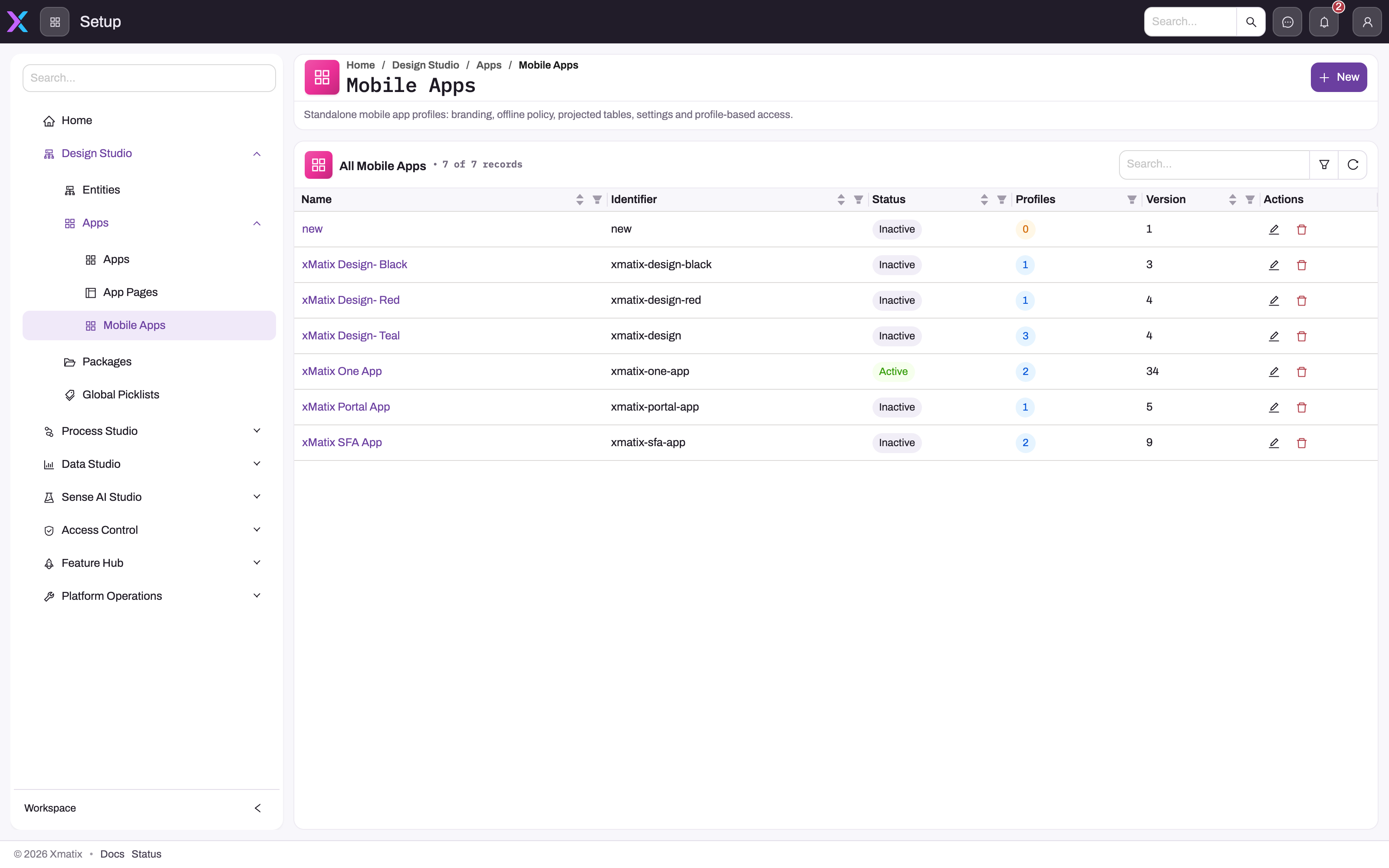
Mobile Apps holds branding, offline policy, projected tables, settings, check-in and profile access for the native app; it is not the metadata Apps list beside it.
- 2
New opens a name-only dialog; every tab of the configuration is edited on the saved record.
- 3
Name is the administrator-facing label; Identifier is the stable key devices and packages reference.
- 4
Status: only an Active configuration is handed to devices; keep experiments Inactive until their profiles are assigned deliberately.
- 5
Profiles counts the security profiles assigned on the Profiles tab; 0 means no user can receive this configuration.
- 6
Version increments on every save; devices re-fetch and apply a configuration when this number is higher than the one they cached.
The Mobile Apps registry (Setup → Design Studio → Apps → Mobile Apps) is the web Setup surface for these behavioral configurations. Each row is one configuration: its Name, the stable Identifier devices reference, Status (only an Active configuration is handed to devices), the number of security Profiles it is assigned to (0 means nobody receives it) and the Version devices compare on every fetch. Several configurations can coexist — for example one per brand theme or per field team — with the Profiles tab deciding who gets which.
Layer 1 — Apps and navigation
The mobile tab bar is the app's navigation item list, in order: the first few items become bottom tabs (three on a phone, more on tablets) and the rest fall into the More sheet automatically. Items can be entities, designed app pages, or built-in features (Reports, Dashboards); items marked web-only, hidden or inactive are dropped on mobile. There is no reserved Home slot — a home experience is an app page of the Home type placed first in the navigation. An app page renders on mobile only if it has a mobile layout; without one, users see This page cannot be displayed on mobile yet. — so authoring the mobile variant is part of shipping a page, not an afterthought.
Layer 2 — Mobile layouts
Mobile layouts are designed per entity from the entity's Layouts screen, which opens the mobile designer. The create layout doubles as the edit layout (edit is create, populated), and a detail layout takes over the record screen; where no designed layout exists, the app synthesizes a serviceable default (hero header, then line items, related records, field groups and activities). Layouts are also where capture and domain widgets enter the app — attachments, barcode quick-add, product and item catalogues, the approval panel, checklists, child grids and the rest appear only where a layout places them. The web-side design concepts carry over; see Design a form layout for the shared foundations.
Layer 3 — The Mobile App record
Setup's Mobile Apps page (Setup → Design Studio → Apps → Mobile Apps) lists your Mobile App records; each is the behavioral configuration for the apps and profiles assigned to it. The editor is organized in tabs:
- 1
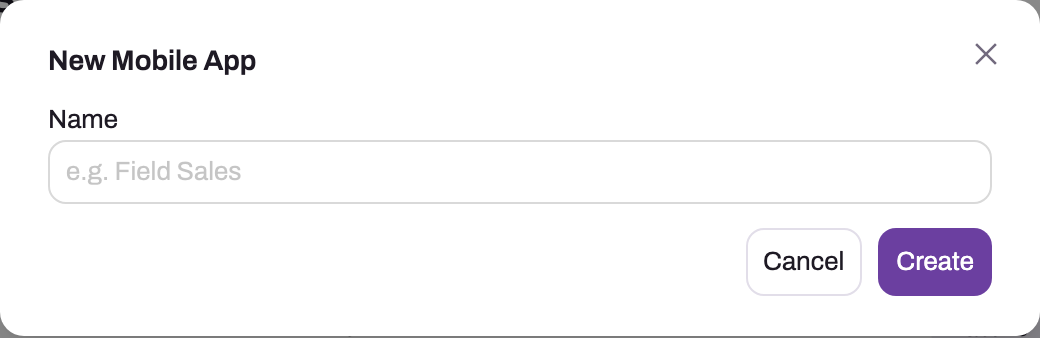
New Mobile App creates a device configuration record, not a metadata app or a navigation item.
- 2
Name is the administrator-facing label; the stable Identifier is derived from it and shown in the registry.
- 3
Create persists the shell and navigates to its detail tabs; nothing reaches devices until the record is Active and assigned to profiles.
- 4
Cancel closes the dialog without creating a record.
The create dialog asks only for the human-facing name. Create saves the shell — version 1, Inactive, no profiles assigned — and opens the tabbed editor, so nothing reaches a device until you finish the tabs below, set the record Active and assign profiles. The General tab is the record's identity and lifecycle surface: name, description and active state, with the header's configuration-version badge incrementing after every save.
| Tab | Governs |
|---|---|
| General | Name and description of the configuration |
| Branding | In-app theme colors and logos |
| Offline & Sync | Which entities are kept on devices, and how |
| Projected Tables | Dedicated indexed local tables for high-volume entities |
| Settings | Feature switches and free-form typed settings |
| Update Channel | Which users receive preview app updates |
| Check-In | Attendance gating — whether, where and with what checks |
| Location Tracking | The check-in location trail — see Location tracking |
| Apps | Which apps this configuration applies to |
| Profiles | Which security profiles receive it, and per-profile check-in requirement |
Branding
Theme tokens (primary, on-primary, soft accent pairs for light and dark, screen background, surface, border, text) and logo uploads for light mode, dark mode and the splash surface. These apply in-app from configuration; the device's app icon and the native splash are part of the installed build itself and change only with a new build — set expectations accordingly when rebranding.
Offline & Sync
One row per entity, scoped to the app's entities, with the columns that define the device footprint:
- Offline — whether the entity is kept on devices at all, with an optional Editable offline grant.
- Class — Master (synced in full, never age-pruned) or Transaction (kept for a rolling window).
- Window (days) — the transaction window per entity, over an app-level default.
- Mode — Auto (syncs on its own), Manual (on demand from the device's Sync Status screen), Off.
- Pinned — hydrated even on low-memory devices that otherwise skip transaction data.
- User override — lets users adjust the mode on their device; an admin Off always wins and cannot be overridden back on.
- Push — flags the entity for server-initiated refresh hints (subject to the push master switch in Settings).
- Scope — which rows a device keeps, on top of record security: All accessible rows, Owned by the user, Referenced by synced data, Children of synced parents, Filter expression or Online only, optionally with a rolling date window.
- Max rows — a row cap for this entity; a user with more rows than this gets the entity online only. Empty uses the app default, 0 means no cap.
- Recheck access — every 15 minutes, devices re-check which rows the user may read and download or remove rows accordingly. Use it for all-rows entities whose access depends on other records, such as price lists by account group; scoped entities already do this on every sync.
- Fields — which fields are downloaded for offline use; none selected means all fields.
Above the table, Default transaction window (days) and Default max offline rows (50,000 unless changed) set the app-level defaults. Read mode chooses Online first (the default: devices ask the server and use the local copy only when offline) or Offline first (devices answer from the local copy whenever it holds the whole answer). Profile overrides narrows an entity's mode, scope or row cap per assigned security profile; for a user holding several profiles, the most restrictive wins. How these settings look from the user's side is explained in How offline-first mobile works.
Each row can also carry a related-data tree: tick the relations (up to three hops) that must hydrate together — an order with its lines and the masters the lines reference — and the device syncs them as one set. Changing an entity's offline policy bumps the configuration version; devices re-sync the affected entity on their next fetch, preserving un-synced local edits.
Projected Tables
For large entities — items, prices — a projected table gives the device a dedicated, indexed local table instead of the general record store: choose the columns to project, which are indexed, and which fields join the full-text search, plus an optional scope filter. The payoff is fast offline search and lookup at catalogue scale; the cost is device storage, so project deliberately.
Settings
Reserved, individually-edited switches: the ongoing-activity surface (a floating session button for resuming started plans and visits), allowing users to pause a visit plan, allowing them to pause a check-in session, nearby-place discovery for prospecting, route optimization for the day's plan, and the master switch for push sync hints. Below them, a free key/value table (string, number, boolean) carries any further settings the platform reads.
Update Channel
The Update Channel tab selects Security Teams whose members receive preview over-the-air updates. Everyone else remains on production, and the same installed app changes channel per signed-in user. This controls JavaScript/configuration delivery only; a native capability still requires a new store build.
Check-In
The attendance gate. Who is gated is per profile assignment (the Profiles tab's check-in flag); this tab defines what a check-in requires and where the gate sits — blocking the whole app on open, or only demanding check-in when specific entities are opened. Gates are individually enabled: location within a radius of the branch (default 250 m), a selfie (every check-in or once per day), working day, working hours, holiday and leave checks. The same gates apply at check-out, and punches land in the resource-availability records.
Location Tracking
The location-tracking tab is separate from the check-in validation switches. It controls whether an open check-in session captures background GPS fixes, the capture interval, upload batch size and minimum movement required before another fix is retained. Turning it on also depends on a mobile build that contains the native background-location capability.
Apps and Profiles
The Apps tab restricts which mobile-capable metadata apps the configuration exposes. An empty assignment list means no restriction, not no apps. The Profiles tab is the opposite: only assigned Security Profiles can use the Mobile App record, and each assignment independently decides whether its users must pass the check-in gate.
How changes reach devices
Every save bumps the configuration's version. Devices compare versions when they fetch — at sign-in, on app switch, on foregrounding — and apply changes immediately: branding repaints, settings take effect, and offline-policy changes trigger a targeted re-sync of the entities involved, never touching queued user edits. The practical rule: configuration changes propagate within a working session, while anything native — app icon, splash, new device capabilities such as background location — waits for users to install an updated build.