
A Mobile Sync Failure is a report that the xMatix mobile app files on the server when a change queued on a device fails for good, so that you can see what is failing across the whole field team without waiting for someone to call. When a queued change fails like this, the device does two things. It flags the change to the user on their Sync Status screen, where it stays until they fix, retry or discard it (see Working offline). It also files the report described on this page. The report is sent through the same store-and-forward queue as every other change, so a failure that happens without coverage still reaches you once the device reconnects.
Overview
Each report records what the device tried to write, the server's answer, how often it tried, and which device, user and app version were involved. You read the reports, fix whatever is wrong on the server side (a rule, a permission, a setting), tell the user what to do on their device, and track your progress with Resolution Status.
Reports are evidence, not a recovery tool. The failed change belongs to the device. Nothing you do to a report re-sends it, discards it or changes it. The user always completes the fix on their own device.
When to use it
- Routine monitoring. Check the list or the Tenant Adoption dashboard regularly. A healthy field team files no reports at all.
- After a user reports a stuck change. Find their report to see the exact error and payload without needing their phone.
- After a configuration change. A new validation, required field or permission change that devices cannot check offline shows up here first, as many reports for the same record type.
- After a mobile app release. Group the reports by App Version to see whether a failure is limited to one build.
How xMatix handles it
The device sends each queued change and sorts every failure by the server's answer:
| What happened | What the device does | Reported as |
|---|---|---|
| The server refused the change (a validation, permission or not-found error) | Stops at once and marks the change for the user | Rejected, after 1 attempt |
| The server said the record changed or was removed since the device read it | Stops and offers the user a conflict choice | Conflict |
| No response, a time-out, a server error or "too many requests" | Retries automatically with growing delays | Nothing, unless the fifth attempt also fails. It is then reported as Rejected, with Attempt Count 5 |
| The user's sign-in expired | Pauses sending until the user signs in again | Never reported |
| The device is offline | Waits. Waiting does not count as an attempt | Never reported |
Other behaviour to know:
- One report per failed attempt. The same attempt is never reported twice. If the user fixes and resubmits a change and it fails again, you get a second report.
- Dependent changes are not reported separately. When a change fails, later changes that depend on it (for example the lines of an order whose creation was refused) are held on the device as Blocked. Only the first failure is reported.
- A failed report is not reported again. The report is itself a create, so the user's security profile must allow creating Mobile Sync Failure records. If it doesn't, the report is refused and nothing reaches you (see Permissions).
- Long text is cut off. Error Message and Payload keep the first 4000 characters.
- Times are UTC. Occurred (UTC) and Last Attempt (UTC) are stored and shown in UTC, not in your time zone.
- Nothing cleans up reports. Records stay until someone deletes them.
Prerequisites
- A security profile that can read Mobile Sync Failure records. In the standard profiles that is System Admin, Standard User and Sales Executive.
- Access to the app that hosts the list. In the standard setup that is the Field Sales app.
- For the fix itself, the setup rights for whatever caused the failure (business rules, security profiles, settings).
Procedure
Step 1 — Open the failure list
In the Field Sales app, open Settings and select Mobile Sync Failures in the Diagnostics group. The list opens on the All Mobile Sync Failures view, with these columns: Name, Source Entity, Operation, Failure Reason, Resolution Status, Device, Attempt Count, Last Attempt (UTC), Created By and Created On.
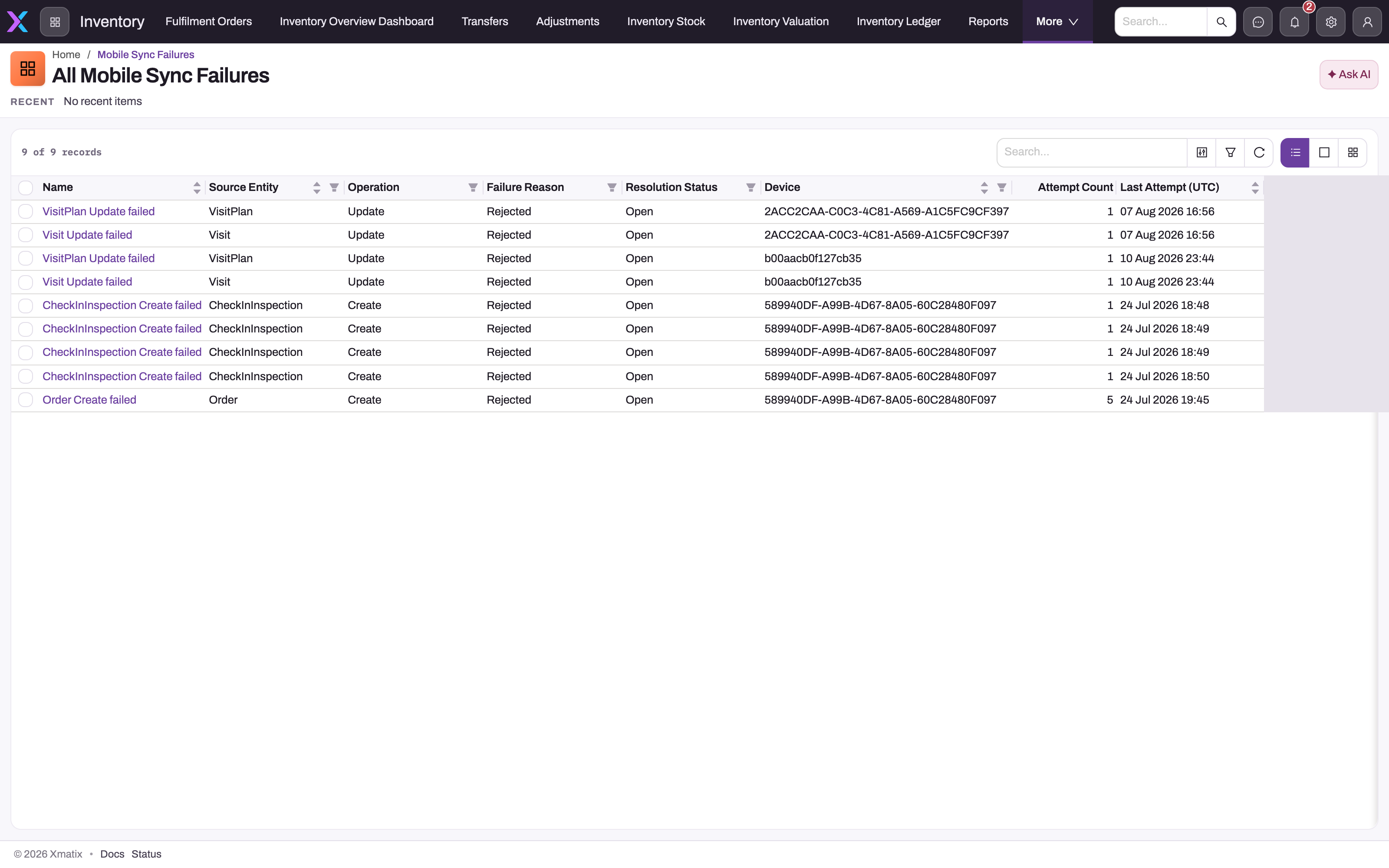
An empty list means no report is recorded. It does not show changes that are still waiting or retrying on devices: those exist only on the phones, on each user's Sync Status screen.
If your administrator placed the list in another app, open it from that app's navigation instead.
Step 2 — Find the reports that need work
Filter on Resolution Status to see the Open reports. Sort on Last Attempt (UTC) or Created On to see the newest first. In the standard setup you can filter on Source Entity, Operation, Failure Reason, Resolution Status and Device, and sort on Name, Source Entity, Device, Last Attempt (UTC) and Created On. Before opening single records, look for patterns:
- The same Source Entity from many users points to a rule, a required field or a permission problem on the server.
- Many reports from one Device point to one phone or one user.
- Reports from only one app version point to a build that has not been updated.
- An Attempt Count of 1 means the server refused the change straight away. An Attempt Count of 5 means temporary errors used up every retry.
Step 3 — Open a report and read the evidence
Select the report's name. The record page header reads Error Log and shows Source Entity and Device at the top. The page has five sections:
- Error Details: Failure Reason, Error Message, Payload, Operation, User and Owner.
- Source & Context: Source Entity, Source Record Id, Device and App Version.
- Attempts & Timing: Attempt Count, Occurred (UTC) and Last Attempt (UTC).
- Resolution: Resolution Status, Resolved (UTC) and Resolution Notes.
- Audit Trail: Created By, Created Date, Modified By and Updated On.
Read Error Message for the rule or reason the server gave. Then read Payload to see exactly what the device tried to write. Together they usually show the cause.
Step 4 — Decide what kind of failure it is
Start with Failure Reason:
- Rejected, Attempt Count 1. The server refused the change. Common causes are a validation or business rule the user could not check offline, a missing permission, or a reference to a record that was deleted or renamed. Fix the cause on the server if there is one. The rule might be unsuitable for offline work, or a profile might be missing a permission.
- Rejected, Attempt Count 5. The server kept failing or timing out. Look for server-side problems around Last Attempt (UTC). The change itself may be valid: the user can retry it.
- Conflict. Someone else changed or removed the record while the device's edit was queued. There is rarely a server-side fix. The user decides on their device whether to keep their version or discard it. Repeated conflicts on the same records suggest that two roles are editing records that only one role should own.
Step 5 — Tell the user what to do on their device
The change is still waiting on the user's device under Needs attention. Depending on your finding, ask them to:
- tap Fix, correct the value the error names, and save;
- tap Retry (or Retry all) once you have fixed the server-side cause;
- tap Keep mine or Discard for a conflict.
Working offline describes these actions. If the change is fixed and fails again, a new report arrives.
Step 6 — Record the outcome
On the report, set Resolution Status to In Progress while you work on it, then to Resolved or Won't Fix, and save. Only change Resolution Status. The other fields are the device's evidence and can be edited, but don't change them. Leave Resolved (UTC) and Resolution Notes empty: they are on the form, but this record type cannot store them (see Common problems).
Step 7 — Watch the trend on the dashboard
The standard Tenant Adoption dashboard, in the System Admin/Data Studio folder, has six tiles built on these reports:
- Mobile Sync Failures: the total count.
- Unresolved Sync Failures: reports whose status is not Resolved. Won't Fix reports still count here.
- Mobile Sync Failures by Day: reports by the day the change was first queued.
- Sync Failures · Entity → Reason: reports by record type and failure reason.
- Sync Failures by Resolution: reports by Resolution Status.
- Sync Failures · Operation × Reason: reports by operation and failure reason.
Step 8 — Delete old reports
Nothing deletes reports automatically. When you no longer need a closed report, open it and use Delete in the page header. Deleting a report has no effect on any device.
Fields
| Field | What it means | Notes |
|---|---|---|
| Name | Headline written by the device: record type, operation and "failed", for example Order Create failed | Uses the internal record-type name. Shown in the list, not on the record page |
| Failure Reason | Rejected or Conflict, as described in How xMatix handles it | The seeded value Blocked is never written by the device |
| Error Message | The server's error, as a title and message separated by a colon | Cut off after 4000 characters |
| Payload | The data the device tried to send, as JSON text | Cut off after 4000 characters |
| Operation | Create, Update, Delete, Action or UploadFile | Action also covers queued calls to dedicated services. UploadFile is a photo or attachment upload |
| User | Display name of the user signed in on the device | Holds the user's sign-in identifier instead when the name had not loaded, for example during a background sync. Created By always names the user |
| Owner | The record's owner | Standard record owner field |
| Source Entity | Internal name of the record type the change was for, such as Order or VisitRouteStop | Group by this field to spot server-side causes |
| Source Record Id | The record the change targeted | For a create that never reached the server this is a temporary device identifier that matches no record |
| Device | Identifier of the app installation that filed the report | Stays the same for one installation of the app |
| App Version | Version of the mobile app that filed the report | |
| Attempt Count | How many times the device tried | 1 for an immediate refusal, 5 when retries ran out |
| Occurred (UTC) | When the change was first queued on the device | UTC |
| Last Attempt (UTC) | When the final attempt failed | UTC |
| Resolution Status | Open, In Progress, Resolved or Won't Fix | Devices file every report as Open. Only people change it |
| Resolved (UTC) | Shown on the form | Cannot be stored. A value is refused on save |
| Resolution Notes | Shown on the form | Cannot be stored. A value is refused on save |
| Created By / Created Date | The user whose session sent the report, and when the server received it | Set automatically |
| Modified By / Updated On | The last change to the report | Set automatically |
Business rules
- Devices only ever create reports. Neither the device nor the server updates a report after it is filed.
- A report is filed only for the failed change itself, never for the dependent changes held behind it, and never for a failed report.
- Resolution Status has no automatic transitions. Setting it changes nothing on any device.
- Unresolved Sync Failures on the dashboard counts every status except Resolved.
- Mobile Sync Failure records can't be included in a sync profile, so integrations never import or export them.
Example
A field sales executive takes an order at an outlet with no coverage. The order and its three lines wait on the phone. When the phone reconnects, the server refuses the order with Branch is required for this Partner Account. The executive's Sync Status screen shows the order under Needs attention, with the three lines Blocked behind it.
A few minutes later, the administrator sees a new report in Mobile Sync Failures: Name Order Create failed, Failure Reason Rejected, Attempt Count 1, Resolution Status Open. Error Message gives the branch rule, and Payload shows that the order had a partner account but no branch. There is only one report, for the order. The blocked lines are not reported separately.
The administrator sets the report to In Progress. The partner account has branches, so every order for it must name one. The administrator asks the executive to tap Fix on the order, choose the branch, and save. The order and then its lines sync. The administrator sets the report to Resolved. Several similar reports from other executives would suggest a training point, or a form change that makes the branch easier to pick on the phone.
Training
Practice exercise
In a sandbox, use a test user whose profile can create orders, and add a validation rule that always refuses orders where a test field has a particular value. On the mobile app, turn on flight mode, create an order with that value, then turn flight mode off.
Expected result: the order appears under Needs attention on the device's Sync Status screen. A new Mobile Sync Failure appears under Field Sales → Settings → Diagnostics → Mobile Sync Failures with Operation Create, Failure Reason Rejected, Attempt Count 1 and Resolution Status Open. Its Error Message contains your rule's message. Set the report to Resolved: the order is still waiting on the device. Then remove the rule, tap Retry on the device, and confirm the order syncs. Delete the test report.
Quick reference
- Find reports in Field Sales → Settings → Diagnostics → Mobile Sync Failures.
- Rejected with 1 attempt: the server refused the change. Read Error Message.
- Rejected with 5 attempts: temporary errors used up every retry.
- Conflict: the record changed or was removed on the server. The user decides.
- Nothing you do to a report reaches the device. The user fixes, retries or discards.
- Times are UTC. Payload and error text stop at 4000 characters.
- Leave Resolved (UTC) and Resolution Notes empty.
- Users need permission to create Mobile Sync Failure records, or their reports never arrive.
Permissions
Access is set per security profile on the Mobile Sync Failure entity. The standard profiles ship with:
| Profile | Access |
|---|---|
| System Admin | Full access, including Clone and Delete |
| Standard User | Full access, including every user's reports, Clone and Delete |
| Sales Executive | Full access, including every user's reports, Clone and Delete |
| Sales Manager | Create only. Their devices can file reports, but they can't open the list |
| Parts Manager | Create only. Their devices can file reports, but they can't open the list |
Two things to check:
- Every mobile user needs Create. A user whose profile cannot create Mobile Sync Failure records still sees failures on their own device, but their reports are refused and never reach you.
- Payloads can contain business data. In the standard setup, Standard User and Sales Executive can read every report, including other users' payloads. If that is too broad, reduce those profiles to Create only. Their devices keep filing reports. See Security profiles.
Configuration
- Where the list appears. The standard setup puts Mobile Sync Failures in the Field Sales app, in the Diagnostics group under Settings. To show it in another app, add it with Setup → Design Studio → Apps → Manage Items.
- Inactive fields. In the standard metadata, every field the device fills (and its picklist values) is marked inactive. Values are still saved and shown on the list and the record page. However, the report builder skips inactive fields. To report on them, open Setup → Design Studio → Entities → Mobile Sync Failure → Schema → Fields, edit each field you need, and switch Active on. Don't activate Resolved (UTC) or Resolution Notes: they have no storage on this record type.
- Views. You can add list views, for example Open reports filtered on Resolution Status. See Entity behavior. In the standard metadata, Attempt Count, App Version and User can't be sorted or filtered.
- Dashboard. The standard Tenant Adoption dashboard already has six tiles built on these reports (see Step 7).
- Retention. No archive or clean-up job removes reports. Delete closed reports when you no longer need them.
- Sync profiles. Mobile Sync Failure is protected: an integration sync profile can't include it.
Common problems
"Field 'Resolution Notes' … is inactive, so a value for it cannot be stored"
You typed into Resolution Notes or Resolved (UTC). These two fields are on the standard form but have no storage on this record type, so the save is refused. Clear them and save again. Track the outcome with Resolution Status, and keep notes in your own ticketing or activity process.
A user has a failed change on their phone, but there is no report
Check, in this order:
- The user's security profile can create Mobile Sync Failure records.
- The device is back online, so its queue has sent the report.
- The failure is final: a change that is still retrying is not reported until the fifth attempt fails.
- The change is not Blocked behind another change. Only the first failure in a chain is reported.
I resolved the report, but the user's change is still stuck
That is expected. Reports are evidence only. Ask the user to fix, retry or discard the change on their device.
The same failure keeps appearing
Each fixed-and-resubmitted change that fails again files a new report. The server-side cause is still there: read the newest Error Message and fix the rule, permission or setting it names.
I can't build a report on Failure Reason or Source Entity
In the standard metadata, the fields are inactive, so the report builder skips them. Switch them to Active as described in Configuration.
The times look wrong
Occurred (UTC) and Last Attempt (UTC) are in UTC. Convert them to your time zone before matching them to a user's account of events.
Common questions
Does resolving or deleting a report retry or cancel the change?
No. The queued change belongs to the device, and the report is only a copy of the evidence. Setting Resolution Status or deleting the record does nothing on any phone. The user fixes, retries or discards the change on their Sync Status screen, as described in Working offline. If you fix the cause on the server, ask the user to retry. If you think the change should not happen, ask them to discard it.
Why do network problems sometimes appear as Rejected?
The device retries temporary errors (time-outs, server errors, rate limits) automatically, with growing delays. Time spent offline does not count. If the fifth attempt also fails, the device stops and reports the change as Rejected with an Attempt Count of 5. Look for a server problem around Last Attempt (UTC). The change itself may be fine, so a retry from the device often succeeds.
Can I re-enter the data from the payload myself?
You can read it, but it is safer not to. The user's change is still waiting on their device, and if you enter the same data and the user later retries, you get a duplicate. A long payload is also cut off after 4000 characters. Let the user complete the change on their device, or ask them to discard it first.
Who can see the payloads?
Anyone whose security profile can read Mobile Sync Failure records. In the standard setup that is System Admin, Standard User and Sales Executive. Sales Manager and Parts Manager can only create them. Payloads contain whatever the user was saving, such as order quantities or customer details. Narrow read access if that matters for your organisation.