
A payroll run is one month's payroll for one company: a single record that calculates every employee's pay for a payroll period, then posts the accrual journal and produces the salary payment batch. Before a run, you set up employees, salary structures and the month's adjustments, loans and approved leave. After it, you distribute payslips and deposit the statutory amounts it posted. Each stage is a button on the run's page, so nothing happens behind your back and you can review every figure before the next step.
Overview
Open the Payroll app from the App Launcher and choose Payroll Runs. The list shows Name, Payroll Period, Status, Total employees, Processed employees, Skipped employees, Total Net Pay and Created Date. Click a run's name to open its page, which has:
- the page header, with the run's Name, Period, Status and Total Net Pay and the action buttons;
- a status timeline built from the Status values;
- a Details tab with three sections: Run Information (Name, Period, Status, Payroll Period, Partner Account, Branch), Resource Counts and Financial Summary;
- a Related tab listing the run's Payroll Run Details (one per employee, which is the payroll register), its open items and its journals;
- a Run Insights panel showing the counts and total net pay, plus an attachments panel.
A run moves through these statuses:
| Status | Set by |
|---|---|
| Draft | You, when you create the run |
| PendingApproval | Only an approval process your administrator has set up to write it on submission |
| Calculated | Calculate |
| Review | The approval process, when the approver rejects the run or an approved request is reverted |
| Approved | Final approval, just before the run posts |
| Posted | Post, or final approval |
| PaymentGenerated | Generate payment batch |
| Paid | Pay on the salary payment batch |
The Status list also offers Inputs loaded, Processed, Closed and Reversed. The system never sets Inputs loaded, Closed or Reversed. Generate payment batch sets Payment generated.
When to use it
Use a payroll run once a month for each company you pay salaries from. Create it when the month's inputs are complete: new joiners have compensation records, the month's unpaid leave is approved, and the month's adjustments, loans and advances are entered. An employee who has left is settled through full and final settlement, not a run.
How xMatix handles it
Who is included. A run calculates every employee who meets all of these conditions:
- their Payroll Company or company matches the run's Partner Account;
- they are linked to a person (Resource) record;
- their Employment Status is not Exited.
That number is Total employees. An employee is skipped when they have no active Resource Compensation that names a salary structure, or when that structure has no active component lines. Branch does not filter employees.
What Calculate does, in order:
- Refreshes the month's salary-TDS projection for every TDS-applicable employee (the same work as Project TDS).
- Clears the previous pass. Earlier details, component lines and Draft payslips are retired. Loan installments recovered by the earlier pass go back onto the loans and their open items.
- Works out attendance from the payroll period. Total days are the calendar days from start date to end date. Loss-of-pay days are approved leave requests that overlap the period and whose leave type is marked unpaid (unpaid, LWP, LOP, loss of pay, leave without pay); half-day requests count as half. Payable days are total days minus loss-of-pay days.
- Evaluates the salary structure's component lines in sequence:
- Fixed uses the stored value.
- Percentage takes a percentage of CTC, or of an earlier component's full (unprorated) amount named in Percentage Of.
- A professional-tax component with calculation type Slab reads the company's slab table, using the February amount when the period ends in February.
- A TDS component takes the month's projection.
- Formula, Manual, and Slab on any other component use the stored value.
- Min and Max limits apply next. Then components marked proratable are reduced by payable days over total days, and the shortfall on earnings becomes the employee's loss-of-pay amount.
- Adds the period's payroll adjustments for the employee whose approval status is Approved or blank.
- Deducts one installment (the installment amount, or the remaining balance if that is smaller) for every Active loan or advance with a positive balance.
- Pulls in the employee's expense claims reimbursed through payroll: every claim that is posted, not yet paid, has Reimbursement Mode Payroll, has the employee as claimant, belongs to the run's company and is not already in another run. Each claim is handed to payroll once (journal Dr Employee Payable / Cr Payroll Payable, dated the claim date), its Included In Payroll Run is set, and the employee gets a line "Expense reimbursement <claim number>" of type Reimbursement, not taxable. A recalculation carries the same claims again without posting them again. Skipped employees are not pulled.
- Writes one Payroll Run Detail per employee: gross earnings and net pay (both including the claims), total deductions, employer contributions, reimbursement amount, TDS, PF and ESI totals, payable days and loss-of-pay days. It then fills the run's counts and Total Net Pay, and sets Status to Calculated.
What Post does. It builds one journal of type Payroll, dated on the payroll period's pay date. If the period has no pay date, it uses the end date; if the run has no period, it uses today.
- Each earning and reimbursement debits its component's GL account. An expense-claim line is skipped: its amount is already on Payroll Payable.
- Each deduction credits its component's payable GL account.
- Each employer contribution debits its expense account and credits its payable account.
- Each employee's positive net salary (net pay without the expense claims) is credited to the company's Payroll Payable control account. The same amount opens one Payroll Payable open item for that employee. Each claim already has its own Payroll Payable open item.
The run's GL link is filled, and Payroll Posting Status and Status become Posted. If any line is missing a GL account, nothing is posted.
What Generate Payment does. It creates a Salary Payment Batch in Draft, dated today, with one line for each employee who has something open on the run. The line is everything still open for them: net salary plus the expense claims the run carries, so the batch total can be higher than the net salary the run posted. Each line carries the bank account number and IFSC from the employee's person record. The bank to pay from is the company's default bank. If the company has no default, it uses the company's only Bank control account; with several bank accounts and no default, it stops and names them. Pay on the batch posts one journal, Dr Payroll Payable / Cr Bank, that settles every employee's net-pay open item and the claims' open items. The batch and its lines become Paid, the claims become Paid and Settled, and the run becomes Paid with Payment Batch filled in. Payroll Payable for the run's employees is then back to zero. xMatix does not produce a bank transfer file: the transfer itself happens through your bank.
Prerequisites
- Employees with an active compensation record naming a salary structure whose components have GL and payable GL accounts.
- A Payroll Period for the month (start date, end date, pay date) for the company being paid.
- A GL account with Control Type Payroll Payable for the company, and payable accounts on every statutory component you deduct (see Payroll configuration).
- The month's inputs settled: unpaid leave approved, adjustments entered and approved, loans and advances disbursed.
- For salary TDS: the financial year's tax rules in place, employee declarations verified (see Income tax on salary), and a TDS component on the salary structure.
- To pay: a Bank control account for the company, and a default bank set if the company has more than one.
Actions on the run
These buttons are on the run's page header:
| Button | What it does | Allowed when |
|---|---|---|
| Edit | Opens the run's header fields for editing | Any time |
| Project TDS | Recomputes every TDS-applicable employee's monthly TDS projection for the run's period | The run has a payroll period; otherwise it does nothing |
| Calculate | Projects TDS, then replaces the run's calculation | Run not posted, and no payslip of the run is Published |
| Post | Posts the accrual journal and raises one Payroll Payable open item per employee | Run calculated and not already posted |
| Generate payment batch | Creates a Draft Salary Payment Batch for positive net pays | Run posted |
| Generate payslips | Creates a Draft payslip for every employee row that has none yet | Run calculated |
| Prepare TDS challan | Creates or refreshes the period's salary-TDS challan from posted TDS | At least one posted run in the period has TDS |
Post payroll is an inactive action with no server behaviour; use Post. Publish payslips (on a posted run) renders each payslip as a PDF, attaches it and notifies the employee — see Payslips. Print register prints the payroll register (one line per employee, statutory deductions, net pay); it is not on the seeded web run page. Form 16 certificates come from the Tax Center (see Income tax on salary).
Procedure
Step 1 — Create the payroll period
In the Payroll app, open Payroll Periods and check that the month exists for your company. If it does not, create it with its start date, end date and pay date.
- The start and end dates drive proration and the loss-of-pay window.
- The pay date becomes the date of the accrual journal.
- Field by field, see Payroll periods.
Step 2 — Create the run

On Payroll Runs, click New. Fill Period (the month), Status (choose Draft) and Payroll Period, then click Save.
- The run gets its number automatically, for example a PR-series number with the month and year.
- Partner Account (the company) and Branch are filled from your default company and branch.
- Open the Details tab and check that Partner Account is the company you are paying. If it is wrong or empty, click Edit and correct it; the calculation selects employees by this field.
xMatix ships no payroll approval process. If your administrator has added one, the run is submitted according to its settings, usually when Calculate saves it. See Payroll run approval before anyone approves it.
Step 3 — Calculate
Click Calculate. When it finishes, Status is Calculated and the Run Insights panel shows Total employees, Processed, Skipped and Total Net Pay.
If Skipped is not zero, find the employees without an active compensation record or with an empty salary structure, fix them, and click Calculate again. Recalculating replaces the previous pass completely, so it is always safe while the run is unposted and no payslip is Published.
Step 4 — Review the register
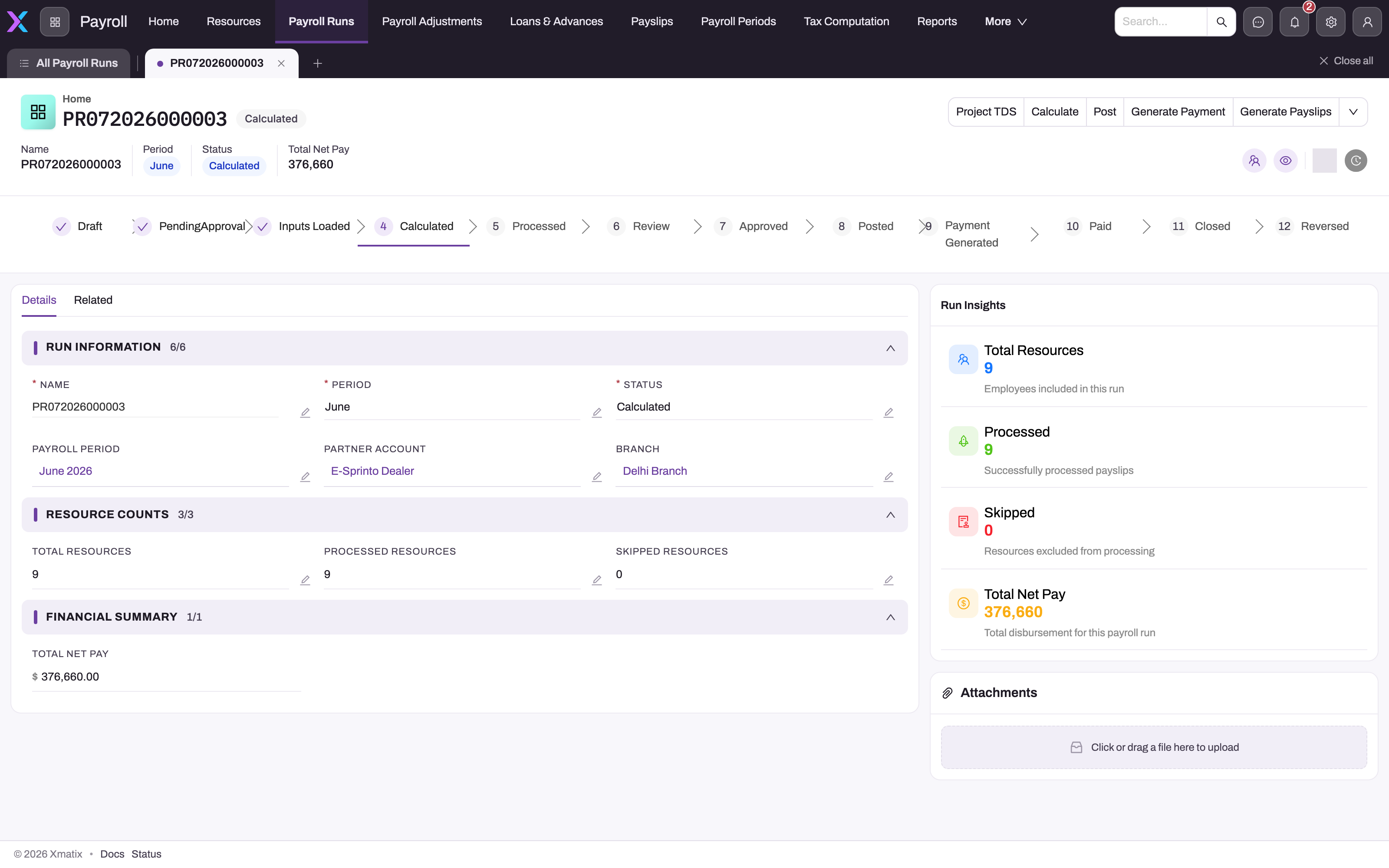
Check that Total employees equals Processed employees plus Skipped employees. Then open the Related tab.
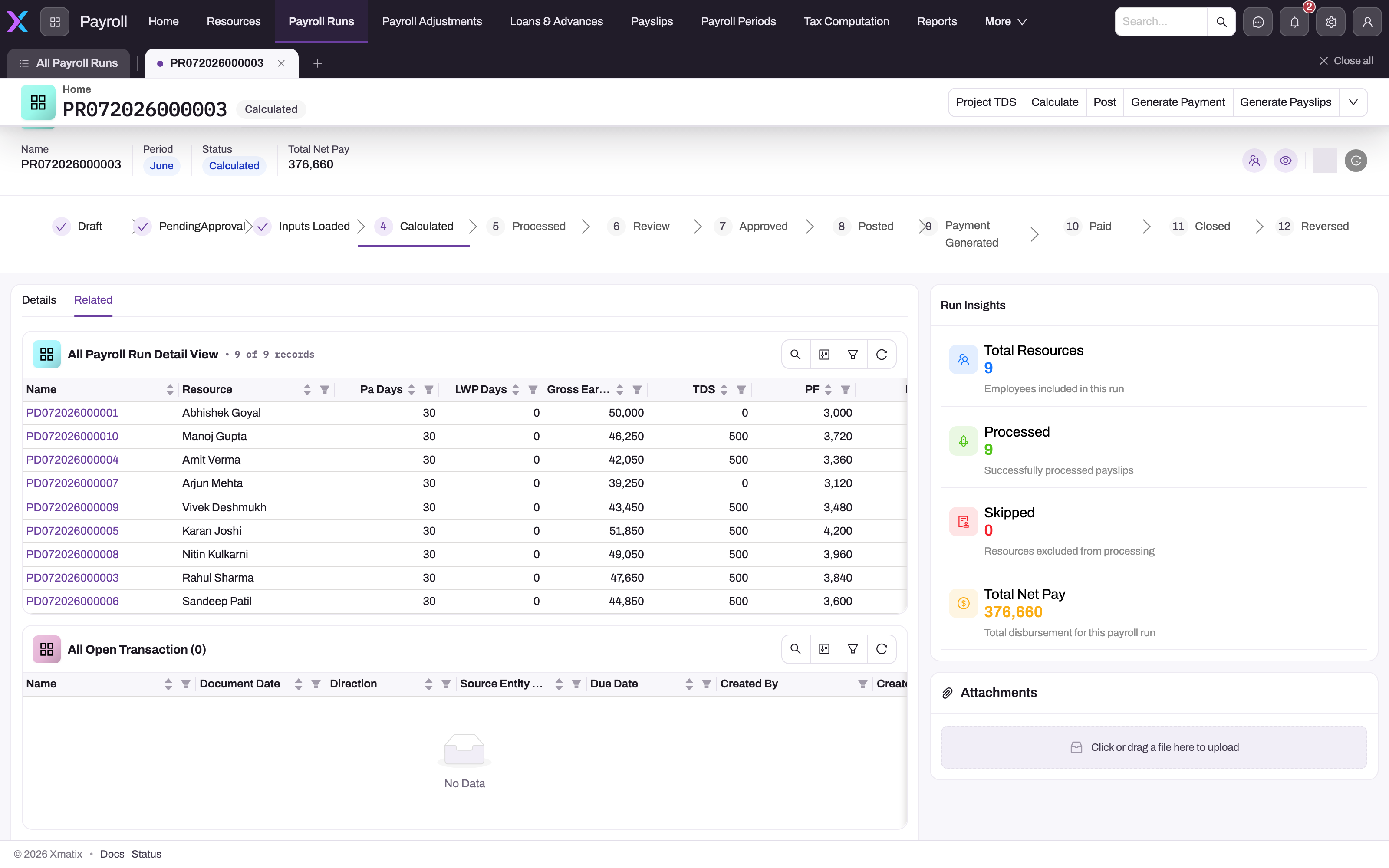
The Payroll Run Details list is the payroll register: one row per processed employee. Its seeded columns are Name, Resource, Paid Days, LWP Days, Gross Earnings, TDS, PF, ESI, Total Deductions and Net Pay. Skipped employees have no row. Click a row's name to open the employee row's own page (see below).
The Paid Days and LWP Days columns are older fields that the calculation does not fill, so they show 0 or nothing. The days the run actually used are stored as Payable Days and Loss Of Pay Days. These are on no seeded column or form, but every payslip shows them, and an administrator can add them to the register view (see Configuration).
- Compare the totals with last month.
- Check every employee whose gross is lower than usual. Loss-of-pay days reduce it.
- Make sure the TDS column is not unexpectedly zero.
Fix any input (leave, adjustment, compensation) and recalculate as often as you need.
To see how one employee's figures were built, open their row and choose the Component Line tab. It lists that employee's component lines: one line per amount the calculation produced, each with its payroll component, Amount, Component Type, the Is Taxable, Is Statutory and Is Prorated flags, and the GL accounts it will post to. Every employee row has up to four kinds of line:
- Salary-structure lines. There is one line for each component on the employee's salary structure. Its Sort Order comes from the payroll component, or else from the structure line's sequence.
- Adjustment lines. There is one line for each approved payroll adjustment of the period. Its Sort Order is 1000, and it is never prorated.
- Recovery lines. There is one Deduction line for each active loan or advance installment. Its Sort Order is 2000. It has no payroll component, and its payable account is the loan's control account.
- Expense reimbursement lines. There is one Reimbursement line, "Expense reimbursement <claim number>", for each expense claim the run carries for the employee. Its Sort Order is 1500 (after adjustments, before loan recovery), it is not taxable, and its GL account is the Payroll Payable control account, which is why posting skips it.
Open a line to see it on its own. Its page has a Component Details section (Payroll Component, Amount) and a Flags & Settings section.
Treat the lines as read-only. To change a figure, change the input (the salary structure, the compensation record, the leave or the adjustment) and click Calculate again; see the business rules below for why.
The employee row page. The employee row (the Payroll Run Detail) has no menu entry of its own. You reach it from the run's Related tab or from a payslip's Payroll Run Detail link. Its page has:
- a header titled Payslip, showing Name, Resource, Net Pay, Gross Earnings and Total Deductions, with the Edit button;
- an Earnings Breakdown panel (Gross Earnings and Total Deductions, totalling to Net Pay) and a Statutory Deductions panel (TDS, PF and ESI). The second panel's total line is Total Deductions, which also includes professional tax, other deductions and loan recoveries, so it is usually larger than TDS + PF + ESI;
- a Details tab with the sections Basic Information (Payroll Run, Resource), Attendance (Paid Days, LWP Days), Earnings & Deductions (Gross Earnings, Total Deductions, Net Pay), Statutory Deductions (TDS, PF, ESI) and Pay Components (Component 1, Component 2, Payroll Posting Status);
- the Component Line tab described above;
- a Payslip Insights panel with cards for Gross Earnings, Total Deductions, Net Pay, Paid Days and LWP Days.
The employee's payslip is listed under Payslips in the Payroll app once you have clicked Generate payslips (see Payslips).
Edit opens the row's figures (Payroll Run, Resource, Paid Days, LWP Days, Gross Earnings, Total Deductions, Net Pay, TDS, PF, ESI) for editing. Don't use it to correct pay. Nothing re-totals or checks the row, and the journal is built from the component lines, so an edited figure no longer matches the ledger. A row edited before Generate Payment or Generate Payslips passes its new figure to the payment batch or the payslip. An edited TDS goes into the challan and the quarterly TDS return. Correct the input and recalculate instead.
Step 5 — Generate payslips
Click Generate payslips. One Draft payslip is created for each employee row. Clicking it again only creates slips that are missing; it never duplicates them. The slips are listed on Payslips in the Payroll app, linked to the run and period. See Payslips for what a slip carries and how to print it.
Recalculating after this step deletes the Draft payslips with the old figures; click Generate payslips again afterwards.
Step 6 — Approve or post
Post the accrual in one of two ways:
- Through approval, if your administrator has set up a payroll approval process. The approver approves the run on their Pending Approvals page. Final approval posts the run, and the run ends at Posted. Approve only after Step 4. A run approved before it was calculated cannot post because it has no lines; calculate it and click Post instead. See Payroll run approval.
- Directly. Click Post.
After posting, the Status is Posted, the Related tab lists the journal and one open item per employee, and the run can no longer be recalculated.
Step 7 — Generate the payment and pay it
Click Generate payment batch once. A Salary Payment Batch is created in Draft and the run's Status changes to PaymentGenerated. Open the batch from Payroll → Pay and comply → Salary payment batches. Check the lines (employee, amount, bank account, IFSC) — each amount is the employee's net salary plus any expense claims the run carries — then click Pay on the batch.
After Pay, the batch and its lines are Paid, every employee's Payroll Payable open items (net pay and claims) are settled, the claims are Paid and Settled, and the run's Status is Paid with Payment Batch filled in. Make the actual transfer through your bank. Checking the batch, the payment date and the bank, and what to do when payment goes wrong, are covered in Salary payment batches.
Step 8 — Prepare the TDS challan
Click Prepare TDS challan on any posted run of the period. It creates the period's salary-TDS challan with the TDS total of every posted run of the same company and period, or refreshes the amount of a challan that is still Pending. Depositing the challan is covered in Statutory deductions and challans.
On mobile
The Payroll app is also in the xMatix mobile app. The payroll run page there shows the name, period, status, counts and total net pay. Its seeded header lists Calculate, Post, Edit, Print register and Post payroll. The mobile run page has no approval panel. Approvers can act on a submitted run on mobile only after an administrator adds the panel or an Approvals inbox (see Payroll run approval). On mobile, an employee row's page opens on its Payroll Run Component Lines tab, which shows the same lines as the web Component Line tab.
Fields
| Field | What it means | Notes |
|---|---|---|
| Name | The run number | Filled automatically by the Payroll Run Name Setting (series PR, month and year, six-digit counter). Used on the journal, open items and batch. |
| Period | The month the run settles | January to December. Required. It is a label: the dates come from Payroll Period. On the New form it appears as a date picker. |
| Status | The lifecycle stage | Required. Choose Draft when creating. Later values are set by the actions and the approval process (see Overview); editing it by hand changes no figures and posts nothing. |
| Payroll Period | The pay cycle | Supplies the proration dates, the loss-of-pay window, the journal date, the period's adjustments and TDS projections. Without it there is no proration, no adjustments, no TDS and no challan. |
| Partner Account | The company being paid | Only partner accounts can be picked. Defaulted from your company on save. Selects the employees, the Payroll Payable account, the bank and the professional-tax slabs. |
| Branch | Branch for the accounting entries | Only branches of the chosen company. Defaulted from your branch. Stamped on the journal, its lines and the open items; it does not filter employees. |
| Total Resources | Employees considered | Set by Calculate. |
| Processed Resources | Employees calculated | Set by Calculate. |
| Skipped Resources | Employees considered but not calculated | Set by Calculate. No active compensation with a salary structure, or a structure with no active lines. |
| Total Net Pay | Sum of employee net pay | Set by Calculate. Posting and payment do not change it. |
| Approval Status | The approval outcome | Pending, Approved or Rejected; cleared on recall. Not on the seeded form. |
| Payroll Posting Status | Whether the accrual is posted | Starts at NotPosted; Post sets Posted. Failed and Reversed are never set. Not on the seeded form. |
| GL | The accrual journal | Filled by posting. While it is set the run counts as posted. Not on the seeded form; the journal is on the Related tab. |
| Payment Batch | The batch that paid the run | Filled only when the batch is paid. Not on the seeded form. |
| Business Unit | Business unit for the open items | Copied onto the Payroll Payable open items only. Not on the seeded form. |
Every field is described in the Payroll Run reference.
Component line fields
Calculate writes these fields. The line form shows Payroll Component, Amount, Is Taxable, Is Statutory, Is Prorated, GL Account and PayableGL Account. The rest you see in lists and on the line's page header.
| Field | What it means | Notes |
|---|---|---|
| Name | The line's identifier | A generated PRCL- value. Lines have no meaningful number. |
| Payroll Component | The component the amount is for | Copied from the salary structure or the adjustment. Empty on loan and advance recovery lines, and on adjustments entered without a component. |
| Amount | The calculated amount | Rounded to two decimals. Proratable components are already reduced for loss-of-pay days. Lines with a zero amount are skipped at posting. |
| Component Type | How the amount counts | Earning, Deduction, EmployerContribution or Reimbursement. Earnings and reimbursements add to gross pay. Deductions reduce net pay. Employer contributions cost the company but leave net pay unchanged. If it is blank, posting treats the line as an Earning. |
| Is Taxable | Whether the earning counts as taxable salary | Copied from the component's taxability. Recovery lines leave it empty. |
| Is Statutory | Whether the component is a statutory one | Copied from the component. For information only: no calculation, posting or return reads it. |
| Is Prorated | Whether loss-of-pay days reduced this amount | Set only when the component is proratable and the employee has fewer payable days than total days. |
| GL Account | The expense account the line debits at posting | Copied from the payroll component when the run is calculated. Changing the component afterwards affects only runs you calculate later. |
| PayableGL Account | The liability account the line credits at posting | Copied from the payroll component. On a recovery line it is the loan or advance's control account. |
| Sort Order | Display order, and where the line came from | The component's or structure line's order for salary lines, 1000 for adjustments, 1500 for expense reimbursements, 2000 for loan and advance recovery. |
| Resource | The employee (person) the line belongs to | Lets you list one person's lines across runs. |
| Payroll Run, Payroll Run Detail | The run and the employee row the line belongs to | Posting reads lines by Payroll Run. |
| Partner Account | The company being paid | Copied from the run. |
| Label | A free caption | The calculation never fills it. |
The Run Component Line reference describes every field.
Employee row fields
Calculate writes one employee row per processed employee, and Post updates it. The row's page shows the first ten fields below. The rest are stored on the row and read by payslips, payments and the TDS returns.
| Field | What it means | Notes |
|---|---|---|
| Name | The row number | From the Payroll Run Detail Name Setting (series PD, month and year, six-digit counter). |
| Payroll Run | The run the row belongs to | Set by Calculate. |
| Resource | The employee (person) being paid | The payslip, the open item and the payment batch line are keyed on the same person. |
| Paid Days | An older days field | Not filled by the calculation, so it shows 0 or nothing. Use Payable Days. |
| LWP Days | An older leave-without-pay field | Not filled by the calculation. Use Loss Of Pay Days. |
| Gross Earnings | Earnings for the month after proration | The structure's earning and reimbursement lines plus approved earning adjustments and the expense claims the run carries. Includes reimbursements. |
| Total Deductions | Everything taken off gross | The structure's deduction lines (TDS, PF, ESI, professional tax and others), approved deduction adjustments and loan or advance installments. Excludes employer contributions. |
| Net Pay | Gross Earnings minus Total Deductions | Includes the expense claims the run carries. Generate Payment pays what is open for the employee (net salary plus claims), and payslips copy it. The run's Total Net Pay is the sum. |
| TDS | Salary income tax withheld | The structure's deduction lines whose component is of statutory type TDS. Adjustment lines are not counted, even on a TDS component. |
| PF, ESI | Employee provident fund and state insurance withheld | The structure's deduction lines of statutory type PF or ESI. The employer's share is in Employer Contrib Total. Adjustment lines are not counted. |
| Payroll Posting Status | Whether the row reached the ledger | Not Posted after Calculate. Post sets Posted only when Net Pay is above zero. Failed and Reversed are never set. Shown in the Pay Components section. |
| Component 1, Component 2 | Older amount slots | Never written or read; they stay empty. |
| Payroll Period | The run's payroll period | Copied at calculation. Payslip year-to-date totals, the TDS challan and the TDS return select rows by it. |
| Payable Days | Days paid | Calendar days of the period minus loss-of-pay days. Payslips copy it. |
| Total Payable Days | Calendar days of the period | The proration divisor. |
| Loss Of Pay Days | Unpaid days | Approved unpaid leave overlapping the period, half-days as 0.5. Payslips copy it as Lop Days. |
| Loss Of Pay Amount | Pay lost to loss-of-pay days | The full earnings and reimbursements minus their prorated amounts. |
| Employer Contrib Total | The employer's contributions | Sum of the Employer Contribution lines. A company cost; it does not change Net Pay. |
| Reimbursement Amount | Reimbursements paid | Sum of the reimbursement lines, including expense claims. Already inside Gross Earnings. |
| Overtime Amount | Overtime pay | Not filled by payroll; overtime is not a payroll input. |
| Payroll Payable Open Transaction | The employee's net-pay open item | Filled by Post on rows with positive net salary. It excludes the expense claims, which have open items of their own. Paying the salary payment batch settles both. |
| Partner Account | The company being paid | Copied from the run at calculation. |
The Payroll Run Detail reference describes every field.
Business rules
- Numbering. The run number comes from the Payroll Run Name Setting when the run is saved.
- Company and branch defaults. When they are blank on save, Partner Account and Branch are filled from the creating user's default company and branch.
- Recalculation replaces. Calculate always clears the previous pass first: details, component lines, Draft payslips and loan recoveries (the loan balances and their open items are restored). Expense claims already pulled into the run stay with it and are carried again without a second journal.
- Recalculation is refused when the run is posted (Payroll Posting Status is Posted or the GL link is set) or any of its payslips has Publish Status Published.
- Posting is all or nothing. It needs calculated component lines, a Payroll Payable control account for the company, an expense account on every earning and reimbursement, a payable account on every deduction, and both on every employer contribution. If one is missing, nothing posts.
- Component lines are what posts. The journal is built from the run's component lines, not from the employee rows. The register and the payslips use the employee row totals instead, and Generate payment batch uses the open items that posting (and the claim hand-over) raised. Calculate writes both in the same pass, so they agree.
- Hand edits are not re-totalled. The Component Line tab offers New, and a line can be edited or deleted. Nothing recalculates the employee row afterwards, and nothing locks the lines of an approved or posted run. A line edited, added or deleted by hand changes the journal but not the register, the payslip or the payment batch. A line added from the tab is linked to the employee row, but the line form has no Payroll Run field, and posting ignores any line without one. Correct the input and recalculate instead.
- Statutory totals come from the structure. An employee row's TDS, PF and ESI add up only the salary structure's deduction lines of that statutory type. A payroll adjustment on a TDS, PF or ESI component changes net pay and posts to the component's payable account, but it is not added to the row's TDS, PF or ESI, so the challan and the TDS return don't include it.
- Only rows with positive net pay are posted. Post raises an open item and sets Payroll Posting Status Posted only on employee rows whose net pay is above zero. Prepare TDS Challan and the quarterly salary TDS return read Posted rows only, so the TDS of an employee whose net pay is zero or negative is left out of both, although the journal has posted it.
- Posting happens once. A run with a GL link refuses a second post, including from approval.
- No reopening. Nothing on the run reverses it. Reversing the accrual journal in Finance does not clear the run's GL link or posting status, so the run stays locked. Correct a posted run with an adjustment in a later period.
- Payment needs posting. Generate Payment requires Payroll Posting Status Posted and at least one employee with a positive amount open on the run.
- Claims are paid with salary, once. A claim is pulled into one run only and posted once. The run posting skips it, and the batch pays it with the salary. A full and final settlement is never on a run's batch; it has its own (see Full and final settlement).
- One payment batch per run. Every batch of a run is named
PPB-plus the run number, and batch names are unique, so a second Generate payment batch is refused while the first batch exists. To rebuild a Draft batch, delete it and generate again. - Approval posts. No approval process is shipped. When an administrator adds one, final approval sets Approval Status and Status to Approved and posts the run, unless it is already posted. Rejection moves an unposted run to Review, recall to Draft. A decision never un-posts a run, and Post never checks approval.
- One challan per period. The TDS challan is per company and period and sums every posted run of that period. A challan that is already paid is never changed; the difference is reported.
Example
A company pays nine employees. The October payroll period runs from 1 to 31 October with a pay date of 31 October.
- The payroll officer creates a run with Period October, Status Draft and Payroll Period October. The run gets its PR number, and Partner Account shows the company.
- They click Calculate. Total employees shows 10, Processed 9, Skipped 1. The skipped employee joined last week and has no compensation record yet.
- HR adds the compensation record. The officer clicks Calculate again: 10, 10, 0. Total Net Pay is 4,86,250.
- On the Related tab, one employee's gross earnings are lower than last month. Their Component Line tab shows basic pay reduced by 2/31 and marked Is Prorated, because of two days of approved unpaid leave. Another has a 15,000 festival bonus from an approved adjustment.
- They click Generate payslips: ten Draft payslips appear.
- The finance controller approves the run. It posts: one journal dated 31 October, and ten Payroll Payable open items.
- The officer clicks Generate payment batch. The Draft batch has ten lines that total 4,86,250, paid from the company's default bank. After checking it, they click Pay. The run shows Paid.
- They click Prepare TDS challan. A Pending salary-TDS challan for October is created for the month's TDS total.
Training
Practice exercise
In a sandbox company with at least two employees who have compensation records, do the following:
- Create a payroll period for next month.
- Create a run for that period.
- Calculate it, then note Total Net Pay.
- Approve an unpaid leave request of two days for one employee in that month.
- Recalculate.
Expected result: the employee's proratable component lines are reduced and marked Is Prorated, and their payslip (after Generate payslips) shows LOP days 2. The register's LWP Days column shows 0 or nothing, because it is not filled by the calculation, and Total Net Pay falls by that employee's loss-of-pay amount. The run still has exactly one row per employee.
Then post the run, generate the payment and pay the batch. Expected result: Status Paid, one journal for the accrual and one for the payment, and every open item on the Related tab settled.
Quick reference
- One run per company per month; create the payroll period first.
- Check Partner Account on the Details tab before calculating.
- Skipped greater than zero means a missing compensation record or an empty salary structure.
- Recalculate freely until you post or publish a payslip.
- Approve only calculated, reviewed runs: approval posts.
- Post needs GL accounts on every component and a Payroll Payable control account.
- A run has one payment batch at a time; delete a Draft batch to rebuild it.
- Pay is on the Salary Payment Batch, not on the run.
- Corrections after posting go into next month as adjustments.
Permissions
Access is set in each security profile under Setup → Access Control → Profiles (see Security profiles). A user needs:
- the Payroll app on the profile, to see the app;
- entity permissions on Payroll Run (Entity Permissions tab), to read, create, edit and delete runs. New, Edit and Delete follow these permissions;
- a grant on the Actions tab for each payroll action: Project TDS, Calculate, Post, Generate Payslips, Generate Payment and Prepare TDS Challan;
- entity permissions on Payroll Run Detail to open the employee rows. Calculate writes them for whoever runs it. Edit on a row follows these permissions, so a user who can edit Payroll Run Detail can change a row's figures by hand.
In the seeded profiles:
- SystemAdmin and StandardUser have full entity access and every payroll action.
- SalesManager and SalesExecutive have full entity access on Payroll Run as well. Of the payroll actions, only SalesExecutive has Calculate.
- Neither can post, generate payslips, generate payments, project TDS or prepare the challan.
All four seeded profiles also have full entity access on Payroll Run Detail. Because the seeded entity access is broad, review payroll grants before you go live; payroll is usually limited to a small payroll team. Approving a run is controlled by the approval process's approver, not by these grants, and Post works whether or not a run is approved.
Configuration
| What | Where | Effect |
|---|---|---|
| Payroll periods | Payroll Periods in the Payroll app | Dates for proration, the loss-of-pay window and the journal date |
| Salary structures, components and their GL and payable accounts | Payroll app (see Employees and salary structures and Payroll configuration) | What is calculated and where it posts |
| Payroll Payable control account | A GL account with Control Type Payroll Payable for the company (see GL accounts) | Required by Post |
| Bank control account and default bank | A GL account with Control Type Bank; then Setup → Feature Hub → Administration → Org Settings → Companies → Set default bank | The account the salary batch pays from |
| Professional-tax slabs and statutory payables | See Professional tax slabs and Statutory deductions and challans | PT amounts and challan postings |
| Unpaid leave types | The leave type's Type or Entitlement Type must contain unpaid, LWP, LOP, loss of pay or leave without pay. The check ignores spaces and capitals and matches anywhere in the text, so a value such as "Development" (which contains "lop") also counts as unpaid. See Leave types. | Which approved leave reduces pay |
| Run numbering | The Payroll Run Name Setting document-name setting | The run number series and format |
| Approval process | None is shipped. Create one on Payroll Run at Setup → Process Studio → Approvals (see Payroll run approval) | Submits runs for sign-off; final approval posts the run. |
| Page layout and buttons | The PayrollRunViewLayout layout (see Design a form layout) | Which fields and actions appear on the run page |
| Employee row numbering | The Payroll Run Detail Name Setting document-name setting | The employee row number series (PD) |
| Register columns | The All Payroll Run Detail View view of Payroll Run Detail; a user can also add fields for themselves through the list's Columns drawer (see Personalizing lists and views) | The columns of the register. Add Payable Days and Loss Of Pay Days, which the seeded view lacks, and remove Paid Days and LWP Days |
| Employee row page | The PayrollRunDetailViewLayout layout, and PayrollRunDetailCreateLayout for Edit | Which fields, cards and buttons the row page shows. The seeded page shows Paid Days and LWP Days |
Common problems
"Payroll run is posted — reverse the posting before recalculating."
The run has been posted, so its figures are in the ledger. Reversing the journal in Finance does not unlock the run. Leave the run as it is and correct the difference with a payroll adjustment in the next period.
"This run's payslips are published — recalculating would invalidate documents employees have already seen."
A payslip of the run has Publish Status Published. If the slip was never actually given to the employee, set it back to Draft and recalculate. Otherwise correct the difference next month.
Total Resources is zero
No employee's Payroll Company or company matches the run's Partner Account, the run has no Partner Account, or the employees are not linked to a person record. Check Partner Account on the run, then the employee records.
"Payroll run has no calculated component lines to post (calculate first)."
Click Calculate before Post. This also happens when a run was approved before it was calculated.
"No Payroll Payable control account (GLControlType.PayrollPayable) is configured."
Create or tag a GL account for the run's company with Control Type Payroll Payable, then click Post again.
Post fails naming a component line
The message says an earning or reimbursement has no GL account mapped, a deduction has no payable GL account mapped, or an employer contribution needs both. The line is identified by its internal ID, not by its name.
Find the line on the Component Line tab of the employee rows: look for the empty GL Account or PayableGL Account. Lines copy their accounts when the run is calculated, so do two things:
- Add the missing account on the payroll component (or the control account on the loan or advance, for a recovery line with Sort Order 2000).
- Click Calculate again, then Post.
An adjustment entered without a payroll component has no accounts at all and fails the same way.
"Payroll run must be posted before a payment batch can be generated."
Post the run first, directly or by approval.
"Run has no positive net pay to disburse."
Nothing is open for any employee, or every employee's open total is zero or negative. Review the register; a negative net pay usually means a loan installment or deduction larger than the month's earnings.
Generate Payment says the company has no bank, several banks, or an invalid default bank
The bank is resolved from the run's company. If the run has no company, set Partner Account. If the company has no Bank control account, tag one. If it has several, use Set default bank under Org Settings → Companies. If the default is no longer an active Bank account of the company, change it.
Generate Payment says "Name 'PPB-…' already exists"
The run already has a salary payment batch. Find it under Payroll → Pay and comply → Salary payment batches. If it is Draft and you want to rebuild it, delete it and click Generate payment batch again. See Salary payment batches.
TDS is zero for everyone
Either no monthly projection exists (usually the financial year's tax rules are missing, or the run has no payroll period) or the salary structure has no TDS component. Once both exist, click Calculate again. See Income tax on salary.
Paid Days and LWP Days show 0 on the register
These columns and cards read older fields that the calculation does not fill. The days the run used are in Payable Days and Loss Of Pay Days on the employee row, and every payslip shows them. To see them in the register, an administrator can add those two fields to the All Payroll Run Detail View view and the employee row layout (see Configuration).
One employee's TDS is missing from the TDS challan
The challan adds the TDS of posted employee rows only, and a row is posted only when its net pay is above zero. Open the employee row: if Net Pay is zero or negative, the row stays Not Posted. The TDS was still credited to the TDS payable account by the journal. Add it to the challan amount yourself before you deposit. The same rule applies to an amount entered as a TDS adjustment, which never reaches the row's TDS.
"No posted salary TDS for this period — post the payroll run first."
Prepare TDS challan found no posted TDS in the period. Post the run, then try again. The message "The payroll run has no payroll period" means the run needs a Payroll Period.
Common questions
Can I run payroll twice in one period?
The system allows several runs in a period, and the TDS challan sums all of them. Be careful, though: every run calculates each employee's full salary structure, so a second run for the same company and period pays everyone again. For a one-off bonus or a correction, enter a payroll adjustment for the period before you calculate, or for the next period if the run is already posted.
What order do the steps have to follow?
Calculate before anything else. Payslips can be generated any time after calculation; posting needs calculated lines; Generate Payment needs a posted run; Pay is on the batch; the TDS challan needs posted TDS. The safe order is: calculate, review, generate payslips, approve or post, generate payment, pay, prepare the TDS challan, then distribute payslips.
What does the accrual journal look like?
Expenses are debited: each earning, reimbursement and employer contribution goes to its component's GL account. Liabilities are credited: each deduction and employer contribution to its payable account, and each employee's net salary to the Payroll Payable control account. Expense-claim lines are left out, because the claims were credited to Payroll Payable when they were handed to payroll. It is a normal journal of type Payroll, dated on the period's pay date and visible in the ledger.
How do I correct a run that is already posted?
The run cannot be recalculated after posting, and reversing its journal does not reopen it. Record the difference as a payroll adjustment (linked to an Earning component for an underpayment, or a Deduction component for an overpayment) in the next payroll period, and it is paid or recovered in the next run. The posted month and its statutory challans stay as they are.
Can I fix one employee's amount by editing a component line?
No. Correct the input instead and click Calculate again. The lines can technically be edited, but editing one does not update the employee's gross, deductions or net pay. The register, the payslip and the salary payment batch would then pay one figure while the journal posts another. If the amount comes from the salary structure, fix the structure or the employee's compensation record. If it is a one-off, enter a payroll adjustment for the period. Once the run is posted, use an adjustment in the next period.
What is the difference between the employee row and the payslip?
The employee row (Payroll Run Detail) is the run's own working record: Calculate writes it, recalculation replaces it, and payments, the TDS challan and the TDS return read it. The payslip is the document for the employee. Generate Payslips copies the row's days and totals onto it once, adds year-to-date figures and a masked bank account, and never refreshes it. The row holds no earning or deduction lines either; the breakdown is on its Component Line tab. If a figure is wrong, fix the input and recalculate. That replaces both the row and any Draft payslip, after which you generate the payslips again.
Who is included in a run?
Every employee whose Payroll Company or company is the run's company, who is linked to a person record and whose employment status is not Exited. Those without an active compensation record naming a salary structure with active lines are counted as skipped. Exited employees are settled through full and final settlement.
Does payroll check leave balances or entitlements?
No. The run reads only approved leave requests that overlap the period. A request counts as loss of pay when its leave type is marked unpaid, and a half-day request counts as half a day. xMatix does not keep leave balances. A Leave Entitlement record (a leave type, a person or resource group, and a Fixed Count of days) is a statement of policy only. It is on no menu, nothing reduces it when leave is approved, and nothing checks a request against it, so leave beyond the allowance is neither blocked nor flagged. If an employee goes over their paid allowance, record the extra days as a request on an unpaid leave type, and the run deducts them.
What is the Resource Leave record, and can it show a leave balance?
No. Resource Leave is an older record with Resource, Leave Type, Total Available and Balance boxes, but only the resource link is actually kept. The leave type and both day counts are dropped when you save. It is on no menu or resource screen, and no payroll run, attendance or scheduling step reads it. Its form also has no Name box and no numbering fills one in, so saving it is refused with "Name is required". Track leave through approved leave requests, which are what the run counts, and record the allowance on a Leave Entitlement.
Why is Salary Disbursed empty on the payroll dashboard?
The Salary Disbursed tile and the Disbursement by Mode chart on the Salary Structure & Components dashboard read an older record, Payment (Salary Disbursement), not the salary payment batches. Nothing in xMatix creates that record: Generate Payment and Pay work only with the Salary Payment Batch. The older record is on no menu and not shown on the run page. Its form has no Name box and no numbering fills one in, so saving it is refused with "Name is required". The tiles therefore stay empty unless such rows were imported. To see what was paid, open the run's Salary Payment Batch or the Payroll Payable account in the ledger.