
An Employee record puts a person on payroll: it links an existing Resource (the person) to the company that pays them and records their HR terms, joining and exit dates, and salary-tax election. You create it once, when someone joins, after the Resource exists and before their first payroll run. Their pay itself comes from a Resource Compensation and salary structure, and their exit is closed by a full and final settlement.
Overview
The Employee is a companion to the Resource, not a replacement for it. The Resource stays the person's identity everywhere in xMatix: payroll postings, payslips, open items, loans, expense claims, leave and attendance are all keyed on the Resource. Bank account, IFSC, PAN, UAN and date of birth are also held on the Resource. The Employee adds what only payroll needs:
- who pays them: Partner Account and Payroll Company;
- whether they are still on payroll: Employment Status;
- how their salary tax is projected: Tax Regime and Tds Applicable;
- HR facts kept for record: employee code, employment type, pay type, grade, dates of joining, confirmation, probation and exit.
A payroll run reads only a handful of these fields. The page says which ones, field by field, so you know what changes pay and what is kept for reference.
When to use it
- A person joins and will be paid through xMatix payroll. Create their Resource first if it does not exist, then their Employee record, then their Resource Compensation.
- Their employer, tax election or status changes. Edit the record. A transfer between legal entities is a change of Partner Account or Payroll Company.
- They leave. Set Employment Status to Exited, or post their full and final settlement, which closes the record for you once the exit-date rule is corrected (see Business rules).
You do not need an Employee record for people who are never paid through payroll, such as field users who only file expense claims. Expense claims and advances are keyed on the Resource.
How xMatix handles it
Who a payroll run includes. When a run calculates, it takes every Employee record that:
- is not deleted;
- has a Resource;
- has a Payroll Company or Partner Account equal to the run's company;
- has an Employment Status that is blank or anything other than
Exited.
What it does not check. The run does not look at Date Of Joining, Date Of Exit, Employment Type, Pay Type or Branch. A person who joins mid-month is paid for the whole month unless unpaid leave in the period reduces their payable days. A person with a Date Of Exit but a status other than Exited stays on every run. To part-pay a joiner, correct the amount with a payroll adjustment.
Salary tax. The monthly salary-TDS projection takes the same people, minus anyone whose Tds Applicable box is explicitly unticked. A record where the box was never touched counts as applicable. It applies the Old regime only when Tax Regime is Old Regime. A blank Tax Regime or New Regime gets the New regime. See Income tax on salary.
What is recorded but not read. These fields are not used by payroll, tax, expense or any other calculation:
- Employment Type, Pay Type and Salary Payment Mode;
- Grade, Department, Cost Center and Business Unit;
- Confirmation Date and Probation End Date;
- the Pf, Esi, Pt and Lwf Applicable boxes and Pf Wage Cap Override;
- Settlement Status.
Whether someone pays PF, ESI, PT or LWF is decided only by the components on their salary structure. Expense-policy grade limits use the Grade on the Resource, not on the Employee.
One record per person. xMatix expects exactly one Employee per Resource. Nothing stops you from saving a second one, so check the list before you create. Two records for the same Resource and company mean the person is calculated twice in the same run.
Prerequisites
- The person's Resource record, with bank account, IFSC and PAN filled in. The payment batch and the TDS return read them from there.
- The legal employer exists as a partner account (your own company) with at least one Branch.
- Access to the Employee entity in your security profile (see Permissions).
- To be paid, the person also needs a Resource Compensation that names a salary structure. You add it after the Employee (see Salary structures).
Procedure
Step 1 — Open the employee list
Open the Payroll app, choose Settings, and select Employee under People. You can also type Employee in the App Launcher search. The All Employee list shows each record's name, employee code, resource, dates and employment type.
Before you create anything, search the list for the person's name or employee code. If they already have a record, open it instead of creating another.
Step 2 — Create the record
Select New. The form opens:
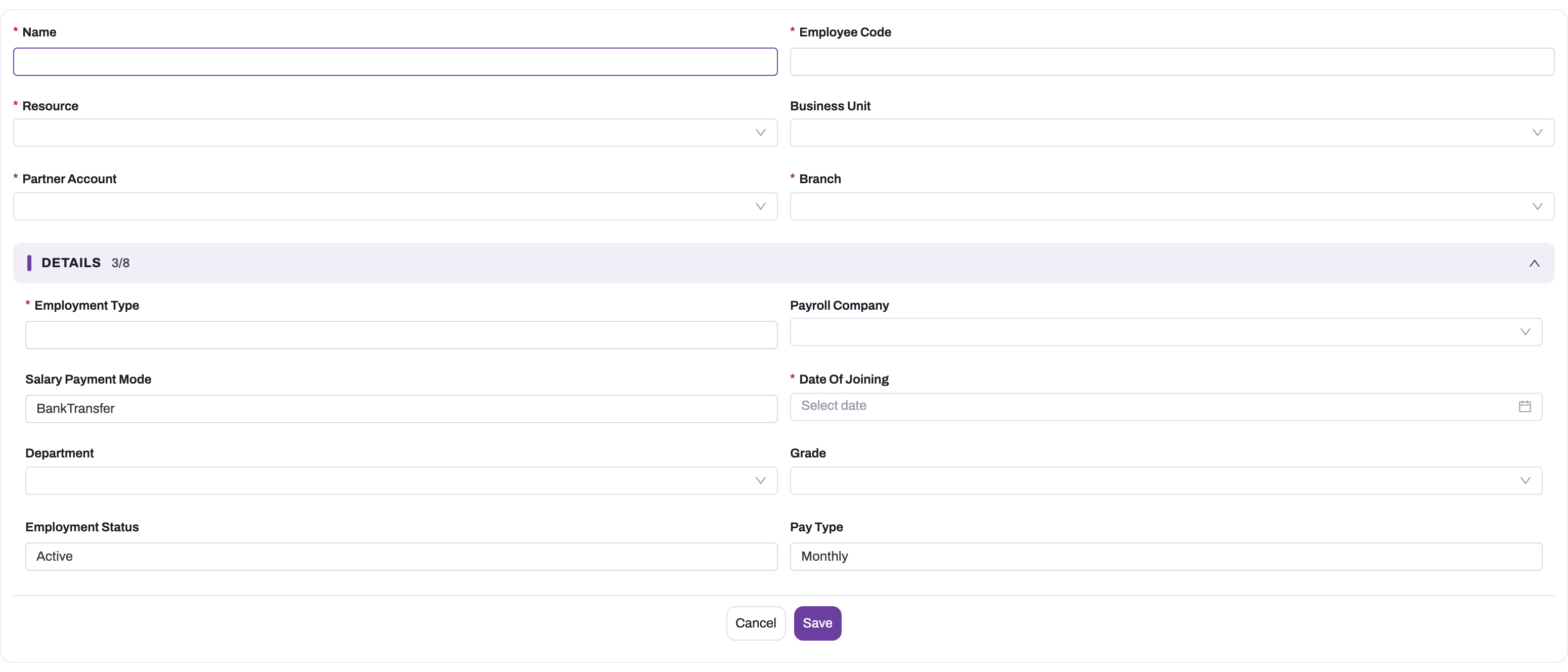
- Name: a unique name for the record, for example the person's name followed by their code. It is not generated for you.
- Employee Code: your staff number for the person.
- Resource: pick the person.
- Partner Account: the legal employer. Only your own companies are offered. Then pick the Branch, which lists that company's branches.
- Business Unit: optional.
- In Details, type the Employment Type, for example
Full Time(see the values under Fields). - Set Payroll Company if payroll runs under a different company from the Partner Account.
- Set Date Of Joining. Grade is optional.
- Leave Salary Payment Mode, Employment Status and Pay Type at their prefilled values:
BankTransfer,ActiveandMonthly.
Values must be typed exactly. Employment Type, Salary Payment Mode, Employment Status and Pay Type are plain text boxes on this form, not lists, so the value must match the stored value. To change any of them later, use the record page, where they are drop-down lists.
On a tenant that runs a single company or a single location, Partner Account or Branch is hidden and filled for you.
Select Save. The record opens on its own page.
Step 3 — Complete the record page
The record page has a header with Edit and Delete, plus the TDS Work Sheet button described in Business rules. Below the header it shows the record's Employee Code, Employment Status, Employment Type, Department, Pay Type and Date Of Joining. The Details tab has five groups:
- Basic Details: Resource, Employee Code, Department, Grade, Employment Type, Employment Status, Pay Type, Salary Payment Mode.
- Organization Details: Partner Account, Business Unit, Cost Center, Branch, Payroll Company, and Resource again.
- Employment Dates & Status: Date Of Joining, Confirmation Date, Probation End Date, Date Of Exit, Settlement Status.
- Statutory & Tax Details: Tax Regime, Pf Wage Cap Override, and the Pf, Esi, Pt, Lwf and Tds Applicable boxes.
- System Information: Created By, Created Date, Modified By, Modified Date.
Select the pencil beside a field to change it in place, or select Edit to change several fields at once in a dialog.
Check two fields before the first run:
- Tax Regime shows New Regime unless the employee has chosen the old regime.
- Tds Applicable is ticked, or left untouched, for everyone whose salary tax you deduct.
Step 4 — Give the person pay
On the person's Resource, add a Resource Compensation with their CTC, their salary structure and an Effective From date. Without it the run counts them as skipped. Salary structures describes this step.
Step 5 — Change the employer, status or tax election
Edit the record:
- A transfer to another legal entity. Change Partner Account (and Branch) or Payroll Company. The next run of the new company picks the person up. Do this after the old company's last run for them has been calculated.
- A notice period. Set Employment Status to On Notice. It is recorded only, and the person is still paid.
- A change of tax election. Change Tax Regime. The next salary-TDS projection uses it.
Step 6 — Take a leaver off payroll
The normal route is the full and final settlement. Posting it sets the employee's Settlement Status to Settled and Employment Status to Exited. If Date Of Exit is empty, it also fills it from the settlement's Last Working Day. With the seeded validations this post is refused until an administrator corrects the exit-date rule (see Common problems).
To stop paying someone without a settlement, set Employment Status to Exited on the record page. They drop out of every later run and projection.
Do not delete an Employee record that payroll has already paid: payslips, run details and open items stay on the Resource. Delete only records created by mistake.
Fields
Create form and record page
| Field | What it means | Notes |
|---|---|---|
| Name | The record's name | Required and unique across the tenant: a duplicate is refused with "Name '…' already exists". Not generated automatically; the naming setting for Employee is inactive by default. |
| Employee Code | Your staff number for the person | Required. Not checked for uniqueness. Shown on the TDS work sheet. Separate from the Employee ID text field on the Resource, which the mobile app shows; nothing keeps the two in step. |
| Resource | The person this record puts on payroll | Required. Payroll, payslips, postings and open items are keyed on it. |
| Business Unit | Finance division | Optional. Recorded only. |
| Partner Account | The legal employer | Required. Lists only your own companies. A run includes the person when this or Payroll Company equals the run's company. |
| Branch | The employer's branch | Required. Lists the chosen Partner Account's branches. The run does not filter by branch. The TDS work sheet shows it. |
| Employment Type | Full Time, Contract, Consultant, Intern or Permanent | Required. A text box on the create form and a list on the record page. Recorded only. |
| Payroll Company | The company whose payroll runs include the person | Optional. Use it when payroll runs under a different company from the Partner Account. |
| Salary Payment Mode | Bank Transfer, Cash or Cheque | Defaults to BankTransfer. Recorded only: the salary payment batch always uses the Resource's bank details. |
| Date Of Joining | First day of employment | Required. Not used for proration. |
| Department | Department | Has no list behind it in the standard setup, so it offers no values. |
| Grade | Grade master | Recorded only. Expense-policy limits use the Resource's grade. |
| Employment Status | Active, On Notice or Exited | Defaults to Active. Exited removes the person from every later run and TDS projection. The stored values are Active, OnNotice and Exited; type them that way on the create form. |
| Pay Type | Monthly, Hourly, Daily or Piece Rate | Defaults to Monthly. Recorded only: every person is paid from their monthly structure, prorated by payable days. |
Record page only
| Field | What it means | Notes |
|---|---|---|
| Cost Center | Cost centre | Has no list behind it in the standard setup, so it offers no values. |
| Confirmation Date | Date the person was confirmed | Must be on or after Date Of Joining. |
| Probation End Date | End of probation | Must be on or after Confirmation Date. |
| Date Of Exit | Last day of employment | Filled by full and final posting when empty. Not read by payroll: only Employment Status excludes. Refused while the seeded exit-date rule is active (see Common problems). |
| Settlement Status | Active, Exit In Process or Settled | Defaults to Active. Set to Settled by full and final posting. Recorded only. |
| Tax Regime | Old Regime or New Regime | Defaults to New Regime. The salary-TDS projection applies the old regime only when this says Old Regime. |
| Pf Wage Cap Override | A personal PF wage ceiling | Recorded only. A wage ceiling is set by the structure line's Max Amount. |
| Pf / Esi / Pt / Lwf Applicable | Statutory applicability | Recorded only. The structure's components decide the deductions. |
| Tds Applicable | Whether salary TDS is projected and deducted | Untouched counts as applicable. Explicitly unticked removes the person from the projection, so no TDS is deducted. |
Business rules
- Required fields. Name, Employee Code, Resource, Partner Account, Branch, Employment Type and Date Of Joining.
- Unique name. Two Employee records cannot share a Name. Two records can share a Resource or an Employee Code.
- Date checks. Three validations run whenever the dates involved change:
- Date of Confirmation refuses a Confirmation Date before Date Of Joining: "Confirmation date cannot be less than Joining Date".
- Probation End date refuses a Probation End Date before Confirmation Date: "Probation End Date cannot be less than Confirmation Date".
- Date Of Exist is shipped with its condition reversed. It refuses a Date Of Exit later than Date Of Joining, which is every real exit, with "Date of exist cannot be less than Date of confirmation". It also lets an exit date before joining through.
- Payroll inclusion. Partner Account or Payroll Company equal to the run's company, a Resource, and Employment Status not Exited.
- Exit through settlement. Posting a full and final settlement for the person's Resource sets Settlement Status to Settled and Employment Status to Exited, and fills an empty Date Of Exit with the Last Working Day. It is one save: if the employee update is refused, nothing is posted.
- TDS Work Sheet. The header button computes a read-only preview of the person's salary-tax projection under both regimes and changes nothing. In the standard web screens its result is not displayed: you see only "Action Executed". The TDS Calculation Sheet tab, and the page of the same name under Payroll → Settings, are also empty in the standard screens. To see the figures that drive deduction, open the person's Monthly TDS Projection after a run's Project TDS or Calculate (see Income tax on salary).
- Delete. Deleting removes the record from lists and from every later run.
Example
A company hires a sales coordinator, staff number EMP-2041, who starts on 3 November.
- HR confirms that the coordinator's Resource exists, with bank account, IFSC and PAN.
- In Payroll → Settings → People → Employee, HR searches for EMP-2041, finds no record, and selects New.
- They enter:
- Name Sales Coordinator - EMP-2041, Employee Code EMP-2041, and the coordinator's Resource;
- Partner Account: the company's own account, Branch Pune;
- Employment Type Full Time, Date Of Joining 3 November;
- the prefilled BankTransfer, Active and Monthly left as they are. Then they save.
- On the record page, Tax Regime shows New Regime. The coordinator has chosen the old regime, so HR changes it to Old Regime with the pencil.
- On the coordinator's Resource, HR adds a Resource Compensation with CTC 60,000, the "Field staff" structure, and Effective From 1 November.
- The November run includes the coordinator. The run does not prorate by joining date, so it would pay the full month. HR therefore adds a payroll adjustment for November that deducts the two days before joining.
Training
Practice exercise
In a sandbox:
- Create a Resource named Trainee One.
- Create an Employee for it with Employee Code TRN-001, your company as Partner Account, a branch, Employment Type
Full Timeand today as Date Of Joining. - Add a Resource Compensation that names any active salary structure.
- Calculate a payroll run for the current period.
Expected result: Trainee One appears in the run's register. Now set their Employment Status to Exited on the record page and recalculate. They are no longer in the register, and Total Resources drops by one.
Quick reference
- Create the Resource first. Bank, PAN and date of birth live there, not on the Employee.
- One Employee per Resource. Search before you select New.
- A run includes Partner Account or Payroll Company = run company, with status not Exited.
- Only Employment Status = Exited takes someone off payroll. Date Of Exit alone does not.
- Tax Regime: Old Regime applies the old regime. Blank or New Regime applies the new one.
- Tds Applicable unticked means no salary TDS.
- PF, ESI, PT and LWF come from the salary structure, not from the Applicable boxes.
- Joining mid-month is not prorated. Correct the first month with an adjustment.
- On the create form, type picklist values exactly:
Full Time,BankTransfer,Active,Monthly.
Permissions
Access follows the Employee entity's permissions in each security profile:
- See, create, edit and delete need read, create, edit and delete on Employee. The seeded System Admin, Standard User and Sales Executive profiles have full access.
- The TDS Work Sheet button is a server action, so it also needs a grant on the profile's Actions tab. The seeded grants are for System Admin and Standard User.
- A user without read access does not see the Employee list.
Because the record decides who is paid, restrict create, edit and delete to payroll and HR staff in your own profiles.
Configuration
- Validation rules: Setup → Design Studio → Entities → Employee → Logic → Validations. Correct the Date Of Exist rule before anyone posts a full and final settlement: change its condition to
DateOfExit < DateOfJoining. Or deactivate it. - Automatic names: the Employee Settings document naming setting (series
EMP) ships inactive, which is why Name is typed. Activating it makes xMatix generate the Name. - Form layouts: Setup → Design Studio → Entities → Employee → Layouts. To get drop-down lists on the create form, change the four text boxes (Employment Type, Salary Payment Mode, Employment Status and Pay Type) to selects. Remove Department and Cost Center if you do not use them. Follow Design a form layout.
- Picklist values: Employment Type, Employment Status, Pay Type, Salary Payment Mode, Settlement Status and Tax Regime are edited on each field in Design Studio. Do not rename the stored values
Exited,OldandNew: payroll and tax compare against them. - Lookup filters: Partner Account is limited to your own companies, and Branch to the chosen company's branches. Both are entity lookup filters on Employee.
- Where it appears: Payroll app → Settings → People group, next to Resource, Holiday and Full & Final Settlement.
Common problems
Saving a Date Of Exit fails with "Date of exist cannot be less than Date of confirmation"
The seeded Date Of Exist validation has its condition reversed: it refuses any exit date after the joining date. An administrator corrects the condition to DateOfExit < DateOfJoining, or deactivates the rule (see Configuration). Then save the date again.
Posting a full and final settlement fails with the same message
Posting fills the employee's Date Of Exit, which trips the same reversed rule, and the whole post is rolled back. Correct the rule as above, then post again. Until then, an exited person can be taken off payroll by setting Employment Status to Exited.
A new joiner is missing from the run
Check four things:
- the Partner Account or Payroll Company equals the run's Partner Account;
- the record has a Resource;
- Employment Status is not Exited;
- the record exists at all.
If the person is counted as skipped instead, they are included but have no Resource Compensation naming a salary structure.
An employee was paid twice in one run
There are two Employee records for the same Resource and company. Delete the duplicate and recalculate the run.
A leaver is still being paid
Their Employment Status is not Exited. Date Of Exit and Settlement Status do not stop pay. Set the status to Exited and recalculate.
Employment Status shows "On Notice" oddly, or not at all, on the record page
The value was typed on the create form in a form other than the stored value, for example On Notice instead of OnNotice. Choose it again from the list on the record page.
No TDS is deducted for one person
Tds Applicable is unticked on their record, or they have no Resource Compensation. Tick the box, then run Project TDS or Calculate again. More causes are in Income tax on salary.
The TDS Work Sheet button shows only "Action Executed"
The work sheet is computed but not displayed in the standard screens. Read the person's Monthly TDS Projection instead.
Department or Cost Center offers no values
Neither field is linked to a list in the standard setup. Leave them blank, or remove them from the layout.
Common questions
What is the difference between a Resource and an Employee?
The Resource is the person: their identity, bank and tax details, grade, leave and everything other modules key on. The Employee is the payroll layer on top of it: which company pays them, whether they are still on payroll, their tax election and HR dates. Payroll postings, payslips and open items always carry the Resource, which is why a person keeps one identity across payroll, expenses and finance. Every person on payroll needs both records; people who only use expenses or field apps need just the Resource.
Does the Date Of Joining prorate the first month?
No. The run prorates only by payable days, which come from approved unpaid leave in the period. A joiner on the 15th is paid the full month unless you correct the amount with a payroll adjustment. The same applies to the last month: Date Of Exit does not prorate. Pay the final month through the full and final settlement instead of a regular run.
Do the PF and ESI Applicable boxes switch the deductions on?
No. They are recorded for reference only. PF, ESI, PT and LWF are deducted when the person's salary structure contains a component with that statutory type. To exempt someone, give them a structure without that component. See Statutory deductions and challans.
Can one person be on two companies' payroll?
A run includes the person when either Partner Account or Payroll Company is its company. So one record can make them appear in two companies' runs if those fields name different companies. Keep both fields on the same company unless you mean the person to be paid by the Payroll Company only, and remember that the Partner Account's run will include them too.
Where does the payslip's bank account come from?
From the Resource, read when the salary payment batch is generated. Salary Payment Mode on the Employee does not change this.