
A payroll adjustment is a one-off amount added to or taken from one employee's pay in one payroll period: a bonus, a penalty, arrears or a correction. You enter it before the month's payroll run is calculated, and the run picks it up on its own. This page covers how to enter adjustments, what the calculation does with them, and how to set them up. Loans and salary advances that are recovered over several runs have their own page: Loans and advances.
Overview
The salary structure pays the same lines to everyone on it, every month. Anything that applies to one person for one month goes into a payroll adjustment instead. When a run is calculated, each qualifying adjustment becomes one extra component line on the employee's row in the run. It then flows into gross earnings or deductions, net pay, the accrual journal and the salary payment.
Adjustments are on the Payroll app's top navigation, under Payroll Adjustments.
When to use it
- A one-off payment, such as a performance bonus, a festival bonus or a referral reward.
- A one-off deduction, such as a penalty or the recovery of an overpayment.
- Arrears after a back-dated raise. The salary structure does not calculate back pay, so you enter the difference for past months as an adjustment.
- A partial first month. A run does not prorate by joining date, so you correct a mid-month joiner's first month with a deduction adjustment.
- Correcting a posted month. A posted run can't be recalculated, so the difference goes into an adjustment in the next period.
For a loan or salary advance that is repaid from future salaries, use a loan or advance instead. Don't use an adjustment for a change that should apply every month. Change the employee's compensation or salary structure instead.
How xMatix handles it
When you click Calculate on a run, xMatix works through each employee the run includes. After the salary structure lines, it looks for adjustments that meet all of these conditions:
- Payroll Period is the same period record the run uses.
- Resource is the employee being calculated.
- Approval Status is
Approvedor empty. - The adjustment has not been deleted, and its Amount is not zero.
Each adjustment that qualifies becomes its own component line, with Sort Order 1000. The line is never prorated, whatever the employee's payable days.
The linked payroll component decides most of the result. The line copies the component's type, its GL account and its payable GL account. It is taxable only when the component's taxability is Taxable. If the adjustment has no component, it is treated as an earning, unless its Adjustment Type is Deduction. That line has no GL accounts, so the run can be calculated but not posted. When a component is linked, its type wins over Adjustment Type.
Then:
- An earning or reimbursement adjustment adds to the employee's gross earnings and net pay. Posting debits the component's GL account.
- A deduction adjustment adds to total deductions and lowers net pay. Posting credits the component's payable GL account.
- The row's TDS, PF and ESI totals count only salary structure lines. An adjustment on a TDS, PF or ESI component changes net pay and posts to that component's payable account, but it is not added to those totals, so the statutory challans don't include it.
Loan and advance recovery follows the adjustments in the same pass. It adds one deduction line, with Sort Order 2000, for each active loan. See Loans and advances.
Prerequisites
- The month's Payroll Period, already created. See Payroll periods.
- A payroll component of the right type, with GL accounts:
- for an earning, an Earning or Reimbursement component with a GL Account;
- for a deduction, a Deduction component with a Payable GL account.
- The employee is on payroll: an active employee with an active compensation record that names a salary structure. A run skips anyone without one, and skipped employees get no adjustments.
- Access to the Payroll app and to the Payroll Adjustment records. See Permissions.
Procedure
Step 1 — Open the adjustments list
Open the App Launcher, search for Payroll and open the app. In the top navigation, choose Payroll Adjustments.
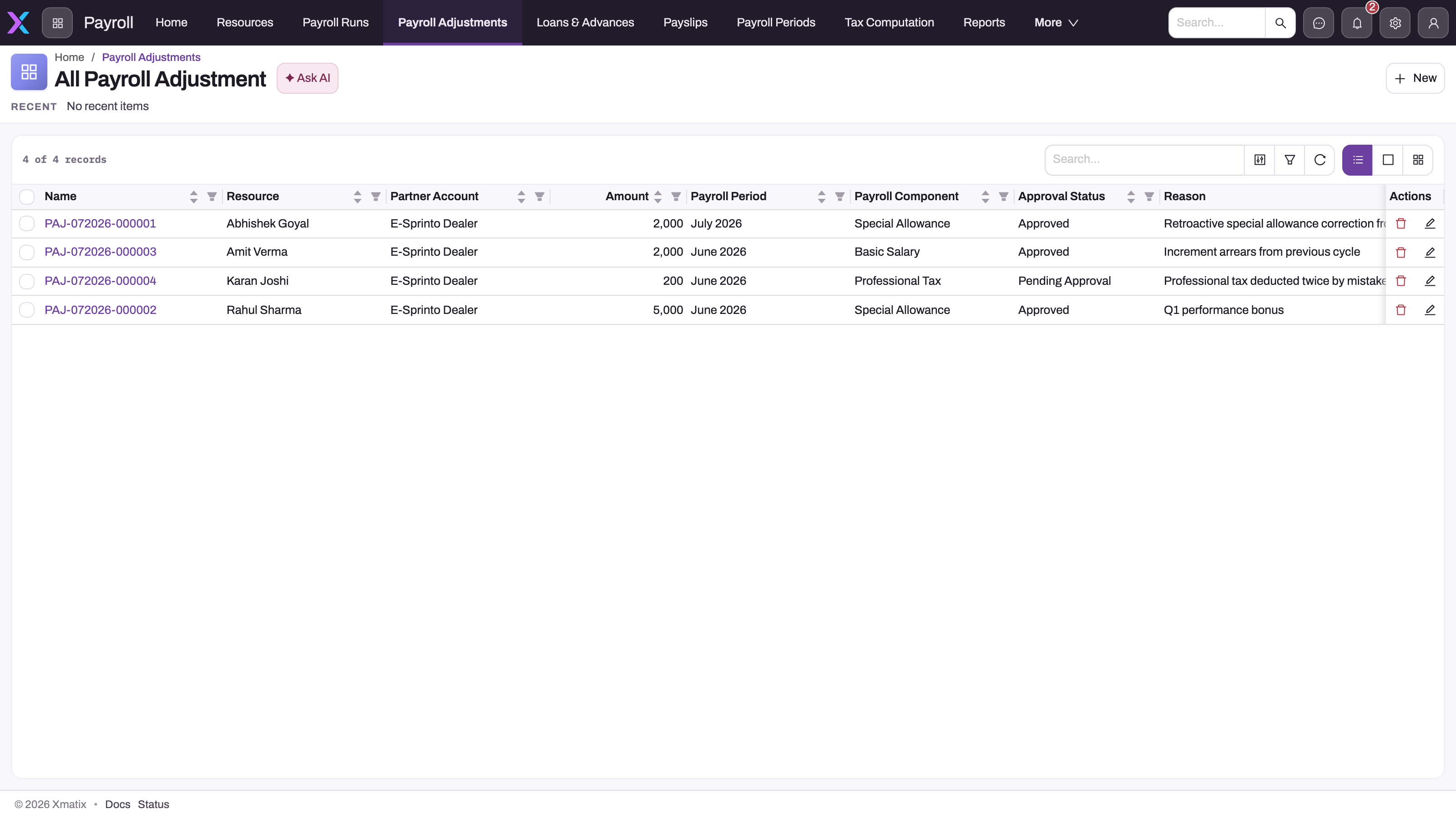
The All Payroll Adjustment list shows Name, Resource, Partner Account, Amount, Payroll Period, Payroll Component, Approval Status, Reason, Modified Date and Created. Use search, filters or sorting on Payroll Period to see one month's items.
Step 2 — Create the adjustment
Click New. Fill in the form:
- Name: type any short text. The form needs a value, but on save xMatix replaces it with the next number in the adjustment series, for example
PAJ-102026-000001. - Partner Account: the company that pays the employee. Only partner accounts are listed. On a tenant with a single company, this field is hidden.
- Resource: the employee.
- Payroll Period: the period the run will use. Pick the period record of your own company. The list shows every company's periods.
- Payroll Component: the component that decides whether the amount is an earning or a deduction, and where it posts.
- In Payment Details, enter the Amount as a positive number and a Reason.
Click Save. The adjustment opens on its record page, with its PAJ number as the title. Approval Status is empty, so the next calculation includes the adjustment.
The standard form has no Adjustment Type or Is Arrear field. Choose the component to set the direction. To record arrears, say so in the Reason.
Step 3 — Hold it back or release it
The standard setup has no approval process for adjustments. Approval Status is a text box on the record page that you can use as your own review gate:
- To hold an adjustment out of the run, click the Approval Status value on the record page, type a word such as
Pendingand save. Any value other thanApprovedkeeps it out. - To release it, change the value to
Approvedor clear it.
Approval Status is not on the New form, so a new adjustment is included straight away. If your process needs a review step, ask whoever enters adjustments to set Pending right after saving, or enter adjustments only once they are agreed.
Step 4 — Calculate the run and check the result
On the payroll run for the period, click Calculate. If the run was already calculated, click it again. Recalculating replaces the previous result, so adjustments added since then are picked up.
Open the run's Related tab, then the employee's row. The row's Component Line tab shows the adjustment as a line with Sort Order 1000, carrying the component and the amount. The row's Gross Earnings or Total Deductions, and its Net Pay, include it.
Recalculating is refused once the run is posted or one of its payslips is published. An adjustment entered after that point is never picked up by that run. Put it on the next period instead.
Step 5 — Change or delete an adjustment
On the record page, click Edit to change the fields in a dialog, or click a value to edit it in place. Delete removes the adjustment. Deleted adjustments are left out of the next calculation.
Changes and deletions reach the payroll only when the run is calculated again. If the run is already posted, enter a new adjustment that offsets the difference in the next period.
On mobile
Payroll Adjustment is also available in the field app. The New form has the same fields as the web form. The record view shows Amount, Reason, Payroll Period and Approval Status as read-only values, with Edit and Delete in the header.
Fields
Fields are listed in form order. Approval Status is on the record page only.
| Field | What it means | Notes |
|---|---|---|
| Name | The adjustment's number | Required on the form, but replaced on save by the next number in the adjustment series (PAJ-<MMYYYY>-<six digits>). Unique. |
| Partner Account | The paying company | Lists partner accounts only. Not read by the calculation, because the run's company decides. Hidden on tenants with a single company. |
| Resource | The employee | The calculation matches on this field and the period. An adjustment on the wrong person is ignored without any warning. |
| Payroll Period | The pay cycle the amount belongs to | Must be the same period record the run uses. The picker lists every company's periods. An adjustment reaches exactly one period, so it never repeats. |
| Payroll Component | What kind of amount it is | Supplies the line's type (Earning, Deduction, Reimbursement), taxability, GL account and payable GL account. Without one, the run can't be posted. |
| Amount | The amount to pay or deduct | Enter a positive number. Zero is ignored. Never prorated. |
| Reason | Why the adjustment was made | Free text for audit and review. The journal does not show it, because posting adds the amount into the component's GL total. |
| Approval Status | Whether the run should include it | Free text, on the record page only. Empty or Approved includes the adjustment. Any other value, such as Pending or Rejected, leaves it out. |
| Adjustment Type | Earning or deduction, when there is no component | Not on the standard forms. Values: Earning, Deduction, Addition. Only Deduction changes anything, and only when no component is linked. |
| Is Arrear | Marks the amount as relating to an earlier period | Not on the standard forms. For reporting only: an arrear is paid, taxed and posted in the period it is entered on, with no recalculation of earlier periods. |
Business rules
- Matching. An adjustment is included when its period and resource match the run's period and the employee, its Approval Status is empty or
Approved, it is not deleted and its amount is not zero. A run with no Payroll Period includes no adjustments. - Skipped employees. An employee the run skips, because they have no active compensation or structure lines, gets no adjustment lines either.
- Type. A linked component's type always decides. Without a component,
Deductionin Adjustment Type makes a deduction, and anything else makes an earning. - Employer-contribution components. Don't link one. The employee row adds such an adjustment to gross earnings and net pay, but posting treats it as an employer cost, so the register and the journal disagree.
- No proration. Adjustment lines always carry the full amount.
- Posting. An earning or reimbursement line needs the component's GL account, and a deduction line needs its payable GL account. If either is missing, Post fails for the whole run.
- Income tax. The month's TDS deduction comes from the monthly TDS projection, so an adjustment does not change the TDS taken in its own run. From the next projection, the month's higher gross counts in year-to-date earnings and in the average monthly gross that is projected over the rest of the year. See Salary income tax.
- Statutory totals. The row's TDS, PF and ESI exclude adjustment lines.
- Numbering. Every new adjustment gets the next number in the
PAJseries, built from the month and year plus a six-digit counter. Anything typed in Name is replaced. - No validation rules. The standard setup has no validation, business rule or approval process on Payroll Adjustment. Nothing checks that the period belongs to the company or that the amount is reasonable.
- Recalculation. A run's result is rebuilt from the current adjustments every time it is calculated, until the run is posted or a payslip is published.
Example
An operations team pays a quarterly performance bonus of 12,000 to one supervisor in the October payroll and has to correct a mid-month joiner.
- The payroll administrator opens Payroll → Payroll Adjustments, clicks New and enters Name
Bonus, Partner Account Riverbend Logistics, Resource Supervisor — Warehouse 2, Payroll PeriodRL-2026-10, Payroll Component Performance Bonus (an Earning component with a GL account and Taxable), Amount12000and ReasonQ2 performance bonus. After saving, the record is namedPAJ-102026-000014. - For the joiner, who started on 16 October, the administrator enters a second adjustment. It uses Payroll Component Salary Recovery (a Deduction component with a payable GL account), Amount
15000(half of the month's gross) and ReasonJoined 16 Oct — first half of month not worked. - The finance controller wants to check the bonus before it is paid, so they set its Approval Status to
Pending. - The administrator calculates the October run. The joiner's row shows the 15,000 deduction line at Sort Order 1000. The supervisor's row shows no bonus.
- The controller approves, changes Approval Status to
Approved, and the administrator clicks Calculate again. The supervisor's row now shows a 12,000 earning line, and gross earnings and net pay are 12,000 higher. - The run is posted. The bonus is debited to the Performance Bonus expense account and the recovery is credited to the Salary Recovery payable account, each added into the totals for those accounts.
Training
Practice exercise
In a sandbox with a calculated, unposted run:
- Create an adjustment for one employee on the run's period, linked to an Earning component that has a GL account, with Amount
1000. - Create a second adjustment for the same employee on a different period, with Amount
500. - Calculate the run again.
Expected result: the employee's row shows one new line of 1,000 at Sort Order 1000, and net pay rises by 1,000. The 500 adjustment does not appear. Now set the first adjustment's Approval Status to Pending and calculate again: the 1,000 line disappears. Delete both adjustments afterwards.
Quick reference
- One adjustment = one employee, one period record, one line in the run.
- The component sets the direction and the GL accounts. Always link one.
- Use a Deduction component for deductions. Adjustment Type isn't on the form.
- Empty or
ApprovedApproval Status is included. Anything else is held back. - Recalculate the run after adding, changing or deleting an adjustment.
- Posted run? Put the correction on the next period.
- Never prorated, and not counted in the row's TDS, PF or ESI.
- Recovering money over several months? Use a loan or advance.
Permissions
Access follows the Payroll Adjustment entity permissions in each security profile:
- See the list and records: read access on the entity, plus access to the Payroll app.
- Create, edit, delete: create, edit and delete access on the entity. Anyone who can edit an adjustment can also change its Approval Status, so the hold step is only as strong as your edit rights.
In the standard setup, the System Admin, Standard User and Sales Executive profiles have full access to Payroll Adjustment, and those profiles plus Sales Manager can open the Payroll app. These grants are broad, so most organisations narrow them: give payroll staff edit rights and make everyone else read-only or remove access. A user without read access does not see Payroll Adjustments in the app.
Configuration
- Numbering. Setup → Feature Hub → Platform → Document Settings, Payroll Adjustment Document setting: series
PAJ, separator-, date part{MM}{YYYY}, six-digit counter. Changing the series or date format affects new adjustments only. See Email templates and document numbering. - Form layout. The standard New form has Name, Partner Account, Resource, Payroll Period, Payroll Component, Amount and Reason. The record page has Amount, Reason, Payroll Period and Approval Status. To show Adjustment Type, Is Arrear or Payroll Component on the record page, edit the layouts. See Design a form layout. To make Approval Status a list instead of free text, add picklist values to the field and render it as a select in the layout. Keep
Approvedspelt exactly, because that is the value the calculation looks for. - Lookup filters. Partner Account is limited to partner accounts. Payroll Period and Resource have no filter. An administrator can add an entity lookup filter to limit the period picker to the record's company.
- Approval. No approval process is shipped. You can add one under Approvals, but the calculation reads only the Approval Status field. Use the process's field updates to write a value such as
Pendingon submission andApprovedon final approval. - Payroll components. The direction, taxability and GL accounts of every adjustment come from the payroll component. Keep a small set of components just for adjustments, such as Bonus, Arrears and Salary Recovery, each with its GL accounts filled in.
Common problems
The adjustment didn't show up in the run
Check five things:
- It is on the same Payroll Period record the run uses, not just the same month.
- It is on the right Resource.
- Its Amount is not zero.
- Its Approval Status is empty or
Approved. - The employee was not skipped by the run.
Then click Calculate on the run again. A run only picks up adjustments that exist when it is calculated.
"Earning/reimbursement component line … has no GL account mapped."
An adjustment has no Payroll Component, or its component has no GL account. Link a component with a GL account, or add the account to the component, then calculate and post again.
"Deduction component line … has no payable GL account mapped."
The adjustment's Deduction component has no Payable GL Account. Add one to the component, then calculate and post again.
My deduction was added to pay instead
The linked component is an Earning component. The component's type wins over everything else. Link a Deduction component and recalculate.
The adjustment came in after the run was posted
A posted run can't be recalculated, and it never picks up later adjustments. Move the adjustment to the next period by changing its Payroll Period, then calculate the next run.
Common questions
How do I pay arrears for a back-dated raise?
Work out the difference for each past month and enter it as an adjustment on the current period, with an Earning component such as Arrears. Say which months it covers in the Reason. The whole amount is paid and posted in the current period. Earlier periods are not recalculated, and their statutory figures stay as they were. Update the employee's compensation record as well, so that future months are paid at the new rate. You can enter one adjustment for the total or one for each month, and both give the same pay.
Can I enter a negative amount instead of using a deduction component?
Use a positive amount with a Deduction component. A deduction adjustment is added to Total Deductions and credited to the component's payable account, so the register and the journal show it as a deduction. The direction should come from the component, not the sign. An adjustment with no component can't be posted either way.
Does an adjustment affect the employee's income tax?
Not in its own month. The TDS taken in a run comes from the monthly TDS projection, which is calculated before the run. From the next projection, the month's gross, including any earning adjustment, counts in year-to-date earnings and in the average monthly gross that is projected forward. A large one-off bonus therefore raises the tax projected for the remaining months. See Salary income tax.
How do adjustments differ from changing the salary structure?
A structure change applies to everyone on that structure, every period. An adjustment applies to one employee in one period and leaves a record with its reason. Use adjustments for one-off amounts and corrections. Change the structure or the compensation record when the ongoing pay changes.
Should I use an adjustment or a loan to recover money from an employee?
Use an adjustment, on a Deduction component, when the whole amount comes back in one period, such as an overpayment from last month. Use a loan or advance when the money is paid out first and recovered over several periods. A loan posts the payout, keeps a running balance and an open item against the employee, and deducts one installment in every run until the balance is zero. Several adjustments can imitate installments, but you would enter one per period by hand, and nothing tracks the balance.