
A Loan / Advance record is money paid to an employee ahead of salary, such as a salary advance, a travel advance or a loan, that payroll then takes back in installments. You create the record, disburse it, and every payroll run after that deducts one installment until nothing is left. This page covers the whole cycle and the one-time setup it needs.
Overview
A loan goes through three stages:
- Requested. You create the record with the employee, the amount and the installment. Nothing is posted, and payroll ignores it.
- Active. Disburse posts the payout. It debits the company's employee loan or advance control account, credits the bank or cash account, and raises a receivable open item against the employee. The loan's Outstanding Amount becomes the principal.
- Closed. Each payroll calculation deducts one installment from net pay and lowers the outstanding balance and the open item. When the balance reaches zero, the loan closes.
Loans live in the Payroll app, under Loans & Advances in the top navigation. Each installment payroll takes is kept as a Loan Recovery row on the loan's Recovery tab.
When to use it
- A salary advance paid now and recovered over the next few months.
- A travel advance that is recovered from salary rather than settled against an expense claim. For advances settled against claims, use expense advances instead.
- An interest-free loan to an employee, repaid in fixed monthly installments.
Don't use a loan for a one-off deduction in a single month, such as a penalty or the recovery of an overpayment. Use a payroll adjustment for that.
How xMatix handles it
Disburse. Disburse is a button on the loan's record page. It checks the record, then posts a payroll journal dated the day you click it:
| Line | Account | Debit | Credit |
|---|---|---|---|
| 1 | The control account: the record's Control GL Account, or else the company's employee loan or employee advance control | Principal | |
| 2 | The record's GL Account (the bank or cash account) | Principal |
The control account is chosen like this:
- If Control GL Account is filled in, that account is used.
- Otherwise, if Advance Type is exactly Loan, xMatix uses the company's account with control type Employee Loan.
- Otherwise, including an empty Advance Type and every other loan type such as Personal Loan or Home Loan, it uses the account with control type Employee Advance.
The account it picks is written back to Control GL Account. Disburse also raises a receivable open item against the employee for the principal, sets Outstanding Amount to the principal, fills in Disbursement Date, links the journal and the open item, and sets the status to Active.
Recovery. When a payroll run is calculated, xMatix looks at each employee's loans after the salary structure lines and the adjustments. It takes every loan that is Active, not deleted, and has a positive Outstanding Amount and a positive Installment Amount. For each one it:
- deducts the Installment Amount, or the remaining balance if that is smaller, as a deduction line with Sort Order 2000 that credits the loan's control account;
- lowers the loan's Outstanding Amount and its open item by the same amount, marking the open item Partially Settled or, at zero, Settled;
- writes a Loan Recovery row with the amount, the balance after it, the run and the period;
- sets the loan to Closed when the balance reaches zero.
All of this happens when the run is calculated, not when it is posted. If you calculate the run again, xMatix first gives back every installment that run took, restoring the balance and the open item and reopening a loan it had closed. It then recovers afresh, so a recalculation never takes a second installment.
What recovery ignores. Recovery charges no interest, ignores Start Payroll Period and End Payroll Period, and treats every Advance Type the same way. Loans are matched by employee only, so a run for any company that includes the employee recovers the loan.
Prerequisites
- Control accounts. The company needs a GL account with control type Employee Loan, one with Employee Advance, or both. The control type must be stored exactly as
EmployeeLoanorEmployeeAdvance, without spaces. Leave Is Control Account cleared on these accounts. See GL accounts — configuration. - A bank or cash GL account to pay from.
- The GL Account field on the loan form. The standard forms don't show it, and Disburse can't run without it. An administrator adds it once; see Step 1.
- The employee is on payroll: an active employee with an active compensation record. A run skips anyone without one, and a skipped employee has nothing recovered.
- Access to the Payroll app, to the Loan / Advance entity, and to the Disburse action. See Permissions.
Procedure
Step 1 — Prepare the loan form (administrators, once)
The standard Loan / Advance forms have no GL Account (the bank or cash account) and no Advance Type. The Disburse button sends no account of its own, so it fails on a record whose GL Account is empty.
Open the Loan / Advance create form layout in the layout designer and add GL Account and Advance Type to the Details section. See Design a form layout. The create form is also used by Edit, so both fields can then be filled in on new and existing loans. You can add them to the record page's Details tab as well.
Step 2 — Open the loans list
Open the App Launcher, search for Payroll and open the app. In the top navigation, choose Loans & Advances.
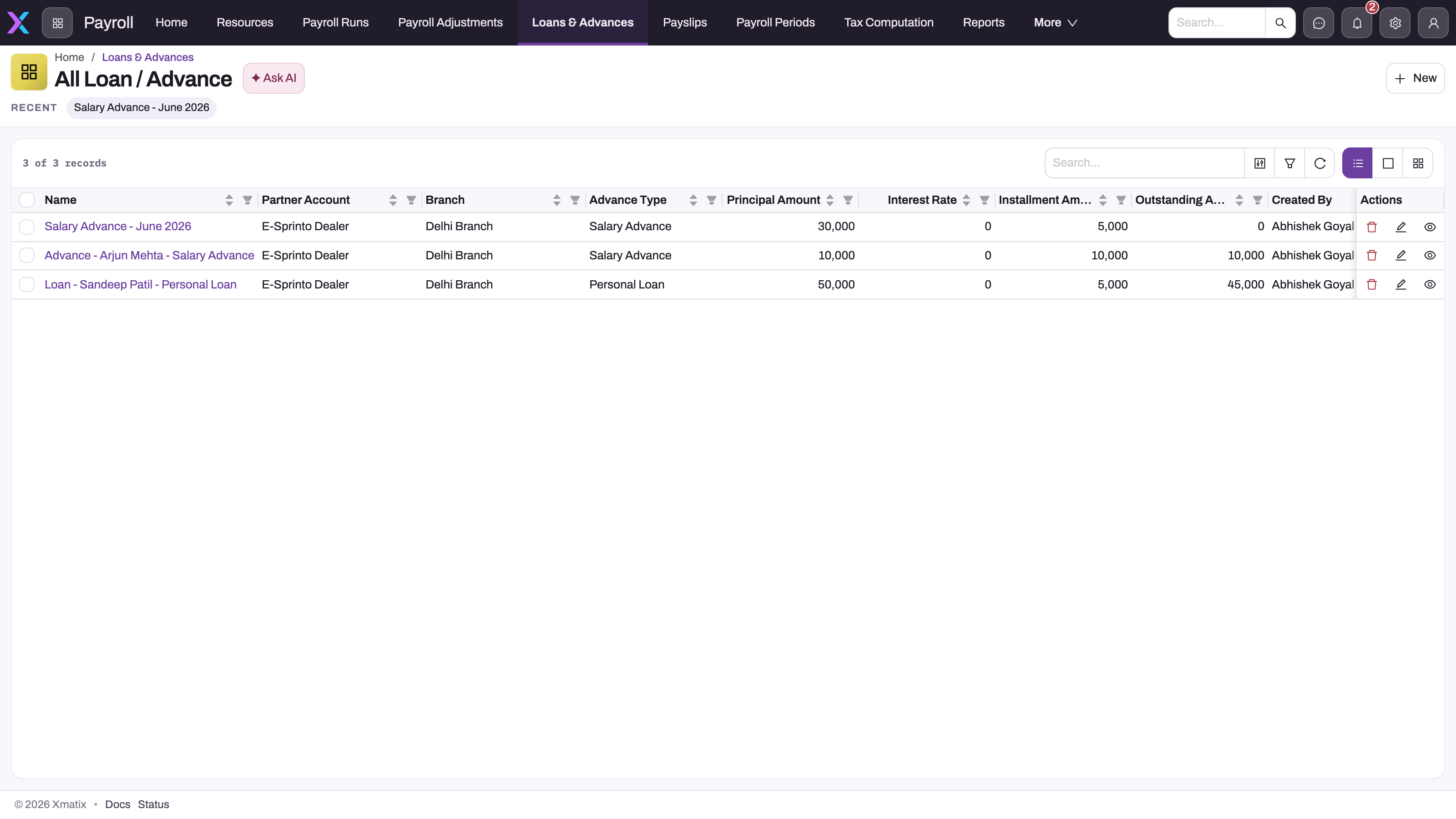
The All Loan / Advance list shows Name, Partner Account, Branch, Advance Type, Principal Amount, Interest Rate, Installment Amount, Outstanding Amount, Created By, Created and Updated Date. It has no column for the employee or the status. Use the column controls to add Resource and Status if you need them.
Step 3 — Create the loan
Click New and fill in the form:
- Name: a name that identifies the loan, for example the employee and the purpose. It must be unique. No numbering series is set up for loans, so the name you type is kept.
- Resource: the employee.
- Partner Account: the company that lends the money. On a tenant with a single company, this field is hidden.
- Branch: the branch to book the payout to. Only the chosen company's branches are listed.
- In Details: Installment Amount (the amount to recover in each run) and Principal Amount (the amount to pay out).
- GL Account and Advance Type, if your administrator has added them. Choose Loan only for a loan that should post to the Employee Loan control.
- Leave Outstanding Amount blank. Interest Rate and End Payroll Period are kept for reference only.
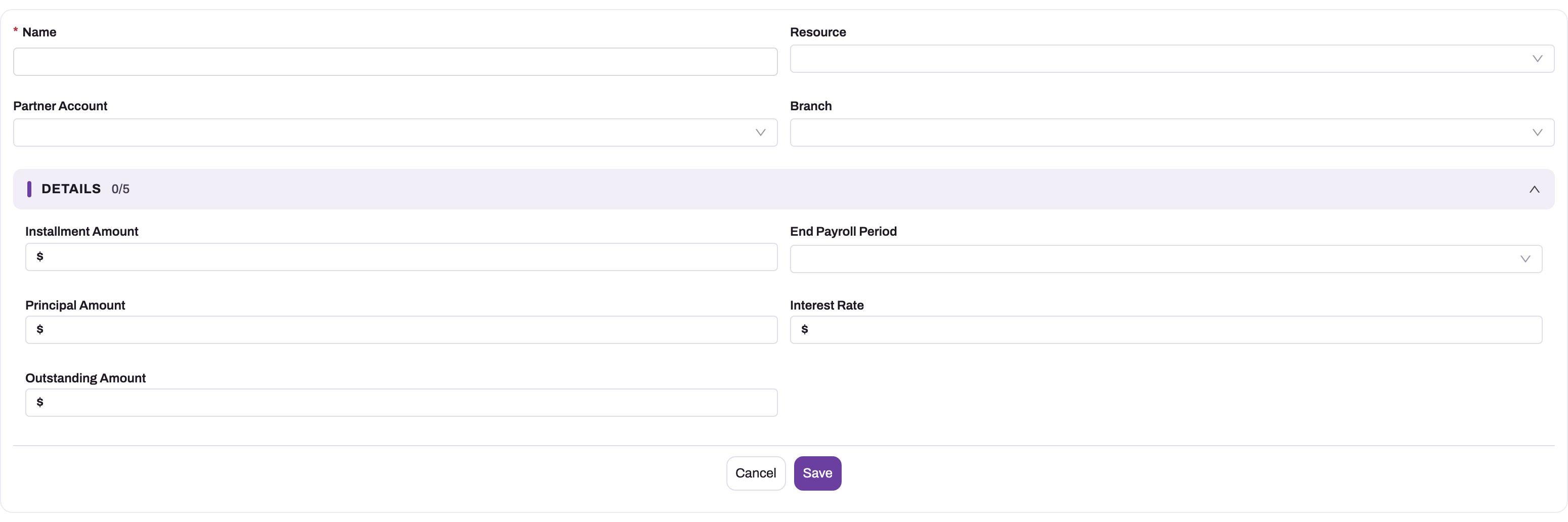
Click Save. The loan opens on its record page with the status Requested. Payroll ignores it until it is disbursed.
Step 4 — Disburse the loan
On the record page, click Disburse. The confirmation reads "Disburse the loan/advance (Dr Employee Loan / Cr Bank)." Click Yes.
The journal is posted with today's date, and the loan becomes Active. On the Details tab, Control GL Account, Open Transaction and Outstanding Amount are now filled in.
Disburse works once per loan. To pay out more, create a new loan.
Step 5 — Let payroll recover it
You don't need to do anything else. Calculate the month's payroll run as usual. For each active loan, the employee's row in the run gets a deduction line at Sort Order 2000, and Total Deductions and Net Pay reflect it.
When the run is posted, the installment credits the loan's control account as part of the payroll journal.
Step 6 — Check the balance and the installments
Open the loan. The header shows the status next to the name, and Partner Account, Branch and Resource below it.
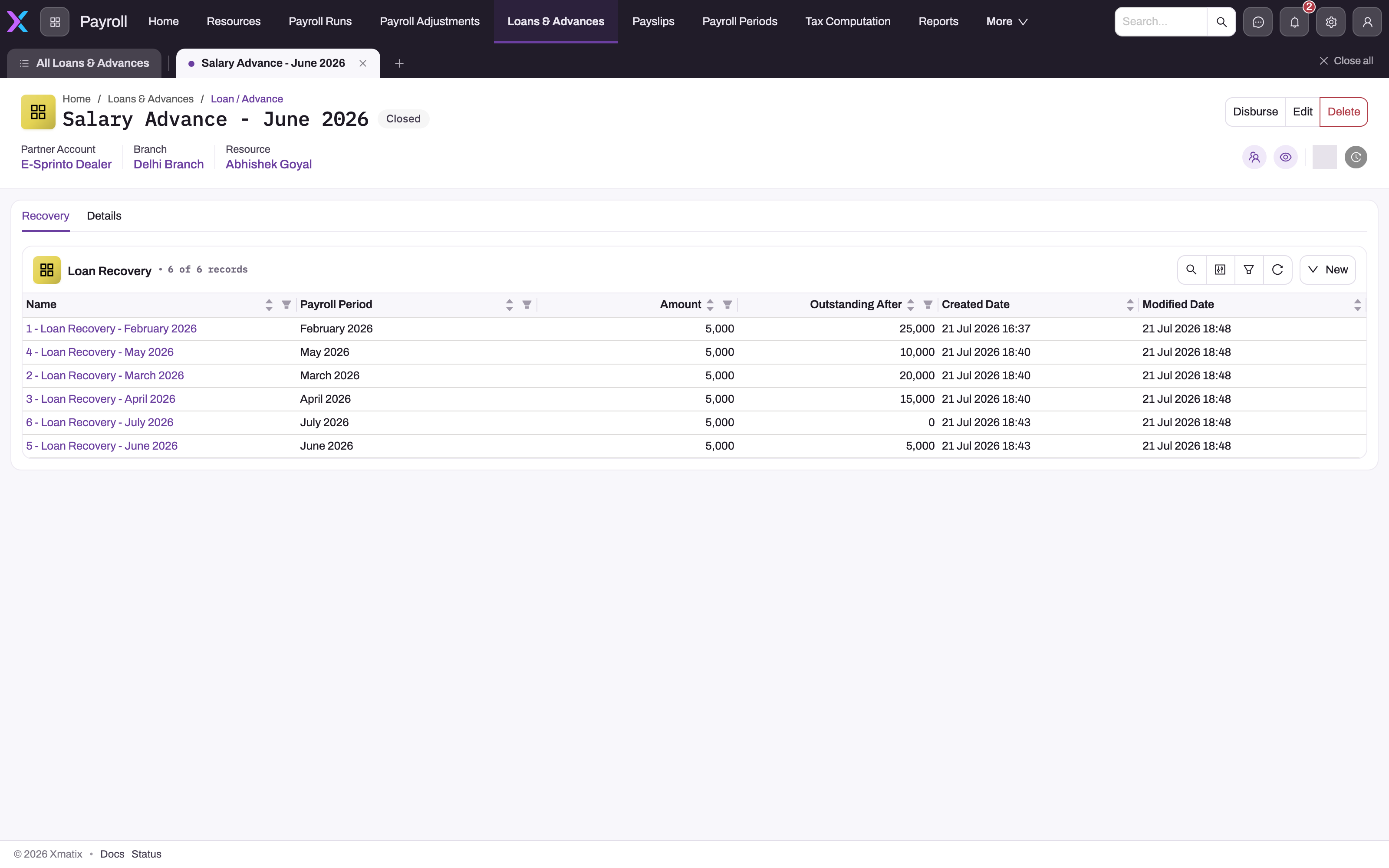
- The Recovery tab lists each installment with Payroll Period, Amount and Outstanding After.
- The Details tab has Control GL Account, Start Payroll Period, End Payroll Period and Open Transaction, and under Amount Details the Principal Amount, Interest Rate, Installment Amount and Outstanding Amount.
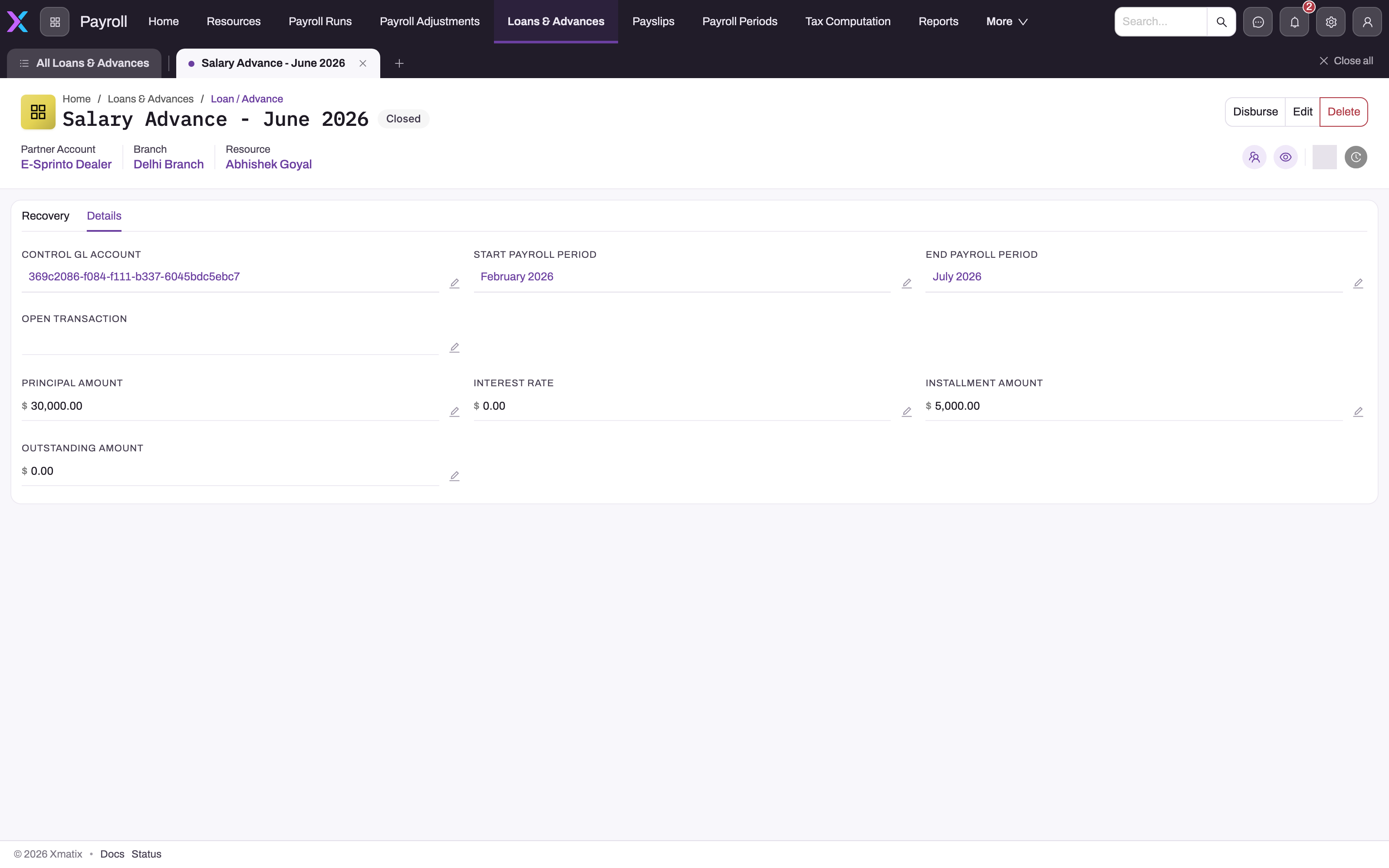
Outstanding Amount should equal the principal minus the amounts on the Recovery tab. To see every installment across loans, search the App Launcher for Loan Recoveries.
The Recovery tab has a New button, but don't add rows by hand. A row you create doesn't lower the balance or the open item.
Step 7 — Change, pause or stop recovery
Click Edit to change the loan in a dialog, or click the pencil next to a value on the Details tab.
- Change the installment. Edit Installment Amount. The next calculation uses the new amount.
- Pause recovery. Set Installment Amount to zero, and set it back when recovery should resume. Payroll skips a loan with no installment.
- Stop recovery early, for example when the balance is settled another way. Set Outstanding Amount to zero. Payroll skips a loan with no balance. The status stays Active, because the standard forms can't change it, and the loan's open item keeps its balance.
Don't change Principal Amount after disbursing. That changes neither the balance nor the open item.
Step 8 — Year-end loan schedule
Auditors may ask for a loan register: each loan's opening balance, amount disbursed, amount repaid and closing balance for the year. Open Financials → Statutory & Compliance → Audit Schedules, choose Loan Schedule as the schedule type, and pick the company's fiscal year.
The schedule lists only loans whose Advance Type is exactly Loan. It takes the disbursement from Principal Amount and Disbursement Date, and places each installment in the year that contains its payroll period's end date. Loans with no balance and no movement in the year are left out.
On mobile
Loans & Advances is also in the Payroll app of the field app. The New form has the same fields as the web form. The record view has Disburse, Edit and Delete in the header, a Loan Advance Recoveries tab and a Details tab.
Fields
Fields are listed in the order of the New form, followed by those on the record page only.
| Field | What it means | Notes |
|---|---|---|
| Name | Identifies the loan | Required and unique. Typed by you; there is no numbering series. Shown on the journal narration and the open item. |
| Resource | The employee | Required for Disburse. Recovery finds loans by this field. |
| Partner Account | The lending company | Lists partner accounts only. Disburse looks up the company's control account through it. Hidden on single-company tenants. |
| Branch | Where the payout is booked | Lists only the chosen company's branches. |
| Installment Amount | The amount recovered in each run | The last installment is reduced to the remaining balance. Zero or empty pauses recovery. |
| End Payroll Period | The period recovery should end in | For reference only. Payroll does not read it. |
| Principal Amount | The amount paid out | Must be greater than zero for Disburse. Copied into Outstanding Amount and the open item. |
| Interest Rate | The agreed interest rate, as a percentage | For reference only. No interest is calculated. |
| Outstanding Amount | What is still to be recovered | Leave blank. Set by Disburse, then lowered by each recovery. |
| Control GL Account | The control account to post to | On the Details tab. Optional. Filled in by Disburse when empty. |
| Start Payroll Period | The period recovery should start in | On the Details tab. For reference only. Payroll does not read it. |
| Open Transaction | The receivable open item raised at disbursement | On the Details tab. Set by Disburse. |
| Status | Requested, Active or Closed | Shown in the header. Set by Disburse and by payroll; not editable on the standard forms. |
| Advance Type | Salary Advance, Travel Advance, Loan, Personal Loan, Vehicle Loan, Education Loan or Home Loan | Not on the standard forms. Only Loan selects the Employee Loan control and appears in the Loan Schedule. |
| GL Account | The bank or cash account the money is paid from | Not on the standard forms, but required for Disburse. |
| Disbursement Date | When the money was paid out | Set by Disburse. Not on the standard forms. |
The Loan Recovery rows have Name, Payroll Period, Amount (the installment taken), Outstanding After (the balance straight after it), and the run and employee. Payroll writes them.
Business rules
- Disburse is refused if the loan has already been disbursed, has no Resource, has a principal of zero or less, or has no Control GL Account and the company has no matching control account. It also fails if GL Account is empty.
- One disbursement per loan. The posted journal is linked to the loan, and a second Disburse is refused.
- Recovery conditions. A loan is recovered when it is Active, not deleted, and has a positive Outstanding Amount and Installment Amount.
- Recovery amount. The smaller of Installment Amount and Outstanding Amount. It is never prorated, and no interest is added.
- Timing. Recovery happens when the run is calculated. Recalculating gives back the run's earlier installments first, then recovers again.
- Closing. A loan closes when a recovery brings the balance to zero. A recalculation that gives the installment back reopens it.
- Locked runs. A run that is posted, or whose payslips are published, can't be recalculated, so its installments stand.
- Deleting a calculated run doesn't give installments back. Only recalculating does. See Common problems.
- Deleting a loan stops recovery, but the disbursement journal and the open item stay as they are.
- Full and final settlement does not read or update loans. See Full and final settlement.
- No validation rules or approval process are shipped for loans.
Example
A logistics company gives a warehouse supervisor a salary advance of 30,000, to be recovered at 5,000 a month from November.
- Earlier, the administrator added GL Account and Advance Type to the loan form, and the company's chart has an account Employee Advances with control type Employee Advance.
- The payroll officer opens Payroll → Loans & Advances, clicks New and enters Name
Salary advance — Supervisor W2 — Oct 2026, the supervisor as Resource, the company and its Pune branch, Installment Amount5000, Principal Amount30000, GL Account Bank Current Account and Advance Type Salary Advance. They save, and the loan shows Requested. - Finance pays the supervisor and the payroll officer clicks Disburse, then Yes. The journal debits Employee Advances 30,000 and credits Bank Current Account 30,000. The loan becomes Active with Outstanding Amount 30,000.
- The November run is calculated. The supervisor's row has a 5,000 deduction line, and the loan's Recovery tab shows one row: Amount 5,000, Outstanding After 25,000.
- A late overtime entry means the November run is calculated again. The loan goes back to 30,000, then down to 25,000. There is still only one recovery row.
- In March, the supervisor asks to skip a month. The officer sets Installment Amount to
0before the March run and back to5000afterwards. - The sixth installment, in May, brings the balance to zero and the loan shows Closed.
Training
Practice exercise
In a sandbox where the loan form has GL Account, the company has an Employee Advance control account, and a run for an employee is ready to calculate:
- Create a loan for the employee with Principal Amount
3000and Installment Amount2000, choose a bank account in GL Account, and save. - Click Disburse.
- Calculate the run, then calculate it again.
- Calculate the next month's run.
Expected result: after step 2 the loan is Active with Outstanding Amount 3,000. After step 3 the Recovery tab has one row of 2,000 with 1,000 outstanding, even though the run was calculated twice. After step 4 a second row of 1,000 brings the balance to zero, and the loan shows Closed.
Quick reference
- Create → Disburse → payroll recovers one installment per run → Closed at zero.
- Disburse needs GL Account, Resource, a positive principal and a control account.
- Only Advance Type Loan posts to the Employee Loan control. Everything else uses Employee Advance.
- Recovery happens when the run is calculated. Recalculating never takes a second installment.
- Installment Amount
0pauses recovery. - Start and End Payroll Period and Interest Rate are for reference only.
- Don't add Recovery rows by hand.
- A leaver's balance goes into the full and final settlement. Then set the loan's Outstanding Amount to zero.
Permissions
Access follows the Loan / Advance and Loan Recovery entity permissions in each security profile:
- See, create, edit and delete loans: the matching access on the Loan / Advance entity, plus access to the Payroll app.
- Disburse: the Disburse server action grant on the Loan / Advance entity's Actions tab. A user without it can't run the action.
In the standard setup, the System Admin, Standard User and Sales Executive profiles have full access to both entities and the Disburse grant. These grants are broad. Most organisations narrow them so that only payroll and finance staff can create and disburse loans.
Configuration
- Loan form. Add GL Account and Advance Type to the Loan / Advance create form layout, and optionally to the record page's Details tab. Without GL Account, Disburse can't run. See Design a form layout.
- Control accounts. Tag one GL account per company with control type
EmployeeLoan,EmployeeAdvance, or both, stored without spaces, and leave Is Control Account cleared. The chart templates don't tag these accounts, and the Control Type list on the form offers the spaced spelling that posting doesn't recognise. Set the value through the Setup Copilot or a data import. See GL accounts — configuration. Alternatively, set Control GL Account on each loan before disbursing. - Lookup filters. Partner Account lists partner accounts only, and Branch lists the chosen company's branches. Resource and the payroll periods have no filter.
- Numbering. No document numbering is set up for loans, so the typed Name is kept. If you want loan numbers, add a document name setting for Loan / Advance under Setup → Feature Hub → Platform → Document Settings. See Email templates and document numbering.
- List view. Add Resource and Status to the All Loan / Advance view if your team works from the list.
- Approval. No approval process is shipped. If you add one under Approvals, remember that Disburse doesn't check approval: restrict the Disburse grant instead.
Common problems
Disburse fails with an error and nothing is posted
The usual cause is an empty GL Account, which the standard forms don't show. Ask your administrator to add it to the loan form (Step 1), choose the bank account, save and click Disburse again.
"Loan/advance is already disbursed."
The loan already has a disbursement journal. Disburse works once per loan. To pay out more, create a new loan.
"Loan/advance must be anchored on a Resource."
The loan has no employee. Fill in Resource and try again.
"Principal amount must be greater than zero."
Enter the amount paid out in Principal Amount.
"No EmployeeLoan/EmployeeAdvance control account configured."
The loan has no Control GL Account, and its company has no account with the matching control type. It also happens when the loan has no Partner Account. Tag the control account as described in Configuration, or set Control GL Account on the loan, then disburse again.
Disburse fails with "Party Account is required on lines posting to a control account"
The control account has Is Control Account ticked. Employee postings carry no customer or supplier, so clear Is Control Account on the employee loan and advance accounts.
The loan isn't being recovered
Recovery needs status Active, a positive Outstanding Amount and a positive Installment Amount. A loan still in Requested was never disbursed. Also check that the run includes the employee and was calculated after the loan became Active.
The loan hit the wrong control account
Only Advance Type Loan selects the Employee Loan control. An empty type, and every other type, uses Employee Advance. Set Control GL Account on the record before disbursing.
The balance dropped, but the run was deleted
Installments are taken when a run is calculated, and only a recalculation gives them back. Deleting a calculated run leaves the loan's balance and open item reduced, and its Recovery rows stay. Before deleting a run, correct the loan instead. If the run is already gone, add the lost installments back to Outstanding Amount by hand. The open item keeps the lower balance.
The loan is missing from the Loan Schedule
The schedule includes only loans whose Advance Type is exactly Loan, for the company you chose. Salary advances and other types are left out. Rows are labelled by the loan's internal label, which the standard forms don't fill in, so a row may show a long identifier instead of the loan's name.
Common questions
Can I charge interest on a loan?
No. Interest Rate is stored for reference, but recovery takes the flat installment until the principal is repaid. Nothing calculates or posts interest. If interest is agreed, work it out yourself and recover it separately, for example as a payroll adjustment on a deduction component that credits your interest income account.
Can recovery start in a later month?
Not through Start Payroll Period, which payroll doesn't read. Recovery starts in the first run calculated after the loan becomes Active, and that can be a run for the same month the money was paid out. To delay it, leave Installment Amount at zero until the month recovery should start, then fill it in before that month's run is calculated. Record the planned start in Start Payroll Period so that others can see it.
What happens to an unrecovered loan when an employee leaves?
Enter the outstanding balance as a deduction line in the full and final settlement, crediting the loan's control account. The settlement doesn't update the loan. Afterwards, set the loan's Outstanding Amount to zero so that no later run recovers it. The loan stays Active and its open item keeps its balance, because nothing settles them.
Can I write a loan off?
There is no write-off action. Post a journal that credits the loan's control account and debits your write-off expense account, then set Outstanding Amount to zero so payroll stops recovering. See Journals.
Where does the money show in the ledger?
At disbursement, the employee loan or advance control is debited and the bank is credited, and a receivable open item is raised against the employee. Each recovery is a deduction line in the payroll journal that credits the same control, and the open item goes down at the same time. See AR and AP subledgers.
Where does an installment show in the payroll run?
Open the run's Related tab, then the employee's row. The installment is a deduction line at Sort Order 2000 on the row's Component Line tab. It has no payroll component. The row's Total Deductions and Net Pay include it. The loan's Recovery tab shows the same amount against the run's period.