
Two pieces of tenant configuration shape how your documents look to the world: messaging templates — reusable, entity-bound messages that merge record data when a rule, approval or subscription sends them — and document numbering — automatic, structured names such as SO-2026-000042 written onto new records. Both live under Setup → Feature Hub → Platform.
Prerequisites
- Messaging templates: the
setup.metadata.email.managecapability. Bind a template to an entity so its fields are available as merge variables; a template without an entity (Global) can only use tokens the sending feature supplies. - Document numbering: access to Feature Hub, plus a decision about which entity and which field receives the generated name, and what the number should look like.
- Delivery: e-mail, in-app and push messages go out through the platform's own services and need no channel set-up. SMS and chat-app messages need a messaging channel under Setup → Feature Hub → Platform → Messaging channels. Every send, on every channel, is recorded in the Message Log.
Procedure
Step 1 — Create a template
Go to Setup → Feature Hub → Platform → Email Templates. The screen is titled Messaging Templates and manages every channel, not e-mail alone. The list shows Name (opens the designer), Label, Entity (or Global), Channel, Kind, Editor, Default and State, with row actions Design, Edit, Clone and Delete.
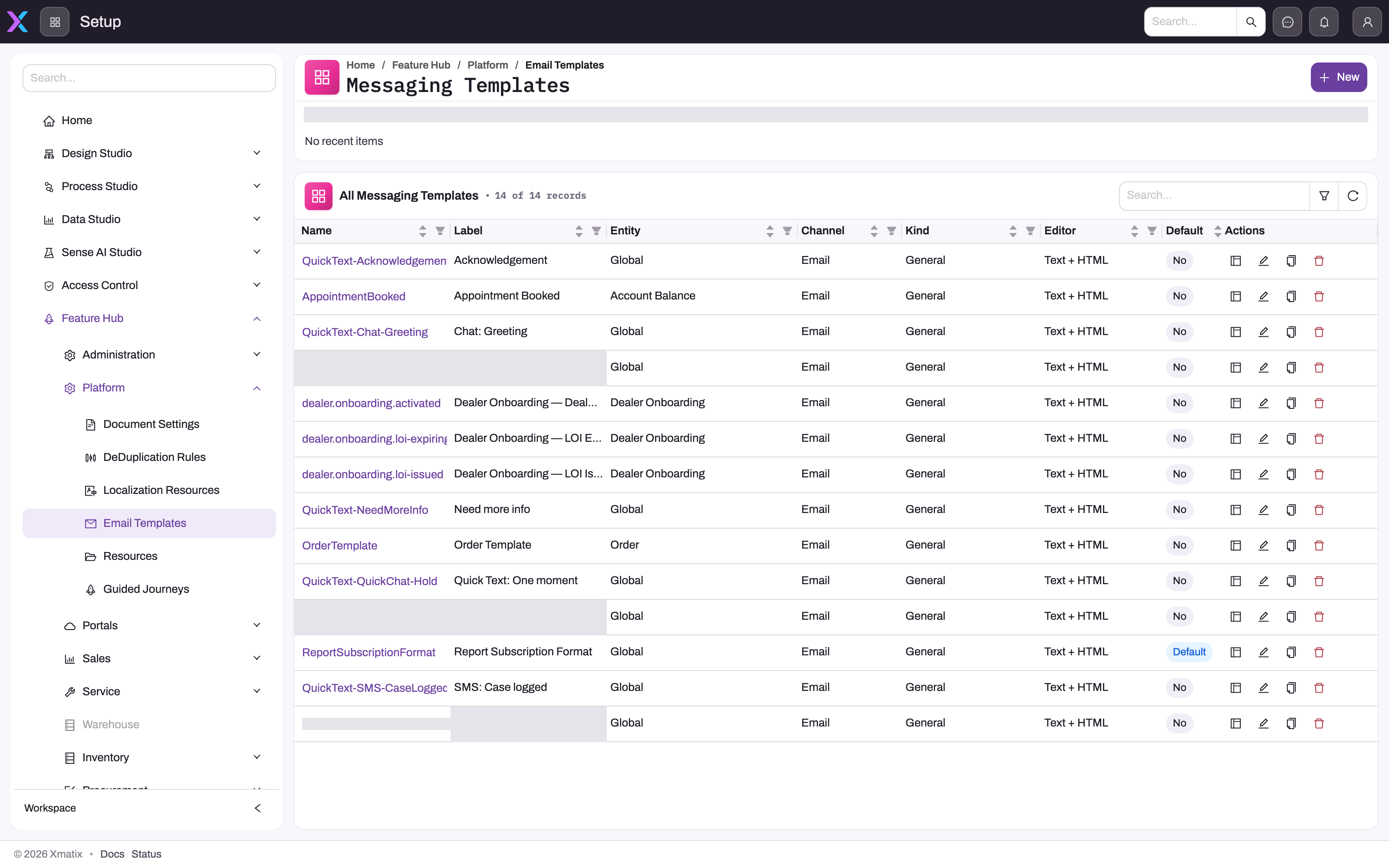
- 1
New creates the definition — Label, Name, Entity, Channel, Editor Mode, Kind, Active, Default template.
- 2
Name opens the designer; it is the stable identifier a rule directive references.
- 3
Entity, or Global for templates that only use tokens the sending feature supplies; locked after creation.
- 4
Channel and Kind: only Email is delivered today; Report and Dashboard Subscription kinds appear in subscription dialogs.
- 5
Default marks the fallback template a rule without an explicit template sends.
- 6
Design opens the Formula Builder and content editor; Edit changes the definition; Clone copies it.
Select New and fill in:
| Field | Meaning |
|---|---|
| Label (required) and Name | The wording administrators recognise, and the stable technical name that rules reference. |
| Entity | The record type the template is about; locked after creation. Leave empty for a Global template. |
| Channel | Email, SMS, Chat, messaging app or Quick Text. Rich-text content is available for Email only. |
| Editor Mode | Text only, HTML only, or Text + HTML — which bodies the designer offers. |
| Kind | General for rule and approval messages; Report Subscription and Dashboard Subscription for the templates offered in subscription dialogs. |
| Active | Only active templates are offered to consumers. |
| Default template | Marks this template as the fallback for its entity and kind — what a rule without an explicit template sends. |
Confirm the row shows the intended Entity, Channel and Kind before authoring: those are the template's operating contract, while subject and body are content you can refine any time.
Step 2 — Author the content in the designer
Open the template with Design (or its name). The designer has two panels. Formula Builder on the left holds the template's variables: Add variable (available when the template is entity-bound) defines a named variable and the expression that fills it from the record — a field, or a path through a lookup such as the account's name on an order. Template Content on the right holds the Subject and the body tabs — Plain Text, and Rich Text for e-mail templates whose editor mode includes HTML.
Insert variables as tokens: the variable name wrapped in a pair of curly braces on each side, as the Subject field's hint text shows (spaces inside the braces are tolerated; letters, digits, underscore and dots are allowed, so dotted paths work). At send time each token is replaced by its variable's value for the record being sent about. A token whose name matches no variable renders as empty text, not as an error — so check token spelling against the variable list before relying on a template.
Step 3 — Test with a real send
There is no preview button in the designer or on the list. To see what a template renders, wire it into its consumer (Step 4) against a test record — a draft business rule fired on a scratch record, or an approval on a test document — and read the result in the message log under Setup → Platform → Monitoring → Message Log, which shows the rendered subject and delivery status. Fix blank tokens by matching the variable name or by populating the field on the test record, then re-send.
Step 4 — Put the template to work
Templates are consumed by the features that send messages:
- Business rules — the SendMessage action takes a directive such as
template=OrderConfirmation;channels=email;to=field:Email(thetopart accepts a field name,owner, or an address;subject=andbody=override the template's content;channels=may also listinappfor an in-app notification). See business rules. - Approval processes — the process carries a template per event: submit, approve, reject, recall and revert. See approvals.
- Report and dashboard subscriptions — the subscription dialog offers templates of kind Report Subscription or Dashboard Subscription. See subscriptions.
Resolution at send time is: the explicit template id → the template name → the Default template for the entity and kind → the platform's built-in default. Consumers store a reference, so editing a template's content changes future sends without touching the rule, approval or subscription. Sends are rendered once and queued; the sender address and provider come from the messaging channel configuration, not from the template. User invitation and password e-mails are a separate platform system and are not restyled through these templates.
Step 5 — Configure document numbering
Document numbering has its own page: Document numbering. In short, go to Setup → Feature Hub → Platform → Document settings. Each setting is a recipe for one entity and one destination field: a series, a date format, a number length and a separator.
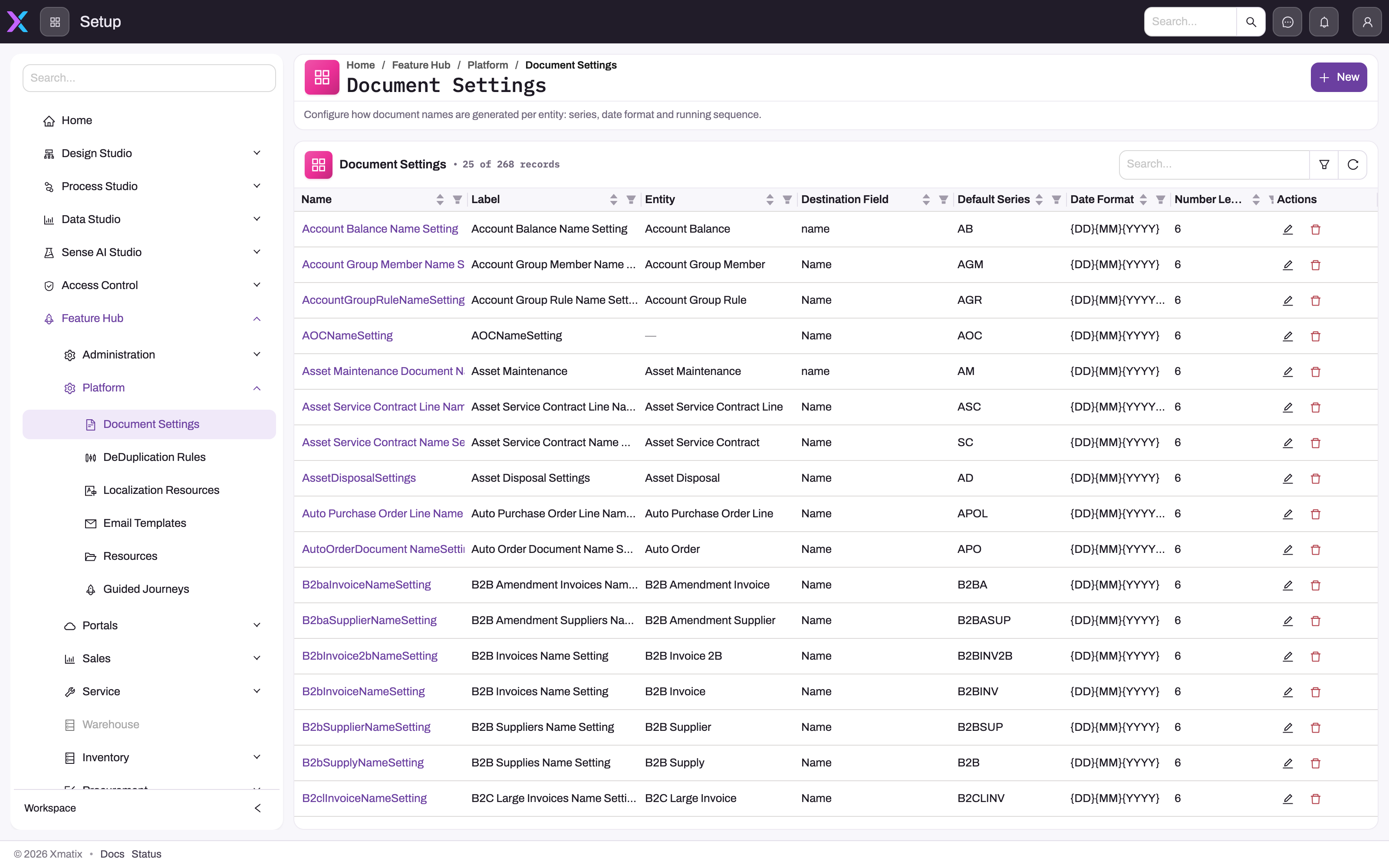
The generated value is series + separator + date part + separator + zero-padded number. With Default series SO, Date format {YYYY}, Number length 6 and Separator -, the 42nd order of 2026 is SO-2026-000042. Keep these points in mind:
- Only the tokens
{DD},{MM},{YY},{YYYY},{FY},{FYYY}and{YYYYFY}are replaced in the date format. Anything else is copied as typed. An empty format gives the four-digit year. - Each date part has its own counter, so a yearly format restarts every year and the shipped daily formats (
{DD}{MM}{YYYY}) restart every day. - Numbers are written only when a record is created, and they replace anything typed in the destination field.
- The Active switch is on by default in the New dialog.
Step 6 — Understand how sequences run
The detail page's Document Numbers tab lists each running counter with its Last number used. Use Edit last number used to continue from a previous system. How counters are keyed, shared and protected against duplicates is explained in Document numbering.
Expected result
The messaging template appears under the intended entity, channel and kind, a test send renders every token from the sample record, and the consuming rule, approval or subscription keeps its reference so later wording changes flow into future messages. The document setting is Active and produces correctly prefixed, dated and padded values on newly created records of its entity; existing records keep their identifiers, and the Document Numbers tab shows the series advancing.
Common problems
- A token renders blank in a real send. Either the variable name does not match the token (unknown tokens render empty) or the field is empty on that record. Compare the token with the Formula Builder list first, then check the record.
- The message never arrives. Rarely the template. Check the message log for the queued send and its status, then the messaging channel configuration. A template on an SMS, chat or messaging-app channel is not delivered — only e-mail delivery is wired.
- A rule sends the wrong template. The rule has no explicit template and falls back to the entity's Default template; either name the template in the directive or fix which template carries Default.
- Two document families share numbers. Their settings produce the same series and date part, so they use one counter. Give each family its own Default Series or Series Field value.
- New setting produces nothing. It is inactive, it has no Destination Field, or it targets a different entity. More symptoms are covered in Document numbering.
Common questions
Can two entities share one numbering sequence?
Yes, and they will whether you intend it or not. The counter is keyed on the series together with the date part, for your whole organization. Two settings that produce the same text advance one sequence, even on different entities. Use distinct series values when document families must be independent.
Do existing records get renumbered when I add or change a setting?
No. Names are generated only when a record is created. Records that existed before the setting keep whatever value the destination field held, and changing the format later affects only records created after the change.
Can I reword a template without touching the automation that sends it?
Yes. Rules, approvals and subscriptions reference the template by id or name, so editing its subject or body changes future sends without rebuilding the consumer. Because there is no preview, make the change and check the next send in the message log.
Which channels actually deliver?
E-mail. Templates can be authored for SMS, chat, messaging apps and quick text so the content is ready, but those channels are not connected to a delivery provider in the current release; a rule that lists them sends only the e-mail (and in-app) parts.