
You scope what users can see through the entity's security policy: tighten its default access so records are no longer broadly visible, then attach rules that grant back exactly the slices each group should see. This page walks the pattern for a common goal — each business unit sees only its own records — with the draft, test, enable discipline that keeps it safe. Every screen involved lives under Setup → Access Control → Policies.
Prerequisites
- The security-administration capability (
setup.security.manage) on one of your profiles. - Profile Read on the entity for every affected user — rules never widen entity access, they only decide which records show (security profiles).
- Business units in place, with users resolving into them through roles (roles, teams and business units).
- A plan for the blast radius: a tightened default hides records organization-wide except from owners, hierarchy managers, grantees and View All holders.
How the pieces fit
Each entity has at most one policy. It sets the ownership model, the default access for internal and external users, and three switches — hierarchy access, manual sharing and team access. First-party entities ship with a policy named DefaultSharing<Entity> whose defaults are User Owned, Read Only for both audiences, and all three switches on: everyone reads everything, writes need ownership, hierarchy or Modify All. An entity you create has no policy at all, and the runtime then behaves as User Owned and Private with every switch off — only owners and View All / Modify All holders see records.
A policy owns rules. Each rule has a type and an effect, an audience, a priority, and two child collections: expressions (the condition that selects records) and targets (the principals who benefit). A record is readable when any one path grants it: the profile's View All mask, the policy default, ownership or hierarchy roll-up, an enabled rule whose expression matches and whose target includes the user, or a manual share.
Procedure
Step 1 — Open the entity's policy
Go to Setup → Access Control → Policies and find the row whose Entity column names your entity — match the entity, not a similar-looking policy name; each entity has exactly one policy, so edit it rather than creating a duplicate with New Policy. Open the policy name. The detail page header summarises Entity, Ownership, Internal Access, External Access, Status, Hierarchy Access, Manual Share and Team Access, followed by the Rules table (Name, Type, Effect, Audience, Priority, Enabled, Description, Modified). Note the current values before changing anything so rollback is unambiguous.
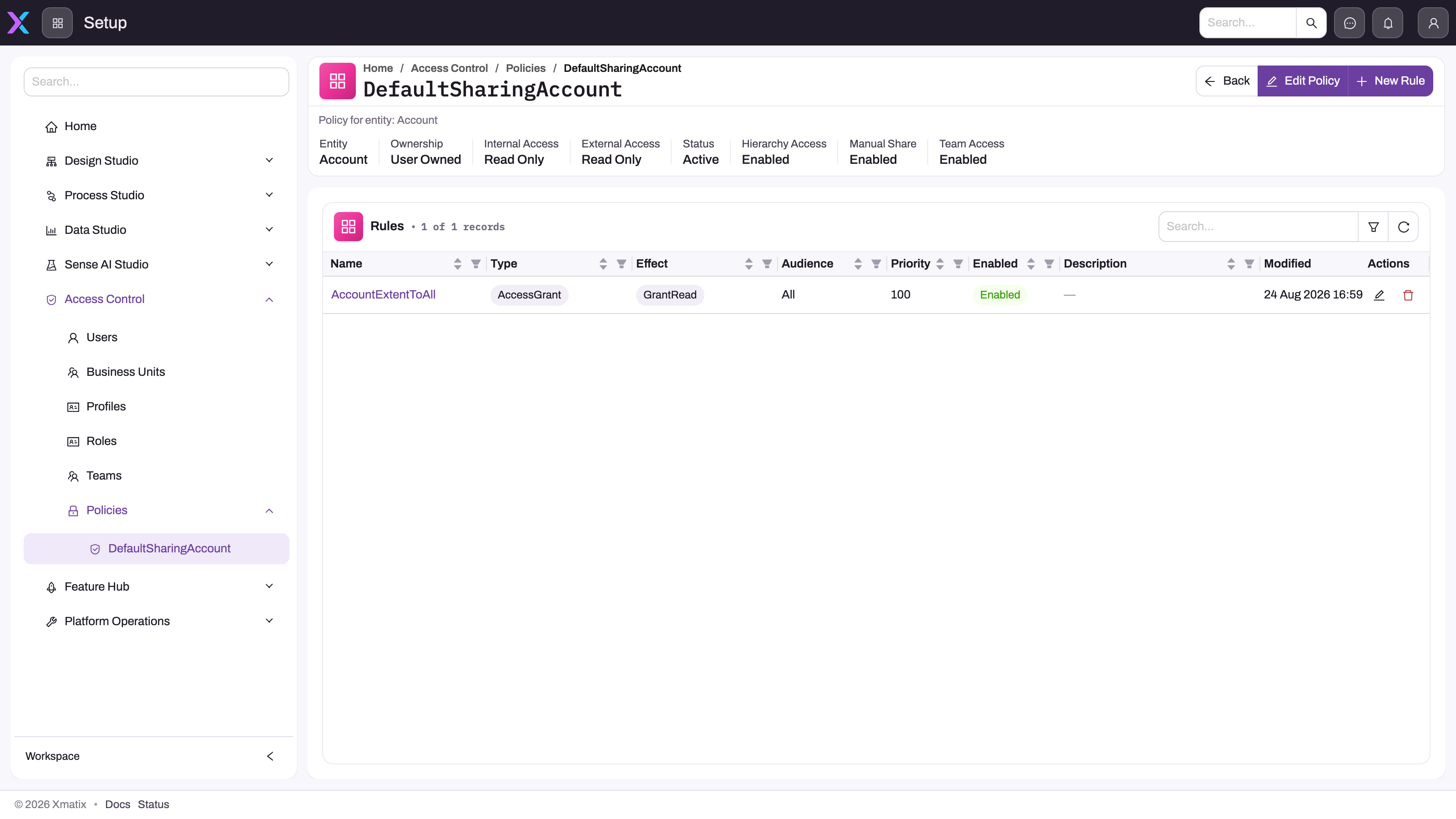
- 1
Internal Access is the baseline you tighten to Private in Step 2; External Access is set independently.
- 2
Hierarchy Access on lets managers read records owned by users in descendant roles.
- 3
Manual Share and Team Access decide whether shares are honoured at all.
- 4
Edit Policy opens the ownership, default-access and switch fields.
- 5
New Rule creates a grant or filter rule under this policy.
- 6
Each rule row shows Type, Effect, Audience, Priority and Enabled; open the name for its Expressions and Targets tabs.
Step 2 — Tighten the default access
Select Edit Policy. The dialog holds Entity, Ownership Model (Organization Owned, User Owned, Team Owned — Team Owned currently evaluates as User Owned), Internal Default Access and External Default Access (Private, Read Only, Read Write), Grant Access Using Hierarchy, Allow Manual Share, Allow Team Access and Active. Set Internal Default Access to Private; leave Grant Access Using Hierarchy on only when managers should inherit visibility into their reports' records, and keep the share switches on if you rely on manual or team sharing. This is the high-impact step: as soon as you save, broad baseline visibility disappears and access is reconstructed from ownership, hierarchy, shares and enabled rules. Confirm the header now shows Private.
Step 3 — Create the rule, disabled
Select New Rule. In the New Security Rule dialog:
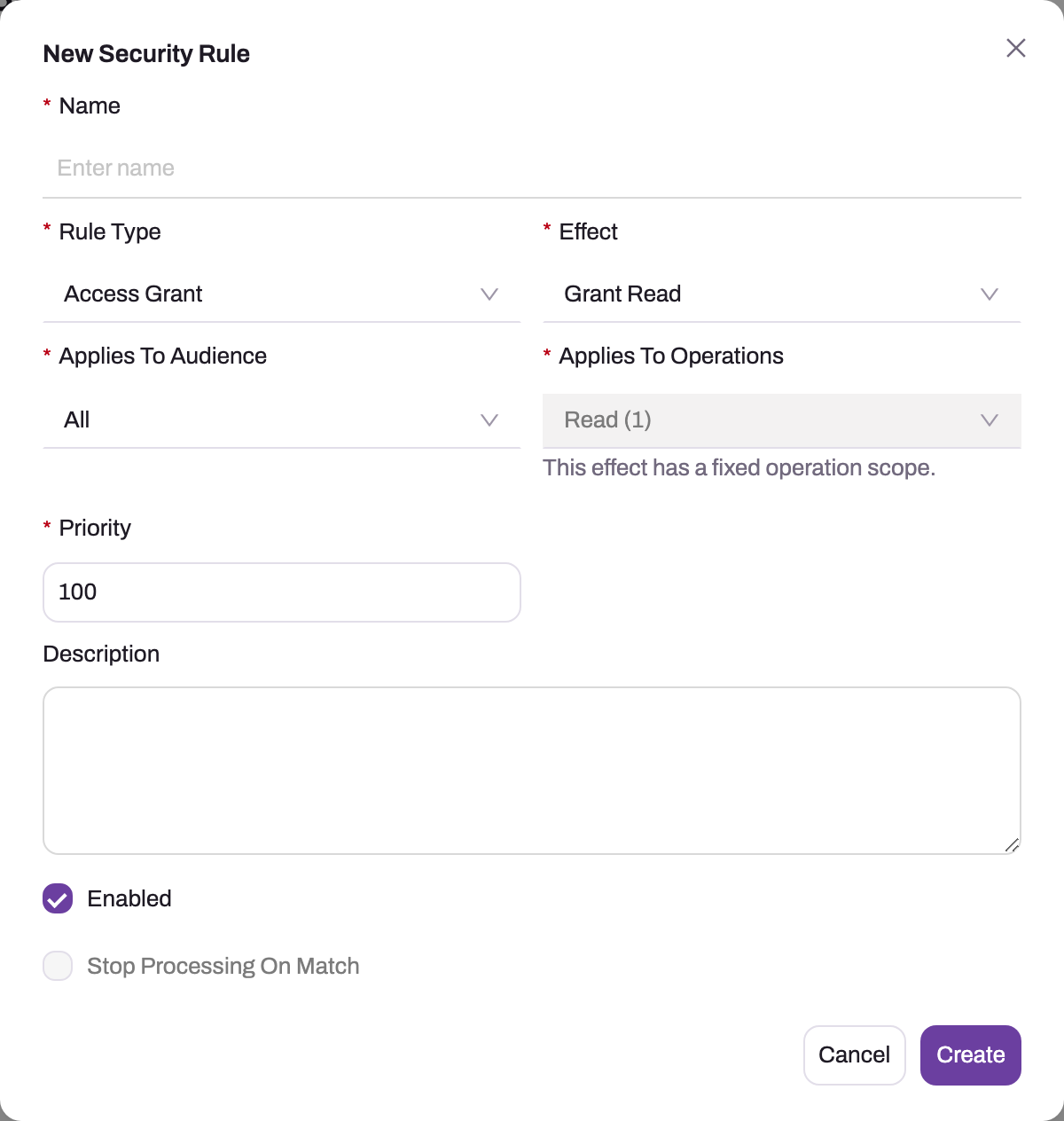
- 1
Name the population and the beneficiary so the Rules table reads like a policy.
- 2
Access Grant gives records back; Access Filter narrows what the default exposes. Greyed types are reserved.
- 3
Grant Read is the effect a rule can actually deliver today — targets accept only the Read grant mask.
- 4
Applies To Operations is locked by the effect; Applies To Audience picks All, Internal or External users.
- 5
Priority orders evaluation; lower numbers run first.
- 6
Enabled is on by default — turn it off while authoring; Stop Processing On Match short-circuits later rules.
- Name — state population and beneficiary, for example
West records → West business unit. - Rule Type — Access Grant (the other selectable type, Access Filter, narrows what the default exposes; the greyed types are reserved).
- Effect — Grant Read. Grant Write and Grant Share exist as effects, but rule targets can only carry a Read grant today, so read is what a rule can deliver.
- Applies To Audience — All, Internal or External.
- Applies To Operations — fixed by the effect (Read (1) for Grant Read; the dialog says This effect has a fixed operation scope).
- Priority — default 100; lower numbers evaluate first. Give related rules a deliberate order.
- Description — optional, shown in the Rules table.
- Enabled — on by default: untick it while authoring so incomplete logic cannot affect live access.
- Stop Processing On Match — leave off unless a later rule must be skipped once this one matches.
Create adds the row to the Rules table with Disabled in the Enabled column. Open the rule name to reach its detail page with the Expressions and Targets tabs; Edit Rule reopens the dialog.
Step 4 — Add the condition
On the Expressions tab add an expression: Expression Mode Formula, Return Type Boolean, and the formula itself — for example Region == "West". Formulas use the record's fields by name (Region, OwnerId), the current-user tokens User.Id, User.Email and User.IsExternal, Env.UtcNow, comparison operators and AND/OR/NOT (or &&/||/!). A formula cannot reference the current user's business unit, so "each unit sees its own records" is one rule per unit: the condition picks the unit's records, the target picks its people. The expression is validated when saved and stamped in the table's Validation column — confirm Valid and read Validation Message if not. An Invalid expression does not block saving; the rule simply never grants, which is easy to miss.
Step 5 — Add the target
On the Targets tab add a target: Target Type is one of Current User, Owner, Team, Role, Business Unit, All Internal or All External; the group types open a picker for the concrete team, role or unit, which the table shows as Static Target Id. Grant Mask is Read (1) — the only value the current release accepts. Choose Business Unit and pick the unit. Users resolve into a unit through their active roles, so a user with no role anchored to the unit is not a beneficiary.
Step 6 — Test, then enable
With the rule still disabled, sign in as a test user holding only the affected profile and a role in one unit; confirm the tightened baseline — only owned records (plus hierarchy roll-up, if left on) show. Then Edit Rule, tick Enabled, and re-test: a West user sees their own plus West records; a user in another unit sees none of West's; a View All holder still sees everything. Repeat Steps 3–5 for each remaining unit.
Step 7 — Know the rollback switches
If a rule misbehaves, disable that rule first (Edit Rule → Enabled off) and repeat the test-user checks; its grant stops while the policy and the other rules stay intact. Deactivating the whole policy (Edit Policy → Active off) is the larger emergency lever because it removes every rule from evaluation and drops the entity back to the no-policy behaviour described above — Private with every switch off — so use it only when the baseline itself is unsafe. Restoring the previous default access is the true rollback of Step 2.
Expected result
The entity policy is active with a Private internal baseline, every grant rule has a Valid expression and an explicit target, and test accounts see exactly their permitted slice. A user outside the target group cannot see the granted records, while ownership, hierarchy access (if enabled) and View All continue to behave as before.
Common problems
The rule grants nothing. Check in order: the rule is Enabled; the expression is Valid; the rule's audience matches the user (Internal/External); the target names the right unit, team or role; the users resolve into it through an active role; and they hold profile Read on the entity — without that, no rule can surface records.
Users see more than intended. Another path is still open: View All on a profile, a default that was never actually set to Private, hierarchy roll-up, an existing manual or team share, or an organization-owned entity, where record filtering does not apply.
Users report a denial instead of a shorter list. An explicit "not allowed to perform 'Read'" error means the profile layer refused the entity itself — a missing profile or entity grant, not a rule effect. Work through Why can't a user see something?.
Saving the rule failed with "Effect … is not valid for rule type". Effects are tied to rule types: Access Grant takes the Grant effects, Access Filter takes Filter Visible Records. Pick the pair the dialog offers.
Common questions
Can a rule say "the current user's business unit" directly?
No. Formulas expose only User.Id, User.Email and User.IsExternal as current-user tokens, so unit scoping is one rule per unit: a condition selecting that unit's records, targeted at that unit. More rows, but each rule stays independently testable, and one unit's scope can be disabled alone.
Do restriction rules apply to administrators?
Not to holders of View All or Modify All on the entity — those profile masks bypass record-level scoping by design. If scoping must apply to a group, make sure its profiles do not carry the bypass masks; keep those for genuine administrators, and expect your own admin view to differ from scoped users' views.
Can a rule grant editing, not just viewing?
Not in the current release — rule targets accept only the Read grant mask. Write on scoped records still comes from ownership, a Read Write default, hierarchy roll-up, Modify All, or a manual share. If a group must edit records they do not own, ownership or sharing is the mechanism today.
Can a rule apply only to portal users?
Yes. Set Applies To Audience to External, or target All External, and give the policy a separate External Default Access. Internal and external defaults are independent, so employees can keep Read Only while portal users stay Private plus whatever rules grant them.