
A sandbox is an isolated copy of your xMatix tenant — its own sign-in address, its own database — where you can change configuration and test against production-like data without touching production. Changes you want to keep are bundled as a DeltaPack inside the sandbox and applied to production as a reviewed, deliberate step. This page covers the sandbox lifecycle (create, sign in, refresh, delete) and the DeltaPack round trip.
Prerequisites
- The sandboxes feature enabled for your organization by the platform operator, and the
setup.sandboxes.managecapability on your profile. When the feature is off, the screens state Sandboxes are not enabled for this tenant; the screens are also hidden while you are signed in to a sandbox (a sandbox cannot be forked). - A sandbox quota with a free slot. The counter Using X of Y sandboxes appears inside the New sandbox dialog, and New sandbox is disabled when the cap is reached. Quotas also cap refreshes per day and may forbid data copy altogether.
- To copy business data (not just configuration), an approved copy profile for each entity you want copied — managed at Setup → Platform → Sandboxes & DeltaPacks → Sandbox Copy Profiles and grouped into Sandbox Copy Profile Sets (capability
setup.sandboxcopyprofiles.manage). A profile names the entity, a filter, an order, a row cap and how sensitive fields are handled (copy, mask or blank); it must be Approved before any sandbox may use it. - For promotion:
setup.deltapacks.managein the sandbox andsetup.deltapacks.inbound.manageon production, with the DeltaPacks feature enabled.
Procedure
Step 1 — Create the sandbox
Go to Setup → Platform → Sandboxes & DeltaPacks → Sandboxes. The list shows Ordinal (s1, s2…), Status, Server, Database, Plan, Created, Last refreshed and Subscription key. Select New sandbox.
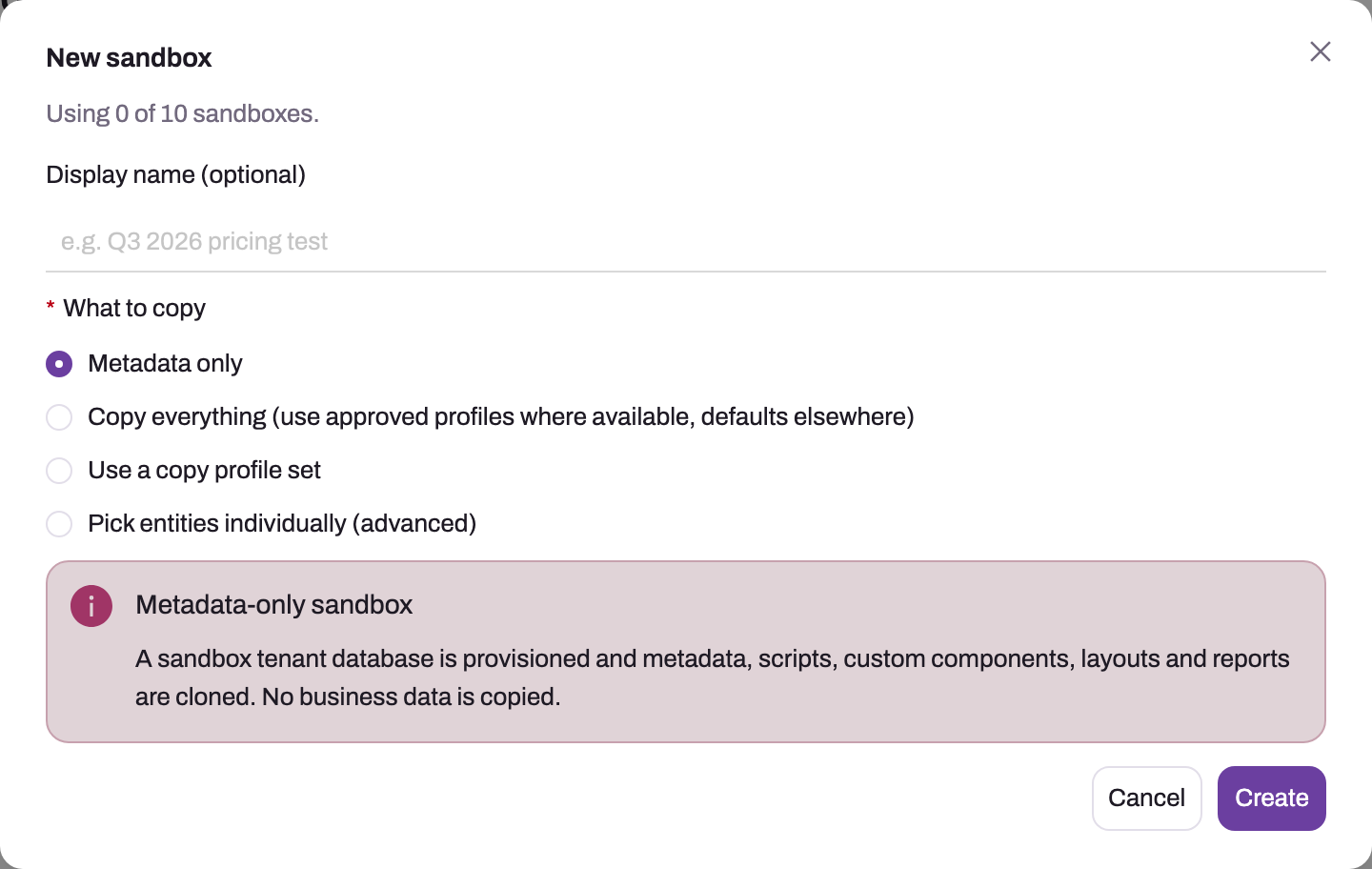
- 1
Using X of Y sandboxes is the quota; New sandbox is disabled once the cap is reached.
- 2
Display name is optional (80 characters) — state the purpose so the list stays readable.
- 3
Metadata only clones entities, scripts, components, layouts and reports and copies no records.
- 4
Copy everything uses approved copy profiles where they exist and a top-1000-rows default elsewhere.
- 5
A copy profile set or hand-picked entities give a governed data plan; all three data options are greyed out when the quota forbids data copy.
- 6
Create queues the provisioning job and opens the sandbox detail page; the sandbox is not usable until its status is Active.
Read the usage counter, give the sandbox a Display name that states its purpose (optional, up to 80 characters), and choose What to copy:
| Option | What the sandbox gets |
|---|---|
| Metadata only | The full configuration model — entities, fields, layouts, scripts, custom components, reports, dashboards, rules — and no business data. |
| Copy everything | Every data entity, using an approved copy profile where one exists and a default of the newest 1,000 rows by id, without dependency expansion, elsewhere. |
| Use a copy profile set | A named set of approved profiles as the copy plan; the set is rejected if it is empty or contains an unapproved profile. |
| Pick entities individually (advanced) | A table where you add entities, choose an approved copy profile per entity and optionally a Top N override that may only lower the profile's cap. |
The three data options are disabled when your quota does not allow data copy. Choose the smallest scope that proves what you need to test — metadata only for configuration work — then select Create. Creation is a background job; the dialog closes and the sandbox detail page opens.
Step 2 — Follow provisioning to Active
The detail page (Sandbox s{n}) shows Status, Ordinal, Plan, Server, Database, a copyable Subscription key, Created and Last refreshed, and a Provisioning job card whose steps run Queued → Resolve placement → Provision tenant → Export metadata → Export scripts & components → Export layouts & reports → Apply seed pack → Copy data → Recompute indices → Publish status, with Job ID, Phase, Progress, Started, Finished and a log tail; it refreshes every few seconds. Expect minutes — a whole tenant is provisioned, and data copy adds time in proportion to the plan. Do not create a second sandbox because the first looks slow; that consumes another quota slot. The list row moves Provisioning → Active; treat anything else (ProvisioningFailed, Failed) as not usable and read the job message.
Step 3 — Sign in and enable colleagues
The sandbox has its own address: your organization's sign-in host with the ordinal appended on the sandbox domain — for example an organization at acme.<apex> reaches sandbox 1 at acme-s1.sandbox.<apex>. The address is not displayed in Setup; your platform operator can confirm it. Sign in with the same credentials as production.
Every copied user account arrives inactive and unprovisioned except the administrator who created the sandbox, who is enabled with administrator rights. Colleagues who need access are enabled inside the sandbox through the normal user edit flow (invite a user); activating them provisions their sandbox sign-in. Integrations copied from production still point at production endpoints — re-target them in the sandbox before running any flow that calls out.
Step 4 — Build a DeltaPack with your changes
Inside the sandbox, go to Sandboxes & DeltaPacks → DeltaPacks and select New DeltaPack: Name (required), Description, and the Target tenant (the parent production tenant by default, or a sibling sandbox). On the pack's detail page, Add items — pick by kind or from the metadata tree — for every configuration object to promote: entities and fields, views, relations, layouts, server actions, record types, validations, approval processes, business rules, security rules, archive rules, scripts, custom components, reports, dashboards, global picklists, apps, security profiles, roles and teams, messaging templates, localization resources, AI agents and models, data models, datasets, settings, module enablement and copy profiles. DeltaPacks carry metadata only — never business records. When the item list is complete, select Build: the pack moves from Draft to Ready and shows Built by, Built, payload size and hash; View payload lets you inspect exactly what will be applied. A Ready pack can be Rebased to Draft to change its items; an Applied, Undone or Failed pack can be Cloned as new draft.
Step 5 — Review and apply on production
On the production tenant, Sandboxes & DeltaPacks → Inbound DeltaPacks lists every non-draft pack targeting it, with Status, Items, Drift, Built by/Built and Applied by/Applied. Open the pack: review its items and payload, and read the physical changes banner, which flags schema-affecting changes per entity field as Breaking or Warning. Select Apply to this tenant. Status moves to Applying and then Applied (or Failed with an error, where Retry apply re-queues it). Apply writes metadata; it does not run business rules or scripts. After applying, Check drift compares production with the pack's after-image and reports Clean or n modified / m deleted; Undo (available while a before-image was captured) restores the pre-apply state after a fresh drift check and warns that it overwrites later edits.
Step 6 — Refresh the sandbox when it drifts
A sandbox ages as production moves on. Before choosing Refresh Sandbox (row action, or on the detail page; Active sandboxes only), build a DeltaPack for every change worth keeping, because refresh replaces the sandbox with current production: the sandbox's metadata is removed and mirrored again from the source with identifiers intact, data for the entities in the copy plan is deleted and copied afresh, and entities outside the plan are left untouched. The refresh reuses the plan the sandbox was created with (a metadata-only sandbox stays metadata-only). The address, ordinal and subscription key do not change, but users are copied again — every account inactive except the refreshing administrator's. Watch the job back to Active, re-enable the colleagues who still need access, and re-run your test baseline before continuing.
Step 7 — Delete a sandbox you no longer need
Delete (row action or detail page) marks the sandbox for deletion; it disappears from the list immediately and its database is cleaned up later by the platform's retention process. Deletion is not undoable from the tenant side — unbuilt DeltaPack content in that sandbox is lost.
Expected result
The sandbox reaches Active, the selected metadata and approved data scope are present, and only the creating administrator is initially enabled. Changes made there do not appear in production; the only promotion path is a DeltaPack that is separately built in the sandbox, reviewed as an Inbound DeltaPack on production, and applied there — with drift checking and undo afterwards.
Common problems
- Colleagues cannot sign in to a new or refreshed sandbox. By design: accounts are copied inactive; enable them inside the sandbox.
- New sandbox is disabled, or creation fails with a quota message. Your plan's sandbox cap, daily refresh cap or data-copy allowance was reached. Delete an unused sandbox or ask the operator about the quota.
- A copy profile is not offered in the dialog. Only Approved profiles are selectable; approve it on Sandbox Copy Profiles first.
- Sandbox-only work vanished after a refresh. Refresh rebuilds metadata and planned data from production; nothing authored only in the sandbox survives unless it was built into a DeltaPack first.
- A pack sits in Applying. The apply job stalled; contact your platform operator rather than re-submitting.
- Build rejects an item. Tenant resources (uploaded files) can be added to a pack but are not a supported kind; remove the item and move the file manually.
Common questions
Can a sandbox affect production?
No. A sandbox is a separate tenant with its own database and sign-in address; nothing you configure, break or delete in it touches production. The only path back is a DeltaPack, which does nothing until someone with setup.deltapacks.inbound.manage applies it on the production side — and an applied pack can be undone while its before-image exists.
What exactly does a DeltaPack carry?
Configuration — the metadata kinds listed in Step 4, chosen item by item. It does not carry business data: records you created in a sandbox stay there. Move data separately with export and import if a test data set needs to travel.
How current is a sandbox's data?
As of its creation or last refresh; sandboxes do not sync continuously. Refresh when you need production's current state, remembering that refresh replaces metadata and planned data and disables users again.
Are sensitive values copied into the sandbox?
Only as the approved copy profile allows. Each profile says, per sensitive field, whether to copy, mask (a deterministic replacement) or blank the value, and a profile must be approved before it can be used — that approval is the governance step for what leaves production.
Related topics
- Customizing xMatix — the changes you will typically build in a sandbox.
- Import data
- Export data
- Administration guide