
Roles, teams and business units are the organizational constructs behind record visibility in xMatix. None of them grants operations — what a user can do always comes from security profiles. They decide whose records a user can see: roles through the management hierarchy, teams through group sharing, business units by giving both an address that shares and rules can target. All three are managed under Setup → Access Control (the setup.security.manage capability) on the Roles, Teams and Business Units screens.
The three constructs at a glance
| Construct | Use it for | It never |
|---|---|---|
| Role | manager roll-up: seeing records owned by people below you; a target for rules and shares | grants create/read/update/delete by itself |
| Team | shared record access for a working group; approval pools; report and dashboard visibility | grants create/read/update/delete by itself |
| Business unit | the organizational tree that roles and teams anchor to; a target for shares and rules | owns records or partitions data by itself |
Roles and the hierarchy
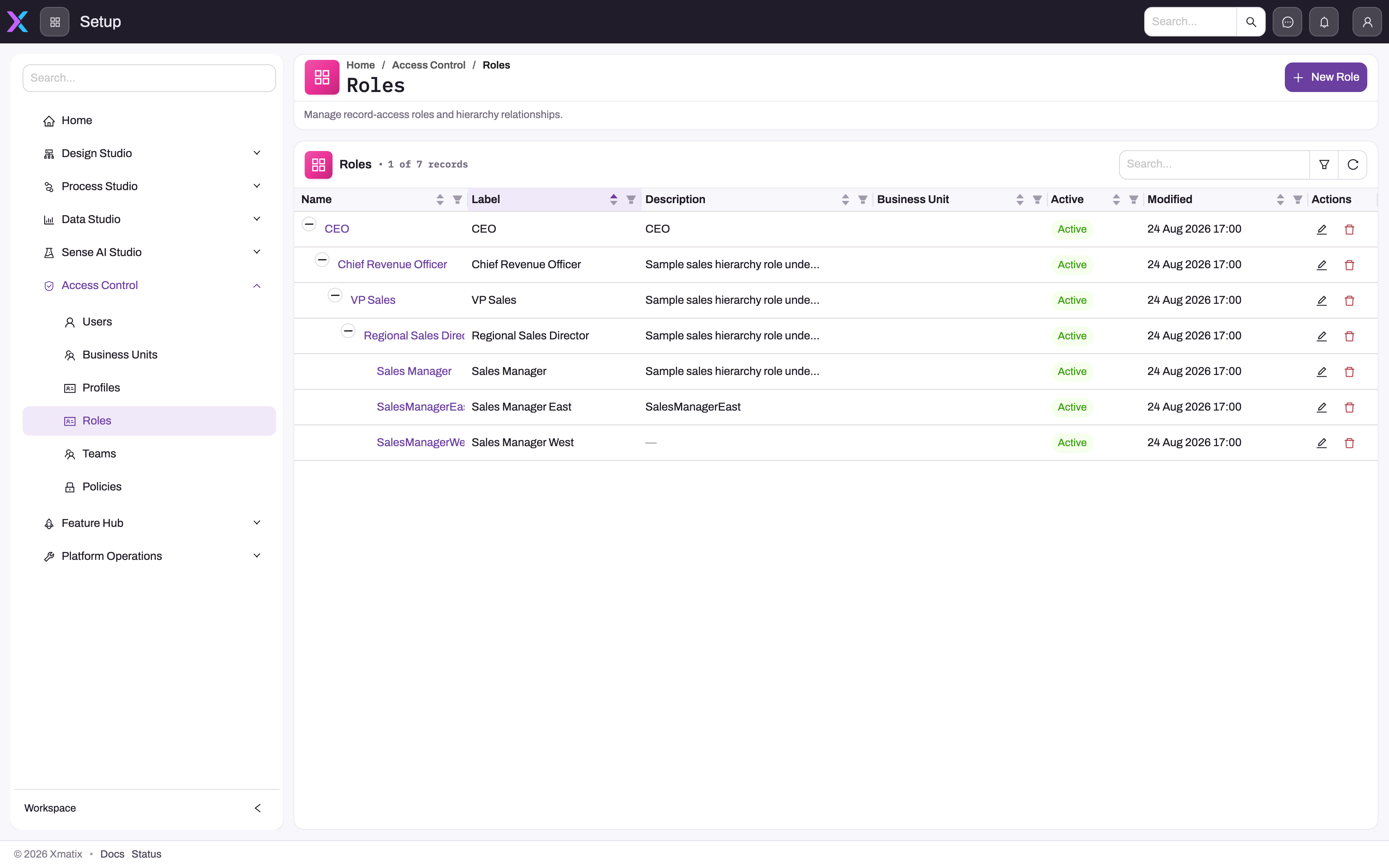
Roles form a tree: each role can point to a Parent Role, and the Roles screen renders the tree as an indented, collapsible hierarchy (columns Name, Label, Description, Business Unit, Active, Modified). Where an entity's security policy has Grant Access Using Hierarchy enabled, a user can read records owned by users in roles below theirs — managerial roll-up. The grant flows downward only: ancestors see descendants' records, never the reverse or sideways.
- 1
The top role has no Parent Role; collapse toggles hide a branch without changing it.
- 2
Indentation is the hierarchy: this role's holders can see records owned by the roles nested under it.
- 3
Business Unit anchors a role to a unit — the only way users become members of a unit.
- 4
Inactive roles drop out of hierarchy resolution and take their unit membership with them.
- 5
New Role asks for Name, Label, Description, Business Unit, Parent Role and Active.
- 6
Edit reopens the dialog; open the name for the Assignments, Reports and Dashboards tabs.
New Role (and Edit) asks for Name, Label, Description, Business Unit, Parent Role and Active. Opening a role shows its summary (Name, Label, Status, Business Unit, Parent Role) and three tabs: Assignments — the users holding the role, each with a Primary Role flag and Active state, added with the User picker — plus Reports and Dashboards, which list the analytics content whose visibility has been granted to this role.
A user can hold several roles, one marked primary. A role anchored to a business unit is how users acquire business-unit membership, because users are never assigned to a unit directly. Operational notes:
- Roles carry no permissions; they act through hierarchy roll-up and as rule and share targets.
- Inactive roles, and inactive role assignments, drop out of hierarchy resolution — and take unit membership with them.
- The platform does not reject a cyclic parent chain; avoid creating one when re-parenting.
- Before deleting a role, re-point its child roles, its user assignments, and any policy rule that targets it.
Teams
A team is a reusable group of users. The Teams screen lists Name, Label, Description, Business Unit, Active and Modified; New Team asks for Name, Label, Description, an optional anchoring Business Unit and Active. A team's detail page has the same Assignments, Reports and Dashboards tabs as a role, without the primary flag.
Teams act wherever a group beats naming individuals:
- Shared record access — where the entity's policy has Allow Team Access on, records shared to the team are visible to its members.
- Rule targets — a policy rule can name a team as beneficiary (restriction rules).
- Approval pools — approval steps can resolve approvers from a team.
- Report and dashboard visibility — analytics content can be granted to a team instead of user by user.
- Mobile rollout groups — teams can gate who receives mobile preview builds, so renaming or deactivating a team can silently change who gets them.
One nuance: membership for approval routing is stored separately from membership for record access. A user added on the team's Assignments tab shares the team's records but is not automatically an eligible approver for steps that route to the team; when a team serves as an approval pool, verify that the new member resolves as an approver on the step.
Business units
Business units form their own tree (Parent Business Unit) and map the organization: regions, divisions, departments. The Business Units screen lists Name, Label, Description, Active and Modified; a unit's detail page shows its Parent Unit and three tabs — Child Units, Roles and Teams — listing what is anchored to it. Roles and teams attach to a unit through their Business Unit field, and users belong to a unit through their active roles: there is no business-unit field on the user account.
Business units matter in two places: records can be shared to a unit, granting access to every user whose roles resolve to it; and policy rules can target a unit — the standard way to say "this unit's people see this slice".
These security business units are separate from the Business Units list in the Finance Setup app, which groups ledger postings into divisions for statements and budgets. The two lists share a name only and are not linked — see Business units (finance divisions).
What business units do not do: they never partition data by themselves — creating a unit changes nobody's visibility until a share, rule or role structure references it. Per-company data separation in a multi-company organization is a different mechanism — per-user company access on the user account — not business units (tenants and companies).
Choosing the right construct
| If the question is… | Reach for |
|---|---|
| What operations may this user perform? | a security profile |
| Which records should roll up to a manager? | roles and the hierarchy |
| Which working group needs the same records? | a team |
| What organizational boundary should sharing or a rule target? | a business unit |
| How is access evaluated for this entity? | the entity's security policy |
Common questions
Do roles or teams grant permissions?
No. Entity, field, app and action permissions come exclusively from security profiles. Roles and teams only influence which records a user can see — through hierarchy roll-up, shares and rule targets — and only where the entity's policy has those mechanisms switched on. If a user cannot open an entity at all, no role or team assignment fixes it; the missing piece is a profile grant.
How does a user end up in a business unit?
Only through roles: a user's business units are the units of their active roles. To place someone in the West unit, assign them a role whose Business Unit is West — and note that deactivating that role or assignment, or clearing the role's Business Unit, silently removes the membership and any unit-targeted access. Audit role anchors before reorganizing the role tree.
When should I use a team instead of a business unit?
Use a team when a working group — often cross-functional, sometimes temporary — needs shared access to the same records: a project crew, a key-account pod, an approval pool. Use a business unit when the boundary is organizational and durable — a region or division — that roles anchor to and rules and shares target. Teams hold members directly; business units are only reached through roles.
Where do I see who is in a role or team?
Open the role or team from its list and read the Assignments tab. The same memberships appear per user on Setup → Access Control → Users → the user → Role Assignments / Team Assignments, and the user's Access Diagnostics tab shows the resolved roles, teams and business units together.