
A statutory challan is the record of one deposit that you pay to one statutory authority for one payroll period: the PF, ESI, professional tax, LWF or salary TDS that your payroll runs have deducted and credited to a payable account. It comes after the payroll run is posted, because posting is what builds up those payables. Posting the challan writes the deposit to the ledger, which reduces the payable and the bank. For salary TDS, the challan is also what the quarterly salary TDS return reports as deposited. You make the actual payment through the government portal or your bank. The challan records that payment in xMatix.
Overview
Each challan belongs to one company (Partner Account), one scheme (Statutory Type) and one Payroll Period. It carries the Amount deposited and the acknowledgement details (Challan Number and Pay Date). It also names two accounts: the payable account that the deposit clears and the bank account the money leaves from.
There are two ways a challan is created:
- Salary TDS: on a posted payroll run, Prepare TDS challan drafts the period's TDS challan for you. Its amount is the TDS from every posted run in that period.
- PF, ESI, professional tax, LWF and gratuity: you create these yourself with New and type the amount. xMatix does not work out these deposit amounts.
In both cases, Post challan on the challan writes the journal and marks the challan Paid.
When to use it
- Every month, after the month's payroll runs are posted and you have paid each authority. Create one challan for each scheme you deposited.
- When a correction run posts after you have already deposited the month's TDS, create a separate challan for the extra amount.
- Before you compute a quarterly salary TDS return. The return includes only TDS challans that are marked Paid.
How xMatix handles it
Where the deposit amount comes from. When a payroll run posts, each statutory deduction and employer contribution is credited to the Payable GL account of its payroll component. The amount you deposit for a scheme and period is the balance that the posted runs left on that payable account. Check it against the account's ledger before you type the amount. Statutory deductions explains which schemes the run calculates and which come from structure lines.
What posting writes. Post challan writes one payroll journal dated on the challan's Pay Date. It debits the payable account and credits the Bank GL account, both by the challan's Amount. The challan's Status then becomes Paid and its GL field links to the journal. The journal is also listed on the challan's Related tab.
How the payable account is chosen. If Payable GL account is filled in, posting uses it. If it is blank, posting looks for the company's account whose Control Type matches the Statutory Type:
| Statutory Type | Control account used when Payable GL Account is blank |
|---|---|
| PF | PF payable |
| ESI | ESI payable |
| PT | Professional tax payable |
| TDS | TDS salary payable |
| LWF | LWF payable |
| Gratuity, or anything else | Payroll payable |
That lookup matches the stored control-type value exactly, in its no-space form (for example PfPayable). The Control Type list on the GL account form saves the spaced label (PF Payable), which the lookup doesn't recognise, and the chart templates don't tag payroll accounts. So in practice, always fill in Payable GL Account on the challan. See GL accounts.
How the TDS challan is drafted. Prepare TDS challan works on the run's company and payroll period:
- It adds up the TDS of every posted employee row in that company and period, across all runs. Off-cycle and correction runs are included.
- If the company has no TDS challan for the period yet, it creates one with the company, the period, Statutory Type
TDS, that total as the Amount and Status Pending. - If a TDS challan for the company and period already exists and is not posted, it replaces that challan's Amount with the new total. If there is more than one, only the oldest is refreshed.
- If that challan is already posted (it has a GL journal, or its Status is Paid), nothing changes.
The run page then only shows "Action Executed". It doesn't show whether a challan was created, refreshed or left alone, or what the difference is. Open the Statutory Challans list to see the result.
How the salary TDS return uses it. When a quarterly salary TDS return is computed, every TDS challan of the company that is marked Paid, and whose payroll period has posted TDS in the quarter, becomes a challan row. The row's Tender Date is the challan's Pay Date and its BSR Code is copied. Its Challan Serial is the challan's Challan Serial, or the first ten characters of Challan Number when that is blank. Its tax amount is the challan's Amount. See TDS returns.
Prerequisites
- The payroll runs for the period are posted (see Running payroll).
- The company has a payable account for each scheme (the one named on the matching payroll component) and a bank account in its chart of accounts.
- Your security profile can open the Payroll app and create and post statutory challans (see Permissions).
- For a salary TDS return, an administrator has added BSR Code and Challan Serial to the challan form (see Configuration).
Procedure
Step 1 — Open the Statutory Challans list
- Open the Payroll app (App Launcher → search Payroll) and choose Settings.
- Under Statutory Compliance, choose Statutory Challans.
The All Statutory Challan view lists Name, Statutory Type, Amount, Challan Number, Paid Date, Created By, Created and Modified Date. It has no Status or Payroll Period column, so open a challan to see which period it is for and whether it is posted.
Step 2 — Draft the salary TDS challan from a payroll run
- Open a posted payroll run for the period.
- Select Prepare TDS challan in the page header.
- Go to the Statutory Challans list and open the newest TDS challan. Check that its Amount is the period's total TDS from posted runs.
Run it again after a late or correction run posts. If the period's challan isn't posted yet, its amount is refreshed. If it is already posted, compare the posted TDS with the challan amount yourself and deposit any difference on a new challan (Step 3).
Step 3 — Create a challan by hand
Use this for PF, ESI, professional tax, LWF and gratuity deposits, and for a TDS difference.
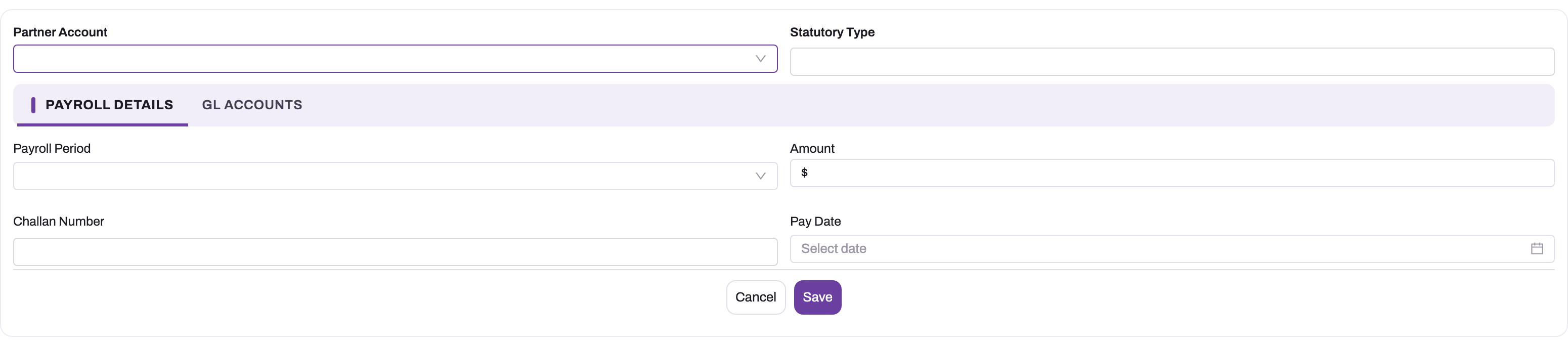
- In the Statutory Challans list, select New.
- Choose the Partner Account (the company).
- In Statutory Type, type exactly
PF,ESI,PT,TDS,LWForGratuity, in capitals. On the New form it is a free-text box, not a list. - On the Payroll Details tab, choose the Payroll Period, enter the Amount, the Challan Number from the portal or bank acknowledgement and the Pay Date (the day you paid).
- On the GL Accounts tab, choose the Payable GL account and the Bank GL account. Leave GL blank.
- Select Save.
The challan opens with a name from the statutory challan number series, for example SC-102026-000001 (prefix, the month and year it was created, and a running number). Its Status is Pending.
Step 4 — Complete a drafted challan
A challan drafted by Prepare TDS challan has no bank account, pay date or acknowledgement yet.
- Open the challan.
- Fill in Pay Date, Challan Number, Payable GL account and Bank GL account. Fields on the record page edit in place; you can also select Edit.
- If your administrator has added them to the form, fill in BSR Code and Challan Serial from the bank's challan receipt.
Step 5 — Post the challan
- Open the challan and check the Amount: it is posted exactly as it stands.
- Select Post challan in the page header.
xMatix writes the journal (payable debited, bank credited, dated on Pay Date, or today if Pay Date is blank, in which case today's date is also saved to Pay Date). The challan's Status becomes Paid and GL shows the journal. If something is missing, the challan is not posted and a message names the problem (see Common problems).
Step 6 — Correct a posted challan
A posted challan is not locked, but changing it does not change its journal.
- To correct the posting, open the journal (from GL or the Related tab) and select Reverse (see Journals).
- Reversing the journal does not reopen the challan: it stays Paid and keeps its GL link, so it can't be posted again. Delete it with Delete, or leave it and correct its fields, and create a new challan with the right figures (Step 3), then post that.
- For a salary TDS challan, remember that a challan still marked Paid is reported in the salary TDS return. Delete a wrong TDS challan before you compute the return.
Deleting a challan never removes its journal. Reverse the journal first if the deposit should not be in the ledger.
Fields
| Field | What it means | Notes |
|---|---|---|
| Partner Account | The company whose payable the deposit clears | Only your own companies are listed. Hidden on a tenant with a single company. Posting looks up control accounts within this company. |
| Statutory Type | The scheme deposited | Type exactly PF, ESI, PT, TDS, LWF or Gratuity. It picks the control account when Payable GL Account is blank, and only TDS challans reach the salary TDS return. |
| Payroll Period | The period whose deductions the deposit pays | The list is not filtered by company, so pick a period of the challan's own company. The TDS draft and the return match challans to deductions by this period. |
| Amount | The sum deposited | Posted exactly as entered. Must be above zero to post. The box shows a currency sign; ignore it. A drafted TDS challan's amount is refreshed by Prepare TDS challan until it is posted. |
| Challan Number | The portal or bank acknowledgement number | Reference. For a TDS challan with no Challan Serial, the return uses its first ten characters as the serial. |
| Pay Date | The day you paid the authority | The journal date. Blank at posting means today, which is then saved here. Becomes the return's tender date for TDS. Shown as Paid Date in the list. |
| Payable GL Account | The payable account the deposit clears | Optional, but fill it in (see How the payable account is chosen). The list is not filtered by company or type. |
| Bank GL Account | The account the money leaves from | Required to post. |
| GL | The journal posting wrote | Filled by Post challan. Leave it blank: a challan with a journal here is treated as posted and is refused a second post. |
| BSR Code | The receiving bank branch's seven-digit code (part of the challan identification number) | Not on the standard form. Copied to the salary TDS return. |
| Challan Serial | The bank's challan serial number (part of the challan identification number) | Not on the standard form. Copied to the salary TDS return. |
| Status | Whether the deposit is posted | Not on the forms. Pending when created, Paid after posting. The list also offers Draft and Reconciled, which xMatix never sets. |
| Name | The challan's number | Assigned on save from the statutory challan series. The Label is set to the same value. |
Business rules
- Post Challan refuses a challan that already has a GL journal, an Amount of zero or less, no Bank GL account, or no payable account (blank Payable GL account and no control account found for the type).
- One journal per challan. The journal debits the payable and credits the bank by the full Amount. There is no partial posting.
- Amount is not checked against the payable balance or the payroll deductions. What you type is what posts.
- The TDS draft is one per company and period. Prepare TDS Challan refreshes the oldest unposted TDS challan of the company and period, including one you created by hand, so its amount replaces yours.
- Prepare TDS Challan needs a period and posted TDS. It refuses a run with no payroll period, and a period whose posted rows have no TDS.
- Only posted run rows count. TDS from a full and final settlement is not included; add it to the deposit yourself.
- Posting is final for the challan. Reversing the journal leaves the challan Paid and linked. Editing or deleting the challan leaves the journal as it is.
- Clone copies everything, including GL and Status. A clone of a posted challan counts as posted and can't be posted. If it is a TDS challan, the salary TDS return reports it as a second deposit. Don't clone posted challans.
- Naming. Every new challan, including a drafted one, is named from the statutory challan series when it is saved.
Example
A company's July 2026 payroll run is posted. The PF Payable account shows 18,400 for July (9,200 employee and 9,200 employer), and salary TDS of 42,750 is posted.
- The payroll administrator opens the July run and selects Prepare TDS challan. A new TDS challan for July appears in Statutory Challans with Amount 42,750 and Status Pending.
- On 7 August they pay the TDS on the portal, open the challan, set Pay Date 07/08/2026, Challan Number
TDS-0726-01, BSR Code0510001, Challan Serial00412, Payable GL Account TDS Salary Payable and Bank GL Account Bank Current Account, and select Post challan. The status becomes Paid and the journal debits TDS Salary Payable 42,750 and credits the bank. - On 14 August they pay PF. They select New, choose the company, type
PF, choose the July period, enter 18,400, the PF acknowledgement number and 14/08/2026, choose PF Payable and the bank, save, and select Post challan. PF Payable for July is now zero. - A correction run posts in August with 1,200 more July TDS. Prepare TDS challan leaves the paid challan alone, so they create a TDS challan for July by hand for 1,200 and post it after paying.
Training
Practice exercise
In a sandbox company with a posted payroll run:
- Select Prepare TDS challan on the run and find the new TDS challan. Expected: its Amount equals the TDS total on the run's posted employee rows, and its Status is Pending.
- Select Post challan before filling the bank account. Expected: the message "Challan needs a bank GL account." and no journal.
- Fill Pay Date, Payable GL Account and Bank GL Account, and post. Expected: Status Paid, GL filled, and the journal on the Related tab.
- Create a PF challan by hand for the PF payable balance and post it. Expected: the PF payable account's balance for the period becomes zero.
Quick reference
- Path: Payroll → Settings → Statutory Compliance → Statutory Challans.
- TDS: Prepare TDS challan on a posted run; everything else: New.
- Type Statutory Type in capitals:
PF,ESI,PT,TDS,LWF,Gratuity. - Always fill Payable GL account and Bank GL account; leave GL blank.
- Pay Date is the journal date and the TDS return's tender date.
- Post challan: payable debited, bank credited, Status Paid.
- Reversing the journal doesn't reopen the challan.
- Only TDS challans marked Paid reach the salary TDS return.
Permissions
- Seeing the Payroll app. In the seeded profiles only System Admin can see the Payroll app in navigation. Grant app visibility to another profile before you assign challan work to it.
- Viewing, creating, editing and deleting challans follow the entity permissions in the user's security profile. The New, Edit and Delete buttons follow those permissions automatically.
- Post challan and the run's Prepare TDS challan are server actions, granted on the profile's Actions tab. The seeded System Admin and Standard User profiles have both. Without the grant, the user can't run the action.
Configuration
- Add BSR Code and Challan Serial to the form. The salary TDS return needs both for every challan row, but the standard challan forms don't show them. In Setup → Design Studio, open the Statutory Challan create and record layouts and add the two fields to the Payroll Details section (see Design a form layout).
- Statutory Type as a list. The New form shows Statutory Type as a free-text box. An administrator can change that field's component to a select in the create layout so users choose from the seeded values (PF, ESI, PT, TDS, LWF, Gratuity).
- Payable accounts. Give each scheme its own payable account, name it on the matching payroll component, and use the same account on the challan. If you want blank Payable GL Accounts to resolve automatically, the accounts need the no-space control-type values set through the Setup Copilot or an import (see GL accounts).
- Numbering. Names come from the Statutory Challan Document Setting (series
SC, month and year, six-digit number). Change the prefix or format in the document name settings. - Mobile. Statutory challans are not in the field app.
Common problems
"Challan needs a bank GL account."
The challan has no Bank GL account. Drafted TDS challans never have one. Choose the bank account on the GL Accounts section and select Post challan again.
"Challan amount must be greater than zero."
The Amount is blank, zero or negative. Enter the deposit amount and post again.
"No statutory payable control account configured for PF."
Payable GL account is blank and no account of the company has the matching control type in the form posting recognises. Choose the payable account on the challan and post again.
"Statutory challan is already posted."
The challan has a GL journal: it was posted, cloned from a posted challan, or a journal was chosen in GL by hand. If it was never really posted, clear GL and post again; otherwise create a new challan.
"No posted salary TDS for this period — post the payroll run first."
Prepare TDS challan found no TDS on posted employee rows for the run's company and period. Post the run first. If it is posted, check that the employees' rows have TDS (see TDS projections).
"The payroll run has no payroll period — the challan deposits a period."
The run has no Payroll Period. Set it on the run; a TDS challan always belongs to a period.
Prepare TDS Challan says "Action Executed" but the amount didn't change
The period's TDS challan is already posted, so it is never refreshed. Compare its Amount with the period's posted TDS and deposit the difference on a new challan.
My TDS deposit is missing from the salary TDS return
Only challans with Statutory Type TDS, Status Paid, the return's company and a payroll period with posted TDS in the quarter are included. Post the challan, check the type and period, and compute the return again.
Common questions
Does xMatix calculate the PF or ESI amount to deposit?
No. Only the salary TDS challan is drafted with an amount. For PF, ESI, professional tax, LWF and gratuity, the amount to deposit is the balance that posted payroll runs left on the scheme's payable account for the period. Check that balance in the ledger and type it on the challan. Posting doesn't compare the challan with the payable, so a typing mistake shows up as a balance left on the payable account rather than as an error.
One period had two payroll runs. How many TDS challans?
One, if you prepare it after both runs are posted: Prepare TDS challan totals the TDS of every posted run in the company's period. If the challan was already posted when the second run posted, the challan isn't refreshed. Deposit the extra TDS and record it on a second TDS challan for the same period. Both are reported in the return.
Can I change a challan after posting it?
You can edit its fields, but the journal keeps the original figures and the challan stays Paid. To correct the ledger, reverse the journal, then create and post a new challan. Delete the wrong challan if it is a TDS challan, so the salary TDS return doesn't report it.
Why can't I pick the status?
Status is not on the challan forms. xMatix sets it: Pending when the challan is created and Paid when Post challan succeeds. The GL link is the proof that a challan was posted.