
A tax declaration records the deductions an employee claims for one financial year, such as 80C investments or an 80D health premium, so payroll can lower the employee's salary TDS once the proof has been checked. The payroll operator enters the declaration and one line per deduction section, checks the proof, enters the verified amounts and sets the status to Verified. From then on, every monthly TDS projection for that employee and year counts the claims. The projection feeds the TDS line of the payroll run. The year-end salary rows of the TDS return use the same declarations.
Overview
- One header per employee per financial year. The header names the Employee, the employing company (Partner account), the Financial year (for example 2026-27), the Regime and the Status.
- One line per deduction section. Each line has a Section code, the Declared amount the employee claims, the Verified amount you allow after checking the proof, and a Description.
- Status decides whether it counts. Only Verified or Approved declarations reduce tax. Draft, Submitted and Rejected declarations are ignored completely. A new declaration starts as Draft.
- Lines are checked when you save. A line's section must be in your tax deduction section catalogue and allowed in the declaration's regime. A year with no tax rules is refused.
- Entered by the payroll team. There is no employee self-service form and no Submit or Verify button. The status is a field you change.
When to use it
- At the start of the year, when employees state the investments they plan to make. Record them as Draft. They don't reduce TDS yet.
- When proof arrives, to enter the verified amounts and set the declaration to Verified, so the next payroll calculation takes them into account.
- When an employee asks why their TDS didn't drop, to check the status, the year and the section codes.
- Before the year-end TDS return, to make sure every employee's verified claims are in place.
How xMatix handles it
When you save, xMatix checks the declaration and its lines:
- The declaration must have a Financial year, and your company must have tax regime rules for that year (shared rules or the company's own). Otherwise the save is refused.
- Every line must belong to a declaration and have a Section code. The Declared amount can't be negative.
- The line's section must match an active row in the Tax deduction sections catalogue for that year (or for every year) and that company (or every company).
- The section must be allowed in the declaration's Regime. A blank regime counts as the New regime. Most deductions are not allowed in the New regime, so set Regime to Old regime before you add 80C, 80D and similar lines.
- If you later change the declaration's Regime or Financial year, every existing line is checked again. The change is refused if any line no longer fits.
When a payroll run projects TDS (Project TDS, or Calculate, which projects first), xMatix collects each employee's claims:
- Finds the declarations. It takes every declaration whose Employee is the person, whose Financial year is exactly the payroll period's financial year, and whose Status is Verified or Approved. If an employee has several such declarations for the year, the lines of all of them count. Deleted declarations are left out.
- Takes each line's amount. It uses the Verified amount. If Verified amount is blank, it uses the Declared amount. A line whose amount is zero or negative is left out.
- Finds the section. It looks the line's Section code up in the tax deduction section catalogue by the section's 1961 Act code (such as
80C). Capital and small letters don't matter. A line with no matching section is left out without a warning. - Applies the section rules, line by line. A claim is allowed only if the section is allowed in the regime being computed (Allowed in old regime, Allowed in new regime) and Employer may allow is not unticked. Each line is then capped at the section's Max amount.
- Applies shared ceilings. Sections that share an Aggregate cap group (for example 80C, 80CCC and 80CCD(1) under one combined ceiling) are limited together to the Aggregate cap amount.
- Reduces taxable income. The total of the allowed claims is taken off the income under each regime. It can bring the income down to zero, but never below.
The declaration's Regime controls which lines you can save. It does not choose the regime payroll applies: that comes from the Tax Regime field on the Employee record. Both regimes are worked out from the same claims, so the projection also shows what the claims are worth under the other regime.
The TDS calculation sheet (Payroll → Income tax → Tools, and the Employee record's tab) lists every declaration line for the year with its declared and verified amounts and whether its status counts. If lines exist but none of them counts yet, it warns that they reduce tax by nothing until the proof is verified. See The TDS work sheet.
Prerequisites
- Tax regime rules for the year. A declaration for a year with no tax rules can't be saved. See Tax regime rules.
- Tax deduction sections for the year, one for every section employees can claim, with the right regime flags. See Tax deduction sections.
- Employees with a Resource. The declaration's Employee is the person's Resource. See Employees.
- Access to the Income tax menu and full access to declarations. See Permissions.
- A way to change the status. The standard forms don't show Status after a declaration is created. Your administrator adds it to the record page first. See Configuration.
Procedure
Step 1 — Open the declarations list
- Open the Payroll app from the App Launcher.
- Choose Income tax, then Tax declarations under Employee tax.
The All tax declarations list shows the Name, Partner account, Employee, Financial year, Regime, Status, and the created and updated dates.
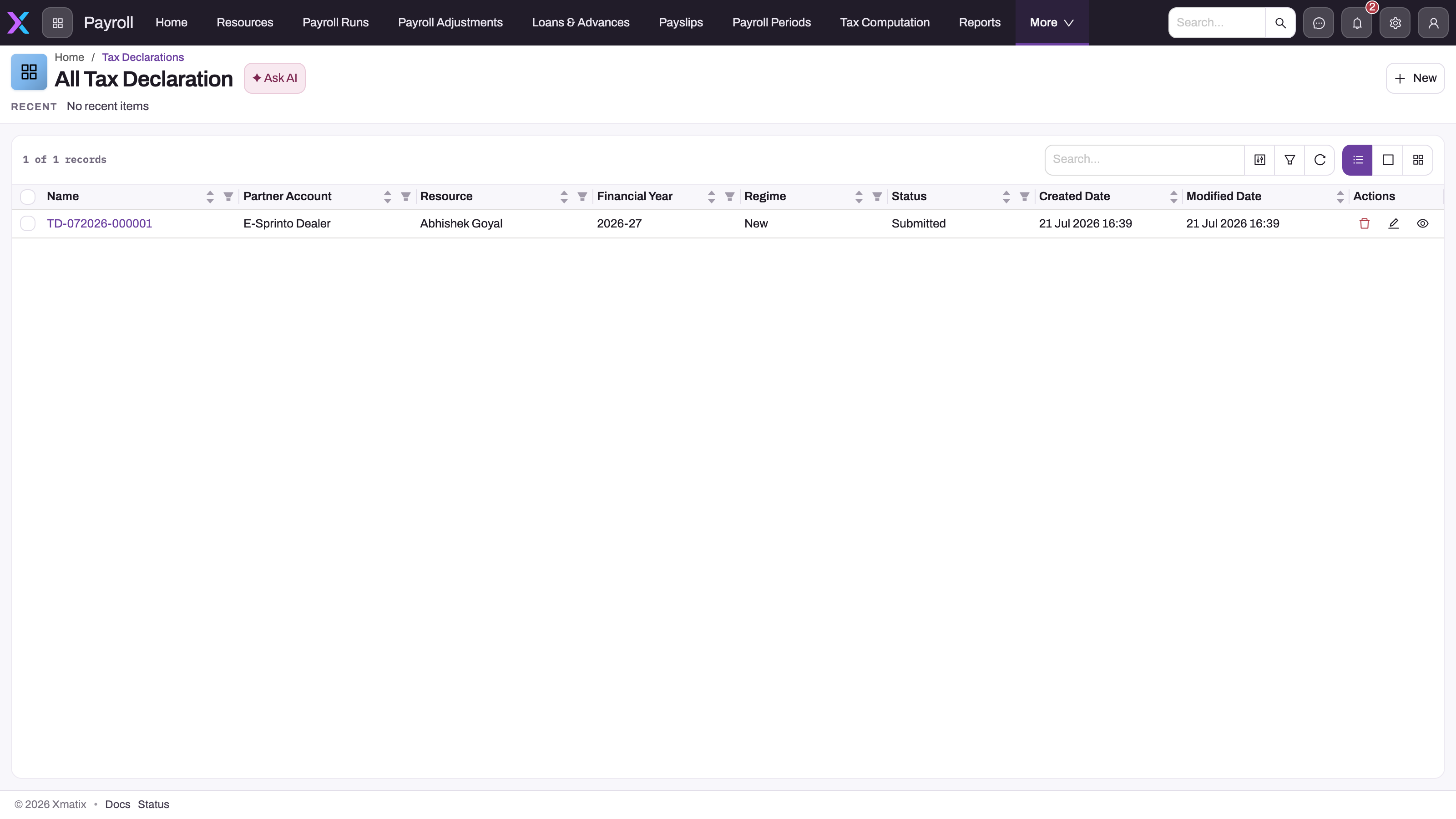
Step 2 — Create the declaration
- In the list, select New.
- Fill in the form:
- Employee: the person. The form doesn't fill in your own name; pick the employee.
- Partner account: the employing company. Leave it blank to take the company from the employee's resource. It may be hidden if your organisation runs a single company.
- Financial year: choose the year, such as 2026-27.
- Regime: New regime is filled in by default. Choose Old regime if the employee claims sections that only the Old regime allows, such as 80C or 80D.
- Save.
The declaration gets its number from the TD series, starts as Draft, and its record page opens. The form has no Name or Status field.
Step 3 — Add the claim lines
- On the declaration's record page, open the Related tab.
- Select New above the lines list. A form for a new line appears with Tax declaration filled in.
- Choose the Section code, such as 80C - Investments, LIC, EPF, PPF, ELSS, tuition. Enter the Declared amount and a Description, such as the policy or account number. Leave Verified amount blank until you have checked the proof.
- Save the line. Repeat for each section the employee claims.
If the save is refused, the message names the section and the reason. See Common problems.
Enter one line per section. Each line is capped at the section's Max amount on its own, so two lines for the same section can together exceed the section's ceiling unless the section also belongs to an aggregate cap group.
Step 4 — Verify the proof
When the employee hands in the proof:
- On the Related tab, select Edit on a line.
- Enter the Verified amount you accept. If you reject a claim completely, enter
0. A blank Verified amount means "use the declared amount". - Save, and repeat for every line.
You can't record a separate status for each line. Accepting or rejecting is decided for the declaration as a whole in the next step.
Step 5 — Set the status
- Open the declaration's record page.
- In Status, choose Verified. Choose Rejected if no claim is accepted.
- Save.
Status appears on the record page only after your administrator has added it (see Configuration). Without that, the shipped screens offer no place to change it. Edit on the list row opens the New form, which has no Status field.
Step 6 — Recalculate payroll
Open the current payroll run and select Calculate. The new projection for each employee now includes the verified claims. A run that is already posted keeps its TDS. The next month's projection spreads the lower annual tax over the months that remain. See Monthly TDS projections.
Step 7 — Correct or remove a declaration
- Change an amount. Edit the line (Step 4) and calculate the run again.
- Take a declaration out of the calculation. Change its Status to Draft, Submitted or Rejected, or delete it with Delete on its row in the list. Then calculate the run again.
- The year or regime was wrong. Change Financial year or Regime in the record page's Details panel, or with Edit on the list row. Remove any line the new year or regime doesn't allow first, or the change is refused. Then calculate again.
Fields
Tax declaration
| Field | What it means | Notes |
|---|---|---|
| Name | The declaration number | Filled in on save from the TD series. Not on the New form. |
| Employee | The person the declaration belongs to | Payroll matches declarations to employees by this field. Required in practice: a declaration without one counts for no one. |
| Partner account | The employing company | Only partner accounts can be chosen. Taken from the employee's resource when left blank. Decides whose tax rules and deduction sections the save checks against. |
| Financial year | The April-to-March year of the claims | Choose from 2024-25 to 2028-29. Required, and the year must have tax regime rules. Must match the payroll period's year exactly, or the declaration is ignored. |
| Regime | The regime the claims are made under | New regime (default) or Old regime. Decides which sections a line may claim. The regime payroll applies comes from the Employee record. |
| Status | Where the declaration is in its review | Draft (default), Submitted, Verified, Approved or Rejected. Only Verified and Approved reduce tax. Not on the shipped forms. |
Tax declaration line
| Field | What it means | Notes |
|---|---|---|
| Tax declaration | The declaration the line belongs to | Required. Filled in when you add the line from the declaration's Related tab. |
| Section code | The deduction section claimed | Required. Chosen from a list of 80C, 80CCC, 80CCD(1), 80CCD(1B), 80CCD(2), 80D, 80DD, 80DDB, 80E, 80EEB, 80G, 80TTA, 80TTB, 80U, HRA and LTA. Only codes with a matching tax deduction section can be saved. |
| Declared amount | What the employee claims | Can't be negative. Used only when Verified amount is blank. |
| Verified amount | What you accept after checking proof | Takes priority over Declared amount. Enter 0 to reject a claim; blank means the declared amount is used. |
| Description | A note about the investment or payment | For example the policy, lender or institution. Not used in the calculation. |
| Partner account | The company of the line | Shown on the line's record page only. Not used in the save checks or the calculation. |
Business rules
- Status gate. Only declarations with Status Verified or Approved count. The two values are treated the same. New declarations start as Draft.
- Year check. A declaration needs a Financial year that has tax regime rules for its company, or for every company.
- Section check. A line needs a Section code that matches an active tax deduction section for the declaration's year and company.
- Regime check. The section must be allowed in the declaration's Regime; blank means New. Changing the Regime or Financial year checks every existing line again.
- Year match. Financial year must be the same text as the payroll period's financial year (worked out from its end date), for example
2026-27. - Amount used. Verified amount, or Declared amount when Verified amount is blank. Zero or negative amounts are dropped.
- Ceilings. Each line is capped at its section's Max amount. Then sections in the same Aggregate cap group are limited together to the Aggregate cap amount.
- Several declarations. All Verified or Approved declarations for the same employee and year are added together.
- No effect until recalculated. Changing a declaration does not change any projection or run by itself. Calculate the payroll run again.
- Deductions only. Every allowed line is treated as a deduction from income. HRA and LTA can be chosen as section codes, but the projection has no separate exemption calculation for them. A line counts only if your catalogue has a matching section, and it is then treated like any other deduction. Professional tax, other income and house-property income or loss are treated as nil.
- Numbering. The Tax declaration document setting numbers each declaration from the TD series when it is created. Lines are numbered from the TDL series.
Example
An employee's payroll runs under the Old regime. Your tax deduction sections for 2026-27 include 80C (Max amount ₹1,50,000, Aggregate cap group 80CCE with Aggregate cap amount ₹1,50,000) and 80D (Max amount ₹25,000), both allowed in the Old regime only.
- In April, the payroll operator creates a declaration for the employee: Financial year 2026-27, Regime Old regime. It starts as Draft.
- They add two lines: 80C, Declared amount ₹1,80,000, "life insurance and provident fund"; and 80D, Declared amount ₹20,000, "family health policy". Had they left the Regime on New regime, the 80C line would have been refused.
- In January the employee submits proof for ₹1,60,000 under 80C and ₹20,000 under 80D. The operator sets Verified amount ₹1,60,000 on the 80C line and ₹20,000 on the 80D line, then sets Status to Verified on the record page.
- The operator selects Calculate on the January run. The 80C claim is capped at ₹1,50,000. The 80D claim of ₹20,000 is below its ceiling. Taxable income under the Old regime falls by ₹1,70,000.
- The January projection shows a lower Tax If Old Regime, and the remaining tax for the year is spread over January to March.
Training
Practice exercise
Use a sandbox company that has tax regime rules and tax deduction sections for the current financial year, and where Status has been added to the declaration's record page:
- Note an employee's Taxable Income If Old on their latest Monthly TDS Projection.
- Create a declaration for that employee and year with Regime New regime, and try to add an 80C line with Declared amount ₹50,000. Expected: the save is refused because 80C is not allowed in the new tax regime.
- Change the declaration's Regime to Old regime and add the 80C line again.
- Calculate the payroll run. Check that Taxable Income If Old has not changed, because the declaration is still Draft.
- Edit the line to set Verified amount ₹40,000, set the declaration's Status to Verified, and calculate the run again.
Expected result: Taxable Income If Old is about ₹40,000 lower than in step 1, allowing for the regime's rounding unit. It falls by less if the employee already has 80C claims near the ceiling.
Quick reference
- Path: Payroll → Income tax → Employee tax → Tax declarations.
- One declaration per employee per year; one line per section.
- Set Regime to Old regime before adding Old-only sections such as 80C and 80D.
- New declarations start as Draft; only Verified or Approved reduce tax.
- Verified amount beats Declared amount;
0rejects, blank falls back. - A section code must exist in your tax deduction sections.
- The TDS calculation sheet shows which lines count.
- Calculate the payroll run again after any change.
Permissions
Access is set in each security profile under Setup → Access Control → Profiles (see Security profiles).
- Open the menu. Tax declarations sit in the Payroll app's Income tax menu. A profile needs that menu's app permission. In the standard setup only System Admin has it, along with any profile that could already open the Payroll settings.
- See every employee's declarations. Declarations and their lines are personal records. Full access (View All and Modify All) is held only by System Admin and the two add-on profiles Payroll admin and HR admin. Give your payroll team one of these add-ons next to their main profile.
- Everyone else reads only their own declarations, those whose Employee is their own resource. A manager also reads those of the people in the roles below theirs. A payroll operator without an add-on profile sees an almost empty list.
- There are no server actions to grant. Verifying is an edit, so anyone who can edit a declaration can verify it.
Configuration
| What | Where | Effect |
|---|---|---|
| Tax regime rules | Payroll → Settings → Income tax rules → Tax regime rules | Which financial years a declaration can be saved for. See Tax regime rules. |
| Deduction sections | Payroll → Settings → Income tax rules → Tax deduction sections | Which section codes a line can be saved with, their ceilings, which regime allows them, and shared cap groups. The standard 2026-27 rules have no rows for 80TTB, HRA or LTA, so lines with those codes are refused until you add them. See Tax deduction sections. |
| Regime election | The Employee record's Tax Regime | Which regime payroll applies. See Employees. |
| Status on the record page | Open the declaration's record layout in the designer and add Status to the Details panel | Lets the payroll team move a declaration to Verified, Approved or Rejected. Without it there is no Status field in the shipped screens. See Design a form layout. |
| Proof attachments | Add Proof to the row actions of the Lines list on the declaration's record layout | Each line has a Proof action for attaching receipts, but the standard Lines list shows only Edit and Delete. |
| Numbering | Setup → Feature Hub → Platform → Document Settings → Tax Declaration Document setting (series TD) and Tax Declaration Line Document setting (series TDL) | The declaration and line numbers. See Email templates and document numbering. |
| Who sees which declarations | Setup → Access Control → Policies → the declaration's default sharing policy, and the user's profiles | Employees read their own records; add-on profiles read all. Don't widen the filter: it keeps one employee from reading another's investments. |
Common problems
"Section 80C is not allowed in the new tax regime"
The declaration's Regime is New regime (or blank), and the section is not allowed in the New regime. Change the declaration's Regime to Old regime and save the line again, or remove the line.
"Section … is not in the tax deduction section catalogue for 2026-27"
There is no active tax deduction section with that code for the year and company. This is expected for 80TTB, HRA and LTA with the standard rules. Ask your administrator to add the section under Payroll → Settings → Income tax rules → Tax deduction sections, or choose another section.
"Financial year … has no tax rule pack"
Your company has no tax regime rules for the chosen year. Pick a year that has rules, such as 2026-27, or ask your administrator to set the year up first.
I can't change the Regime or Financial year
The declaration has lines that the new regime or year doesn't allow. The error names each section. Delete those lines, change the Regime or Financial year, then add lines that fit.
I can't find the Status field
The standard New form and record page don't show it. Ask your administrator to add Status to the declaration's record page (see Configuration).
The employee's TDS didn't drop after they declared
Check, in this order: the Status is Verified or Approved (Draft and Submitted count for nothing); the Financial year matches the payroll year; the section is allowed in the employee's elected regime on the Employee record; and the payroll run was calculated again after the change. The TDS calculation sheet shows whether each line counts.
A claim counted for less than the employee declared
The line has a Verified amount, which takes priority. Otherwise the claim was capped at its section's Max amount, or at the Aggregate cap amount shared with other sections.
Rejecting a claim didn't remove it
The Verified amount was cleared instead of set to zero. A blank Verified amount brings back the full Declared amount. Enter 0, or delete the line.
The deduction is higher than the section allows
The employee has two lines, or two Verified declarations, for the same section. Each line is capped on its own. Merge them into one line.
The list shows only my own declaration
Your profile doesn't have full access to declarations. Ask your administrator for the Payroll admin or HR admin add-on profile.
The record page has no Edit or Delete button
The standard record page shows no header buttons. Edit Financial year and Regime in place in the Details panel, and use Edit or Delete on the row in the list.
Common questions
Can employees enter their own declarations?
No. There is no self-service form in the web or mobile app, and no Submit or Verify action. Employees give their declarations and proof to the payroll team, who enter them as described above. Because verifying is an edit, decide in your process who may set the Status to Verified, and give the add-on profiles only to that group. The record keeps who created and last changed it, but not a history of status changes.
Does the Regime on the declaration change the employee's regime?
No. The declaration's Regime only decides which sections its lines may claim. The regime that drives the monthly deduction is the Tax Regime on the Employee record, and a blank election means the New regime. Every projection works out the tax under both regimes from the same claims, so you can see on the Monthly TDS Projection whether the employee's declarations make the Old regime cheaper. If they do, change Tax Regime on the Employee record and calculate the run again.
What's the difference between Verified and Approved?
None, for the calculation. Both make the declaration count, and both use the verified amounts. Pick one value for your process and use it consistently, so your list filters and reports are reliable. Rejected, Draft and Submitted declarations all count for nothing.
Do declarations affect TDS already deducted?
Not directly. A posted run keeps the TDS it deducted. The next projection works out the year's tax again with the new claims, subtracts the TDS already deducted and spreads the rest over the remaining months. A late verification therefore lowers the remaining months' TDS, which can drop to zero if enough has already been deducted.
Can I use the new 2025 Act section numbers?
Use the 1961 Act codes, such as 80C, which the Section code list offers. The calculation matches lines on those codes only. A line that carries a 2025 Act number instead, such as 123 (for example from an import), can pass the save check but is left out of the projection.