
An account is xMatix's single master record for every organization or person you deal with — a customer you sell to, a supplier you buy from, a retail outlet, and the companies in your own network that own transactions. Every module reads the same record: the lead you convert and the opportunity you work in CRM, the order Sales fulfils, the bill Procurement receives, the invoice Finance collects and the outlet a field rep visits all point at one account. There is no separate "CRM customer" or "vendor master" to keep in sync.
Overview
You find accounts under Accounts in the CRM, Sales and Support apps; the same list appears in the Finance Setup, Partner Onboarding Settings and Platform apps. It is the same record whichever app you open it from.
An account carries three kinds of information:
- Identity — Name, Code, Account Label (a trading name), Account Type, contact details, and a billing and a shipping address.
- Roles — three independent switches: Customer Account, Supplier Account and Partner Account. One account can hold any combination.
- Statutory details — PAN, GSTIN and GST registration type, TDS settings, MSME registration and related-party details, used by tax documents and statutory reports.
The record page has a header showing Account Number, Account Type, Partner Account, Customer Account, Active and Annual Revenue, a Sense AI insights panel, and these tabs:
| Tab | What it shows |
|---|---|
| Company Settings | Lists used when the account is a partner company |
| Sales, Procurement, Service, Financials | The documents raised for or by this account in each area |
| Contact & Address Info | The account's contacts and addresses, with New to add one |
| Partner Mappings | Which partner companies and branches may deal with this account |
| Details | Every field of the account, in collapsible panels, plus its attached files |
| Duplicates | Other accounts that may be the same party, with merge |
| Change History | Who changed which field, and when |
Your organization can redesign these layouts, so your screen may differ.
When to use it
Create an account the first time you deal with a party that will appear on documents: a new customer, a new supplier, a new retail outlet or a new company in your network. Use the existing account every time after that — if the relationship changes (a customer starts supplying you), switch on the extra role on the same record instead of creating a second one.
Unqualified interest belongs on a lead; an account is created for you when a lead is converted.
How xMatix handles it
Roles are switches, not record types
| Switch | What it means | What it changes |
|---|---|---|
| Customer Account | You sell to this party | Only customer accounts can be picked as the customer on sales and CRM documents. A primary contact is created automatically only for customer accounts |
| Supplier Account | You buy from this party | Only supplier accounts can be picked as the supplier on procurement documents |
| Partner Account | A company in your network that owns transactions — the company named as the Partner Account on orders, invoices and other documents | Partner accounts carry branches, fiscal years and company settings. When your organization runs several companies, a partner account must also be set up as a company before documents can be recorded for it |
Account Type (shipped value Customer - Direct, the default) is a description only. It does not switch roles on or off.
Active is the switch that matters
Active decides whether the account can be used on new documents. An inactive account is refused on documents that reference it — for example "Partner account is Inactive." on a document whose partner account has been switched off. Switching an account off does not change documents already recorded.
Status (Draft, Created, Pending Approval, Approved, Rejected) is an informational field. No approval process sits behind it and it does not stop an account being used; change it with Set Status if your organization tracks it.
What happens when you save
- Code and Phone must each be unique across all accounts. A second account with the same value is refused with "Code '…' already exists" or "Phone '…' already exists".
- Format checks run on GSTIN (15 characters), PAN (10 characters: five letters, four digits, one letter), Phone (10 to 15 digits, optionally starting with +, no spaces), Email and the Udyam Registration Number (
UDYAM-XX-00-0000000). An empty field always passes. - Phone Country Code defaults to +91.
- On a new customer account with Create Account Contact switched on, xMatix creates the account's primary contact from the account's Name and Email and links it as Account Contact. On later saves, while Create Account Contact stays on, the primary contact's name and email are kept in step with the account. The phone number is not copied to the contact. A primary contact created when the account is first saved is not linked back to the account. It does not appear in the account's contacts list, and contact pickers on orders, invoices, leads, opportunities and cases do not offer it until you set its Account field (see Contacts). A primary contact created on a later save of an existing account is linked both ways.
- Switching GL Posting Enabled on for an existing partner account creates a standard set of general-ledger accounts for that company, each named after the standard account and the company. Ticking it while creating the account does not create them — save the account first, then switch it on.
- MSME and related-party details are checked for consistency (see Business rules).
Where an account's details flow
When you pick the account on an order, invoice, bill, purchase order, delivery order or service order, the document takes its billing and shipping address from the account's default contact address, or from the account's own address fields when there is none. Quotes and opportunities work the other way round: the account's own address fields come first and the default contact address fills only what they leave blank. Either way, xMatix fills only what is still empty on the document, so anything you typed is kept. The account's Place of Supply and GST Registration Type are fallbacks for working out how a document is taxed; a GSTIN or registration type on the billing contact address takes precedence. Pricing comes from price lists and discount groups, which can target the account directly or through an account group; credit limits are separate records — see Credit limits.
When a new lead arrives with a phone number that exactly matches an account's Phone, the lead links itself to that account and fills its own empty name, email and address fields from it.
Prerequisites
- Access to Accounts in one of the apps above, with create or edit rights (see Permissions).
- For a supplier or customer you invoice under GST: the party's PAN, GSTIN and GST registration type.
- For a partner account in an organization that runs several companies: an administrator to set it up as a company (see Configuration).
Procedure
Step 1 — Find an account
Open Accounts in the CRM, Sales or Support app. The shipped list views are All Active Accounts, All Customer Account, All Partner Account and All Supplier Account; switch views from the list header, and use search, filters and column sorting to narrow the list. Always search by name, code and phone before creating an account — an existing record is the one to use.
Step 2 — Create an account
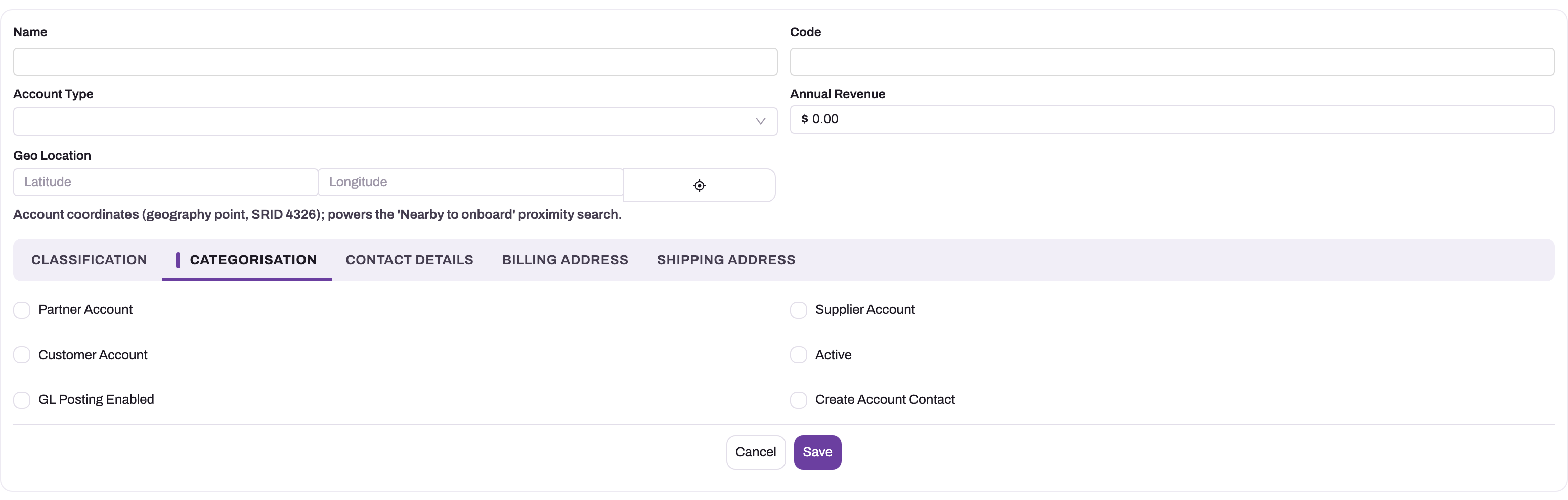
- 1
Categorisation sits beside Classification, Contact Details, Billing Address and Shipping Address — the tabs of the standard account form.
- 2
Partner Account marks a dealer or distributor that transacts on your behalf; Customer Account (below it) marks someone you sell to — one record can be both.
- 3
Supplier Account marks someone you buy from, used by procurement documents.
- 4
Active keeps the master available for new documents; it is not implied by any role flag.
- 5
GL Posting Enabled is a finance control for sub-ledger posting; Create Account Contact (right) creates a matching contact on save.
- 6
Geo Location stores the account's coordinates for the 'Nearby to onboard' proximity search.
- In Accounts, select New. The New Account form opens.
- Fill the header: Name (the registered or legal name), Code (your short code for the party), Account Type and, if you know it, Annual Revenue. Geo Location stores the account's map position.
- On Classification, set Account Source, Account Rating, GSTIN, PAN, TAN and TDS Applicable as they apply.
- On Categorisation, switch on the roles — Partner Account, Supplier Account, Customer Account — and Active. Switch on Create Account Contact if xMatix should create the primary contact for a customer.
- On Contact Details, enter Salutation, First Name, Last Name, Phone (required on this form) and Email.
- On Billing Address and Shipping Address, enter the address, city, state, region, postal code and country.
- Select Save. The account opens on its record page.
Some screens offer a short Quick Create form instead, with Name (required), Account Type, Phone, Email and Website. Add the remaining details from the record page afterwards.
Step 3 — Change an account
Open the account and select Edit in the header. The Details tab holds every field in panels — Information, Classification, Categorisation, Related Party Information, MSME Related Details, Billing Address, Shipping Address and System Information. Change what you need and save. Every change is recorded on Change History.
Step 4 — Add contacts and addresses
On Contact & Address Info, select New on the contacts list to add a person, or on the addresses list to add another billing or delivery address. Documents raised for the account offer these contacts and addresses. Contacts are covered in Contacts. Default addresses, per-address GST details and the address fields are covered in Contact addresses.
Step 5 — Record statutory details
On Details, complete the panels that apply to the party:
- Information — GST Registration Type, GSTIN, PAN, TAN, Deductee Type, TDS Applicable and Default TDS Section.
- Classification — Place of Supply.
- Categorisation — Is RCM for a supplier whose bills are taxed under reverse charge.
- Related Party Information — switch on Related Party, then choose Related Party Type, describe the Relationship and set Related Party From and Related Party To.
- MSME Related Details — MSME Enterprise Category, MSME Enterprise Type, MSME Payment Due Days, MSME Registration Date, MSME Registration Status and MSME Verified On.
Step 6 — Find and merge duplicates
- Open the account you want to keep and go to the Duplicates tab. It lists accounts that may be the same party and says why each one matched.
- Expand a candidate to compare the two records side by side.
- To merge, either tick one or more candidates and select Merge selected (this record's own values are kept), or open Compare & merge to pick, field by field, which value the surviving record keeps. Reverse direction in that dialog makes the other record the survivor instead.
- Confirm with Merge.
Merging moves the duplicate's activities, attached files, collaborators, followers and side conversations onto the surviving account and records the link. It does not move orders, invoices, contacts or addresses, and it does not close the duplicate — the merged-away account stays in lists and stays active. Switch Active off on it yourself if it should no longer be used. A merge cannot be undone.
Step 7 — Deactivate an account
Edit the account, switch Active off on the Categorisation panel and save. The account stays on every document already recorded and disappears from the pickers that only offer active accounts. Prefer this to deleting an account that has been used.
Step 8 — Clone or delete an account
Clone creates a new account copied from this one; give the copy its own Code and Phone before saving, because both must be unique. Delete (in the header, or on a list row) removes the account after you confirm.
Step 9 — Transfer a partner's business to another partner
Use this when one partner company in your network hands its business to another — a dealer takeover, for example.
- Open the outgoing partner's account and select Transfer Partner in the header.
- The dialog shows From (this account) and To. Pick the incoming partner in To; Swap reverses the two if you started from the wrong account.
- Choose what moves. Outlets, Resources, Stock and Open orders are on by default; Deactivate outgoing is off. To move part of a scope rather than all of it, open the card and pick the records.
- Pick the effective date and run the transfer.
- Read the result. Each part reports what it could not move — for example orders already past Draft, or territory seats held by staff who are not transferring. Deal with those by hand; the transfer is safe to run again afterwards.
Stock is not moved directly: you get draft transfers, valued at the outgoing partner's average cost, to price and post through the normal transfer process. Invoices and other financial documents are never transferred. Deactivate outgoing declines, and reports the amount, while receivables are still open against the outgoing partner — the rest of the transfer still goes through.
Step 10 — Use accounts on mobile
In the field app, outlets are accounts. The visit-plan agenda can suggest nearby places: Add to Route puts an existing account on the route, Onboard opens an Onboard New Account form pre-filled from the suggestion, and + Add outlet opens a blank Add Outlet form. The Dead Outlets and Platinum Outlets cards list the flagged outlets on today's beat. See Discover and onboard nearby outlets.
Fields
| Field | What it means | Notes |
|---|---|---|
| Name | The registered or legal name | Shown on documents. Required on the Quick Create form. Not checked for uniqueness |
| Code | Your short code for the party | Must be unique. Preferred over Account Number wherever a code is looked up |
| Account Type | Commercial classification | Shipped value: Customer - Direct (default). Description only — it does not set roles |
| Annual Revenue | Estimated yearly turnover | For segmentation; defaults to 0. Not used by credit or pricing |
| Geo Location | The account's map position | Used for nearby-outlet search and route planning |
| Account Source | How the party was acquired | Web, Phone Inquiry, Partner Referral, Purchase List, Other. Reporting only |
| Account Rating | Interest or priority grade | Hot, Warm, Cold. Reporting only |
| GSTIN | The party's GST identification number | 15-character format check. A GSTIN on the billing contact address takes precedence on documents |
| PAN | Permanent Account Number | 10-character format check. Used by TDS processing |
| TAN | Tax deduction account number | |
| TDS Applicable | Whether tax is withheld for this party | Off means the party is exempt from withholding |
| Partner Account | A company in your network that owns transactions | See Roles |
| Supplier Account | You buy from this party | Required to pick it as a supplier |
| Customer Account | You sell to this party | Required to pick it as a customer |
| Active | Whether the account can be used on new documents | Inactive accounts are refused on documents |
| GL Posting Enabled | Switches on general-ledger posting for a partner company | Switching it on for a saved partner account creates its standard ledger accounts |
| Create Account Contact | Create and maintain the primary contact from the account | Customer accounts only |
| Salutation | Title for a person account | Dr., Mr., Ms., Prof. |
| First Name, Last Name | The person's name when the account is an individual | |
| Phone | Main phone number | Must be unique. 10 to 15 digits, optional leading +. Matched against incoming leads |
| Phone Country Code | International dialling prefix | Defaults to +91 |
| Main email address | Format check. Copied to the primary contact | |
| Account Label | Trading name, if different from Name | Preferred over Name where a display name is shown |
| Account Description | Free-text description | |
| GST Registration Type | The party's GST registration status | Consumer, Deemed Exports, GST Registered- Composition, GST Registered- Regular, GST Unregistered, Non GST Supply, Out Of Scope, Overseas, Special Economic Zone (SEZ). Drives how documents are taxed |
| Place of Supply | The party's GST state | Fallback when a document and its billing address have none |
| Partner Owner Account | The partner company that owns this outlet | Hidden when your organization runs a single company. Changed by Transfer Partner |
| Deductee Type | Withholding classification | Individual, HUF, Company, Firm / LLP, AOP / BOI, Local Authority, Government, Trust |
| Default TDS Section | Withholding section copied to new bill lines (and purchase credit note lines) that have none | Only active TDS sections, and only while TDS Applicable is on. Never copied to invoice lines. The line can override it. See TDS sections |
| Account Site, Account Location | Free-text site and location notes | Account Location holds no coordinates — use Geo Location |
| Dead Outlet, Platinum Outlet | Outlet flags shown on the field rep's cards | Can be set by hand |
| Platinum Outlet Order Count | The order count behind the platinum flag | Read-only |
| Is RCM | Reverse charge applies to this supplier | Copied to new bills that do not set it themselves |
| Related Party, Related Party Type, Relationship, Related Party From, Related Party To | Related-party status for statutory disclosure | Types: Associate / Joint Venture, Director, Entity Controlled by Director / KMP, Fellow Subsidiary (Sister Concern), Holding Company, Key Management Personnel, Other, Promoter, Relative of Director / KMP, Subsidiary Company |
| MSME Enterprise Category | Manufacturing, Service or Trading | |
| MSME Enterprise Type | Micro, Small or Medium | |
| MSME Payment Due Days | Agreed payment days for this MSME supplier | 1 to 45 |
| MSME Registration Date, MSME Verified On | Registration and verification dates | Neither may be in the future |
| MSME Registration Status | Registered, Not Registered, Declaration Awaited, Deregistered | |
| Billing Address, Billing Street, Billing City, Billing State, Billing Region, Billing Postal Code, Billing Country | The default billing address | Copied to documents that have no billing address of their own |
| Shipping Address, Shipping Street, Shipping City, Shipping State, Shipping Region, Shipping Postal Code, Shipping Country | The default delivery address | Copied to documents that have no shipping address of their own |
| Status | Informational lifecycle value | Draft, Created, Pending Approval, Approved, Rejected. No process reads it |
| Account Number | Older account code | Used only when Code is empty |
For every field, including the ones not on the shipped forms, see the Account reference.
Business rules
- Code and Phone are unique across accounts; Name is not.
- GSTIN, PAN, Phone, Email and Udyam Registration Number must match their formats when filled.
- Related Party Type can only be set when Related Party is on; a related party needs a type; Related Party To cannot be before Related Party From.
- MSME values must come from their lists; MSME Payment Due Days cannot exceed 45; MSME Registration Date and MSME Verified On cannot be in the future, and MSME Verified On cannot be before MSME Registration Date.
- A primary contact is created only for a customer account saved with Create Account Contact on, and only when it has none yet.
- GL Posting Enabled creates standard ledger accounts only when switched on for an already-saved partner account.
- A lead converted to a new account creates an active customer account (or, for a partner lead, an inactive partner account) named after the lead's account name, with the lead's address and a contact.
- A shipped validation, "Last Name is mandatory for Customer Accounts.", is available but switched off; your administrator can turn it on.
- Merge moves activities, files, collaborators, followers and side conversations only, and leaves the duplicate open.
Example
A distributor, Riverbend Traders, starts buying from you.
- You search Accounts for "Riverbend" and its phone number — nothing comes back.
- You select New and enter Name Riverbend Traders Private Limited, Code RBT01, Account Type Customer - Direct. On Categorisation you switch on Customer Account, Active and Create Account Contact. On Contact Details you enter Phone 9876500012 and Email accounts@riverbend.example, and you fill both addresses.
- You save. The account opens, and its primary contact Riverbend Traders Private Limited has been created with the same email.
- On Details you set GST Registration Type to GST Registered- Regular, enter the GSTIN and PAN, and save.
- Six months later Riverbend also starts supplying packaging to you. You edit the same account and switch on Supplier Account — purchase orders can now name it as the supplier, and its sales history stays on the same record.
Training
Practice exercise
In a sandbox:
- Create a customer account Practice Outlet 01 with Code PR01, a ten-digit phone number, Customer Account, Active and Create Account Contact switched on.
- Create a second account with the same phone number. Expected: the save is refused with "Phone '…' already exists".
- Change the phone on the second account and save it. Open the first account's Duplicates tab and merge the second into it with Compare & merge.
- Expected: the first account keeps the values you chose; the second account still exists and is still active. Switch Active off on it.
- Edit Practice Outlet 01 and enter PAN ABCDE1234 (nine characters). Expected: "PAN 'ABCDE1234' is not a valid 10-character PAN."
Quick reference
- One party, one account — add a role instead of a second record.
- Customer Account, Supplier Account and Partner Account decide where the account can be picked; Account Type does not.
- Active controls use on documents; Status is informational.
- Code and Phone must be unique.
- Create Account Contact works for customer accounts only.
- Switch GL Posting Enabled on after the partner account is saved.
- Merge moves activities and files, not documents, and leaves the duplicate active.
- Deactivate rather than delete an account that has been used.
- Transfer Partner runs from the outgoing partner's account.
Permissions
Account access follows the user's security profiles and record-level sharing.
- Record rights. The shipped Sales, Sales Manager, Service, Procurement, Standard User and System Admin profiles give full rights on accounts. Sales Executive can read, create, edit, delete, share and assign accounts but has no view-all or modify-all rights, so it relies on ownership and sharing for other users' accounts.
- Actions. Custom actions need an explicit grant. In the shipped profiles, Find Duplicates and Merge are granted to Sales Manager, Standard User and System Admin; Transfer Partner and Set Status to Standard User and System Admin.
- Sharing. Accounts are owned by users. By default other users in the organization can read accounts they do not own, managers gain access through the role hierarchy, and owners can share records manually or with teams.
A user without a right does not see the corresponding button, or sees the operation refused. See Security profiles and Record-level security and sharing.
Configuration
| What | Where | What it affects |
|---|---|---|
| Forms and record page | The account layouts, in the layout designer | Which fields, tabs and related lists users see; the create form, the Quick Create form and the record page are separate layouts |
| List views | The account views | The shipped views are All Active Accounts, All Customer Account, All Partner Account and All Supplier Account |
| Picklists | The account fields' picklist values | Account Type, Account Source, Account Rating, Industry, Salutation, Status and the statutory lists. Several Account Type and Industry values ship inactive and can be switched on |
| Validations | The account's validation rules | The shipped Last Name is mandatory for Customer Accounts rule is off by default |
| Duplicate matching | Setup → Feature Hub → Platform → Deduplication rules | Rules for Account replace the built-in matching used by the Duplicates tab. Rules only flag duplicates — they never block a save. The tab shows at most 25 candidates. See Deduplication rules |
| Companies | Setup → Feature Hub → Administration → Org Settings → Companies | Onboard company sets up a partner account as a company (name, label, locale, currency, document name prefix); Enable finance seeds the company's chart of accounts and enables GL posting; Set default bank and Withholding tax timing are per-company settings |
| Organization shape | Org Settings → General → Organisation shape | With We run multiple companies off, the company axis — including Partner Owner Account and Partner Mappings — is hidden |
| Company access | Org Settings → General → Restrict users to their own companies, and the Company Access tab | Limits which companies a user can transact for |
| Automatic company onboarding | Org Settings → Custom Settings, setting companies / autoOnboardPartnerAccounts | When on, saving an active partner account in a multi-company organization sets it up as a company. It never creates the first company and does not sweep existing partner accounts |
| Account groups | Account Groups | Named sets of accounts targeted by price lists, discount groups, schemes, tax groups and incentives — see Account groups |
| Bulk load | The import wizard | Rows with an External id and no internal id update the one existing account with that id — see Import data |
The Setup areas need the matching capabilities: organization settings need setup.org.settings.manage, companies need setup.companies.manage, and imports need setup.data.import.manage.
Common problems
"Phone '…' already exists" or "Code '…' already exists"
Another account already has that phone number or code. Search for it — it is probably the same party, so use that account. If it really is a different party, give this one its own code or phone.
"PAN '…' is not a valid 10-character PAN." (or GSTIN, Phone, Email, Udyam)
The value does not match the expected format. PAN is five letters, four digits and a letter; GSTIN is 15 characters; Phone is 10 to 15 digits with no spaces; the Udyam number is UDYAM-XX-00-0000000. Correct the value, or clear the field.
"MSME Payment Due Days must be between 1 and 45 (MSMED s.15)."
The agreed payment period for an MSME supplier cannot exceed 45 days. Enter 45 or fewer.
"A related party must have a relationship type (director, relative, sister concern, …)."
Related Party is on but Related Party Type is empty. Choose a type, or switch Related Party off. The reverse — a type with Related Party off — is refused with "Related party type can only be set when the record is marked as a related party."
I can't pick the account on an order or a purchase order
The account is missing the role or is inactive. Check Customer Account (for sales documents) or Supplier Account (for procurement documents) and Active on Categorisation.
"Transactions can only be recorded for a partner that has been onboarded as a company."
Your organization runs several companies and this partner account has not been set up as one. An administrator onboards it under Org Settings → Companies → Onboard company.
I switched on GL Posting Enabled but no ledger accounts appeared
The standard ledger accounts are created only when the switch is turned on for a partner account that was already saved. If you ticked it on the create form, switch it off, save, switch it on and save again — and check that Partner Account is on.
The account I merged away is still in the list
That is expected: merge keeps the duplicate. Switch its Active off.
Transfer Partner says "The incoming partner has no branch — activation should have created one."
The receiving partner has no branch to receive into. Create a branch for it, then run the transfer again. Other refusals name their cause: "The outgoing account must differ from the incoming partner's account." (both sides are the same account) and "The incoming account is not a partner account." (only partner accounts can take part).
Common questions
Can an account be a person rather than a company?
Yes. An account has Salutation, First Name and Last Name alongside the company fields, so individual customers are ordinary accounts. Contacts stay separate records: even a one-person customer account usually has a primary contact, because documents and activities refer to contacts for who to talk to. Switch on Create Account Contact when you create the account and xMatix makes that contact for you from the account's name and email.
Where do new accounts come from?
Four paths: created with New in the account list, created by lead conversion when the lead is not linked to an existing account, onboarded from the field app as a new outlet, or loaded in bulk with the import wizard. However it was created, it is the same master record from then on and every module reads it.
Does merging move the duplicate's orders and invoices?
No. Merge moves activities, attached files, collaborators, followers and side conversations onto the surviving account and records the link between the two. Orders, invoices, contacts and addresses stay on the account they were recorded against, and the merged-away account stays active. Merge before the duplicate has been used on documents where you can, and switch the duplicate's Active off afterwards.
What is the difference between Account Type and the role switches?
Account Type is a description for reporting — it does not change what the account can do. The Customer Account, Supplier Account and Partner Account switches decide where the account can be picked: only customer accounts on sales documents, only supplier accounts on procurement documents, and only partner accounts as the owning company of a document.
Who can see which accounts?
Account visibility follows the platform security model — the user's security profiles, record ownership and sharing — not anything CRM-specific. In the shipped setup everyone can read accounts and owners edit their own. See record-level security and sharing.