
A sales order line gets its unit price from price list rules, its contract discount from discount group rules, and its tax group from tax group rules. All three masters live in the Sales setup list (the Sales app's Settings entry): Price List, Discount Group and Tax Group, alongside Item, Item Group, Account Group and Branch. Order entry only consumes them; adding rules and changing effective dates is an administrator task. A non-zero price typed while adding a new line is kept, so an automatically resolved value is not the only legitimate outcome.
Price lists
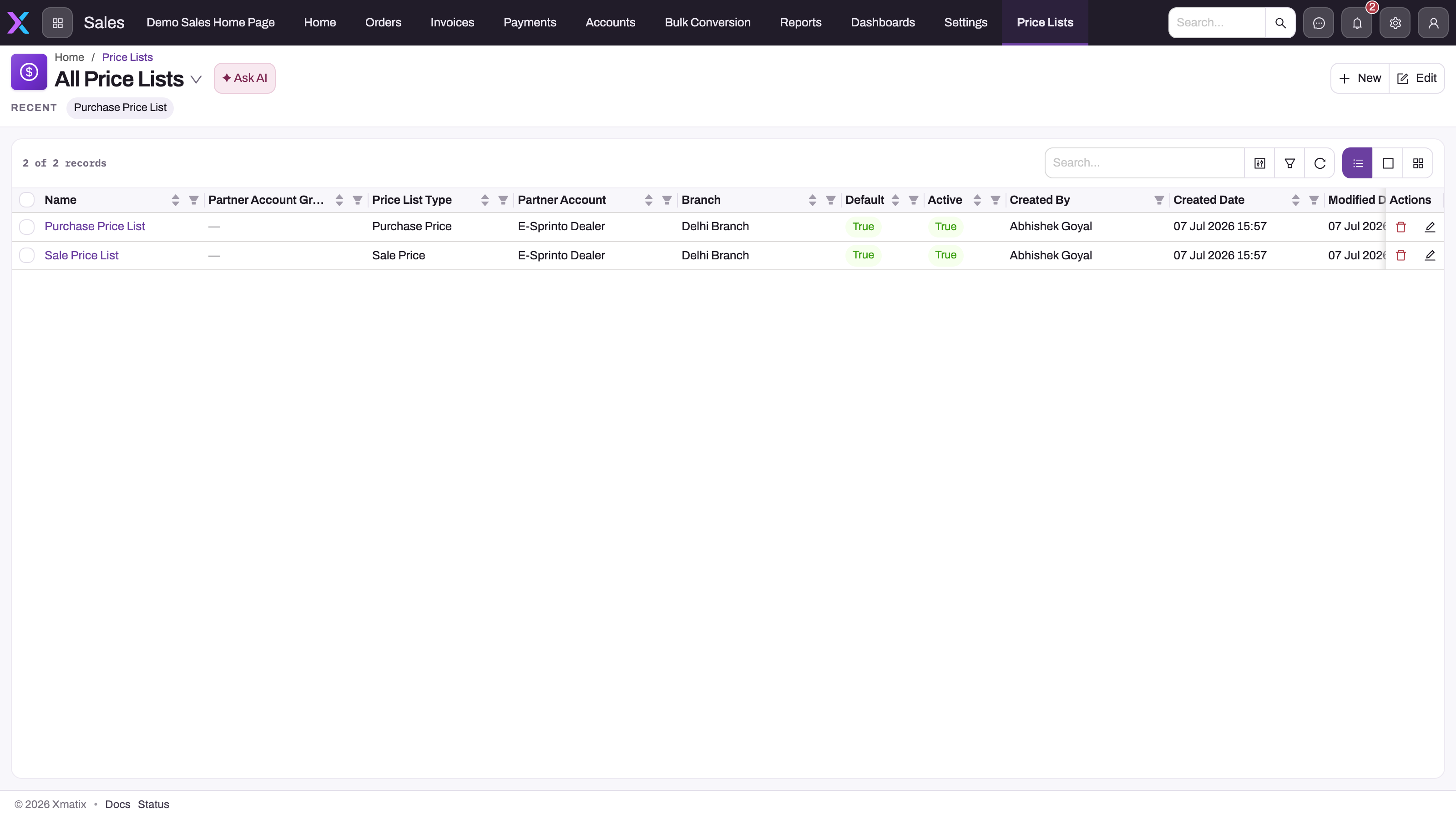
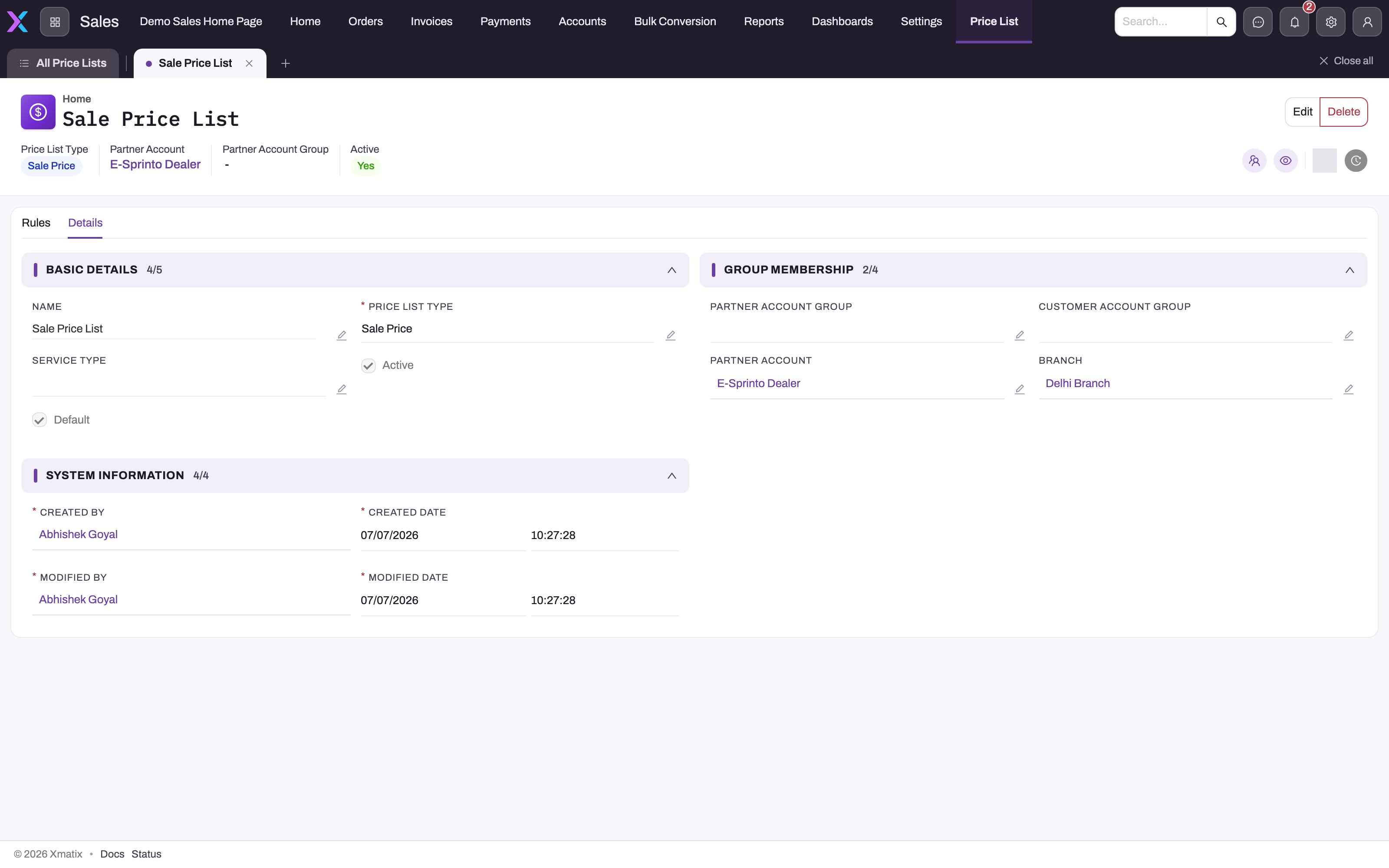
A price list is a named container whose actual amounts live in child Price List Rule rows: one dated Price per Item, optionally narrowed to a SKU, lot type or service type. When a document is created with no price list, xMatix stamps the best-matching active list of the right type onto it. Each line is then priced from the rule in force on the line's pricing date. Setting up lists and rules, how a list is chosen, which rule wins, and when a price is or isn't overwritten are all covered in Price lists.
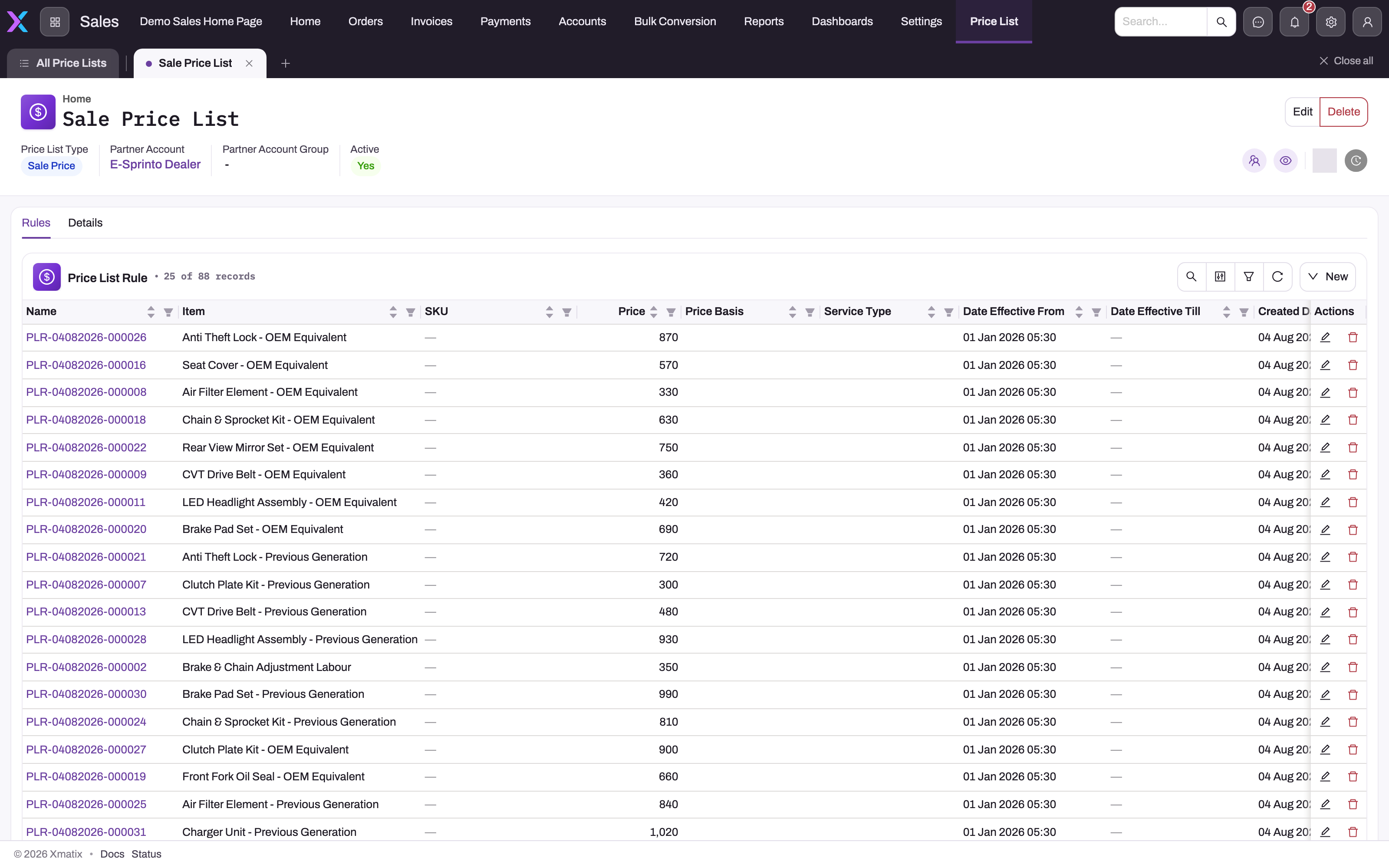
Reprice on a draft order, quote or service order sends every existing line back through rule resolution (it refuses to run on a document with no lines), and so does changing the document's Price As On Date or a line's price list or pricing date.
Discount groups
A discount group holds dated Discount Group Rules and is stamped onto a new document when it is first saved. A matching group replaces any group already on the new document. Sales documents look only at active Sale Price groups, and purchase orders and bills only at active Purchase Price groups. Each scope field (partner account, branch, and partner or customer account groups of type Discount) must be empty or fit the document, and a scoped group beats an open one. There is no default fallback: a document that matches no group gets no contract discount.
Each rule targets an Item, a SKU or a Discount Item Group, or nothing (every item), and sets a Discount Percent or a fixed Discount Amount. When a line is added, the best rule of the document's group in force on the document date writes the line's Contract Discount (or Contract Discount Amount) and Discount Group Rule. Contract discounts are written only when a line is added: Reprice and later edits don't re-apply them. Setting up groups and rules, which rule wins, and the common problems are all covered in Discount groups.
Contract discounts are independent of trade schemes: schemes write their own scheme discounts and free lines on top, and both roll up separately on the order (Total Discount Amount versus Total Scheme Amount).
Tax groups
An item carries no tax group of its own; Tax Group Rules are the only mapping from a line to its taxes. When a line is added, xMatix keeps the Active tax groups whose partner account, branch and partner account group fit the order, and sorts their rules by the group's Sequence Number, highest first. The first rule whose item fields, Tax Supply Type and effective window match the line wins, and every tax in its group is applied to the line. Editing a saved line recalculates its taxes but doesn't choose a new group.
Sequence is the only precedence signal, so a catch-all rule in a high-sequence group beats a precisely scoped rule in a lower one. Sequence Number is not on the seeded Tax Group forms, so every group starts at 0. Billing or shipping address text is not the selector for the tax rule; Tax Supply Type on the order is. Setting up groups, taxes and rules, how the line's group is chosen, and the common problems are all covered in Tax groups.
Common questions
Why did Reprice overwrite the price I typed?
The typed-price guard protects a line only while it is being inserted. Reprice evaluates existing lines again, so a typed value is replaced by the matching rule. Bundle-priced lines and lines marked Rate Manual are excluded, so mark a negotiated rate as manual — or model it as a price rule — if it must survive routine repricing.
Which rule wins when several cover the same item and date?
First discard every rule whose list, item, SKU, lot type, service type or effective window does not match the line and its pricing date. Among the rest, a matching service-type rule beats an unscoped one; then the latest Date Effective From wins; only when start dates tie does a SKU- or lot-type-specific rule beat a blank one. An expired rule is never eligible.
The price is right but the discount is missing — why?
Discounts resolve separately from prices. Check that the order actually carries a discount group (it is chosen at creation from active Sale Price groups in scope — an unexpected zero discount is usually a header pointing at the wrong group or at none) and that the group has a rule covering this item, SKU or discount item group with a window that includes the order's document date. No matching rule means no contract discount — expected, not an error. A line added before the rule existed keeps its old value, because Reprice doesn't re-apply discounts. See Discount groups.
Why did a line get the wrong tax group?
Look for a rule with a blank item in a tax group with a higher sequence number than the one you expected, or with the same sequence number, where the winner isn't predictable. Then check that the rule's Tax Supply Type equals the order's and that its dates cover the moment the order was entered. See Tax groups.