
A trade claim is a document that recovers an amount owed to a partner company by a supplier, manufacturer or principal. Examples are warranty and free-service work, damaged, short or excess goods, and scheme payouts. Each claim is reviewed line by line, approved, and then settled by a credit note or invoice on the supplier. A claim can be typed in by hand, created automatically when a service order is invoiced, or produced in bulk by a claim generation setup. All three kinds then go through the same review, approval and settlement.
Overview
A claim has a header and Claim Lines. The header says who is claiming (Partner Account and Branch), who is claimed from (Supplier Account) and what kind of claim it is (Claim Type). Each line carries an item or description, the Claim Quantity, a Unit Price, and the Approve Quantity and Reject Quantity the reviewer decides. Only approved quantities are ever paid out.
The claim type matters twice. It decides how lines can be built automatically, and it selects the Claim Settlement Setup, which says what document approval produces. Claim types whose setup settles Per Batch are grouped into a claim batch and settled as one document.
When to use it
- A warranty, free-service or contract repair has been invoiced, and the principal owes the covered part of the work.
- Goods returned to a supplier as damaged, short, excess or a straight purchase return have to be recovered.
- Scheme payouts, price support, transport reimbursements or expense recoveries are calculated each period from transactions. Use a claim generation setup for these.
- A manufacturer settles many dealer claims at once. Use claim batches.
How xMatix handles it
Claims live in their own Claims app: Claim Overview Dashboard, Claims, Claim Batches, Claim Reconciliations, Claim Generation Setups, Claim Settlement Setups, Reports, Dashboards and Settings. Claims is also its own product licence. The claim screens are reachable only when that licence is assigned to the organization and to the user. Claims are not available in the mobile app.
A claim is created in one of three ways:
| Source | What it creates |
|---|---|
| New on the Claims list | A Draft claim you fill in yourself |
| A service order's Invoice or Selective Invoice action | One Service claim per service order, invoice group and service contract, for lines whose posting type is Auto Generate Claims (see Service claims) |
| A claim generation setup run | One Draft claim per group of source records, with its lines, at most once per claim type, group and month |
After that, every claim follows the same path:
- The reviewer sets approved and rejected quantities line by line.
- An approval process approves or rejects the claim.
- An approval of Approved queues the Settle claim job for that claim, unless its type settles per batch.
- The job creates the settlement document on the Supplier Account from the approved lines and sets the claim's Status to Settled.
Prerequisites
- The Claims licence is assigned to your organization and to your user.
- Your security profile gives you access to Claim and Claim Line (see Permissions).
- For a claim to settle by itself:
- an approval process exists for claims;
- an active Claim Settlement Setup exists for the claim's type.
Neither is shipped; an administrator sets both up (see Configuration).
- To review lines with Open Checklist: a checklist template of type Claim exists for the line's item.
Procedure
Step 1 — Find a claim
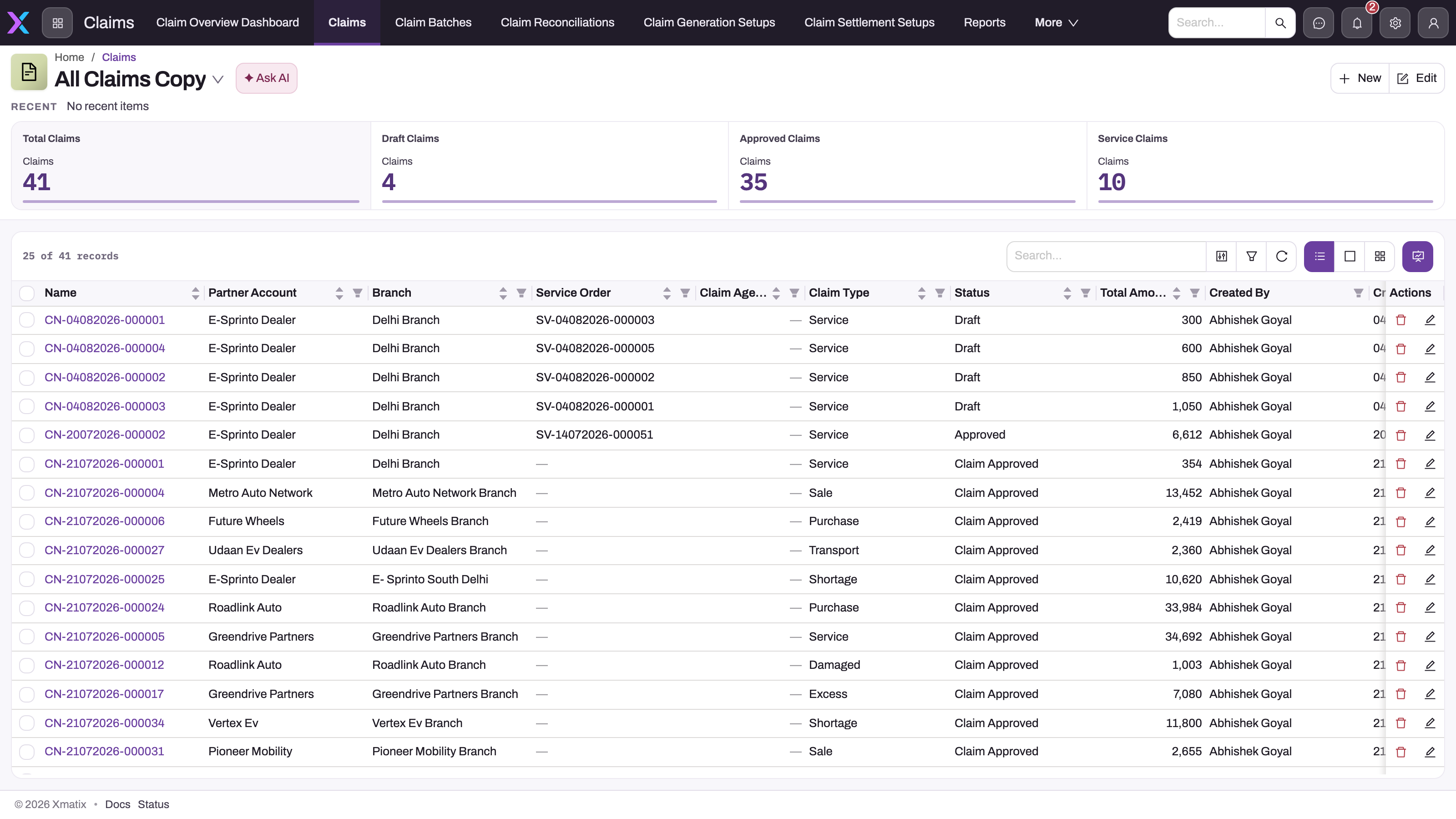
Open Claims → Claims. The shipped All Claims view lists, in this order:
- Name
- Partner Account
- Branch
- Claim Type
- Status
- Total Amount
- Created By
- Created Date
- Modified By
- Modified Date
Search by claim number, or filter on the column heads to narrow the list by partner, branch, claim type or status. Select a claim's Name to open it.
Total Amount is filled only on claims whose generation setup maps it. It is not added up from the lines, so it is blank on claims you create by hand and on claims created from service orders. To see what a claim is worth, read its lines.
Step 2 — Create a claim by hand
- On the Claims list, select New.
- Fill in the header: Document Date, Partner Account, Branch, Supplier Account and Claim Type. Choose Supplier Account carefully, because it is the party the settlement document is booked to, and settlement refuses a claim without it.
- Leave the boxes on the Details tab clear (Perform Populate Lines, Perform Reconciliation, Reconciled). Ticking them and saving does not run anything.
- Optionally, on the Related tab, link the Goods Receipt, Service Contract, Bill Return or Sale Invoice the claim is about. These links are for reference only.
- Select Save.
The claim gets its number from the Claim numbering setting: by default the series CN, the date and a six-digit running number, such as CN-14102026-000012. Its Status is Draft. On an organization with one company or one location, Partner Account or Branch is hidden.
Step 3 — Add claim lines
Open the claim and stay on the Claim Lines tab. Select New on the lines list and fill in the line:
- Claim Type (the line's own type: Damaged, Part To Part, Reimbursment or Shortage)
- Item
- Claim Quantity
- under Amount Details, Approve Discount Amount. The form requires it, so enter 0 if there is no discount. Discount Amount and Reject Discount Amount are optional.
- under Related Documents, Unit Price, and optionally the service order, goods receipt or bill return line the claim is about
Select Save. The line gets a number from the CLN series. Claim Amount is read-only. It is calculated on save as Claim Quantity × Unit Price, less the discount. Claim Quantity and Unit Price must both be greater than zero. The same form also opens when you select Edit on a line, and it asks for Approve Discount Amount there too.
Claims created from a service order already have their lines. For other claims, lines are entered here or built by Perform Populate Lines. That action is not on the shipped record page; see Actions on a claim.
Step 4 — Review each line
Each line ends up with an Approve Quantity, and a Reject Quantity if part of the claim is refused. The settlement document uses Approve Quantity × Unit Price, line by line. You can set the quantities in two ways.
With the checklist. On a line, select Open Checklist. The dialog loads the newest checklist template of type Claim for the line's item.
- Answer its questions. Questions marked * are required.
- Enter an Approve Quantity or a Reject Quantity. The dialog shows the claim quantity as the maximum.
- Select Approve or Reject.
The answers are saved first. Then the quantity you entered is written to the line, and the dialog closes with a confirmation. Each button writes only its own quantity. To split a line, use Approve for the approved part and open the checklist again to Reject the rest. If no template exists for the item, the dialog shows No checklist defined for this item.
By editing the line. Select Edit on the line row, enter Approve Quantity and Reject Quantity, and save.
The Claim Checklist tab on the claim is a fixed set of yes/no prompts for a warranty-style paper check, for example "Warranty claim form completely filled". Its ticks are not saved. Use it as a reminder, not as a record of the review.
Step 5 — Submit the claim for approval
Approval runs through an approval process on the Claim entity that your administrator configures. The shipped claim page has no Submit for Approval button and no approval panel, so how a claim is submitted depends on that setup:
- Automatically, when the claim is created or saved, if the process uses auto-submit. Claims from a generation setup can also be submitted as the setup creates them.
- From an approval panel or a Submit for Approval button, if your administrator has added one to the claim's layout.
While the claim is with the approvers, its Status shows whatever the process writes on submission, usually Pending Approval. Approvers decide in their approval inbox. The process's field updates write Approved or Rejected to Status.
Step 6 — Let the claim settle
When the approval decision is Approved, xMatix queues the Settle claim job for the claim. The job uses the active Claim Settlement Setup whose Claim Type matches the claim's exactly. It takes only lines with an approved quantity, each priced at Unit Price × Approve Quantity, and does one of the following:
- Credit Note. Creates a credit note on the Supplier Account, with transaction type Claim Settlement, one line per approved claim line and a link back to the claim. The credit note is created as Draft, even when the setup's Auto GL Posting is on: post it from the note with Post General Ledger (see Credit notes). When Apply To Open Invoices is on, it is also applied to that account's open invoices, oldest first.
- Invoice. Bills the Supplier Account from the approved lines and links the invoice to the claim.
- None. Creates nothing; it only raises the setup's event.
The list also offers Adjustment (Part to Part), but the job does not recognise that value and the run fails. See Claim settlement setups.
When the document is created, the claim's Status becomes Settled. On the claim's Related tab, the credit note, invoice or adjustment appears under Credit Notes, Invoices or Adjustments.
A rejection queues nothing. If the claim's type settles Per Batch, the claim waits for a batch instead; see Batches.
Step 7 — Check the outcome
Open Setup → Platform → Monitoring → Jobs and find the Settle claim run for the claim. Its summary names the document that was created, or why nothing was created; see Common problems. The job runs one claim at a time per organization and retries up to three times. A run that failed, for example because the claim had no Supplier Account, can be started again with Retry once the cause is fixed. A run that only reported something, such as a missing setup or simulate mode, has no Retry. A run never creates a second document for a claim that already has its settlement credit note.
Read a claim
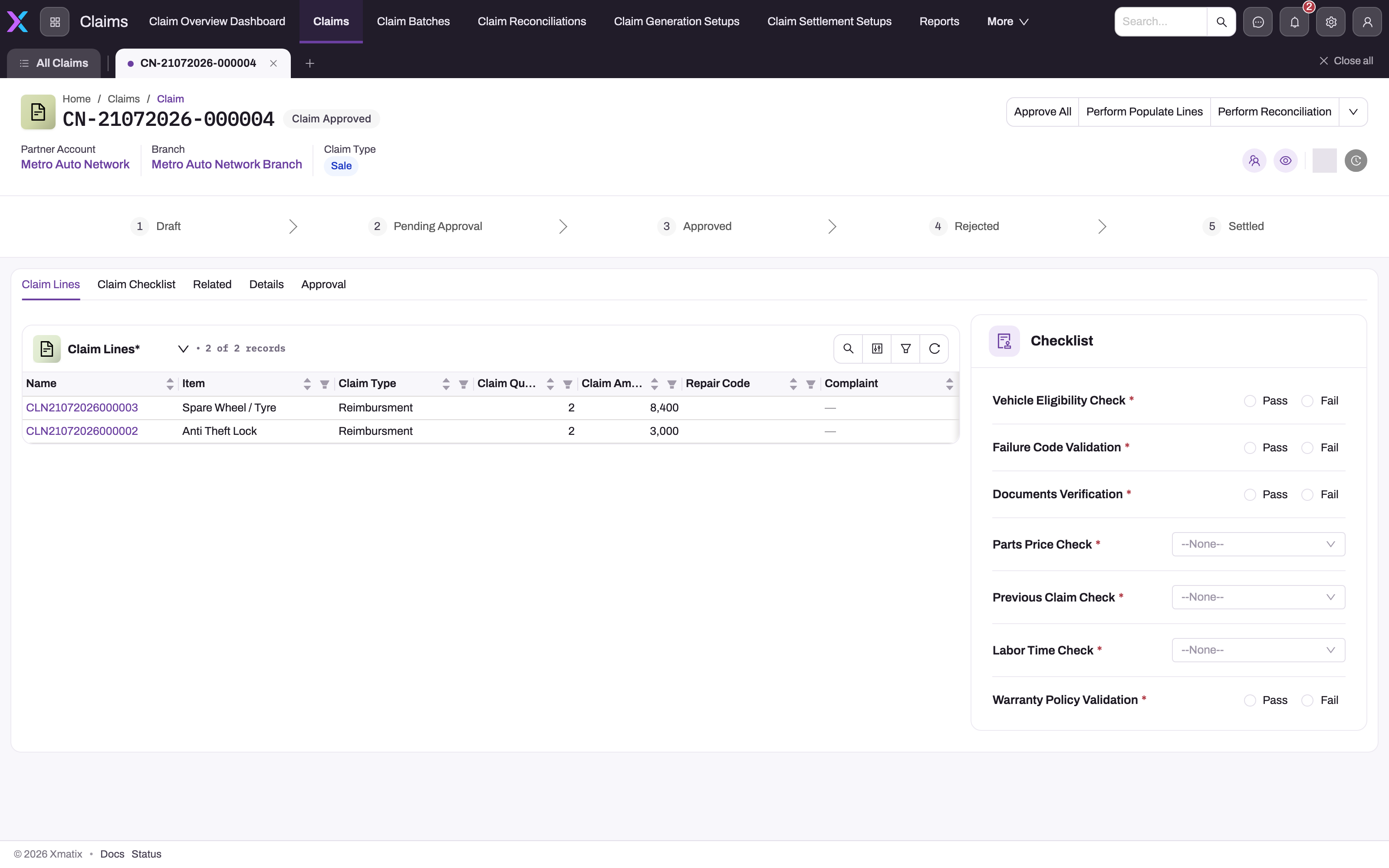
The shipped record page shows the following:
- Header: the claim number, Partner Account, Branch and Claim Type, with the buttons Perform Reconciliation, Approve All and Edit. Delete is under the arrow.
- Status timeline: Draft, Pending Approval, Approved, Rejected, Settled, read from the Status field.
- Claim Lines: the lines, with New, and row actions Edit, Delete and Open Checklist.
- Claim Checklist: the paper-check prompts described in Step 4.
- Related: Adjustments, Credit Notes and Invoices linked to the claim. These lists are empty until a settlement or reconciliation creates one.
- Details:
- Key Information shows Partner Account and Branch (read-only), Supplier Account, Claim Type, Status, Service Order and Claim Batch.
- System Information shows Created By, Created Date, Modified By and Modified Date.
- Attachments: files attached to the claim.
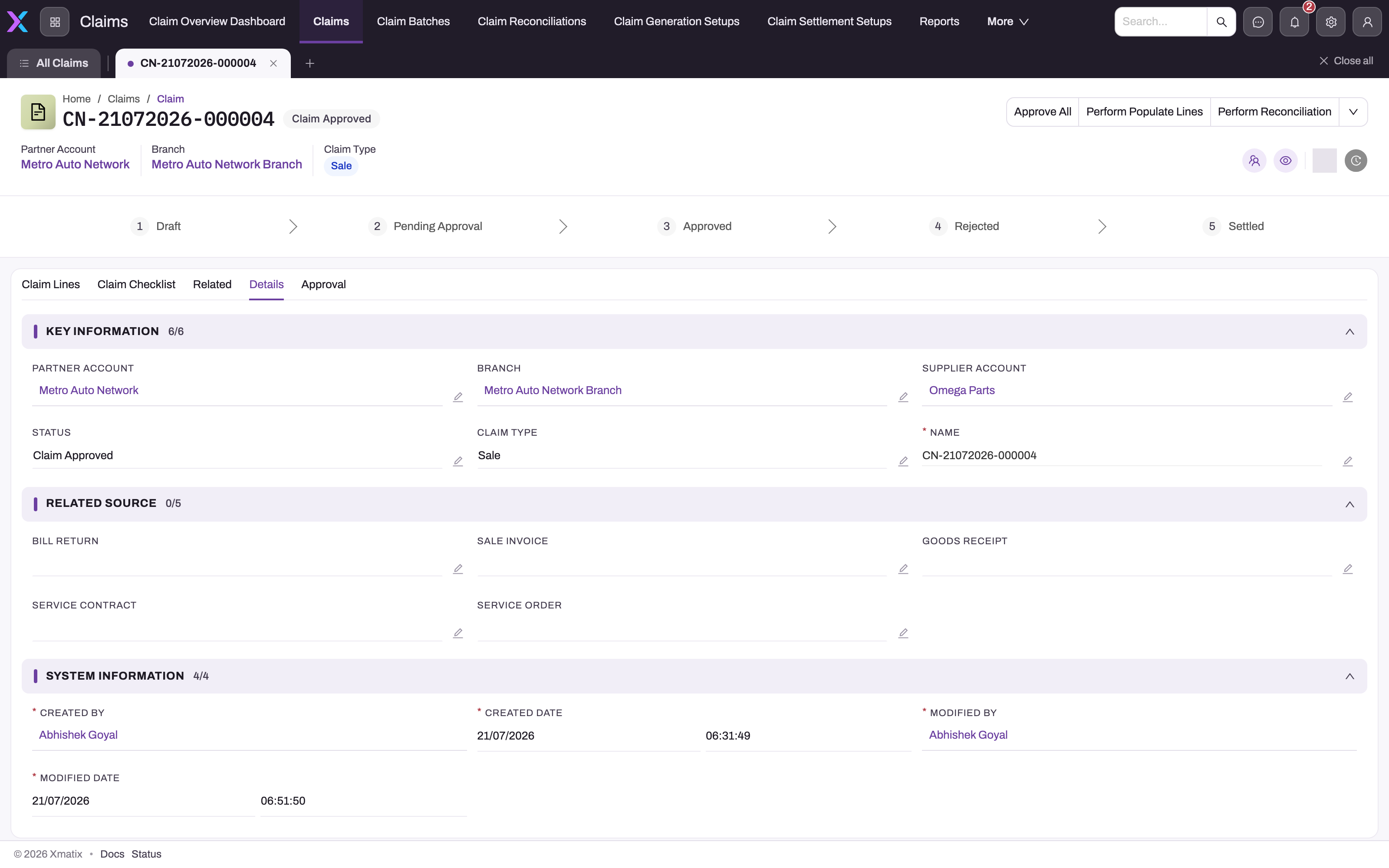
The screenshots come from an organization that customised its claim layout, so their buttons and sections differ from the shipped page described above.
Fields on the Details tab can be changed in place with their pencil icon. Edit reopens the create form. Changing Status by hand does not approve, reject or settle anything: settlement reacts only to an approval decision.
Read a claim line
Select a line's number in the Claim Lines list to open the line's own page. Its header has Clone, Edit and Delete, and its fields can also be changed in place. The Details tab groups the line into sections:
- Information: Item, Unit Price and three reconciliation tick boxes (see the field table below).
- Claim Information: Claim, Claim Quantity, Claim Type, Claim Amount, Claim Batch and Claim Batch Line.
- Claim Reconciliation: Approve Quantity and Approve Amount, Reject Quantity and Reject Amount.
- Amount Details: the base, discount and net amounts for the claimed, approved and rejected parts, plus Total Amount.
- Related Documents: the goods receipt and line, sale invoice line, purchase return line, scheme ledger entry, service contract, service order and service order line the line came from.
- System Information: who created and last changed the line, and when.
The Related tab lists the adjustment lines that were raised from this claim line. Clone copies the line onto the same claim with its quantities, prices and source links. A copied service line counts a second time against its service order line's claimed quantity, so make sure you really want a second line before you clone one.
Actions on a claim
| Action | Shipped page | What it does when it runs |
|---|---|---|
| Edit, Delete | Header | Standard record maintenance |
| Approve All | Header, but runs nothing | Applies the claim's Approve All and Reject All flags to every line. With Approve All set, it copies Claim Quantity into Approve Quantity and zeroes Reject Quantity. With only Reject All set, it does the reverse. The flags decide what happens, not the button pressed. Neither flag is on the shipped forms. It writes quantities only, never the claim's status. |
| Perform Reconciliation | Header, but runs nothing | Raises a sale invoice on the Supplier Account from the lines of type Reimbursment (or service lines with no type) that have an approved quantity, then ticks Reconciled. It skips a claim that is already reconciled, already has an invoice, or has no Supplier Account. Its stock-adjustment leg looks for a different spelling of the line type than the picklist offers (Part To Part), so it creates no adjustment. |
| Perform Populate Lines | Not on the page | Builds lines by claim type. Service: the claimable lines of the named Service Order, limited to the claim's invoice group and service contract. With no service order, it sweeps the branch's invoiced or delivered service orders up to the claim's As On Date. Purchase, Damaged, Shortage and Excess: unclaimed supplier-return lines of the branch, dated up to the claim's As On Date. Purchase takes any return type; the others only returns of their own type. Sale and every other type: nothing. Source lines are marked as claimed, so a rerun does not duplicate them. |
| Reject All | Not on the page | Same routine as Approve All |
Approve All, Perform Reconciliation, Perform Populate Lines and Reject All are shipped as UI actions with no dialog. In that form, clicking them does nothing, and they cannot be called through the API either. An administrator who wants them must change their type (see Configuration). Even then, two limits remain:
- The As On Date that return-based population depends on is not on the shipped forms.
- The Bill Return link on the form is not what population reads.
So on the shipped screens, return-based claims are filled with New lines or by a generation setup.
Fields
Claim
| Field | What it means | Notes |
|---|---|---|
| Name | Claim number | Assigned on save from the Claim numbering setting (default series CN, date, six-digit number) |
| Document Date | Date of the claim | Free entry. Claims created from a service order get the day of creation. |
| Partner Account | The company (dealer or distributor) raising the claim | Read-only on the record page. Hidden for an organization with one company. Copied to the settlement document. |
| Branch | The branch raising the claim | Read-only on the record page. Hidden for an organization with one location. Line population only looks at this branch's documents. |
| Supplier Account | The supplier, manufacturer or principal the claim is made against | The settlement credit note or invoice is booked to this account. Settlement refuses a claim without it. Service-order claims take the contract's billing account. |
| Claim Type | The kind of claim | Create form: Scheme, Damaged, Sale, Service, Purchase, Shortage, Excess, Expense, Transport, Warranty, Part To Part. The Details tab offers the same list without Expense and Warranty. Must equal a settlement setup's Claim Type exactly. |
| Status | Where the claim is in its life | Draft (default), Pending Approval, Approved, Rejected, Settled. Approval values are written by the approval process, and Settled by settlement. |
| Service Order | The service order a Service claim covers | Read by line population |
| Claim Batch | The batch the claim was placed in | Written by the batching job |
| Goods Receipt, Service Contract, Bill Return, Sale Invoice | Optional links on the create form's Related tab | Reference only, except that Service Contract limits Service line population |
| Perform Populate Lines, Perform Reconciliation | Request boxes on the create form | Saving with them ticked runs nothing |
| Reconciled | Ticked when Perform Reconciliation has run | Records that the routine ran, not that the supplier paid |
| Total Amount and the other totals | Header totals | Not calculated from lines. Filled only by a generation setup's mapping. A filled Total Approved Amount becomes the settlement document's amount. |
Claim line
| Field | What it means | Notes |
|---|---|---|
| Name | Line number | Assigned on save from the Claim Line numbering setting (default series CLN, date, six-digit number) |
| Claim | The claim the line belongs to | Filled when you add the line from the claim |
| Claim Type | The line's own type | Damaged, Part To Part, Reimbursment, Shortage. Service lines are created as Reimbursment; lines built from supplier returns have no type; generation-setup lines take the setup's claim type. |
| Item | What is claimed | Selects the checklist template for Open Checklist, and becomes the item on the settlement document. On a service line shared with another service contract, it is that contract's charge item. |
| Claim Quantity | Quantity claimed | Defaults to 0 and must be greater than zero |
| Unit Price | Price per unit | Must be greater than zero. Settlement pays approved quantities at this price. |
| Claim Amount | Claimed value | Read-only. Calculated: Claim Quantity × Unit Price, less discount. |
| Approve Quantity | Quantity accepted | Defaults to 0 and cannot be negative. Only this quantity settles. |
| Approve Amount | Approved value | Read-only. Calculated: Approve Quantity × Unit Price, less the approve discount. |
| Reject Quantity | Quantity refused | Defaults to 0 and cannot be negative. Never paid out. |
| Reject Amount | Refused value | Read-only. For information only. |
| Discount Amount, Approve Discount Amount, Reject Discount Amount | Discounts on the claimed, approved and rejected parts | They lower the line's calculated amounts, but settlement does not deduct them (see Business rules). Approve Discount Amount is required on the form; enter 0 if there is none. |
| Total Amount | A spare amount | Not calculated or read by xMatix |
| Service Order, Service Order Line, Service Contract | The service work being claimed | Filled on lines created from a service order |
| Goods Receipt, Goods Receipt Line, Sale Invoice Line, Bill Return Line, Scheme Ledger | Source links | Reference only. Some generation setups fill them; you can also set them by hand. Population from supplier returns does not fill Bill Return Line. |
| Claim Batch, Claim Batch Line | Batch links | Written by the batching job |
| Reconciliation tick boxes | Three boxes in the line's Information section | Only one of them is ever set, on lines of a claim batch whose reconciliation has run, so you can ignore all three. Use the claim's Reconciled box instead. |
The full list of line fields, including those not on the shipped forms, is in the Claim Line reference.
Business rules
- Numbering. Claims are named from the Claim numbering setting when they are saved.
- Line validation. Claim lines have four checks:
- A Claim Quantity of zero or less is refused with "Claim Quantity cannot be Negative".
- A Unit Price of zero or less is refused with "Unit Price cannot be Negative".
- A negative Approve Quantity or Reject Quantity is refused, with "Approved Quantity cannot be Negative" or "Rejected Quantity Cannot be Negative".
- Line amounts. Each save recalculates Claim Amount, Approve Amount and Reject Amount from the quantities, Unit Price and the matching discount. Those amounts are for reading. Settlement and claim reconciliation price every approved line at Unit Price × Approve Quantity and do not deduct the line's discounts. Settlement ignores them completely. A reconciliation invoice copies only the approve discounts to its lines.
- Service-order lines. A service order line whose value is shared with other service contracts is claimed in parts. The line for its own contract carries the full Unit Price with a discount for the share the other contracts pay. Each other contract gets a quantity-1 line for its charge item, holding that contract's whole share as the Unit Price. Saving, changing or deleting a claim line recalculates the claimed quantity on its service order line from the claim lines for that line's own item.
- No roll-up. Header totals are never calculated from the lines. Settlement works from the lines unless Total Approved Amount was filled by a mapping, in which case that figure is the document's amount.
- Service-order claims. Invoicing a service order creates one Service claim per invoice group and service contract. Only lines whose posting type is Auto Generate Claims are included. Claimed quantities are written back to the service-order line, so the same work cannot be claimed twice. A service-order line is marked claimed only when its whole claimable quantity has been claimed.
- Part To Part lines. On a line of type Part To Part, each change to Approve Quantity adds a line to the claim's approved part delivery order on the Supplier Account. Each change to Reject Quantity adds a line to its rejected part delivery order. The delivery order is created on the first change. Every later change adds another line with the new full quantity, so set these quantities once.
- Approval drives settlement. Only an approval decision of Approved queues settlement. Editing Status by hand does not.
- Settled is final for settlement. A claim that already has its settlement credit note is never settled again.
Example
A dealer, Lakeview Motors, replaces two faulty fuel pumps under warranty and claims them from the manufacturer, Norden Motor Works. Here is how the claim goes through xMatix:
- A service advisor creates claim CN-14102026-000012:
- Partner Account is Lakeview Motors, with its main branch.
- Supplier Account is Norden Motor Works.
- Claim Type is Warranty.
- On Claim Lines, they add one line:
- Claim Type Reimbursment
- Item Fuel pump assembly
- Claim Quantity 2
- Unit Price 4,200
The Claim Amount shows 8,400.
- The warranty reviewer opens Open Checklist on the line and answers the item's Claim checklist. Then they enter Approve Quantity 2 and select Approve.
- The organization's claim approval process submits the claim automatically on save. The service manager approves it, and Status becomes Approved.
- The active settlement setup for Warranty settles by Credit Note. The Settle claim job creates a Draft credit note of 8,400 on Norden Motor Works, and the claim's Status becomes Settled.
- The credit note now appears under Related → Credit Notes on the claim. The accounts team opens it and selects Post General Ledger.
Training
Practice exercise
In a sandbox with the Claims licence, a claim approval process and an active settlement setup for one claim type that settles by credit note in simulate mode:
- Create a claim of that type for any partner, branch and supplier.
- Add two lines: 5 units at 100 and 3 units at 50.
- Set Approve Quantity to 5 on the first line. On the second line, set Approve Quantity to 1 and Reject Quantity to 2.
- Submit and approve the claim.
Expected result: the Settle claim run on the Jobs screen reports a credit note of 550 (5 × 100 + 1 × 50) that it would have created. Because the setup is in simulate mode, nothing is created and the claim stays Approved. Now turn simulate mode off, repeat steps 1–4 with a second claim, and confirm that its credit note of 550 appears under Related and that the claim shows Settled.
Quick reference
- The Supplier Account is who pays. Settlement refuses a claim without one.
- Only Approve Quantity × Unit Price settles. Rejected quantities never do.
- Claim Quantity and Unit Price must be above zero.
- Open Checklist needs a Claim checklist template for the line's item.
- Changing Status by hand triggers nothing. Only an approval decision of Approved starts settlement.
- Settlement needs an active Claim Settlement Setup whose Claim Type matches exactly.
- Per Batch claim types wait for a batch and Settle Batch.
- Total Amount is not added up from the lines.
- Line discounts lower Claim Amount, not the settlement: it pays Unit Price × Approve Quantity.
- Follow settlement on Setup → Platform → Monitoring → Jobs.
Batches
A claim batch gathers many claims of one claim type so that they settle as one credit note or invoice instead of one document per claim. A typical batch is the warranty or scheme claims a dealer sends to one manufacturer. Batching applies only to claim types whose active settlement setup has Settlement Grouping set to PerBatch. The list's Per Batch (consolidated) value is not recognised and settles per claim. For those types, an approval decision does not settle the claim on its own; the claim waits for a batch.
How claims get into a batch
Batches are built by the Batch claims for settlement job. It works through each active Per Batch settlement setup, or through one setup when started for it. It looks for claims of that type that:
- are in no batch;
- have no credit note yet;
- pass the setup's Batch Filter.
The default filter is Status == "Approved". The filter matches the status text exactly, so your approval process has to write exactly Approved, or the filter has to be changed to match what the process writes. A batch filter can also deliberately pick claims before approval, for a consignment the manufacturer reviews after it is sent; settlement still waits for each claim's approved quantities. Claims whose value is zero are left out.
The job groups the claims by Batch Grouping Fields (by default partner account, branch and supplier account). When Batch Period is Month, it also groups by calendar month. For each group it either creates a new batch in Draft, or tops up an existing Draft, unreconciled batch for the same partner, branch and supplier. A monthly batch is never topped up. A group whose claims carry no supplier account is skipped with a message in the run summary. Each group is saved on its own, so one failing group does not undo the others.
For every claim it places, the job writes three things at once:
- a claim batch line, one row per claim, linking that claim to the batch;
- the claim's own Claim Batch field, which keeps it out of later runs;
- Claim Batch and Claim Batch Line on each of the claim's lines.
It also adds the claims' value to the batch's Total Approved Amount and Total Approved Quantity. Those are the approved figures where lines are already approved, and the claimed figures otherwise. It then ticks Claim Line Populated.
The job never settles anything. When the setup is in Simulate Mode, the job only reports how many claims would go into how many batches, and creates nothing.
Claim batch lines are bookkeeping only. They carry no amounts, no shipped screen lists them, and settlement does not read them. A batch's members are the claims whose Claim Batch field points at it, so adding or deleting a batch line by hand changes nothing about what the batch settles.
Run the batching job
- Open Setup → Platform → Monitoring → Jobs. On the Schedules tab, add a schedule for Batch claims for settlement (listed under Claims), for example nightly after your claims have been approved. The job needs the Claims licence.
- To run it immediately, use Run now on the schedule's row. Runs for one organization never overlap.
- Open the run and read its summary. It has one part per claim type, showing:
- how many claims went into how many new batches;
- how many existing batches were topped up;
- any group that was skipped or failed, and why.
Review a batch
Open Claims → Claim Batches and select the batch. The header shows:
- the batch number;
- the Settle Batch, Edit and Delete buttons;
- Supplier Account, Partner Account, Branch, Total Approved Amount, Created By, Created Date and Claim Line Populated.
The tabs below are:
| Tab | What it lists |
|---|---|
| Claim Lines | The lines of the claims in the batch: item, claim amount, claim, claim type and unit price |
| Adjustments | Inventory adjustments. The shipped tab is not tied to the batch, so it lists adjustments from across the organization, not just those linked to this batch. An administrator can scope it to the batch in the layout designer. |
| Invoices | The settlement invoice, when the setup settles by invoice |
A settlement credit note is linked to the batch but has no tab of its own on the batch page. Find it among the supplier's credit notes.
Approval happens on each claim, not on the batch. The batch's own Approve All and Reject All fields are not used.
| Field | What it means |
|---|---|
| Name | Batch number from the Claim Batch numbering setting (default series CBT, the date and a six-digit running number) |
| Partner Account, Branch | The company and branch the claims belong to, copied to the settlement document. Hidden for an organization that runs one company or one location. |
| Supplier Account | The supplier or manufacturer the batch is claimed from, and the party of the settlement credit note or invoice. Required to settle. |
| Status | Draft when built, Settled after Settle Batch creates the document. Only a Draft batch is topped up by later runs. The shipped Status picklist lists only Draft (and a stray value named Status); Settled is written by the system. Add Settled as a picklist value if you want to filter lists on it. |
| Total Approved Amount, Total Approved Quantity | Claimed figures until the claims are approved, replaced with the approved figures at settlement. Zero or a negative value is refused. |
| Document Date | The day the job created the batch |
| Claim Line Populated | Ticked once the claims' lines carry this batch |
| Remarks | Free text |
Edit on the batch opens a form with Partner Account, Branch and Supplier Account at the top, an Information tab (the Perform Populate Claim Lines, Claim Line Populated, Reconciled and Perform Reconciliation boxes, and Remarks) and an Amounts tab (Total Approved Quantity and Total Approved Amount). Before you change anything, know what each change does:
- Supplier Account is read when Settle Batch runs, so correcting it on a Draft batch changes the party of the settlement document.
- Partner Account, Branch and Supplier Account are also what the batching job matches to top up a Draft batch. After you change them, claims of the old combination go into a new batch.
- Total Approved Amount and Total Approved Quantity are overwritten at settlement with the approved figures, so typing in them changes nothing that is paid.
- The four boxes on the Information tab have no effect when you save. Leave them alone.
New on the Claim Batches list creates an empty batch. Partner Account must be filled and active. The shipped screens offer no way to add claims to an empty batch, and Settle Batch on it reports that the batch has no claims. Let the job build batches.
Settle a batch
Select Settle Batch on the batch. The action queues a Settle claim job for the whole batch and returns straight away; read the outcome on the Jobs screen. The job:
- Uses the active settlement setup for the claim type of the batch's claims. With no setup, or with Settlement Document None, it creates nothing. Any other document is refused, because only credit notes and invoices can be consolidated.
- Treats a claim as approved when at least one of its lines has an approved quantity. If no claim is approved yet, it creates nothing.
- Stops without creating anything while any claim in the batch is still unapproved, and lists the first of them in the run summary. An allow-partial option settles the approved claims and releases the rest from the batch, so a later batching run can pick them up. The Settle Batch button does not send this option.
- In Simulate Mode, reports the document and amount it would create, and stops.
- Otherwise creates one credit note or invoice on the batch's supplier account, with one line per approved claim line priced at Unit Price × Approve Quantity. Then:
- The document is shaped by the setup's header and line mappings.
- A credit note is created as Draft, even with Auto GL Posting on; post it with Post General Ledger.
- The batch totals are replaced with the approved figures.
- Every settled claim, and the batch, becomes Settled.
- A credit note is applied to open invoices when the setup's Apply To Open Invoices is on.
Selecting Settle Batch again is safe. Once a document exists for the batch, the job reports "Batch already settled" and creates nothing. Repeated clicks within the same minute collapse into one run.
Claim reconciliations
A claim reconciliation is a manual record of what a supplier or principal actually credited, kept next to the claims it relates to. Use it when you want to note a credit received and how much of it you have matched. It works only as a register: settlement, approval and the claim's Perform Reconciliation action never read it or change it, and it never changes a claim. Everything on it is typed in by hand.
Record a reconciliation
- Open the Claims app and select Claim Reconciliations. The list opens with the All Claim Reconciliation view.
- Select New. The form asks for Partner Account, Branch, Supplier, Document Date, Reconciled Amount and Credit Note Amount. None of them is required. If your organization runs one company or one location, Partner Account or Branch is hidden.
- Enter the credit received in Credit Note Amount and the part you have matched so far in Reconciled Amount. Leave either one empty, or enter an amount above zero. Zero is refused.
- Save. The record is numbered from the RN series, followed by the date and a six-digit running number.
Read and change a reconciliation
The record page header shows the number, with Partner Account, Branch and Supplier as header figures, and the buttons Edit and Delete. Below it are two tabs:
- Reconciliation Lines lists reconciliation lines with Name, Claim, Item, Approved Amount, Rejected Amount and Remarks, and has a New button. The tab lists the lines of every reconciliation, not only this one, so check the Name and Claim columns. Before anyone can add a line, an administrator has to make lines nameable (see Common problems).
- Related lists the inventory adjustments whose Claim Reconciliation field names this record.
The record page shows no amounts or date. To see or change Document Date, Credit Note Amount or Reconciled Amount, select Edit. The same form as New opens. Nothing recalculates Reconciled Amount, so update it by hand as you match more credit.
Status is on neither form and has no shipped values. An administrator who wants to track progress adds values to the Status picklist and places the field on the form.
A payment that is linked to a claim reconciliation is never treated as an advance. No shipped payment form shows that link, so it is set only by an import or an integration.
Permissions
| What | Who can do it |
|---|---|
| Open the Claims app and its records | Users whose organization and profile have the Claims licence |
| See, create, edit and delete claims and claim lines | Users whose security profile grants those permissions on Claim and Claim Line. The shipped System Admin, Sales Manager, Sales Executive, Standard User, Sales and Service profiles grant full access to both. |
| Approve All | Granted on the Actions tab of the shipped System Admin, Sales Manager, Sales Executive and Standard User profiles |
| Perform Populate Lines, Perform Reconciliation, Reject All | Granted to System Admin, Sales Manager and Standard User. These grants take effect only once an administrator turns the actions into server actions. |
| Settle Batch | Granted to System Admin, Sales Manager and Standard User |
| See, create, edit and delete claim reconciliations | Users whose security profile grants those permissions on Claim Reconciliation. The shipped System Admin, Sales Manager, Sales Executive, Standard User, Sales and Service profiles grant full access. |
| Approve or reject the claim | The approvers named in your claim approval process |
A user without access to Claim does not see the Claims list. A user without an action grant is refused when the action runs.
Configuration
- Approval process. None is shipped. Create one for the Claim entity under Setup → Process Studio → Approvals (see Approvals). In it:
- Set the submission field update (for example Status = Pending Approval).
- Set the final field updates for approval and rejection. Write exactly Approved and Rejected so the status timeline, the batching filter and reports match.
- Decide how claims are submitted: auto-submit on create or update, a business rule, or an approval panel added to the claim's layout.
- Claim settlement setups (Claims → Claim Settlement Setups). Create one active setup per claim type you settle. It decides the settlement document (CreditNote, Invoice or None), the header and line mappings, posting, application to open invoices, the settlement event, and per-claim or PerBatch settlement. Keep Simulate Mode on until the reported documents agree with an independent calculation. Every field, the values that do not work as shipped, and how to settle a claim by hand are on Claim settlement setups.
- Claim generation setups (Claims → Claim Generation Setups). These create claims from source records on a schedule. Each setup has a schedule group and a run order. Active decides whether it joins scheduled runs, and Simulate Mode decides whether a run writes claims or only reports them. See Authoring a claim generation setup.
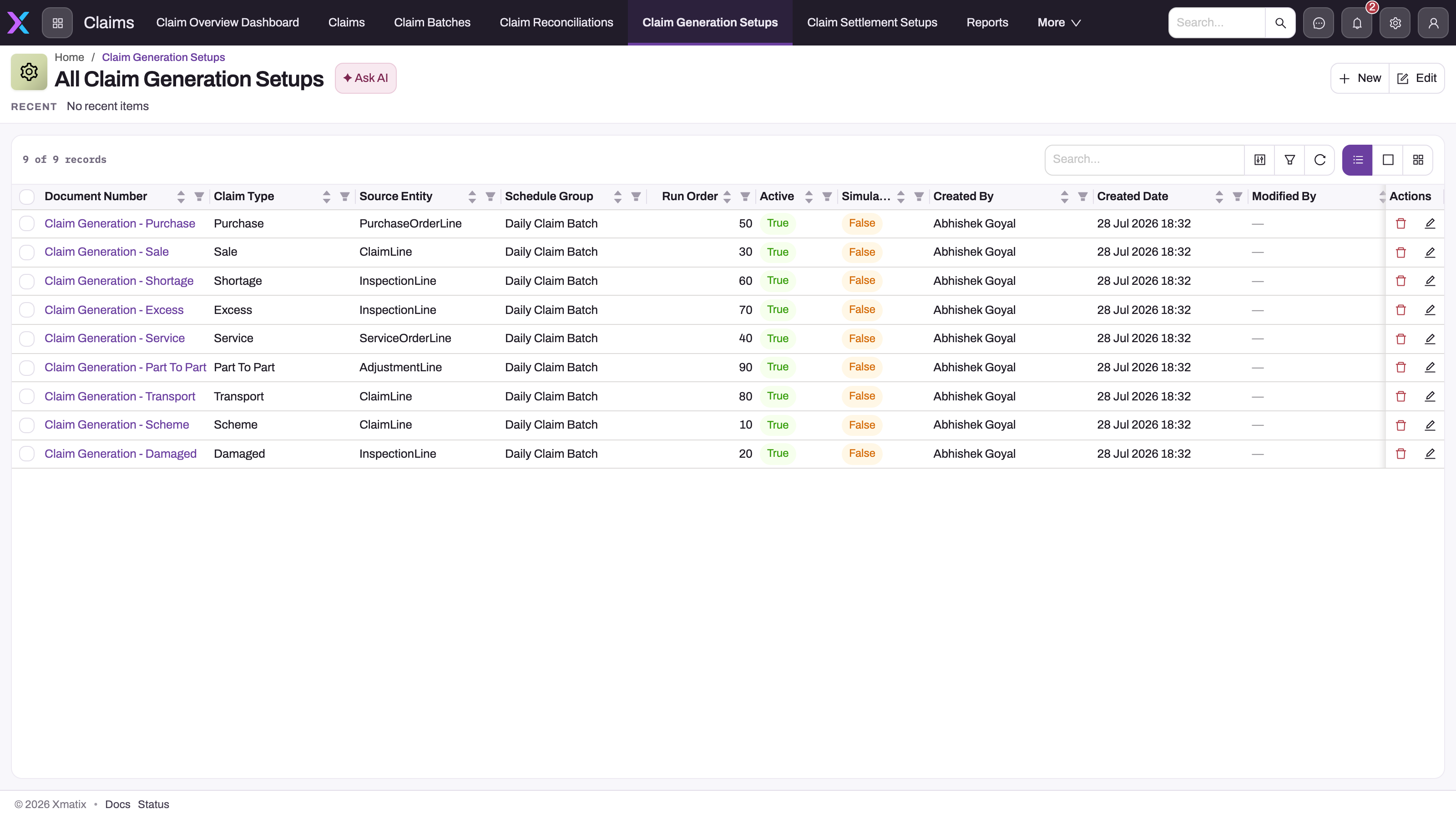
- Batching schedule. Schedule Batch claims for settlement on the Jobs screen's Schedules tab (see Run the batching job).
- Checklist templates. For Open Checklist, create a checklist template with Type Claim and the Item it applies to, and add its questions as template lines. The newest template for the item is used. See Checklists for how templates are built.
- Numbering. The claim number comes from the Claim document name setting: series CN, date as day-month-year, separator "-", six digits. Change it in the entity's document settings (Design Studio → Entities → Claim → Logic → Document Settings).
- Claim types. The Claim Type picklist is edited in the entity's picklist values. A new type needs a matching Claim Settlement Setup before its claims can settle. The Details tab's Claim Type list is fixed in the layout, so add the value there too.
- Header buttons. Approve All, Perform Reconciliation, Perform Populate Lines and Reject All are shipped as UI actions that do nothing. To make one run, open Design Studio → Entities → Claim → Logic → Actions and change the action's type to Server Action, keeping its name. Then list it in the record page header in the layout designer. See Entity behavior.
- Service-order claims. The Auto Generate Claims posting type on service-order lines and service contracts decides which work becomes a claim on invoicing. See Service claims.
Common problems
Clicking Approve All or Perform Reconciliation does nothing
Cause: these buttons are shipped as UI actions with no dialog, so they run nothing.
Fix: set the quantities with Open Checklist or by editing each line. An administrator can turn the actions into server actions (see Configuration).
There is no Perform Populate Lines button, and ticking the box does nothing
Cause: the action is not on the shipped record page, and the box on the form is only a request flag.
Fix: add lines with New on the Claim Lines tab, use a generation setup, or have an administrator enable the action.
Open Checklist says "No checklist defined for this item."
Cause: no checklist template of type Claim exists for the line's item.
Fix: create one, or edit the line and enter the quantities directly.
The checklist shows "Required answers missing", "Enter an approve quantity" or "Approve quantity cannot exceed claim quantity"
Cause: a required question has no answer, the quantity is empty or zero, or it is larger than the line's Claim Quantity.
Fix: answer every question marked *, then enter a quantity between 1 and the claim quantity.
Saving a claim line fails with "Claim Quantity cannot be Negative" or "Unit Price cannot be Negative"
Cause: these checks also refuse zero.
Fix: enter a quantity and a price greater than zero.
Adding a reconciliation line fails with "Name is required"
Cause: reconciliation lines have no numbering setting, and the shipped New form has no Name field, so every new line is refused.
Fix: an administrator adds a document name setting for Claim Reconciliation Line (Design Studio → Entities → Claim Reconciliation Line → Logic → Document Settings), or adds the Name field to the line's create layout.
A reconciliation line is refused with "Claim Quantity Cannot be Negative", "Approved Quantity cannot be Negative" or "Rejected Quantity cannot be Negative"
Cause: these checks refuse zero as well as negative values, and an empty quantity on a new line is saved as 0. So a new line needs all three quantities.
Fix: enter at least 1 in Claim Quantity, Approve Quantity and Reject Quantity. Leave Unit Price empty or enter a price above zero.
A claim reconciliation is refused with "Credit Note Amount cannot be Negative" or "Reconciled Amount cannot be Negative"
Cause: both checks refuse zero as well as negative amounts.
Fix: leave the amount empty until there is something to record, or enter an amount above zero.
The claim is approved but nothing was settled
Check these in order:
- The approval decision was Approved. A Status edited by hand triggers nothing.
- An active Claim Settlement Setup exists whose Claim Type equals the claim's type exactly. Otherwise the run says "No settlement setup for claim type … — nothing to do."
- The setup is not in Simulate Mode and its document is not None.
- The type is not Per Batch. Per Batch claims wait for Settle Batch.
- The claim has a Supplier Account. Otherwise the run says the claim "has no supplier / OEM … Set the supplier and settle again". Set it, then select Retry on the failed run.
The settlement amount differs from the approved lines
Cause: the claim's Total Approved Amount was filled, usually by a generation setup's header mapping. When it is filled, it becomes the document's amount, while the document lines still use the approved line values.
Fix: clear or correct the mapping so the header amount matches the lines.
The settlement is higher than the lines' Claim Amount
Cause: settlement pays Unit Price × Approve Quantity for each approved line and does not deduct line discounts. A line with a discount therefore settles at its undiscounted value. That includes a service line whose value is shared with other service contracts, where the discount is the other contracts' share. The same applies to claims from the Scheme Claim (Invoice) setup that Seed the default claim generation setups creates. That setup copies the invoice line's quantity and price and puts the scheme amount in Approve Discount Amount, so such a claim would settle at the invoice value.
Fix: before approving, make Unit Price × Approve Quantity equal the amount to be paid. Lower the Unit Price, or approve a smaller quantity. For a generation setup, change its Line Mapping so the price carries the amount, for example "UnitPrice": "@amount" with "ClaimQuantity": "@const:1". See Claim generation setups.
Saving a claim line asks for Approve Discount Amount
Cause: the New and Edit form for claim lines marks Approve Discount Amount as required. Lines created automatically leave it empty, so the form asks for it the first time you edit one.
Fix: enter 0 if there is no discount on the approved part, and save.
A Part To Part line created several delivery-order lines
Cause: every change to its Approve Quantity or Reject Quantity adds a delivery-order line.
Fix: remove the extra lines from the delivery order, and set those quantities once.
The job ran but no batch appeared
Check the following:
- the setup's Simulate Mode;
- that its Settlement Grouping is PerBatch (not Per Batch (consolidated));
- that the Batch Filter matches the status your approval process writes;
- the run summary for skipped groups. A claim with no supplier account cannot be batched.
A deleted batch's claims never come back
Cause: deleting a batch does not clear the claims' Claim Batch field, so the batching job keeps skipping them.
Fix: settle or keep the batch rather than deleting it.
Common questions
What happens when a claim is only partly approved?
It settles partly. The credit note, invoice or adjustment is built only from lines with an approved quantity, each priced at Unit Price × Approve Quantity. If a line claimed 10 units and 6 were approved, the document carries 6 units, and the 4 rejected units never become a payout. Lines with no approved quantity are left off the document entirely. The claim still becomes Settled as a whole: there is no "partly settled" status, and the rejected remainder cannot be settled later from the same claim. If the supplier later accepts more, raise a new claim for the extra quantity.
Who receives the credit note, the dealer or the manufacturer?
The account in the claim's Supplier Account field: the manufacturer, principal or supplier who owes the money. The Partner Account is the company raising the claim and is copied onto the document for reference, but the document is booked to the supplier. When Apply To Open Invoices is on, the credit note is applied only against that supplier's own open invoices, never against other customers' invoices. A claim without a Supplier Account is refused at settlement, so set it before approval. Claims created from a service order take the service contract's billing account.
Can the same work or source records be claimed twice?
Not through xMatix's own paths. When service-order work is claimed, the claimed quantity is written back to the service-order line, and a line is marked claimed once its whole claimable quantity is on a claim. Line population skips source lines already marked claimed. Generation setups skip any group whose claim type, group key and month already produced a claim. Settlement never creates a second credit note for a claim that already has one. Lines you type by hand are not checked against anything, so search for an existing claim before entering one manually.
What is the Purchase Return Line field on a claim line?
Leave it empty. On a claim line's Details tab, the Related Documents panel shows a Purchase Return Line lookup, but nothing in xMatix creates purchase return lines, so there is normally nothing to pick. A return to a supplier is recorded as a bill return, and population for Purchase, Damaged, Shortage and Excess claims reads the supplier-return lines of the claim's branch directly. To see what was returned, open the bill return itself. The bill line's Returned Quantity shows how much of that line has gone back to the supplier.
What is a claim batch line, and do I ever edit one?
A claim batch line is the row the batching job writes to record that one claim was placed in one batch. It holds only the batch, the claim and a number from the CBTL series, never an amount. You do not need to touch it: no shipped screen lists batch lines, and settlement reads the claim's own Claim Batch field instead. Adding or deleting a batch line by hand therefore does not add a claim to a batch or remove one from it. The only time batch lines change on their own is an allow-partial settlement, which deletes the lines of the claims it releases.
What does the Claim Reconciliations register do?
It is a separate, manually maintained register in the Claims app (see Claim reconciliations for how to record one). Neither the settlement job nor the claim's Perform Reconciliation action creates Claim Reconciliation records. Perform Reconciliation is an older adjustment-plus-invoice routine, and it is unrelated to settlement. Use settlement setups for new processes.
Everything in the register is typed in by hand: the credit note amount, the reconciled amount and each reconciliation line's quantities and amounts. Nothing totals the lines into the header, and a line never changes the claim or claim line it names. A line's Reclaim status does not raise a new claim. The record's Reconciliation Lines tab lists the reconciliation lines of every reconciliation, not only its own, so check the Name and Claim columns. Adjustments appear on the Related tab only when someone picks the reconciliation in an adjustment's Claim Reconciliation field.
Related topics
- Authoring a claim generation setup
- Claim settlement setups
- Service claims
- Approvals
- Checklists
- Bills
- Trade schemes
- Invoicing and payments
- Claim reference, Claim Line reference, Claim Batch reference, Claim Batch Line reference, Claim Reconciliation reference, Claim Reconciliation Line reference and Purchase Return Line reference
- xMatix Sales overview