
A service-order checklist is the structured inspection record of the job: what was checked, what was found, in what condition. Checklists are template-driven. An administrator authors a checklist template once, and the Checklist action on a service order copies that template's questions onto the order as checklist line records for the technician to complete. The template's Type decides which documents it is copied onto. How templates are built, and every other screen that uses them, is covered in Checklist templates.
Prerequisites
- At least one checklist template whose Type is exactly Service Order, with template lines. The action does nothing without one.
- The Service Order value in the template Type picklist. The server compares the type text exactly. The delivered picklist offers Claim, Competitor Capture, Health Check, Inspection, Merchandising Audit, New Outlet Registration, Product Demo and Window Display Onboarding, so an administrator adds Service Order through the field's picklist values before a template can be authored for service orders.
- The Checklist action in the service order's page header. The delivered service order layout does not include it. An administrator adds it in the layout designer.
- To author templates, access to the Field Sales Setup app, where the Checklist Templates list lives. To complete checklists, only the service order and its checklist lines are needed.
Procedure
Start in the Checklist Templates list (Field Sales Setup app → Checklist Templates, or /ChecklistTemplate). The register shows each template's name, type, partner account, item, effective dates and active flag. Filter by Type before editing, so that a template of another type is not mistaken for the Service Order template you intend to populate. Open a row from the Name column to inspect its saved lines; presence in the list does not prove the template contains usable checks.
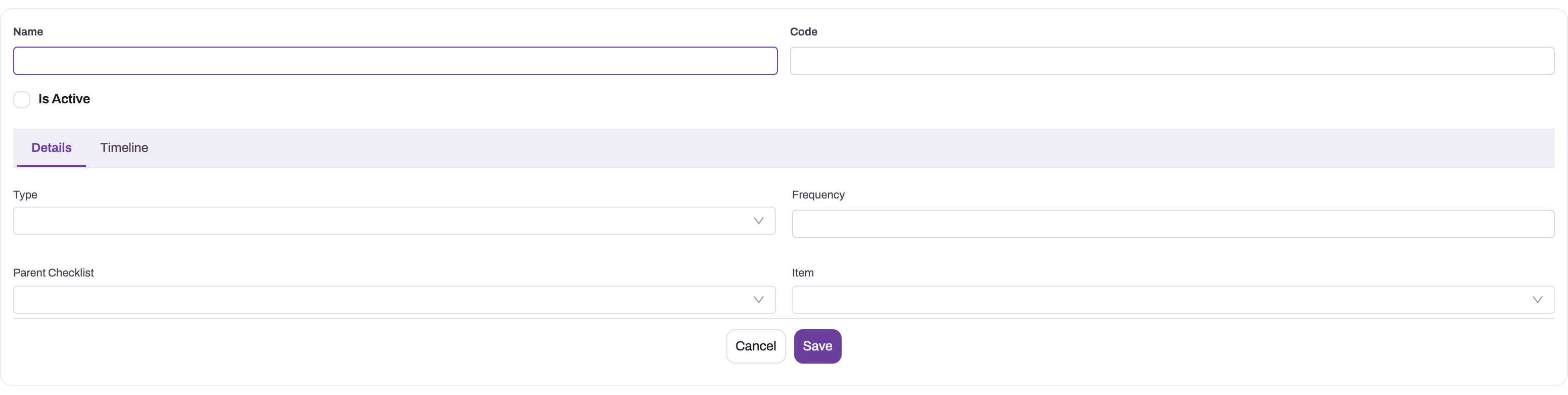
- 1
Name and Code identify the template for administrators; no integration contract is implied by this form alone.
- 2
Is Active records administrative state, but the current Populate selector does not filter on it.
- 3
Type selects the document family, such as Service Order, whose populate action instantiates the template.
- 4
Frequency documents intended cadence; it does not prevent repeated Populate runs from creating duplicates.
- 5
Save creates the template header only; add the template lines on the saved record's Related tab, then switch Is Active on once the structure is complete.
The template header identifies the template (Name, Code), its target document Type, Frequency, Parent Checklist, Item and Is Active. The Checklist action selects template lines by Type only. It does not check the active flag, the from/to dates or the frequency, and it does not skip lines a previous run already created. Treat those header fields as administrative metadata, and run the action once per intended checklist instance.
Step 1 — Author the template (administrator, once)
Create the checklist template with Type Service Order and add one template line per check. Each line defines:
| Setting | What it does |
|---|---|
| Label and name | The check as the technician reads it |
| Data type | The answer the line takes: Text, Numeric, Decimal, Boolean, Date, Time, DateTime, Currency, Picklist, MultiPicklist (one or more of the picklist values), Lookup, RAG, URL, Email, Phone or Take Picture. See answer types for how each screen shows them |
| Is mandatory | Marks the check as required. The server does not block an unanswered line. Some checklist screens refuse a blank mandatory answer and others only mark it (see Checklist templates) |
| Picklist values | Fixed answer choices, where the check offers them |
| Default value, length | A pre-filled answer and a maximum length for text answers |
| Dependent answer, parent template line | Chains a line to a parent line's answer |
| Group by | A section name for your reference. Checklist screens do not group questions by it |
| Sequence number | The order lines are presented in |
| Colour code, value | Reference only. No checklist screen reads them. RAG answers always use Red, Amber and Green |
| Target entity name, target entity field, target group key | Advanced, and on no delivered form: a line that writes its answer to a related custom record instead of a plain answer line |
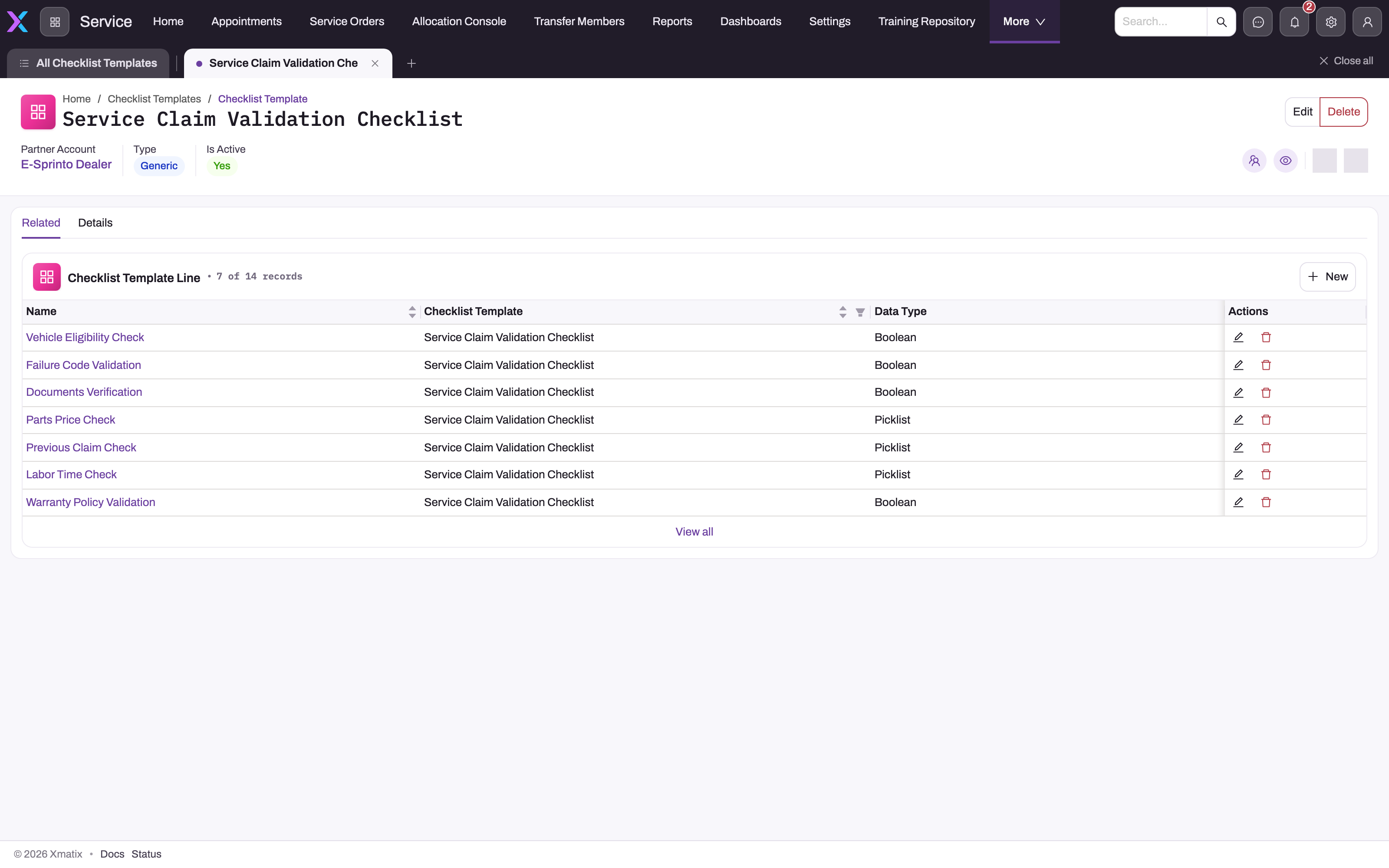
The saved template's Related tab is the line inventory: every row names a concrete check and its Data Type, and New introduces another line. Review this list before running the action on an order. The header selects the document family, but these child rows are the checks the action copies. The screenshot shows a template of another type with a mixture of Boolean and Picklist lines. Each data type becomes a different input for the technician.
- 1
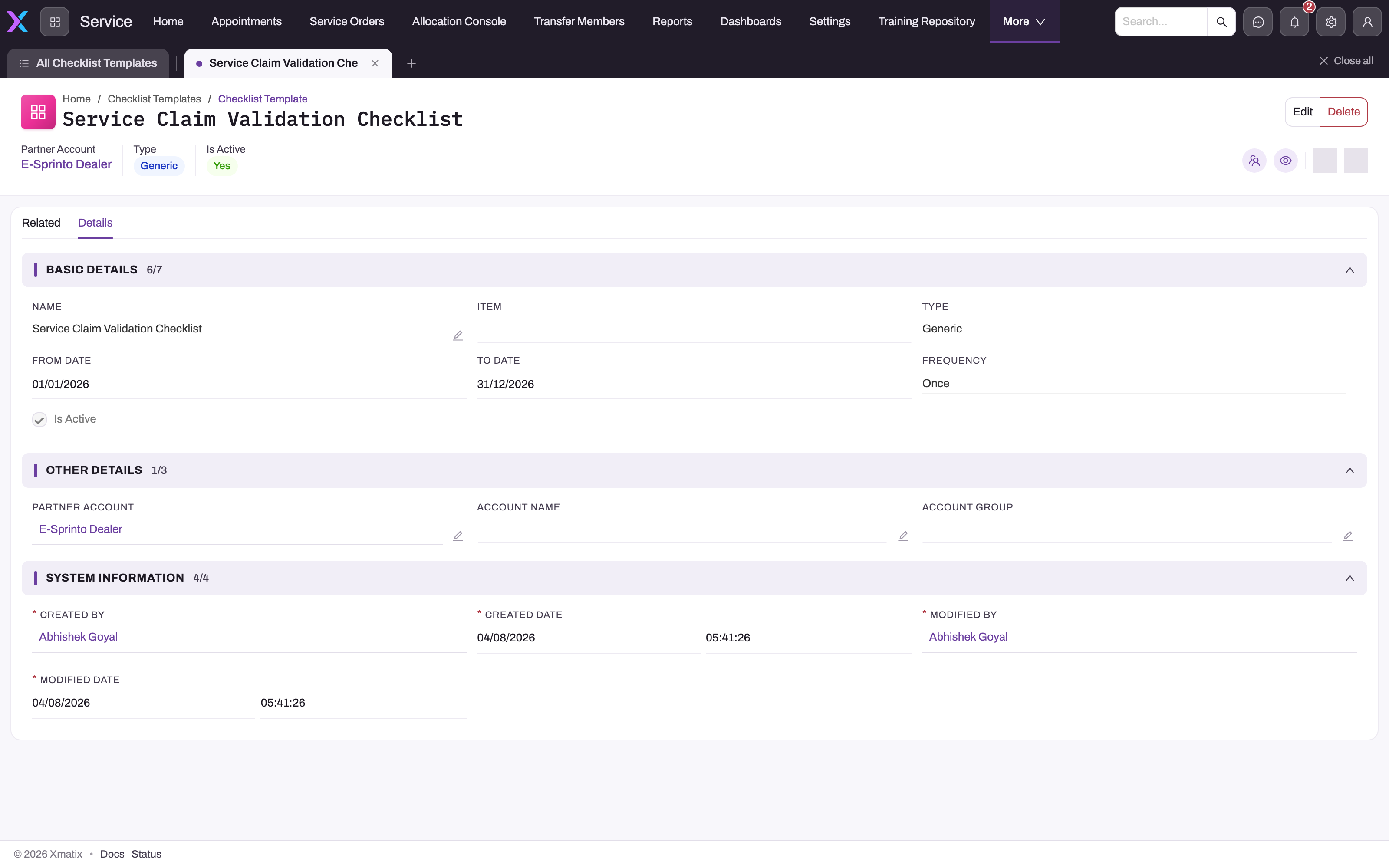
Type is the only header field Populate reads; it must be exactly Service Order for a template to fire on service orders.
- 2
From Date and To Date document the intended validity window; nothing in the populate path filters on them today.
- 3
Frequency (Once here) is descriptive — it does not stop a second Populate run from creating a second set of lines.
- 4
Is Active records administrative state; an inactive template of the matching Type is still instantiated.
- 5
Other Details scope the template to a partner account, account or account group for field-sales use; service-order population ignores this scoping.
Use Details to verify the saved header once the lines are right. Basic Details — Name, Item, Type, From Date, To Date, Frequency and Is Active — describe the template's administrative envelope; Other Details hold a partner account, account or account group. Mobile visit activities use the account scope, and the service-order action ignores all three. System Information carries the audit trail. Remember that the action keys on Type alone. The envelope shown here is governance evidence, not a runtime filter.
Step 2 — Populate the checklist on the order
On the service order, select Checklist in the page header. One checklist line is created per ordinary template line, attached to this order, carrying the template line's identity, label, data type and group key. Lines with a target entity are grouped by target entity and group key and create one related record per group against the order instead of a plain checklist line; a target that cannot be resolved is skipped silently. Population does not look for an earlier instance, so a second run creates a second full set.
Step 3 — Complete the checks
The populated lines are Checklist Line records linked to the order. Work through them, filling the answer field that matches each line's data type — text, numeric or decimal values, booleans, dates and times, currency amounts, or the RAG value for condition checks (Red, Amber, Green). The delivered service-order layout has no widget for answering populated lines. The simplest way is for an administrator to add a Checklist widget to the order's layout with Source set to By Template Type and the type Service Order: it finds the populated lines for that template on the order, shows them as questions and saves each answer back onto its line. A populated line's own record page shows only RAG Value, Decimal Value and Remarks, which you can edit in place. It has no Numeric Value, so a number-bound recommendation rule cannot be triggered from there (see Checklist answers). The order's Health Check tab is a separate checklist. It asks the questions of the template set on its widget (or the templates for the asset's item) as Good / Warning / Critical, and it saves its own answers rather than filling the populated lines. The delivered layout points that widget at a fixed template that a new tenant does not have, so an administrator repoints it first (see Checklist templates). Treat lines marked mandatory as an operating requirement and verify them before completing the job; the server does not enforce the flag as a save-time gate.
Step 4 — Let the findings drive follow-up work
RAG and threshold answers are not just a record: service recommendation rules watch checklist results. A rule names a checklist template line and the RAG value or numeric bounds that trigger it, plus the item, quantity and recommendation type to recommend (the quantity is copied onto the recommendation, and a later re-sync of the checklist leaves a quantity someone has edited alone); when a checklist line is saved or updated, matching rules raise service recommendations against the order's asset, with the trail back to the checklist line that caused them. A red suspension check can therefore surface a recommended replacement part on this order, for the advisor to decide with the customer. On update, recommendations whose rule no longer matches are removed again unless they have already been utilised.
A rule matches in exactly one of five shapes, so author it in one shape only: a RAG value with no numeric bounds matches an equal RAG answer; a greater-than bound alone matches a numeric answer above it; a less-than bound alone matches a numeric answer below it; both bounds together match an answer strictly between them; and a rule with no RAG value and no bounds matches any Text line that has an answer. A rule mixing a RAG value with numeric bounds never matches. Number bounds read only answers stored as Numeric. Decimal and Currency answers, and Health Check readings, are stored separately and never trigger a bound, so use the Numeric data type for any reading a rule should watch.
Expected result
The service order carries the expected checklist lines in the correct data types, and the team has reviewed every mandatory answer before completing the job. RAG, numeric or text answers that meet a recommendation rule create linked follow-up recommendations. Because each run of the Checklist action adds a new set of lines, verify that it was run once for this inspection before interpreting duplicate findings or recommendations.
Common problems
The Checklist action did nothing. No checklist template line belongs to a template whose Type is exactly Service Order. The action copies matching lines and cannot invent checks. If the Type picklist does not offer Service Order, add the value first. A template of any other Type, such as Health Check or Inspection, is never selected for a service order.
There is no Checklist button on the order. The delivered service order page header does not include the action. An administrator adds Checklist to the Page Header widget's actions in the layout designer.
The same checks appear twice. The action was run more than once, and each run copies the template's lines again. Run it once per order, and remove the duplicates if a second run happened.
An expected follow-up recommendation never appeared. Recommendation rules are separate records from the template — check a rule exists for that template line, that it is authored in one shape, and that the answer actually crossed the rule's RAG value or numeric bounds.
Common questions
Can one template serve several document types?
A template carries one Type, and the Type decides which documents it is copied onto. A Service Order template populates service orders, and a Delivery template populates delivery orders. Goods receipts, shipments and inspections have no populate action in the delivered configuration. Author one template per document family, even when the checks look similar.
Can I have more than one Service Order template?
The action copies the lines of every template matching the document's Type, so the practical pattern is one well-structured Service Order template. Parallel templates of the same Type are copied together, and the action does not skip an inactive one. Retype or remove obsolete templates before the next run.
What is a RAG check?
A condition check answered on a Red–Amber–Green scale, defined on the template line with its colour codes and reading bounds. RAG answers are the usual trigger for service recommendation rules, which is what turns an inspection finding into proposed work.