
A service recommendation is a piece of advised work for an asset: a part or job that an inspection, a complaint or an advisor says should be done. The customer accepts or declines it on the service order or service opportunity. Recommendations sit between diagnosis and billing. A checklist answer or a complaint raises them. The advisor reviews them with the customer on the document's recommendations tab. Each accepted recommendation becomes an ordinary line on the job, and the invoice run then marks it as used.
Overview
Each recommendation records:
- what is recommended: the Item and a Quantity;
- for which asset: the Asset it concerns;
- why: the observed Condition (Red, Amber or Green), the reading behind it (Value Type, Text Value, Numeric Value), the Recommendation Type that names its source, and Recommendation Remarks;
- where it came from and went to: the checklist line or complaint line that raised it, and the service order, opportunity or estimate line it became;
- the decision: Is Accepted, Is Rejected and Is Utilized, plus whether the work is required (Is Mandatory).
The decision is taken from the document, not from the recommendation record. The service order's Service Recommendation tab and the service opportunity's Recommendation tab both host the Service Recommendations card, where you tick the work the customer accepts.
When to use it
- At reception and during inspection. Show the customer what the health check and their complaints call for, and record what they agree to.
- When advising future work. Create a recommendation by hand against the asset, for example a part that will be due soon, so that it comes up on the asset's next job.
- When reviewing declined or deferred work. The Service Recommendations list is the register of everything ever advised, by asset.
How xMatix handles it
Where recommendations come from
| Source | How it is raised | What it carries |
|---|---|---|
| Health check and other checklists | Saving an answer on a checklist line that matches a service recommendation rule for that template line. Changing the answer later re-evaluates the rules. A recommendation that no longer matches is removed unless it has been utilised. | Name = the rule's Recommendation Type (or the checklist line's name), the rule's Item, Quantity, Recommendation Type and Is Mandatory, plus the line's reading (Condition, Numeric Value, Text Value, Value Type). It is linked to the checklist line and to the service order, opportunity or estimate the checklist belongs to, and to that document's asset. |
| Complaints | Posting a complaint line on a service order, service opportunity or estimate. One recommendation is raised for each complaint item that applies to the complaint and fault code. Re-pointing the line to another complaint or fault reconciles the set. Deleting the line removes them. | Name = the item's name, Recommendation Type Complaint, the complaint item's Quantity and Is Mandatory, and remarks such as Complaint : Engine overheating Fault : Coolant leak Recommended Qty : 2. Linked to the complaint line, the document and its asset. |
| By hand | New on the Service Recommendations list. | Whatever you enter. It is linked to the asset only, not to any document. |
| AI Mechanic (field app) | When AI Mechanic is switched on, the Recommendations step on a job can turn suggestions from the complaint catalogue or the diagnosis into recommendations on that service order, and accept or decline them there. | Linked to the job's service order and asset. |
Which recommendations a document offers
The recommendations card on a service order lists two groups:
- Open recommendations for the order's asset: not accepted, rejected or utilised, and not yet linked to any service order, service order line, estimate or estimate line. In practice these are the hand-made ones, plus those raised on a service opportunity that were never decided there.
- Every recommendation already linked to this order, whatever its state: the ones its own checklists and complaints raised, accepted and rejected ones included.
A service opportunity works the same way. In addition, its open group leaves out anything already linked to another opportunity.
A recommendation raised by a checklist or a complaint is linked to the document that raised it from the start. It is therefore not offered again on the asset's later orders, even when nobody decided it. Only unlinked recommendations follow the asset from job to job. A document without an asset shows an empty card.
Accepting
When you save a tick on the card, the recommendation is marked Is Accepted and a new line is added to the document:
- Service order: a service order line with the recommendation's Item. Its Quantity is the recommendation's Quantity when above zero, otherwise its Numeric Value when above zero, otherwise 1. The line also carries the Recommendation Type and a link back to the recommendation, and it is priced like any other line.
- Service opportunity: an opportunity line with the recommendation's Item and Quantity. The recommendation is then linked to the opportunity and to the new line.
Mandatory complaint items skip the tick. When the complaint line is posted, their recommendations are accepted automatically and the line is added to the service order (or, when there is none, the opportunity, then the estimate). The card shows them as Required.
Rejecting
Clearing the tick on an accepted recommendation and saving rejects it. The line its acceptance added is withdrawn and the link to it is cleared. The recommendation stays on this document's card, unticked. Rejection is refused while the service order line is allocated, picked or invoiced.
Utilisation
Running Invoice or Selective Invoice on a service order marks every recommendation behind a line of that order as Is Utilized and links it to the order and line. This includes lines that this particular invoice run did not bill. A utilised recommendation is never offered again and cannot be deleted.
Prerequisites
- The service order or opportunity has an Asset. Without one the card is empty.
- For checklist-driven recommendations: service recommendation rules exist for the checklist template lines.
- For complaint-driven recommendations: complaint items are set up for the complaint, optionally per fault code.
- Your security profile grants Recommendation (Get Service Recommendation) and Post Service Recommendation on Service Order, and the matching pair on Opportunity. See Permissions.
Procedure
Step 1 — Open the recommendations card on the job
Open the service order and select the Service Recommendation tab. On a service opportunity, select the Recommendation tab. The Service Recommendations card lists the recommendations, grouped under coloured bars by Recommendation Type. Each row shows:
- Name;
- Items: the item and its type;
- Risk: High for Red, Moderate for Amber, Low for Green;
- Type;
- Requirement: Required for mandatory work, Optional otherwise.
Ticked rows are already accepted. Use the column headers to sort or filter. The card refreshes by itself when a checklist answer or a recommendation changes.
Step 2 — Record what the customer accepts
- Select Edit on the card. The tick boxes become active.
- Tick each recommendation the customer accepts. The header box ticks every row.
- Select Save. Save stays disabled until you change at least one tick. Cancel puts the ticks back as they were.
Each newly ticked recommendation adds a line to the order's Lines tab (or to the opportunity's lines), with the quantity described under Accepting. Price, tax and contract cover are worked out as for any line you add yourself. Open the line to see its Recommendation panel, with the Recommendation Type and the link back.
Step 3 — Withdraw an acceptance
- Select Edit on the card.
- Clear the tick on the accepted recommendation.
- Select Save.
The recommendation is now rejected and the line it added is removed from the order. This works only while that line has not been allocated, picked or invoiced. Otherwise saving fails with Cannot reject a service recommendation whose service order line is already transacted. Remove the allocation or picking first.
Step 4 — Decline a recommendation that was never accepted
The card cannot record a decline for a row that was never ticked, because it only sends rows whose tick changed. To record that the customer declined:
- Open the recommendation from the Service Recommendations list (or from the Name link in the list).
- In the Controls panel, tick Is Rejected and save.
A rejected recommendation is never offered on another document. You can also tick it and save on the card (accept), then clear the tick and save again (reject). That briefly adds the line and then removes it.
Step 5 — Create a recommendation by hand
- Open the Service Settings App and choose Service Recommendations (or go to
/ServiceRecommendation). - Select New.
- Enter Name (required), and choose the Item and the Asset.
- Under Conditions, optionally set Condition, Value Type and Recommendation Type, and record the reading in Text Value or Numeric Value.
- Select Save.
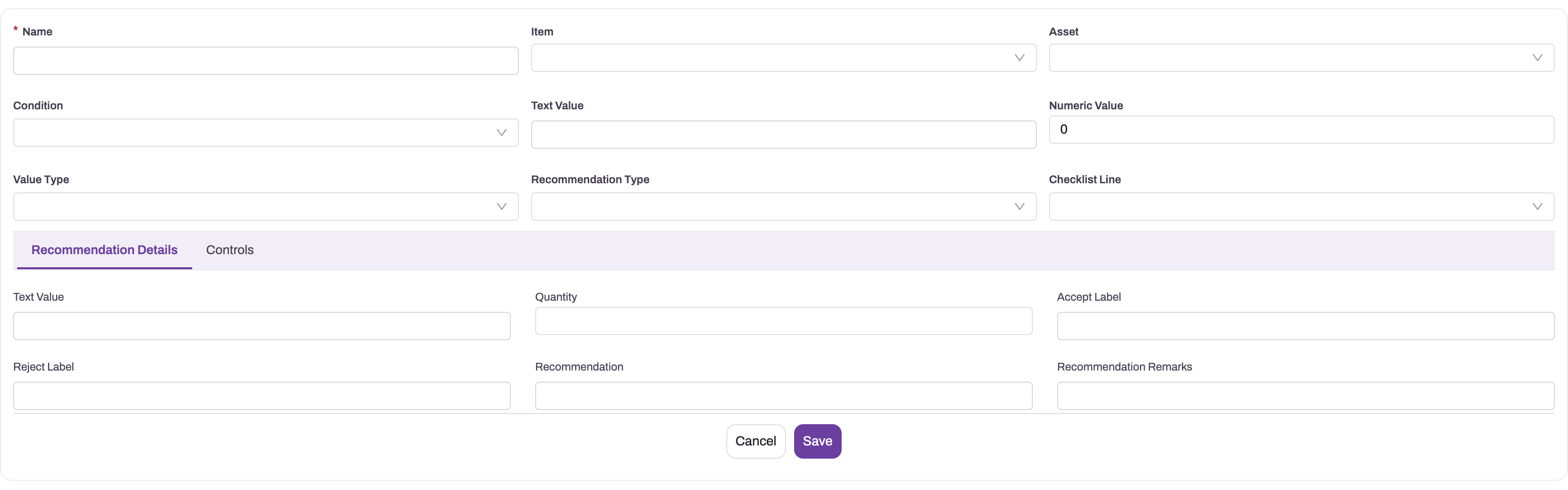
The record page opens. The create form has no Quantity field. Set Quantity and Recommendation Remarks in place on the record page, in the Recommendation Details panel, before the recommendation is accepted. Otherwise a service order line gets the Numeric Value or 1 (see Accepting), and an opportunity refuses the line (see Common problems). The new recommendation is unlinked, so it appears on the next service order or opportunity raised for that asset.
Step 6 — Review recommendations for an asset
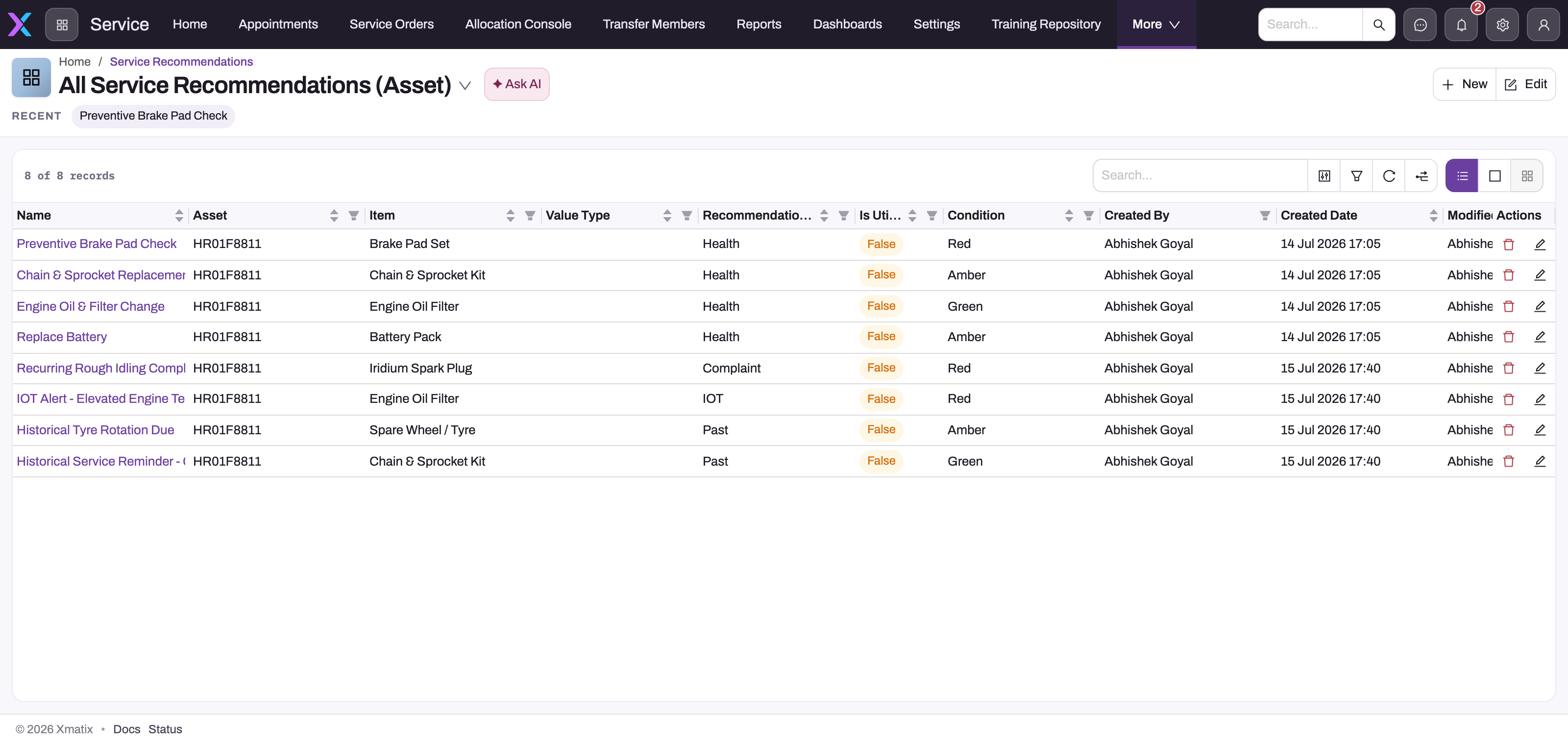
Open the Service Recommendations list. The All Service Recommendations view shows Name, Asset, Item, Value Type, Recommendation Type, Is Utilized, Condition and the audit columns. Search or filter by asset to see everything ever advised for it.
Open a row to see the record page:
- the header shows Asset and Checklist Line;
- Key Information holds the item, asset, reading and type;
- Recommendation Details holds the quantity, labels and remarks;
- Controls holds the decision flags;
- Related Documents holds the opportunity and estimate links;
- System Information holds the audit stamps.
The service order link is not shown on the seeded record page. Open the order instead, or follow the line's Recommendation panel from the order side.
Step 7 — Use recommendations in the field app
The field app shows the same Service Recommendations card on a service order and a service opportunity. Tap Edit, tick or clear rows, and tap Save. The rules are the same as on the web: a tick accepts and adds a line, and clearing an accepted tick rejects it. Where AI Mechanic is switched on, its Recommendations step lists suggestions with ✓ and ✗ buttons and adds the accepted ones to the job with Add n to job.
Fields
| Field | What it means | Notes |
|---|---|---|
| Name | Short title of the recommendation. | Required. Checklist-raised recommendations are named after the rule's Recommendation Type (or the checklist line), complaint-raised ones after the item. There is no numbering series. |
| Item | The part or labour item recommended. | Becomes the Item of the line created on acceptance. |
| Asset | The asset the work is for. | Decides which documents can offer the recommendation. It cannot be changed after the first save. |
| Condition | The health verdict observed: Red, Amber or Green. | Copied from the checklist answer's RAG value. Shown as the card's Risk (High, Moderate, Low). |
| Value Type | The kind of reading: Numeric, Boolean or RAG. | Checklist recommendations copy the checklist line's data type. |
| Recommendation Type | Where the recommendation came from: Health Check, Past, Complaint or IOT. | Groups the rows on the card and is copied onto the created line. Complaint recommendations are always Complaint. Checklist recommendations take the rule's value. |
| Text Value | The text answer behind a checklist recommendation. | Refreshed when the checklist answer changes. |
| Numeric Value | The numeric reading behind a checklist recommendation, such as a measured depth. | Defaults to 0. Used as the service order line quantity only when Quantity is empty or zero. |
| Checklist Line | The checklist answer that raised it. | Cannot be changed after the first save. |
| Quantity | How many of the item to order. | Defaults to 0. Seeded from the rule or complaint item. A value you set is kept when the checklist answer changes. Not on the create form; edit it in place on the record page. |
| Accept Label, Reject Label, Recommendation | Free-text slots. | Stored only. The card and the actions do not show them. |
| Recommendation Remarks | Explanation of the advice. | Complaint recommendations fill it automatically. |
| Is Accepted | The customer accepted the work. | Set by the card or by a mandatory complaint item. Ticking it on the record page does not add a line. |
| Is Rejected | The customer declined the work. | Ticking it (on the card or the record page) withdraws any line the acceptance added and clears Is Accepted. |
| Is Consumed | Used by the field-sales outlet suggestions, not by service. | Not set by any service process. |
| Is Utilized | The work was invoiced. | Set by the invoice run. A utilised recommendation cannot be deleted. |
| Opportunity, Opportunity Line | The service opportunity it was raised on or accepted into, and the line created. | Set by the checklist, complaint and accept paths. |
| Quote, Quote Line | The estimate it was raised on and the estimate line created. | Estimate lines are created only for mandatory complaint items posted on an estimate. |
| Complaint Line, Complaint Item | The complaint line and catalogue row that raised it. | Not on the seeded record page. |
Is Mandatory (shown as Required on the card) is set from the rule or complaint item and is not on the seeded record form.
Business rules
- Locked fields. Asset and Checklist Line cannot be changed after the first save. The save fails with Key fields are not editable once the related objects are added.
- Delete. A utilised recommendation cannot be deleted: Cannot delete a utilized service recommendation. Deleting a checklist line removes its unutilised recommendations. Deleting a complaint line removes its recommendations, and the lines that mandatory items added, unless those lines have moved on (invoiced, posted, allocated or picked).
- Accept and reject are exclusive. Accepting clears Is Rejected. Rejecting clears Is Accepted, withdraws the created service order or opportunity line, and clears the line links. The document link stays, so the row remains visible on that document's card.
- Re-accepting a rejected recommendation adds a fresh line.
- Only new acceptances add lines. A recommendation that is already linked to a service order line (or opportunity line) never gets a second one.
- Checklist re-evaluation. Changing a checklist answer updates its recommendations in place: item, type, reading and condition, plus quantity only if none was set. It adds recommendations for newly matching rules and removes ones whose rule no longer matches, unless they are utilised.
- Complaint reconciliation. Re-pointing a complaint line drops suggestions that no longer apply, unless they were accepted by hand or already have a line. Mandatory ones are dropped together with their line while that line is untouched.
- Utilisation happens on Invoice or Selective Invoice for every recommendation behind any line of the order.
Example
A workshop receives a scooter for its periodic service.
- The advisor opens service order SO-0412 for the asset. The health check checklist asks for brake pad thickness. A recommendation rule on that line says: below 3 (mm), recommend 1 Brake Pad Set, type Health Check.
- The technician records 2.4. On save, a recommendation Health Check for Brake Pad Set appears on the Service Recommendation tab, with Risk taken from the answer's condition and Requirement Optional.
- The customer's complaint "Brake noise" with fault "Worn disc" is posted on the Complaints tab. Its complaint items raise two more recommendations: Brake Disc (optional, quantity 1) and Brake Fluid (mandatory, quantity 1). The Brake Fluid line is added to Lines immediately and shows as Required.
- The customer agrees to the pads but declines the disc. The advisor selects Edit, ticks Brake Pad Set and selects Save. A Brake Pad Set line with quantity 1 appears on Lines. To record the declined disc, the advisor opens the Brake Disc recommendation and ticks Is Rejected.
- After the work, Invoice runs. The Brake Pad Set and Brake Fluid recommendations become Is Utilized.
Training
Practice exercise
In a sandbox with an asset that has no open orders:
- Create a recommendation by hand: Name Wiper blades due, Item any part, Asset your test asset. On the record page set Quantity to 2.
- Create a service order for the same asset and open its Service Recommendation tab.
- Select Edit, tick Wiper blades due, and select Save.
- Clear the tick again and select Save.
Expected result: after step 2 the recommendation is listed. After step 3 a line for the part with quantity 2 is on Lines, and the recommendation drops off the card because it is now linked to that line. Open the recommendation from the list: Is Accepted is ticked. To practise step 4, use a recommendation raised by this order's checklist or complaint, which stays on the card. Clearing its tick removes the line and ticks Is Rejected.
Quick reference
- Decide recommendations on the document's tab: Edit → tick → Save.
- A tick adds a line. Clearing an accepted tick rejects it and removes the line.
- An undecided row can't be declined from the card. Tick Is Rejected on the record.
- Line quantity = Quantity, else Numeric Value, else 1.
- Mandatory complaint items are accepted automatically.
- Checklist and complaint recommendations stay with the document that raised them. Hand-made ones follow the asset.
- Invoicing marks the order's recommendations utilised, and utilised ones can't be deleted.
- No asset on the document means an empty card.
Permissions
| To… | The user needs |
|---|---|
| See, create, edit or delete recommendation records | Read, create, edit or delete on the Service Recommendation entity. The shipped Standard User, Sales Executive, Sales Manager, Service and System Admin profiles have full access. |
| List recommendations on a service order | The Recommendation (GetServiceRecommendation) server action on Service Order |
| Save ticks on a service order | Post Service Recommendation on Service Order |
| Do the same on a service opportunity | GetServiceRecommendation and PostServiceRecommendation on Opportunity |
| Reach the list from navigation | An app that lists Service Recommendations. In the shipped navigation that is the Service Settings App, which only System Admin can view out of the box. |
The shipped Standard User, Sales Executive, Sales Manager and System Admin profiles hold the four action grants. The shipped Service profile has full entity access but no action grants, so its users see an empty card and cannot save ticks until an administrator adds the grants. Action grants are on the profile's Actions tab. See security profiles.
Configuration
- Checklist rules. Recommendation rules (checklist template line, RAG value or numeric bounds, item, quantity, recommendation type, mandatory) decide what a checklist answer recommends. See service recommendation rules.
- Complaint items. The complaint catalogue (item, quantity, optional fault code, mandatory) decides what a complaint recommends. See complaints and fault codes.
- Recommendation Type values. The picklist ships with Health Check, Past, Complaint and IOT. The complaint engine always writes Complaint.
- Navigation. Add the Service Recommendation entity to the Service app, or any other app, in Design Studio if advisors need the list. Grant app visibility on the security profile.
- Where the card appears. The Service Recommendations card is a layout widget on the service order View layout (Service Recommendation tab) and the service opportunity View layout (Recommendation tab), on web and mobile. Keep it there, or place it on another tab, with the layout designer.
- Nudges. Sense AI can raise Open service recommendations on a service order, with an Accept recommendation button, and Quote follow-up on accepted recommendation. See nudges.
- AI Mechanic. Off by default. An administrator switches it on in Setup → Feature Hub → Sense AI (setting AI Mechanic), and users also need a Sense AI seat. Its recommendation sources are set per profile in Setup → AI Studio → AI Mechanic.
Common problems
The recommendations tab is empty
The order or opportunity has no Asset, nothing has been raised for it yet, or your profile lacks the Recommendation (GetServiceRecommendation) action grant. Set the asset, check the rules and complaint items, or ask an administrator to add the grant.
A recommendation from the last visit doesn't show on the new order
Recommendations raised by a checklist or a complaint stay linked to the document that raised them, so later orders don't offer them. Open the earlier order to decide them, or create a new recommendation by hand for the asset.
Saving the card does nothing
The card shows no error when the save fails, for example for a missing action grant or a refused rejection. It stays in edit mode. Check the grant, then try again. To see the server's message, make the same change on the recommendation's record page.
"Cannot reject a service recommendation whose service order line is already transacted."
The line added by the acceptance has been allocated, picked or invoiced. Cancel the allocation or picking first. An invoiced line can't be withdrawn.
"Quantity should not be less than 0" when accepting on an opportunity
The recommendation's Quantity is 0 or empty, and opportunity lines take that quantity as it is. Set Quantity on the recommendation's record page, then tick it again.
The created line has a strange quantity
The recommendation had no Quantity, so the line took the Numeric Value (the inspection reading). Set Quantity on the recommendation before accepting, or correct the line.
I ticked Is Accepted on the record but no line was created
Lines are created only from the document's card (or a nudge or AI Mechanic). Accept it from the service order or opportunity instead.
"Cannot delete a utilized service recommendation."
The work has been invoiced. The record is the audit trail and stays.
Common questions
Why does the list contain rows without an asset?
The nightly field-sales job stores its outlet suggestions ("likely to buy" and suggested order quantities) in the same table. Those rows belong to an outlet, not an asset. Service never offers them, and they are refreshed every night. Filter the list by Asset to see only service work.
Do recommendations expire?
No. A recommendation stays as it is until it is accepted, rejected or utilised. Review the list from time to time and tick Is Rejected on advice that no longer applies.
Can an estimate offer recommendations?
Not directly. An estimate has no recommendations card. A recommendation reaches an estimate line when a mandatory complaint item is posted on the estimate, or when an estimate is built from an order or opportunity line that came from a recommendation, which keeps the link.
Which lines count as utilised?
Every line of the invoiced service order that came from a recommendation, as soon as Invoice or Selective Invoice runs on the order. That includes lines a selective run left for later.
Related topics
- Service recommendation rules: setting up checklist-driven recommendations
- Checklists on service orders
- Complaints and fault codes: complaint items
- The service order lifecycle
- Service order lines
- Estimates and invoicing
- Nudges
- Service Recommendation reference