
Service has deliberately little configuration of its own: one module switch, the service-bay register, and a set of masters — item types, service contract definitions, checklist templates, picklists — that the module reads rather than owns. This page is the administrator's map of all of it, with links to where each master is documented.
The module switch
The Service module is governed by the platform's module settings (Setup → Feature Hub): a master Enable Service switch, on by default, which when overridden off makes the module unavailable to every user in the tenant — including users holding licenses and seat assignments. That switch is the Service module's only module-level setting. Individual access on top of it is the usual pair: licensing and security profiles, which decide who sees the Service app, its entities and its server actions.
Service bays
Service bays are the workshop's physical work positions, maintained as Service Bay records. The shipped configuration places the entity in the Service Settings App rather than in the Service app; administrators can also add it to any other app's navigation. Access follows the usual entity permissions: a user needs an app that lists the entity and the Service Bay entity on their security profile to see or edit bays.
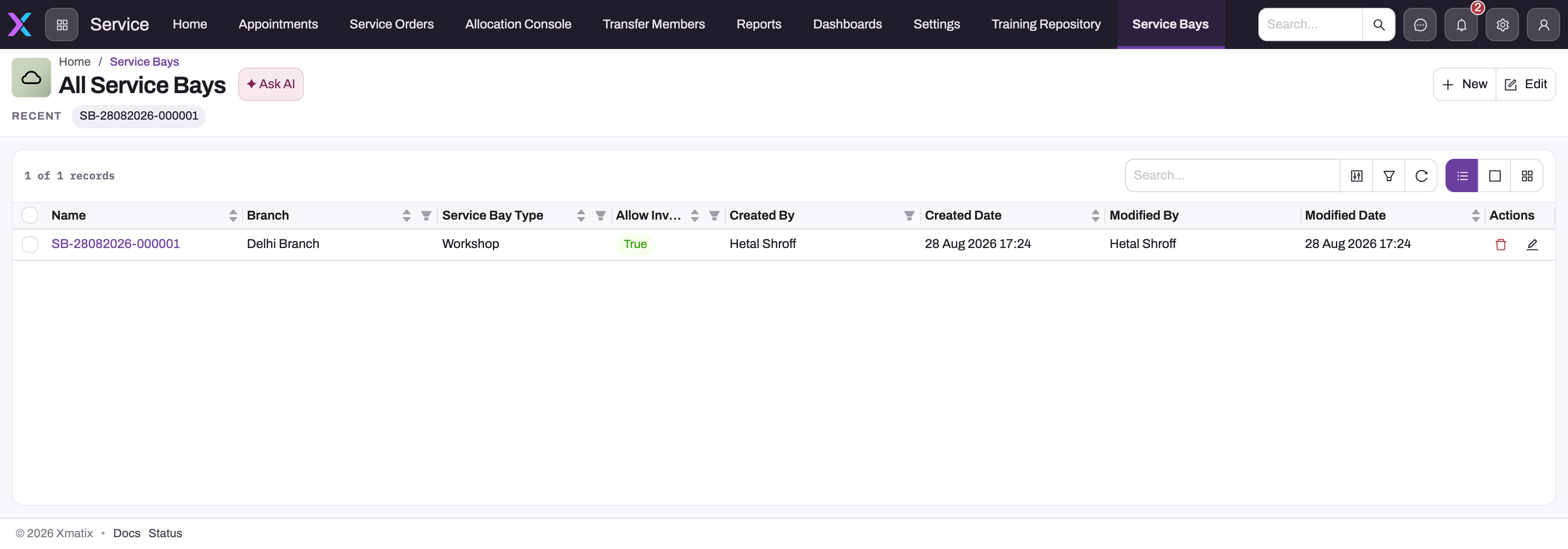
- 1
Name is system-assigned on save (a dated sequence) and is what allocation refusals quote.
- 2
Branch: booking narrows candidate bays to the appointment's branch; a bay with no branch serves any.
- 3
Service Bay Type is what an appointment requirement matches on — extend the picklist for new kinds of position.
- 4
Allow Inventory marks a bay that can also hold stock (bin or pallet).
- 5
New opens the bay form; Edit switches the list to inline editing.
Use All Service Bays as the register of configured workshop positions (Service Settings App → Service Bays, or /ServiceBay). The list shows each bay's system-assigned name, branch, type, Allow Inventory flag and audit ownership; filter by branch before adding another position so the same physical bay is not created twice. The list proves the record exists, not that its capacity and allocation settings are what scheduling expects — check those on the saved record.
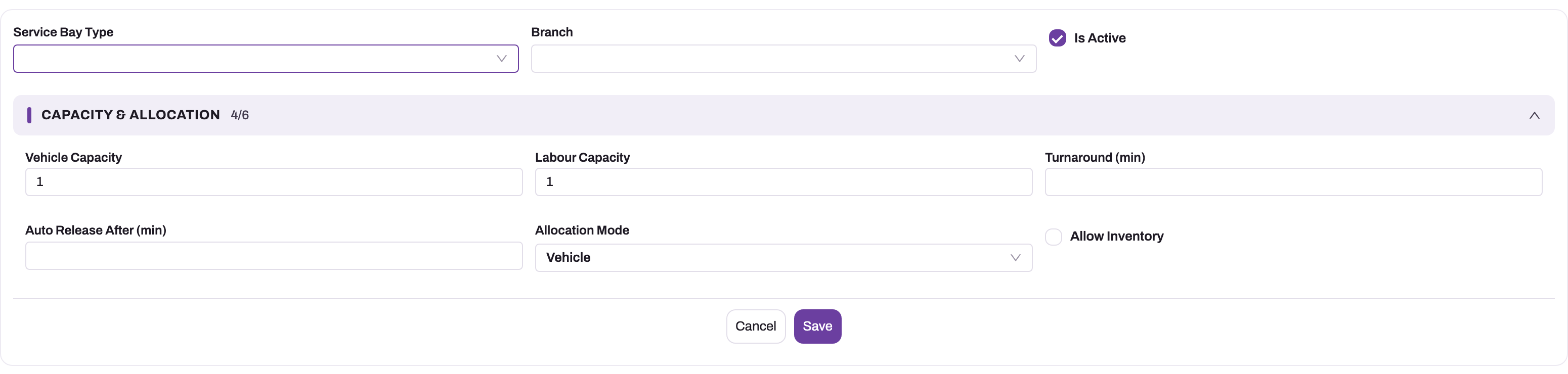
- 1
Service Bay Type is what an appointment requirement matches on — a wash slot books a Washing Bay, a health check a VHC Bay.
- 2
Branch locates the bay; booking narrows candidates to the appointment's branch, and a bay with no branch serves any.
- 3
Is Active (default on) keeps the bay in allocation pickers; switch it off to retire the bay without losing its booking history.
- 4
Vehicle Capacity and Labour Capacity are separate ceilings — cars inside versus technicians working — both default to 1 and refuse values below 1.
- 5
Allocation Mode (Vehicle, Labour or Both) decides whether the bay is claimed from the service order, from a time-sheet line, or either.
- 6
Auto Release After and Turnaround are minutes; blank means never auto-release and the mode's default turnaround (15 vehicle, 5 labour).
The create form asks for Service Bay Type, Branch and Allocation Mode, then has a Controls tab (Is Active, Allow Inventory) and a Capacity tab (Vehicle Capacity, Labour Capacity, Turnaround (min), Auto Release After (min)); the bay's name is assigned by numbering on save. Some tenants' forms group the same fields in one Capacity & Allocation section, as in the pictures here. Occupancy Stretch (%) is on the entity but not on the standard form.
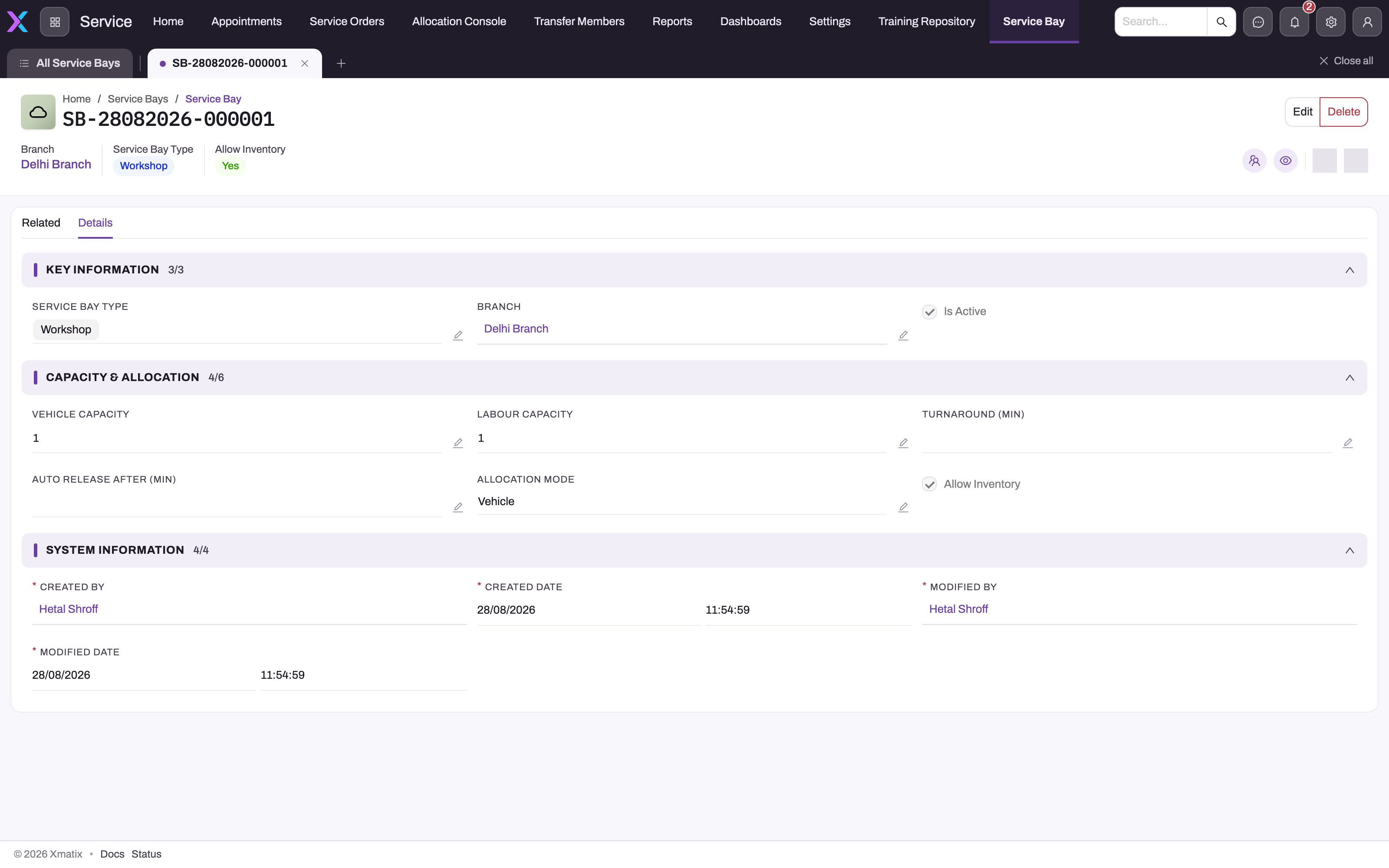
- 1
The system-assigned name is what allocation refusals quote, for example 'Bay SB-… is full for this window'.
- 2
Header statistics repeat Branch, Service Bay Type and Allow Inventory.
- 3
Related lists records tied to the bay; Details (open) holds the configuration.
- 4
Is Active on: the bay is offered to allocation pickers and booking candidates.
- 5
Vehicle Capacity 1 / Labour Capacity 1: one car and one technician at a time; raise Labour Capacity to admit a helper on the same car.
- 6
Allocation Mode Vehicle: this bay is claimed from the service order for the whole job, not from time-sheet operations.
Saving a bay also creates or refreshes its bookable resource of kind Facility, which carries the bay's branch, active state and labour capacity into appointment booking. Vehicle and labour capacities are separate on purpose: a bay of 1 vehicle and 2 labour admits a lead and a helper on the same car but refuses a second car. Every field, the occupancy estimate, capabilities, auto-release and the allocation refusals are documented on the canonical page, Service bays.
Masters the module reads
| Master | What it drives in Service | Where it is managed |
|---|---|---|
| Item type | The fork in service order behaviour: Part lines flow through fulfilment, allocation, picking and inventory posting; Work Item lines flow onto time sheets; Service Contract items create entitlements when invoiced | The item record |
| Service contract definitions (Item Service Contract) | Validity, usage windows, grace, covered scope, enforcement switches and posting treatment for contract-covered work | On the contract item — see service contract definitions |
| Checklist templates | The checks populated onto service orders (template type Service Order), and the recommendation rules that turn findings into proposed work | Field Sales Setup app — see checklists |
| Price lists, discount groups, tax groups | Line pricing, cascading discounts and header taxes on service orders and estimates | Shared with Sales — see pricing, discounts and taxes |
| Service type picklist | The order's classification. Shipped values: Paid Repairs, Free Service, Warranty Service, Dealer Expense, PDI. A pre-delivery inspection job that xMatix raises from a goods receipt inspection line or a delivery order line gets PDI. You can extend it like any picklist | The Service Order entity's Service Type field picklist (see service types) |
| Work pause reason picklist | The reasons a technician can give when pausing a time-sheet line | The time sheet entities' picklist values |
| Resources | Technicians and service advisors validated on orders, and the workers time sheet lines attribute labour to | The resource register |
Picklists (service type, bay type, recommendation condition and the rest) and the entities' fields, views and layouts are all customisable through the ordinary data model tools — Service entities are standard platform entities.
Service types
The kind of job (paid, warranty, pre-delivery inspection and so on) is stored as text in a Service Type picklist field on each document, not as a link to a shared list. Each entity has its own picklist, and the shipped values differ between them:
| Where | Shipped Service Type values |
|---|---|
| Service Order | Paid Repairs, Free Service, Warranty Service, Dealer Expense, PDI |
| Opportunity | Accidental Repairs, PDI, Paid Repairs, Warranty Repair |
| Quote | Accidental Repair, PDI, Paid Repair, Warranty Repair |
| Price List Rule and Price List | Paid Repairs, Warranty Repairs, Refurbishment, Campaign Repair |
| Service contract definition (Item Service Contract) | Warranty Repairs, Paid Repairs |
| Branch Time Slot | Accidental Repairs, Item, PDI, Paid Repairs, Warranty Repair |
| Product Demo | Paid Repairs, Free Service, Warranty Service, Dealer Expense |
Where one record reads another's service type, it compares the text. A price list rule applies only when its Service Type is exactly the same as the document's (capitals don't matter). A branch time slot is offered only for bookings with the same service type. A value that is spelt differently, such as Warranty Repairs against Warranty Service, never matches. If you scope prices or slots by service type, decide on one wording for each kind of job. Then make sure the same value exists in every picklist that has to match, under each entity's Service Type field in the data model tools.
The platform also has a Service Type entity: a plain list of records with a Name and a Label. Nothing in the Service module reads it. Service orders, quotes, opportunities, price list rules and time slots all use their own picklists, and no shipped app or menu lists Service Type records. The only lookup to it is the Service Type field on invoices, which no shipped form shows and no process fills. If you save a Service Type record without a label, the label takes the name.
Common questions
Users can't see the Service app — what do I check?
In order: the module's Enable Service switch (off hides it from everyone), the user's license, and the security profile's app and entity permissions. The general diagnosis path is the user-can't-see-X guide.
Why is a service order behaving like a parts order with no labour flow?
Check the items on its lines: the item type is the fork. A labour item created as an ordinary inventory item (rather than a Work Item) goes down the parts path — fulfilment and allocation — and never appears on a time sheet.
Should I add my job types as Service Type records?
No, not for the service order. The order's Service Type is its own picklist, so a new kind of job is added as a picklist value on the Service Order entity's Service Type field. Records in the separate Service Type entity are not offered on the order, and no service, pricing or booking process reads them. If the new job type should also be priced or booked separately, add the same value, spelt the same way, to the Service Type picklist of the Price List Rule and Branch Time Slot entities. Also add it to the Quote and Opportunity picklists if jobs start from an estimate, because their value is carried onto the service order.
Where is dispatch configured?
Not here. Crew scheduling, the dispatch console and skills-based routing are Field Service concerns. What Service configures is the workshop side: bays for appointment booking, and the masters above.