
Read the entity model workspace
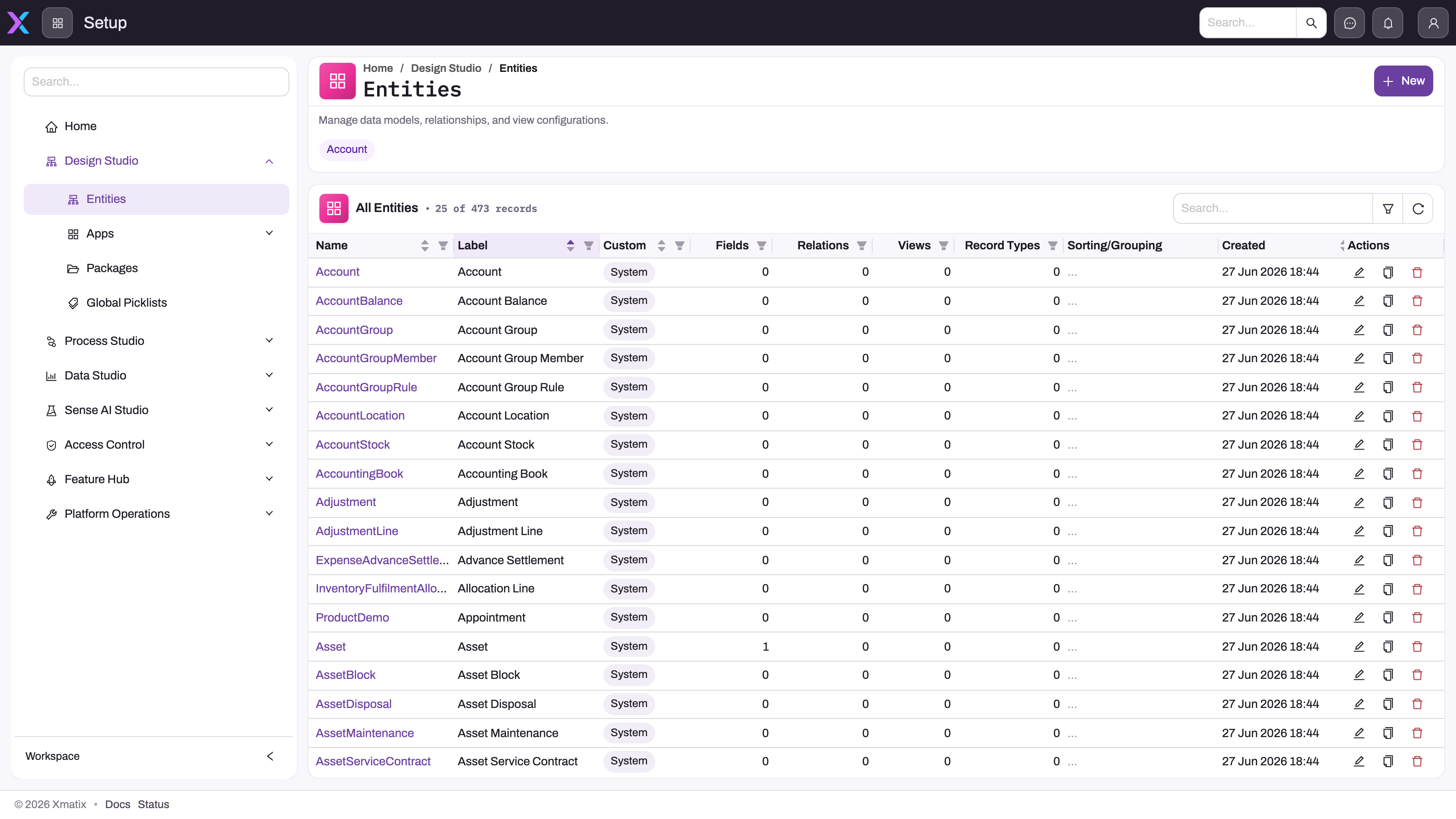
- 1
Design Studio separates Entities from app placement, packages and shared Global Picklists.
- 2
Entities is the registry for business objects whose schema drives generated forms, lists, APIs and reporting.
- 3
New creates a custom entity; model changes become live when saved and should be planned as production changes.
- 4
The visible recent entity chip preserves context without exposing tenant-specific metadata history.
- 5
Fields, relations, views, record types and sorting/grouping columns reveal dependencies to inspect before retirement.
Design Studio's Entities register is the entry point to the operational data model. The left navigation separates entities from app placement, packages and global picklists; the header New action starts a custom entity; and the register connects each entity to its label, custom/system ownership, fields, relations, views, record types and sorting/grouping. Those columns are dependency signals: they show how far a model object reaches before anyone edits or retires it.
The screenshot uses visible synthetic demo2 data so readers can follow realistic rows, values and controls together; production exports and screenshots must still remain inside authorized channels. Use search and filters to locate the exact internal object, distinguish its immutable name from its changeable label, and inspect schema dependencies before making a change. A model edit is live as soon as it is saved, so prefer additive or reversible changes, test record-type scope, and deactivate before deleting whenever existing layouts, rules or integrations may still depend on the definition.
Every screen in xMatix renders data whose shape you control. An entity describes a business object — its fields, its option lists, its links to other entities, and its variants — and the platform generates the storage, the API, the list pages and the forms from that description. There is no schema migration to write and no publish step to wait for: a custom entity is usable the moment you create it, because its storage is provisioned in advance. This page explains the five building blocks and the rules — naming, typing, lifecycle — that decide whether a model change is safe.
The five building blocks
| Block | What it is | Where it lives |
|---|---|---|
| Entity | A business object: label, behavior toggles (create/edit/delete, search, audit), color and icon | Setup → Design Studio → Entities |
| Field | One attribute of the entity, with a type and constraints (required, unique, audited, active) | Entity → Schema → Fields |
| Picklist | The option domain of a choice field — local to one field, or a global list shared by many | Field row → Manage PickList Values; shared lists under Setup → Design Studio → Global picklists |
| Relation | A link to another entity; creating it generates the lookup field for you | Entity → Schema → Relations |
| Record type | A named variant of one entity that scopes layouts, validations, actions, views, lookup filters and field mappings | Entity → Schema → Record Types |
The entity editor groups everything about one entity into four tab groups: Overview, Schema (Fields, Record Types, Field Mappings, Lookup Filters, Relations, Field Dependencies), Logic (Validations, Actions, Approval Processes) and Experience (Views, Layouts, Email Templates). Schema is this page's territory; the Logic and Experience surfaces are covered in entity behavior and form layouts.
System entities and custom entities
The platform ships with system entities — orders, accounts, items and the rest of the application modules. System entities and system fields are read-only in your tenant: you cannot edit or delete them, and that is deliberate, because product updates must never have to merge with tenant changes. You extend them instead — add custom fields, validations, views and layouts alongside the shipped ones. Custom entities are yours entirely: created in the same editor, equal citizens of the data API, reporting and mobile.
Names and labels
Every entity and field has two names, and they age very differently. The label is display text — change it whenever you like, per language if needed, and nothing breaks. The internal name is the identity that layouts, views, filters, formulas, rules and integrations reference literally, and it should be treated as permanent: an entity name cannot be changed after creation, and a field name only with the field action Rename (update references). Custom internal names take ASCII letters and digits only — no underscores — and the platform appends _c to the name you type (WarrantyClaim is stored as WarrantyClaim_c); anything that addresses the field or entity by name (including API callers) must use the stored name. When someone asks for a "rename", they almost always mean the label.
Fields and types
Fields cover the usual range — text in three lengths, numbers, decimal, currency, percent, date, date-and-time, time, yes/no, choice (single and multiple), lookup, address, geolocation, binary content and calculated fields for same-record math. Two typing rules matter more than the catalog:
- Choose the type up front. A field's type cannot change once the entity holds data — the platform rejects the change rather than risk the stored values. The escape is a new field plus a data migration, so a minute of thought at creation saves an afternoon later.
- Constraints interact with existing data. Making a field required on an entity that already has records also demands a default value in the same change, so old rows stay saveable. Making a field unique is only allowed while the entity is empty; on a populated entity, enforce uniqueness with a validation or business rule instead.
Two things that look like field types are not. A lookup is never created directly — you create a relation and the lookup field is generated from it. And rollups over child records (sum of line amounts, count of open tasks) are not a field type: calculated fields do same-record math only, and cross-record aggregation is a business-rule job.
Picklists: local and global
A choice field's options are its picklist. Each option has a stored value and a display label — the same label/name split as fields, with the same consequence: relabel freely, but never change the stored value of an option that records already hold, or those records are orphaned on a value with no label. Options can be reordered, colored, given icons, marked default (one per list) and hidden or retired.
When several fields — often on several entities — should share one option set, create a global picklist and bind the fields to it. One edit then updates every bound field, which is exactly the power and the risk: retiring a global value hits every entity that uses the list. Picklist options cannot vary by record type; if two record types genuinely need different options, use separate fields or drive the narrowing with a field dependency or business rule.
Relations
A relation links two entities and generates the machinery on both sides: a lookup field on the owning entity (pick an account on an order) and a child collection on the related one (the account's orders, shown as a related list). You choose the lookup's name and label, whether it is required, and whether the link is copied when a record is cloned. The dialog also shows a Cascade Delete switch, but the setting is not saved: a relation never deletes the related records when the parent is deleted. Related-record behavior built on top of relations — auto-filling fields from the looked-up record, restricting what the picker offers — lives in entity behavior.
Record types
Record types make one entity serve several shapes of the same object — a retail order and a service order, a corporate and an individual account — without duplicating the entity. Each record carries its record type; layouts, validations, actions, views, lookup filters and field mappings can be scoped to one type, and unscoped metadata applies to all. Exactly one type is the default, and records created without an explicit type get it. The scoping cuts both ways: metadata scoped to type A is invisible to type B, which is the first thing to check when a validation or layout "isn't applying".
Changing and retiring model surface
Model changes are live changes, so the platform biases you toward reversible ones. Deactivating a field, view, validation or picklist value takes it out of use while keeping the definition and the data; that is the right first move for anything users might still depend on. Deleting is soft — the row disappears from the model — but it performs no dependency check and never migrates data: a deleted field's values are simply stranded, and layouts, views and rules that referenced the name are left pointing at nothing. Before deleting anything, inventory what references it, remove those references, then delete children before parents. When in doubt, deactivate and revisit.
Common questions
Is there a publish or deploy step after changing the model?
No. Custom entities and fields are usable immediately — storage is pre-provisioned, so a new entity is ready the moment it is created, and the data API, list pages and forms pick the change up straight away. What a bare entity still needs is content around it: fields, a view, a layout and a place in an app's navigation, which is why creating an entity end-to-end is a sequence of steps rather than one.
Can I change a field's type after users have entered data?
No — the platform rejects a type change on a field whose entity already holds data, because coercing stored values is where data quietly corrupts. The working pattern is: create a new field of the right type, migrate the values across, repoint layouts and views, and retire the old field. On an empty entity, type changes are simply edits — one more reason to model deliberately before go-live.
Should I delete a field or deactivate it?
Deactivate, almost always. Deactivation is reversible, keeps the data, and immediately stops the field appearing where it is not wanted. Delete only when you have checked every dependent — layouts, view columns, validations, mappings, filters, rules and integrations reference fields by name and are not checked for you — and accepted that the field's data is not coming back. The same logic applies to picklist values: retire rather than delete anything records already hold.
Can different record types have different picklist options?
Not directly — picklist options are defined per field, not per record type. When one type should see a narrower set, either give each type its own field (scoped onto that type's layout), or keep one field and narrow the offered options with a field dependency or enforce the constraint with a business rule. See entity behavior for field dependencies.