
A workflow orchestrates a multi-step process around record events: when an order is created, email operations; when a claim changes, submit it for approval and act on the decision; enqueue background work and resume when it finishes. Where a business rule lives inside one save, a workflow spans steps and time — if the requirement contains "and then, later…", it is a workflow. This page builds one in the visual designer and covers the two ideas that decide whether it actually runs: triggers only register from the published version, and every edit is a draft until you publish again.
Prerequisites
- The workflows capability (
setup.automation.workflows.manage). - The entity's exact name as it appears in the model (the trigger matches on the entity name, not the display label) — check it under Setup → Design Studio → Entities.
- If a step will submit for approval, an active approval process exists on the entity; if a step will send a templated message, the template exists.
Procedure
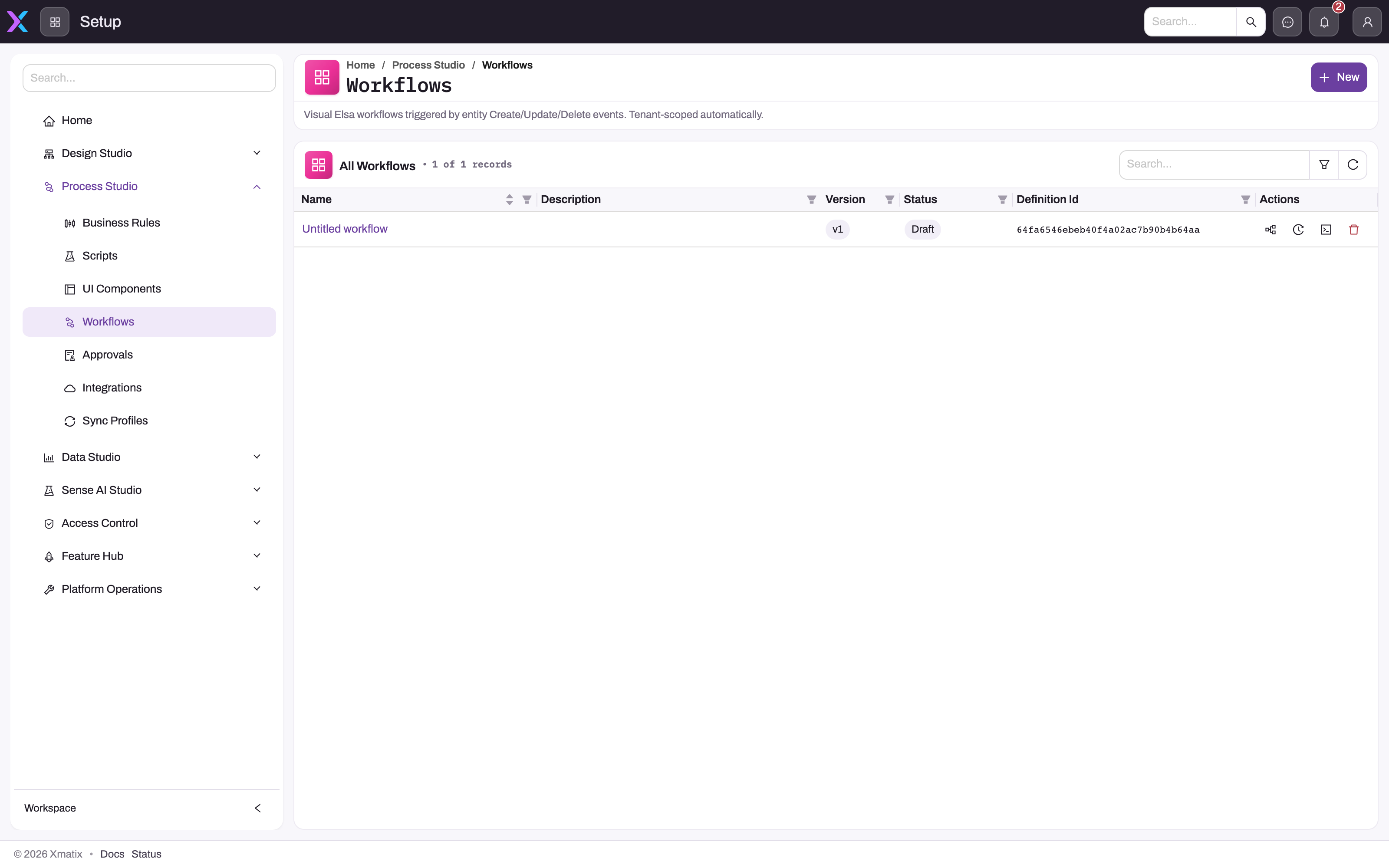
- 1
New creates a draft definition immediately and opens its designer — press it once.
- 2
The name opens the designer for the current draft; rename it under Workflow settings.
- 3
Version increments with every publish; the published version is the one whose triggers are live.
- 4
Status is Draft or Published — and the tag is itself the publish/retract toggle, so another administrator can flip it.
- 5
Row actions: Open designer, View runs (instances, incidents), Edit JSON, Delete workflow.
Step 1 — Create the workflow
Go to Setup → Process Studio → Workflows and choose New once. This immediately creates a draft definition named Untitled workflow at version 1 and opens the visual designer, so do not double-click or repeat the action while navigation is in progress. Open Workflow settings in the designer's command bar, replace the temporary title with a name that states the trigger and outcome, add an operational description, and save. Return to the list if necessary and verify one row exists with Draft status and the expected version; a draft cannot receive live triggers.
The list itself shows Name (opens the designer), Description, Version, Status (a Draft or Published tag that is also the publish toggle — see Step 7), Definition Id and an Actions column with Open designer, View runs, Edit JSON and Delete workflow.
Step 2 — Add the trigger
Drag the When entity record changes trigger from the Triggers group of the palette onto the canvas and configure it: Entity name, the Operations it reacts to (Create, Update, Delete — leave empty for all three), and the Phase. The default, After save (async), runs after the save commits — asynchronous, safe, and the right choice for notifications and follow-ups. Before save (sync — can cancel) runs synchronously inside the save and is the only phase from which a workflow can cancel it; it never fires for deletes. The trigger exposes outputs downstream steps can use — EventRecordId, EventEntityName, EventOperation, EventPhase, EventChangedFields (on updates) and EventStamp.
Step 3 — Add the steps
Drag steps from the palette and connect them. The catalog covers:
| Step | What it does |
|---|---|
| Send Email / Send Message | Direct email (To, Subject, Text body or HTML body), or a templated message over the platform's channels to the record owner, a field's address, a user or a literal recipient |
| Submit for Approval / Wait for Approval Decision | Submits the record (Entity name, Entity id, Comments) into its approval process and suspends the workflow until the decision; outputs Status (Approved, Rejected, Recalled or Reverted), ActorUserId and the decision comments, which downstream steps can branch on |
| Enqueue Job / Wait for Job Completion | Queues a registered background job (optionally delayed) and can suspend until it finishes |
| Cancel entity operation | Aborts the surrounding create, update or delete with a Reason — before-save phase only |
| Decision (If), Switch, Join, While | Branch on a condition (True/False ports), route to the first matching case, merge branches, or repeat a body while a condition holds |
| Set Variable, Write Line | Assign a workflow variable; write a line to the log for debugging |
Know what is deliberately not here: there is no timer or scheduled trigger — "nightly at two" is a scheduled job or integration flow, not a workflow — and no HTTP call-out step, because calling external systems is the job of integrations and automation scripts. Designing around these limits up front beats discovering them after the canvas is full.
Step 4 — Save as a draft and keep the first version small
Save the workflow. Drafts never fire, so you can save half-built work freely. Keep the first version to the trigger plus one or two steps: get one clean run before adding branches, because a fault in a ten-step workflow is ten times harder to localize than in a two-step one.
Step 5 — Publish
The designer command bar offers Undo, Redo, Auto layout, Edit JSON, Workflow settings, the Publish toggle and Save. Publish only after saving, peer-reviewing the trigger and proving the draft with disposable inputs. Publishing registers live triggers, so state the activation in concrete terms—such as “every Order create now emails Operations”—and watch the list change from Draft to Published. Every later edit creates a new draft while the prior published version keeps running. Before expecting a fix in production, verify the corrected version itself is Published rather than merely saved.
Step 6 — Trigger it and inspect the run
Cause the trigger event with a disposable record, then open View runs on the workflow's row. Every triggering produces an instance listed with Started, Status, Sub-status, Version, Incidents, Finished and Instance Id; a finished instance with zero incidents plus the observed side effect (the email arrived, the approval opened) is the proof. Clean up the test record.
Step 7 — Retire or replace safely
To stop new triggers, choose Unpublish in the designer command bar (or click the Published tag in the list, which toggles it and confirms with Retracted) and verify the list returns to Draft; running instances continue and must be monitored individually. To replace behavior without a gap, publish the corrected draft so it supersedes the old version atomically. Use Delete only when the definition should never run again: retract first, confirm there are no instances requiring investigation, and preserve any run evidence your retention policy needs.
Expected result
The list shows one intentionally named workflow at the expected version and status. When Published, one disposable trigger creates one run whose steps and side effects match the design; when Retracted, new test events create no runs while existing instances remain visible to completion.
Common problems
Nothing fired. Check publication first — only the published version registers triggers, and a recent "fix" may be an unpublished draft. Then check the trigger: the exact entity name (not the label), the operations list actually containing the operation you tested, and the phase you expect. A before-save trigger never fires for deletes.
An instance exists but is faulted. A step failed — a missing template, an unresolvable recipient, a bad input. The run view shows which step; fix its configuration, save, republish, and re-test with a fresh event.
The instance finished cleanly but nothing visible happened. The side effect went to the wrong target — a recipient that is not who you thought, a channel that is not enabled, a job type that does not exist. Verify the step's outputs against the message log and job history rather than re-editing the flow blindly.
The workflow toggled state unexpectedly. The list page's status tag is itself a publish/retract toggle, and another administrator may have clicked it. Re-check current state before assuming your change failed.
Common questions
When is a workflow the wrong tool?
When the whole requirement fits inside one save — validation, defaults, status guards — a business rule does it with less machinery and no publishing lifecycle. When the requirement is a schedule ("every morning"), a workflow cannot express it at all: use a scheduled job or integration flow. When it needs to call an external API, that step belongs to a script or integration, orchestrated around — not inside — the workflow.
Does retracting a workflow stop instances already running?
No — retraction stops new triggering only; instances mid-flight (waiting on an approval decision or a job) continue to completion. That is usually what you want, since half-finished processes are worse than finished ones. If a running instance must genuinely be stopped, deal with it individually from the runs view rather than expecting retraction to sweep it away.
Can a workflow block a save the way a rule does?
Yes, in the before-save phase — a decision step feeding the cancel step aborts the save with your reason, synchronously. Use it sparingly: plain validation is clearer as a business rule, which any administrator can read on the entity itself. The workflow version earns its place when the cancellation decision genuinely needs workflow machinery, and it cannot guard deletes (the before-save phase never fires for them).