
An automation script is server-side C# the platform runs in a sandbox — the top working rung of the customization ladder, for logic the declarative tools cannot express: calculations across many records, calls to external APIs, integration glue, and custom behavior behind buttons. A script does nothing until it is bound — to a phase of an entity's save lifecycle, or to a server action a button invokes — and every execution is recorded with its inputs, logs and outcome, which makes scripts unusually debuggable for code. This quickstart writes a small validation script, binds it, tests it against the real pipeline and shows the iteration loop.
Prerequisites
- The scripts capability (
setup.automation.scripts.manage). - Confirmation that a script is the right rung — a business rule that can do the job beats a script, because any administrator can read and adjust it. Scripts earn their keep on cross-record logic, external calls and button behavior.
- Basic C#. Scripts are real code: version them thoughtfully, name them for what they do, and write the description field as if a stranger will read it in a year — because one will.
Procedure
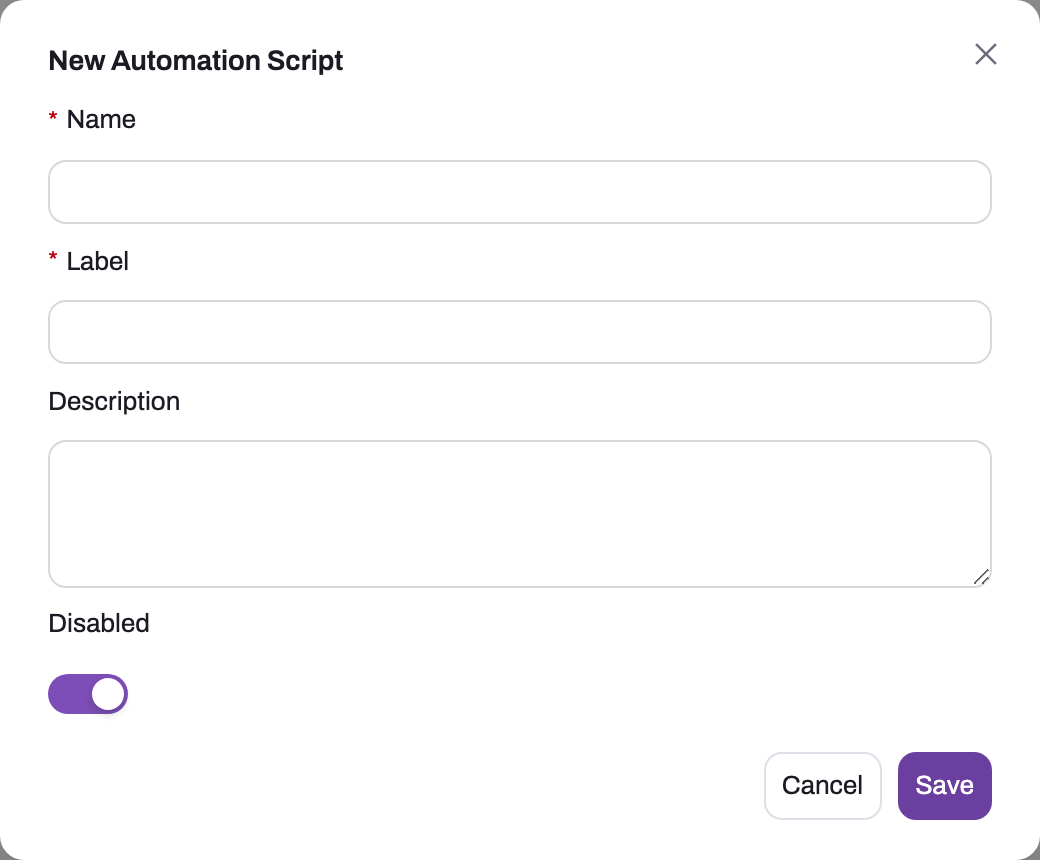
- 1
Name is the stable identifier used wherever the script is referenced by name — pick it once and do not rename it casually.
- 2
Label is the human-readable name administrators see in the catalogue.
- 3
Description should state the trigger, the intended effect and the operational owner.
- 4
Disabled is on for a new script: nothing runs until you turn it off and an enabled binding exists.
- 5
Save creates the shell only — versions, bindings and tests come next in the editor.
Step 1 — Understand what a script can reach
Everything a script touches goes through one ambient context object, Ctx, whose surfaces are the sandbox's entire contract with the platform:
| Surface | What it gives you |
|---|---|
Ctx.Records | The record(s) in the current dispatch, with old values for comparison |
Ctx.Data | Read and write records of any entity — queries, counts, creates, updates, bulk operations |
Ctx.Meta | Read the metadata model: entities, fields, relations, views, actions |
Ctx.Http | Outbound HTTP to external APIs |
Ctx.Messaging, Ctx.Email | Send templated messages and email through the platform's channels |
Ctx.Jobs, Ctx.Queue | Enqueue background jobs (with idempotency keys and delays) and queue messages |
Ctx.Approval | Check eligibility and submit or act on approval requests |
Ctx.Secrets | Read stored secrets — API keys never belong in a script body |
Ctx.Log, Ctx.Step, Ctx.Cancel | Trace what happened, and block the save with a validation message |
There are more (Ctx.Files, Ctx.Cache, Ctx.Settings, Ctx.User, Ctx.Tenant, Ctx.Activities, Ctx.Notifications, Ctx.Integration, Ctx.Ai). The authoritative, always-current reference is inside the product: the Readme tab of the script editor documents every surface, method and limit — treat this page as the map and that tab as the manual. The sandbox enforces boundaries: a time budget of 10 seconds for synchronous runs (lifecycle bindings that run inline, and server actions) and 60 seconds for asynchronous runs on the worker, a body-size cap of 100,000 characters, and blocked namespaces (reflection, file system, raw networking and threading) — long work belongs in asynchronous bindings or queued jobs.
Step 2 — Create the script
Go to Setup → Process Studio → Scripts and choose New. The dialog asks for four things: Name (required — a stable, code-friendly identifier used wherever the script is referenced by name; do not rename it casually), Label (required — the name administrators see in the catalogue), Description (state the trigger, business effect, owner and failure expectation) and the Disabled switch. Keep Disabled on while the script is incomplete, then save the shell. Verify it appears in the catalogue with no active version and no enabled binding: those two absences make the initial object inert while you author safely. Opening the script shows a statistics bar (Status, Active Version, Versions, Bindings, Updated) and the editor with its tabs: Script, Versions, Bindings, Agent Tool, Runs and Readme.
Step 3 — Write the first version
On the Script tab, write the body. A minimal validation script:
var order = (Order)Ctx.Records[0].Entity;
if (order.Total <= 0)
    Ctx.Cancel("Total must be positive.", "Total");
Field names in script code are C# properties on typed entities; Ctx.Cancel(message, fieldName) records a validation failure against a field and blocks the save. Saving compiles the body and reports diagnostics. A changed body that compiles is saved as a new version and becomes the active version straight away; a version that fails to compile is saved but not activated, so fix and save until it compiles clean. The Versions tab marks each version Compiled or Errors — check that before you activate an older version by hand, because Activate version doesn't. Versions accumulate on the Versions tab — every save is a version, and each row offers Load version into editor, Activate version (the active one is marked Already active) and Delete version. The Active Version in the statistics bar is the only one the runtime executes.
Step 4 — Bind it to a trigger
On the Bindings tab, add a binding. A binding has a Name, an Entity and a Type — Lifecycle or Server Action. For lifecycle behavior, pick the Lifecycle Phase and the Change Kinds. The phases run in save order: Load Defaults (inserts only; populates fields before validation; cannot block), Pre-Validate (inserts and updates; the defaulting slot that also covers edits; cannot block), Validate (cancel here to block the save with a message), Before Save (immediately before the row is written; can still block), Before Delete (can block the delete), After Save and After Delete (after the row is written, while the transaction may still be open — a failure here can roll the save back). Change kinds narrow the trigger to Insert, Update, Delete or any mix. For button behavior, choose type Server Action and pick the Entity Action instead; the script then reads Ctx.ActionName and Ctx.ActionArgs.
Two fields place the binding in the phase. Sequence says where it runs relative to everything else in the same phase — platform handlers, domain code, business rules and other scripts; blank means last in the phase, the suggested range for your own steps is 10,000–999,999, and the entity's Execution Plan shows where a number lands. Order only breaks ties between bindings that share the same Sequence. The Run Async switch moves the run to the worker with the longer time budget — external HTTP calls belong in asynchronous After Save bindings, never blocking a save on a partner API (and note an asynchronous script cannot cancel the save; it already happened). The binding's own Disabled switch stops just this trigger. For our validation: phase Validate, change kinds Insert and Update, Run Async off. The moment an enabled binding exists, the script is live for that trigger.
Step 5 — Test against the real pipeline
Use the test panel at the top of the Runs tab to fire a test dispatch: choose the entity, hand-write a sample record for an insert simulation or point at an existing record by id for an update, pick the phase and change kind, and press Run Test. Two things to internalize about testing here. First, a test runs this script's active version and nothing else — it doesn't need a matching binding, and other scripts bound to the same trigger don't run. So a passing test proves the code, not the wiring: confirm the binding separately with a real save. A lifecycle test with no record (neither a sample nor an id) has nothing to run against and reports that nothing ran. Second, side effects are real — data the script writes is saved and messages it sends go out. "Test" means "run the script without saving a record", not "dry run" — test mutating scripts against disposable records.
Step 6 — Read the run history
Every failure and every test lands on the Runs tab with a status of Pending, Running, Succeeded, Failed or Cancelled. Opening a run shows the entity, phase, start and completion times, duration, mode (sync or async), the error class and message, the validation failures your Ctx.Cancel calls emitted, the log and step trace, and snapshots of the exact record and old values the run saw. A run that ended Cancelled is a script that blocked the save on purpose — for a validation script that is the success case, so read the validation failures before "fixing" anything. The run drawer's Copy as Test Input turns a production failure into a reproducible test in one click, and Re-run replays a failed run against the current version.
Step 7 — Iterate safely on a live script
Once a script is bound and live, reproduce the issue from Runs and make the smallest change. Remember that saving a body that compiles makes it the active version at once — so on a live trigger, every successful save is a release. If you want to stage a version without making it live, push it from the CLI without --activate and activate it later from the Versions tab. On a busy trigger, disable the one binding while testing rather than disabling unrelated behavior, then re-enable it and observe a fresh real run. The script-level switch stops every binding; the binding switch stops one trigger. Record which switch you used and verify the catalogue and binding status agree after recovery.
Expected result
The script has a cleanly compiled active version and only the intended enabled binding. A matching disposable event produces a run with the expected logs, steps and outcome; a non-matching event produces no side effect. Validation cancellation is reported as intentional, while unexpected failures remain reproducible from captured run input.
Common problems
The script never runs. In order: the script is disabled; every binding is disabled; no binding matches the entity, phase and change kind of the event; or the script has no compiled active version. A binding has no condition filter — if you need the script to apply only to some records, test the condition in code and return early.
The save became slow, or runs fail at the time limit. A synchronous binding is doing slow work — usually external HTTP. Move the work to an asynchronous After Save binding or enqueue a job; a run failing at almost exactly the time budget is a timeout, not a logic error.
The script triggers itself. An After Save script that updates its own record dispatches a new update — which matches its own binding. Narrow the change kinds (insert only), or guard in code against re-entry.
A button's action returns success but nothing happens. A server action with no bound script (and no built-in handler) succeeds silently by design. Check that the binding points at the right action and that the action's name matches — the dispatch is keyed on the name, so renaming the action breaks the wiring.
A job enqueued mid-save throws. Queueing from inside the save transaction is rejected. Enqueue from an After Save asynchronous binding or a server action instead.
Common questions
Where is the full API documentation?
Inside the product: open any script and read the Readme tab. It is the complete, versioned reference for every Ctx surface — data access, metadata, HTTP, messaging, jobs, approvals, secrets, files and the rest — with method signatures, transaction rules and sandbox limits, and it always matches the runtime you are actually on. This quickstart deliberately stays at the map level.
When is a script wrong even though it would work?
Whenever a lower rung expresses the same requirement. Single-record save logic — defaults, conditional requirements, blocking with a message, status guards — is business-rule territory: same server-side enforcement, readable and adjustable by any administrator. Multi-step orchestration over time is a workflow; human sign-off is an approval process. A script is the right answer when the logic crosses records, calls out, or sits behind a button doing genuinely custom work.
Can Sense AI call my script?
Yes, through the Agent Tool tab — but as a different shape of script. Turn on Publish as an agent tool (off by default; nothing is exposed until you do), write the Description shown to the model like tool documentation, declare Parameters (JSON) as an array of { "name", "type", "description" }, optionally set a Required capability the calling user must hold (the tool is hidden and refused without it; data.script.read additionally grants the body read-only data access), and keep the Timeout (s) short (default 5). A tool call has no records and no lifecycle phase, so the body gets Input.<name> for its parameters and must return a value — Ctx is unavailable, and publishing refuses a body that references it. Agents invoke the tool approval-gated, so a lifecycle script and an agent tool are two separate scripts, never one.
Can I run a script on a schedule?
Not directly — there is no cron trigger for scripts. Recurring work runs through the vehicles built for it: scheduled integration flows for data movement, workflow waits for in-process timing, and the platform job scheduler for registered job types. A script can participate — expose it as a server action and have the scheduled vehicle invoke it, or enqueue jobs from event-driven bindings — but a promise of "the script runs nightly by itself" would be false, so design around events instead.