
A service order is the workshop job card in xMatix: one document per job taken in against a customer and, usually, an asset, carrying the complaint, a line for every part and every unit of labour, and links to every document the job produces. It sits after the enquiry — a case, lead, appointment, service opportunity, service estimate or a walk-in — and before the invoice, the warranty claim and the hand-back of the asset to the customer.
Overview
The order has two tracks that meet at invoicing. Part lines move through inventory: release for fulfilment, allocation of stock, picking and inventory posting, with a VOR purchase order when a part is not in stock. Work Item lines are labour: they go on a time sheet, where technicians start, pause and end the work. The order's Status follows both tracks automatically through Draft → Work To Start → Work In Progress → Work Paused → Work Completed → Invoiced → Delivered, driven by the shipped business rules described under Business rules.
Service orders live in the Service app on the web and in the mobile app.
When to use it
Create a service order whenever your workshop or field team takes in a job that consumes parts, labour or both and that has to be invoiced, claimed under warranty, or recorded on the asset's service history. Use a service estimate first when the customer must approve the price before work starts — the order then takes its lines from the estimate.
How xMatix handles it
- One open order per asset. An asset can have only one service order that is not yet Delivered.
- Lines come from one source. On a new order, lines are copied from the service estimate if one is set; otherwise from the service opportunity the order was generated from; otherwise from the asset's service contract. You can always add lines by hand.
- The item type decides the track. Only items of type Work Item or Part can be put on a line.
- The status moves by itself. Creating a time sheet, starting, pausing and ending work, completing allocation, invoicing and delivery each move the status through shipped business rules. Validations stop the status from claiming more than has happened.
- Invoicing writes the asset's history. The asset's last service date, branch, partner account and usage readings are updated when the invoice is generated, not at delivery.
Prerequisites
- Access to the Service app and a security profile that allows the Service Order entity and the actions you need (see Permissions).
- An Asset record for the machine or vehicle, owned by the customer Account.
- An active Partner Account and, where the partner account has branches, an active Branch belonging to it.
- Items set up as Work Item (labour) or Part (stock), with prices on a price list.
- For contract work: an asset service contract on the asset.
Procedure
Step 1 — Create the order
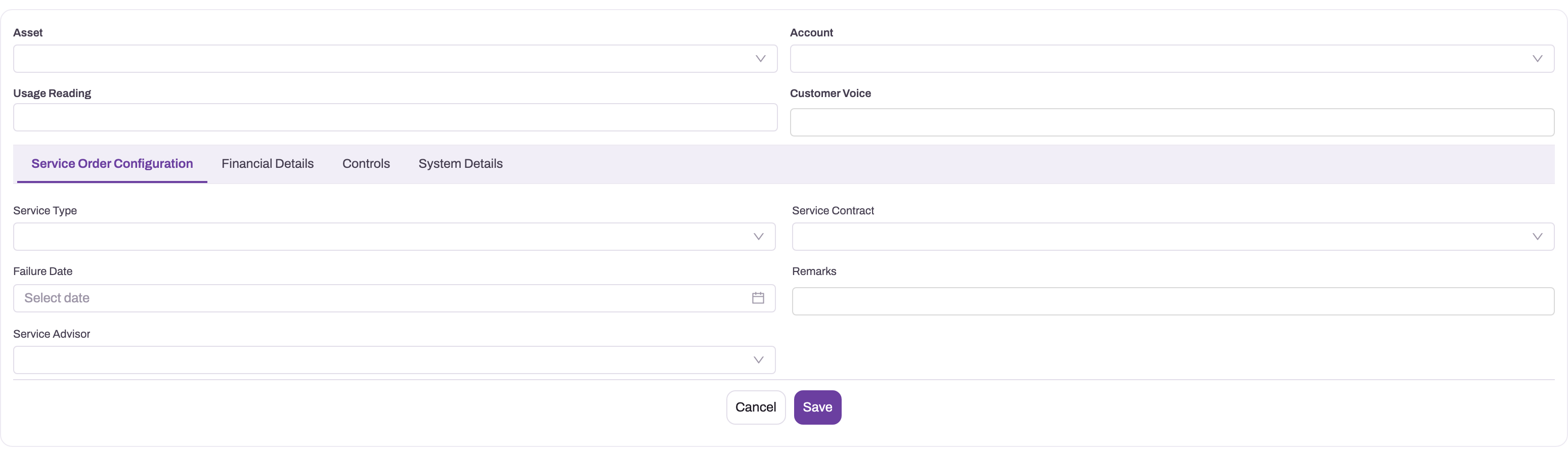
Open Service → Service Orders and choose New. The create form shows Asset, Account, Service Contract, Service Type, Usage Reading and Customer Voice at the top, then four tabs: Configuration (Service Advisor, Failure Date, Remarks), Financial Details (Price List, Price As On Date, Discount Group), Controls (Split Invoices, Skip Scheme) and System Details (Partner Account, Branch). Your organization may have changed this layout.
- 1
Asset identifies the unit being serviced; it fills the Account from the asset's owner, supplies the contract and maintenance context, and may have only one open service order at a time.
- 2
Customer Voice preserves the reported symptom in the customer's own words; structured complaint and fault codes go on the Complaints tab later.
- 3
Usage Reading is validated against the asset's last recorded reading on save and again whenever it changes.
- 4
Service Order Configuration, Financial Details, Controls and System Details are the tenant's create tabs; Partner Account and Branch live on System Details and are fixed once saved.
- 5
Service Contract pulls the asset's covered items in as lines and stamps each line's posting type (invoice or claim); Service Advisor owns coordination of the job.
Pick the Asset first: if Account is empty, it fills from the asset's owner. Enter the Usage Reading shown on the asset and the customer's complaint in Customer Voice. Choose a Service Contract if the work is covered by one.
- 1
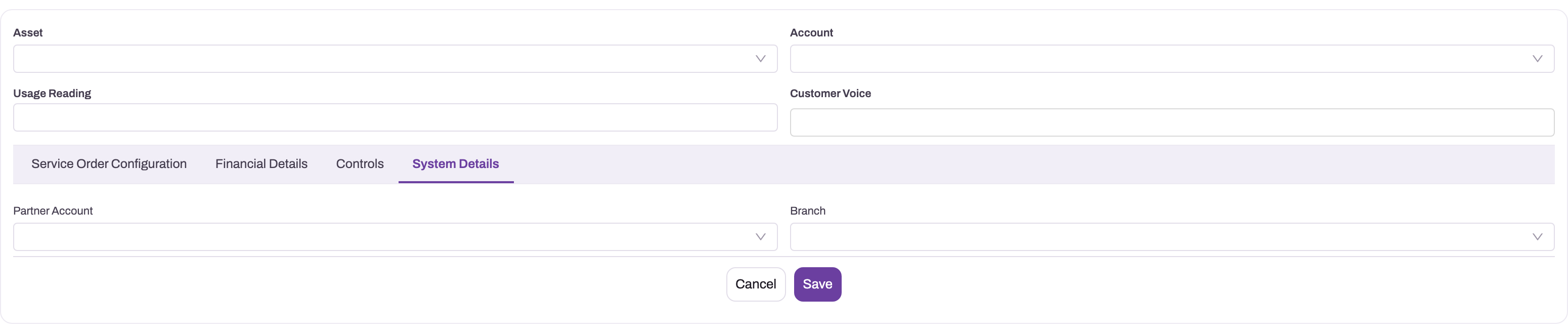
System Details sits last in the tab strip but must be reviewed before saving — the fields on it are key fields.
- 2
Partner Account is the operating company that owns the job's stock, price lists and accounting entries.
- 3
Branch must belong to the partner account; stock availability, VOR purchase orders and allocation all search this branch only.
- 4
Save creates the order in Draft; a wrong partner account or branch afterwards means cancelling and recapturing the order.
Check Partner Account and Branch on the System Details tab before you save — they cannot be changed afterwards. Save. The order gets a document number such as SV-10102026-000001, its Document Date is today if you left it blank, and its status is Draft. If a service estimate, opportunity or contract applies, its lines are already on the Lines tab.
You can also create an order from another record: the Service Order action on a case, lead, appointment, opportunity or service estimate creates an order linked to it, with the opportunity's or estimate's lines.
Step 2 — Check the asset in
On the saved order, choose Check In (shown while the status is Draft). xMatix creates a check-in inspection for the order's asset, account and readings, stamped with the current time, and links it to the order; record the condition of the asset on it. The Check In tab lists the inspection. A second check-in on the same order is refused, and an order with no asset cannot be checked in.
Step 3 — Add and price the lines
On the Lines tab, add a line for each part and each labour item: Item, Quantity, Posting Type, Item Service Contract, Unit Price and Tax Group. Prices come from the order's price list and discount group. Suggested work for the asset is on the Service Recommendation tab: select Edit on the card, tick what the customer accepts and select Save to turn it into lines (see service recommendations). The Health Check and Complaints tabs record the asset's condition and the faults reported.
If prices need recalculating — for example after changing the price list — choose Reprice. Changing Price As On Date or the header Discount reprices the lines as well.
Step 4 — Put the asset in a bay (optional)
Choose Bay Allocation to see the service bays that can take the job, and allocate one. The order's Service Bay shows the bay. Release Bay frees it; the bay is also released automatically when the work is completed or the order is delivered. A delivered order cannot be given a bay.
Step 5 — Plan the labour
Choose Time Sheet and select the Work Item lines to schedule. You can name the technician and planned dates; otherwise the order's technician or service advisor is used. xMatix creates a time sheet for the selected lines and the status becomes Work To Start. Each Work Item line can be on only one time sheet; part lines never go on a time sheet.
Step 6 — Do the work
Technicians start, pause and end the work on the time sheet, on the web or in the mobile app. The order follows: Work In Progress when work has started, Work Paused when it is paused, and Work Completed once every Work Item line has ended and every part line is fully allocated.
Step 7 — Supply the parts
- Choose Fulfillment (or Selective Fulfilment for chosen lines and quantities) to send pending part quantities to the warehouse as a fulfilment document.
- Choose Allocation to reserve stock first-in-first-out, Manual Allocation to choose the lots yourself, or Selective Allocation for chosen lines. Cancel Allocation returns reserved stock.
- When a part has no stock at the order's branch, the order shows as eligible for VOR and the VOR PO and Selective VOR actions appear. VOR PO raises one purchase order of type VOR PO for the outstanding quantity of every part line that is short; Selective VOR does it for the lines and quantities you choose.
- Choose Post Inventory to write the consumed parts to the inventory ledger.
The fulfilment, allocation and picking documents appear on the Related tab, together with invoices, delivery orders, purchase orders and quotes.
Step 8 — Send subcontracted work out (if any)
For lines with Is Subcontracted ticked, choose Work Order. xMatix creates (or adds to) one Draft work order for the order, with a line per subcontracted line. The work order is what you release to the supplier. While a work order is still open, the service order's status cannot change.
Step 9 — Invoice
Choose Invoice to bill every pending quantity, or Selective Invoice to bill chosen lines and quantities. Invoice is refused until every time sheet on the order has ended and every part line is fully allocated. Each line's Posting Type and Invoice Group decide whether it becomes a customer invoice or a claim, and how documents are split — see Invoice a service order. After invoicing, the status becomes Invoiced and the asset's service history is updated. Use Payment on the Amounts panel to record what the customer pays.
Step 10 — Deliver
When the customer collects the asset, choose Delivery (shown while the status is Invoiced). The order is marked Delivered and its status becomes Delivered; the bay is released, the inspection line the order came from is closed, campaign maintenance done on the order is recorded against the asset, and the asset is no longer shown as under service. A new order can now be opened for the asset.
On the mobile app
The service order appears in the Service app on mobile with the same record layout. Mobile users can run the actions their profile allows, including time sheet creation, bay allocation, lot allocation and recommendations; starting, pausing and ending work is done on the time sheet. During a field visit, one service order per visit can be raised — offline as a Draft that is sent when the device reconnects.
Fields
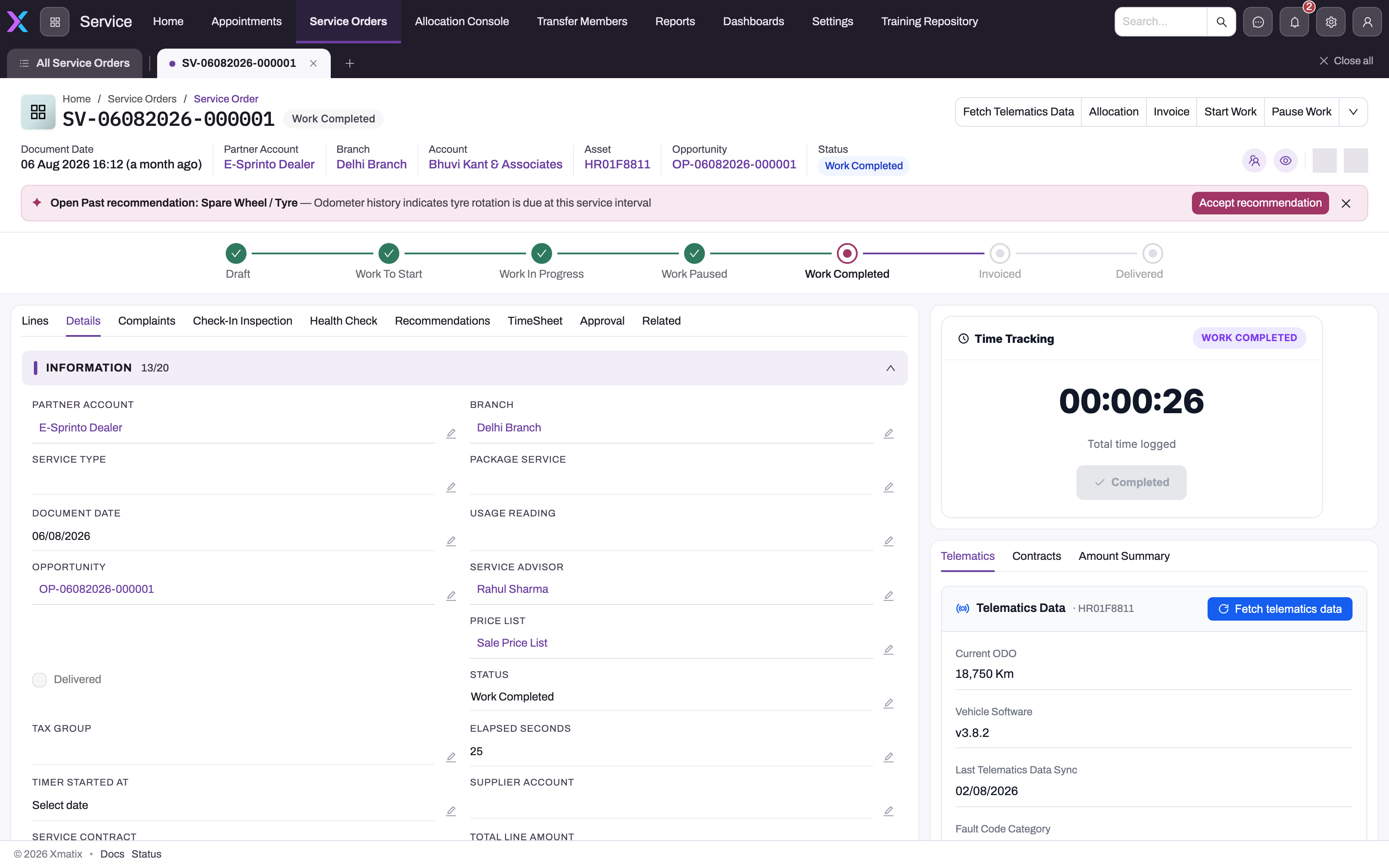
The record page shows a header with Document Date, Partner Account, Branch, Account, Asset and Usage Reading, the status steps, and the tabs Lines, Check In, Health Check, Complaints, Service Recommendation, Related and Details. The Amounts panel on the right shows the totals.
- 1
Header actions such as Allocation and Invoice run the lifecycle steps; Invoice is refused until all time sheets have ended and all part lines are allocated.
- 2
The stepper is the Status picklist — Draft, Work To Start, Work In Progress, Work Paused, Work Completed, Invoiced (tenant-added here), Delivered. Work Completed is validated against the Work Item lines.
- 3
An assistant banner can surface open recommendations or stale states above the stepper; the records themselves are on the Recommendations tab.
- 4
Partner Account and Branch on Details are the key fields fixed at creation; Service Type, Package Service, Usage Reading, Service Advisor and Price List explain how the lines were sourced and priced.
- 5
Time Tracking reflects the work flags recomputed from time sheet lines; it is a roll-up, not where work is stamped.
| Field | What it means | Notes |
|---|---|---|
| Document Number | The order's number | Generated on save, for example SV-10102026-000001 |
| Asset | The machine or vehicle being serviced | Only one open order per asset; fills Account if empty |
| Account | The customer | Filled from the asset's owner when left empty |
| Service Contract | The contract covering the work | Validated against the asset's active asset service contract and its usage band; changing it swaps the contract lines |
| Service Type | The kind of job | Paid Repairs, Free Service, Warranty Service, Dealer Expense, PDI (the shipped create form offers the first four) |
| Usage Reading | Meter reading at reception | Cannot be below the asset's last recorded reading; Usage Reading (Hours) works the same way |
| Customer Voice | The complaint in the customer's words | Free text |
| Service Advisor | The person coordinating the job | Must be authorized for the order's partner account and branch |
| Failure Date | When the fault happened | Used for warranty work |
| Remarks | Notes on the job | Free text |
| Price List | Prices the lines | Defaults when the order is created |
| Price As On Date | Date used to look up prices | Changing it reprices every line |
| Discount Group | Discount rules for the lines | |
| Discount | Header discount percentage | Copied to every line when changed |
| Split Invoices | Stored but not used | Use each line's Invoice Group to split invoices |
| Skip Scheme | Skips trade-scheme evaluation for the whole order | |
| Partner Account | Your operating company for the job | Must be active; cannot be changed after save |
| Branch | The branch doing the job | Must be active and belong to the partner account; cannot be changed after save |
| Service Bay | The bay the asset occupies | Set by bay allocation; cleared on release |
| Package Service | A service package applied to the order | Package component lines are priced on the package line |
| Supplier Account | Default supplier for VOR purchase orders | Used when no supplier is given on the VOR action |
| Status | Where the job stands | Draft (default), Work To Start, Work In Progress, Work Paused, Work Completed, Invoiced, Delivered |
| Standard Duration, Work Started At, Work Completed By | Labour timing | Shown under Duration Details |
| Order Amount, Total Part Amount, Total Labour Amount, Outstanding Amount | Money totals | Calculated from the lines and payments |
| Pending Fulfilment Quantity, Pending Allocation Quantity, Pending Invoice Quantity | What is left to do | Calculated from the lines |
| Delivered, Invoice Generated, Work Started, Work Ended, Is Work Paused, Is Time Sheet Generated | Progress flags | Set by the platform; they drive the status |
| Eligible For VOR PO | A part line is short of stock | Shows the VOR actions |
Line fields. Item (required; a Work Item or Part), Quantity, Unit Price, Rate Basis (Fixed Price, Standard Hours, Actual Hours, Capped Actual, Cost Plus), Invoice Group (Parts or Service), Posting Type (Generate Invoices, Generate Claims, Expense, Accidental Repairs), Item Service Contract, Cancelled Quantity, Work Status (Work Started, Work Paused, Work Ended) and the pending counters for fulfilment, allocation, picking, invoicing and VOR. Quantity must be greater than zero, a Unit Price that is set must be greater than zero, and a Generate Claims line needs an Item Service Contract. Lines a campaign makes mandatory cannot be changed or deleted. Every line field, the rate bases, contract splits and repeat-repair flags are described in Service order lines.
Business rules
- Numbering. The Service Order Name Setting builds the number from the series SV, the document date as DDMMYYYY and a six-digit counter, joined by hyphens. The counter restarts each day.
- Fixed fields. Partner Account and Branch cannot be changed once saved: Key fields are not editable once the related objects are added.
- One open order per asset. An open service order already exists against this asset — {number}. An order counts as open until it is Delivered.
- Usage readings may not go backwards and must fall within the service contract's usage band when a contract is set.
- Contract change is allowed only while no time sheet has started work and no part has been allocated.
- Status ladder. Shipped business rules set the status: Work To Start when a time sheet is created; Work In Progress when work starts; Work Paused when it is paused; Work Completed when all work has ended and all parts are allocated; Invoiced when the invoice is generated; Delivered when the order is delivered. A later stage is never overwritten by an earlier one.
- Work Completed gate. The status cannot become Work Completed while any non-cancelled Work Item line has not ended; a line with no time sheet counts as not ended.
- Open work orders block every status change until they are completed or cancelled.
- Invoice needs pending quantity, every time sheet ended and every part line allocated. Selective Invoice checks only the pending quantity of the lines you choose.
- Invoicing side effects. Invoices and claims are raised per invoice group, contract and posting type; accepted recommendations are marked used; consumed contract entitlement is booked; linked asset maintenance is marked executed; the asset's service history is updated.
- Delivery sets the status to Delivered and runs the hand-back steps in Step 10. It does not check invoicing, payment or work completion — the shipped layout simply offers it only once the order is Invoiced.
- Bays are released when the status reaches Work Completed, when work ends, when the order is delivered with Delivery, or when the order is deleted.
- No cancel action. A service order has no cancel action and no Cancelled status. Unneeded line quantity is entered as Cancelled Quantity on the line.
Example
A customer brings in a tractor with a hydraulic leak. The service advisor opens Service → Service Orders → New, picks the asset Tractor 5510, the account fills as Greenfield Farms, enters a usage reading of 1,240 and the customer voice "Oil leak under the loader arm", and saves. The order is SV-14102026-000003, status Draft.
The advisor chooses Check In, records the condition, then adds two lines: a labour item "Hydraulic hose replacement" (1 unit) and a part "Hydraulic hose 3/4 in" (2). Time Sheet assigns the labour to a technician; the status becomes Work To Start. The part has no stock, so VOR PO raises a purchase order for 2 hoses. When they arrive, Fulfillment and Allocation reserve them. The technician starts and ends the work on the time sheet; with the part allocated, the status becomes Work Completed. Invoice raises one invoice for the part (Parts group) and one for the labour (Service group), the status becomes Invoiced, and the tractor's last service date and reading are updated. When the customer collects it, Delivery closes the job.
Training
Practice exercise
In a sandbox, create a service order for any asset with one Work Item line and one Part line that is in stock. Create a time sheet, start and end the work, then release the part for fulfilment and allocate it. Expected result: the status moves Draft → Work To Start → Work In Progress → Work Completed. Then choose Invoice: one invoice per invoice group is created and the status is Invoiced. Finally choose Delivery and confirm the status is Delivered and that a new order can be created for the same asset.
As a second exercise, try Invoice before ending the work and note the message.
Quick reference
- Check Partner Account and Branch before the first save — they are fixed afterwards.
- One open order per asset; deliver the old one before opening a new one.
- Work Item lines go on time sheets; Part lines go through fulfilment and allocation.
- You do not set the status by hand — time sheets, allocation, invoicing and delivery move it.
- Invoice needs every time sheet ended and every part allocated.
- VOR PO appears only when a part line is short of stock.
- There is no cancel; use Cancelled Quantity on lines you will not do.
- The asset's service history is written at invoicing, not delivery.
Permissions
Viewing, creating, editing and deleting service orders follow the Service Order entity permissions on the user's security profile. Every action on the order — Check In, Time Sheet, Fulfillment, Allocation, VOR PO, Invoice, Delivery, bay allocation, recommendations and the rest — needs its own grant on the profile's Actions tab. A user without the grant who tries an action sees The current user is not allowed to execute server action '{action}' on entity 'ServiceOrder'. Check the grants of each profile your service staff use, including administrator profiles, rather than assuming they are complete.
Resources picked as Service Advisor must be authorized for the order's partner account and branch.
Configuration
- Document numbering — Setup → Feature Hub → Platform → Document Settings, setting Service Order Name Setting (series, date format, number length, separator). Lines (SVL) and time sheets (TS) have their own settings. See Email templates and document numbering.
- Status rules — the six Set Service Order Status To … rules in business rules. They drive the status ladder; change them with care, as the validations above assume them.
- Picklists — Service Type, Status and the line's Posting Type, Invoice Group and Rate Basis are entity picklists, edited in the data model tools.
- Layouts and views — the record page, create form and the shipped list views (All Service Orders, Draft Service Orders, Under Service Contract, VOR Eligible) can be adapted with the layout tools.
- Service bays — maintained in the Service Settings App; see Service configuration.
- Service contracts and campaigns — asset service contracts supply contract lines and posting types; campaigns add mandatory lines.
- Checklists — checklist templates used by the Checklist action.
- Security profiles — entity access and per-action grants, as in Permissions.
- Dispatch — the Service Order Dispatch page under Workshop Operations and the dispatch console.
Common problems
"An open service order already exists against this asset"
The asset already has an order that is not Delivered. Finish and deliver that order, or continue the work on it.
"Usage Reading cannot be less than the last recorded reading"
The reading entered is lower than the asset's last recorded one. Check the meter and enter the correct value; the same applies to Usage Reading Hours. With a service contract, the reading must also be inside the contract's usage band.
"Key fields are not editable once the related objects are added"
You tried to change Partner Account or Branch on a saved order. Create a new order with the correct values; the wrong one can be deleted if your profile allows it.
"Service order cannot be marked as Work Completed until all work item lines have work ended"
At least one Work Item line has not ended, or has no time sheet. Create the missing time sheet and end the work, or enter the line's quantity as cancelled.
"Subcontracted work is still open on work order …"
A work order for subcontracted lines is still Draft or Released. Complete or cancel it, then the status can change.
"Invoice cannot be generated until all time sheets have work ended" or "…until all part lines are allocated"
End the work on every time sheet and allocate every part line, then choose Invoice again.
"No pending … quantities found in service order lines"
Everything at that stage is already done or cancelled, or the earlier stage has not run. Check the line's pending counters. See Service troubleshooting.
"No part lines short of stock to raise a vehicle offroad purchase order for"
Every part line either has stock at the branch or is already fully on a purchase order.
"No service order line is pending time sheet creation"
Every Work Item line already has a time sheet; part lines never go on one.
"This service order has already been checked in"
The order already has a check-in inspection. Open it from the Check In tab.
Common questions
Can I cancel a service order?
No — there is no cancel action and no Cancelled status. Enter quantities you will not supply or perform as Cancelled Quantity on the lines; cancelled quantity is excluded from fulfilment, invoicing and the Work Completed check. An order created in error, before any work or documents were raised from it, can be deleted by a user whose profile allows deleting service orders.
Can different lines be at different stages?
Yes. Fulfilment, allocation, picking and invoicing each track pending quantities per line, and each has a selective variant. One part can be allocated while another waits for a VOR purchase order and the labour is still running on a time sheet. Full Invoice is the point where everything must line up: all labour ended and all parts allocated.
What is the difference between invoicing and inventory posting?
Invoicing is commercial: it turns pending line quantities into invoices or claims and updates the asset. Inventory posting is physical: Post Inventory writes the parts consumed into the inventory ledger. They are separate because a workshop often uses parts before the customer is billed.
Why didn't the status change when I expected?
The status follows the shipped rules, and each rung needs all its conditions. Work Completed, for example, needs every Work Item line ended and every part line fully allocated. A paused time sheet keeps the order at Work Paused. Check the progress flags under Details.
Can I change the branch or partner account after saving?
No. Both are fixed once saved. Create a new order at the correct branch.