
A campaign turns a target group of customers or assets into service work. Rules decide who is in (the members, which are accounts or assets). Campaign items decide what is offered or required. Processing buttons then create the follow-up records: leads, opportunities, asset maintenance entries, and reminder leads for contracts and maintenance schedules. Recalls, free-service drives and contract-renewal reminders all use this one mechanism. The work a campaign creates continues on the lead, opportunity and service order.
Overview
A campaign record holds four things:
- Rules (campaign rules). Each rule tests one field of the member object, such as an account's city or an asset's model. Together the rules decide which accounts or assets become members.
- Members (campaign members). Each member is one account, or one asset together with the account that owns it. Members are built from the rules by Process Members, or added by hand.
- Campaign items. Each item names an item, an optional item service contract, a quantity, and whether the item is mandatory.
- Settings on the campaign itself: whether it is active, its start and end dates, and the service contract and maintenance schedule that the reminder buttons watch.
The processing buttons read these and create records. Every record they create links back to the campaign, and most also link to the member that produced it.
When to use it
| You want to… | Use |
|---|---|
| Recall a set of vehicles or machines for mandatory work | An asset campaign with mandatory campaign items, then Asset Maintainance or Execute Campaign |
| Offer a service package to a group of customers | An account or asset campaign with campaign items, then Opportunities |
| Build a call list for outreach | Any campaign, then Leads |
| Remind customers before a service contract falls due | A campaign with a Service Contract and reminder offsets, then Contract Schedule each day |
| Remind customers before scheduled maintenance falls due | A campaign with an Item Maintenance Schedule and reminder offsets, then Maintenance Schedule each day |
| Move members from a replaced campaign to the new one | Transfer Members |
How xMatix handles it
- One gate for everything. Every processing button and Execute Campaign checks that the campaign has Is Active ticked and that today falls between its Start Date and End Date. A blank start or end date leaves that side open. Only Transfer Members ignores this gate.
- Status is a label. The Status picklist (Draft, Start, In Progress, On Hold) shows as the progress strip at the top of the record. No processing button reads it, and nothing changes it for you.
- The member list is rebuilt, not added to. Each Process Members run writes the members that match the rules now, then removes the members from the previous run. Members you added by hand are kept.
- Generated work adds up. Leads, Opportunities and Asset Maintainance create a new set of records every time you run them. Records from earlier runs stay. The two reminder buttons skip reminders that already exist. See Business rules.
- Mandatory items are protected. A line that comes from a mandatory campaign item cannot be changed or deleted on the opportunity or service order it lands on.
Prerequisites
- Access. You need access to the Campaign, Campaign Rule, Campaign Item and Campaign Member records, plus a grant for each processing button you use. See Permissions.
- Navigation. In the shipped navigation, Campaigns is in the Service Settings App under Service Catalog. Your administrator may have placed it elsewhere.
- For asset campaigns: assets with an owning account. For Execute Campaign and Transfer Members, also a serial number (VIN), item (model), manufacture date and branch on each asset, because the wizards filter on these.
- For contract reminders: asset service contracts with a due date, under one item service contract.
- For maintenance reminders: an item maintenance schedule whose detail rows carry next-service dates.
Procedure
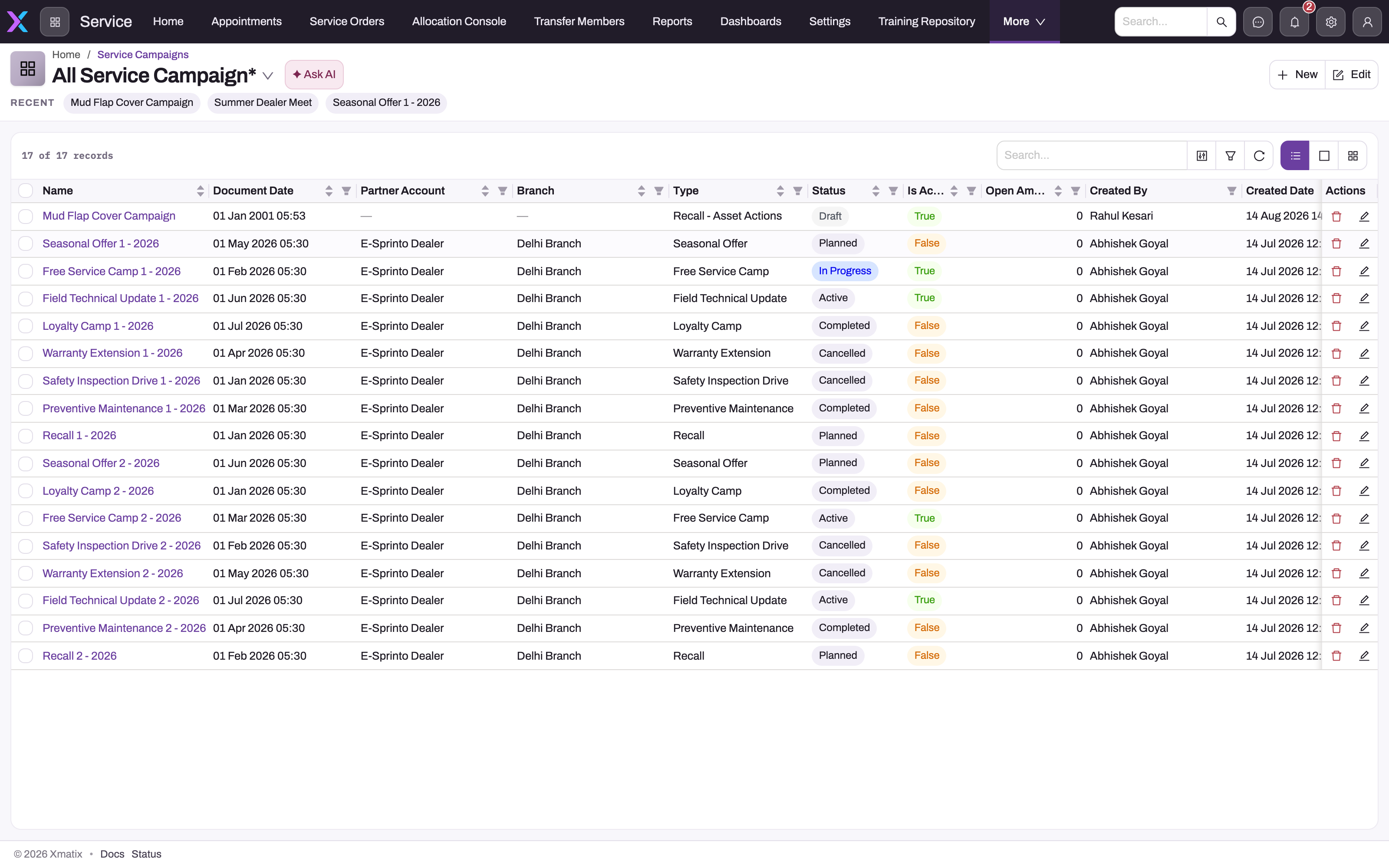
Open Campaigns. The shipped list view, All Campaigns, shows Name, Type, End Date, Document Date, Branch, Status, Is Active, Open Amount, Partner Account and the created and modified columns. To check whether a campaign can be processed, look at Is Active and the dates, not Status.
Step 1 — Create the campaign
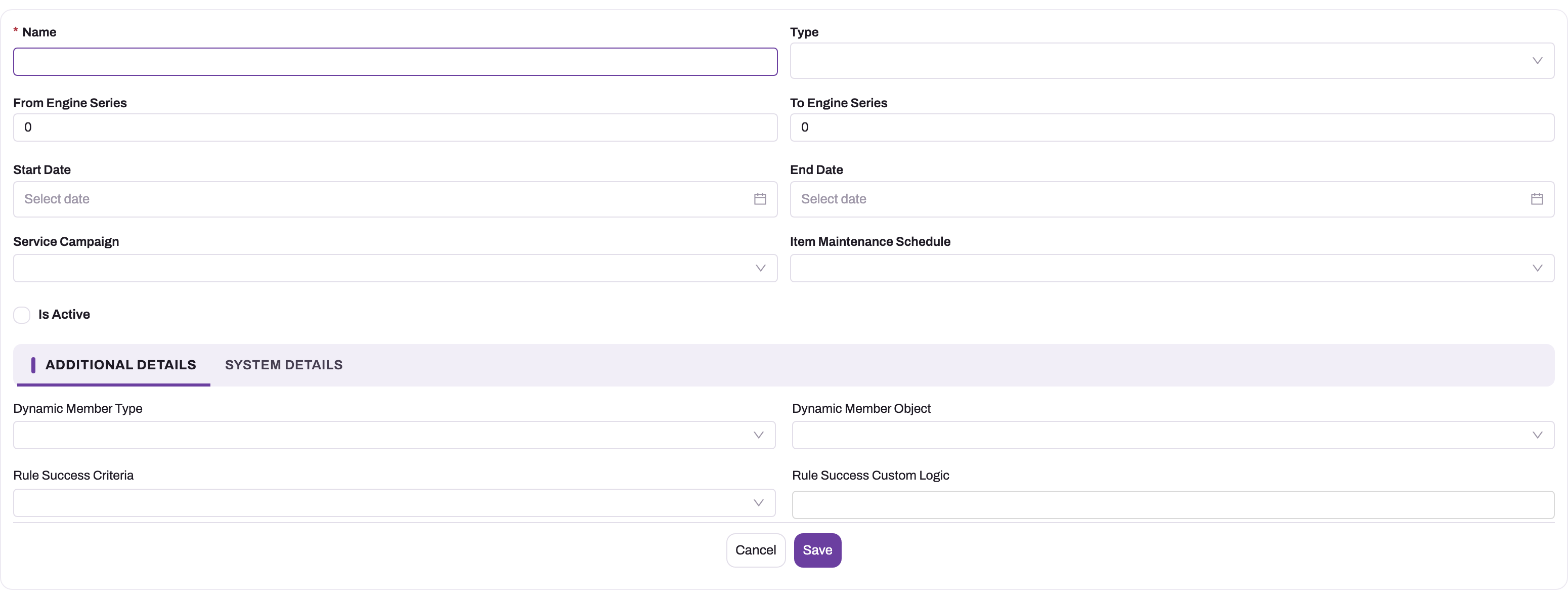
- Select New.
- Enter a Name. This is the only required field. Campaigns are not numbered automatically in the shipped configuration, so give each one a name that people will recognise.
- Choose the Type and set the Start Date and End Date. Optionally, fill From Engine Series and To Engine Series (for reference only — no processing reads them), choose a parent Campaign, and choose an Item Maintenance Schedule if this campaign will send maintenance reminders.
- Leave Is Active cleared until the rules and items have been checked.
- On Additional Details, set Dynamic Member Type to Field Filter. Set Dynamic Member Object to Account or Asset. Choose the Rule Success Criteria, and if you choose Custom Logic Is Met, enter the Rule Success Custom Logic.
- On System Details, choose a Partner Account and Branch if the campaign belongs to one dealer or location. Every member copies these two values, and every record created from the members carries them.
- Save. The record page opens. Its tabs are Members, Campaign Items, Campaign Documents, Asset Maintenance and Details.
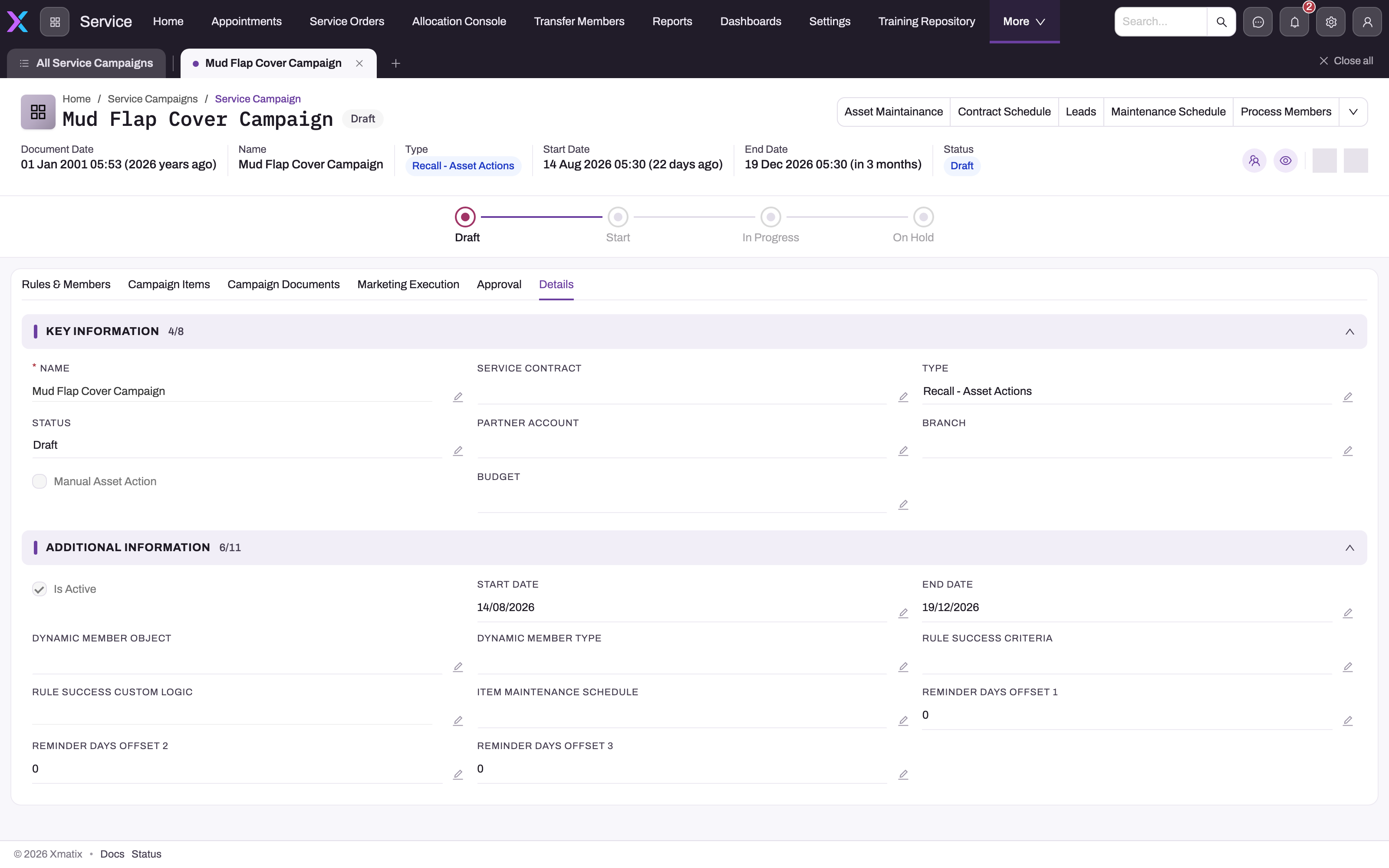
To set the Service Contract, the Manual Asset Action switch or the three Reminder Days Offset fields, open the Details tab on the saved record and select Edit.
Step 2 — Define the member rules
On the Members tab, the first list holds the rules. For each condition, select New and fill:
- Sequence Number — the order of the rule. Custom logic refers to rules by their position in this order: the rule with the lowest sequence number is
1, the next is2, and so on, whatever numbers you type. - Field Name — the field to test, typed as the field's name (for example
BillingCity), not its on-screen label. The field is looked up on the campaign's Dynamic Member Object. A field that the account or asset does not have never matches. - Operation and Field Value — see the table below.
- Object Type — for reference only. The campaign's Dynamic Member Object decides what is tested.
| Operation | What it does |
|---|---|
| Equals | The field equals the value. Text ignores upper and lower case; numbers compare by value, so 10000.00 equals 10000. |
| Like | The field contains the value. |
| Includes | The field contains any of the values separated by semicolons (Red;Blue). For multi-select fields. |
| Less Than, Greater Than, Not In | Currently compared as Equals. Do not rely on them for ranges or exclusions — see Common problems. |
Then choose how the rules combine with Rule Success Criteria on the campaign:
| Value | Members are |
|---|---|
| All Rules Are Met | Records that match every rule |
| Any Rule Is Met | Records that match at least one rule |
| Custom Logic Is Met | Records for which the Rule Success Custom Logic expression is true, for example 1 AND (2 OR 3). Use AND, OR and brackets. |
| Always (No Criteria) | Every account or asset |
Each saved rule gets a name from the SCR numbering series automatically. The rules list on the Members tab offers only New. To change or remove a rule, open it from the list and select Edit or Delete in its header. Rules are read only when Process Members runs, so changing a rule does nothing to the member list until you run Process Members again.
A few details matter when you write rules:
- Leave nothing blank. A rule with no Field Name or no Operation counts as met by every record. Under All Rules Are Met it narrows nothing; under Any Rule Is Met it lets every record in.
- Give every rule a sequence number. A rule with no Sequence Number sorts before the numbered ones, so it becomes
1in custom logic. - Match the value to the field. Lookup fields such as
ItemIdhold the related record's ID, so the Field Value must be that ID. Yes/no fields taketrueorfalse. Custom fields can be tested by name too. - Custom logic accepts only
AND,ORand brackets. Any other word, such asNOT, makes that part of the expression false. If you choose Custom Logic Is Met but leave Rule Success Custom Logic blank, every rule must be met.
Step 3 — Add the campaign items
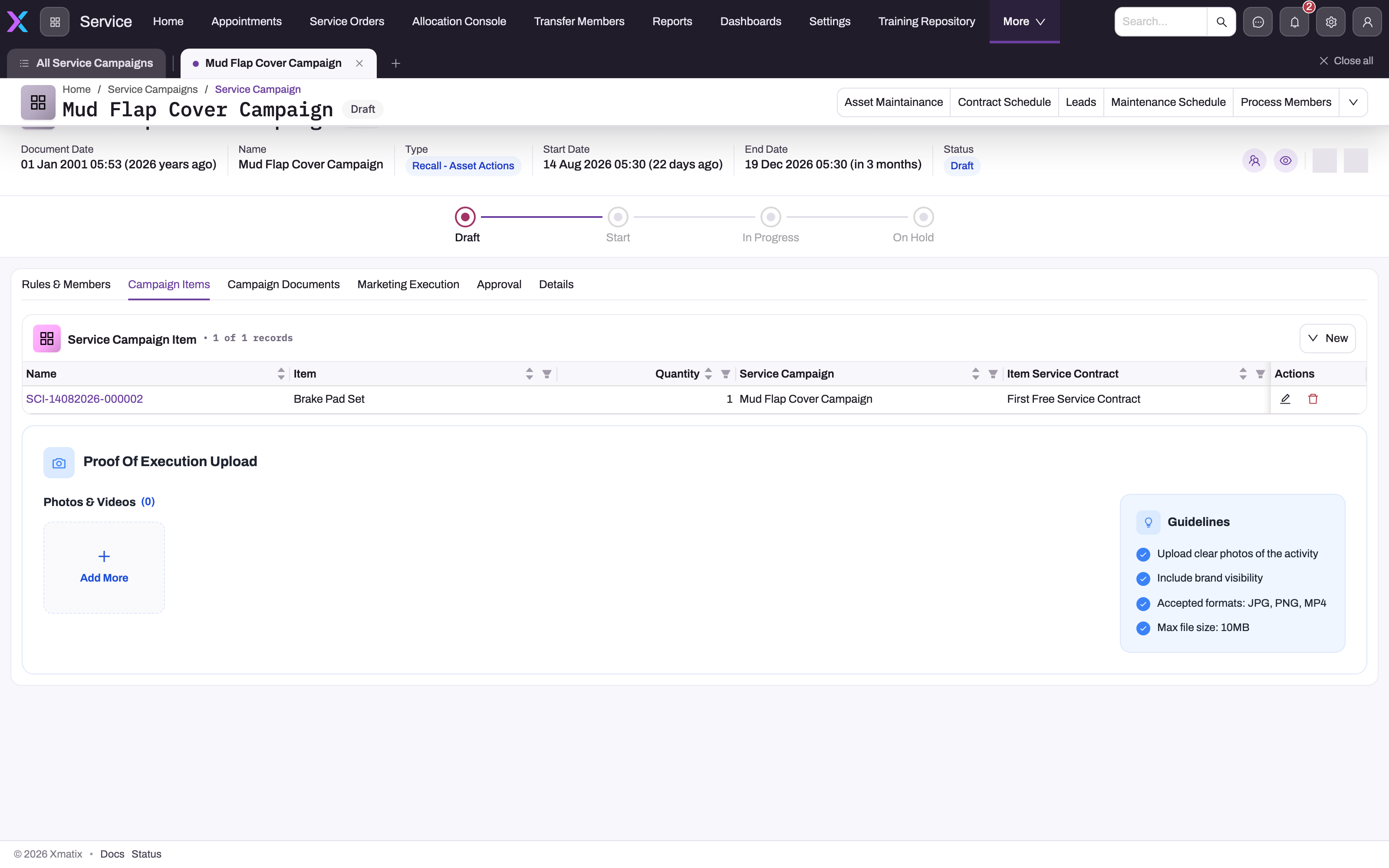
Campaign items say what each member gets: one opportunity line or one asset maintenance entry per campaign item.
- Open the campaign's Campaign Items tab and select New above the list. A card opens with Item, Item Service Contract, Quantity and Is Mandatory. The campaign is filled in for you.
- Choose the Item (required). Every item in the catalogue is offered, so pick the exact part kit or labour item the work needs.
- Optionally choose an Item Service Contract to attach to the work. The list is not limited to contracts for the chosen item.
- Enter the Quantity per member. It starts at 0 and is copied as it is, so a campaign item left at 0 creates lines and entries with quantity 0. Use whole numbers.
- Tick Is Mandatory if the work must be done. The lines it creates on opportunities and service orders are then protected.
- Save. The item appears in the list with an automatic name from the SCI numbering series (SCI, a date and a running number). The list shows Name, Item, Quantity, Campaign and Item Service Contract, seven rows to a page. Is Mandatory is not a list column; open the item to see it.
To check or change an item, select Edit on its row, or select its Name to open its record page (Key Information and System Information) and select Edit in the header. The same four fields open. To remove an item, select Delete on its row or in the record header.
Add every item before you create opportunities or asset maintenance. Each run copies the items as they are at that moment, and changing or deleting a campaign item later does not change what was already created.
The Campaign Documents tab holds file uploads for the campaign, such as execution photos. It does not affect processing.
Step 4 — Activate and build the member list
- On Details, select Edit, tick Is Active, check the dates and save.
- Select Process Members in the record header.
- Check the Members tab. The second list shows one member per matching account or asset.
Each run replaces the members from the previous run with the current matches. Members you added by hand with New are kept. The member list shows Name, Branch, Asset and Item, five rows to a page. Each member gets a name from the member numbering series automatically: SCM, a date and a running number.
To look at one member, select its Name. The member's record page opens with the campaign in the header and four sections:
- Key Information: Account, Asset, Item, Service Order, Partner Account, Branch.
- Additional Information: Batch Instance and Due Date.
- Controls: Messaging Opt Out, Email Opt Out and Is Utilised.
- System Information: who created and last changed the member, and when.
Step 5 — Add, correct or remove members by hand
Use this for a customer or asset the rules do not catch, or to record that a member's campaign work is done.
- On the campaign's Members tab, select New above the member list. A card opens with Asset, Partner Account, Branch and Account. The campaign is filled in for you.
- Fill Account, and Asset for an asset campaign. Nothing is filled in from the asset or the campaign, so also choose the Partner Account and Branch that the member's leads and work should carry. Save. The member appears in the list with an SCM name.
- To correct a member, select Edit on its row (or Edit on its record page). The same four fields open in a dialog.
- To record other values, open the member's record page and select the pencil next to a field. Use this to tick Is Utilised or to choose the Service Order that used up the member's entitlement. Asset Maintainance skips members with either one set.
- To remove a member, select Delete on its row or on its record page. Leads, opportunities and asset maintenance already created for the member are not deleted.
A member you add by hand has no Batch Instance, so Process Members never removes it. Leave Batch Instance blank: a member with any value there is removed by the next rebuild.
Step 6 — Create the work
Run the button that fits the campaign. The shipped record header shows Leads, Asset Maintainance, Contract Schedule, Maintenance Schedule and Process Members. Opportunities exists, but an administrator has to add it to the header first (see Configuration).
| Button | What it creates |
|---|---|
| Leads | One lead per member, with status New and today's document date. Each lead carries the member's account, asset, partner account and branch, and links to the campaign and member. |
| Opportunities | One opportunity per member, with one line per campaign item. Each line copies the item, item service contract and quantity, and is marked mandatory when the campaign item is. |
| Asset Maintainance | One asset maintenance entry per campaign item for each member that is not marked Is Utilised and has no Service Order. Each entry carries the asset, item, item service contract, quantity and mandatory flag. |
Leads appear on the campaign's Asset Maintenance tab (in the second list) and in the Leads list. When a campaign lead is converted, the new opportunity keeps the lead's campaign and member. Asset maintenance entries appear in the first list on the same tab. The shipped asset page has no tab for them. How to read, correct and close an entry is covered in Asset maintenance entries.
Step 7 — Let campaign work reach the service order
Open asset maintenance entries reach the service order through the asset's opportunities. Open means not yet carried out, and not yet on a delivered service order. Both steps happen only while the entry's campaign is active and inside its dates.
- Opportunity. When a new opportunity is created for the asset, the asset's open entries from campaigns with Manual Asset Action cleared (the default) are added to it as lines. Each line keeps the campaign, the campaign item and the entry.
- Service order. When a new service order is created for the asset without any lines, it takes the campaign lines found on the asset's opportunities. On an existing order, tick Populate Asset Maintenance and save to do the same. An entry already on the order is not added twice.
A campaign with Manual Asset Action ticked is skipped in step 1. Because service orders take campaign work only from the asset's opportunity lines, its entries do not reach any document by themselves, and Populate Asset Maintenance does not find them either.
Mandatory entries arrive as protected lines. When the service order is delivered, the work is recorded against the asset maintenance entry, so it is not offered again. Invoicing an order also ticks Is Executed on its entries. The exact rules are in Asset maintenance entries.
Step 8 — Send due-date reminders
The two reminder buttons look at due dates instead of members:
- Contract Schedule looks at the asset service contracts under the campaign's Service Contract. It skips contracts that are marked utilised or whose valid-till date has passed. For each remaining contract whose due date is exactly today plus one of the Reminder Days Offset values, it creates a lead.
- Maintenance Schedule looks at the detail rows of the campaign's Item Maintenance Schedule. For each asset whose next service date is exactly today plus one of the offsets, it creates a lead. If the campaign has no maintenance schedule, the button does nothing.
Each reminder lead has status New. It carries the asset and its owning account, the Lead Due Date, the Reminder Offset Number (1, 2 or 3 — which offset matched), and the Item Service Contract or Item Maintenance Schedule behind it. Its Lead Source reads Contract Schedule or Maintenance Schedule. The lead goes to the branch and partner account that last serviced the asset, or, if there is none, to where the asset was sold.
Because a due date must land on an offset exactly, run these buttons every day. A day you miss is a reminder you lose. Nothing in the shipped configuration runs them for you. Running them twice on one day is safe: a lead that already exists for the same asset, due date and offset is not created again.
Step 9 — Execute a recall for part of its population
Execute Campaign is a four-step wizard: Select Campaign → Select VIN Population → Review & Confirm → Execute. Your administrator must place it on an app page first (see Configuration).
- Pick the campaign.
- Filter the asset members by model year range, Model and Plant. Model year comes from the asset's manufacture date, model is the asset's item, and plant is the asset's branch. When a year range is set, members with no manufacture date are left out. Each row shows Executed if the member already has asset maintenance entries for this campaign.
- Tick the VINs to run. On Review & Confirm, check the count, then execute.
- The result shows Successfully Executed, Already Executed (skipped) and any failures. VINs you did not tick stay Not Executed.
Executing a member creates the same entries as Asset Maintainance: one per campaign item. But it covers the ticked members only, and never removes earlier entries. A member that already has entries is skipped. A member that has left the campaign or has no asset is reported as a failure, and the rest still run.
Step 10 — Move members to another campaign
Transfer Members is a four-step wizard: Select Source Campaign → Select Target Campaign → Select Members → Review & Confirm.
- Pick the source campaign, then a different target campaign.
- Choose Transfer All Members, or Transfer a Subset of Members by one of:
- Filter by Criteria: conditions on Asset, VIN, Model Year, Model or Plant, each with Contains, Equals, Not equals or Starts with. All conditions must match.
- Upload VIN List: an Excel or CSV list of serial numbers. Spaces and upper/lower case are ignored. Serial numbers that match no member are listed.
- Manual Selection: tick the members.
- On Review & Confirm Transfer, check Matching Members, Already in Target Campaign, Will be Transferred and Will be Removed from Source, then select Confirm Transfer.
A transferred member moves: it leaves the source and joins the target. Its leads, opportunities and asset maintenance entries stay linked to it. Members whose asset (or serial number) is already in the target are skipped and stay in the source. In the target, a transferred member counts as hand-added, so the target's next Process Members run keeps it. Transfer works on inactive and expired campaigns, so you can use it to empty an old campaign into its replacement.
Fields
Campaign
| Field | What it means | Notes |
|---|---|---|
| Name | The campaign's name | Required. Not auto-numbered in the shipped configuration. |
| Type | What kind of campaign this is | Shipped values: Recall - Asset Actions, Marketing;Service. Extendable. Does not change processing. |
| From Engine Series, To Engine Series | Engine-series range the campaign is meant for | Reference only. Not used to select members. |
| Start Date, End Date | The window in which the campaign can be processed | Blank means open on that side. Checked by every processing button, Execute Campaign, and the pull onto documents. |
| Campaign | A parent campaign | Reference only. |
| Item Maintenance Schedule | The schedule Maintenance Schedule reads | Needed for maintenance reminders. Copied onto the reminder leads. |
| Is Active | Whether the campaign can be processed | Gates every processing button, Execute Campaign, and the pull of its work onto documents. |
| Dynamic Member Type | Where members come from | Field Filter (rules) or Report Data. Use Field Filter. Process Members skips Report Data campaigns. |
| Dynamic Member Object | What a member is | Account or Asset. Blank means Account. An asset member also carries the asset's owning account. |
| Rule Success Criteria | How the rules combine | All Rules Are Met, Any Rule Is Met, Always (No Criteria), Custom Logic Is Met. Blank behaves like Always (No Criteria). |
| Rule Success Custom Logic | The expression for Custom Logic Is Met | Rule positions with AND, OR and brackets, e.g. 1 AND (2 OR 3). |
| Partner Account, Branch | The dealer and location the campaign belongs to | Copied onto every member, and from there onto generated leads, opportunities and asset maintenance. Branch is limited to the partner account's branches. |
| Service Contract | The item service contract Contract Schedule watches | Set on Details after saving. Copied onto contract reminder leads. |
| Manual Asset Action | Whether open asset maintenance is offered on new opportunities | Cleared (default): added to new opportunities for the asset, and from there to service orders. Ticked: skipped, so the entries reach no document by themselves. See Step 7. |
| Reminder Days Offset 1, 2, 3 | Days ahead of a due date at which reminders are created | A due date exactly today plus an offset creates a reminder stamped 1, 2 or 3. The largest offset sets how far ahead the buttons look. |
| Status | Where the campaign stands | Draft, Start, In Progress, On Hold. Shown as the progress strip. Changed by hand only. |
Campaign rule
| Field | What it means | Notes |
|---|---|---|
| Name | The rule's name | Filled automatically from the SCR numbering series. Not on the entry form. |
| Campaign | The campaign the rule belongs to | Filled in from the campaign you add the rule on. |
| Sequence Number | Order of the rule | Custom logic uses the rule's position in this order (1, 2, 3…), not the number itself. A blank number sorts first. |
| Field Name | Field of the account or asset to test | Use the field's name, not its label. Custom fields work too. Blank means the rule is always met. |
| Operation | How to compare | Equals, Like, Includes work as named. Less Than, Greater Than, Not In currently compare as Equals. Blank means the rule is always met. |
| Field Value | Value to compare with | For Includes, separate values with semicolons. For a lookup field, the related record's ID; for a yes/no field, true or false. |
| Object Type | The object the rule was written for | Account, Asset, Service Order, Opportunity, Lead, Case, DMS Case. Reference only: the campaign's Dynamic Member Object decides what is tested. |
Campaign item
| Field | What it means | Notes |
|---|---|---|
| Name | The campaign item's name | Filled automatically from the SCI numbering series. Not on the entry card. |
| Campaign | The campaign the item belongs to | Filled in from the campaign you add the item on. |
| Item | The item offered or required | Required. Every item is offered. Copied as the item of every opportunity line and asset maintenance entry. |
| Item Service Contract | Contract product to attach to the work | Optional. Not limited to the chosen item. Copied onto opportunity lines and asset maintenance. |
| Quantity | Quantity per member | Starts at 0; whole numbers. Copied as it is onto opportunity lines and asset maintenance. |
| Is Mandatory | Whether the work must be done | Copied onto opportunity lines (as Campaign Mandatory), asset maintenance and service order lines. Those lines cannot have their item, item service contract or quantity changed, and cannot be deleted. Not shown in the item list. |
Campaign member
| Field | What it means | Notes |
|---|---|---|
| Name | The member's name | Filled automatically from the member numbering series (SCM, a date and a running number). |
| Campaign | The campaign the member belongs to | Set from the campaign you add the member on. Changed only by Transfer Members. |
| Account | The customer in the campaign | Process Members fills it with the account, or with the asset's owning account. On a hand-added member, pick it yourself. Leads and opportunities take their account from here. |
| Asset | The asset in the campaign | Filled on asset campaigns. Execute Campaign and Transfer Members only work with members that have an asset. |
| Item | An item recorded on the member | Not filled or read by any campaign processing. Campaign items decide what is offered. |
| Service Order | The service order that used up the member's entitlement | Not filled automatically. Asset Maintainance skips a member that has one. |
| Partner Account, Branch | The dealer and location the member belongs to | Process Members copies them from the campaign. A hand-added member gets only what you enter. Passed on to every lead, opportunity and asset maintenance entry made from the member. |
| Batch Instance | Which Process Members run created the member | Blank for hand-added and transferred members, and blank members survive rebuilds. Do not type in it. |
| Due Date | A date recorded on the member | Not filled or read by any campaign processing. Reminders use contract and maintenance due dates instead. |
| Messaging Opt Out, Email Opt Out | The customer's contact preferences | Recorded only. Processing buttons do not read them. |
| Is Utilised | Marks a member whose campaign work is done | Not ticked automatically. Asset Maintainance skips a member with it ticked, and Asset Search stops listing the membership. |
Business rules
- Gate. Every processing button and Execute Campaign refuse a campaign that is not active, has not started yet, or has ended. Transfer Members is not gated.
- Member rebuild. Process Members adds a member for every current match, then removes the members created by earlier runs. Both happen in one save, so the campaign is never left empty halfway. Hand-added members are kept.
- Rebuilds do not check for duplicates. Process Members adds a member for every match, even when a hand-added or transferred member already covers the same account or asset. That customer then has two members, and each of them gets its own lead, opportunity or asset maintenance.
- Hand-added members copy nothing. A member added with New keeps exactly the values you enter. Its account is not taken from the asset, and its partner account and branch are not taken from the campaign.
- Deleting a member keeps its work. Deleting a member, by hand or through a rebuild, leaves its leads, opportunities and asset maintenance in place.
- No rules means everyone. With no rules, or a blank Rule Success Criteria, every account (or asset) becomes a member.
- Report Data and other member objects are skipped. Process Members leaves the member list untouched when Dynamic Member Type is Report Data or the member object is neither Account nor Asset.
- Leads and Opportunities accumulate. Each run creates another lead or opportunity per member. Earlier ones are not removed.
- Asset Maintainance accumulates, and removes Execute Campaign output. Each run creates another set of entries for eligible members. Earlier entries from this button are kept. But entries created by Execute Campaign are removed, so do not use both on the same campaign.
- Account campaigns and asset maintenance. On an account campaign, members have no asset. Asset Maintainance then creates entries with no asset, and those are never pulled onto a document. Use asset campaigns for asset work.
- Reminders do not duplicate. Contract Schedule and Maintenance Schedule create at most one lead per asset, due date and offset in the campaign. They never remove leads.
- Lead record type. Leads created by a campaign take the lead record type whose name matches the campaign's record type. If none matches, they get none.
- Campaign items are copied, not linked live. Opportunities, Asset Maintainance and Execute Campaign copy each campaign item's item, item service contract, quantity and mandatory flag at the moment they run. Editing or deleting a campaign item afterwards leaves the lines and entries already created unchanged; only later runs use the new values.
- No campaign items. Opportunities still creates one opportunity per member, with no lines. Asset Maintainance creates nothing. Execute Campaign refuses to run.
- Mandatory lines. On opportunity lines from a mandatory campaign item, changing the item, item service contract or quantity is refused, and so is deleting the line. Service order lines carry the same protection, which also covers the cancelled quantity.
- Campaign lines are not repeat repairs. A service order line that came from a campaign item or an asset maintenance entry is never flagged as a repeat repair.
- Transfer. The target must be a different campaign. A member is skipped when its asset or serial number is already in the target. Transferred members keep their links to generated records.
Example
A workshop chain must replace a faulty fuel-pump relay on one tractor model built in 2024 and 2025.
- A service manager creates Relay Recall 2026 with Type Recall - Asset Actions, Start Date 1 November 2026 and End Date 31 March 2027, leaving Is Active cleared. On Additional Details they choose Field Filter, Asset and All Rules Are Met.
- On Members they add rule 1: Field Name
ItemId, Operation Equals, Field Value the model's item ID. On Campaign Items they add the relay kit (quantity 1, Is Mandatory ticked) and a labour item (quantity 1, mandatory). - On 1 November they tick Is Active and run Process Members. 412 tractors become members.
- Because parts arrive plant by plant, they use Execute Campaign: filter Plant North Works, tick the 160 VINs and execute. 320 asset maintenance entries are created. The other 252 VINs stay Not Executed until the next shipment.
- A customer brings in one of the executed tractors. The service advisor creates a service opportunity for the asset, and the relay kit and labour arrive on it as two protected lines. The advisor then creates a service order for the asset with no lines, and the same two lines arrive on it. Neither can be removed.
- In January a second fault is found in the same tractors, and a new campaign is set up for the combined repair. The manager uses Transfer Members with Transfer All Members to move every member to the new campaign.
Training
Practice exercise
In a sandbox, create a campaign Practice Spring Check with Dynamic Member Type Field Filter, Dynamic Member Object Account, Rule Success Criteria All Rules Are Met and no end date. Add one rule: Field Name BillingCity, Operation Equals, Field Value a billing city used by two or three of your test accounts. Add one campaign item. Tick Is Active, then select Process Members.
Expected result: the Members tab lists exactly the accounts in that city. Now change the rule's value to a different city and run Process Members again. The list now shows only the new city's accounts. Finally, select Leads once: one lead with status New appears per member, linked to the campaign.
Quick reference
- Tick Is Active and check the dates before any processing button — Status gates nothing.
- Process Members rebuilds the list; hand-added members survive.
- A hand-added member copies nothing: fill Account, Partner Account and Branch yourself, and leave Batch Instance blank.
- Tick Is Utilised on a member when its work is done; nothing ticks it for you.
- No rules, or a blank Rule Success Criteria, means every account or asset joins.
- Only Equals, Like and Includes work as named in rules.
- Fill Field Name, Operation and Sequence Number on every rule; re-run Process Members after changing rules.
- Leads, Opportunities and Asset Maintainance add a new set each run — run them once.
- Don't mix Asset Maintainance and Execute Campaign on one campaign.
- Run Contract Schedule and Maintenance Schedule every day.
- Mandatory campaign items become lines that cannot be changed or deleted.
- Set each campaign item's Quantity (it starts at 0) and finish the items before any run — runs copy them, later edits do not reach existing lines.
- Leave Manual Asset Action cleared if campaign work should reach opportunities and service orders.
- Use Transfer Members to move members; it works on expired campaigns too.
Permissions
- Records. The shipped Sales Executive, Sales Manager, Service, Standard User and System Admin profiles have full access to Campaign, Campaign Rule, Campaign Item and Campaign Member.
- Buttons. Process Members, Leads, Opportunities, Asset Maintainance, Contract Schedule, Maintenance Schedule, Transfer Members, Clone, New, Edit and Delete are granted on Sales Executive, Sales Manager, Standard User and System Admin. The Service profile has record access but no button grants, so a user with only that profile cannot run the processing buttons. Grant them in security profiles.
- Wizards. Execute Campaign and Transfer Members are used from app pages. Grant the app page to the profiles that should use it.
- A user without the grant for a button cannot run it. A user without access to the Campaign record cannot open campaigns at all.
Configuration
- Navigation. Campaigns ship in the Service Settings App under Service Catalog. Add the entity to other apps' navigation in Design Studio if users work from there.
- Record page buttons. The shipped record header shows Process Members, Contract Schedule, Asset Maintainance, Maintenance Schedule, Leads, Edit and Delete. To offer Opportunities, Clone or Transfer Members, add them to the header of the ViewCampaign layout. Button labels are action labels you can rename.
- Transfer Members page. A Transfer Members app page ships inactive and hidden. Activate it, add it to an app's navigation and grant it to the right profiles.
- Execute Campaign page. No page is shipped. To offer it, create an app page that hosts the campaign execute widget, the same way the shipped Transfer Members page hosts the transfer widget. Then add the page to navigation and grant it.
- Populate Asset Maintenance. To let users pull campaign work onto a service order that already has lines, add the Populate Asset Maintenance field to your service order form. No shipped service order layout shows it. It takes the work from the asset's opportunity lines, so it does not help campaigns with Manual Asset Action ticked.
- Campaign item list. The Campaign Items tab uses the All Campaign Items view (Name, Item, Quantity, Campaign, Item Service Contract). Edit that view to add Is Mandatory.
- Campaign item numbering. Campaign items are named by the Service Campaign Item Document Name Setting (series SCI, a six-digit running number). Change the series in Setup → Feature Hub → Platform → Document Settings.
- Campaign item lookups. The campaign item has no lookup filters: Item offers every item and Item Service Contract every contract. Add lookup filters on the Campaign Item entity to narrow them.
- Picklists. Type and Status are picklists you can extend in the entity's field settings. Neither changes processing.
- Numbering. The shipped Campaign Document Name Setting has no destination field, so it does not fill Name. To number campaigns automatically, give it a destination field in Setup → Feature Hub → Platform → Document Settings. See Email templates and document numbering.
- Lookup filters. On the campaign, Partner Account is limited to active partner accounts, Branch to the partner account's branches, and Account to active customer accounts. The member form has no lookup filters: its Account, Asset, Partner Account and Branch offer every record. Add lookup filters on the Campaign Member entity if you want the same limits there.
- Member list columns. The member list on the Members tab uses the All Campaign Members view (Name, Branch, Asset, Item). Edit that view to show Account or Is Utilised as well.
- Member numbering. Members are named by the Service Campaign Member Document Setting (series SCM, a six-digit running number). Change the series in Setup → Feature Hub → Platform → Document Settings.
- Recall nudge. The seeded business rule Nudge Unresolved Recall Membership is inactive. When active, it raises a Sense AI nudge for the member's owner while a recall membership is not marked Is Utilised. Its condition and its Raise Nudge action both name particular campaigns, so replace them with your own recall campaigns before you activate it in Setup → Process Studio → Business Rules. See Administering nudges.
- Lead record types. To route campaign leads to a particular lead layout or process, give the campaign a record type with the same name as a lead record type.
- Daily reminders. Nothing in the shipped configuration runs Contract Schedule or Maintenance Schedule on a schedule. Make running them part of someone's daily routine.
Common problems
"Campaign must be active to perform this action."
Is Active is cleared. Edit the campaign on Details, tick Is Active and save.
"Campaign has not started yet." or "Campaign has ended."
Today is before the Start Date or after the End Date. Correct the dates, or create a new campaign and move the members with Transfer Members.
Process Members added every account
The campaign has no rules, or Rule Success Criteria is blank or Always (No Criteria). Add rules, set the criteria and run Process Members again — the next run replaces the list.
Process Members emptied the list
The rules matched nothing, and the run removed the previous members. Check that each Field Name is the field's name (not its label) on the right member object, and that the operation is Equals, Like or Includes. Then run it again.
A Less Than, Greater Than or Not In rule matches the wrong records
These operations are currently compared as Equals. Rewrite the condition with Equals, Like or Includes rules, and combine them with Any Rule Is Met or custom logic.
A rule seems to be ignored
Check three things. First, the rule has a Field Name and an Operation, because a rule missing either counts as met for every record. Second, if the campaign uses custom logic, the numbers in Rule Success Custom Logic refer to the rules' positions in sequence order, and a rule with no Sequence Number comes first. Third, you ran Process Members after changing the rule. Rule changes take effect only on the next run.
Process Members did nothing
Dynamic Member Type is Report Data. Change it to Field Filter and define rules.
A customer appears twice in the member list
The customer was added by hand (or moved in with Transfer Members), and the rules match them too, so Process Members added a second member. Delete the hand-added member. If you run Leads, Opportunities or Asset Maintainance first, each of the two members gets its own record.
A hand-added member disappeared after Process Members
The member had a value in Batch Instance, so the rebuild treated it as a member from an earlier run and removed it. Add the member again and leave Batch Instance blank.
Leads from a hand-added member have no account, dealer or branch
A hand-added member copies nothing from its asset or the campaign. Open the member, fill Account, Partner Account and Branch, and correct the leads that were already created.
Members got two leads or two sets of opportunities
Leads or Opportunities was run twice. Each run adds a new set. Delete the extra records from the Leads or Opportunities list.
Executed VINs lost their asset maintenance entries
Asset Maintainance was run on a campaign that had been run through Execute Campaign, and that removed the executed entries. Run Execute Campaign again for those VINs. After that, use only Execute Campaign on this campaign.
"Select at least one VIN to execute."
No VIN was ticked in Execute Campaign. Go back to Select VIN Population and tick at least one.
"The campaign has no campaign items, so executing it would produce nothing."
Add campaign items on the Campaign Items tab, then execute.
"The campaign is not active or is outside its start/end dates, so it cannot be executed."
Same gate as the processing buttons: tick Is Active and check the dates.
"The target campaign must be different from the source campaign."
Pick a different target in Transfer Members.
"Add at least one filter condition." or "The uploaded VIN list contained no VINs."
The chosen selection mode has nothing to select by. Add a condition, or upload a file with serial numbers.
Contract Schedule created no leads
Check that the campaign has a Service Contract and at least one Reminder Days Offset. Contracts marked utilised, or past their valid-till date, are skipped. The due date must be exactly today plus an offset, so a contract due on another day gets its reminder on the matching day.
Maintenance Schedule did nothing
The campaign has no Item Maintenance Schedule, or no next-service date falls exactly on today plus an offset.
Campaign lines did not appear on a new service order
A service order takes campaign work only from the asset's opportunities. Check that the asset has an opportunity created after the asset maintenance entries existed, and that it carries the campaign lines. Lines are added automatically only to a service order created for the asset without lines; on an order that already has lines, tick Populate Asset Maintenance and save. The campaign must be active and in its dates, and its Manual Asset Action must be cleared, because new opportunities skip the work of manual campaigns. Entries already carried out on a delivered service order are not offered again.
Campaign opportunities have no lines
The campaign had no campaign items when Opportunities ran. The button still creates one opportunity per member. Add the campaign items, delete the empty opportunities from the Opportunities list, and run Opportunities again.
Campaign lines have quantity 0
The campaign item's Quantity was left at 0, and the run copied it. Correct the quantity on the campaign item for future runs. On lines that are not mandatory, correct the quantity on the line itself. Mandatory lines refuse the change.
I changed a campaign item, but the lines did not change
Lines and entries are copies made when the button ran. A change to the campaign item affects only later runs.
"Campaign mandated items cannot be modified." or "Campaign mandated items cannot be deleted."
The line came from a mandatory campaign item. That is what the flag is for. If the work really should be optional, clear Is Mandatory on the campaign item; lines already created keep their protection.
Common questions
What happens to members from an earlier Process Members run?
They are replaced. Each run adds the members that match the rules now, then removes the members an earlier run created, all in one save. Members added by hand with New, and members moved in with Transfer Members, have no run stamp. Rebuilds keep them. To drop a hand-added member, delete it from the Members tab.
How do I record that a member's campaign work is done?
Nothing marks a member done for you. When a service order is delivered, the work is recorded on the asset maintenance entry, not on the member. To close the member as well, open it from the Members tab, select the pencil next to Is Utilised and tick it, and choose the Service Order if you want the link. After that, Asset Maintainance creates no new entries for the member, and the Asset Search console stops listing the membership for the asset. If the console shows Recall due for an asset, an open membership in a campaign whose Type contains Recall is the reason.
Can a customer be kept out of campaign contact?
Each member has Email Opt Out and Messaging Opt Out to record the customer's preferences, but the processing buttons do not read them — an opted-out member still gets a lead. To leave someone out of the campaign entirely, change the rules so they no longer match, or delete the hand-added member.
Asset Maintainance or Execute Campaign?
Both create the same asset maintenance entries from the campaign items. Asset Maintainance covers every eligible member in one go and adds a new set each time you run it. Execute Campaign suits staged roll-outs — one plant or model year now, the rest later. It covers only the VINs you tick and skips VINs already executed. Choose one per campaign, because Asset Maintainance removes entries that Execute Campaign created.
Should I create leads or opportunities?
Create leads when the outcome is a call list: outreach that may or may not turn into work. Create opportunities when the offer is concrete enough to have lines. Campaign items become opportunity lines, mandatory items stay protected, and the opportunity can go on to a service order. Remember that Opportunities must be added to the record header first.
What happens if I change or delete a campaign item after a run?
Nothing changes on the records that run created. Opportunities, opportunity lines and asset maintenance entries hold their own copies of the item, item service contract, quantity and mandatory flag, and they keep them. Mandatory lines stay protected even if you clear Is Mandatory on the campaign item. The next run uses the campaign items as they are then. Because Opportunities and Asset Maintainance add a new set each time, correct the items first, then remove the records from the earlier run that are no longer wanted.
Does a campaign change status as it runs?
No. Status changes only when someone edits it. Whether a campaign can be processed depends only on Is Active and the dates.
Related topics
- Leads and Opportunities — where generated work continues
- Asset maintenance entries — the work Asset Maintainance and Execute Campaign create
- The service order lifecycle
- Asset service contracts — the due dates contract reminders watch
- Service configuration
- Service troubleshooting
- Security profiles
- Campaign entity reference, Campaign Item entity reference and Campaign Member entity reference