
An opportunity is a qualified deal being worked in xMatix: it names the customer, the items or services under negotiation and their real prices, and it is the record you raise the quote, sales order or service order from. It sits between the lead that produced it and the documents that follow it — a quote, a sales order or a service order. You find opportunities in the CRM app and the Service app, under Opportunities.
Overview
An opportunity has a header — the customer (Account) and their contact details, the selling company (Partner Account) and its Branch, the Executive handling the deal, addresses, and pricing and tax settings — and Lines, one per item or service being sold. The money figures on the header are totals of the lines, so you change amounts by changing lines.
Every opportunity has one of three record types, and each has its own form:
| Record type | Used for | Buttons on the record |
|---|---|---|
| Sales Opportunity | Selling products to a customer | Product Demo, Quote, Order, Product Configurator, Edit, Delete |
| Service Opportunity | A customer's service request on an asset, such as a vehicle or machine | Check In, Appointment, Quote, Service Order, Edit, Delete |
| Partner Opportunity | Appointing a new dealer, distributor, service centre or spare-parts partner | Edit, Delete |
The record page shows a stage bar for Status under the header, an Amount Summary and an Activities panel beside the content, and, on sales opportunities, Sense AI insights.
When to use it
Use an opportunity once interest is real enough to price: the customer has said what they want and you need to quote, demonstrate or book work. Unqualified interest belongs on a lead. Most opportunities are created for you — by converting a lead, by converting a case, or by running a campaign (one opportunity per campaign member) — and you can also create one directly with New.
How xMatix handles it
Status and progress
Status is the deal's stage. The shipped values are Prospecting, Appointment/Quote and Closed Won; your organization may have added more. A new opportunity starts as Prospecting, and two shipped business rules move it forward for you:
- When a quote has been raised from it, or it has at least one product demo or appointment, Status becomes Appointment/Quote.
- When a sales order, service order or partner application has been raised from it, Status becomes Closed Won.
Status is a normal field, so you can also change it yourself on the record. Separately, the read-only Progress State field records the milestone the deal reached (New, Quote Generated, Appointment Generated, Order Generated, Service Order Generated, Partner Onboarded, Lost); no user can edit it.
What happens when an opportunity is saved
- Customer details fill in. Choosing an Account fills the names, phone, email, contact and the billing and shipping addresses from the account. With no account chosen, xMatix takes the account from the selected Asset's owner, from the originating lead, or from an account whose phone matches the Phone Number you entered.
- Pricing context is set. The applicable sale price list and discount group are set on the header, and the header tax context (tax supply type, place and source of supply) is worked out from the customer's address and the branch. It is recalculated on every save.
- Lines may be added automatically. A converted lead's interested item becomes a line (quantity 1). A campaign run adds one line per campaign item. On service opportunities, the asset's open campaign asset maintenance entries (from campaigns with Manual Asset Action cleared), the pending lines of the asset's service contract, and service recommendations you accept also become lines.
- Partner Account and Branch are checked and then locked. The branch must belong to the partner account and both must be active. Once saved, neither can be changed.
- A document number is assigned from document numbering — shipped series
OP, the date as day, month and year, and a six-digit counter, joined by hyphens.
How lines are priced
When you pick an item on a line, its Unit Price comes from the price list in force on the price date — the line's price-as-on date, else the header's Price As On Date, else the opportunity's Document Date, else today. A price you type yourself on a new line is kept. Discounts from the discount group and the line's tax are applied on save, and the header totals update. See how prices resolve.
Raising quotes and orders
| Button | Creates | What is copied | Limits |
|---|---|---|---|
| Quote | A new quote linked to the opportunity | The customer, partner account, branch, executive, asset and service details, and every line with its price, tax group and discounts | None: each click creates another quote, and an opportunity with no lines gives a quote with no lines |
| Order (sales) | A sales order linked to the opportunity | The customer, partner account, branch and executive, and every line that still has a Pending Quantity, for that quantity | Refused when there are no lines, or when every line has been released already |
| Service Order (service) | A service order linked to the opportunity | The customer, asset, service, contract, pricing and tax details, and every line with a pending quantity | Refused when there are no lines, or when every line has been released already |
A line's Pending Quantity is its quantity minus what has already gone onto sales orders and service orders. You can therefore run Order or Service Order again after adding lines or increasing a quantity, and only the new quantity is released. The opportunity's Order and Service Order fields show only the first one raised; every order raised from it appears with the opportunity as its source.
Prerequisites
- Access to the CRM or Service app and permission to create opportunities (see Permissions).
- The customer as an account, or the details to enter for a new prospect.
- Your selling company (partner account) and branch.
- Items with prices on a sale price list, for the lines.
- For a service opportunity, the customer's Asset.
Procedure
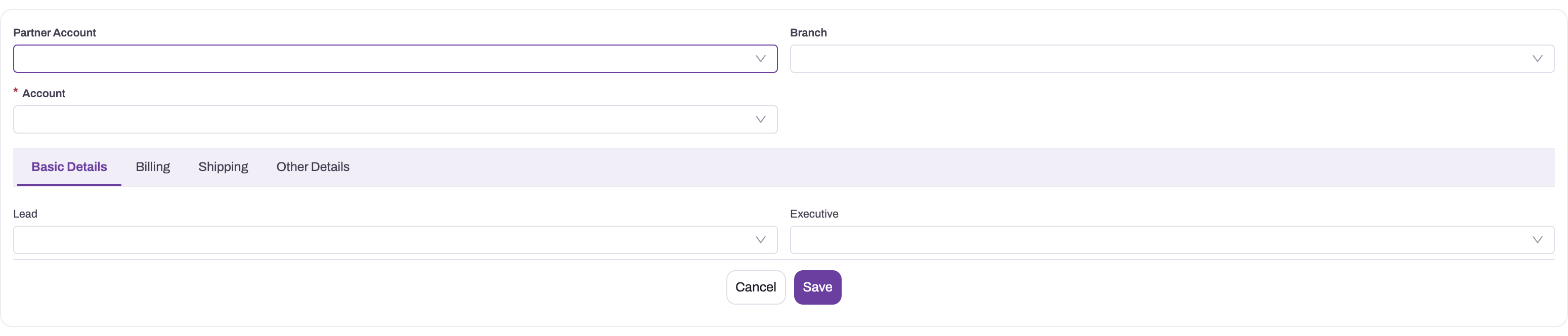
- 1
Partner Account selects the commercial organization handling the deal.
- 2
Branch supplies operational defaults and becomes locked after creation.
- 3
Account is required and drives price list, discounts, addresses and tax defaults.
- 4
Lead preserves the originating qualification trail when the deal was converted.
- 5
Executive records the owner responsible for progressing the opportunity.
Step 1 — Find an opportunity
Open CRM → Opportunities (or Service → Opportunities). The shipped list views are All Opportunities, Sales Opportunities, Service Opportunities, Partner Opportunities and Unassigned Open Opportunity — the Prospecting opportunities that have no executive yet, which is the queue to assign from. The summary cards above the list count opportunities by status. Use search, filters and grouping to build a pipeline view and save it — see personalizing lists and views.
Step 2 — Create an opportunity
- Choose New and pick the record type if you are asked.
- Fill the main fields: First Name, Last Name, Business Name, Account, Contact, Phone Number, Email, Document Date, and the Executive who will handle the deal. A sales opportunity also offers Campaign and Remarks. A service opportunity needs the Asset and offers Service Type; a partner opportunity needs the Account.
- Check the Billing and Shipping tabs. If you picked an account, they fill from it on save; entering a Billing Postal Code fills the billing city, state, region and country from the postal-code master.
- On a service opportunity, fill the Service Details tab (Service Contract, Package Service, Asset Service Contract, Usage Reading, Usage Reading Hours, Case, Remarks) and the Logistics tab (Pick Up Required, Pick Up Address, Drop Off Address, Drop Off Required).
- On a partner opportunity, fill Partner Terms (Partner Type is required) and General Information.
- On System Details, choose the Partner Account and Branch carefully — you cannot change them later — and leave Status as Prospecting.
- Save. The opportunity opens with its document number and the Status stage bar at Prospecting.
Step 3 — Add and correct lines
- On the Lines tab, choose New (the line quick-add is labelled Quick Add).
- Pick the Item, and the SKU or Item Lot Type if the item has them. The Unit Price fills from the price list; change it only if the deal has a negotiated price.
- Enter the Quantity (it must be more than zero), check the Tax Group, and add a Description if needed. The item's 360° panel beside the form shows its context.
- Save. The line gets its number (series
OPL), its tax and discounts, and the header totals and Amount Summary update.
To change a line, use Edit on its row; to remove it, Delete. A line whose item came from a campaign that mandates it cannot be changed or deleted. For package items, choose Configure product in the header and see Product configurator and demos. Everything about lines — pricing, release counters, package and service lines, every line field — is on Opportunity lines.
Step 4 — Work the deal
- Log calls, tasks and meetings in the Activities panel and always leave a dated next action — see Activities.
- On a sales opportunity, Product Demo opens the New Booking dialog to book a demonstration at a branch slot; the booking appears under Related — see Product configurator and demos.
- On a service opportunity, Appointment opens the same booking dialog for a service appointment.
- Booking a demo or appointment moves Status to Appointment/Quote.
Step 5 — Check in a service customer
On a service opportunity, Check In opens a dialog for the Usage Reading and Usage Reading Hours at arrival. Choosing Save creates the customer check-in inspection and opens it. If the opportunity already has a customer check-in, the button opens that one instead of creating a second. The readings cannot be lower than the asset's last recorded readings, and must sit within the usage band of a service contract on the opportunity. Use the Health Check, Complaint and Recommendation tabs to record findings; accepted recommendations become lines.
Step 6 — Raise a quote
Before choosing Quote, open Related and check the existing quotes, and check that the lines are complete. Choose Quote. A new quote is created with the customer, branch and all lines copied, and it appears in the Related tab's quote list. Open it to adjust prices and send it — see Quotes. Status moves to Appointment/Quote.
Step 7 — Raise the sales order or service order
- Check the lines and their Pending Quantity.
- On a sales opportunity choose Order and confirm OK in the Perform Generate Order dialog. On a service opportunity choose Service Order.
- Wait for the result instead of clicking again. The new order carries every pending line quantity.
- Open the order from the opportunity's Order or Service Order field (the first order) and reconcile customer, branch, partner, lines and totals.
Status becomes Closed Won. To release more later, add lines or raise quantities and run the button again.
Step 8 — Close a lost deal
The shipped Status values have no "lost" stage, and there is no cancel action. If your organization has added a lost value to Status, set it on the record and record why in Remarks; otherwise follow your organization's practice. Do not delete an opportunity that has quotes or orders — they keep it as their source.
Step 9 — Use opportunities on mobile
In the xMatix mobile app, opportunities appear in the CRM and Service apps through the same forms. You can create them, convert a lead into one, add lines priced from the sale price list even while offline, book demos and appointments, check in a service customer, and run the record's actions.
Fields
Fields as they appear on the record's Details tab. Totals are calculated from the lines and are read-only.
| Field | What it means | Notes |
|---|---|---|
| Document Number | The opportunity's number | Assigned on save from document numbering, for example OP-10102026-000042 |
| First Name, Last Name | The person the deal is with | Filled from the lead or account; used to build Account Name when there is no business name |
| Business Name | The firm the enquiry is for | Copied to the quote |
| Account | The customer | Only active customer accounts can be picked; filled automatically from the asset, the lead or a matching phone number when empty |
| Account Name | The customer's filing name | Defaults to the business name, else first and last name; copied to orders |
| Contact | The contact person | Limited to the account's contacts; defaults to the account's most recent contact |
| Phone Number, Email | How to reach the customer | Phone country code defaults to +91; the phone number is also used to find the account |
| Document Date | The business date of the deal | Set to today by lead conversion and campaign runs; used as the price date when no price-as-on date is set |
| Campaign | The campaign that produced the deal | Set by campaign runs |
| Executive | The person handling the deal | Must be active and authorized for the partner account and branch |
| Order, Service Order | The first sales order or service order raised | Set by the Order and Service Order buttons |
| Remarks | Free notes | — |
| Asset | The customer's asset (service) | Required on a service opportunity; limited to the account's assets |
| Service Type | Kind of service | Accidental Repairs, PDI, Paid Repairs, Warranty Repair |
| Job Type | Kind of job | No values are shipped; your organization defines them |
| Service Contract, Asset Service Contract, Package Service | Contract and package the work falls under | Only asset service contracts valid today can be picked; choosing a service contract adds its pending lines |
| Usage Reading, Usage Reading Hours | The asset's reading at intake | Cannot be lower than the last recorded reading; must sit within the contract's usage band |
| Case | The case the opportunity came from | Set by the case's conversion action |
| Pick Up Required, Drop Off Required, Pick Up Address, Drop Off Address | Logistics for the asset | — |
| Partner Type | Kind of partner being appointed (partner) | Dealer, Distributor, Service Centre, Spare Parts; required on a partner opportunity |
| Firm Type | Legal form of the prospective partner | Partnership, Proprietorship, LLP, Private Ltd., HUF |
| Financial Capability | How the prospect will fund the business | Inventory Funding, Cash Credit Limit, Term Loan, Others |
| Expected Go-Live Date, Property Available, Proposed Security Deposit | Partner terms under negotiation | Property Available: Leased, Rented, Owned |
| Name of Main Proprietor, Aadhaar Number, PAN, Gender, Date of Birth | The prospective partner's details | Aadhaar is masked; Gender: Male, Female, Others |
| Partner Onboarding | The partner application raised | Read-only |
| Total Amount | Lines plus tax | Calculated |
| Total Line Base Amount | Quantity × unit price over the lines, before discount | Calculated |
| Total Tax Amount | Tax over the lines | Calculated |
| Open Amount | Same as Total Amount | Calculated |
| Billing and Shipping address fields | Street, city, state, region, postal code, country | Filled from the account; a billing postal code fills city, state, region and country |
| Tax Supply Type, Tax Group | Tax context | Tax supply type is worked out on every save |
| Partner Account | Your selling company | Only active partner accounts; locked after save |
| Branch | The selling branch | Must belong to the partner account; locked after save |
| Status | The deal's stage | Prospecting (default), Appointment/Quote, Closed Won, plus any your organization adds |
| Record Type | Sales, Service or Partner | Read-only after creation |
Line fields. Item (cannot be changed once the line is saved), SKU, Item Lot Type, Alternate Item, Quantity (more than zero), Duration In Hours, Description (free text, not copied onto quotes or orders), Unit Price, Discount Amount, Tax Amount, Amount, Tax Group and Price List. Service lines add the contract and campaign details, Posting Type and Service Recommendation. Pending Quantity is kept on every line but is not on the shipped forms. See Opportunity lines.
Not on the shipped form. The header Price List, Discount Group, Discount (a percentage) and Price As On Date are set automatically and are not shown on the shipped layouts. An administrator can add them; see Configuration.
Business rules
- Numbering. Opportunities are numbered from the Opportunity Name Setting (series
OP) and lines from the Opportunity Line Name Setting (seriesOPL). - Status rules. Set Opportunity Status To Appointment/Quote fires when a quote has been raised or a demo or appointment exists. Set Opportunity Status To Closed Won fires when an order, service order or partner application is linked. Both overwrite the current status.
- Locked header fields. Partner Account and Branch cannot change after save.
- Header changes that reach the lines. Discount is copied onto lines as they are added; changing it later does not change the discount on lines already saved. Changing Price As On Date reprices every line from the price list; changing Tax Group recalculates header tax; changing Service Contract re-adds the contract's lines.
- Line validations. Quantity must be more than zero. Inactive items are refused, an item that needs a SKU needs one, and package components keep to their minimum and maximum quantities. Items sold only in a package are not blocked on opportunity lines. See Opportunity lines.
- Release tracking. Each line tracks how much has been released to sales orders and service orders; Order and Service Order release only what is pending.
- Quotes are not tracked that way. Quote copies every line in full each time.
- Partner application. A partner application can only be raised from a partner opportunity at Closed Won, and only once.
Example
A furniture dealer's sales executive gets an enquiry from Meadow Lane Interiors for 20 office chairs and 4 meeting tables. They create a Sales Opportunity, pick the account, set Document Date to today, and choose their company and the city branch on System Details. The billing and shipping addresses fill from the account on save, and the opportunity is numbered OP-10102026-000118 at Prospecting.
On Lines, they add the chair (quantity 20) and the table (quantity 4); prices come from the dealer's sale price list and tax is applied. They book a showroom demo with Product Demo; Status moves to Appointment/Quote. They choose Quote, adjust the quote and send it. The customer accepts 20 chairs but only 2 tables for now, so the executive lowers the table quantity on the opportunity to 2 and chooses Order: a sales order for 20 chairs and 2 tables is created, and Status becomes Closed Won. A month later the customer wants the other 2 tables; the executive raises the table quantity back to 4 and chooses Order again, and the second order carries just those 2 tables.
Training
Practice exercise
In a sandbox, as a user with the Sales Executive profile:
- Create a sales opportunity for any test customer account, with a partner account and branch.
- Add two lines with different items, quantity 3 each.
- Choose Quote. Expected: a quote appears under Related with both lines; Status is Appointment/Quote.
- Choose Order and confirm. Expected: a sales order with both lines for quantity 3; Status is Closed Won; each line's Pending Quantity is 0.
- Choose Order again. Expected: "Every line on this opportunity has already been released. There is nothing left to put on an order."
- Raise one line's quantity to 5 and choose Order. Expected: a second order for quantity 2 of that item.
- Try to change the opportunity's Branch. Expected: the save is refused because the field is locked.
Quick reference
- Partner Account and Branch are locked after the first save — check them before saving.
- Status moves itself: Appointment/Quote after a quote or demo, Closed Won after an order.
- Quote has no limit: every click creates another quote, with or without lines.
- Order and Service Order release only pending quantity and can be run again.
- A typed unit price on a new line is kept; a price-as-on change reprices every line.
- Quantity must be more than zero.
- The Unassigned Open Opportunity view is the queue of deals without an executive.
- Check In opens the existing customer check-in if there is one.
Permissions
Access is set on security profiles:
- Entity access. The shipped Sales, Service and System Admin profiles have full access to Opportunity and Opportunity Line, including View All and Modify All. Sales Executive, Sales Manager and Standard User have Read, Create, Update, Delete, Share and Assign, so they work on their own opportunities and the ones shared with them.
- Record sharing. Opportunities are owned by a user and private by default: a user sees their own, those shared with them or their team, and those of people below them in the role hierarchy. Records can be shared by hand. Opportunity lines follow their opportunity and are read-only to others by default.
- Actions. Every opportunity button — Quote, Order, Service Order, Product Demo, Appointment, Check In, Product Configurator, Clone, New, Edit, Delete — is granted on the shipped Sales Executive, Sales Manager, Standard User and System Admin profiles. A button needs its grant on the profile's Actions tab, and running it also needs update access to the opportunity.
- Creating opportunities from other records. Lead conversion and case conversion are granted on the same four profiles; so is the campaign Opportunities action, which also has to be added to the campaign record page before anyone can use it (see Running campaigns).
- Field access. The shipped Sales Manager profile carries field-level grants on opportunity and line fields; other profiles see every field the entity grant allows.
Configuration
Administrators tailor opportunities in these places:
- Document numbering. Setup → Feature Hub → Platform → Document Settings: Opportunity Name Setting (series
OP) and Opportunity Line Name Setting (seriesOPL), each with a date part and six-digit counter. See Email templates and document numbering. - Status values. The Status picklist is tenant metadata: add stages such as a lost stage in the entity's field settings. The two status business rules set Appointment/Quote and Closed Won by exact value — if you rename those values, update the rules too. See Business rules.
- Other picklists. Service Type, Job Type (no shipped values), Partner Type, Firm Type, Financial Capability and Property Available are picklists you can extend.
- Layouts and views. The Sales, Service and Partner create forms and record pages, the buttons in each header, and the list views are tenant metadata you change in Design Studio. Add the header Price List, Discount, Discount Group or Price As On Date fields there if users should set them; remember that changing Discount or Price As On Date reprices every line.
- Lookup filters. The shipped filters limit Account to active customer accounts, Partner Account to active partner accounts, Branch to the partner account's branches, Contact and Asset to the account, Executive to active resources and Asset Service Contract to contracts valid today.
- Pricing, discounts and taxes. Sale price lists, discount groups and tax groups decide line prices and taxes — see Pricing, discounts and taxes.
- Record types and apps. Opportunities appear in the CRM, Service and Partner Onboarding apps; the Partner Onboarding app shows partner opportunities.
- Mobile. The CRM and Service apps are available on mobile, and the mobile dashboard's quick actions include Opportunity.
Common problems
"Every line on this opportunity has already been released. There is nothing left to put on an order."
Every line's full quantity is already on a sales order or service order. Open the existing orders from Related or the Order field. To release more, add a line or increase a quantity first.
"No opportunity lines found to generate an order."
The opportunity has no lines. Add at least one line and try again. Service Order shows the equivalent message, "No opportunity lines found to generate a service order."
"Key fields are not editable once the related objects are added. Field Name : …"
You tried to change Partner Account or Branch on a saved opportunity. They cannot change. Create a new opportunity with the right values.
"Invalid Branch for Partner Account." or "Partner account is Inactive."
The branch does not belong to the chosen partner account, or the partner account or branch is inactive. Pick a branch of that partner account, or ask an administrator to reactivate it.
"Resource is not authorized for branch '…'."
The Executive is not set up to work for that branch (or partner account). Pick another executive, or ask an administrator to authorize the resource.
"Quantity should not be less than 0"
A line's quantity is zero or negative. Enter a quantity greater than zero.
"Campaign mandated items cannot be modified."
The line came from a campaign that makes the item mandatory, so it cannot be changed or deleted.
"Usage Reading cannot be less than the last recorded reading (…). Please check and try again."
The reading is below the asset's last recorded reading. Check the reading on the asset and enter the current value.
I clicked Quote twice and now have two quotes
Quote creates a new quote on every click. Delete or decline the extra quote, and check Related before choosing Quote.
The quote has no lines
The opportunity had no lines when Quote was chosen. Add lines to the quote, or delete it, add lines to the opportunity and choose Quote again.
Common questions
Where is the pipeline view?
Opportunities are a list like any other, so the pipeline is a view. The summary cards on All Opportunities count deals by status. Filter and group the list by Status, save it, and it is one click away — see personalizing lists and views. For funnel numbers across many deals, use CRM dashboards and reports. Progress State tells you the milestone each deal reached, independent of the stage a salesperson set.
Should I raise the order from the opportunity or the quote?
If the customer needs a formal offer, raise the quote, record their decision on it and create the order from the accepted quote — the order then links to both. If no offer is needed, choose Order on the opportunity. Both paths are open: raising a quote does not stop a direct order, so decide which path you follow before clicking.
Can one opportunity have several orders?
Yes. Order and Service Order release each line's pending quantity, so you can deliver a deal in instalments by releasing part, then adding or raising quantities and releasing again. The opportunity's Order field shows the first order; all of them are linked to the opportunity.
Can I reprice an opportunity that has gone stale?
Yes, if your layout shows Price As On Date: changing it reprices every line from the price list in force on that date, normally replacing prices typed on the lines. Without that field on the form, edit line prices directly, or ask an administrator to add it.
Why did Status change on its own?
Two shipped business rules move it: to Appointment/Quote when a quote, demo or appointment exists, and to Closed Won when an order, service order or partner application is linked. They overwrite the stage you set.