
An activity is one logged interaction or piece of follow-up work on a record. A CRM record's Activities panel shows its timeline: the tasks, calls, meetings, emails and notes for that lead, opportunity, quote, case or contact. One activity model serves every record, so once you can work the panel on a lead, you can work it anywhere else. This page explains how activities fit into CRM. The full step-by-step guide, every field and the administrator settings are in Activities.
Overview
You log activities on the records you work: a call with a new lead, a meeting about an opportunity, a task to send a revised quote, a note on a case. xMatix logs some activities for you, too: finished phone calls, synced emails, case status changes, approval tasks and activities created by business rules. Each activity belongs to one record. It can also name the account and contact involved, and list participants, whose own records then show it as well.
| Type | What it carries |
|---|---|
| Task | Due date, status and priority: work to be done on the record |
| Call | Direction (Inbound, Outbound or Internal), outcome (Connected, No Answer, Busy, Left Voicemail or Wrong Number) and duration |
| Meeting, Event | Start and end, all-day flag, location and how the time shows to others (Free, Busy or Out of Office) |
| The message logged against the record | |
| Note | Rich text, with optional files and @-mentions of colleagues |
| Visit, Document | Further types you can choose in the Edit Activity dialog |
| Status Change | Written by xMatix when a case's status changes; you do not create these yourself |
Activities can carry reminders, repeat on a schedule, and list participants and attachments. They move through the statuses Open, In Progress, Waiting, Completed, Cancelled and Deferred.
How xMatix handles it
Where the timeline appears
The timeline lives in the Activities panel on a record's page. The shipped CRM record pages for leads, opportunities, quotes, cases, contacts and visits include it. The shipped account and order pages do not. An activity logged on an account, for example by a business rule or as a participant, is stored all the same, but nobody sees it on the account page until an administrator adds the panel to that page's layout (see Configuration).
Leads react to their activities
Each lead keeps a flag, Is Emailed Or Call, that is true while at least one Call or Email activity exists on it. xMatix recomputes the flag every time an activity on the lead is added, changed or deleted. The flag does not move the lead by itself. The shipped business rule Set Lead Status To Contacted reads it and sets Status to Contacted on any lead that is not already Converted or Lost.
Two consequences are worth knowing:
- The activity's own status does not matter. A call you only planned (status Open) moves the lead to Contacted just as a completed one does.
- Deleting the call or email clears the flag, but nothing moves the lead back. It stays Contacted until someone changes its status. See Leads.
Business rules and reporting
Business rules can also create activities, such as a follow-up task when a lead arrives (the CreateActivity action). Activity reporting works across records, because every activity is one row in the same model, whatever record it is on.
The call register
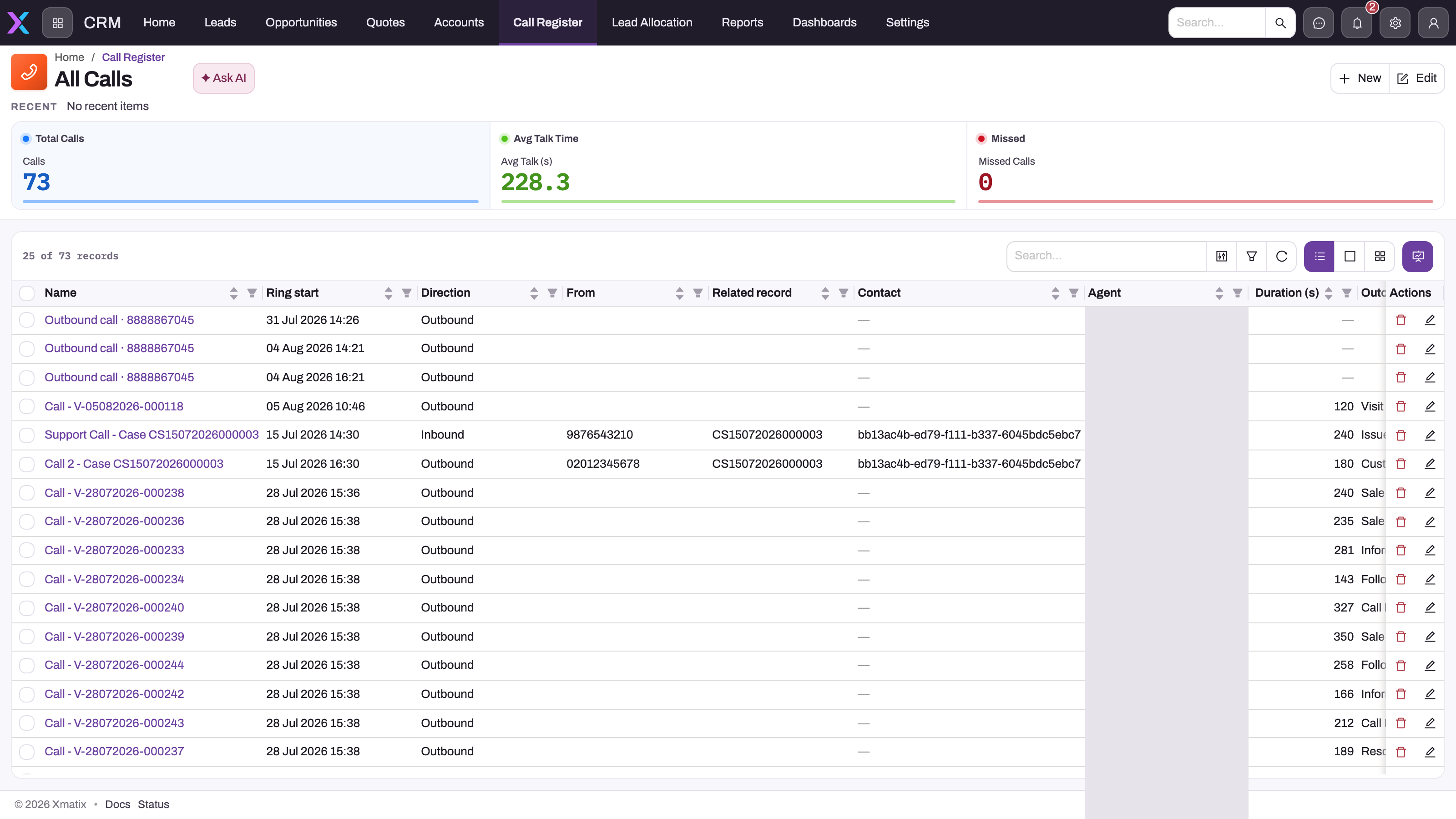
The Call Register (CRM app → Support → Call Register, also in the Support app) keeps one record per actual phone call: numbers, direction, ring, answer and end times, duration and wait time, outcome and notes. A record's timeline shows its own engagement history, while the register shows every call across the organisation.
Read each call across the row. Ring time and direction give the chronology, From and Contact identify the caller, Related record names the record the call was about, Agent says who handled it, and duration and outcome capture the result. The cards above the list summarise the current view: Total Calls, Avg Talk Time (in seconds) and Missed, which counts calls with the status Missed. Unanswered calls end as Completed with no answer time, so the Missed card normally shows 0.
How a call reaches a record's timeline
The link between a call and a record is made in the softphone. During the call, Create from this call lets you pick a record type, such as a case or a service order, and opens its New form pre-filled with the caller's contact, account and number. When you save, the call is linked to the new record, provided your security profile has the Link to record permission on Call. When a linked call ends, xMatix writes exactly one Call activity onto that record's timeline. Supervisors analyse the register, and the record's owner reads the complete customer history in context, without anything being entered twice.
The Link to record and Create record buttons on the call record page don't link anything on their own. See Calls, dispositions and recordings for the full call record, the permissions and the fixes.
Example
A sales executive receives a new website lead, Meera Joshi, at 10:00. They open the lead and, on its Activities panel, choose Call to log the outbound call they just made: outcome Connected, 6 minutes. When they save the call, the lead's Status changes from New to Contacted. They then add a Task, "Send brochure and price list", due tomorrow, with a reminder. The next day the task appears under Today on the panel. Once they have sent the brochure, they mark the task Completed, and it moves to Past. Two weeks later the lead converts into an opportunity, and the executive keeps logging meetings and notes on the opportunity's own panel.
Training
Practice exercise
- In a sandbox, create a lead and confirm that its Status is New.
- On the lead's Activities panel, add a Task due tomorrow. Expected: Status is still New. A task does not count as contacting the lead.
- Add a Call activity and leave it Open. Expected: Status becomes Contacted.
- Delete the call. Expected: Status stays Contacted.
- Open an account. Expected: the shipped account page has no Activities panel.
Quick reference
- The Activities panel is the record's timeline. It has buttons for Task, Email, Call, Event and Note.
- Shipped CRM pages with the panel: lead, opportunity, quote, case, contact and visit. Account and order pages don't have it.
- A Call or Email activity of any status moves a lead to Contacted, unless the lead is Converted or Lost.
- Deleting that activity does not move the lead back.
- The Call Register is under CRM → Support → Call Register.
- A call reaches a timeline only when it was linked through the softphone's Create from this call.
- Who can read an activity is decided by the activity sharing policy, not by its Visibility value.
Permissions
What you can do with activities is decided by the Activity access in your security profile (Setup → Access Control → Profiles). No separate permission controls the panel. Who can read whose activities is decided by the activity sharing policy, which is private to each owner by default. Linking a call to a record from the softphone also needs the Link to record permission on Call. The full table is in Activities.
Configuration
- Show the timeline on another page. Add the Activities panel to that page's record layout in the layout designer, for example on the account or order page. Put it in the first tab, in the side column. See Activities.
- The Activities switch on an entity does not add the panel on the web. Setup → Design Studio → Entities → an entity → Features & tracking has an Activities switch. On the web, only the panel on the layout decides whether people see a timeline. In the field app, an entity with no designed mobile layout gets an Activities tab on its default record page when the switch is on.
- Change what a logged call or email does to a lead. Edit or deactivate the Set Lead Status To Contacted business rule on Lead. The Is Emailed Or Call flag keeps updating either way.
- Open up who can read activities. Change the activity sharing policy under Setup → Access Control → Policies.
Common questions
Who can see a note I write?
By default: you, anyone above you in the role hierarchy, your teams, people you share it with, and users whose profile has View All on activities. Activities ship with a private, owner-based sharing policy. Your administrator can open the policy up under Setup → Access Control → Policies. The note's Visibility value (Internal, Public or External) is stored on the activity, but the sharing policy decides who can read it.
Do activities change the record they are on?
They always add to its timeline. On leads they also keep the Is Emailed Or Call flag current, so the shipped rule moves a New or Nurturing lead to Contacted as soon as a call or email is logged. On other CRM records, activities don't change any field unless your organization has added business rules that do.
Why is there no Activities panel on my account page?
The shipped account and order pages don't include it. Activities on an account are still stored, for example when an account is a participant or a business rule logs one. Ask your administrator to add the Activities panel to the account's record layout. From then on, the account page shows its timeline like a lead does.
I logged a call by mistake. Can I undo the Contacted status?
Delete the call activity first, then set the status yourself with Mark New (or another status action) on the lead. Deleting the call only clears the lead's flag. It does not move the status back. Keep that order: the shipped rule runs on every save of the lead, so while a call or email is still on it, the rule sets the status back to Contacted.