
A service order time sheet is the record of the labour done on a service order: it holds one line for each labour task, and technicians use its Start, Pause and End actions to record when the work happened. You create it from the service order once the labour lines are on the order and before the work begins. The hours and stages it records then decide the order's work status, the price of time-and-material lines, and whether the order can be completed and invoiced.
Overview
A time sheet belongs to one service order. It is numbered automatically (for example TS-14102026-000001) and has two parts:
- The header shows the service order, the default technician (Resource), a Work Status, and the total actual and standard hours. Its dates, flags and totals are worked out from the lines.
- The lines hold the labour. Each line is one stretch of work by one technician on one service order line: it records the item, the technician, a Work Start Date, and either a Work Pause Date or a Work End Date.
Only Work Item lines go on a time sheet. Part lines never do. They are supplied through allocation and picking on the service order.
Time sheets are not in any app menu. You reach them from the service order or by going straight to the Time Sheets list (/ServiceOrderTimeSheet).
When to use it
- Planning the labour. Once the order's labour lines are agreed, create the time sheet and assign a technician to each task.
- Doing the work. The technician starts the task, pauses it when work stops (no part, no technician), starts it again, and ends it when the task is done.
- Closing the job. The order can be set to Work Completed and invoiced only once the work on its time sheets has ended.
How xMatix handles it
- One sheet per Time Sheet run. Each time you choose Time Sheet on the order, xMatix creates one new sheet for the lines you allocate. An order can have several sheets, for example one per technician or per day. Each service order line can be on only one sheet.
- The server records the time. Start, Pause and End stamp the current time on the server. You cannot type a time with them. Dates shown in the action dialogs are ignored.
- A pause closes the stretch of work. Pause ends the running stretch at the current time and records the reason. Starting the same task again does not reopen that line. It adds a new line for the same task and technician, starting now. So a task that was paused once shows two lines: the first ends at the pause, the second runs from the restart.
- Hours are counted per line. A line's Actual Duration (Hours) runs from its start to the stamp that closed it (pause or end). Time spent paused falls between lines, so it is never counted as work. The header's Actual Duration Hours is the sum of its lines. Its paused time is the total of the gaps between a pause and the next start.
- Status follows the stamps. Line status, header Work Status and the order's work flags are all calculated from the dates. Nobody sets them by hand.
- The order follows its labour lines. After every action, xMatix looks at every open Work Item line on the order, across all of its time sheets. The order is marked as having its time sheets generated, its work started, paused or ended only when every such line has reached that point. That is what drives the order's status (see the service order lifecycle).
Prerequisites
- A saved service order with at least one line whose item has the Item Type Work Item, open quantity above zero (quantity less cancelled quantity), and no time sheet yet.
- Technicians set up as resources, tagged to the order's branch and partner, so the allocation dialog can offer them.
- Permission to run Time Sheet on the service order and Start, Pause and End on the time sheet (see Permissions).
Procedure
Step 1 — Create the time sheet from the service order
- Open the service order and choose Time Sheet in the header.
- The Time Sheet Allocation dialog opens. It lists only the order's lines that can still go on a time sheet: Work Item lines with open quantity that are not on a sheet yet. The subtitle shows the number of work items and their standard hours. If nothing is left, the dialog says No service order line is pending time sheet creation.
- Choose a technician on the left. Each card shows whether the technician can work the selected line, and if not, why (for example other branch, on leave or a missing skill). It also shows their free hours. All shows everyone in scope. Skilled shows only technicians who hold the skills the lines require.
- Assign the technician to lines. Use Assign on a line, or Assign all on the technician to give them every unassigned line they can work. Clear removes an assignment.
- Optionally switch to Timeline and drag a line onto a technician's lane at the hour you want. Placements snap to 15 minutes. The lanes show work that is already running and slots booked on other sheets, and a slot that clashes is refused (… is busy … — pick another slot).
- Check the strip at the bottom (for example all 3 lines allocated — ready to save) and choose Save.
What happens:
- A new time sheet is created and linked to the order. Each line you gave a technician becomes one time sheet line, with the item copied from the order line and the technician you chose. A line you did not allocate is left for a later run.
- The header Resource is the order's Technician, or the order's Service Advisor when the order has no technician.
- A planned slot from the Timeline books the technician for that time, so other service orders see them as busy. A clash with an existing booking cancels the whole save.
- No work is started. The new lines have no start date until Start is used, and the order's status becomes Work To Start.
- The covered order lines are marked as having a time sheet, and the dialog stops offering them. The order itself counts as having its time sheets generated only once every open Work Item line is covered.
Step 2 — Open the time sheet
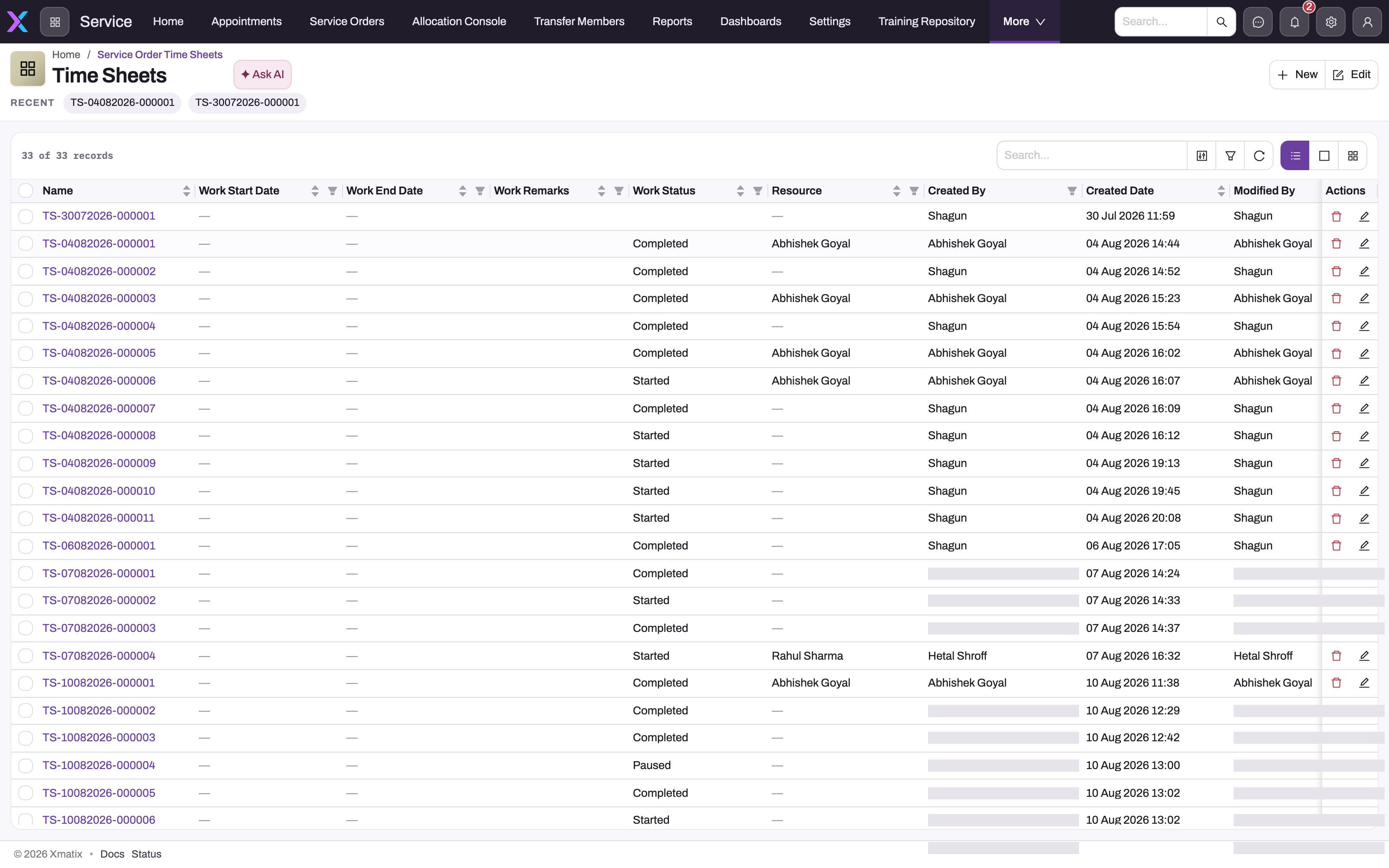
Open the sheet from the service order's related Time Sheets list, or from the Time Sheets list (/ServiceOrderTimeSheet). The list (All Service Order Time Sheets) shows Name, Work Start Date, Work End Date, Work Status, Resource and the audit columns. Use search and the column filters to find one technician's or one status's sheets.
The record page header shows Service Order, Resource, Actual Duration Hours and Work Status, with the actions Start, Pause, End, Edit and Delete. Below are two tabs:
- Lines lists the sheet's time sheet lines, five at a time, with row Edit and Delete. There is no button to add a line here. Lines are added by the Time Sheet action and by Start.
- Details shows Key Information (Service Order Line, Resource), Duration (Actual and Standard Duration Hours), Work Tracking (Work Start, Pause, End and Resume Dates, Paused Duration), Controls (the Work Started, Work Paused and Work Ended flags) and System Information.
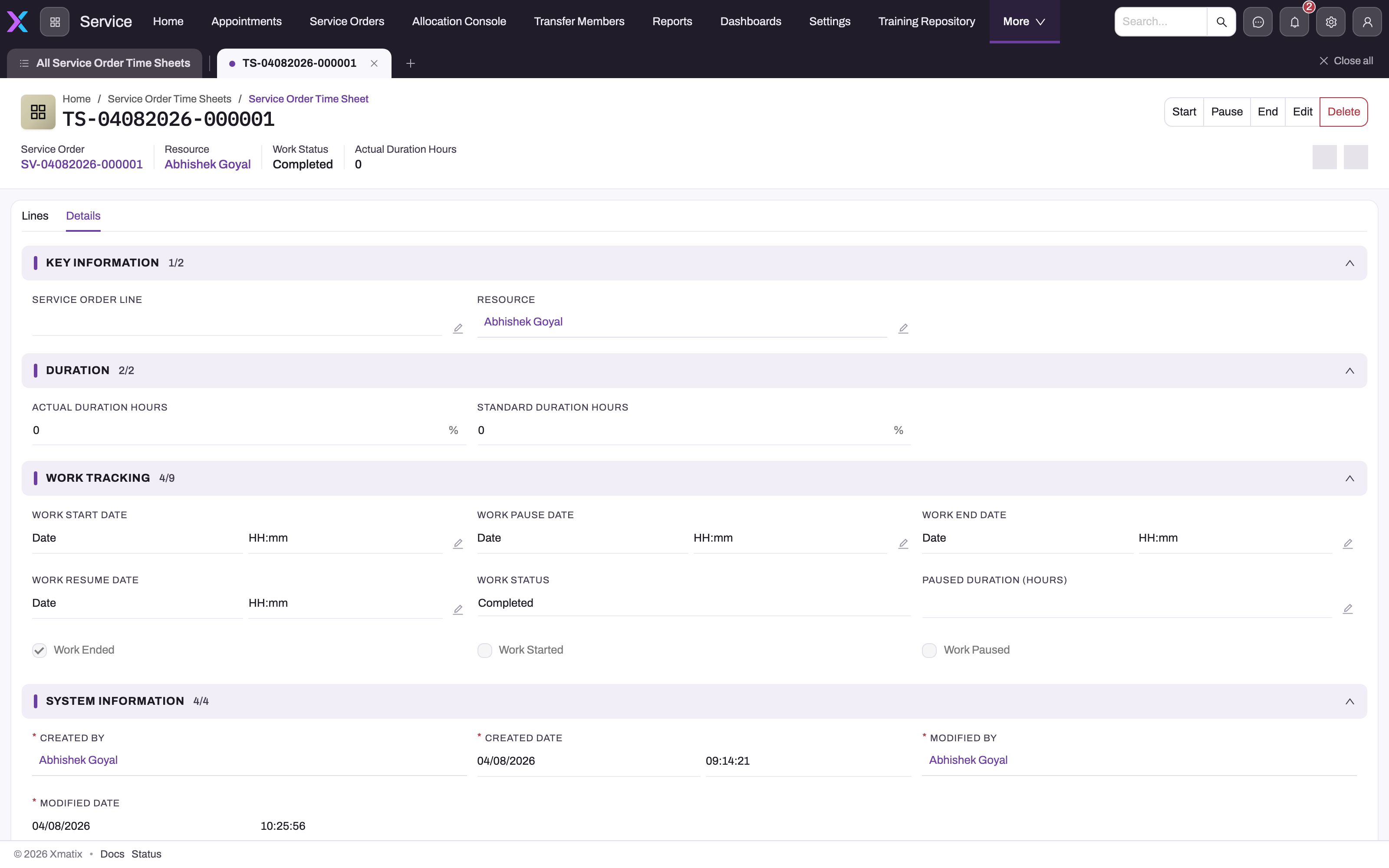
This sheet has no lines, so its dates and hours are empty. Its Completed status is the older wording, from before Work Status was calculated.
Step 3 — Start the work
- On the time sheet, choose Start.
- The dialog lists the sheet's lines. Tick the lines to start and confirm.
Each ticked line gets the current time as its Work Start Date, and its Status becomes Work Started. If you tick a line that was paused, xMatix adds a new line for the same task and technician, starting now, and keeps the paused line as it was. A line that is already running or has ended is refused, and nothing is stamped.
Always tick the lines you mean. An action sent with no lines ticked applies to every line on the sheet, and then fails if any of them is already running or ended.
Step 4 — Pause when work stops
- Choose Pause. The dialog lists only the lines whose status is Work Started.
- Tick the lines and choose a Pause Reason on each ticked row. The shipped reasons are Paused-Non Availability of Stock, Paused- Non Availability of Stock and Paused- Non Availability of Technician. Your administrator can add more.
- Confirm.
Each line gets the current time as its Work Pause Date and keeps the reason. Its status becomes Work Paused and its hours are final. A line with no reason, either chosen in the dialog or already on the line, makes the whole action fail with Work Pause Reason is required when the work is set to Paused. In that case nothing is paused.
To carry on, use Start again (Step 3). There is no separate Resume.
Step 5 — End the work
- Choose End. The dialog lists only the lines whose status is Work Started.
- Tick the lines and confirm.
Each line gets the current time as its Work End Date, and its status becomes Work Ended. The service order line it came from gets the end date too, once every stretch of work under it has ended. A paused task must be started again before you can end it.
When every task on the sheet has ended, the header shows Work Ended and a Work End Date. When every Work Item line on the order has ended, the order can move to Work Completed.
Step 6 — Read the roll-up
| Where | What it shows |
|---|---|
| Line Status | Work Started while running, Work Paused once paused, Work Ended once ended; blank before the first start |
| Header Work Status | Work Ended when every task has ended; Work Paused when every task is paused; Work In Progress once any task has been restarted after a pause; Work Started once any line has started; blank before that |
| Header Work Start Date | The earliest start on any line |
| Header Work End Date | The latest end, shown only once every task has ended |
| Header Actual Duration Hours | The sum of the lines' actual hours |
| Header Paused Duration (Hours) | The total time between each pause and the restart that followed |
| Header Standard Duration Hours | The sum of the standard hours of the service order lines on this sheet |
All of these are recalculated whenever a line's work dates change. A value typed into them is replaced.
Step 7 — Correct a line (when you must)
If a line was stamped wrongly, for example End was pressed an hour late, open the line by selecting its name on the Lines tab. Lines are numbered automatically, for example TSL-14102026-000004.
The line's record page header shows Service Order Time Sheet, Service Order Line, Item, Resource, Actual Duration (Hours) and Standard Duration Hours, with Edit and Delete. The body shows the item and links, the Discarded flag, the hours, and the Work Start Date, Work End Date and Work Pause Date. The line's Status and Pause Reason are not on this page; read them on the sheet's Lines tab.
Work Start Date, Work Pause Date and Work End Date can be corrected in place on the line's record page if your profile allows in-place editing (Standard User and System Admin do in the shipped profiles). The Work End Date must be later than the Work Start Date, or the save is refused with Work End Date cannot be before Work Start Date. When a line's dates change, xMatix recalculates the line's hours and status, the sheet header, the service order line and the order's flags from the lines.
The row Edit on the Lines tab opens a short form with Service Order Line, Item and Resource only. Do not use it to move hours to another technician or task: start that work as its own line instead. Changing the header's dates or flags on Details does not change the lines, and the next Start, Pause or End recalculates them from the lines anyway.
On the mobile app
The Time Sheet action on a service order opens a mobile version of the allocation dialog, with the same rules about which lines are offered and the same technician and slot choices. In the field app, when a technician applies an AI Mechanic conclusion to the job, the reported work is appended to the Work Remarks of the job's latest time sheet (up to 255 characters). If the job has no time sheet yet, the remarks are not written, and the app says so.
Fields
Time sheet header
| Field | What it means | Notes |
|---|---|---|
| Document Number (Name) | The sheet's number | Assigned automatically: TS, the creation date, a six-digit counter |
| Service Order | The order the labour belongs to | Required; cannot be changed once saved |
| Service Order Line | An optional single order line for the whole sheet | Sheets created by Time Sheet leave it empty; their lines carry the order lines. Cannot be changed once saved |
| Resource | The default technician | From the order's Technician, else its Service Advisor; editable |
| Work Status | The sheet's stage | Calculated: Work Started, Work In Progress, Work Paused, Work Ended, or blank |
| Actual Duration Hours | Hours worked | Calculated from the lines |
| Standard Duration Hours | Book hours for the sheet's tasks | Calculated from the linked service order lines |
| Work Start Date | When work first started | From the lines |
| Work Pause Date | The latest pause on any line that has not ended | From the lines |
| Work Resume Date | The latest restart after a pause | From the lines |
| Work End Date | When the last task ended | From the lines; empty until every task has ended |
| Paused Duration (Hours) | Total paused time | From the lines |
| Work Started, Work Paused, Work Ended | Whether every task on the sheet has started, is paused, or has ended | Set by the server; typing them starts or ends nothing |
| Work Pause Reason | A header-level reason | Not used by Pause; the reason is kept on each line |
| Work Remarks | Notes on the work done | Up to 255 characters; not on the standard web form, written by the field app's AI Mechanic |
Time sheet line
| Field | What it means | Notes |
|---|---|---|
| Name | The line's number | Assigned automatically: TSL, the creation date, a six-digit counter. Lines added by Start after a pause get their own number |
| Service Order Line | The task this stretch of work is for | Set by the Time Sheet action; copied to the new line when Start resumes paused work |
| Item | The work item | Copied from the order line; the lookup offers only items whose Item Type is Work Item |
| Resource | The technician who did this stretch | The order line's technician, which the allocation dialog sets; the sheet's Resource when the order line has none. Copied to the new line on a restart |
| Status | Work Started, Work Paused or Work Ended | Calculated from the dates; blank before the first Start. Lines recorded under the older pause model can show Work In Progress |
| Work Start Date, Work Pause Date, Work End Date | When the stretch started and what closed it | Stamped with the server time by Start, Pause and End. The end must be later than the start |
| Pause Reason | Why the work stopped | Required to pause; kept from the line if it already has one |
| Actual Duration (Hours) | Hours in this stretch | Start to pause or end, to two decimals (90 minutes is 1.5). Shows 0 while the work is still running |
| Standard Duration Hours | The task's book time | The item's Service Duration(Minutes) ÷ 60. Every line for the same task shows the same value |
| Paused Duration (Hours) | Shown on the line's record page | Stays at 0 on lines; paused time is the gap between lines and is totalled on the sheet header |
| Service Bay | The bay this operation occupies | Only when bays are allocated per operation; copied to the new line on a restart |
| Discarded | Marks a paused line that has been picked up again on a new line | Set by Start; informational only |
| External | A reference in an outside system | For imports and integrations; not copied to the new line on a restart |
Business rules
- Eligibility. Only order lines whose item is a Work Item, with open quantity, and not already on a sheet can go on a time sheet. The action refuses when none is left.
- Order of stages. Start, then Pause and Start as often as needed, then End. Nothing can be paused or ended before it starts, a paused task must be started again before it is ended, and an ended task cannot be started again.
- All or nothing. If any ticked line is in the wrong stage, or a pause has no reason, the whole action fails and lists every problem line. Nothing is stamped.
- One action per task. Ticking several lines of the same task and technician acts once, on the line that is running (or opens one new line).
- Server time only. Start, Pause and End ignore dates, technicians and items edited in their dialogs.
- The order's flags. The order's Is Time Sheet Generated, Work Started, Is Work Paused and Work Ended are recalculated from all of its open Work Item lines after each action. Fully cancelled lines and part lines are left out.
- Work Completed gate. The order cannot be set to Work Completed while any open Work Item line has not ended, including lines that have no time sheet yet.
- Invoice gate. Generate Invoice on the order is refused while any time sheet on it does not show Work Status Work Ended. That includes a blank sheet with no lines.
- Service contract lock. The order's Item Service Contract cannot be changed once any time sheet on it has started work.
- Hourly pricing. Each Start, Pause and End reprices service order lines priced on Actual Hours or Capped Actual from the hours logged, except where someone has typed the quantity. See service order lines.
- Technician bookings. A Timeline slot booked in the allocation dialog is moved to the real working time when the work starts, and released when it ends. A paused task keeps the technician booked.
- Bays. A bay held by a time sheet line is kept while the task is paused and released when it ends. Deleting a line releases its bay.
- Deleting a sheet. Deleting a time sheet does not give its order lines back. They stay marked as having a time sheet, so the Time Sheet action will not offer them again.
Example
A workshop receives a car for a brake job. The service order has two labour lines: Brake pad replacement (standard 1.5 hours) and Wheel alignment (standard 1 hour), plus a part line for brake pads.
- The service advisor chooses Time Sheet. The dialog lists the two labour lines but not the brake pads. They give Brake pad replacement to Technician A and Wheel alignment to Technician B, then save. Sheet TS-14102026-000003 is created with two lines, and the order shows Work To Start.
- At 09:00 Technician A ticks the brake line and chooses Start. At 09:40 the pads have not arrived, so they choose Pause with the reason Paused-Non Availability of Stock. The line now shows Work Paused and 0.67 hours.
- At 10:30 the pads arrive. Technician A ticks the paused line and chooses Start. A second brake line appears, starting at 10:30. Technician B starts the alignment at 10:35.
- Technician A ends the brake work at 11:20 (0.83 hours on the second line), and Technician B ends the alignment at 11:30.
- The sheet now shows Work Ended, Actual Duration Hours 2.42, and Paused Duration 0.83. The order can be set to Work Completed and then invoiced.
Training
Practice exercise
In a sandbox, create a service order with two Work Item lines and one Part line. Then:
- Use Time Sheet to put only the first Work Item line on a sheet.
- Start it, pause it with a reason, start it again and end it.
- Use Time Sheet again for the second line, then start and end it.
Expected result: the first sheet has two lines for the first task (one paused, one ended) and shows Work Ended. The part line never appears in the dialog. After the first sheet, the order is not yet counted as having its time sheets generated. After the second, it is, and once both have ended the order can be set to Work Completed.
Quick reference
- Create time sheets from the service order with Time Sheet, not from New.
- Only Work Item lines with open quantity and no sheet are offered.
- Assigning a technician to a line is what includes it.
- Start, Pause and End use the server clock; you can't type a time.
- Pause needs a reason on every line.
- Use Start to resume; it adds a new line.
- End a paused task by starting it first.
- An order can't be completed until every labour line has ended.
- An invoice can't be generated while any time sheet on the order isn't Work Ended.
Permissions
| What | Granted in the shipped profiles to |
|---|---|
| Time Sheet on the service order | System Admin, Standard User, Sales Manager, Sales Executive |
| Start, Pause, End on the time sheet | System Admin, Standard User, Sales Manager |
| New time sheet | System Admin, Standard User, Sales Manager |
A user's profile must also give access to the Service Order Time Sheet and Service Order Time Sheet Line entities to see, edit or delete sheets and lines. Server actions are granted on the profile's Actions tab. A profile without a grant cannot run that action. See security profiles.
Configuration
- Numbering. The Service Order Time Sheet Name Setting gives the series TS, the date as DDMMYYYY, a six-digit counter and "-" as separator. Change it under Setup → Feature Hub → Platform → Document Settings (see document numbering).
- Pause reasons. The line's Pause Reason picklist holds the reasons offered by Pause. Add or retire values in the data model tools (customization).
- Work items and book time. Which items count as labour is set by the item's Item Type (Work Item). A task's standard hours come from the item's Service Duration(Minutes).
- Technicians offered. The allocation dialog offers resources tagged to the order's branch and partner, and checks skills and availability. If none is tagged, the dialog warns No resource is tagged to this order's branch and partner.
- Bays per operation. Workshops that give each operation its own bay set the bay's Allocation Mode to Labour or Both (see service configuration). The time sheet has an Allocate Bays action for this, but the standard record page header lists only Start, Pause, End, Edit and Delete. Add Allocate Bays to the time sheet's View layout header to use it on the web.
- Resume. The time sheet also carries a Resume action. It is not implemented on the server and fails if it is added to a page. Leave it out and use Start.
- Pause, End and Start dialogs. Each is a layout listing the sheet's lines through a view: All Time Sheet Lines (Start), All Time Sheet Lines (Pause) and All Time Sheet Lines (End). Pause and End are filtered to lines whose status is Work Started. Keep that filter, and keep Pause Reason editable in the Pause view.
Common problems
"No service order line is pending time sheet creation"
Every Work Item line on the order with open quantity is already on a time sheet, or the order has no Work Item lines. Check the line's item type and quantity. A line on a deleted time sheet is still treated as covered.
"Please select at least one line before saving."
No line in the allocation dialog has a technician. Assign a technician to at least one line, then save.
"… is busy … — pick another slot"
The Timeline slot clashes with that technician's work or a booking on another sheet. Drop the line at a free time or on another technician.
"Work Start is not allowed on one or more selected time sheet lines."
A ticked line is already running (Work has already started on this line.) or has ended (Work has already ended on this line; it cannot be started again.). Untick it and run Start again.
"Work Pause Reason is required when the work is set to Paused."
A ticked line has no pause reason. Choose a Pause Reason on each ticked row in the Pause dialog. The other messages on a failed pause name lines that have not started, are already paused or have ended.
"Work on this line is paused and that segment is closed. Start it again before marking Work End."
You tried to end a paused task. Start it, then End it. Work End cannot be marked before Work Start means the line was never started.
"No time sheet lines matched the requested lines."
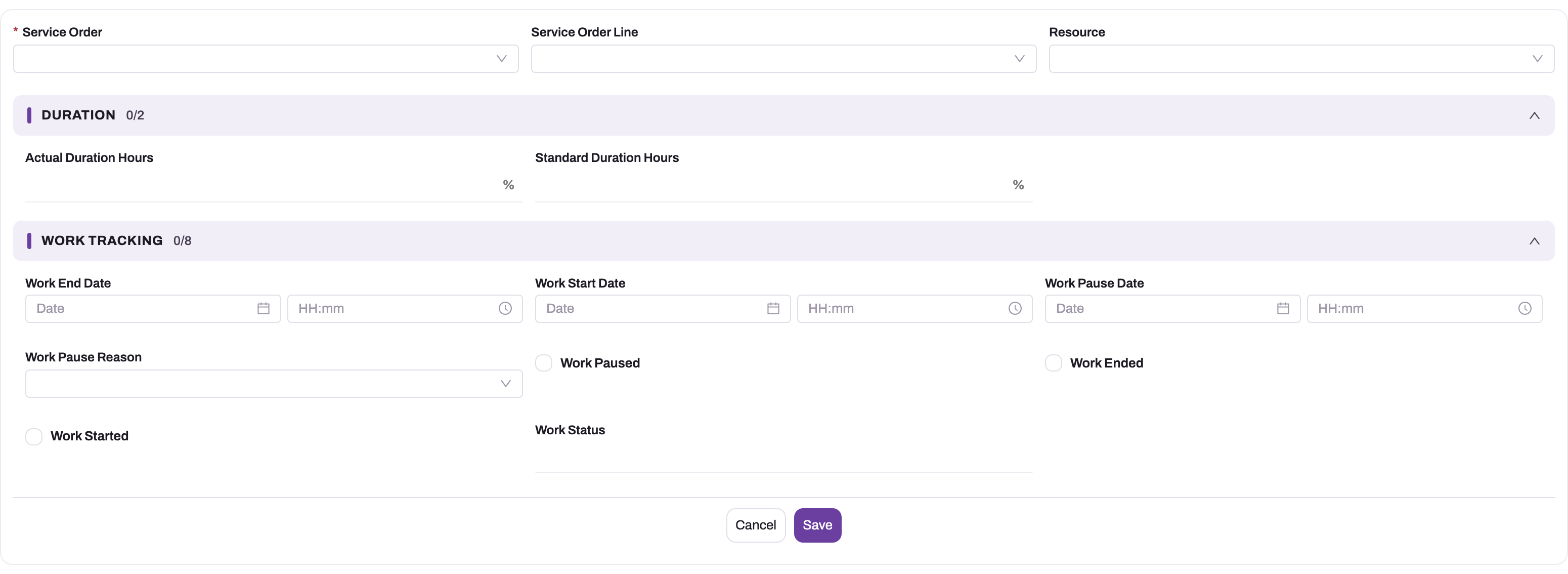
The sheet has no lines, which usually means it was created with New on the Time Sheets list. That form records only the service order, an optional service order line, a resource and dates; it creates no lines and links no order lines, so Start, Pause and End have nothing to act on. Delete the sheet and use Time Sheet on the order.
"Invoice cannot be generated until all time sheets have work ended."
At least one time sheet on the order is not Work Ended, for example an empty sheet or one with a paused task. End the work, or delete a sheet that has no lines.
"Service order cannot be marked as Work Completed until all work item lines have work ended."
The message says how many Work Item lines have not ended and how many have no time sheet yet. Put those on a time sheet and end them, or cancel work that will not be done.
"Work End Date cannot be before Work Start Date"
You corrected a line's dates so that its Work End Date is the same as or earlier than its Work Start Date. Enter an end that is later than the start, then save.
A line that is running shows 0 hours
A line's Actual Duration (Hours) is counted only once its stretch of work is closed by a pause or an end. While the work runs it shows 0, and so does the sheet's total for that line. Pause or end the work to see its hours.
I typed hours or dates on the header and they changed back
The header's hours, dates, flags and status are calculated from the lines. Correct a line instead (Step 7).
Common questions
Can one order have several time sheets?
Yes. Each Time Sheet run creates a new sheet for the lines you allocate, so you can split a job by technician or by day. Each service order line can be on only one sheet. The order's flags and status look at all of its Work Item lines across every sheet. For example, the order shows its work as ended only when every open labour line on every sheet has ended. The order counts as having its time sheets generated once every open Work Item line is on some sheet.
Why did starting a paused task add a new line?
A time sheet line is one uninterrupted stretch of work. Pausing closes that stretch, so its hours are final and cannot drift. Starting the task again opens a fresh stretch on a new line for the same task, technician and bay, and marks the earlier line as Discarded to show it has been picked up. Hours on all the lines add up in the header. The time between the pause and the restart is reported as paused time, not work.
Who is recorded as having done the work?
Each line's Resource is the technician who worked that stretch. The allocation dialog sets it for each line. The header Resource is only the sheet's default, taken from the order's Technician or, failing that, its Service Advisor. To record a second technician on the same task, give it to them in a new Time Sheet run or record it as separate work. Don't change the technician on a line that already has hours.
Can I enter work done earlier, for example after a power cut?
Not with Start, Pause or End: they always use the current time. A supervisor can correct a line's dates afterwards on the line's own record page (Step 7). The header and the order are then recalculated from the corrected line.
Can I delete a time sheet and create it again?
Deleting a sheet does not release its order lines. They stay marked as having a time sheet, and Time Sheet will not offer them again. Delete only empty sheets created by mistake, and correct a sheet's lines instead of recreating it.