
Allocation reserves specific stock against a sales order's lines before picking or invoicing. For a lot-tracked item it draws item lots at the order's branch, oldest first; for other inventory-tracked items it draws from the stock on hand; an item that tracks neither is skipped. Each reservation is an allocation line that posts immediately to the inventory ledger into the stock's Allocation bucket, so the quantity stays in hand but stops being available to anyone else. Only stock at the order's own branch and partner account (selling company) counts. Every allocation action consumes the line's pending fulfilment allocation quantity (quantity − allocated − cancelled) and skips lines with nothing pending.
Where allocation runs
Allocation is available on two documents. Which one you use decides what happens when stock runs short.
| Document | Actions | When a lot-tracked line cannot be fully covered |
|---|---|---|
| Order (Sales app) | Allocate (labelled Auto Allocation in some tenants), Selective Allocation, Manual Allocation, Fulfilment and Auto Allocate | The action fails: Item Lot not found for allocation. Nothing is reserved for that run |
| Fulfilment document (Warehouse app → Fulfilment Orders) | Allocation (Perform Allocation), Selective Allocation | The action reserves what eligible lots exist and leaves the remainder pending, without an error |
Non-lot inventory items fail the same way on both documents when no stock is found: Available stock not found for allocation. A stock-out on the order side is therefore loud, while a shortfall on the fulfilment side is quiet — read the allocation lines and the remaining pending quantity after a warehouse-side run rather than assuming the whole demand was covered.
Prerequisites
- A saved order with lines whose pending fulfilment allocation quantity is above zero, or a fulfilment document released from it (see Picking and fulfilment).
- Item lots (for lot-tracked items) or stock on hand (for other inventory items) at the order's branch and partner account. Lots carrying a hold code are never drawn.
- Permission to run the allocation actions through your security profile.
Procedure
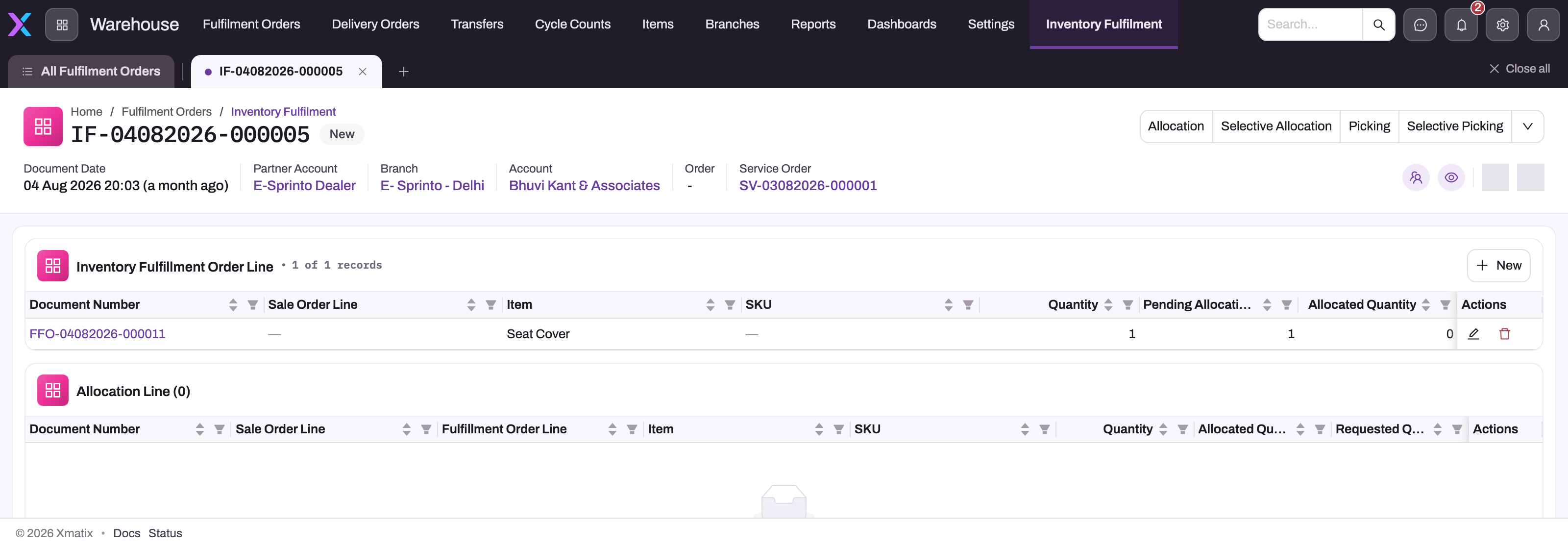
- 1
Allocation reserves every pending quantity on the document; Selective Allocation asks for lines and a requested quantity per line.
- 2
Partner Account and Branch on the fulfilment header are the only scope allocation searches — lots or stock elsewhere never count.
- 3
Quantity, Pending Allocation and Allocated Quantity are the counters to read first: pending 1 and allocated 0 means nothing is reserved yet.
- 4
The demand row names the item (and SKU or lot preference where set); a preferred lot is honoured all-or-nothing.
- 5
Allocation Line (0) is the reservation evidence — it stays empty until an allocation action succeeds, whatever the header badge says.
Step 1 — Check what is pending
On the order, open the lines and read each line's pending fulfilment allocation quantity; on a fulfilment document the Inventory Fulfillment Order Line grid shows Quantity, Pending Allocation Quantity and Allocated Quantity side by side. Lines with zero pending — already fully allocated, cancelled or never released — are skipped by every allocation action, and an action with nothing to do stops with No pending allocation quantities found in order lines to create inventory fulfilment allocation. (order) or No pending allocated quantities found in fulfillment order lines to create allocation. (fulfilment document).
Step 2 — Allocate automatically
Run Allocate on the order, or Allocation on the fulfilment document. For each eligible line the engine looks for lots (or stock) matching the item, the order's partner account and branch, and the line's SKU where one is set; it prefers the line's storage location but falls back to any location at the branch; it honours a preferred lot named on the line all-or-nothing; it excludes held lots; and where the line sets a Limit Expiry Days it excludes lots that expire too soon or carry no expiry date. Lots are consumed oldest first by creation time. One allocation line is written per lot or stock record drawn, each linked back to the order line and the fulfilment order line.
Step 3 — Or allocate selected lines
Run Selective Allocation, tick the lines and enter a Requested Quantity per line. An empty or zero request means the line's full pending quantity; a request above the pending quantity is rejected with Requested quantity (n) cannot exceed the pending quantity (m). Manual Allocation on the order goes one step further: it lists the available lots for a line (oldest or newest first) and reserves exactly the lots and quantities you pick, so it is the tool for choosing a specific batch for a customer.
Step 4 — Verify the reservation
Open the fulfilment document's Allocation Line grid (or the order's Related tab). Each positive row names the item, SKU, lot, storage location and stock record it reserved, with its quantity and the pending picking, delivery and invoice quantities that later actions will consume. The header's Allocated Quantity and Pending Allocation Quantity roll the lines up. An empty grid after a "successful" fulfilment-side run means no eligible lot existed — the action does not report that as an error.
Step 5 — Undo if needed
Cancel Allocation releases every allocation on the document; Selective Cancel Allocation releases chosen lines and quantities. A cancellation never edits the original row: it writes a negative allocation line pointing at it, which reverses the ledger posting and hands the quantity back to free stock and to the line's pending counter. Only quantity that has not moved on can be released — the cap is the line's Eligible Return Quantity, which is the allocation net of anything picked, delivered or invoiced — so cancel picking first where picking lines exist.
Expected result
Every order line's allocated and pending allocation quantities reconcile to its quantity, each allocation line traces to a lot or stock record at the order's branch, and the ledger shows the reserved quantity in the Allocation bucket without any stock leaving the warehouse. A second run consumes only the remainder; a cancellation restores exactly the released quantity. If the totals disagree, stop before picking or invoicing and inspect the allocation lines and the source availability rather than rerunning the action.
Common problems
- No pending allocation quantities found … — every line is already allocated or has nothing left; check the counters.
- Item Lot not found for allocation. — an order-side run found no eligible lot for a lot-tracked line: none at this branch and partner account, all on hold, none meeting the expiry limit, or the preferred lot is unavailable. Fix the stock or allocate from the fulfilment document, which reserves what it can.
- Available stock not found for allocation. — the same for a non-lot inventory item, on either document.
- A quiet shortfall after a warehouse-side run — the allocation lines add up to less than the demand and the pending quantity is still positive. This is by design on the fulfilment document; replenish and run again.
See Troubleshooting for the wider checklist.
Common questions
In what order are lots consumed?
Oldest first by the lot's creation time, on both documents. Storage-location sequencing is not applied. Bulk order processing and Manual Allocation offer a newest-first option for the stock they draw; the standard Allocate action does not.
Can I allocate more than the ordered quantity?
No. Every allocation action is capped at the line's pending fulfilment allocation quantity. To sell more, increase the order line's quantity first — while its transacted quantity still allows the change.
Does allocation reduce stock on hand?
It reduces stock available, not stock in hand: the allocation line posts the quantity into the ledger's Allocation bucket the moment it is saved. The stock leaves the warehouse when the delivery order or the invoice posts. Cancelling an allocation posts the reverse entry.
Does the fulfilment document's status tell me whether it is allocated?
Not reliably. The status badge and the Allocated flag on the fulfilment header are not maintained by the allocation actions; read the Allocated Quantity and Pending Allocation Quantity columns and the allocation lines instead.