
The fulfilment document is the warehouse's work order for outbound stock: it says what has to leave the warehouse for one sales order or service order, and it records each step of getting it out. It sits between the order and the delivery order. The order side releases it; the warehouse then reserves the stock (Allocation), lists what to take from where (Picking), records that the pick happened (Confirm Picking) and creates the delivery order (Picked Delivery, or Allocation Delivery when you skip picking). Every step has a selective variant, so it is normal for part of a fulfilment to move on while the rest waits.
Overview
A fulfilment is listed as Fulfilment Orders in the Warehouse app (and in the Inventory app). Its record page has the actions in the page header, a header band with Document Date, Partner Account, Branch, Account, Order and Service Order, and four grids. Each grid records one stage:
- Inventory Fulfillment Order Line is the demand: one row per order line released, with Document Number, Item, Quantity, Pending Allocation Quantity and Item Lot Type. These are the fulfilment order lines (see Step 7).
- Allocation Line is the stock that has been reserved, with item, lot and the quantities still pending picking, delivery and invoicing. Each row is one reservation from one lot or stock record (see Step 8).
- Inventory Fulfillment Picking Line is the pick list: what to take from where, with the item, lot, storage location and the quantities picked, returned and still pending delivery. Each row moves one allocation line's quantity into picking (see Step 9).
- Delivery Order lists the delivery orders created from this fulfilment.
The header's quantity fields (Allocated Quantity, Picked Quantity, Pending Allocation Quantity, Pending Picking Quantity, Pending Delivery Quantity and the two pending-delivery splits) are totals calculated from those grids. Nobody types them.
When to use it
Use the fulfilment document whenever the warehouse has to reserve and pick stock for an order before it ships. Counter sales that are invoiced and handed over on the spot do not need one: the delivery can be released from the invoice instead (see Picking and fulfilment). Use Allocation Delivery when the warehouse does not record a separate pick, and the picking path when it does.
How xMatix handles it
- Release. A fulfilment is created from the order, not typed in. On a sales order, Fulfilment, Selective Fulfilment or Fulfilment and Auto Allocate creates it. A service order releases its parts the same way. The fulfilment copies the order's Partner Account, Branch and Account, and links back to the Order or Service Order.
- One fulfilment order line per order line. Release writes a fulfilment order line for every order line that still has quantity to fulfil. The line takes that quantity, or the quantity you entered in a selective release, along with the item, SKU, item lot and unit price. A sales order line also passes on its storage location. A service order releases only lines whose item tracks inventory, and their lines carry no storage location. Each line's Quantity is added to the source line's Fulfilment Order Quantity, so the same quantity cannot be released twice.
- The line steers allocation. Allocation works line by line until Pending Allocation Quantity is zero or no eligible stock is left. The item's tracking decides the source: lot-tracked items take item lots, other inventory items take stock records, and an item that tracks neither gets nothing and no error. The SKU must match exactly, so a line without a SKU only takes stock recorded without a SKU. Item Lot pins the line to that one lot. Item Lot Type limits it to lots of that type. Limit Expiry Days, when above zero, limits it to lots that expire within that many days and skips lots with no expiry date. Storage Location is tried first, before other stock. For items that are not lot-tracked, stock held in a storage location is only searched when a line in the same run names that location.
- Allocation reserves real stock. It searches only the lots and stock records of the fulfilment's partner account and branch. For lot-tracked items it takes the oldest lot first and skips lots that carry a hold code. If the order line names a lot, only that lot is used, and if it names a storage location, that location is tried first. When stock runs short, allocation reserves what it can and leaves the rest in Pending Allocation Quantity. It never fails for lack of stock on this screen.
- Every step posts to the inventory ledger. An allocation line adds to the stock record's Allocation bucket. A picking line moves that quantity from Allocation to Picked. The goods stay in hand but are no longer available to other orders. The delivery order then takes them out.
- Cancellations add lines; they never edit old ones. Cancel Allocation writes a negative allocation line, and Cancel Picking writes a negative picking line that points to the line it reverses. Both post the reverse movement in the ledger. The grids therefore keep the full history.
- Document State records progress. Each action sets the read-only Document State field (see Business rules). Status is a separate picklist that the actions never write.
Prerequisites
- A fulfilment released from a sales order or service order, with lines that still have Pending Allocation Quantity.
- Stock of the items at the fulfilment's branch, held by its partner account. Allocation cannot reserve stock that is at another branch, belongs to another partner, or sits in a lot on hold.
- Permission to run the fulfilment actions through your security profile (see Permissions).
Procedure
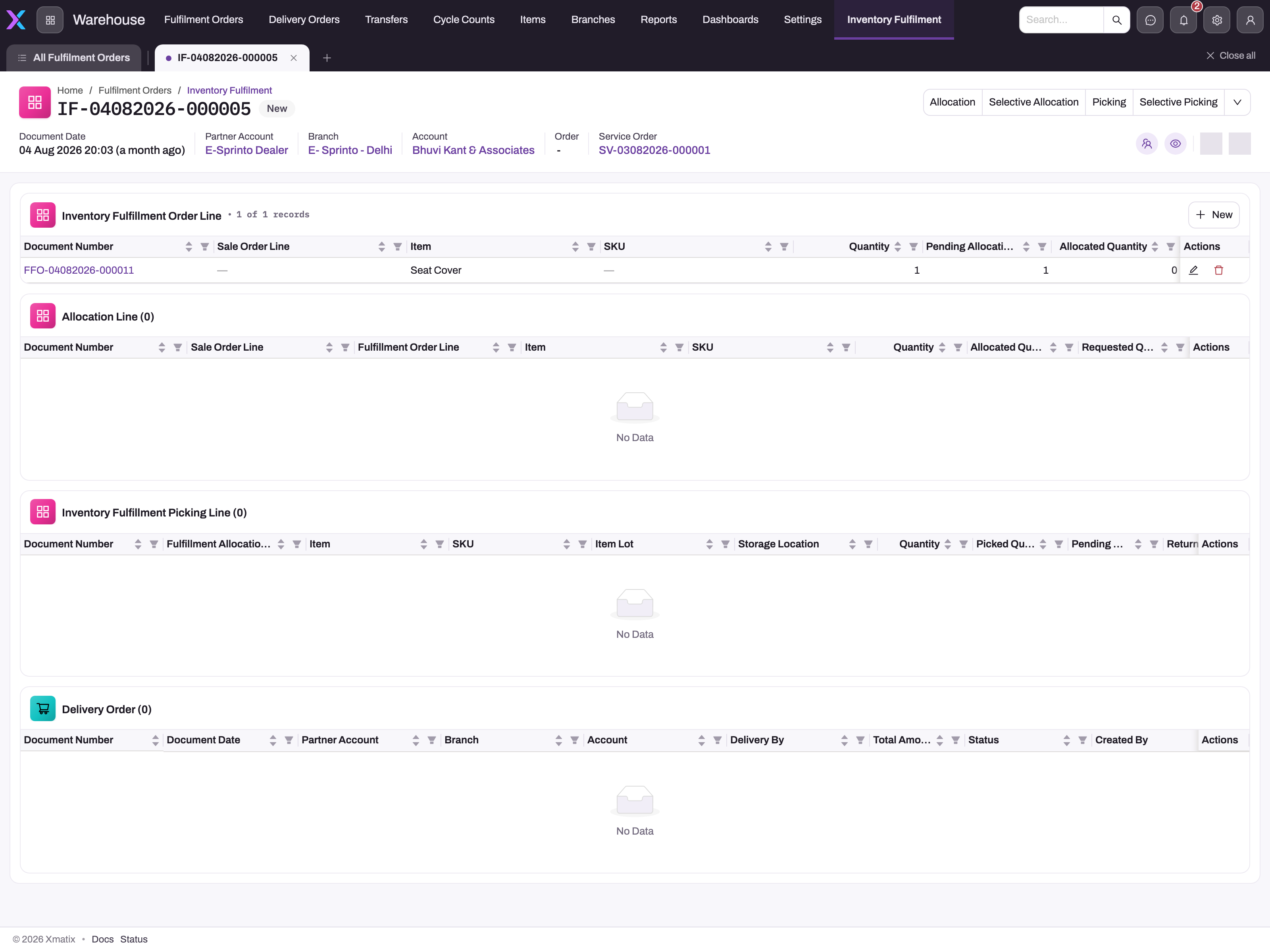
- 1
Header actions in procedure order — Allocation, Selective Allocation, Picking, Selective Picking; the arrow holds Confirm Picking, Picked Delivery, Allocation Delivery and the cancel actions.
- 2
Header: customer account, branch that will pick, and the Order or Service Order the demand came from (a service order here).
- 3
Inventory Fulfillment Order Line — one row per item to fulfil, released from the source document.
- 4
Quantity 1, Pending Allocation 1, Allocated 0: nothing is reserved yet, so Perform Allocation is the next step.
- 5
Allocation Line fills when allocation reserves specific stock (item, lot, storage location, quantity).
- 6
Picking Line (what to take from where) and Delivery Order (created by Picked or Allocation Delivery) fill in the later steps.
Step 1 — Open the fulfilment
Open the Warehouse app and choose Fulfilment Orders. The default view is All Fulfillments. Find the document by its Document Number (fulfilment numbers start with the series IF unless your administrator changed it) or by Partner Account, Branch and Account, and open it. Read the Inventory Fulfillment Order Line grid. A line with Pending Allocation Quantity greater than zero still needs stock. If the order was released with Fulfilment and Auto Allocate, the Allocation Line grid is already filled in and you can go to Step 3.
Step 2 — Allocate stock
Run Allocation and confirm the Perform Allocation prompt. xMatix reserves stock for every line that has pending allocation and adds one row to Allocation Line for each lot or stock record it used. A line can therefore get several allocation rows when its quantity comes from more than one lot. To allocate only some lines, or less than the full quantity, run Selective Allocation instead. Choose the order lines and enter a requested quantity for each. The quantity must be more than zero and no more than the line's pending allocation quantity.
Afterwards, check Pending Allocation Quantity on each order line. Anything left there could not be reserved because no eligible stock was found. Document State becomes Allocated, or Partially Allocated if part of the pending quantity is still open.
Step 3 — Create picking lines
Run Picking. xMatix creates one picking line for each allocation line that still has quantity to pick. The picking line copies the item, SKU, lot, lot type, storage location and unit cost from the allocation line, and both its Requested Quantity and Quantity are set to the quantity picked. This is the pick list: it tells the picker what to take, from where and how much. To pick only some allocation lines, or part of a quantity, run Selective Picking. Choose the allocation lines and enter a requested quantity for each, which must be no more than that line's pending picking quantity.
Each new picking line is numbered from the FP series and moves its quantity from Allocation to Picked in the inventory ledger as soon as it is created. Picking Confirmed is off until Step 4.
Picking requires allocation. If nothing is allocated, the action stops with No pending picking quantities found in fulfillment allocation lines to create picking. Document State becomes Picked, or Partially Picked.
Step 4 — Confirm the pick
After the goods have been taken from their locations, run Confirm Picking. It turns on Picking Confirmed for every unconfirmed picking line on the document, at its requested quantity, and sets Cancel Quantity to 0. The stock already moved to Picked when the line was created, so confirming does not move it again. Lines that are already confirmed are skipped. If nothing is left to confirm, you see No picking lines available to confirm.
Confirm Picking does not ask for quantities, and the standard screens have no way to confirm only some lines. If the picker found less than requested, work in this order. First confirm. Then deliver what was actually found with Selective Picked Delivery (Step 5). Finally, run Selective Cancel Picking on the short line for the missing quantity (Step 6). Use the selective delivery: a cancelled pick leaves a row on the document that is never confirmed, and from then on the whole-document Picked Delivery refuses to run (see Common problems).
Step 5 — Release the delivery order
Run Picked Delivery. xMatix creates one delivery order for the fulfilment, with a line for each picking line that has quantity pending delivery. Each delivery line carries the item, lot, storage location and quantity from the pick. The delivery order copies the fulfilment's branch, partner account, account and order, and its document date is today. Picked Delivery refuses to run while any picking line on the document is unconfirmed: Cannot create delivery for Picking Lines that are not confirmed. Cancellation rows count as unconfirmed, so after any Cancel Picking use the selective variant. To deliver only some picking lines, or part of a quantity, run Selective Picked Delivery and enter a requested quantity for each chosen line. Lines that are already fully delivered or cancelled are left out, and the rest are delivered.
If your warehouse does not record picks, skip Steps 3 and 4 and run Allocation Delivery (or Selective Allocation Delivery). It builds the delivery order straight from the allocation lines. It only uses allocation lines that have not gone into picking. If every remaining line has been picked, it stops with Perform Picked Delivery as Picking lines are present.
Document State becomes Delivered, or Partially Delivered. Open the new delivery order from the Delivery Order grid and continue with Delivery orders and dispatch.
Step 6 — Undo a step if needed
Undo in the reverse order of the work: picking first, then allocation.
- Cancel Picking returns all confirmed picked quantity on the document from Picked to Allocation in the ledger by writing negative picking lines. Selective Cancel Picking does the same for chosen picking lines and quantities. You can enter no more than each line's Picked Quantity. Only confirmed picks can be cancelled. An unconfirmed pick stops the action with Cannot cancel picking for lines that are not confirmed., so confirm it first (Step 4) and then cancel. After Cancel Picking, Document State returns to Allocated. The cancelled quantity goes back into the allocation line's Pending Picking Quantity, so it can be picked again or delivered through Allocation Delivery.
Neither picking cancel checks what has already been delivered. Cancel Picking cancels each line's whole Picked Quantity, even the part that is already on a delivery order. Once anything on the document has been delivered, use Selective Cancel Picking and enter no more than the line's Pending Delivery Quantity.
- Cancel Allocation releases the reservation back to free stock by writing negative allocation lines. Selective Cancel Allocation does the same for chosen allocation lines. For each line, you can cancel no more than its eligible return quantity: the allocation less anything still in picking, delivered or invoiced. After Cancel Allocation, Document State returns to Draft.
The selective cancels leave Document State unchanged.
Step 7 — Check or adjust a fulfilment order line
Select a line's Document Number in the Inventory Fulfillment Order Line grid to open its record page. The header shows Partner Account, Branch, Item, SKU and Sale Order Line, with Edit and Delete buttons, and the fields below can also be changed in place. The row menu in the grid offers the same Edit and Delete. Use the line page to read where a line stands and to steer the next allocation:
- Steer allocation. Set Item Lot Type, Storage Location or Limit Expiry Days, then run Allocation or Selective Allocation again. On a line released from a sales order, Item, Item Lot and SKU are fixed. On any line they lock as soon as something is allocated.
- Reduce the quantity. Lower Quantity to hand the difference back to the sales or service order. The order line's pending fulfilment quantity rises by the same amount, and that quantity can be released again later. Quantity must stay above zero, and it cannot go below what is already allocated, cancelled or on a back-order purchase order.
- Stop reserving the rest. Enter the quantity that should not be reserved in Cancelled Quantity. Pending Allocation Quantity drops by that amount, and Allocation and the Back Order auto order leave it alone. Cancelled Quantity cannot exceed Quantity. It is not passed back to the order line, so use step 2 instead if the order should be able to release the quantity again.
- Remove a line. Delete is only allowed while nothing is allocated against the line. Cancel its allocation first (Step 6). Deleting the line gives its whole quantity back to the order line.
- Add a line by hand. New on the grid opens a form with Item, SKU, Item Lot, Item Lot Type, Quantity, Storage Location and Unit Price. The line is allocated, picked and delivered like any other. It has no order line, though, so nothing on the sales or service order records it. Prefer releasing from the order.
Step 8 — Read or correct an allocation line
Select a row's Document Number in the Allocation Line grid to open its record page, titled Fulfillment Order Allocation Line. Allocation lines are numbered from the FA series. The same rows are listed on the sales order's and service order's record pages and under Related on an order line or service order line. The fulfilment's grid and the order line's list have a row menu with Edit and Delete; the other lists have none. Allocation lines have no list of their own in any app, and there is no New button: they are always created by an action.
The header shows Document Date, Item and SKU, with Edit and Delete buttons. The body has four panels, all display-only:
- Item Details: the Item, SKU, Item Lot, Item Lot Type and Storage Location reserved, the Inventory Ledger entry the line posted, and the Unit Cost.
- Quantity Details: the reserved Quantity, what is still reserved (Allocated Quantity) and the quantities that picking, delivery and invoicing have used. Pending Picking Quantity, Pending Delivery Quantity and Pending Invoice Quantity say what the next action can still take from this line. Eligible Return Quantity is what Selective Cancel Allocation can still release.
- Reference Details: the Sale Order Line or Service Order Line the reservation answers, and Allocated By.
- System Details: who created and last changed the line, and when.
A row with a negative Quantity is a cancellation. It was written by Cancel Allocation or Selective Cancel Allocation and released that quantity from the original row, whose Returned Quantity shows the total released.
To correct a reservation, cancel it and allocate again (Step 6, then Step 2). Avoid editing the line, because the edit form bypasses the checks the actions make:
- Edit opens a form with Item, SKU, Item Lot, Item Lot Type, Quantity, Storage Location and Unit Cost. SKU and Item Lot are locked once the line has a positive quantity.
- A change to Quantity, Unit Cost, Item Lot or Storage Location reverses the line's ledger posting and posts it again with the new values, and the order line and fulfilment order line recount their allocated quantity. Nothing compares a new Quantity with what has already been picked, delivered or invoiced. A change to Item alone is not posted again, so the ledger keeps the old item.
- Delete works only on a cancellation row (a quantity of zero or less). A reservation with a positive quantity is refused with There are downstream transactions. The record cannot be deleted. Deleting a cancellation row puts its quantity back into the reservation it released, in the ledger as well. Delete one only to undo a cancellation made by mistake.
Step 9 — Read or correct a picking line
Select a row's Document Number in the Inventory Fulfillment Picking Line grid to open its record page, titled Fulfillment Picking Line. Picking lines are listed only on the fulfilment. They have no list of their own in any app, and there is no New button: Picking, Selective Picking and the picking cancels create them. The grid's row menu offers Edit and Delete.
The header shows Document Date, Fulfillment Allocation Line, Item and SKU, with Edit and Delete buttons. The body has four panels:
- Basic Details: the Item, SKU, Item Lot, Item Lot Type and Storage Location to pick from, the Inventory Ledger entry the line posted, the Unit Price, and the Picking Confirmed switch.
- Quantity Details: Requested Quantity, Quantity, Picked Quantity, Pending Delivery Quantity, Delivery Quantity, Returned Quantity and Cancel Quantity.
- Reference Details: the Inventory Fulfilment and the Fulfillment Allocation Line the pick draws from.
- System Details: who created and last changed the line, and when.
A row with a negative Quantity is a cancellation. Cancel Picking or Selective Cancel Picking wrote it, and it points to the picking line it reverses. That line's Returned Quantity shows the total cancelled, and its Picked Quantity and Pending Delivery Quantity drop by the same amount. A cancellation row's Picking Confirmed stays off, and its Pending Delivery Quantity is 0.
To correct a pick, cancel it and pick again (Step 6, then Step 3). Avoid editing the line, because the edit form bypasses the checks the actions make:
- Edit opens a form with Item, SKU, Item Lot, Item Lot Type, Quantity, Storage Location and Unit Price. SKU and Item Lot are locked once the line has a positive quantity.
- A change to Quantity reverses the line's ledger posting, posts it again with the new quantity, and recounts the picked quantities on the allocation line and the order line. Nothing compares the new quantity with what is reserved or already delivered. A change to Item, Item Lot Type or Storage Location alone is not posted again, so the ledger keeps the old values.
- Picking Confirmed can be switched on the record page. Switching it posts nothing and changes no quantity. It only changes what Confirm Picking, Cancel Picking and Picked Delivery accept, so leave it to Confirm Picking.
- Delete works only on a cancellation row. A picking line with a positive quantity is refused with There are downstream transactions. The record cannot be deleted. Deleting a cancellation row reverses its ledger posting, so the quantity is picked again under the original line and that line's Returned Quantity drops back. Delete one only to undo a cancellation made by mistake.
Fields
The header fields as they appear on the record page, the New form and the list.
| Field | What it means | Notes |
|---|---|---|
| Document Number | The fulfilment's number. | Assigned automatically from the fulfilment numbering setting (series IF by default). |
| Document Date | The document's date. | Taken from the service order on a service-order fulfilment. It cannot be changed once saved. |
| Partner Account | The company that owns the stock and runs the branch. | Copied from the order and locked. Allocation only uses this partner's stock. |
| Branch | The branch whose stock is used. | Copied from the order and locked. It must belong to the partner account (Invalid Branch for Partner Account otherwise). |
| Account | The customer receiving the goods. | Copied from the order and locked. |
| Order | The sales order this fulfilment came from. | Cannot be changed after creation. Empty on a service-order fulfilment. |
| Service Order | The service order this fulfilment came from. | Empty on a sales-order fulfilment. |
| Allocated By | The warehouse person credited with the allocation. | Entered by hand; no action fills it. |
| Document State | The last fulfilment step that succeeded. | Read-only. Values: Draft, Partially Allocated, Allocated, Partially Picked, Picked, Partially Delivered, Delivered. |
| Status | Your own status picklist: Draft, Partially Allocated, Allocated. | Not written by any action. It changes only when a user or a business rule sets it. |
| Allocated Quantity | Quantity reserved now. | Total of the allocation lines, net of cancellations. |
| Pending Allocation Quantity | Quantity still to reserve. | Order line quantity less allocated and cancelled. |
| Pending Picking Quantity | Reserved quantity with no picking line yet. | What Picking would still pick. |
| Picked Quantity | Quantity on picking lines. | Net of cancelled picks. |
| Pending Delivery Quantity | Reserved quantity not yet delivered. | Includes picked and unpicked stock. |
| Pending Allocation Delivery | Undelivered quantity on allocation lines. | Picked lines count here too, but deliver only through Picked Delivery. |
| Pending Picked Delivery | Undelivered quantity on picking lines. | What Picked Delivery would deliver. |
| Allocated, Picked | Yes/no flags. | Not set by any action. Ignore them when judging progress. |
The full field list, including system fields, is in the Inventory Fulfilment reference.
Fulfilment order line fields
The fields on a fulfilment order line's record page, in form order.
| Field | What it means | Notes |
|---|---|---|
| Item | The item to reserve. | Must be active; a SKU is required when the item says so. Fixed on lines released from a sales order, and on any line once something is allocated. |
| SKU | The variant to reserve. | Matched exactly by allocation. Fixed like Item. |
| Item Lot | The one lot to reserve from. | When set, allocation never falls back to another lot. Fixed like Item. |
| Item Lot Type | Limits allocation to lots of this type. | Not copied at release; set it on the line when needed. |
| Storage Location | The location tried first. | Copied from a sales order line, empty from a service order. Stays editable. |
| Unit Price | The order line's price. | Becomes the unit cost of allocations from stock records (lot allocations take the lot's cost). Cannot be negative. |
| Requested Quantity | The quantity for this line in Selective Allocation. | Not stored; reads 0 on the record page. |
| Quantity | The quantity to fulfil. | Copied at release. Must be greater than zero, and cannot go below Allocated plus Cancelled plus Back Order Quantity. |
| Allocated Quantity | Quantity reserved now. | Total of the line's allocation lines, net of cancellations. Do not type it; the next recount overwrites it. |
| Pending Allocation Quantity | Quantity still to reserve. | Quantity less Allocated and Cancelled Quantity. |
| Back Order Quantity | Quantity on purchase orders raised for this line. | Filled from the Back Order auto order's purchase order lines. Read-only. |
| Eligible Back Order Quantity | Shortfall not yet on a purchase order. | Pending Allocation Quantity less Back Order Quantity. |
| Cancelled Quantity | Quantity that will not be reserved. | Entered by hand; no action writes it. Cannot exceed Quantity. Not passed back to the order line. |
| Stock Available, Stock In Hand | Stock figures. | Not filled in; they read 0. Check stock balances instead. |
| Limit Expiry Days | Expiry window for lot allocation. | 0 (no limit) by default. Above zero, only lots expiring within that many days are taken. |
| Inventory Ledger | Ledger link. | Always empty: the line never posts to stock. |
| Stock | The stock record matching the line exactly. | Set when the line is saved; for reference only. |
| Inventory Fulfillment | The fulfilment the line belongs to. | |
| Sale Order Line | The sales order line it was released from. | Cannot be changed once set. |
| Work Orde Line | The service order line it was released from. | The label is spelled this way on the form. |
| Partner Account, Branch | Copied from the fulfilment. | Allocation uses the fulfilment's values, but the Back Order auto order selects lines by these copies. |
Lines are numbered from the FFO series. The full list is in the Inventory Fulfillment Order Line reference.
Allocation line fields
The fields on an allocation line's record page, in panel order. Every value is written by the allocation, picking, delivery and invoicing actions; none is typed on this page.
| Field | What it means | Notes |
|---|---|---|
| Item, SKU | What was reserved. | Copied from the fulfilment order line or order line. |
| Item Lot | The lot reserved, for a lot-tracked item. | Empty for other items, which reserve a stock record instead. Locked once the line has a positive quantity. |
| Item Lot Type | The reserved lot's type. | Taken from the lot. |
| Storage Location | Where the reserved goods are. | The lot's or stock record's location. Picking copies it to the pick list. |
| Inventory Ledger | The ledger entry the line posted. | Filled when the line posts. |
| Unit Cost | The value of the reservation per unit. | The lot's unit cost for a lot. For a stock record it is the Unit Price of the order line, a selling price rather than a cost. |
| Quantity | The quantity reserved. | Positive on a reservation, negative on a cancellation row. This is the quantity posted to the Allocation bucket. |
| Allocated Quantity | Quantity still reserved. | Quantity less Returned Quantity. |
| Picking Requested Quantity | Total requested on this line's picking lines. | Recounted from the picking lines. |
| Picked Quantity | Total on this line's picking lines. | Net of cancelled picks. |
| Pending Picking Quantity | Reserved quantity not yet on a picking line. | What Picking and Selective Picking can still take. At zero, the line can only be delivered through Picked Delivery. |
| Picking Cancel Quantity | Quantity cancelled on this line's picking lines. | Added back to Pending Picking Quantity. |
| Pending Delivery Quantity | Reserved quantity not yet delivered. | Allocated Quantity less both delivered quantities. |
| Delivery Quantity | Quantity delivered straight from this line. | From delivery order lines raised by Allocation Delivery, net of returns. |
| Returned Quantity | Quantity released by cancellations. | The total of the cancellation rows that point to this line. |
| Eligible Return Quantity | Quantity that can still be cancelled. | Allocated Quantity less what is delivered, invoiced, or still on a picking line. Selective Cancel Allocation accepts no more than this. |
| Invoice Quantity | Quantity invoiced straight from this line, without a delivery or pick. | From invoice lines raised from the allocation. |
| Pending Invoice Quantity | Reserved quantity not yet invoiced. | What invoicing from the allocation can still take. |
| Picked Invoice Quantity, Delivered Invoiced Quantity | The invoiced parts that went through a pick or a delivery first. | From the invoice lines. |
| Picked Delivered Quantity | Quantity delivered through a picking line. | From delivery order lines raised by Picked Delivery. |
| Picking Return Quantity | Quantity returned by cancelled picks. | Added back to Pending Picking Quantity. |
| Sale Order Line, Service Order Line | The demand the reservation answers. | One of the two is set. |
| Allocated By | Meant to name who allocated. | No action fills it, so it stays empty. |
The full list, including the fields not on the page, is in the Allocation Line reference.
Picking line fields
The fields on a picking line's record page, in panel order. The picking actions write every value.
| Field | What it means | Notes |
|---|---|---|
| Item, SKU | What to pick. | Copied from the allocation line. SKU is locked once the line has a positive quantity. |
| Item Lot | The lot to pick from. | Copied from the allocation line. Locked once the line has a positive quantity. |
| Item Lot Type | The lot's type. | Copied from the allocation line. |
| Storage Location | Where to pick from. | The allocation line's location. Carried to the delivery order line. |
| Inventory Ledger | The ledger entry the line posted. | Filled when the line posts, which is when it is created. |
| Unit Price | The value per unit. | Copied from the allocation line's Unit Cost: a lot's cost, or the order line's selling price for stock that is not lot-tracked. |
| Picking Confirmed | Whether the pick has been confirmed. | Turned on by Confirm Picking. Cancellation rows never have it. |
| Requested Quantity | The quantity the pick was raised for. | Set by Picking or Selective Picking. |
| Quantity | The quantity picked. | Equal to Requested Quantity on the standard screens. This is the quantity posted from Allocation to Picked. Negative on a cancellation row. |
| Picked Quantity | Quantity still counted as picked. | Quantity less Returned Quantity. Cancel Picking and Selective Cancel Picking work from it. |
| Pending Delivery Quantity | Picked quantity not yet delivered. | Quantity less Delivery Quantity and Returned Quantity; 0 on a cancellation row. What Picked Delivery would deliver. |
| Delivery Quantity | Quantity delivered from this pick. | Total of the delivery order lines raised from it. |
| Returned Quantity | Quantity cancelled from this pick. | Total of the cancellation rows that point to it. Creating or deleting a delivery order line from this pick, or changing its Quantity or Unit Price, recounts the field from the delivery lines' returned quantities instead, which drops an earlier cancellation (see Business rules). |
| Cancel Quantity | Requested quantity that was not confirmed. | Confirm Picking sets it to 0 on the standard screens. A cancelled pick shows in Returned Quantity, not here. |
| Inventory Fulfilment | The fulfilment the line belongs to. | |
| Fulfillment Allocation Line | The reservation the pick draws from. | Required: a picking line without one is refused. |
The full list, including the fields not on the page, is in the Inventory Fulfillment Picking Line reference.
Business rules
- Document State moves with each action. Allocation or Selective Allocation sets Allocated, or Partially Allocated when it reserved less than was pending. Picking, Selective Picking and Confirm Picking set Picked or Partially Picked. Allocation Delivery and Picked Delivery, and their selective variants, set Delivered or Partially Delivered. Cancel Picking sets Allocated and Cancel Allocation sets Draft. An action that found nothing to do leaves the state unchanged. Allocating from the sales order also moves the state of the fulfilments that the new allocation lines belong to.
- The sales order moves too. Allocation sets the order's state to Allocated or Partially Allocated, picking sets Picked, and a delivery sets Delivered or Partially Delivered. Cancel Allocation sets the order back to Fulfilment Released and Cancel Picking sets it back to Allocated.
- Locked header. Partner Account, Branch, Account, Order and Document Date cannot be changed once the fulfilment is saved.
- Picking lines need an allocation line. A picking line added by hand without one is refused with Picking can only be created from an Allocation Line!
- Picking lines post when created. The ledger setting Picked (fulfilment) moves each new picking line's Quantity from the stock record's Allocation bucket to Picked. A cancellation row posts the reverse. Changing a line's Quantity later reverses the posting and posts it again. Confirm Picking sets Quantity back to Requested Quantity, so it posts again only when someone had edited the quantity. See Inventory ledger settings.
- Picking lines feed the counters. Every new, changed or deleted picking line recounts the picking quantities on its allocation line and sales order line, and Picked Quantity on a service order line. Cancellation rows are negative, so the totals are net.
- Cancellation rows are never confirmed. Confirm Picking skips them, and the whole-document Picked Delivery refuses any document that holds one. Selective Picked Delivery does not check confirmation.
- Delivery recounts Returned Quantity. Creating or deleting a delivery order line from a pick, or changing its Quantity or Unit Price, recounts the pick's Returned Quantity from the delivery lines. A pick cancelled before that delivery then shows the cancelled quantity as picked and pending delivery again, although the ledger has already moved it back to Allocation. Deliver a short pick first and cancel the shortfall last, and do not edit those delivery lines afterwards.
- Picking line locks. SKU and Item Lot cannot change once the line has a positive quantity. A picking line with a positive quantity cannot be deleted; a cancellation row can.
- Selective quantities. In every selective action, each chosen line needs a requested quantity greater than zero (Requested quantity must be greater than zero.) and no more than what is pending for that step (Requested quantity (…) cannot exceed the pending quantity (…).).
- Confirmation gates the whole-document delivery. Picked Delivery checks that every picking line is confirmed. Selective Picked Delivery does not check, so confirm before you deliver as a working rule.- Two delivery paths, decided per allocation line. An allocation line with nothing left to pick can only be delivered through Picked Delivery.
- Numbering. The document number comes from the fulfilment's document name setting when the record is created. Fulfilment order lines have their own setting, series FFO, and so do picking lines, series FP.
- Order lines and the source order. A fulfilment order line's Quantity counts as released on its source order line. Lowering it or deleting the line gives the quantity back to the order. Cancelled Quantity does not.
- Order line locks. Quantity must be greater than zero and cannot go below Allocated plus Cancelled plus Back Order Quantity. Item, Item Lot and SKU cannot change on a line released from a sales order, or on any line with allocated quantity. Sale Order Line cannot change once set. A line with allocated quantity cannot be deleted.
- Order lines never post to stock. Stock moves start at the allocation line.
- One allocation line per lot or stock record. Allocation takes lots oldest first (by when the lot was created) and skips lots with a hold code. It writes one allocation line for each lot or stock record it draws from, until the order line is covered or nothing eligible is left. Allocation lines are numbered from the FA series.
- Back orders are allocated from the receipt. Release Back Orders on a goods receipt writes allocation lines for the fulfilment order lines that were waiting on its purchase order, up to the quantity received, without searching other stock.
- Allocation lines post when saved. Each line adds its Quantity to the stock record's Allocation bucket. On a sales order line or service order line that had already soft-committed the stock, the same posting also releases the SoftCommit quantity. A cancellation row posts the reverse.
- Allocation lines feed the order counters. Every new, changed or deleted allocation line recounts Allocated Quantity on its fulfilment order line, Fulfilment Allocated Quantity on the sales order line and Allocated Quantity on the service order line. Cancellation rows are negative, so the counters are net.
- Allocation line locks. SKU and Item Lot cannot change once the line has a positive quantity. A line with a positive quantity cannot be deleted; a cancellation row can.
Example
A customer, Riverbend Hardware, orders 30 ceiling fans from the North Depot branch. The sales order is saved and released with Fulfilment. Fulfilment IF-000123 appears in Fulfilment Orders with one order line: Quantity 30, Pending Allocation Quantity 30. Document State is Draft.
- The storekeeper runs Allocation. North Depot has two lots of the fan: 20 received in March and 15 received in May. Allocation takes the older lot first and creates two allocation lines: 20 from the March lot and 10 from the May lot. Pending Allocation Quantity drops to 0, Allocated Quantity shows 30 and Document State becomes Allocated. In the ledger, 30 fans move into the Allocation bucket.
- They run Picking. Two picking lines appear, 20 and 10, each naming its lot and storage location. Document State becomes Picked.
- The picker brings back 20 and 9 — one carton from the May lot is damaged. The storekeeper runs Confirm Picking, which confirms both lines at their requested 20 and 10.
- They run Selective Picked Delivery with 20 for the March line and 9 for the May line. One delivery order with lines for 20 and 9 is created, and Document State becomes Delivered.
- They run Selective Cancel Picking on the May line for 1. A negative picking line for 1 appears, and the damaged fan's quantity returns from Picked to Allocation in the ledger. Document State is unchanged, because selective cancels never move it. The picking grid now accounts for every fan: 29 delivered and 1 returned to the reservation.
Training
Practice exercise
In a sandbox, create a sales order for 5 units of a stock item that has at least 5 available at the order's branch, and release it with Fulfilment. Open the fulfilment in Fulfilment Orders, then:
- Run Selective Allocation for 3 units. Expected result: one or more allocation lines totalling 3, Pending Allocation Quantity 2, Document State Partially Allocated.
- Run Allocation. Expected result: Pending Allocation Quantity 0, Document State Allocated.
- Run Picking, then Confirm Picking. Expected result: picking lines totalling 5, all confirmed, Document State Picked.
- Run Picked Delivery. Expected result: one delivery order with lines totalling 5 in the Delivery Order grid, Document State Delivered.
For a second round, release another order, allocate it, and try Allocation Delivery after running Picking. Expected result: the action stops with Perform Picked Delivery as Picking lines are present.
For a third round, pick and confirm another order, run Selective Cancel Picking for 1 unit on one picking line, then try Picked Delivery. Expected result: a picking line with Quantity -1 appears and the original line's Returned Quantity shows 1. Picked Delivery stops with Cannot create delivery for Picking Lines that are not confirmed., and Selective Picked Delivery for the remaining quantity creates the delivery order.
Quick reference
- Order of work: Allocation → Picking → Confirm Picking → Picked Delivery.
- No recorded pick: Allocation → Allocation Delivery.
- Allocation reserves what it can; read Pending Allocation Quantity for the shortfall.
- Confirm Picking confirms every open pick at its requested quantity.
- Short pick: confirm, deliver what was found with Selective Picked Delivery, then Selective Cancel Picking for the rest.
- Undo order: Cancel Picking before Cancel Allocation.
- Only confirmed picks can be cancelled.
- Judge progress by Document State and the pending quantities, not by Status or the Allocated and Picked flags.
- Steer one line's allocation with its Item Lot Type, Storage Location or Limit Expiry Days.
- A fulfilment order line can be deleted only while nothing is allocated against it.
- Correct an allocation line by cancelling and allocating again, not by editing it.
- Before a full Cancel Allocation, check that every allocation line still has Eligible Return Quantity; otherwise use Selective Cancel Allocation.
- A picking line moves stock to Picked when Picking creates it; Confirm Picking only confirms it.
- After any cancelled pick, deliver with Selective Picked Delivery; the whole-document Picked Delivery refuses the document.
- Once anything is delivered, cancel picks selectively, for no more than Pending Delivery Quantity.
- A negative picking line is a cancellation; deleting it reinstates the pick.
Permissions
Access is granted per profile under Setup → Access Control → Profiles: the entity on the Entity Permissions tab, and each action separately. In the standard profiles:
- System Admin, Standard User and Sales Manager can run every fulfilment action: Allocation, Selective Allocation, Picking, Selective Picking, Confirm Picking, Cancel Allocation, Selective Cancel Allocation, Cancel Picking, Selective Cancel Picking, Allocation Delivery, Selective Allocation Delivery, Picked Delivery and Selective Picked Delivery.
- Sales Executive can run Allocation, Confirm Picking, Allocation Delivery, Cancel Allocation and Cancel Picking. Picking, Picked Delivery and all the selective actions are not granted.
- Sales and Service have full access to the fulfilment records but no fulfilment actions.
Allocation lines have their own entity permission. System Admin, Standard User, Sales Manager, Sales Executive and Sales have full access to them in the standard profiles. Editing and deleting an allocation line follow that permission, so remove edit and delete from profiles whose users should only run the actions. Picking lines work the same way: System Admin, Standard User, Sales Manager, Sales Executive, Sales and Service have full access to them, and that access is what lets a user edit a picking line, switch Picking Confirmed or delete a cancellation row.
A user whose profiles do not grant an action cannot run it. Give warehouse staff a profile that holds the actions they use, and keep the cancel actions for supervisors if your process needs that control. See Security profiles for how grants combine across profiles.
Configuration
- Where fulfilments are created. Only the order's Fulfilment actions create fulfilments, so the order decides when it reaches the warehouse. The standard setup has no business rule that creates one on save. If you want fulfilments created automatically, add your own rule under Setup → Process Studio → Business Rules, with a condition that is true at the moment you want the release, such as a status change. Do not use one that is true on every save. See Business rules.
- Your own status. Status is yours. To show progress in your own words, add a business rule that sets Status from Document State, for example Status = Allocated when Document State is Allocated. The standard views Allocated Fulfilments and Partially Allocated Fulfilments filter on Status. Until something sets Status, they stay empty however much is allocated. Either add such a rule or build views that filter on Document State.
- Numbering. The Inventory Fulfilment Name Setting controls fulfilment numbers: series IF, a 6-digit counter and "-" as the separator by default. It is managed with the other document numbering settings (Warehouse configuration). Changes apply to fulfilments created afterwards. Fulfilment order lines (series FFO) and allocation lines (series FA) have their own numbering settings.
- Layouts and actions. The record page (Fulfilment View Warehouse in the Warehouse app, FulfilmentViewInventory in the Inventory app) decides which actions appear and in what order. The first few appear as buttons and the rest are in the menu beside them. Adding or removing an action in the page header controls whether users see it. The permission still decides whether they can run it.
- Stock that allocation can see. Allocation follows the partner account, branch, lot hold codes and the lot or storage location named on the order line. Fix where stock is held (see Storage locations and Item lots) rather than editing the fulfilment.
Common problems
Allocation ran but some quantity is still pending
No eligible stock was found for the remainder. Possible reasons: the stock is at another branch or belongs to another partner account, the lot is on hold, or the order line names a lot or SKU that has no more stock. Receive or transfer stock in, release the hold, then run Allocation again.
Stock is on hand but allocation reserves nothing for one line
Open the line (Step 7) and compare it with the stock. The SKU must match exactly, so a line without a SKU only takes stock recorded without one. An Item Lot on the line allows only that lot. An Item Lot Type allows only lots of that type. A Limit Expiry Days above zero skips lots that expire later than that window or have no expiry date. For items that are not lot-tracked, stock held in a storage location is only searched when the line names that location. Service order lines never carry one, so set Storage Location on the line and run Allocation again. An item that tracks neither lots nor inventory is never allocated.
"There are downstream transactions. The record cannot be deleted."
You tried to delete a fulfilment order line that still has allocated quantity, or an allocation line with a positive quantity. Run Cancel Allocation or Selective Cancel Allocation for it (after cancelling any picks). A fulfilment order line can then be deleted. An allocation line stays: the cancellation row next to it records the release.
"A positive decimal number is expected for the field: Quantity." when cancelling an allocation
The whole-document Cancel Allocation writes a cancellation row for every allocation line that still has allocated quantity, even a line whose Eligible Return Quantity is 0 because it is fully picked, delivered or invoiced. A row of zero is refused, and the whole action stops. Use Selective Cancel Allocation instead, and choose only the allocation lines whose Eligible Return Quantity is above zero (Step 8 shows it).
"The field … is locked and not editable as transactions have been made against this record."
You changed SKU or Item Lot on an allocation line that has a positive quantity. Cancel the allocation and allocate again instead (Step 6, then Step 2). To steer which lot is used, set Item Lot, Item Lot Type or Storage Location on the fulfilment order line first (Step 7).
"Integrity failed: Quantity cannot be reduced below transacted quantity."
The message can appear under Error validating quantity changes. You lowered a fulfilment order line's Quantity below what is already allocated, cancelled or on a back-order purchase order. Cancel the allocation first, or enter a quantity at least as large as those three together.
"Source populated field … is not editable once the record is created with source record."
Item, Item Lot and SKU on a line released from a sales order cannot be changed. To fulfil a different item or lot, first lower or delete this line so the quantity goes back to the order. Then release the right item from the order. To narrow allocation without changing the lot, set Item Lot Type, Storage Location or Limit Expiry Days instead, because those stay editable.
"No pending allocated quantities found in fulfillment order lines to create allocation."
Every order line is already fully allocated or cancelled. There is nothing to reserve.
"No pending picking quantities found in fulfillment allocation lines to create picking."
Nothing is allocated yet, or every allocation line already has picking lines. Allocate first (Step 2).
"No picking lines available to confirm."
There are no picking lines, or all of them are already confirmed.
"Cannot create delivery for Picking Lines that are not confirmed."
At least one picking line on the document is unconfirmed. Run Confirm Picking, then Picked Delivery. If Confirm Picking finds nothing to confirm, the unconfirmed row is a cancelled pick: run Selective Picked Delivery instead (explained below).
"Perform Picked Delivery as Picking lines are present."
The allocation lines you tried to deliver have already gone into picking. Deliver them with Picked Delivery or Selective Picked Delivery.
Picked Delivery says lines are not confirmed, but Confirm Picking finds nothing to confirm
The document holds a cancellation row from Cancel Picking or Selective Cancel Picking. Cancellation rows are never confirmed, so the whole-document Picked Delivery refuses the document, while Confirm Picking reports No picking lines available to confirm. because every real pick is already confirmed. Run Selective Picked Delivery instead and choose the lines that still have Pending Delivery Quantity.
A cancelled pick shows as pending delivery again
A delivery order line was created from the pick after the cancellation, or one was deleted or had its quantity or price changed. That recounts the pick's Returned Quantity from the delivery lines, so the cancellation no longer counts on the line, although its stock already went back to Allocation. Do not cancel the quantity a second time, because that moves the stock again. Deliver no more than was really picked, and ask your administrator to check the line against the inventory ledger. To avoid it, deliver a short pick first and cancel the shortfall last (Step 4).
Picked stock is too low after Cancel Picking
Cancel Picking cancels each line's whole Picked Quantity, including quantity that was already delivered, and moves all of it from Picked back to Allocation. If that was not intended, delete the cancellation row (Step 9). The delete reverses its ledger posting. Then use Selective Cancel Picking for no more than each line's Pending Delivery Quantity.
"Cannot cancel picking for lines that are not confirmed."
A picking line still has unconfirmed quantity. Confirm it first, then cancel.
"Requested quantity (…) cannot exceed the pending quantity (…)."
In a selective action you asked for more than the line has pending for that step. Enter a smaller quantity, or check whether part of it was already handled.
Common questions
Can I move part of a fulfilment forward while the rest waits?
Yes. Allocation, picking, delivery and both cancels have selective variants that take chosen lines and quantities, and every line carries its own pending quantities. Half the stock can be picked, confirmed and delivered while the other half is still waiting for allocation, and Document State shows the partial states (Partially Allocated, Partially Picked, Partially Delivered) while that is true. Confirmation is the exception: Confirm Picking confirms every open picking line at once. Handle a short pick by delivering what was found first and cancelling the missing quantity afterwards.
Do I have to pick before delivering?
No. Allocation Delivery builds the delivery order straight from allocation lines, for operations where a recorded pick adds nothing. The two paths do not mix on one allocation line, though: once a line's quantity has gone into picking, it is delivered through Picked Delivery. Choose one path per fulfilment and keep to it, so that every line is delivered the same way.
Why does the list still show the fulfilment as Draft after I allocated it?
The list's Status column shows your own status field, which the fulfilment actions never write. The actions record progress in Document State, a separate read-only field. Open the record and read Document State and the pending quantities, or ask your administrator to add a business rule that sets Status from Document State. Until then, the Allocated Fulfilments and Partially Allocated Fulfilments views, which filter on Status, will not show your allocated documents.
How do I stop part of an order line from being reserved?
It depends on whether the order should be able to send the quantity again later. If it should, open the fulfilment order line and lower its Quantity. The difference goes back to the sales or service order line and can be released on a new fulfilment. If the quantity is simply not wanted from this fulfilment, enter it in Cancelled Quantity instead. Pending Allocation Quantity drops, and neither Allocation nor the Back Order auto order touches that quantity again. The order line still counts it as released, though. In both cases you cannot go below what is already allocated, so cancel allocations first if needed.
What do allocation and picking do to stock figures?
Both post to the inventory ledger. Allocation moves quantity into the stock record's Allocation bucket. Picking moves it from Allocation to Picked. In both cases the goods are still in hand but no longer available to other orders. That is why a location can show stock on hand that a new order cannot touch. The delivery order is what takes the goods out of stock.
Why does an allocation line show a Unit Cost equal to the selling price?
It depends on where the stock came from. A lot-tracked item is reserved from an item lot, and the allocation line takes the lot's unit cost. Any other inventory item is reserved from a stock record, which carries no cost, so the line takes the Unit Price of the order line instead. That is a selling price. The figure is copied to the picking line and is the value the allocation posts with in the ledger. Read item costs from inventory valuation, not from allocation lines.
Can the picker record a different lot or location than the pick list?
Not on the standard screens. Confirm Picking confirms each line as it was raised and asks for nothing. On a picking line's edit form, Item Lot is locked once the line has a quantity. Storage Location can be changed, but the ledger is not posted again, so stock stays recorded at the old location and the delivery order line takes the new one. If the goods must come from another lot or location, cancel the pick, cancel the allocation, then set Item Lot, Item Lot Type or Storage Location on the fulfilment order line and allocate and pick again (Steps 6, 7, 2 and 3). Picked By is not on any standard screen.
What happens if I delete a cancellation row?
Yes, a cancellation row (negative quantity) can be deleted, and the delete is not harmless. The ledger reverses the cancellation, so the quantity is reserved again under the original allocation line, and Returned Quantity on that line drops back. The order line and fulfilment order line count the quantity as allocated again. Delete a cancellation row only to undo a cancellation you made by mistake, and check the original line's pending quantities afterwards.
Related topics
- Picking and fulfilment: releasing fulfilments from the order
- Allocating stock to orders
- Delivery orders and dispatch
- Troubleshooting warehouse operations
- Warehouse configuration
- Inventory Fulfilment reference
- Inventory Fulfillment Order Line reference
- Allocation Line reference
- Inventory Fulfillment Picking Line reference
- Inventory ledger settings
- Auto order: buying for fulfilment lines on back order
- Inventory ledger