
A cycle count is the document you use to compare what is physically on the shelf with what the books say for one slice of a branch's stock, and to turn the differences into a stock adjustment. It sits between day-to-day stock movements and the inventory ledger. You count a chosen set of items, and xMatix records every difference against a snapshot of the book figure. The variance then reaches the inventory ledger only when the adjustment the count creates is posted.
Overview
Each count belongs to one partner account and one branch. It carries scope filters that decide which items are counted, a Count Quantity Type that decides which book figure each line is measured against, and one line per stock position or lot to be counted. Three actions on the record move the count through its stages:
| Action | What it does | Status afterwards |
|---|---|---|
| Start Counting | Freezes the scope and, if Lock Inventory is on, locks the counted stock. | Counting in Progress |
| Finish Counting | Opens a dialog to record quantities, then approves every line and lifts the lock. | Finish Counting |
| Release For Adjustment | Creates a linked adjustment from the differences. | Released for Adjustment |
A new count starts in Draft.
When to use it
- Regular counting programmes. For example, count A-category or fast-moving items every month and the rest every quarter, using the ABC and FSN item classifications as scope filters.
- Counting one location. Count one storage location or van by setting Storage Location.
- Investigating one item. Count a single item whose stock figure is in doubt.
If you already know the difference and its cause (for example, three units were damaged in handling), you don't need a count. Raise an adjustment directly.
How xMatix handles it
- Lines are built from stock, not typed. Each line gets the item, SKU, lot, storage location and a snapshot of the book figure, which is shown as On Hand Quantity. The book figure does not move when later transactions happen. The Lines tab has no New button, so you can't add a line by hand. To change which lines a count has, change its scope.
- What gets a line:
- A lot-tracked item gets one line per lot at the count's partner account and branch.
- An item without lots gets one line per stock position.
- An item that matches the scope but has no stock there gets a single line with an On Hand Quantity of 0, so stock that should not be missing can still be counted.
- Only items that track inventory are included.
- The discrepancy is calculated. Discrepency Quantity = Recorded Quantity − On Hand Quantity. It is recalculated on every save.
- Nothing moves stock until the adjustment posts. Starting, recording and finishing change no stock figures. Release For Adjustment creates a draft adjustment, and that adjustment posts like any other.
- Status follows the actions. Business rules set Status from the flags the actions write (Counting Started, Counting Finished) and from the existence of a linked adjustment. If the label and the flags ever disagree, the flags on the Details tab record what actually ran.
Prerequisites
- The partner account and branch whose stock you are counting. Both are fixed once the count is saved.
- At least one scope filter: Item, Item Group, Filter ABC, Filter FSN or Storage Location. Lines are generated only when at least one filter is set.
- For ABC or FSN scoping, item inventory attributes that carry the same value as the filter (see Item classifications).
- Permission to run the count actions (see Permissions).
Procedure
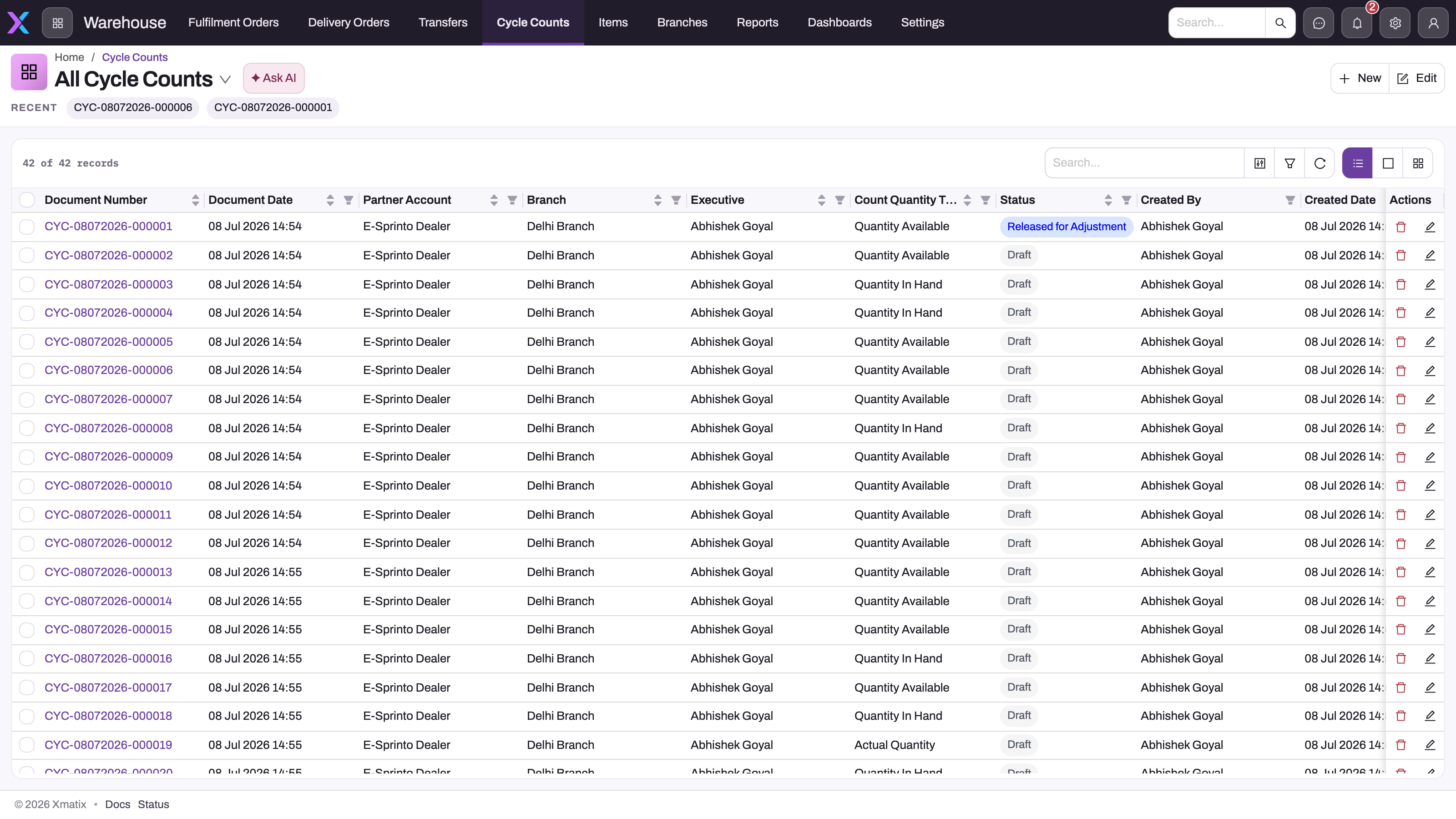
Cycle counts are on the Cycle Counts tab of the Warehouse app, and are also listed in the Inventory app. The list offers these views:
- All Cycle Counts
- Pending Cycle Counts (Draft)
- Cycle Counting In Progress
- Adjusted Cycle Counts (Released for Adjustment)
- One view per count quantity type: Actual Inventory Counts, Available Inventory Counts and In Hand Inventory Counts
Pick a view from the view dropdown. Before you create a count, check Pending Cycle Counts and Cycle Counting In Progress so you don't start a second count over the same stock.
Step 1 — Create the count
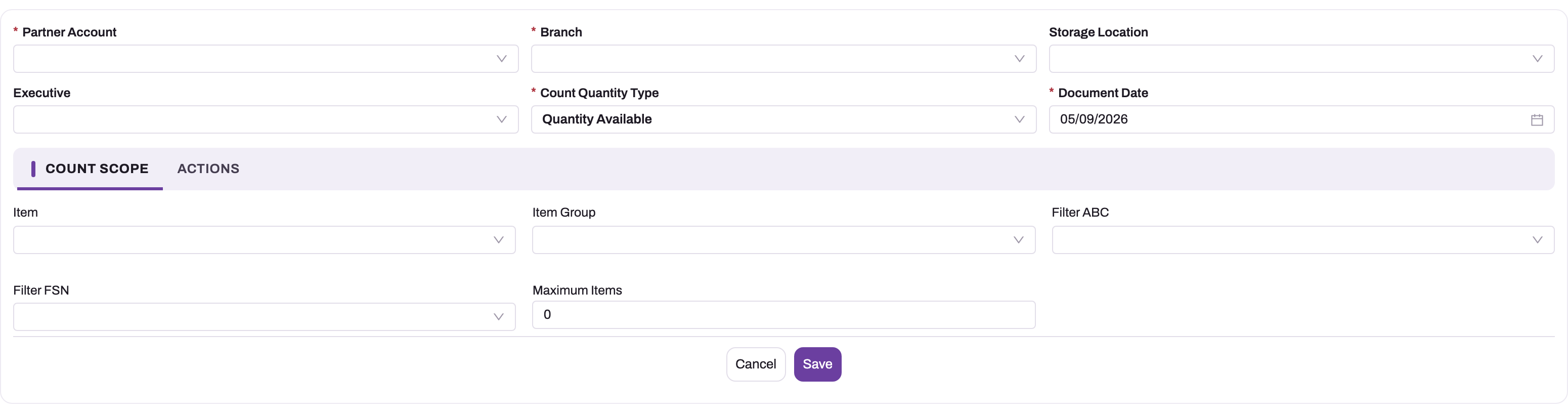
- On the Cycle Counts list, select New.
- Fill in the header:
- Partner Account and Branch (required). The Branch list shows only branches of the chosen partner account. If your organisation runs a single company or a single location, these pickers may be hidden.
- Storage Location (optional), to count one location or van.
- Executive: the person responsible for the count.
- Count Quantity Type (required, defaults to Quantity Available).
- Document Date.
- On the Count Scope tab, set the filters: Item, Item Group, Filter ABC, Filter FSN and Maximum Items. The filters combine, so an item must match all of them.
- Leave the Actions tab alone (see Configuration).
- Save.
The count is numbered automatically (series CYC by default) and opens in Draft. Its Lines tab is still empty, because saving a new count does not generate lines.
Step 2 — Generate the count lines
Lines are built whenever you change a scope field on a Draft count and save.
- On the count, select Edit.
- On Count Scope, set Maximum Items to the number of items you want at most. For example, enter
2000, the built-in cap. You can change any other scope field instead. - Save.
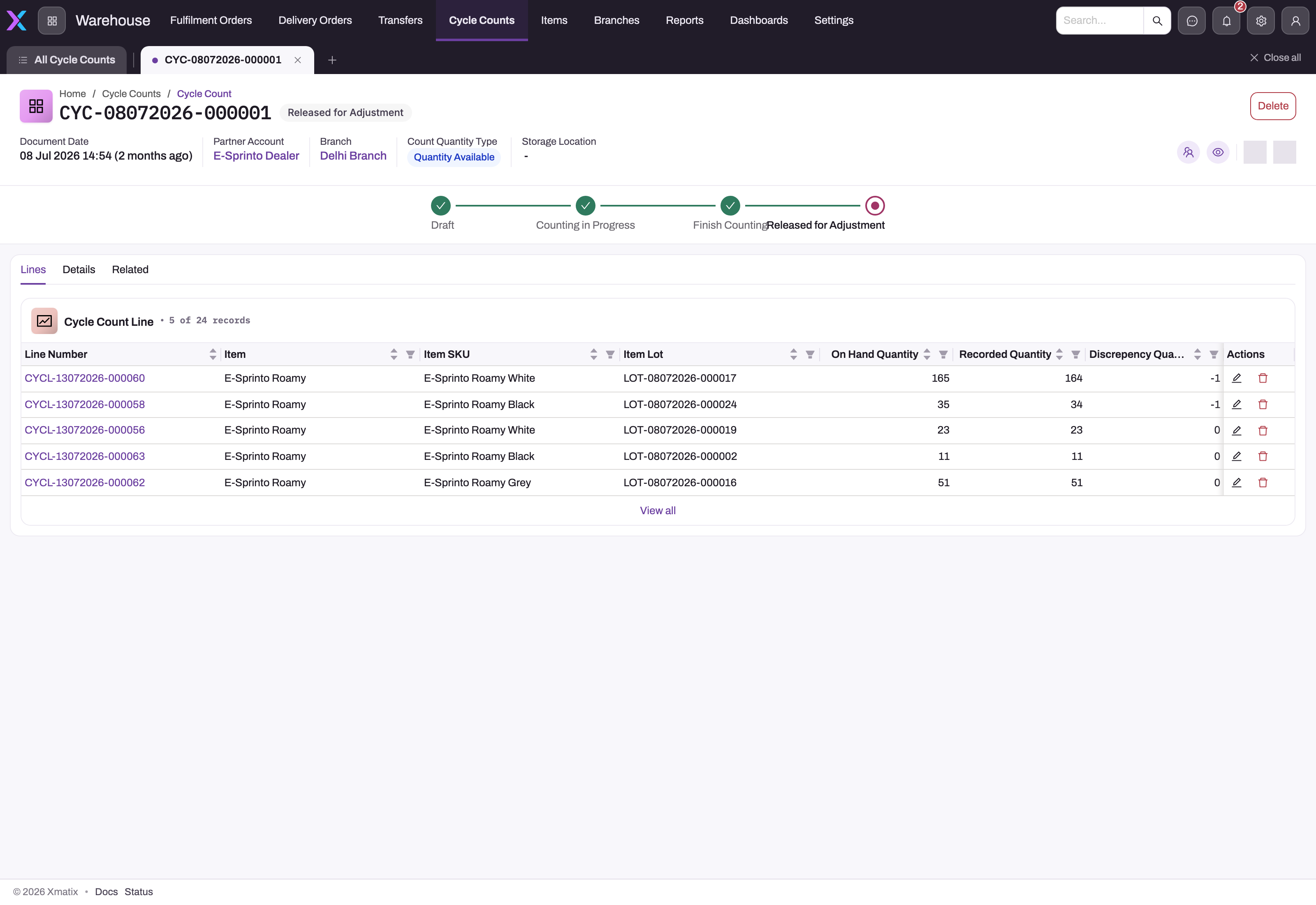
What you see. The Lines tab fills with one row per lot or stock position. Each row shows the item, SKU, lot, On Hand Quantity, Recorded Quantity and the discrepancy.
Check before you start counting:
- The number of lines is about what you expected. The Lines tab shows five rows per page, so page through it. If the scope is wrong, change the filters and save again. Every change to a scope field while the count is in Draft deletes the lines and builds them again, so anything already entered on the old lines is lost.
- Count Quantity Type is the one you want. Changing it alone does not rebuild the lines. Change it first, then change a scope field.
Step 3 — Start counting
- Decide whether to lock the counted stock. To lock it, select Edit, tick Lock Inventory on the Actions tab and save.
- Select Start Counting in the record header. There is no confirmation prompt.
What you see. Counting Started is ticked on the Details tab and the status becomes Counting in Progress.
What changes:
- Scope fields can no longer be changed.
- With Lock Inventory on, the stock positions and lots on the count's lines are locked. Any transaction that would change them is refused with Item is locked for transaction! Please contact your Administrator for more details. until counting is finished. The rest of the branch is unaffected.
Step 4 — Count and record the quantities
Count each line's item, SKU and lot at its storage location. For each line, record:
- Recorded Quantity: everything you found for that line, including any damaged or expired units.
- Recorded Damaged Quantity and Recorded Expired Quantity: the part of that total that is damaged or expired. Leave them at 0 if there is none.
You can enter the figures in either of two ways:
- Line by line, while you count. On the Lines tab, use a row's Edit action. The line form shows the item, SKU, lot type, lot, On Hand Quantity and the three recorded quantities. Change only the recorded quantities.
- All at once, when you finish. The Finish Counting dialog (Step 5) has an editable grid of every line.
Warning: every line starts with a Recorded Quantity of 0. A line you never record therefore shows a discrepancy of minus its book figure. When you release the count, the adjustment writes all of that stock off. Record every line, including lines where you found exactly the book figure.
Step 5 — Finish counting
- Select Finish Counting. The Record Quantity Layout dialog opens with a grid of the count's lines: Line Number, Item, On Hand Quantity, Recorded Quantity, Recorded Damaged Quantity, Recorded Expired Quantity and Discrepency Quantity.
- Enter or correct quantities in the grid. Editing a row ticks it automatically. Only ticked rows are saved.
- Make sure at least one row is ticked. If no row is ticked, the dialog stops with No selection — Please select at least one line before saving. If every figure was already recorded line by line, tick any row before you submit.
- Submit.
What you see. The edited lines are saved and every line on the count is marked approved. Counting Finished is ticked and the status becomes Finish Counting. If Lock Inventory is on, the stock lock is lifted.
Note: finishing does not lock the lines. They can still be edited until you release the variance, so treat the finished count as final by agreement.
Step 6 — Release the variance as an adjustment
Select Release For Adjustment. There is no confirmation prompt.
xMatix creates one adjustment for the count's partner account and branch. It is linked to the count, and its lines are built from the count lines as follows:
- One untyped line for each count line whose discrepancy is not zero. The quantity is the signed discrepancy: positive adds stock, negative removes it.
- A Damaged line for each count line with a recorded damaged quantity.
- An Expired line for each count line with a recorded expired quantity.
Each adjustment line carries the count line's item, SKU, lot type, lot, storage location and unit cost. It also keeps a link to the count line it came from. The seeded adjustment line forms don't show that link, but reports and integrations can read it.
What you see. Adjustment Released is ticked and the status becomes Released for Adjustment. The action refuses to run a second time on the same count.
Step 7 — Review and post the adjustment
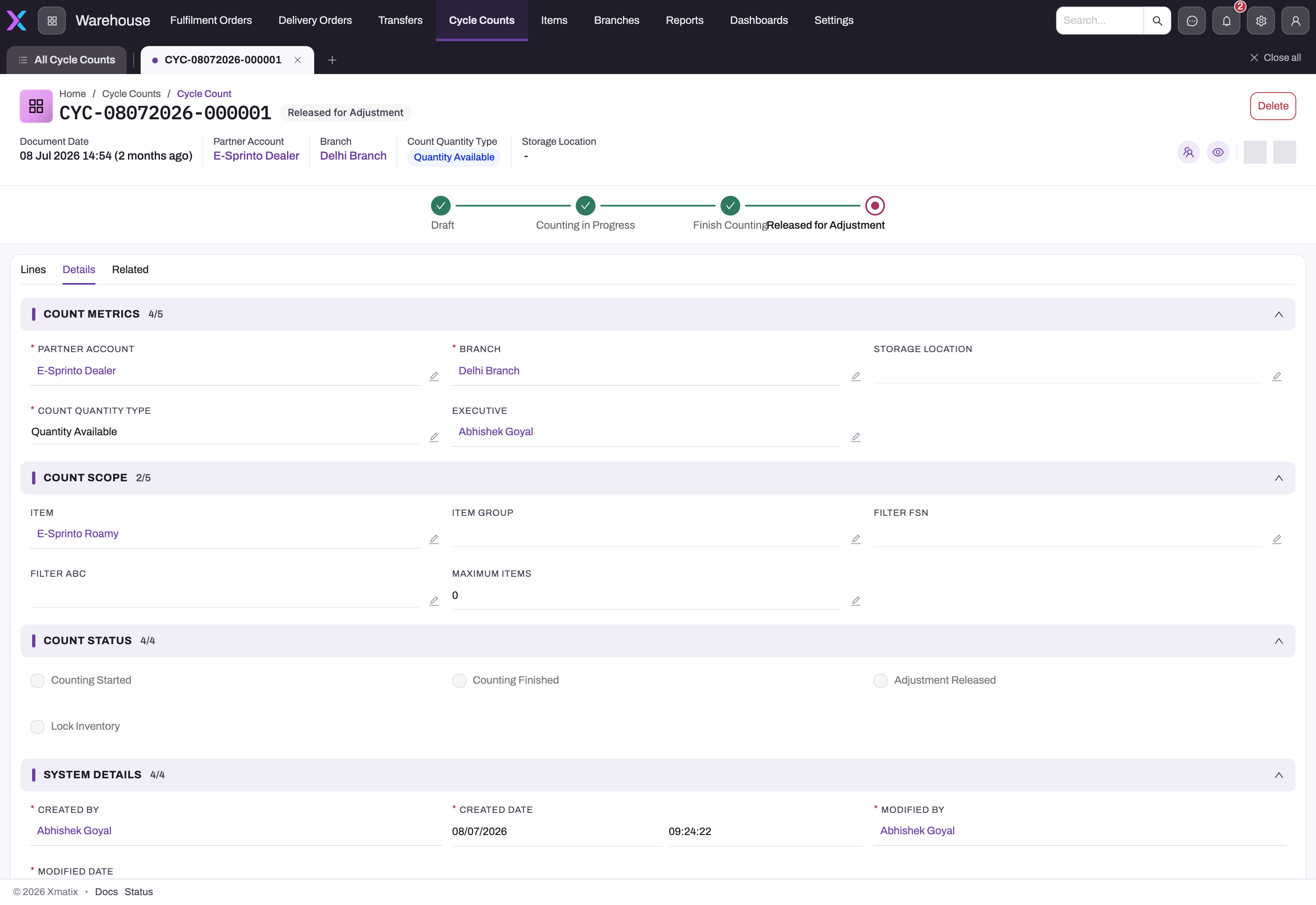
- Open the count's Related tab and open the adjustment. It is a draft: no stock has moved yet.
- Check its lines against the count. Count lines are generated without a unit cost, so review Unit Cost on the adjustment lines if your stock valuation depends on it.
- Post the adjustment as described in Adjusting stock. The ledger entries come from that posting.
Find, review and tidy up counts
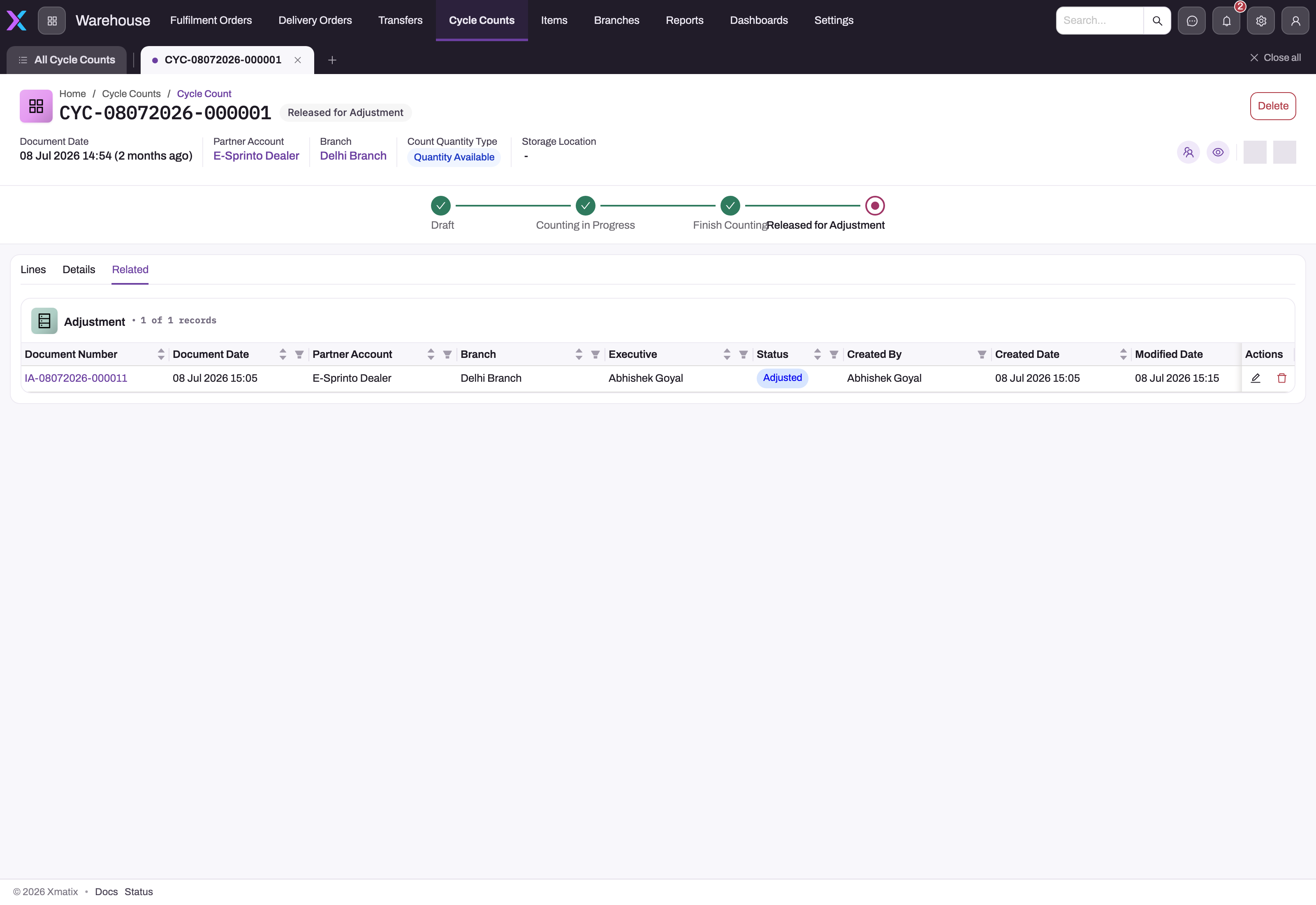
- The Details tab has four sections:
- Count Metrics: partner account, branch, storage location, count quantity type and executive.
- Count Scope: the filters.
- Count Status: Counting Started, Counting Finished, Adjustment Released and Lock Inventory.
- System Details.
- The timeline under the header shows the status stages.
- Delete removes a count you no longer need. On the Lines tab, a line whose discrepancy is positive (more counted than booked) can't be deleted: There are downstream transactions. The record cannot be deleted.
- Clone copies only the header, including the Counting Started and Counting Finished flags, and no lines. Use New for a fresh count rather than cloning a finished one.
- Mobile. In the mobile app, cycle counts are part of the Inventory app. The record header offers the same Start Counting, Finish Counting and Release For Adjustment actions.
- Reports and dashboard. Three seeded reports are shared with all users. To find them, search the Reports page of the Warehouse or Inventory app for "Cycle Count":
- Cycle Count Detail: every line grouped by count and status, with item SKU, item family, lot, on-hand, recorded and discrepancy quantities, unit cost and discrepancy value.
- Cycle Count Discrepancy Register: the same line figures grouped by status, with the person each count is assigned to.
- Cycle Count Report Line Level: document date, status, item, branch, count quantity type and the on-hand figure captured for each line.
- The Cycle Counts dashboard shows totals, a monthly trend, counts by status, branch and assignee, the lines counted, discrepancy quantity and value, the top 10 items by discrepancy and discrepancy value by storage location. Discrepancy value is only as good as the lines' Unit Cost, which line generation leaves empty.
Fields
Cycle count
| Field | What it means | Notes |
|---|---|---|
| Document Number | The count's number. | Generated on save from the Cycle Count Name Setting (default series CYC). |
| Partner Account | The company whose stock is counted. | Required. Only active partner accounts are offered. Can't be changed after the first save. |
| Branch | The branch whose stock is counted. | Required, filtered to the partner account's branches. Can't be changed after the first save. |
| Storage Location | Limits the count to stock and lots in one location or van. | Optional. Also acts as a scope filter. |
| Executive | The person responsible for the count. | Optional. Shown as Resource in the list views. |
| Count Quantity Type | Which book figure becomes each line's On Hand Quantity. | Quantity Available, Quantity In Hand or Actual Quantity. Defaults to Quantity Available. |
| Document Date | The date of the count. | Optional. |
| Item | Counts one item. | Scope filter. |
| Item Group | Counts the items that are members of this group. | Scope filter. A group with no item members does not narrow the count. |
| Filter ABC | Counts items whose item inventory attribute has this ABC class. | A Category, B Category, C Category. Attribute rows with no partner account or branch also match. |
| Filter FSN | Counts items whose item inventory attribute has this FSN class. | F category, S category, N category. Only attribute rows that hold these exact values match. |
| Maximum Items | The largest number of items the count takes in. | 0 means the built-in cap of 2,000. Changing it on a Draft count rebuilds the lines. |
| Perform Start Counting | A checkbox on the form's Actions tab. | Ticking it does not start counting. Use the Start Counting button. |
| Lock Inventory | Whether Start Counting locks the counted stock. | Finish Counting unlocks only while this is still ticked. |
| Status | The stage label. | Draft, Counting in Progress, Finish Counting, Released for Adjustment. Set by business rules. |
| Counting Started, Counting Finished, Adjustment Released | Flags written by the three actions. | Read-only in practice. They are the record of what has run. |
Fields labelled (Future Use), such as Rule Success Criteria, Part Cost From/To, Part Stock From/To and Report, are not read by line generation. The Cycle Count Rule records are not used either.
Cycle count line
| Field | What it means | Notes |
|---|---|---|
| Line Number | The line's number. | Generated on save from the Cycle Count Line Name Setting (default series CYCL). |
| Item, Item SKU, Item Lot Type, Item Lot | What is counted. | Copied from the stock position or lot when lines are generated. Item Lot Type and Item Lot are filled only for lot-tracked items. The Item SKU list offers only SKUs of the line's item. |
| Storage Location, Stock | Where the counted stock sits. | Copied when lines are generated. Stock is filled only for items without lots. |
| On Hand Quantity | The book figure the count is measured against. | Snapshot taken when the line is created. Editable on the line form and in the Finish Counting grid, but leave it as generated. |
| Recorded Quantity | Everything found for this line. | Defaults to 0. Can't be negative: Recorded Quantity can't be negative. |
| Recorded Damaged Quantity | The part found damaged. | Becomes a Damaged adjustment line. |
| Recorded Expired Quantity | The part found expired. | Becomes an Expired adjustment line. |
| Discrepency Quantity | Recorded Quantity − On Hand Quantity. | Calculated. Becomes an untyped adjustment line when not zero. |
| Unit Cost | Cost per unit, copied to the adjustment line. | Not filled when lines are generated. |
| Discrepency Cost Value | Discrepancy × unit cost. | Calculated. |
| Is Approved | Set on every line by Finish Counting. | System-set. |
The line also has Counted By, Counted Date Time, Remarks and unit-of-measure fields. They are not on the seeded line forms, and line generation and release ignore them.
The full field list is in the Cycle Count and Cycle Count Line references.
Business rules
- Numbering. Each count is named from the Cycle Count Name Setting: by default the series
CYC, the date in day-month-year form and a six-digit running number. - Partner account and branch are fixed after the first save. Changing either is refused: Key fields are not editable once the related objects are added. Field Name : …
- Scope fields are frozen once counting starts. Item, Item Group, Filter ABC, Filter FSN, Maximum Items and Storage Location give the same message if changed after Start Counting.
- Rebuilding lines. While Counting Started is off, any change to a scope field deletes the lines and generates them again. Lines are generated only when at least one of Item, Item Group, Filter ABC, Filter FSN or Storage Location is set. Clearing every filter leaves the count with no lines.
- Item checks on generated lines. Generated lines are checked like any other item line. If one fails, the whole save is refused and no lines are created:
- An item in scope that tracks inventory but is not Active stops the save with Item is Inactive.
- An item marked SKU Required needs a SKU on every line. A line takes its SKU from the stock position or lot, and a line built for an item with no stock in scope has none. A line without a SKU stops the save with SKU is required for this item.
- Lines stay with their count. A line's Cycle Count can't be changed after it is created.
- On Hand Quantity by count quantity type:
- Quantity Available: the lot's or stock position's available quantity.
- Quantity In Hand: the in-hand quantity.
- Actual Quantity: in the current release, lines also take the in-hand quantity, the same as Quantity In Hand.
- For an item without lots, the figure is the total of the item's stock positions at the count's partner account and branch that match the line's SKU and storage location. A line whose stock position has no storage location is not narrowed by location, so it takes the item's total across every location at the branch.
- One active count per item. When lines are generated, xMatix refuses an item that is already on another count of the same partner account and branch whose counting has started but not finished. A line with a storage location conflicts only with a count line at that same location. The message is Item is already part of another Cycle Count where counting has started for the same partner, branch and storage location. The check runs when lines are generated, not when counting starts. Two Draft counts over the same stock can therefore both be started.
- Action order:
- Start Counting requires lines (Cyclecount lines are required to start counting.) and runs once (Counting has already started.).
- Finish Counting requires a started count (Counting must be started before finishing.), runs once (Counting has already been finished.) and requires lines (Cyclecount lines are required to finish counting.).
- Release For Adjustment requires lines (No Discrepancy found. Cycle Count Lines are required to release adjustment.) and runs once (Adjustment is already released for this Cycle Count.). It does not check that counting was finished, so follow the order Start → Finish → Release yourself.
- A count with no differences still creates an adjustment. If no line has a discrepancy, damaged quantity or expired quantity, Release For Adjustment still creates an adjustment, but with no lines. Adjustment Released stays off, so the button can be used again and creates another empty adjustment. The status can still change to Released for Adjustment, because that rule looks only for a linked adjustment. Delete any empty adjustment this leaves behind.
- Locking. The lock covers exactly the stock positions and lots on the count lines. Finish Counting lifts it only if Lock Inventory is still ticked. If someone unticks Lock Inventory during counting, the stock stays locked after finishing.
Example
A warehouse supervisor counts the A-category items in the main store of the North branch.
- Create and scope the count. They create the count with partner account Riverbend Distribution, branch North, storage location Main Store, themselves as executive, Count Quantity Type Quantity In Hand and Filter ABC A Category. Then they save.
- Generate the lines. They select Edit, set Maximum Items to
2000and save. Forty-two lines appear. One of them is lot L-0915 of a 5-litre coolant, with On Hand Quantity 120. - Lock and start. They select Edit, tick Lock Inventory, save, and select Start Counting.
- Count. For the coolant lot, the team finds 114 cans, of which 4 are dented.
- Record and finish. In the Finish Counting dialog, they enter Recorded Quantity
114and Recorded Damaged Quantity4for that line, and record the other 41 lines. They submit. - Release. They select Release For Adjustment. The new adjustment has an untyped line of −6 for the coolant lot and a Damaged line of 4. The two lines are reviewed and posted.
- Result. In-hand stock for the lot falls to 114, and 4 of those units now sit in the damaged bucket.
Training
Practice exercise
In a sandbox, count one lot-tracked item at one branch.
- Create a count with that item in Item and Count Quantity Type Quantity In Hand, and save. Then select Edit, set Maximum Items to
10and save.- Expected: one line per lot of the item at that branch, each with On Hand Quantity equal to the lot's in-hand stock.
- Start counting with Lock Inventory ticked. Then try to post a small transaction for one of the counted lots, such as an adjustment.
- Expected: Item is locked for transaction!
- In the Finish Counting dialog, record one line at its book figure and another at 2 fewer.
- Expected: discrepancies of 0 and −2, and status Finish Counting.
- Release the variance.
- Expected: an adjustment with one untyped line of −2, visible on the Related tab. No stock has moved until you post it.
Quick reference
- Create the count, then change a scope field (for example Maximum Items) and save to generate the lines.
- Set Count Quantity Type before generating lines. Changing it later does not rebuild them.
- Start Counting freezes the scope. Lock Inventory locks only the counted stock positions and lots.
- Record every line. An unrecorded line releases as a write-off of its whole book figure.
- Recorded Quantity includes damaged and expired units, which you record again in their own fields.
- In the Finish Counting dialog, at least one row must be ticked. Editing a row ticks it.
- Release For Adjustment creates a draft adjustment. Stock moves only when it posts.
- The Perform Start Counting checkbox does nothing. Use the Start Counting button.
- Lines can't be added by hand. An inactive or SKU-less item in scope stops line generation.
Permissions
- New, Edit and Delete follow the user's security profile access to Cycle Count and Cycle Count Line.
- Start Counting, Finish Counting and Release For Adjustment are server actions. Each must be allowed on the Actions tab of the user's security profile.
- Out of the box, System Admin, Standard User and Sales Manager are allowed all three.
- Sales Executive can edit, clone and delete counts but is not allowed the three actions.
- Separating counting from releasing. Give counters a profile with Start Counting and Finish Counting, and keep Release For Adjustment for a supervisor. Posting the resulting adjustment is governed by the adjustment's own permissions.
See Security profiles.
Configuration
- Numbering. The Cycle Count Name Setting controls the series (default
CYC), date format, separator and number length. The Cycle Count Line Name Setting does the same for line numbers (defaultCYCL). Both are managed with the other document name settings in Setup (see Warehouse configuration). Changes apply to counts created afterwards. - Classification data. ABC and FSN filters read the item inventory attributes, not the item master. Keep those attributes current, and for FSN scoping use the values the count's filter offers (
F category,S category,N category). See Item classifications. - Item groups. Item Group scoping uses the group's item members. Maintain them as described in Item groups.
- Actions tab on the count form. It holds Lock Inventory (used by Start Counting) and Perform Start Counting. Perform Start Counting has no effect, so you may want to remove it from the form in the layout designer to avoid confusion.
- Status business rules. Three seeded rules set Status: Set Cycle Count To Counting in Progress, Set Cycle Count To Finish Counting and Set Cycle Count To Released for Adjustment. Keep them active, or the status label stops following the actions.
- Permissions. Grant the three actions per profile, as described under Permissions.
Common problems
The Lines tab is empty after I saved the count
Saving a new count does not generate lines. Select Edit, change a scope field (for example, set Maximum Items) and save. If the tab is still empty, see the next problem.
"Cyclecount lines are required to start counting."
The count has no lines. Possible causes:
- Lines were never generated (see the previous problem).
- No scope filter is set.
- The filters match nothing. For example, the item doesn't track inventory, the ABC/FSN value matches no item inventory attribute, or the storage location holds no matching stock at that partner account and branch.
Widen or correct the filters and save again.
"Item is Inactive." or "SKU is required for this item." when I save the scope
One of the items the scope picks up can't take a count line, so no lines were created:
- Item is Inactive. The item still tracks inventory but is no longer active. Narrow the scope so it leaves the item out, for example with Item Group or Storage Location. Alternatively, reactivate the item if it should be counted.
- SKU is required for this item. The item is marked SKU Required, but its line has no SKU. This usually means the item has no stock in the scope, or its stock is held without a SKU. Leave the item out of the scope, or correct the item's stock records.
Then save again.
One line's On Hand Quantity looks like the whole branch's stock
For an item without lots, a line whose stock position has no storage location takes the item's total across every location at the branch, not just the stock without a location. Compare the line with the item's stock positions before you record. Correct its On Hand Quantity before finishing, or set Storage Location on the count so that each count covers one location.
"Item is already part of another Cycle Count where counting has started for the same partner, branch and storage location."
Another count over the same item is in progress. Finish that count first, or narrow this count's scope so it leaves the item out.
"Key fields are not editable once the related objects are added."
You changed the partner account or branch after saving, or a scope field after starting. Create a new count for a different scope.
"Item is locked for transaction!" when posting other documents
A count with Lock Inventory is in progress over that stock. Finish the count. If the count is already finished and the stock is still locked, Lock Inventory was probably unticked during counting, and the lock is still held on the stock records. Contact your administrator to have it cleared.
"No selection — Please select at least one line before saving."
The Finish Counting dialog needs at least one ticked row. Edit or tick a row and submit again.
"Counting must be started before finishing." / "Counting has already started." / "Counting has already been finished."
Each action runs once, in the order Start → Finish. Check the Count Status flags on the Details tab.
"Adjustment is already released for this Cycle Count."
One count releases one adjustment. For a further correction, run a new count or raise a manual adjustment.
The adjustment wrote off stock we actually have
A line was released with Recorded Quantity 0. Before posting, delete or correct that adjustment line. If the adjustment is already posted, raise a correcting adjustment.
Common questions
Which count quantity type should I use?
Use Quantity In Hand for most counts. It measures every line against everything the books say is present, including allocated or picked stock that hasn't left yet, which is what a counter physically finds on the shelf. Quantity Available measures against free-to-promise stock only. That is useful when nothing is allocated, but it overstates shortages when stock is reserved for orders. Actual Quantity currently takes the same in-hand figure as Quantity In Hand. Whichever you choose, set it before generating lines, because changing it later does not rebuild them.
Should I lock inventory during a count?
Lock when movements during the count would corrupt the result, for example when a bin is counted over several hours. The lock freezes only the stock positions and lots on the count lines, not the whole branch, but any picking, receiving, transfer or adjustment on that stock is refused until you finish. For a short count of a quiet location, counting without the lock is often the better choice. Keep Lock Inventory ticked until you finish, because finishing lifts the lock only while the box is ticked.
Does finishing the count change my stock?
No. Finish Counting approves the lines and lifts the lock. Release For Adjustment creates a draft adjustment. Your stock changes only when that adjustment posts to the inventory ledger, where the entries can be reviewed like any other movement. A finished count that is never released changes nothing, and a released count whose adjustment is never posted changes nothing either.
Do I enter damaged units in Recorded Quantity as well?
Yes. Recorded Quantity is everything you found for the line. Damaged and expired units are the part of that total in poor condition, recorded again in their own fields. On release, the discrepancy line corrects the total, and the Damaged and Expired lines move those units into the damaged and expired stock buckets. If you leave damaged units out of Recorded Quantity, they are removed twice: once as a shortage and once as damaged.
What are the Future Use fields and Cycle Count Rules?
Fields such as Rule Success Criteria, Rule Success Custom Logic, Part Cost From/To, Part Stock From/To and Report, along with the Cycle Count Rule records, are not read when lines are generated. Scope a count with Item, Item Group, Filter ABC, Filter FSN, Storage Location and Maximum Items only.
A cycle count rule stores a field name, a comparison (Greater Or Equal or Less Or Equal) and a value, but nothing in xMatix evaluates it. Rules are not listed on the cycle count record page or in any seeded app, so they exist only if someone created them, for example through an import or an integration. Adding or changing a rule never changes which items a count includes. See the Cycle Count Rule reference for the stored fields.