
A stock adjustment is the document you use to correct the stock xMatix holds for a company and branch when the system's figure and reality disagree for a known reason — goods found over or short, damaged or expired stock, stock put on hold or lent out. The adjustment has a header (partner account, branch, date, pricing) and one line per correction, and it moves nothing until you run Post Inventory. Posting turns each line into an entry in the inventory ledger and updates the item's stock record, so every correction stays on record with its reason.
Overview
An adjustment sits at the end of three paths:
- By hand — someone in the warehouse knows what is wrong and records it.
- From a cycle count — releasing a count's variances creates a draft adjustment with the count linked (see Cycle counting).
- From a claim settlement — the claim settlement job can create one adjustment per settled claim when a setup's settlement document is stored as
Adjustment. The shipped list offers only Adjustment (Part to Part), which the job does not recognise, so this path is not reachable from the shipped screens (see Claim settlement setups).
Whichever way it was created, the document is reviewed and posted the same way, as described on this page.
When to use it
Use an adjustment when you already know the discrepancy and its cause. Use a cycle count when the question is "what do we actually have?" — the count measures, and its release hands the differences to an adjustment. Use a transfer to move stock between branches; an adjustment never moves stock from one place to another.
How xMatix handles it
- Lines post, the header does not. Post Inventory posts every line that has no Inventory Ledger reference yet and stamps the new ledger entry on the line. Saving a line posts nothing.
- The Adjustment Type decides the stock bucket. Each type posts to its own bucket on the item's Inventory Stock record and its own ledger entry type (table below).
- Posted lines correct themselves. Changing Quantity or Unit Cost on a posted line posts a reversal and a replacement entry; deleting a posted line posts a reversal. The original entry stays in the ledger.
- Status follows the lines. Status starts as Draft. A standard business rule sets it to Adjusted when the document is saved and every line has an Inventory Ledger reference.
- The ledger entry is dated when you post, not with the adjustment's Document Date.
What each adjustment type does to stock
| Adjustment Type | Ledger entry type | Effect on the item's Inventory Stock record |
|---|---|---|
| (empty), positive quantity | Adjustment | Adds to Positive Adjusted — raises Available and In Hand. |
| (empty), negative quantity | Adjustment | Adds the quantity (as a positive figure) to Negative Adjusted — lowers Available and In Hand. |
Excess | Excess | Adds to Excess Quantity — raises Available and In Hand. |
Shortage | Shortage | Adds to Shortage — lowers Available; In Hand is unchanged. |
Damaged | Damaged | Adds to Damaged Quantity — lowers Available; In Hand is unchanged. |
Expired | Expired | Adds to Expired Quantity — lowers Available; In Hand is unchanged. |
OnHold | OnHold | Adds to Quantity On Hold — lowers Available. A negative quantity releases held stock. |
OnLoan | OnLoan | Adds to Quantity On Loan — lowers Available. A negative quantity brings lent stock back. |
Assemble | Assemble | Adds to Assembled In — raises Available and In Hand. |
Disassemble | Disassemble | Also adds to Assembled In (see the caution below). |
Excess, Shortage, Damaged and Expired lines post only with a quantity greater than zero. A line with no type and quantity 0 posts nothing.
Assemble and Disassemble lines move only the item on the line. No component lines are generated from the item's bill of materials, so record the components on their own lines. Because Disassemble posts into the same Assembled In bucket as Assemble, a positive quantity adds stock on the item's stock record, while the item ledger's running totals count Disassemble as an outflow. To take a kit out of stock, use a line with no type and a negative quantity instead.
The item ledger statement counts some types differently from the stock record — see How each ledger type counts. Availability checks use the stock record.
Prerequisites
- Access to the Inventory app, where Adjustments is in the navigation.
- A security profile that can create adjustments and adjustment lines, and that is granted the Post Inventory action if you post (see Permissions).
- The partner account (the company that owns the stock) and the branch to correct. Neither can be changed after the first save.
- Items with Track Inventory set. Lot-tracked items (Track Lots) need the exact lot on each line.
Procedure
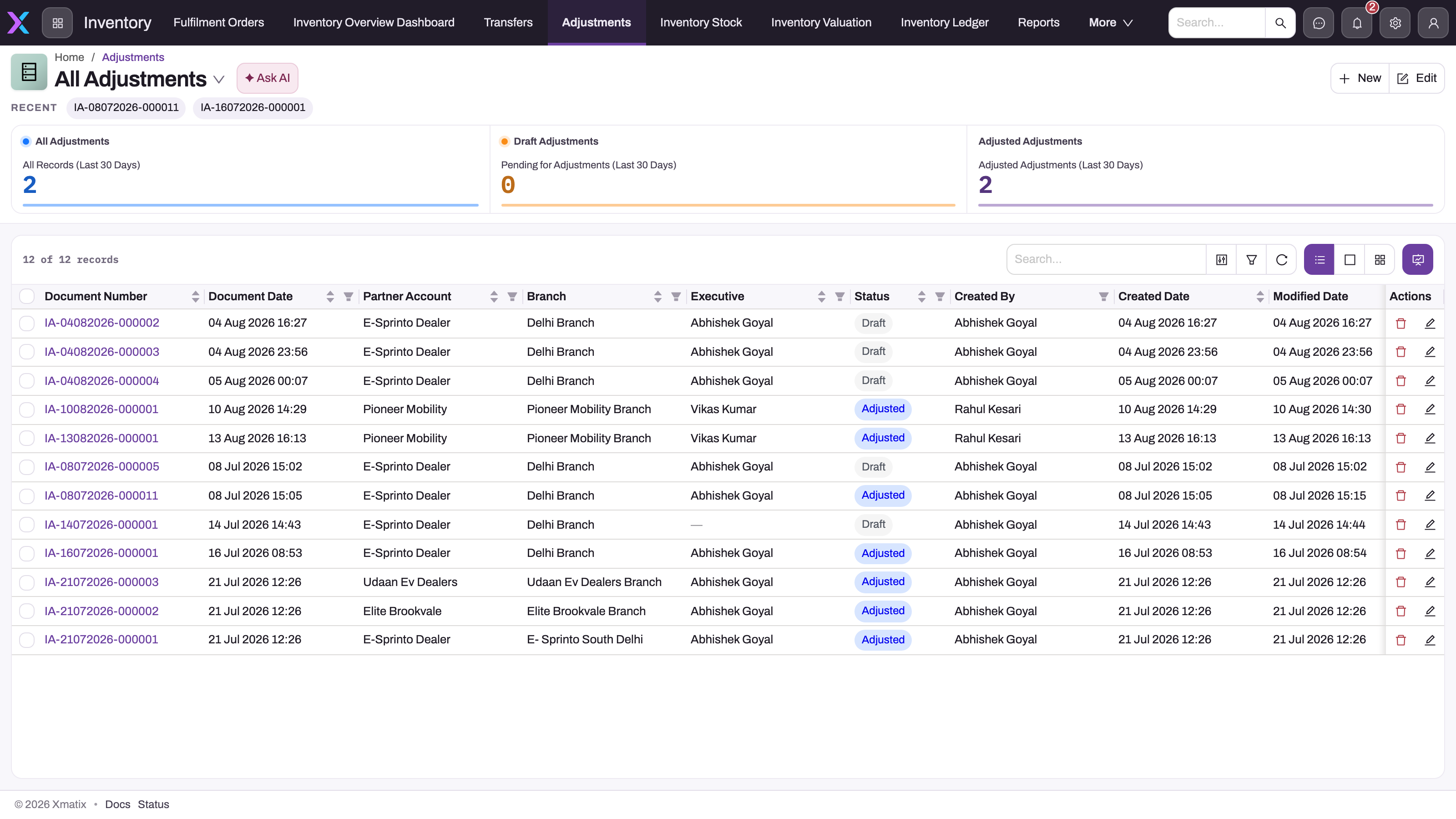
Inventory → Adjustments opens the register. The seeded views are All Adjustments, Cycle Count Adjustments (documents created from a count), Pending Adjustments and Posted Adjustments. The table shows document number, document date, partner account, branch, executive (Resource), status and audit columns. Use search, column filters and Refresh to find a document; the document number opens it.
Step 1 — Create the adjustment header

- Click New.
- Pick the Partner Account. Only partner accounts are offered.
- Pick the Branch. The list shows the branches of the chosen partner account.
- Check Document Date. It is filled with the current date and time if you leave it empty.
- Optionally open Additional details and set Price List, Executive and Price As On Date.
- Click Save.
The adjustment opens on its record page with status Draft and a number from the IA series. If your organization runs one company or one location, Partner Account and Branch may be hidden and filled for you.
Step 2 — Add lines
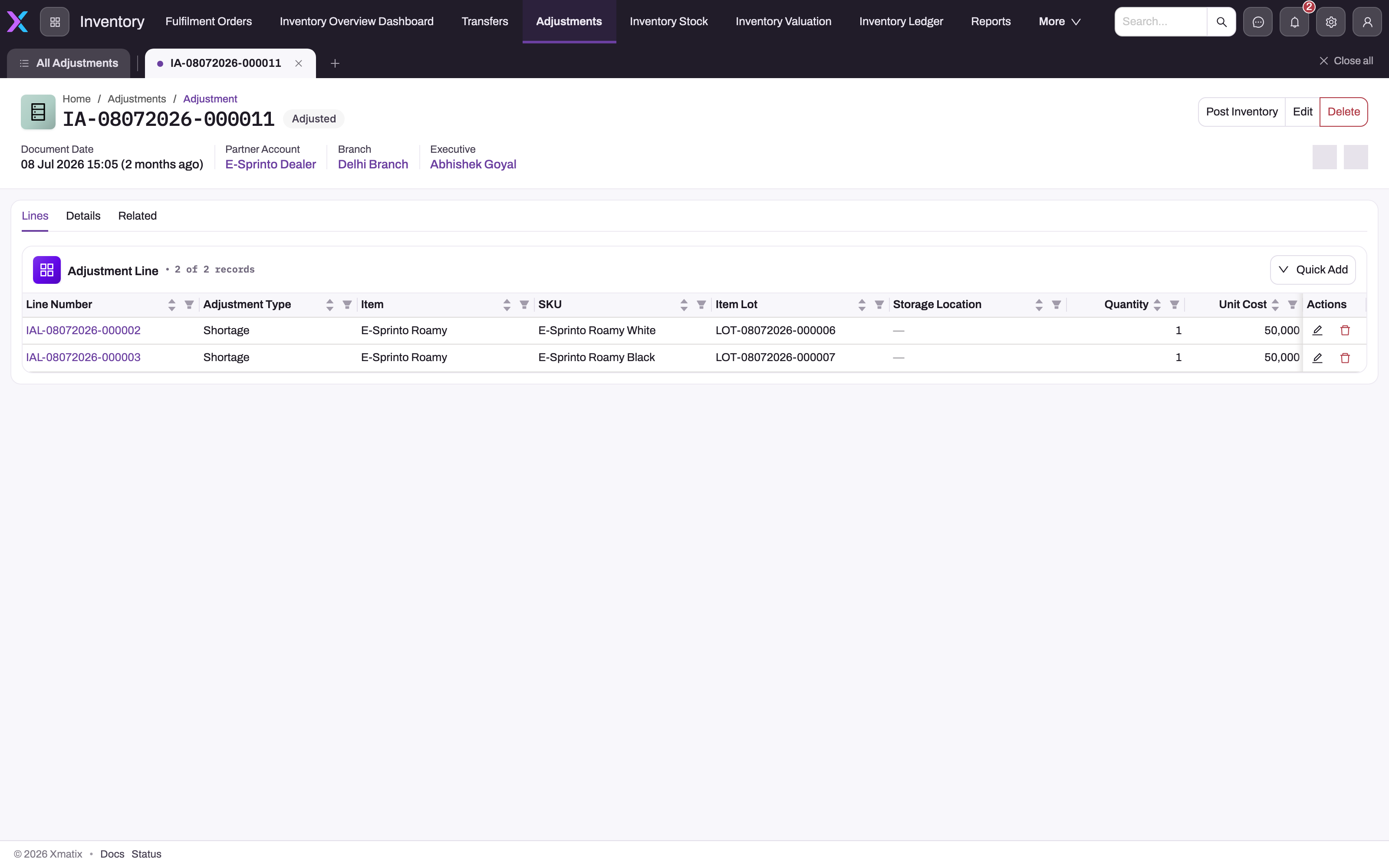
- On the Lines tab, click Quick Add.
- Fill Adjustment Type (or leave it empty for a signed correction), Item, SKU, Item Lot, Item Lot Type, Quantity and Unit Cost.
- Use the Item 360 card on the form to check the item's Available and In Hand stock at this partner account and branch before you save.
- Save the line. It gets a number from the IAL series. Repeat for each correction.
Keep one line per item, lot and reason. Three damaged and two missing units are two lines (Damaged 3, Shortage 2), not one netted figure, because each type posts to its own bucket.
Unit Cost is filled from the price list when you leave it empty; a cost you type on a new line is kept. Item, SKU, Item Lot and Storage Location cannot be changed once the line is saved — delete the line and add a new one instead.
The shipped Quick Add form has no Storage Location field, and the field cannot be filled after saving. Lines you enter by hand therefore post to the stock row with no storage location. If your branches track stock by storage location, ask an administrator to add the field to the form (see Configuration).
To change a line, use the pencil in its row (Edit opens the line form) or open the line by its number. To remove it, use the delete icon.
Step 3 — Post to the inventory ledger
- Review the lines against your evidence.
- Click Post Inventory in the record header.
Every line without an Inventory Ledger reference is posted and stamped with its new ledger entry. The Post Inventory button disappears once every line has a reference. Posting again is safe: lines that are already posted are skipped. When there is nothing left to post, the action stops with No Adjustment Lines found for Inventory Posting.
If a line cannot post, the whole posting stops and nothing is written — see Common problems.
Step 4 — Check the result
- Open a line. Its Inventory Ledger field links to the entry it posted.
- In Inventory → Inventory Ledger or on the item's Inventory Stock record, confirm the bucket moved as expected.
- Confirm the header shows Adjusted. If it still shows Draft although every line is posted, refresh the page.
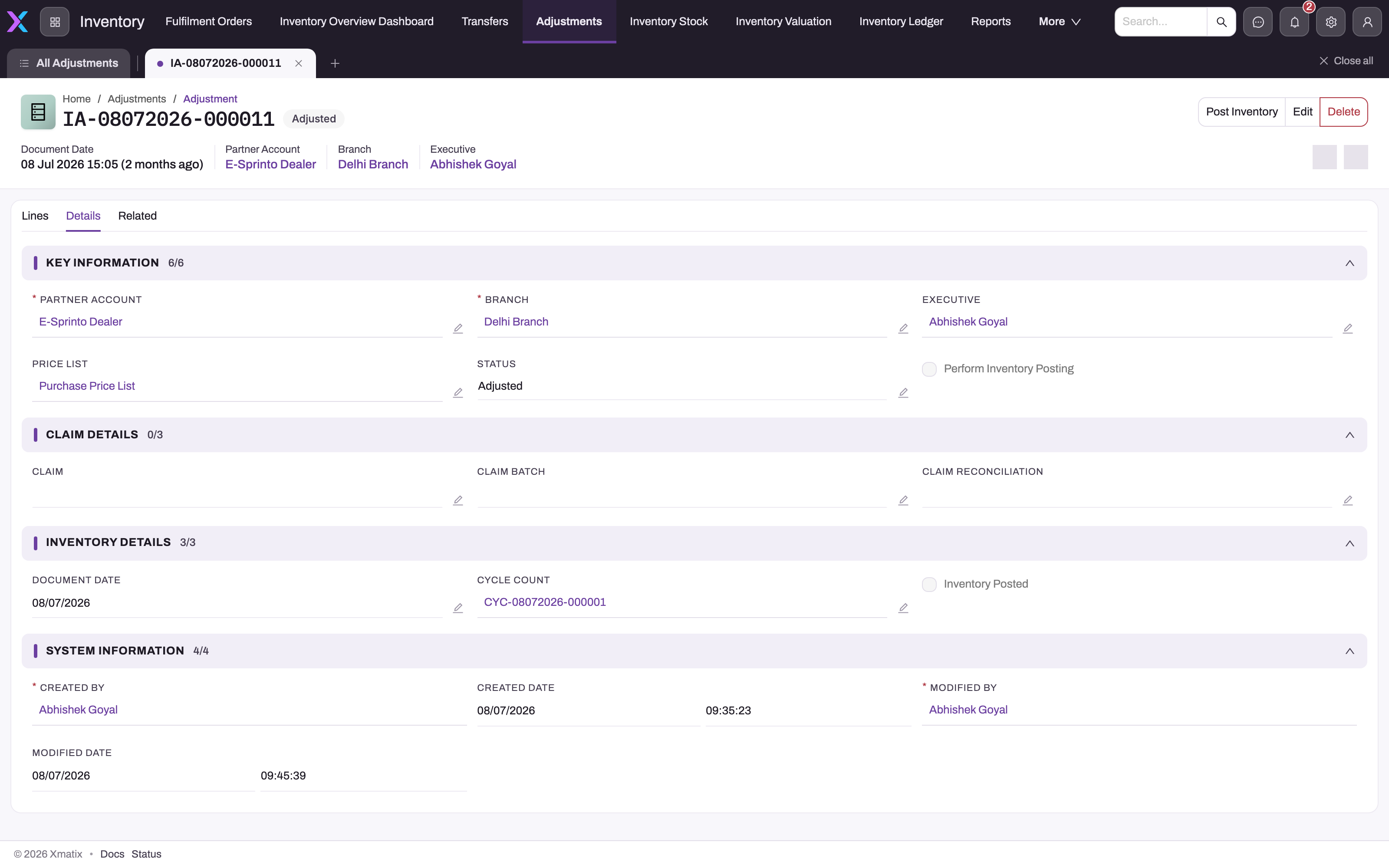
The Details tab shows Key Information (partner account, branch, executive, price list, status), Claim Details (claim, claim batch, claim reconciliation), Inventory Details (document date, cycle count) and the system audit fields. A cycle count or claim here means the document was generated, not typed. The Related tab lists records linked to the adjustment.
Step 5 — Correct a posted adjustment
- Wrong quantity or cost: edit Quantity or Unit Cost on the posted line. xMatix posts a reversal of the old entry and a new entry for the new values.
Excess,Shortage,DamagedandExpiredlines post from a calculated quantity, so check the ledger afterwards; if it does not show the new figure, delete the line and add it again. - Wrong item, lot, location or reason: delete the line (this posts a reversal) and add a correct one, then click Post Inventory. Changing Adjustment Type on a posted line does not re-post it.
- Wrong partner account, branch or date: these cannot be changed. Delete the posted lines first so their stock is reversed, then create a new adjustment.
Delete the lines before you delete the header. Deleting only the header leaves the lines' stock movements in place.
Mobile
Adjustments are also in the Inventory app of the mobile app. The record header there offers Edit, Post Inventory and Delete, the Lines tab has Quick Add, and the create form has the same header fields as the web.
Fields
Adjustment (header)
| Field | What it means | Notes |
|---|---|---|
| Document Number | The adjustment's number. | Assigned from the IA series when the record is created. |
| Partner Account | The company whose stock is corrected. | Required. Only partner accounts are offered. Locked after the first save. |
| Branch | The location whose stock is corrected. | Required, filtered to the partner account's branches. Must belong to the partner account. Locked after the first save. |
| Document Date | The document's date. | Filled with the current date and time when left empty. Locked after the first save. The ledger entries carry the posting time instead. |
| Price List | The price list unit costs are taken from. | Filled with the default purchase price list when left empty. Changing it does not re-price existing lines. |
| Executive | The person responsible for the adjustment. | Optional. Shown in the header and the list. |
| Price As On Date | The date used to choose price-list rules. | Changing it re-prices every line that has a matching rule, replacing typed unit costs. |
| Status | Draft or Adjusted. | Defaults to Draft. Set to Adjusted by a business rule once every line is posted; it can also be changed by hand on the Details tab. |
| Claim, Claim Batch | The claim or claim batch the adjustment was created from. | Filled by claim settlement. |
| Claim Reconciliation | A claim reconciliation reference. | Not filled by any standard process. |
| Cycle Count | The count the adjustment was released from. | Filled by the cycle count's release. |
| Inventory Posted | A posted flag. | Never set by posting, so the Pending Adjustments and Posted Adjustments views do not reflect posting. Use the lines' Inventory Ledger references. |
Adjustment line
| Field | What it means | Notes |
|---|---|---|
| Line Number | The line's number. | Assigned from the IAL series. |
| Adjustment Type | The reason, which decides the stock bucket. | Empty, Assemble, Damaged, Disassemble, Excess, Expired, OnHold, OnLoan, Shortage. |
| Item | The item corrected. | Required. Must be active and inventory-tracked. Locked after saving. |
| SKU | The item's variant. | Only SKUs of the item are offered; required when the item needs one. Locked after saving. |
| Item Lot | The batch or serial corrected. | Required for lot-tracked items. Locked after saving. |
| Item Lot Type | The lot's type. | Recorded on the ledger entry. |
| Storage Location | The bin holding the stock. | Not on the shipped Quick Add form; locked after saving. Lines from a cycle count carry the count line's location. |
| Quantity | The size of the correction. | Defaults to 0. Without a type, positive adds and negative removes. Typed lines: see the table above. |
| Unit Cost | The cost per unit for the ledger entry. | Filled from the price list when left empty; a typed cost on a new line is kept. |
| UOM, UOM 1 and their quantities | Alternative units for the quantity. | Shown on the line record page. |
| Shortage, Excess, Damaged, Expired Quantity | The quantity for that type. | Calculated: equals Quantity when the type matches, otherwise 0. |
| IL Posting Quantity | The quantity without its sign. | Calculated. |
| Inventory Ledger | The ledger entry the line posted. | Set by posting. This is the proof that a line is posted. |
| Total Cost | A total cost column. | Not calculated or filled by posting. Use Quantity × Unit Cost. |
Business rules
- Partner account and branch must be a valid pair, or saving fails with Invalid Partner Account. or Invalid Branch for Partner Account.
- Key fields lock. Changing Partner Account, Branch or Document Date after the first save fails with Key fields are not editable once the related objects are added. Changing a line's Item, SKU, Item Lot or Storage Location fails with Source populated field … is not editable once the record is created with source record.
- Line checks on save: an item is required (Selection of Item is Mandatory.), must be active (Item is Inactive.), must have a valid SKU (SKU is required for this item., Invalid SKU selected for this item.), must be inventory-tracked (Domain settings disallow Items that do not support Inventory tracking!) and, when lot-tracked, needs a lot (Selection of Lot is mandatory for Items that requires Lot Tracking!.).
- Posting checks: a lot-tracked line without a lot fails with Product Lot was not selected for the transaction. This is required for Inventory posting. A posting that would take the stock record's Available or In Hand below zero fails with Stock Available Quantity cannot be negative!! or Stock In Hand Quantity can't be negative. A movement that would take a single bucket below zero (for example releasing more held stock than is on hold) fails with Insufficient stock: … cannot go negative.
- Pricing: new lines take the unit cost of the price-list rule that matches the header's price list and Price As On Date, unless a cost was typed. Changing the header's Price As On Date re-prices all lines that have a rule.
- Numbering: headers use the IA series, lines the IAL series (both active by default).
- Status: Draft by default; Adjusted once every line has an Inventory Ledger reference and the document is saved.
- Generated adjustments: a cycle count release creates one line per counted line with a difference (no type, signed), plus
DamagedandExpiredlines for recorded damaged and expired quantities, each with the count line's item, SKU, lot, lot type, storage location and unit cost. A claim settlement creates one line per approved claim line with its item, approved quantity and unit price, and the typePart to Part.
Example
A distributor's branch finds, during a shelf walk, that a carton of 24 hand-wash bottles was crushed in transit and that a pallet count shows 6 more floor cleaners than the system holds.
- The storekeeper opens Inventory → Adjustments → New, picks the company and the Riverside branch, and saves. The document is IA-…-000014, Draft.
- Quick Add: Adjustment Type
Damaged, Item Hand Wash 500 ml, Quantity 24. Unit Cost fills in from the purchase price list at 85. - Quick Add: Adjustment Type
Excess, Item Floor Cleaner 1 L, Quantity 6, Unit Cost 120. - Post Inventory. Both lines get an Inventory Ledger reference; the header button disappears and, after a refresh, the status reads Adjusted.
- On Inventory Stock, the hand wash shows 24 more in Damaged Quantity and 24 less Available, with In Hand unchanged; the floor cleaner shows 6 more in Excess Quantity, Available and In Hand.
- Next day the excess turns out to be 5. The storekeeper deletes the
Excessline, which reverses its entry of 6, adds a newExcessline of 5 and clicks Post Inventory again.
Training
Practice exercise
In a sandbox, with an inventory-tracked item that has at least 10 units Available at one branch:
- Create an adjustment for that branch.
- Add an
OnHoldline of 4 and a line with no type and Quantity −1. - Post it.
- Add a second
OnHoldline of −4 and post again.
Expected result: after the first posting, Quantity On Hold rose by 4, Negative Adjusted rose by 1, and Available fell by 5. After the second posting, Quantity On Hold is back where it started and Available is down by 1 only. Each line shows an Inventory Ledger reference and the status is Adjusted.
Quick reference
- Nothing moves until Post Inventory; saving a line posts nothing.
- Partner account, branch and document date lock at the first save.
- Item, SKU, lot and storage location lock when the line is saved.
- No type: the sign of Quantity decides the direction.
- Excess, Shortage, Damaged, Expired: positive quantities only.
- OnHold and OnLoan: a negative quantity releases the stock.
- Edit Quantity or Unit Cost on a posted line to correct it; delete the line to undo it.
- The proof of posting is the line's Inventory Ledger reference.
Permissions
| What | Controlled by |
|---|---|
| See Adjustments in the Inventory app | The security profile's app permission for Inventory. |
| View, create, edit, delete adjustments and lines | The profile's entity permissions on Adjustment and Adjustment Line. |
| Run Post Inventory | The profile's action grant for Post Inventory on Adjustment. |
In the shipped profiles, Standard User, Sales Manager and System Admin are granted Post Inventory; Sales Executive can create and edit adjustments but not post them. A user without the grant who clicks Post Inventory gets a message that they are not allowed to run the action, and nothing is posted. See Security profiles.
Configuration
- Numbering — the Inventory Adjustment Name Setting (IA) and Inventory Adjustment Line Name Setting (IAL) control document and line numbers. Change them in Setup → Design Studio → Entities → Adjustment (or Adjustment Line) → Logic → Document Settings.
- Stock buckets — the inventory ledger settings for Adjustment Line decide which bucket each type posts to and when (they post on update and delete, not on create, which is why only Post Inventory posts new lines). See Inventory configuration. A type with no setting, such as the
Part to Parttype of claim settlement lines, posts nothing. - Adjustment types — the Adjustment Type picklist on Adjustment Line. A new value posts nothing until a ledger setting covers it.
- Status rule — the business rule Set Adjustment Status To Confirmed sets Status to Adjusted. Deactivate it if your process sets status another way.
- Line validations — Item Required Validation and Total Cost Rule Validation are active. Restrict Negative Quantity, Unit Cost Rule Validation and Quantity Validation On Disassemble are shipped inactive; activate them under the entity's validations if your process needs them.
- Forms — the line's Quick Add form (QAPAdjustmentLine1) has no Storage Location or Remarks. Add them in the layout designer if your branches use storage locations. The header create form is CreateAdjustment; the record page is AdjustmentLayoutView.
- Item 360 — the stock card on the line form can show or hide Available and In Hand, and its scope, through the widget's settings in the layout designer.
- Default price list — the default purchase price list is used when a header has none. See Price lists.
Common problems
Post Inventory stays visible and the status stays Draft
At least one line has no Inventory Ledger reference because no ledger setting matches it: quantity 0 with no type, a negative quantity on an Excess, Shortage, Damaged or Expired line, or a Part to Part line from a claim settlement. Posting skips such lines without an error. Correct the quantity or change the Adjustment Type to the movement you mean, or delete the line, then post again.
"Stock Available Quantity cannot be negative!!" when posting
The branch does not have enough available stock for a line that removes stock. Check the item's stock row for the same SKU and storage location — a line with no storage location posts against the row with no location. Reduce the quantity or fix the stock first.
"Insufficient stock: … cannot go negative"
A negative OnHold, OnLoan or Assemble line is releasing more than the bucket holds. Check the bucket on the item's stock record.
"Selection of Lot is mandatory for Items that requires Lot Tracking!."
The item is lot-tracked. Pick the Item Lot before saving the line.
"Key fields are not editable…" when changing the branch
Partner account, branch and document date lock at the first save. Delete any posted lines and create a new adjustment.
I can't set a storage location on a line
The shipped Quick Add form has no Storage Location, and the field locks once the line is saved. Ask an administrator to add it to the form, then delete the line and add it again.
The Posted Adjustments view is empty
That view filters on Inventory Posted, which posting never sets. Use All Adjustments and the Status column, or check the lines' Inventory Ledger references.
Common questions
Can one adjustment both increase and decrease stock?
Yes. Each line carries its own type and quantity, so one document can add excess stock, write off damaged stock and make signed corrections at the same time. Each line posts its own ledger entry with its own type, which keeps the reason visible in the ledger and on the stock record. Keep one line per item, lot and reason rather than netting different causes into one figure, because the buckets are what damage, expiry and shortage reports read.
How do cycle counts and adjustments relate?
A cycle count measures; an adjustment corrects. When you release a finished count for adjustment, xMatix creates a draft adjustment for the count's partner account and branch, with one untyped line per counted line that has a difference and separate Damaged and Expired lines for recorded damaged and expired quantities. Each line carries the count line's item, SKU, lot, storage location and unit cost, and the count is shown on the adjustment's Details tab. You then review and post it exactly as on this page.
Why is there an adjustment nobody typed?
It was generated. A Cycle Count on the Details tab means a count's release created it; a Claim means a claim settlement created it. Claim settlement lines carry the type Part to Part, which no standard ledger setting covers, so change each line's Adjustment Type to the movement it represents (for example Excess) before you post.
Does the Document Date decide when the stock moved?
No. The Document Date is the date of the document, but every ledger entry is dated with the moment it was posted. Period filters, opening stock and costing work from the posting date, so post adjustments promptly rather than back-dating the document.