
An item lot in xMatix is one identifiable quantity of an item: a received batch, a serial-numbered unit or a consignment. It is held by one partner account at one branch and storage location, and it has its own dates, costs and quantity counters. Lots answer questions the item level cannot, such as which batch expires next month, which serial number went to which customer, and what a consignment cost. Lots are mostly created for you by goods receipts and transfers. After that, every stock movement that names a lot moves that lot's counters, using the same posting that moves branch stock.
Overview
- Goods receipts create lots. Receiving a goods receipt creates one lot per receipt line, and the lot copies the receipt's paperwork. You add the dates the receipt does not carry, such as manufacturing and expiry.
- Documents draw lots down. For an item with Track Lots, every document line that moves stock names a lot. Invoicing and fulfilment allocation pick lots for you, oldest first.
- The lot keeps a position. The quantity buckets (sold, allocated, damaged, in transit and the rest) are updated by posting. The In Hand and Available figures are calculated from them.
- A lot type is not a lot. A lot type is a commercial grade, such as saleable or sample, that many lots of an item can share.
When to use it
Turn on lot tracking for an item when batch identity has consequences: expiry dates, serial-level warranty, batch-specific costs or recalls. Open the lot list or a lot record when you need to:
- find which lots of an item are in stock at a branch, and how much of each is free to promise;
- trace a serial number or batch through receipts, transfers and sales;
- record a batch number, manufacturing date or expiry date that the receipt did not carry;
- investigate a stock discrepancy bucket by bucket.
How xMatix handles it
Lot tracking is per item
The item master carries three flags in Details → Inventory Settings: Track Inventory, Track Lots and Track Asset.
- Items without Track Lots move at item and SKU level only. Lots can still exist for them (see below), but no document requires one.
- Items with Track Lots must name a lot on every line that moves stock. An adjustment line without one is refused on save with Selection of Lot is mandatory for Items that requires Lot Tracking!. Any other lot-tracked line without one fails at posting with Product Lot was not selected for the transaction. This is required for Inventory posting.
- Track Asset needs Track Lots (saving an item with Track Asset but not Track Lots is refused with Tracking assets requires tracking lots.). Receiving such an item needs a Serial Number on each line, and the receipt creates one asset record per line from the line's lot.
- The item's or SKU's Maximum Lot Quantity caps how much a goods receipt line may hold. When you add a larger line, it is split into several lines on save. The SKU's value is used first, then the item's.
Where lots come from
- Goods receipt. When you receive a goods receipt, xMatix creates one lot for each received line that has no lot yet and whose item has Track Inventory. This happens whether or not the item tracks lots. The lot copies these values:
- from the line: item, SKU, lot type, storage location, serial number, component number, unit cost and MRP;
- from the receipt: partner account, branch, supplier invoice number, supplier invoice date and supplier dispatch date. Date Of Receipt is the receipt's document date.
Batch number, manufacturing date and expiry date are not copied. If you edit a received line of a Track Lots item, its lot is updated from the line again. Received lines cannot be deleted.
- Transfers. Releasing and posting a transfer clones the source lot into a new lot at the destination. The new lot keeps the batch, serial number, registration number, costs and dates, is owned by the destination partner account and branch, and links back to the source through Related Item Lot. Saving the inward line with a receiving storage location moves the destination lot to that location.
- Van sales. Field sales lines clone the source lot the same way, so stock loaded onto a vehicle becomes a linked lot.
- By hand. New on the lot list creates a lot directly (see Step 3).
Lots belong to a location: there is no single global record per batch number. The same physical batch received at two branches, or transferred between them, is two lot records linked by Related Item Lot.
Which lot a sale takes
When invoicing or fulfilment allocation picks lots for a lot-tracked line, it considers only lots that:
- have an empty Hold Code;
- belong to the line's item, SKU, partner account and branch, and have quantity available;
- match the line's Item Lot Type, when the line has one. A line with no lot type accepts a lot of any type.
Lots are taken oldest first, by created date. Bulk invoicing and manual allocation can use newest first (LIFO) instead. When a fulfilment order line has a Limit Expiry Days value, auto-allocation takes only lots that have an expiry date on or before today plus that many days. Lots with no expiry date are skipped for such a line, and lots that have already expired still qualify.
Quantity buckets
Each lot keeps a position across buckets. They are updated by the same postings that move branch stock:
| Bucket | Meaning |
|---|---|
| In hand / available | Calculated from the buckets below. In hand is what is present at the location. Available is the part of it that is free to promise. |
| Transit | Quantity released outward on a two-step transfer and not yet posted inward. It is carried on the destination lot and counted in neither balance. |
| On hold / inspection / on loan | Present but not usable: held by an OnHold adjustment, waiting for incoming inspection, or lent out by an OnLoan adjustment. |
| Purchased / sold / pending deliveries | Cumulative trade quantities. Pending deliveries is sold stock that has not been delivered yet. Purchased is counted in neither balance. |
| Adjustment / negative adjusted / damaged / expired / shortage / excess | Corrections and write-downs by reason, from adjustment lines and from receipt or transfer discrepancies. |
| Transfer inward / outward, allocated, picked, unbilled receipts / dispatches | Logistics states as stock moves through receipts, fulfilment and transfers. |
Each posting checks that no bucket it moves goes below zero. If one would, the movement is refused with Insufficient stock: … cannot go negative. Because the buckets hold positive amounts, the calculated In Hand can still be negative when issues were posted against a lot that never received the matching quantity. A negative In Hand is a data problem to trace through the inventory ledger, not a display error.
Prerequisites
- Read access to item lots in your security profile (see Permissions).
- For the stock drill, access to the Inventory app's Inventory Stock page.
- To create or correct lots, create and edit access to item lots.
Procedure
Step 1 — Find a lot
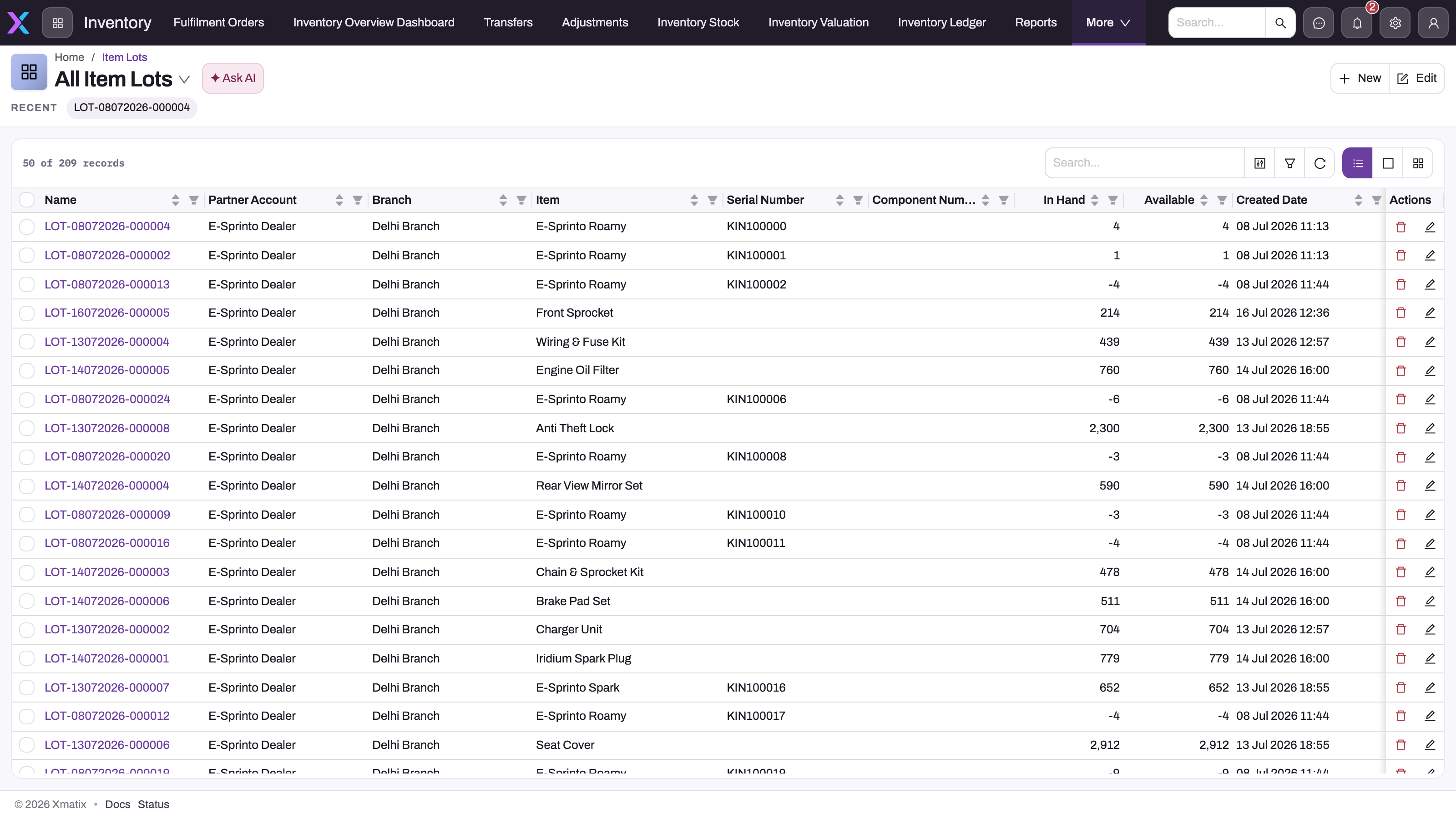
The Item Lots list is not on any app's navigation bar. Reach lots in one of these ways:
- From stock. Go to Inventory → Inventory Stock, click a quantity for a lot-tracked item and choose Item lot details. A drawer titled Item Lots opens. It lists that item's lots for the company, branch and SKU, newest first, with Lot, Batch No, Serial No, Mfg Date, Expiry Date, Available, In Hand, Unit Cost, Total Cost and Status.
- From a document or ledger entry. Click the lot on a document line or an inventory ledger entry.
- From global search. Search for the lot number. Item lots are searchable.
When the list is open, three views are available:
- All Item Lots (the default): Name, Partner Account, Branch, Item, Serial Number, Component Number, Quantity In Hand, Quantity Available, and the created and modified columns.
- Item Lots: only lots with Quantity Available above zero, with Storage Location in place of Partner Account and Item.
- Item Lot Search View: Serial Number, Batch No and Name, for finding a lot by its identity.
Use search and the column filters to isolate a serial number, batch, item or branch. This is the usual starting point for an expiry review or a recall.
Step 2 — Read a lot record
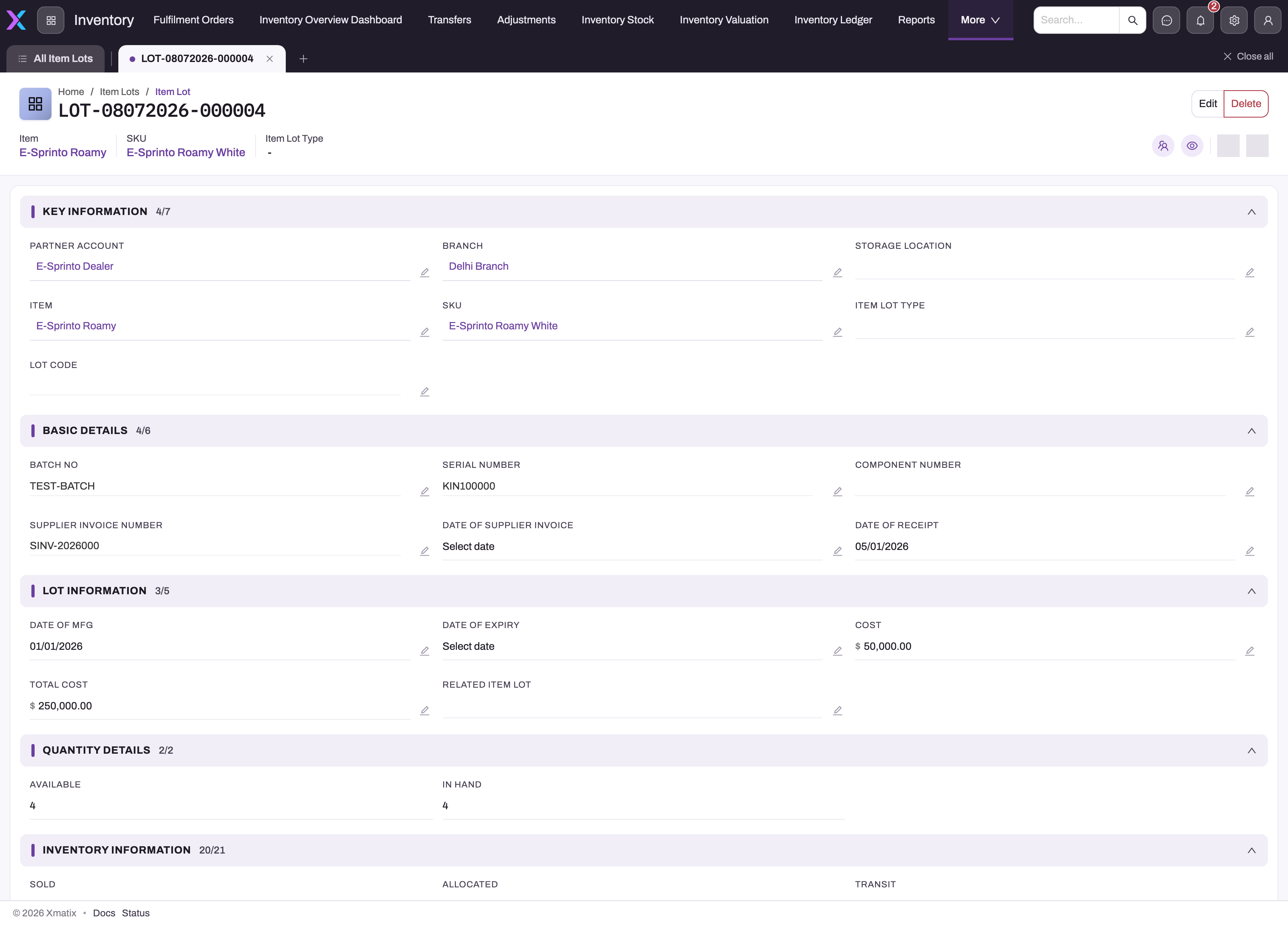
Open a lot. The header shows the lot number with the Item, SKU and Item Lot Type, plus the Edit and Delete buttons. Below it, the record has these sections:
- Key Information: who owns the lot, where it is and what it is.
- Basic Details: identity and receipt paperwork.
- Lot Information: dates, costs and the related lot.
- Quantity Details: Available and In Hand.
- Inventory Information: every quantity bucket and Is Transaction Locked.
- System Information: who created and last changed the record.
Read In Hand and Available together before you promise stock. A lot can be physically present and still have nothing available, because it is allocated, picked, on hold or under inspection.
Step 3 — Create a lot by hand
Most lots come from goods receipts. Create one by hand only when stock must be brought in against a specific batch or serial number that no receipt created, for example before an opening-stock adjustment.
- On the Item Lots list, select New.
- In Information, choose the Partner Account, Branch, Item and SKU. The Branch list shows only the chosen partner account's branches. On a tenant with one company or one location, those pickers are hidden.
- In Details, enter what you know: Batch No, Serial Number, Supplier Invoice Number, Date Of Supplier Invoice, Date Of Mfg and Date Of Expiry.
- Save. The lot gets its number from the lot series (by default
LOT, a date and a six-digit counter). All its quantities are zero. - To give the lot stock, post a document line that names it, such as an adjustment line. Do not type quantities into the bucket fields.
Item Lot Type and Storage Location are not on the create form. Set them on the record page after saving (Step 4) if your pricing or picking depends on them.
Step 4 — Record dates and batch details after receipt
Goods receipt does not fill Batch No, Date Of Mfg or Date Of Expiry. Capture them before the lot is sold or transferred, so that transfers carry them to the destination lot.
- Open the lot.
- Select Edit. The form opens in a dialog with the same fields as Step 3. Alternatively, change a field in place on the record page.
- Enter Batch No, Date Of Mfg and Date Of Expiry, then save.
Changing dates on a source lot does not update lots that were already cloned from it by a transfer. Edit those lots separately.
Step 5 — Keep a lot out of sales
Hold Code is the field that removes a lot from automatic picking. Any value in it stops invoicing and fulfilment allocation from choosing the lot. Clear the field to release the lot.
Hold Code is not on the seeded lot forms, and nothing in xMatix sets it for you. An administrator must first add it to the lot record page (see Configuration). After that, open the lot, enter a short code such as QC or RECALL, and save.
Is Closed and Is Closed For Sale do not stop a lot being picked. Use Hold Code.
Step 6 — Delete a lot
- Open the lot and select Delete, or use Delete on the list row.
- Confirm.
Only delete a lot that was created by mistake and that no document or ledger entry names. A lot locked by a cycle count cannot be deleted (see Common problems).
Fields
The record page shows these fields, in this order. On the create form, only the fields named in Step 3 are shown.
| Field | What it means | Notes |
|---|---|---|
| Partner Account | The company that owns the lot. | From the goods receipt header, or the transfer's destination company. Hidden on single-company tenants. |
| Branch | The branch that holds the lot. | Limited to the partner account's branches. Hidden on single-location tenants. |
| Storage Location | The bin or location the lot sits in. | From the receipt line. Rewritten when a transfer inward line is received with a location. |
| Item | The item the lot belongs to. | Shown in the header. |
| SKU | The item variant. | Shown in the header. Allocation matches lots by item and SKU. |
| Item Lot Type | The commercial grade of the stock, such as saleable or sample. | From the receipt line. Shown in the header. Allocation matches it when the sales line has a lot type. |
| Lot Code | A short code shown in allocation and manual-picking screens. | Never assigned automatically. |
| Batch No | Your batch identifier. | Not copied from the receipt; enter it by hand. Transfers copy it to the destination lot. |
| Serial Number | Serial identity of a single-unit lot. | From the receipt line. Required on receipt lines of Track Asset items. |
| Component Number | The manufacturer's or component reference. | From the receipt line. |
| Supplier Invoice Number | The supplier's invoice number. | From the goods receipt header. |
| Date Of Supplier Invoice | The supplier's invoice date. | From the goods receipt header. |
| Date Of Receipt | The date the stock was received. | The goods receipt's document date. |
| Date Of Mfg | Manufacturing date of the batch. | Not filled automatically. |
| Date Of Expiry | Expiry date of the batch. | Not filled automatically. Read by Limit Expiry Days during allocation. |
| Cost | A cost value for the lot. | Not written by receipts or postings; copied by transfers. |
| Total Cost | A total cost value for the lot. | Not written by receipts or postings. |
| Related Item Lot | The source lot this lot was cloned from. | Set by transfers and van sales. Empty on received lots. |
| Available | Quantity free to promise. | Calculated. |
| In Hand | Quantity present at the location. | Calculated. Can be negative; see Quantity buckets. |
| Sold, Allocated, Transit, Picked, Pending Deliveries, Damaged, Purchased, Unbilled Receipts, Shortage, Transfer Inward, Transfer Outward, Disassemble, Adjustment, Quantity On Hold, Quantity On Loan, Quantity Excess, Inspection, Expired | The quantity buckets. | Maintained by posting. Correct them with an adjustment, never by typing. Disassemble stays at zero. |
| Postitive Adjusted, Transfer In | Older counters shown on the form. | Always zero or empty. Positive adjustments land in Adjustment, and transfers in Transfer Inward. |
| Is Transaction Locked | Whether a cycle count has frozen the lot. | Set by Start Counting and cleared by Finish Counting on a cycle count with inventory locking. |
Fields that are on no seeded form but can be added by an administrator: Hold Code, Unit Cost and MRP (both copied from the receipt line), Registration Number, Date Of Registration, Date Of Supplier Dispatch, Landed Cost, Is Closed and Is Closed For Sale. The full list is in the Item Lot reference.
Business rules
- Numbering. A new lot is named from the Item Lot Name Setting: series
LOT, separator-, date format DDMMYYYY and a six-digit counter. - One lot per receipt line. A goods receipt creates a lot only for lines that have no lot and whose item tracks inventory. A line that already names a lot adds to it instead.
- Received lines follow their lot. Editing a received line of a Track Lots item rewrites its lot from the line and receipt.
- Lot required for lot-tracked items. Adjustment lines are refused on save without a lot, and other lines are refused at posting.
- No negative buckets. A posting that would take any lot bucket below zero is refused.
- Transaction lock. While Is Transaction Locked is on, any save that changes the lot is refused with Item is locked for transaction! Please contact your Administrator for more details. This includes postings that move its counters. A save that clears the flag is accepted.
- Hold Code. A lot with any hold code is never picked by invoicing or fulfilment allocation.
- Selection order. Lots are picked oldest first, or newest first where LIFO is chosen, and are filtered by lot type and expiry as described in Which lot a sale takes.
Example
A distributor receives 200 bottles of a cough syrup, an item with Track Lots, at its Pune branch on goods receipt GRN-0412 from supplier invoice SI-7781.
- On receiving the receipt, xMatix creates lot LOT-14102026-000231. It has the item, SKU, lot type Saleable, storage location Rack A2, unit cost, MRP, supplier invoice SI-7781 with its date, and Date Of Receipt 14/10/2026. Once the receipt posts, In Hand and Available read 200.
- The storekeeper opens the lot and sets Batch No CS-2291, Date Of Mfg 01/08/2026 and Date Of Expiry 31/07/2028.
- A customer order for 50 bottles is invoiced. Invoicing picks this lot because it is the oldest saleable lot at the branch without a hold code, and the invoice line names it. As the sale is delivered and posted, the lot's buckets move and Available drops.
- A transfer moves 30 bottles to the Nashik branch. The transfer creates a new lot at Nashik with batch CS-2291 and the same dates, linked to the Pune lot through Related Item Lot. The transfer's posting moves the 30 bottles out of the Pune lot and into the Nashik lot.
Training
Practice exercise
In a sandbox tenant, with an item that has Track Inventory and Track Lots turned on:
- Receive a goods receipt with one line of 10 units for the item.
- Find the lot through Inventory → Inventory Stock → click the item's quantity → Item lot details.
- Open the lot and enter a Batch No and a Date Of Expiry 30 days from today.
- Post an adjustment with a line for the lot that has Adjustment Type Damaged and Damaged Quantity 2.
Expected result: the lot shows Date Of Receipt equal to the receipt date, the batch and expiry you entered, Damaged 2, and In Hand and Available 8.
Quick reference
- One received goods receipt line creates one lot, for every inventory-tracked item.
- Receipts do not fill Batch No, Date Of Mfg or Date Of Expiry. Add them on the lot.
- Lots are per partner account, branch and location; transfers clone them.
- Find lots through Inventory Stock → Item lot details, a document link or search.
- Picking is oldest first, without a hold code, by matching lot type.
- Hold Code blocks picking; Is Closed does not.
- Correct quantities with an adjustment, never by editing the buckets.
- A cycle count with inventory locking freezes its lots until Finish Counting.
Permissions
Item lot access is granted per entity in each security profile. The New, Edit and Delete buttons follow the profile's create, edit and delete access.
- The seeded System Admin, Standard User, Sales, Sales Executive, Sales Manager and Service profiles have full access to item lots.
- The seeded Procurement and Parts Manager profiles have no item lot access. Users who only have those profiles cannot open lots, though their goods receipts still create them.
- Give create, edit and delete access only to the people who maintain stock records. Most users only need read access.
Configuration
- Lot tracking per item. Set Track Inventory, Track Lots, Track Asset and Maximum Lot Quantity on the item (Details → Inventory Settings), and Maximum Lot Quantity on the SKU. See Items.
- Lot numbering. Setup → Feature Hub → Platform → Document Settings, Item Lot Name Setting. You can change the series, date format, separator and counter length. The change applies to lots created afterwards.
- Forms and views. The create form (ItemLotCreate, also used by Edit), the record page (ViewItemLot) and the three views can be changed in Setup → Design Studio. Add Hold Code to the record page if you quarantine lots, and add Item Lot Type or Storage Location to the create form if users create lots by hand. See Design a form layout.
- Where lots appear. Item lots are in no app. To give users a menu entry, add the entity to an app in Setup → Design Studio → Apps → Manage Items.
- Lot pickers on lines. Order, invoice and delivery order lines limit Item Lot to the line's item and SKU. Order lines also limit it to the order's partner account and branch. Transfer outward lines limit Related Item Lot to the destination company, branch and item. Other line types have no filter.
- Expiry-limited allocation. Set Limit Expiry Days on fulfilment order lines where a customer needs short-dated stock picked first.
- Inventory locking. Turn on inventory locking on a cycle count to freeze its lots while counting.
Common problems
"Selection of Lot is mandatory for Items that requires Lot Tracking!."
An adjustment line for a Track Lots item has no lot. Pick the lot on the line. If no lot exists yet, create one by hand (Step 3) and pick it.
"Product Lot was not selected for the transaction. This is required for Inventory posting."
A line for a Track Lots item reached posting without a lot. Open the document, choose the lot on the line, and post again.
"Item is locked for transaction! Please contact your Administrator for more details."
The lot is part of a cycle count with inventory locking that has started but not finished. Finish the count to release it. If the count was abandoned, an administrator can clear Is Transaction Locked on the lot.
"Insufficient stock: … cannot go negative"
The posting would take one of the lot's buckets below zero. For example, you may be picking more than is allocated or selling more than the lot holds. Check the lot's buckets, choose a lot with enough quantity, or correct the lot with an adjustment first.
The expiry date is empty on lots we received
Goods receipt does not fill it. Enter Date Of Mfg and Date Of Expiry on the lot (Step 4) before it is sold or transferred.
A lot with stock is never picked for sale
Check these causes in turn:
- the lot has a Hold Code;
- its Item Lot Type differs from the sales line's lot type;
- it belongs to another partner account, branch or SKU;
- the line has Limit Expiry Days and the lot has no expiry date, or expires later than the limit;
- its Available quantity is zero.
Common questions
Should every item be lot-tracked?
No. Lot tracking earns its keep where batch identity has consequences, such as expiry dates, serial-level warranty, batch-specific costs and recalls. Where any unit is as good as any other, item- and SKU-level tracking is simpler, and every document has one field less to fill. The flag is set per item, so you can mix both kinds freely.
Why does a non-lot-tracked item have lots?
Receiving a goods receipt creates a lot for every inventory-tracked line, whether or not the item tracks lots. For an item without Track Lots, the lot is a record of the receipt and is not required on later movements. The item's stock is kept at item and SKU level, and the lot's counters move only when a line happens to name it.
What is the difference between a lot and a lot type?
A lot is a physical quantity: this batch, this serial number. A lot type is a classification, such as saleable, sample or promo, that many lots of an item can share. You track and move lots, and you write pricing and scheme rules against lot types. See Item lot types.
How do lots interact with valuation?
The costing engine values stock per accounting book, item, branch and method. It keeps a separate cost pool per lot only when the resolved method is specific identification, which costs each issue at the exact lot it drew. Setting a policy's costing level to batch or serial does not create per-lot pools by itself. See Inventory valuation and costing.
Can I use lots on the mobile app?
Yes, in two places. Manual allocation on the mobile app lists the allocatable lots for each order line, with serial and component numbers. Visit product lines also offer lot type and lot pickers. The mobile app has no screen that scans a lot or serial number.