
There is no separate warehouse receiving document in xMatix: goods enter the warehouse through the goods receipt, a procurement document released from a purchase order or an inbound shipment. The full procedure — releasing the receipt, recording quantities, inspection, releasing the bill — is documented in Receive goods against a purchase order. This page explains the receipt from the warehouse's side: what the dock controls, and where the stock actually goes.
Read the screen
Goods receipts are a tab of the Procurement app (Goods Receipts, default view All Goods Receipts), not of the Warehouse app — see the last question below for why.
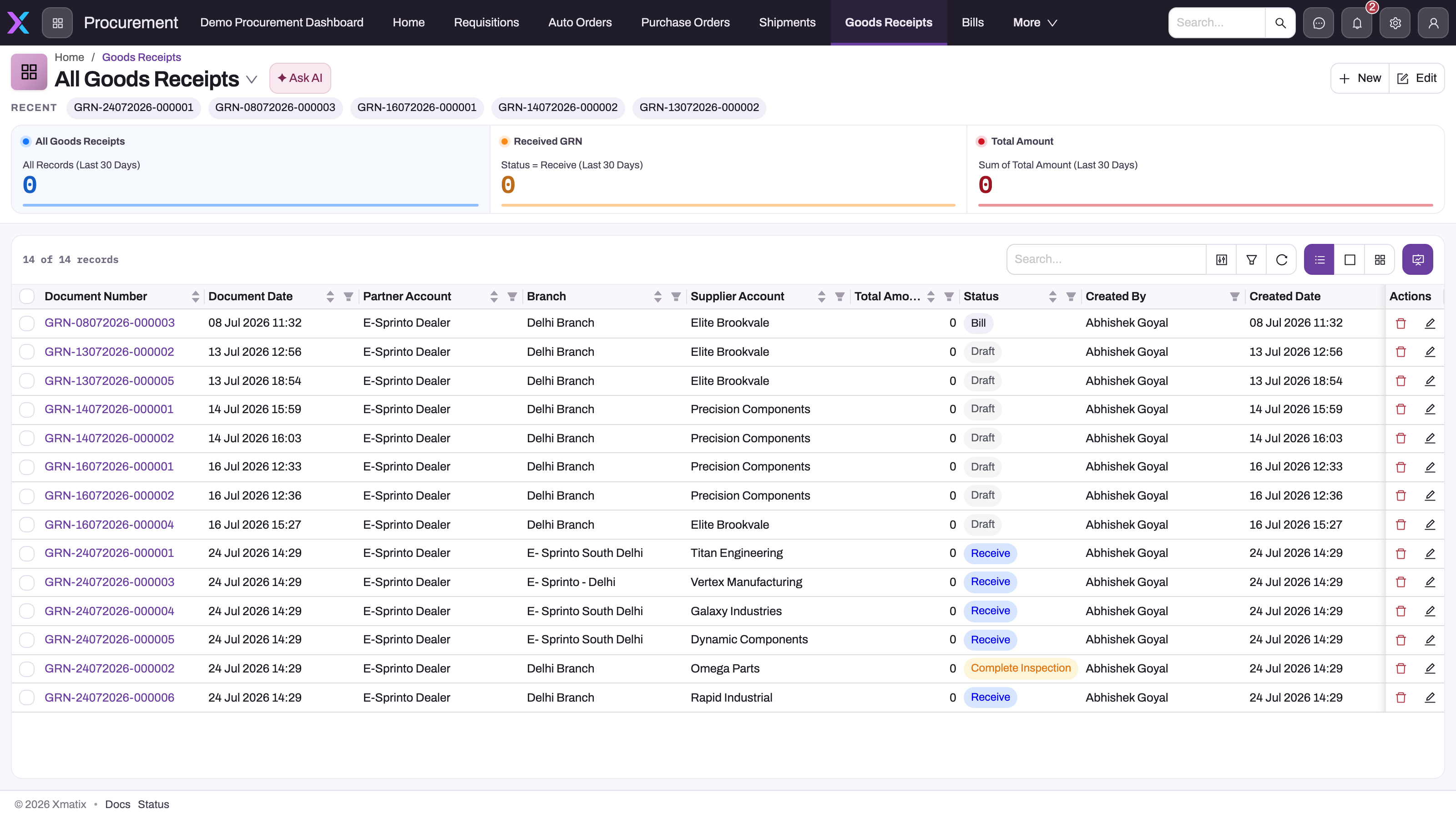
- 1
Goods Receipts is a tab of the Procurement app, next to Purchase Orders and Shipments it is released from.
- 2
Summary cards: receipts in the last 30 days, those in Receive status, and their total amount.
- 3
Document Number (GRN-…) opens the receipt and its lines — the lines, not the header, decide where stock lands.
- 4
Branch is the receiving branch; every line's storage location must belong to it.
- 5
Supplier Account is the counterparty the bill will be matched against.
- 6
Status ladder: Draft → Receive (posted to stock) → Start/Complete Inspection for items that require it → Bill once the bill is released.
Open the arrival's existing receipt rather than creating one: a receipt released from the purchase order or shipment already carries the expected lines. The Status column walks Draft → Receive (lines posted to stock) → Start Inspection / Complete Inspection (only for items that require it) → Bill (the bill has been released). When a receipt is created by hand, the form asks for Document Date, Purchase Order, Shipment and Executive, then three tabs: Supplier Details (Supplier Account — mandatory — plus supplier invoice number, invoice date and dispatch date), Transportation Details (transporter name, contact number and reference number) and System Details (Partner Account and Branch — the owning company and receiving branch, which govern the stock bucket every line posts into).
Inspect the saved receipt tabs
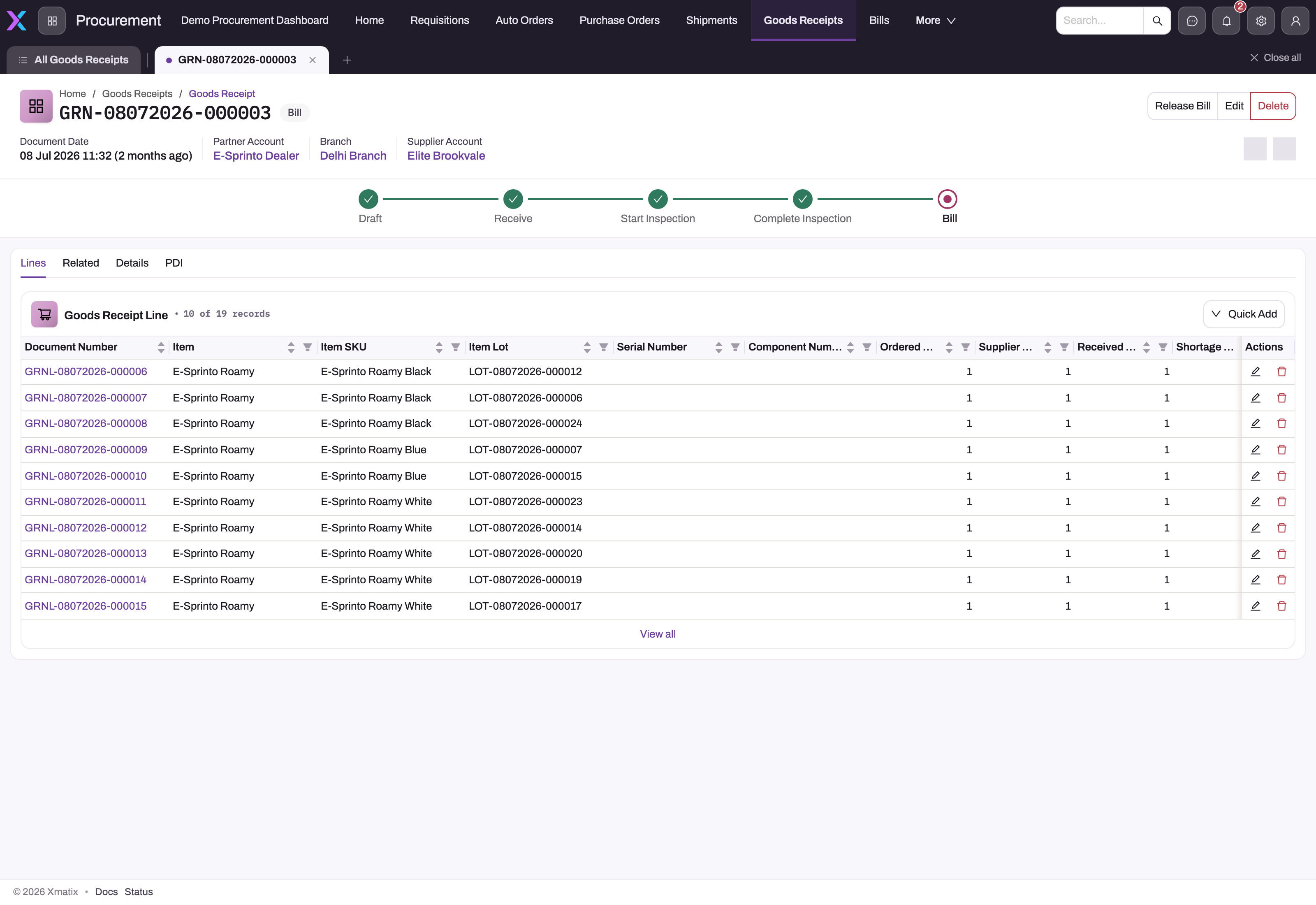
- 1
Status ladder Draft → Receive → Start Inspection → Complete Inspection → Bill; this receipt has been fully processed.
- 2
Goods Receipt Line — one row per item, SKU and lot received; Quick Add appends lines for goods that arrived without an order line.
- 3
Item Lot: for lot-tracked items the receipt creates or feeds the lot that carries the stock from now on; Serial Number and Component Number are captured when the item tracks them.
- 4
Ordered, Supplier and Received quantities side by side — the received figure is what the dock counted and what posts to stock.
- 5
Shortage (and, further right, damaged and excess) quantities document the discrepancy on the line instead of absorbing it.
- 6
Release Bill is the remaining header action once lines are received and inspected.
Lines carries the item, ordered and received quantities, lot or serial evidence, storage location, damage and inspection fields that actually move stock. Review every line before receiving because the header alone cannot prove where quantity will land.
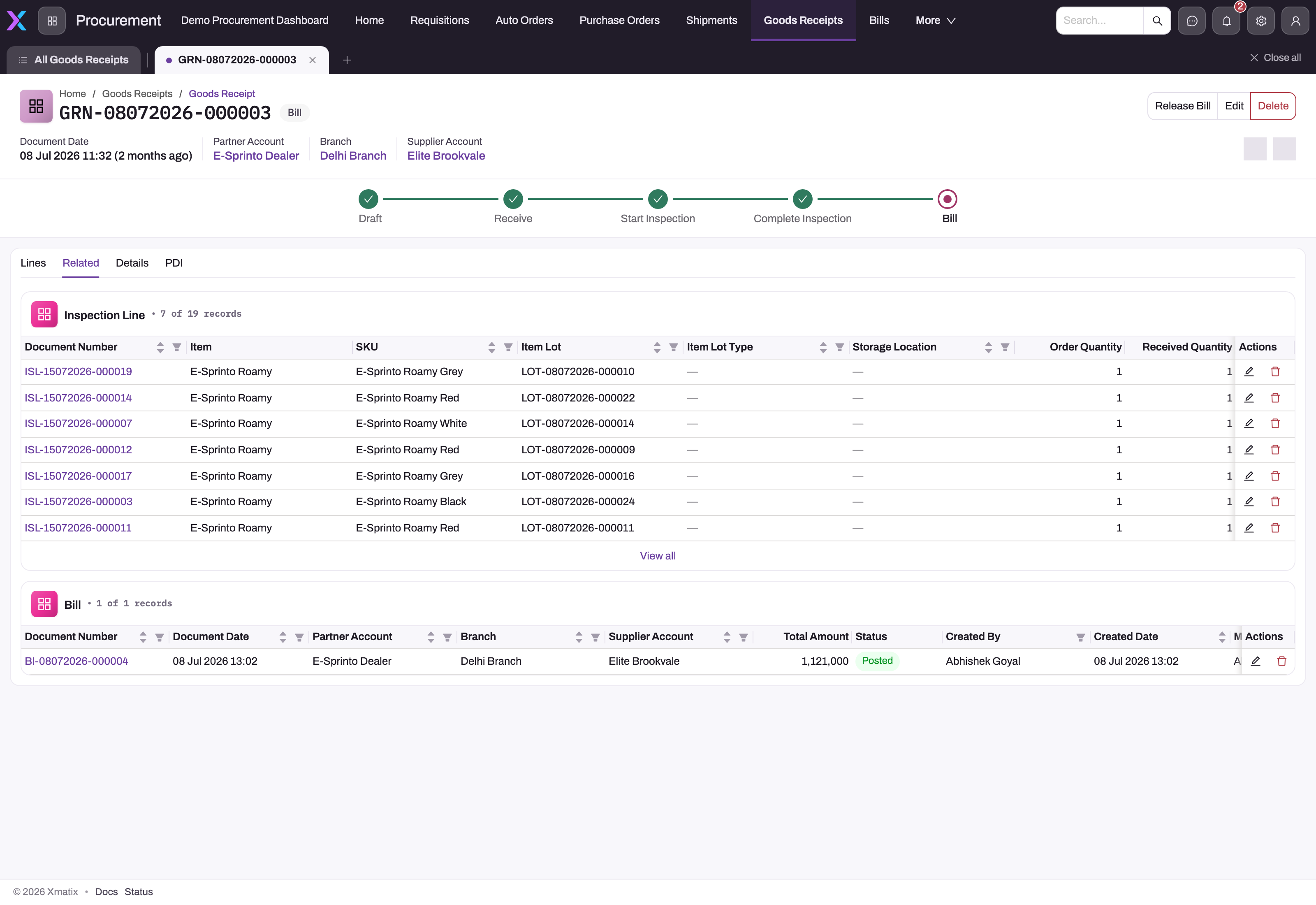
Related connects the receipt to the records generated around it — the Inspection Line rows created for items that require inspection on receipt, and the Bill released from it. Use those links to trace the source-to-settlement chain rather than rekeying references into notes.
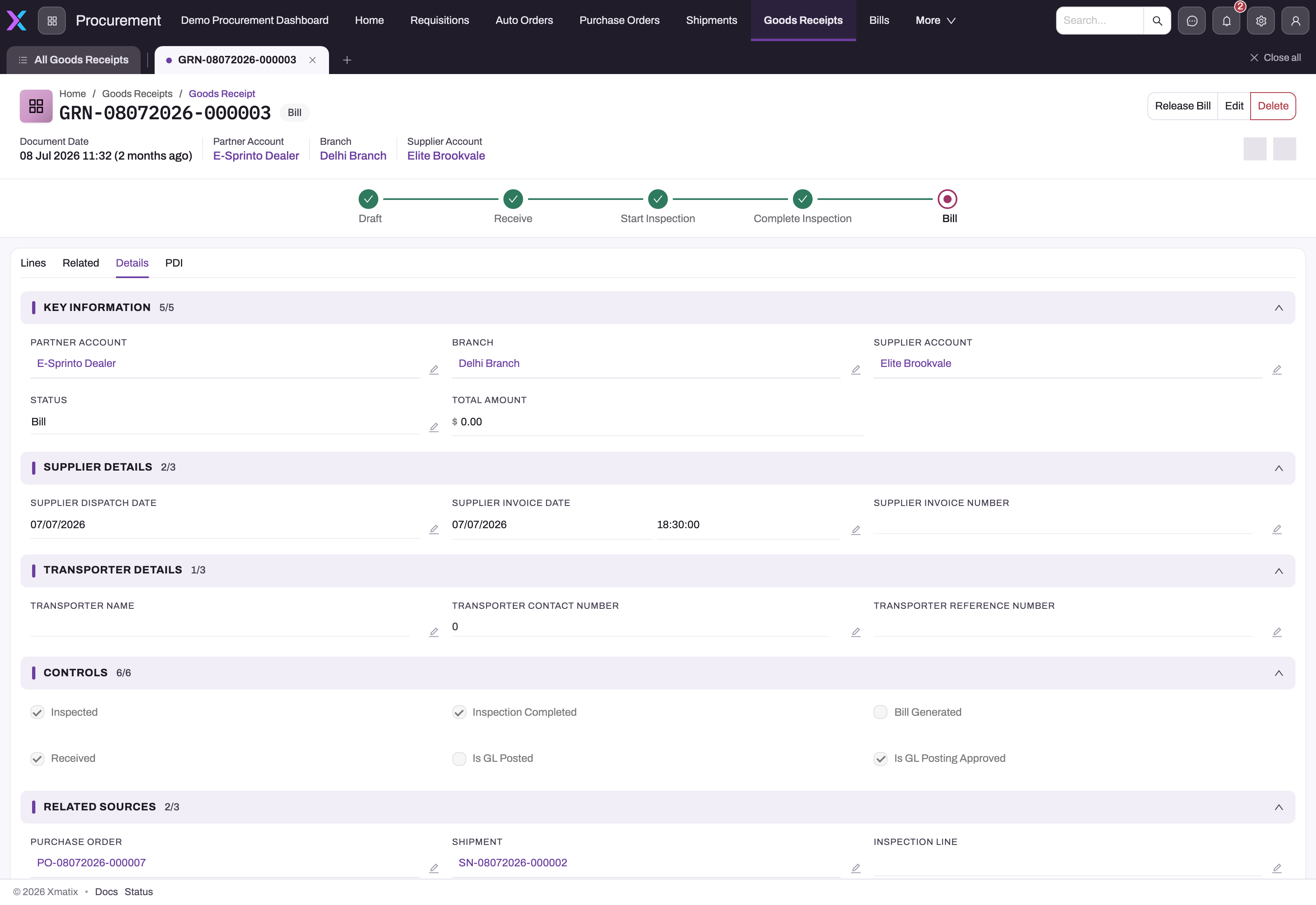
- 1
Status ladder: Draft → Receive → Start Inspection → Complete Inspection → Bill.
- 2
Key Information: Partner Account and Branch fix the stock bucket every line posts into; Supplier Account is the bill counterparty.
- 3
Supplier Details record the supplier's dispatch and invoice dates and invoice number — the counterparty's evidence, kept separate from what the dock counted.
- 4
Transporter Details: name, contact number and reference number of whoever delivered the goods.
- 5
Controls: Received means Perform Receive posted the lines; Inspected / Inspection Completed track the hold for items that require inspection; Bill Generated and the GL flags follow later.
- 6
Related Sources: the Purchase Order and Shipment the receipt was released from carry the expected lines forward.
Details consolidates the saved header: partner account, branch, supplier account, status and total; supplier dispatch/invoice dates and invoice number; transporter details; the Controls flags the actions set — Received, Inspected, Inspection Completed, Bill Generated, Is GL Posted / Is GL Posting Approved — and the Related Sources links to the purchase order, shipment and inspection line. It is the read-only confirmation surface after line work has been completed; read the Controls flags, not just the status label, when you need to know what has posted.
The fourth tab, PDI, hosts a pre-delivery-inspection checklist and is relevant only where your item process uses one; it shows No checklist items found otherwise, which says nothing about whether the receipt lines were inspected.
The header does not prove what entered inventory. That evidence lives on receipt lines: actual received, damaged, short or excess quantities; the exact storage location; lots where required; inspection state; and posting result. Before running Receive, reconcile the physical count and condition to those line values and ensure the named bin is where the goods will actually be placed. After posting, verify the inventory ledger and any inspection hold rather than assuming Save made stock available.
What the warehouse controls on a receipt
The receipt line is the warehouse's record of physical reality. Per line you record the received quantity (what actually arrived, as opposed to what the supplier's papers claim) and any damaged quantity; shortage and excess against the order are captured too, so the discrepancy is on the record rather than absorbed silently. Each line also names the storage location the stock is received into — that location is where the posted quantity lands, and where every later document (allocation, picking, counting) will look for it.
Running Receive posts the lines to the inventory ledger; already-posted lines are skipped, so receiving in several passes is safe. For lot-tracked items the receipt creates or feeds the item lots that carry the stock from then on — see Item lots and lot types.
Straight to the bin — no putaway step
Posted stock goes directly into the storage location named on the line. xMatix has no putaway document between the dock and the bin: if goods should end up somewhere other than where they were received, receive them into the right location in the first place, or move them afterwards with a transfer. This keeps the model honest — on-hand at a location means the receipt (or a later movement) put it there, with a ledger entry to show for it.
Held stock: inspection
Items flagged Require Inspection on Receipt take a detour: their received quantity is held under inspection rather than becoming available, until the inspection lines are completed on the receipt. During the hold the stock exists — it is in the building and in the books — but it is not available to allocate or pick. The goods receipt procedure covers running and completing the inspection.
Receiving from your own branches
Stock arriving from another branch of your organization comes in on a transfer inward document, not a goods receipt. The receive step works on the same principles — selective quantities, shortage/damage/excess recording, a storage location per line — and is covered in Branch transfers: the warehouse view and the canonical transfer procedure.
Common questions
Why can't I find a "receiving" document in the Warehouse app?
Because receiving belongs to the purchase order lifecycle: the goods receipt is a procurement document, released from the order or shipment, and it lives with procurement. The Warehouse app carries the outbound and stock-keeping documents — fulfilments, delivery orders, transfers, cycle counts. The warehouse still does the physical work; the paper just lives where its money-side lives.
What if goods arrive without a purchase order?
A goods receipt can be created without an order line reference — the receipt posts to stock on its own quantities. Expect the gap to surface later, though: an unmatched receipt has nothing for the three-way match to reconcile the bill against, so an order raised after the fact is the cleaner path.
Where do damaged arrivals go?
Record them in the line's damaged quantity. Damage posts as its own movement rather than disappearing into the received figure, so the stock records distinguish sellable quantity from damage — and the discrepancy against the supplier is documented for the bill discussion.