
A purchase order is your commitment to a supplier: the items, quantities and prices you are buying, from which branch, and the document every later shipment, goods receipt and bill links back to, line by line. It sits between the requisition or auto order that asked for the goods and the goods receipt and supplier bill that record what arrived and what you owe.
Overview
Purchase orders live in the Procurement app, under Purchase Orders, on the web and in the mobile app. The list is titled All Purchase Orders. A saved order has a record header with its key figures and buttons, a Status stepper, and three tabs — Lines, Related (the order's shipments, goods receipts and bills) and Details — with an Amount Summary beside them.
Each line of the order is a record of its own, a purchase order line, numbered such as PL-10102026-000001. You add and edit lines from the order's Lines tab. Selecting a line opens its record page. There you see its quantities, discounts, amounts and taxes, and the shipment, goods receipt, bill and requisition lines linked to it.
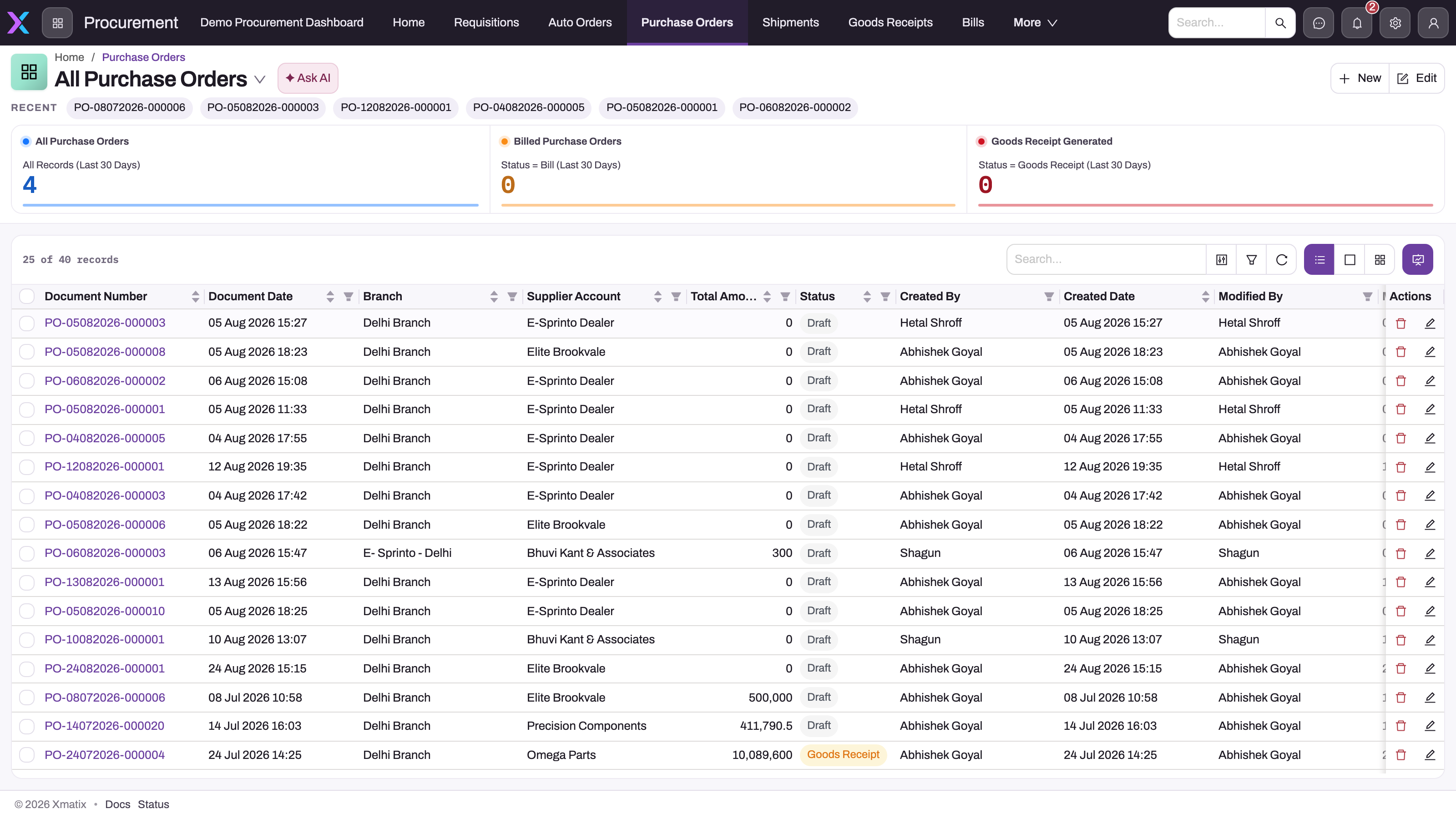
- 1
Open the order by its document number to reach the Lines tab, the release actions and the status stepper.
- 2
Branch and Supplier Account are the scope every goods receipt and bill released from the order inherits.
- 3
Total Amount is rolled up from the lines; an order with a total but no lines has a stale roll-up.
- 4
Status is Draft, Shipment, Goods Receipt or Bill - advanced one step at a time by a person on the saved order, never by Release Receipt or Release Invoice.
- 5
The Billed and Goods Receipt Generated counters count orders whose manual Status was set to those values.
- 6
New opens the create form with Document Date stamped and the purchase price list, discount group and addresses defaulted.
When to use it
Raise a purchase order whenever you buy stock or services from a supplier and want the purchase to be received into stock, billed and reconciled against what you ordered. Use it when:
- a requisition has been approved internally and needs to go to a supplier;
- an auto-order worksheet suggests what to buy;
- you are buying directly, without a prior request;
- the supplier is another organization on the platform and should receive your order as a sale order (a dealer order).
How xMatix handles it
Where purchase orders come from
| Source | How |
|---|---|
| Created directly | New on the list — a header with a supplier, partner account and branch, then lines. |
| Released from a requisition | Release Order or Selective Release Order on the requisition. The order links to the requisition and each line to its requisition line. |
| Pulled in while building an order | Add Requisition takes every open line of the requisitions you pick; Selective Requisition Lines takes chosen lines at a requested quantity. |
| Generated from an auto order | Purchase Order or Selective Order on a reviewed suggestion worksheet — see auto-order. The order shows the worksheet in Auto Purchase Order. |
Line quantities drive the lifecycle
Receiving, billing and dealer-order release are tracked independently on every line, and all three draw on the same ordered quantity:
| Counter | Meaning |
|---|---|
| Quantity | What was ordered. |
| Receipt Quantity | The quantity placed on goods-receipt lines released from this line — staged for receipt, not proof that it was counted in. |
| Pending Quantity | Quantity − Receipt Quantity − Cancelled Quantity. Shipment and receipt releases draw on it. |
| Invoice Quantity / Pending Invoice Quantity | Quantity billed so far, and what is left to bill (Quantity − Invoice Quantity − Cancelled Quantity). |
| Order Quantity / Pending Order Quantity | Quantity sent to the supplier as dealer orders, and what is left. |
| Returned Quantity | Quantity returned on credit notes against this line's bills. |
| Cancelled Quantity | Quantity struck off the line without receiving or billing it. |
The header adds these up as Total Pending Quantity and Total Pending Invoice Quantity (on Details → Quantity Details). Because the counters are independent, an order can be fully staged for receipt but only partly billed, or billed before anything arrives. To check physical arrival and stock, read the goods receipt, not the order.
Status and document state
Status is the stage the list cards and the stepper show: Draft (the default), Shipment, Goods Receipt and Bill (a New value also exists, but nothing sets it). It changes in three ways:
- Release Shipment sets it to Shipment.
- Two shipped business rules run whenever the order is saved: when the order has lines and no pending quantity is left, Status becomes Goods Receipt; when some quantity has been billed and nothing is left to bill, Status becomes Bill.
- You can move it yourself with the stepper under the header: forward one step at a time, or back.
Releasing a goods receipt or a bill does not change Status by itself. Separately, a read-only Document State field records the last release that succeeded: Draft, Dealer Order Created, Shipment Released, Receipt Released, Received or Billed. It is not on the shipped screens; add it to a list view if you want to see it.
On the shipped record page, the release, Dealer Order, Product Catalogue, Apply Scheme, Add Requisition and Selective Requisition Lines buttons show only while Status is Draft. Most of them also need some quantity still to bill. Once an order moves past Draft — for example after Release Shipment — release the goods receipt from the shipment instead.
Pricing and taxes
New orders get a purchase price list and discount group by default, and each line is priced and discounted from them when it is added:
- Price. The line takes its price from the purchase price list rule in force on its pricing date. The date is the line's own Price As On Date if set, otherwise the header's, otherwise the order's Document Date, otherwise today. The price list is the line's own Price List if set, otherwise the order's, otherwise the default purchase price list. A Unit Cost you type on a new line is kept. Unit Cost 2, filled from the rule's second price, replaces Unit Cost in the line amount when it is greater than zero.
- Discount. The order's discount group fills the line's Contract Discount (or a fixed contract discount amount). Description-only lines get no contract discount.
- Tax. The line's Tax Group comes from the tax group rules for the partner, branch, item, SKU and item group, unless you pick one. Its taxes are copied onto the line when it is saved, so later changes to tax rates do not alter saved lines.
Afterwards, changing the line's Price List, Price List Rule or Price As On Date reprices that line, and changing Price As On Date on the header reprices every line. Changing the item, SKU, quantity or tax group recalculates the line's taxes.
A line's money fields build up like this. Base Amount is quantity times unit cost. Amount is Base Amount less the scheme discount and the other discounts (trade, cash and contract). Gross Amount adds the line's tax. When the partner account takes discounts after tax, the discounts come off Gross Amount instead of Amount. The order's totals are the sums of these line fields.
Prerequisites
- The supplier is an active account marked as a supplier — only those can be picked in Supplier Account.
- Your organization (the Partner Account) and receiving Branch are active and belong together.
- A purchase-type price list exists if you want lines priced automatically; otherwise you type each Unit Cost.
- Items are active and not discontinued. An item that requires a SKU needs one on every line.
- Your security profile grants access to Purchase Order and Purchase Order Line, and to the actions you will run (see Permissions).
Procedure
Step 1 — Find a purchase order
Open Procurement → Purchase Orders. The cards across the top count All Purchase Orders, Draft Purchase Orders, Shipment, Goods Receipt and Billed orders, and total their Total Amount. Switch the view to Part, Product, Local or VOR to see one purchase order type, and use search, filters and column sorting to narrow the list. Open an order by its Document Number.
Step 2 — Create the order
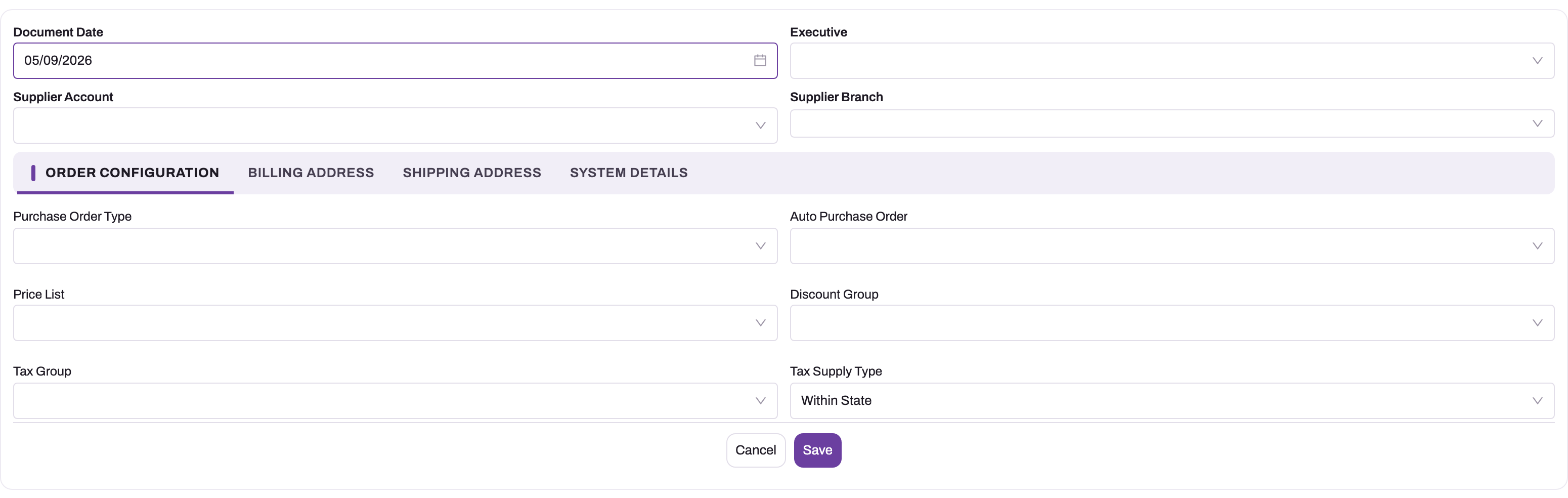
- 1
Document Date is stamped with today and picks the fiscal day; it is locked after save.
- 2
Supplier Account is the vendor; the branch's default supplier is filled in when the branch has one.
- 3
Supplier Branch is only needed for the dealer-order flow (Create Dealer Order) - leave it empty for an ordinary supplier order.
- 4
System Details carries Partner Account and Branch; both must belong together and are locked after save.
- 5
Purchase Order Type is a reporting classification; Auto Purchase Order is filled automatically when the order came from an auto-order worksheet.
- 6
Price List, Discount Group, Tax Group (Document Level) and Tax Supply Type decide how every line is priced, discounted and taxed.
Choose New. Fill the top row — Document Date (today if you leave it empty), Purchase Order Type and Supplier Account — then the tabs:
- Order Configuration: check the defaulted Price List and Discount Group, and pick a Tax Group if the order carries header taxes.
- Billing Address and Shipping Address: filled from your partner account's addresses when you leave them empty; pick another address or type one.
- System Details: Partner Account, Branch and Executive.
Save. The order gets a number such as PO-10102026-000001 and opens at Status Draft. If the branch has a default supplier and you left Supplier Account empty, it is filled in.
Step 3 — Add lines
The Lines tab has three buttons for adding lines: Quick Add, Product Catalogue and Import.
- Quick Add opens the quick-add form: Item, SKU, Quantity, Unit Cost, Tax Group and Description, with an Item 360 panel for the chosen item. Leave Unit Cost and Tax Group empty to have them filled from the price list and the tax group rules.
- Product Catalogue opens the catalogue full screen. Pick items and quantities, then choose Add to document to add them all as lines in one go. If some lines are refused, the catalogue stays open with them so you can correct and retry.
- Import opens Import Excel. Choose Download Format for a spreadsheet template whose columns follow the dialog's list view, fill one row per line, and upload it.
A line needs an item, or a description for a non-stock charge such as freight, and a quantity greater than zero. However they are added, lines go through the same checks. Each one is priced, discounted and taxed (see Pricing and taxes) and numbered with a PL- number. A package item adds its purchase components as lines of their own under it. The Amount Summary updates: line base amount, less scheme and other discounts, plus tax, gives Total Amount.
To pull in requisitions instead, choose Add Requisition (every open line of the requisitions you pick) or Selective Requisition Lines (chosen lines at a quantity you enter). The order must already have a supplier and branch, and only requisitions for the same supplier and branch are accepted.
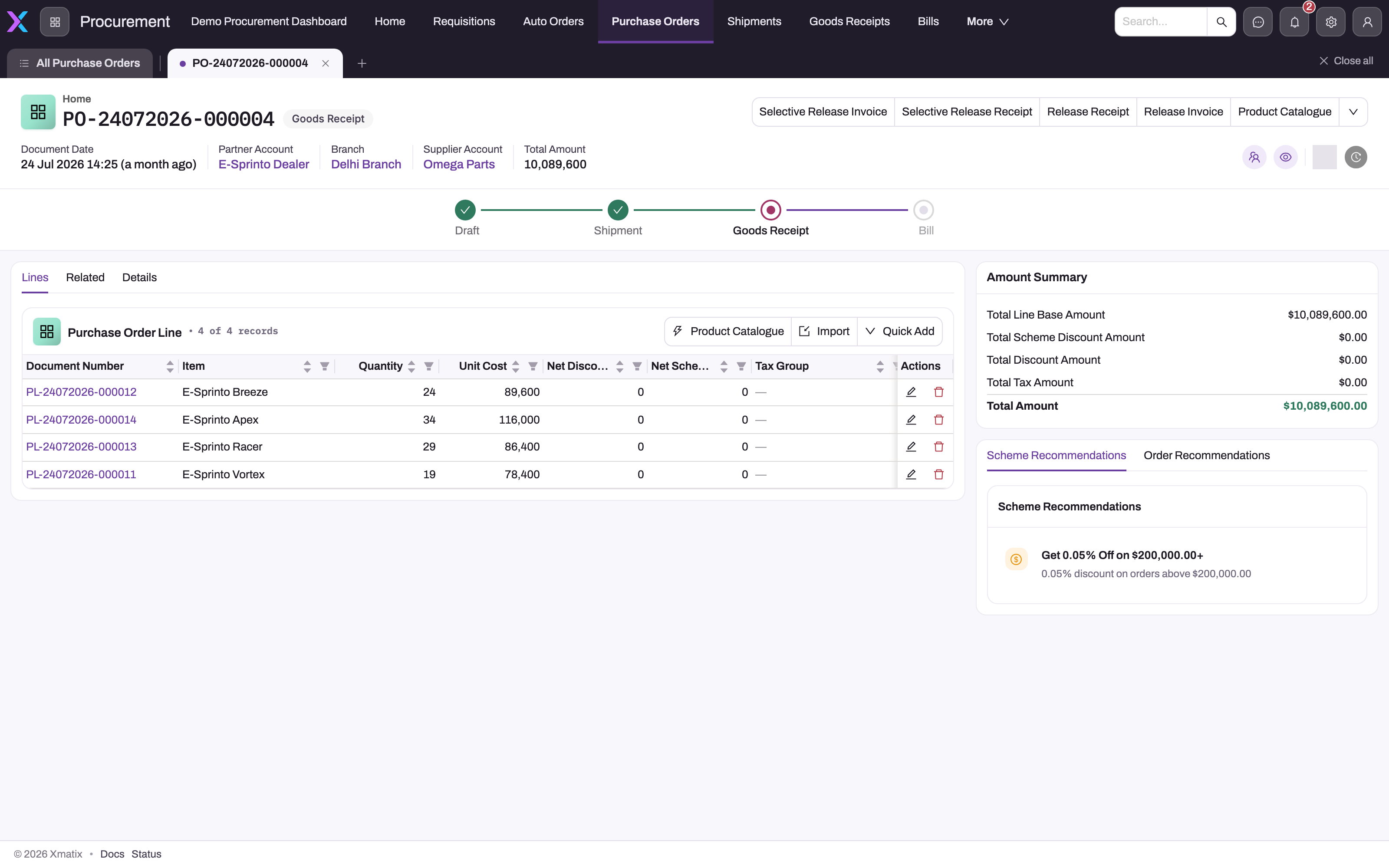
- 1
Release Receipt and Release Invoice take every line with pending quantity; the Selective variants take the lines you tick below with a Requested Quantity each. More actions (Add Requisition, schemes, dealer order) sit behind the chevron.
- 2
The Draft - Shipment - Goods Receipt - Bill stepper is set by clicking the next step; releasing a receipt or bill does not move it.
- 3
Quantity is what was ordered; it cannot drop below what receipts or bills already carry, and it must respect the item's planning row limits.
- 4
Unit Cost comes from the order's price list and is copied onto every receipt line as the stock cost layer; the default grid does not show the pending counters - add those columns or open a line.
- 5
Quick Add, Product Catalogue and Import add lines; Cancelled Quantity on a line strikes quantity off without receiving it.
- 6
Amount Summary rolls the lines up: base, scheme discount, discount, tax and Total Amount.
- 7
Scheme Recommendations lists supplier schemes the order qualifies for; Apply Scheme in the actions applies one.
Step 4 — Review a line
Select a line on the Lines tab to open its record page. The header shows the Purchase Order, Item, SKU, Quantity and Unit Cost, and an Amounts panel shows base amount, discounts, scheme discount and tax, totalled as Gross Amount. The Details tab groups the fields:
| Group | What it shows |
|---|---|
| Key Information | Item, SKU, Item Lot Type, Description. |
| Quantity Details | Quantity, Pending Quantity, Pending Order Quantity, Receipt Quantity, Pending Invoice Quantity, Invoice Quantity. |
| Discount Details | Contract Discount, Scheme Discount, Scheme Discount Amount, Net Discount. |
| Amount Details | Base Amount, Discount Amount, Scheme Discount Amount, Gross Amount, Amount, Unit Cost. |
| Tax Details | Tax Group, Tax Amount. |
| Related Documents | Purchase Order, Purchase Requisition, Auto Purchase Order Line, Service Order Line. |
| System Details | Who created and last changed the line, and when. |
The Related tab lists the shipment lines, goods receipt lines, bill lines and requisition lines linked to this line. Use it to see where each part of the quantity went.
Step 5 — Change, cancel or remove a line
- Change a line. Choose Edit on the line's row, or Edit on its record page. On the record page you can also change fields in place. A change to the quantity, item, SKU, price or tax group recalculates the line and the order totals.
- Reduce the quantity. Lower Quantity. It cannot go below what has already been released to goods receipts plus what has been returned; the save names the minimum.
- Stop expecting the rest. Enter the undelivered quantity in Cancelled Quantity. It comes off the pending, pending-invoice and auto-order figures while the line keeps its history. Cancelled Quantity is not on the shipped line screens, so an administrator has to add it to the line's record layout first (see Configuration).
- Remove a line. Choose Delete on its row, or on its record page. A line that has receipt quantity cannot be deleted. Deleting a package line removes its component lines, and a mandatory component cannot be removed on its own.
Some line fields lock:
- A line released from a requisition keeps its requisition's Item and SKU.
- Once returns exist against a line, its Item and SKU lock as well.
- A line cannot be moved to another order.
Step 6 — Apply supplier schemes
If your supplier runs promotions, choose Apply Scheme to apply a qualifying scheme's benefits — benefit lines and scheme discount — to the order. Scheme discounts appear in Total Scheme Discount Amount. Schemes are evaluated again whenever a line's item, SKU, amount or tax group changes.
Step 7 — Release a shipment or goods receipt
- Release Receipt asks "This action will create good receipt record for the current purchase order." and, on Yes, creates one goods receipt for every line with pending quantity.
- Selective Release Receipt takes only the lines you choose, each with a Requested Quantity greater than zero and no more than its pending quantity.
- Release Shipment creates an inbound shipment for the pending quantities when the supplier ships in consignments. The order's Status becomes Shipment; the goods receipt is later released from the shipment on arrival.
The new document appears on the Related tab. It copies the order's branch, partner account and supplier, and each line links back to its order line at the order's unit cost. Receive the goods on the receipt — see receive goods against a purchase order.
Step 8 — Release the bill
- Release Invoice asks "This action will create purchase invoice record for the current purchase order." and creates a supplier bill for every line with pending invoice quantity.
- Selective Release Invoice takes chosen lines and requested quantities, checked against Pending Invoice Quantity.
If goods-receipt lines exist for an order line, the bill gets one line per receipt line, linked to both the order line and the receipt line. If nothing has been received yet, it gets one line linked to the order line. Description-only lines bill at the cost typed on the order; item lines are priced from the bill's price list, so compare the bill with the supplier's invoice before posting. See supplier bills.
Step 9 — Send a dealer order to an on-platform supplier
When the supplier is another organization on the platform, set Supplier Branch on the order, then choose Dealer Order. A sale order is created at the supplier's branch for every line's pending order quantity, so the supplier fulfils it from their side.
Step 10 — Change, clone or delete an order
Choose Edit to change the header; Partner Account, Branch and Document Date cannot change once saved. To change lines, see Step 5 above. Clone ("This will create a copy of the current record (including its line items).") starts a new order from this one. Delete removes the order after a confirmation; a line that already has receipt quantity cannot be deleted.
Step 11 — Work on mobile
The Procurement app is available in the mobile app. You can create purchase orders, and add lines with quick add and the product catalogue. If your administrator adds the Frequent Items panel to the purchase order's mobile layout, you can also pick from the items your company and branch order most often while you are online — see frequently ordered item suggestions.
Fields
Header
| Field | What it means | Notes |
|---|---|---|
| Document Number | The order number. | Generated on save, for example PO-10102026-000001. |
| Document Date | The order's business date. | Today if left empty. Also decides the fiscal day the order belongs to. Locked once saved. |
| Purchase Order Type | A classification. | Part, Product, Local PO, VOR PO, Subcontracted PO, Blanket PO. Drives the list views; otherwise used for reporting. |
| Supplier Account | The vendor. | Only active supplier accounts. Defaulted from the branch's default supplier when empty. |
| Supplier Branch | The supplier's branch. | Needed only for Dealer Order. Not on the shipped create form. |
| Auto Purchase Order | The auto-order worksheet the order came from. | Filled automatically. |
| Price List | The purchase price list lines are priced from. | Defaulted on create. |
| Discount Group | The discount group line discounts come from. | Defaulted on create. |
| Tax Group | Header-level taxes. | Must be a Document Level tax group. |
| Is Template | Marks the order as a template for auto orders. | A switch on the order's edit form (the Select as Auto Order Template action does the same where added). Only marked orders can be picked on a new Template auto order, which copies the item lines. |
| Billing Address, Shipping Address | Where the supplier bills and ships to. | Defaulted from the partner account's addresses. Street, city, state, postal code and country can be typed. |
| Partner Account | Your organization placing the order. | Only active partner accounts. Locked once saved. |
| Branch | The receiving branch. | Must belong to the partner account and be active. Locked once saved. |
| Executive | The person accountable for the order. | A resource. |
| Status | The order's stage. | Draft, New, Shipment, Goods Receipt, Bill. See Status and document state. |
| Requisition, Service Order | The source documents. | On Details → Key Information. Filled automatically. |
| Tax Supply Type | The tax lane. | Within State, Outside State, Exempt, Exports, SEZ. For businesses in India it is recalculated on every save. |
| Place of Supply, Source of Supply | The states that decide the tax lane. | For businesses in India, Place of Supply is defaulted from the supplier and Source of Supply from the branch; when they differ the order is Outside State. |
| Price As On Date | The date prices are taken from. | Changing it reprices every line. |
| Total Pending Quantity, Total Pending Invoice Quantity | What is left to receive and to bill. | Calculated from the lines. |
| Total Line Base Amount, Total Discount Amount, Total Scheme Discount Amount, Total Tax Amount, Total Amount | The money totals. | Calculated. |
| Skip Scheme | Turns off scheme evaluation for the order. | Not on the shipped layouts. |
| Remarks | Free text. | On Details → System Details. |
Lines
In the order of the line's record page:
| Field | What it means | Notes |
|---|---|---|
| Document Number | The line number. | Generated on save, for example PL-10102026-000001. |
| Item | What you are buying. | Optional if you enter a Description. Active items only; discontinued items and discount items are refused. Locked on a line released from a requisition, and once returns exist. |
| SKU | The item variant. | Required when the item requires a SKU; limited to the item's SKUs. Locks with Item. |
| Item Lot Type | A lot type. | On the shipped screens, but purchase order lines do not store it: a value entered here is not saved. |
| Description | Free text for the line. | Enough on its own for a non-stock charge such as freight. |
| Quantity | The quantity ordered. | Required, greater than zero, within the item's planning limits, and not below what has been received plus returned. |
| Pending Quantity | Still to be released for receipt. | Quantity − Receipt Quantity − Cancelled Quantity. |
| Pending Order Quantity | Still to be sent as a dealer order. | Quantity − Order Quantity. |
| Receipt Quantity | Released to goods receipts so far. | Maintained by the system from the linked goods receipt lines. |
| Pending Invoice Quantity | Still to be billed. | Quantity − Invoice Quantity − Cancelled Quantity. |
| Invoice Quantity | Billed so far. | Maintained by the system from the linked bill lines. |
| Contract Discount | Discount percentage from the order's discount group. | Filled when the line is added. |
| Scheme Discount, Scheme Discount Amount | The supplier scheme discount, as a percentage or a fixed amount. | Written by Apply Scheme; cleared when schemes are re-applied or reset. The amount wins when both are set. |
| Net Discount | Trade, cash and contract discounts together. | Calculated. |
| Base Amount | Quantity × unit cost. | Calculated; uses Unit Cost 2 instead when it is greater than zero. |
| Discount Amount | A fixed trade discount. | Replaces the trade discount percentage when greater than zero. |
| Gross Amount | The line's all-in value. | Calculated: Amount plus tax. |
| Amount | The line's taxable value. | Calculated: Base Amount less scheme and other discounts. |
| Unit Cost | The price per unit. | From the price list, or typed. Copied to shipment and goods receipt lines on release. |
| Tax Group | The line's taxes. | From the tax group rules, or picked. Taxes are copied onto the line on save. |
| Tax Amount | The line's total tax. | Calculated on the taxable value, net of discounts and cancelled quantity. |
| Purchase Order | The order the line belongs to. | Cannot be changed. |
| Purchase Requisition, Auto Purchase Order Line, Service Order Line | Where the line came from. | Filled automatically. The line's quantity counts against the source line, so it is not ordered twice. |
Other line fields that are not on the shipped record page, but that you can add to it or to a list view:
| Field | What it means | Notes |
|---|---|---|
| Cancelled Quantity | Quantity you no longer expect. | Reduces pending, pending invoice and auto-order quantity, and the most that may be received; does not reduce Base Amount. |
| Order Quantity | Sent as dealer orders so far. | Maintained by the system. |
| Returned Quantity | Returned to the supplier on bill returns. | Maintained by the system; not editable. |
| Unit Cost 2 | A second price from the price list rule. | When greater than zero, used instead of Unit Cost. |
| Discount, Cash Discount, Cash Discount Amount | Trade and cash discounts. | Percentages 0 to 100; a fixed amount replaces its percentage. |
| Price List, Price List Rule, Price As On Date | What the line is priced from. | Changing any of them reprices the line. |
| Exclude In Auto Order | Keeps the line out of the auto-order supply calculation. | See Purchase orders in the stock pipeline. |
| Skip Scheme | Leaves the line out of scheme evaluation. | Changing it re-runs schemes. |
| Is Scheme Generated | Marks a scheme benefit line. | Set by the scheme engine; such lines are rebuilt when schemes are re-applied. |
| Tax 1 to Tax 6 | The copied taxes, with their name, rate and type. | One slot per tax in the group. |
The full list of stored fields is in the Purchase Order and Purchase Order Line entity references.
Business rules
- Numbering. Orders are numbered
PO-+ the document date as DDMMYYYY + a six-digit counter; lines usePL-. - Locked fields. Partner Account, Branch and Document Date cannot change once saved with a value.
- Partner and branch. The branch must belong to the partner account and both must be active; when the partner account has branches, a branch is required.
- Header tax group must be a Document Level group.
- Credit limit. When a credit limit is set for your partner account and the supplier, a new order is refused while your open payables to that supplier already exceed it — unless the Procurement setting routes breaches to an approval process.
- Line quantity. Greater than zero. When the item has planning attributes for the order's partner account and branch, the quantity must be at least the Minimum Order Quantity, at most the Maximum Order Quantity, and a multiple of the Lot Quantity — see the configuration reference.
- Line content. A line needs an item or a description. Discontinued items, inactive items and discount items are refused; an item that requires a SKU needs one, and the SKU must belong to the item. Discount percentages on a new line must be 0 to 100.
- Downstream integrity. A line's quantity cannot drop below its received plus returned quantity. A line with receipt quantity cannot be deleted. Once a line has returns, its item and SKU are locked; a line from a requisition keeps its item and SKU; a line cannot move to another order.
- Line counters. Receipt, invoice, dealer-order and returned quantities are recalculated as the sum of the linked goods receipt, bill, sale order and bill-return lines whenever those change, so they always match the downstream documents.
- Packages. A package item adds its purchase components as lines. Changing the package line's quantity rescales the components (for packages that scale with quantity), changing its item rebuilds them, and deleting it removes them. Component quantities must respect the component's minimum and maximum, and mandatory components cannot be removed.
- Releases. Every release draws only on pending quantity, and a selective release refuses a requested quantity above it. Partial releases are normal; the rest stays available for another release.
- Status. Set to Shipment by Release Shipment, to Goods Receipt and Bill by the shipped business rules on save, and otherwise by hand.
- Upstream roll-up. Quantity on a line released from a requisition or an auto order counts against that source line, so it is not ordered twice.
Purchase orders in the stock pipeline
Pending purchase-order quantities count as inbound supply. The auto-order engine includes them in its projection so stock already on order is not suggested again, and a Sense AI nudge uses the same numbers to warn when a manually entered quantity diverges from what the pipeline needs. Tick Exclude In Auto Order on a line to leave it out.
Example
A tractor dealer's parts branch needs 40 oil filters and 12 hydraulic hoses. The parts executive opens Procurement → Purchase Orders, chooses New, picks the supplier and type Part, and saves. The order is numbered PO-10102026-000014 at Status Draft, with the dealer's purchase price list. They add two lines; the filter's planning attributes set a lot quantity of 10, so 40 is accepted. The Amount Summary shows the total with tax.
The supplier delivers 30 filters and all the hoses first. The executive runs Selective Release Receipt with 30 filters and 12 hoses, and the stores team receives the goods on the new goods receipt. The filter line now shows 10 pending. When the supplier's invoice arrives, they run Release Invoice; the bill takes one line per receipt line. A week later the last 10 filters arrive, and Release Receipt creates a second receipt for exactly those. On the next save no quantity is pending, and Status moves to Goods Receipt.
Training
Practice exercise
In a sandbox, as a user with the System Admin or Standard User profile:
- Create a purchase order for any test supplier, partner account and branch. Expected: a
PO-number and Status Draft. - Add a line for a stock item, quantity 10. Expected: the line is priced from the purchase price list and the Amount Summary updates.
- Run Selective Release Receipt for 4 of the 10. Expected: a goods receipt on the Related tab, and 6 pending on the line.
- Try to change the line's quantity to 3. Expected: the save is refused, naming 4 as the minimum.
- Run Release Receipt. Expected: a second goods receipt for 6.
- Run Release Receipt again. Expected: "No pending quantities found in order lines to create goods receipt."
- Try to change the order's Branch. Expected: the save is refused because the field is locked.
- Open the line from the Lines tab. Expected: Receipt Quantity 10 and Pending Quantity 0 under Quantity Details, and two goods receipt lines on the line's Related tab.
- Try to delete the line. Expected: "There are downstream transactions. The record cannot be deleted."
- Add a second line with only a Description, such as Freight, quantity 1 and a unit cost. Expected: the line saves without an item, and no contract discount is applied to it.
Quick reference
- Partner Account, Branch and Document Date lock on save — check them first.
- Supplier first, then lines; Add Requisition needs supplier and branch.
- Receipt, bill and dealer-order counters are independent.
- Selective releases take only the quantities you enter, never more than pending.
- Release Shipment moves Status to Shipment; the receipt then comes from the shipment.
- Release buttons show only while Status is Draft.
- Cancelled Quantity closes what you no longer expect (add it to the line layout first); Exclude In Auto Order hides a line from forecasting.
- A line's record page shows where its quantity went: receipt, invoice and pending figures, plus the linked lines on Related.
- Leave Unit Cost and Tax Group empty on a new line to have them filled from the price list and tax rules.
- Check bill prices against the supplier's invoice before posting.
Permissions
Access is set on security profiles:
- Entity access. The shipped System Admin, Standard User, Sales Manager and Sales Executive profiles have full access to Purchase Order and Purchase Order Line, including View All and Modify All. The shipped Procurement profile has no purchase-order access: give it entity access before assigning it to buyers.
- Record sharing. Purchase orders are owned by a user. The organization-wide default is Read Only; see record security.
- Actions. Each button is a separately granted action:
- System Admin has every action except Selective Release Shipment, which no shipped profile has.
- Standard User has the release, dealer-order, requisition, scheme and edit actions, but not Release Shipment, Payment, Select as Auto Order Template, Product Configurator or line Import.
- Sales Manager has New, the receipt and invoice releases (full and selective) and Add Requisition, but not Clone, the scheme actions or Dealer Order.
- Sales Executive can edit, clone, delete, apply schemes, add requisitions and run Dealer Order, but has no New and no receipt or invoice releases.
- Line actions. The Lines tab buttons are granted on Purchase Order Line:
- System Admin has Quick Add, Product Catalogue, Import, Edit and Delete.
- Standard User has the same except Import.
- Sales Manager has Quick Add, Edit and Delete, but not Product Catalogue or Import.
- Sales Executive can Edit and Delete lines but has none of the add buttons.
A user without an action does not see its button. Grant missing ones on the profile's Actions tab.
Configuration
- Document numbering. Setup → Feature Hub → Platform → Document Settings: Purchase Order Name Setting (series
PO, separator-, date DDMMYYYY, six digits) and the line setting (seriesPL). See Email templates and document numbering. - Module settings. Setup → Feature Hub → Procurement → Settings: Enable Procurement (the module's master switch) and, in the Credit limit group, Route credit limit breaches to an approval process (off by default). Off blocks an order that breaches the supplier credit limit; on skips the block so that an approval process you configure can govern it. Limits are kept per partner account and account — see Credit limits.
- Approval. No approval process is shipped for purchase orders. To require sign-off, create one in Setup → Process Studio → Approvals, and add the approval panel to the record page if users should act on it there. See Approval processes.
- Status automation. The two shipped business rules Set Purchase Order Status To Goods Receipt and Set Purchase Order Status To Bill live in Setup → Process Studio → Business Rules; change or deactivate them there. See Business rules.
- Picklists. Status and Purchase Order Type are picklists you can extend in the entity's field settings. The list views filter on Purchase Order Type values, so keep views and values in step.
- Layouts and views. The create form, record page, header buttons, their visibility conditions and list views are metadata you change in Design Studio. Add Selective Release Shipment, Selective Create Dealer Order, Reset Scheme, Select as Auto Order Template, Supplier Branch or Skip Scheme there if users need them.
- Line screens. The purchase order line has its own layouts in Design Studio: the quick-add form used by Quick Add, the line record page (opened from the Lines tab), the Import dialog and the Product Catalogue dialog. To let users cancel undelivered quantity, add Cancelled Quantity to the line record page (it then edits in place) or to the quick-add form. Fields such as Unit Cost 2, Discount, Cash Discount, Price List, Skip Scheme and Exclude In Auto Order can be added the same way. Item Lot Type is on the shipped line screens but is not stored on purchase order lines, so you can remove it.
- Product Catalogue. The dialog shows the catalogue of the storefront set on its layout. Point it at the storefront whose products your buyers order from — see Storefronts.
- Import template. The Import Excel template's columns follow the list view set on the Import layout; change that view to change the template.
- Print formats. A Purchase Order Document Report is shipped, but the shipped record page has no print button. Add a Print or Preview action that uses it — see Document reports.
- Lookup filters. The shipped filters limit Supplier Account to active suppliers, Partner Account to active partner accounts, Branch and Billing Address to the partner account's, Item to active items and SKU to the item's SKUs.
- Validations. Tax Group Validation (header must be Document Level) and Discontinued Item Validation (lines) are shipped and active. The line's own Item Required Validation and Tax Group Validation (Line Level) are shipped inactive. Lines already require an item or a description, so you do not need the item one.
- Line numbering. Purchase Order Line Name Setting in Document Settings (series
PL, separator-, date DDMMYYYY, six digits). - Branch defaults, item planning attributes and auto-order opt-outs — see the procurement configuration reference.
- Pricing, discounts and taxes come from purchase price lists, discount groups and tax groups.
Common problems
"No pending quantities found in order lines to create goods receipt."
Every line's quantity is already on receipts or cancelled. Open the receipts on the Related tab. The same message for a shipment, purchase invoice or dealer order means nothing is left for that release.
"Requested quantity (…) cannot exceed the pending quantity (…)."
A selective release asked for more than is left on a line. Enter at most the pending quantity. "Requested quantity must be greater than zero." means a chosen line has no quantity entered.
The release buttons disappeared
On the shipped record page they show only while Status is Draft and something is still to bill. If Status moved to Shipment, release the receipt from the shipment. If you moved the stepper by mistake, move it back to Draft.
"Supplier Branch is required to create a dealer order."
Edit the order and set Supplier Branch to the supplier's branch that should receive the order, then choose Dealer Order again.
"Key fields are not editable once the related objects are added. Field Name : …"
You tried to change Partner Account, Branch or Document Date on a saved order. They cannot change; create a new order or clone this one and correct it before saving.
"Order Quantity … needs to be in multiple of the Lot Quantity … for Item '…'."
The item's planning attributes set a lot size; the same applies to the minimum and maximum order quantity messages. Order in the allowed steps, or ask an administrator to adjust the planning attributes.
"There are downstream transaction. The minimum Quantity required is : …"
Receipts or returns already use that much of the line. Use Cancelled Quantity to stop expecting the rest, or reverse the downstream document first. "There are downstream transactions. The record cannot be deleted." is the same protection when deleting a line.
"Select an Item or enter a Description."
A line needs one of them. Pick an item, or type a description for a charge such as freight.
"SKU is required for this item." or "Invalid SKU selected for this item."
The item is set up to require a SKU, or the SKU you picked belongs to another item. Pick one of the item's own SKUs. "Item is Inactive." means the item has been deactivated since you picked it; choose an active item.
"A positive decimal number is expected for the field: Quantity."
The line's quantity is empty, zero or negative. Enter a quantity greater than zero. "A valid percent value (0 to 100) is expected for the field: …" means a discount percentage on a new line is outside 0 to 100.
"Source populated field … is not editable once the record is created with source record."
The line was created from a requisition line, so its Item and SKU are fixed. To order a different item, add a new line and cancel or reduce this one. "The field … is locked and not editable as transactions have been made against this record." is the same protection once goods have been returned against the line.
"Quantity cannot be changed for this component." or "Mandatory package component cannot be removed."
The line is a component of a package line. Its quantity and presence are governed by the package's component settings. Change the package line instead; "Quantity cannot be less than … for this component." and "Quantity cannot exceed … for this component." name the component's limits.
I cannot find Cancelled Quantity on the line
It is not on the shipped line screens. An administrator adds it to the purchase order line's record layout in Design Studio; after that you enter it on the line's record page.
The value I enter in Item Lot Type disappears
Purchase order lines do not store a lot type, so the value is not saved. Lots are recorded when the goods are received, on the goods receipt.
"'…' is a Discounted Item, which can't be used on a purchase order."
Discount items are for sales documents. Record a supplier discount in the line's own discount, or raise a debit note.
"Discontinued Item Cannot be added"
The item is marked discontinued. Choose its replacement, or ask an administrator to reactivate it.
"Supplier is required before adding requisitions to this purchase order."
Set Supplier Account (and Branch — the matching message names it) and save before using Add Requisition. "The selected requisition belongs to a different supplier account than this purchase order." or "…a different branch…" means the requisition is for another supplier or branch.
"Credit limit exceeded for …"
Your open payables to this supplier already exceed the credit limit set for them. Settle open bills, raise the limit, or ask an administrator about routing breaches to an approval process.
"Tax Group Type must be "Document Level"."
The header tax group is a line-level group. Pick a document-level group, or clear the header tax group and set taxes on the lines.
The Blanket view shows every order
The shipped Blanket view has no filter. An administrator can add a Purchase Order Type filter for Blanket PO to the view.
Check In and Check Out never appear on a subcontracted order
Their shipped visibility condition looks for a type value that does not match the Subcontracted PO picklist value. An administrator can correct the condition in Design Studio.
Common questions
Does releasing a goods receipt change the order's status?
Not directly. Release Shipment sets Status to Shipment, but releasing a receipt or bill does not. The two shipped business rules move Status to Goods Receipt when no quantity is pending and to Bill when nothing is left to bill, and they run when the order itself is saved. The read-only Document State field records the last release that succeeded. For the true position of each line, read its counters: receipt, invoice and pending quantities are always up to date, whatever the stepper shows.
Which release path keeps the links the three-way match needs?
Use Release Invoice or Selective Release Invoice on the order after receipt lines exist. That path writes both the order-line and goods-receipt-line links on every bill line it builds from a receipt. Release Bill on the goods receipt writes only the receipt-line link, so its lines do not move the order line's Invoice Quantity, and a later Release Invoice on the order would bill the same goods again. See match orders, receipts and bills.
Why does a line still show pending quantity after the goods arrived?
The order's Receipt Quantity counts the quantity placed on linked goods-receipt lines, not the counted quantity received. If the goods arrived but the line still shows pending, check that the receipt was released from this order rather than created stand-alone, and compare ordered, receipt and cancelled quantity on the line. If the supplier will not send the rest, enter it as Cancelled Quantity.
Can one order produce several receipts and bills?
Yes. Each release adds to the line's receipt or invoice counter, and the remainder stays available for the next release. You can receive in several deliveries and bill in several invoices, in any order.
How do I cancel a purchase order?
There is no cancel action. Enter the undelivered quantity in each line's Cancelled Quantity, which removes it from pending receipt, billing and the auto-order pipeline while keeping the history and the links to any receipts and bills already made. The field is not on the shipped line screens, so an administrator first adds it to the line's record layout. When the supplier will send part of it later, cancel only the part you no longer expect. A line with nothing received yet can also simply be deleted.
Related topics
- Requisitions: from request to purchase order
- Receive goods against a purchase order
- Supplier bills
- Match orders, receipts and bills
- Auto-order: rules-based purchase suggestions
- Frequently ordered item suggestions
- Procurement configuration reference
- Troubleshooting procurement
- Purchase Order entity reference
- Purchase Order Line entity reference
- Order — entity reference