
An auto order is a worksheet of purchase suggestions for one company, branch and supplier. Its lines come from fixed stock rules or from a reusable basket of items, so nothing is predicted and nothing is bought on its own. You review the lines, adjust them, and then raise one purchase order from them.
Auto orders sit at the start of the buying cycle, beside requisitions. The purchase order you raise from the worksheet links back to it, and each purchase order line links to the suggestion line it came from.
Overview
Open the Procurement app and choose Auto Orders. The list is titled All Auto Purchase Orders. It shows the document number, document date, partner account, branch, supplier account, Auto Order Type, total amount and status. A saved auto order has a header showing Document Date, Partner Account, Branch, Supplier Account and Total Amount, and four tabs:
- Auto Order Setting: the settings panel that controls how lines are built, with the button that saves the settings and builds the lines.
- Lines: the suggestion lines.
- Related: related records.
- Details: the header fields (Key Information, Price & Amount Details, Additional Details, System Details).
The header buttons are Generate Lines, Purchase Order, Selective Order, Edit and Delete.
When to use it
- You restock a branch against minimum stock levels and reorder quantities kept on each item.
- You want to buy back what was allocated out of stock since the last restocking run.
- You want a forward-looking order that counts stock on the way, open purchase orders, open requisitions and open sales orders.
- Customers are waiting for stock that allocation could not reserve, and you want to buy exactly the shortfall.
- You buy the same set of items again and again, and want a reusable basket or a daily scheduled suggestion run.
How xMatix handles it
The Auto Order Type picks how the lines are built. The create form offers five values.
| Type | How the lines are built | Suggested quantity |
|---|---|---|
| Minimum Stock Level | Reads the item planning rows scoped to the order's branch and suggests every item whose available stock is below its minimum stock level. | The row's reorder quantity, or the shortfall up to the minimum when no reorder quantity is set. An item with a planning row but no stock record is suggested at its reorder quantity or its minimum. |
| Replenish | Adds up the quantity allocated to orders and service orders at the branch since the branch's most recent Replenish auto order date. | The allocated quantity: buy back what went out. |
| Forecasting | Projects stock forward over the pipeline you choose and applies a reorder-point rule (below). | Enough to bring the item back up to its maximum order quantity. |
| Back Order | Finds fulfilment order lines that still owe the customer stock nobody has bought yet, oldest first, and nets off supply already on its way. | What is still owed on each fulfilment line, one suggestion line per fulfilment line. |
| Template | A reusable configuration that spawns dated auto orders and never generates lines itself. It can also carry a basket of items copied from a purchase order. | Not applicable. See Templates and baskets. |
A sixth type, Template Order, is set by the system on an order whose lines were copied from a basket template. You cannot pick it on the form, and Generate Lines refuses it so that the copied basket is never recalculated away.
The per-item inputs (minimum stock level, reorder quantity, minimum and maximum order quantity, lead time, average consumption, and the ABC and FSN categories) come from the item's Item Inventory Attributes planning rows. Each row can be scoped by SKU, branch and partner account. See the configuration reference.
How Forecasting projects the pipeline
For every planning row in scope, Forecasting nets the pipeline. A row is in scope when its branch and partner account match the order or are empty. Where several rows match the same item and SKU, their numbers are averaged.
projected     = available + stock in transit + pending purchase orders
                − purchase requisitions − open sale orders
reorder point = lead time × average consumption + minimum order quantity
suggested     = maximum order quantity − projected   (only when projected ≤ reorder point)
Each pipeline term counts only when its switch is on in the settings panel. Any individual shipment, purchase-order, requisition or sale-order line can opt out with its Exclude In Auto Order flag. The High Probability Quotes term is shown and stored, but its quantity is always zero.
How Back Order nets the shortfall
For each fulfilment order line at the order's branch and partner account, the engine works out:
- owed: quantity minus allocated minus cancelled;
- covered: the line's Back Order Quantity, meaning purchase-order quantity already raised against it;
- still to buy: owed minus covered.
When the in-transit, pending purchase order or purchase requisition switches are on, that supply is spent on the newest shortfalls first, so the oldest promise is the one that gets bought. Each suggestion line remembers its fulfilment line. When the purchase order is raised, that link carries onto the purchase order line, and the fulfilment line's Back Order Quantity goes up, so the same shortfall is not suggested again. Received stock is then allocated to those fulfilment lines from the goods receipt; see goods receipts.
Exclusions, pricing and the budget cap
- Item filters. The FSN and ABC switches leave out items whose planning row has that category, on every engine. An item with no planning row has no category and is never excluded this way.
- Pricing. After lines are built, each line is priced from the order's price list. A default purchase price list is set when the order is created. Amount is unit cost × quantity, and the header's Total Amount and Total Pending Quantity are totalled from the lines.
- Fit to budget. If the priced total exceeds the budget, every line with a non-zero amount has its quantities scaled down by the same factor, rounded to two decimals, so the order fits. Lines priced at zero are left alone. Zero means no cap. The cap is applied by Generate Lines, by Order from Template, and when a basket is copied in. The scheduled job does not apply it.
What each suggestion line records
Every line carries the item, SKU, the suggested and working quantities, and its price. What else is filled depends on where the line came from:
| Line built by | Filled in | Left at zero |
|---|---|---|
| Minimum Stock Level | Item and SKU from the stock record below the minimum, Suggested Quantity, Quantity, Open Order Quantity (with the open-purchase-orders switch). | The whole snapshot, including Reorder Quantity and Quantity Available. |
| Replenish | Item and SKU, Suggested Quantity (the allocated total), Quantity, Open Order Quantity (with the switch). | The whole snapshot. |
| Forecasting | Every snapshot field: Quantity Available, Projected Quantity, the four pending quantities, Minimum, Maximum and Reorder Quantity, Lead Time and Average Consumption. | Open Order Quantity, because pending purchase orders are already netted. |
| Back Order | Item, SKU and Item Lot Type from the fulfilment line, what is owed (in Pending Sale Order Quantity) and the in-transit, purchase-order and requisition supply counted for the item. | Open Order Quantity and the planning figures. |
| Basket copy (purchase order or basket template) | Item, SKU, quantity, unit cost and price list from the source line; Item Lot Type from a basket template. | Open Order Quantity and the snapshot. |
Lines created on screen are numbered from the Auto Purchase Order Line document name setting (series APOL by default). Every new line, whatever made it, is checked on save: the item must be active, a SKU must be given when the item requires one, the SKU must belong to the item, and Quantity must be at least 1. One line that fails stops the whole action, so Generate Lines saves nothing until it is fixed (see Common problems).
How a line is priced. The unit cost comes from the price list rule for the line's item, SKU and lot type. The line's own price list is used first, then the auto order's, then the default price list, for the line's or the order's Price As On Date (or the document date). A line that no rule matches keeps a unit cost of 0, or, on a basket copy, the cost it was copied with. On Quick Add, a unit cost you type is kept, and an empty one is filled from the price list.
What the purchase order takes from each line
The purchase order line quantity comes from the line's Derived Quantity, which is Suggested Quantity plus Open Order Quantity. It does not come from Quantity. The purchase order line also takes the line's Item, SKU and Unit Cost, the link back to the suggestion line and, on Back Order lines, the fulfilment line. It does not take Description or Item Lot Type, so add those on the purchase order line if the supplier needs them.
- Quantity sets the line's amount and its Pending Quantity (quantity minus purchase-order quantity already raised). Only lines with pending quantity are ordered.
- Open Order Quantity is filled only on Minimum Stock Level and Replenish lines when the open-purchase-orders switch is on. It is added on top of the suggestion.
- To order less than suggested, use Selective Order and enter a Requested Quantity. To order more, change Suggested Quantity on the line.
Prerequisites
- Item Inventory Attributes on the items you want suggested. Minimum Stock Level reads only rows scoped to a branch, and Forecasting reads rows matching the branch and partner account (or unscoped ones).
- A purchase price list with rules for the items. Without one, every line prices at zero.
- Access to auto orders and to the actions you need (see Permissions).
- For Back Order: fulfilment order lines with unallocated quantity at the branch.
- For a basket template: a purchase order marked Is Template.
Procedure
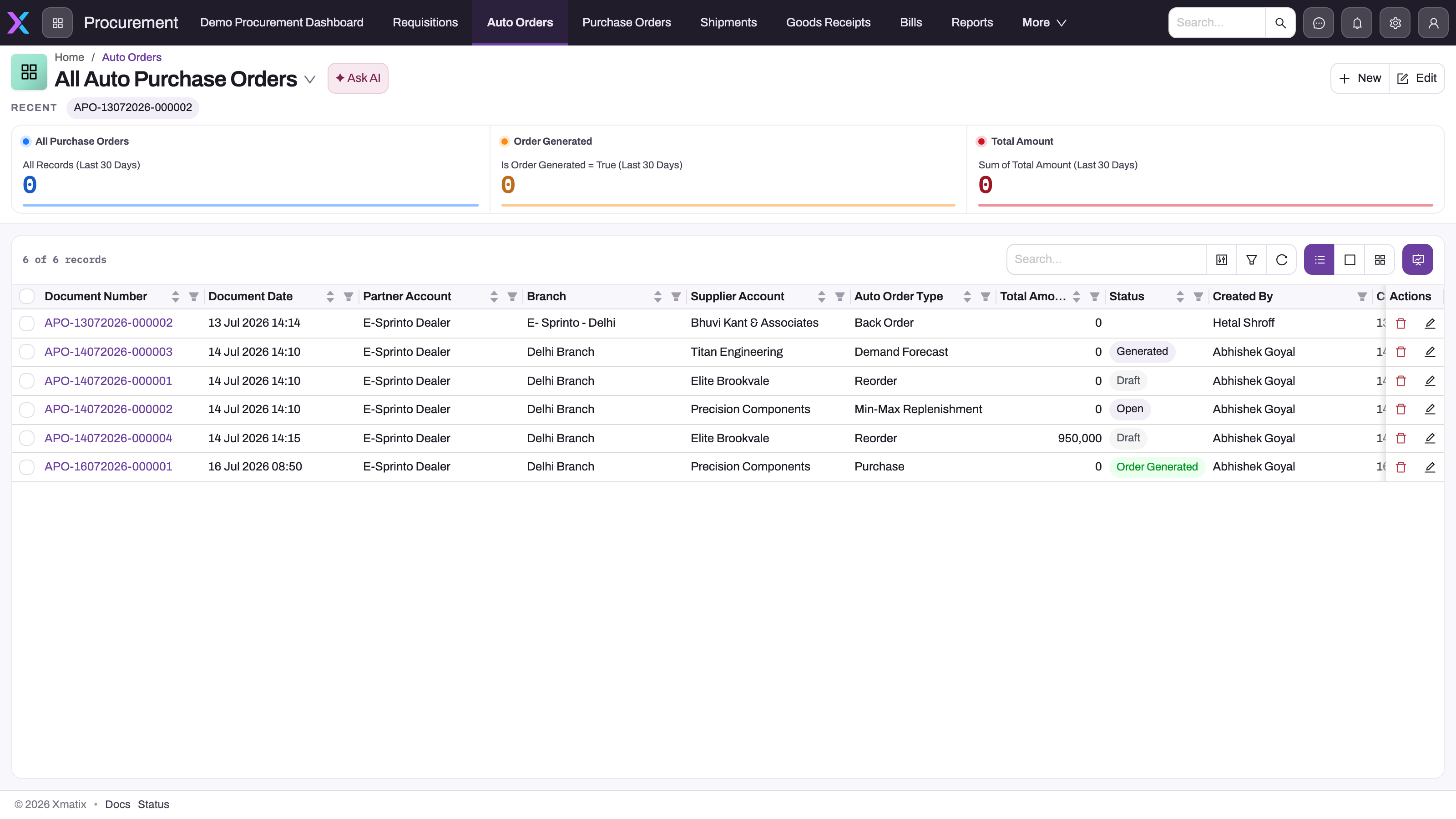
Step 1 — Create the auto order
On All Auto Purchase Orders choose New. The form asks for:
- Auto Order Type: Replenish, Minimum Stock Level, Forecasting, Back Order or Template;
- Supplier Account: the supplier the purchase order will be raised on (suppliers only);
- Purchase Order: shown only when the type is Template (see Step 6);
- Partner Account and Branch under System Details. The branch list follows the partner account, and the two are checked to belong together.
On a tenant that runs a single company or a single location, the Partner Account and Branch fields are hidden. Choose Save. The document date is set to today, the number is assigned (series APO by default) and the default purchase price list is filled in. Partner account, branch, supplier and document date cannot be changed after this.
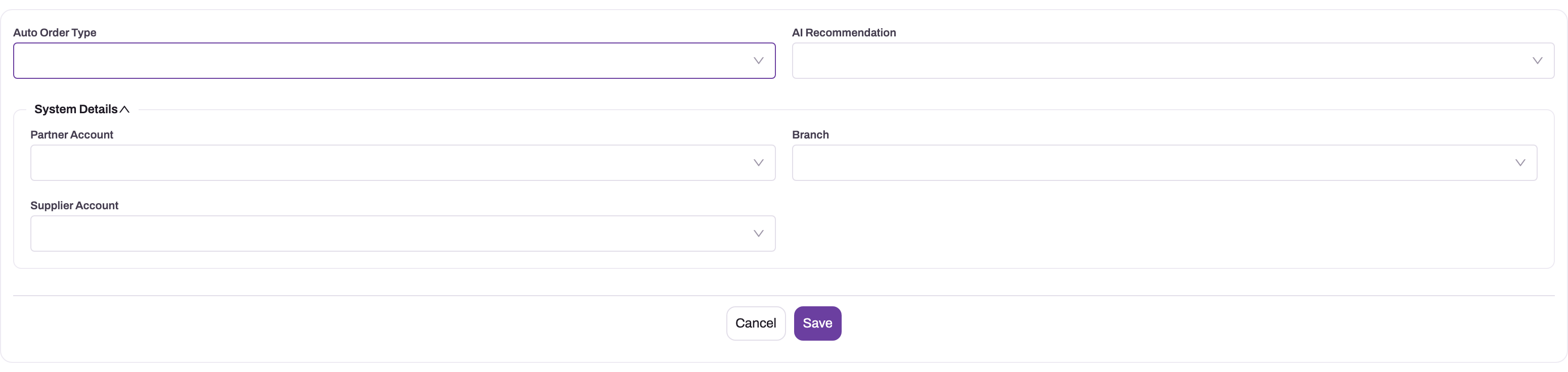
The screenshot shows an earlier form that included AI Recommendation. That field is stored only and is not on the current form.
Step 2 — Choose the settings
Open the Auto Order Setting tab. The panel follows the order's type and shows only the settings its engine reads:
- Projected stock (Forecasting and Template): the terms Stock In Transit, Pending Purchase Orders, Open Sale Orders, High Probability Quotes and Purchase Requisitions. Select a term to include or exclude it; dimmed terms are ignored.
- Order quantity (Minimum Stock Level and Replenish): the single term Open Purchase Orders, which fills each line's Open Order Quantity.
- Item filters (every type except Back Order and Template Order): FSN Class (Fast moving, Slow moving, Non-moving) and ABC Category (Category A, B, C). Selected classes are excluded.
- Inventory attributes conflict (Forecasting and Template): stored, but it does not change the result, because matching planning rows are always averaged.
- Fit to budget: the budget amount, with quick-pick amounts. 0 means no cap.
- What will happen: a plain-language summary of your choices.
Choose Save Settings. On Forecasting, Minimum Stock Level and Replenish this saves the settings and then runs Generate Lines. On a Template it saves and then runs Order from Template. On Back Order and Template Order it only saves.
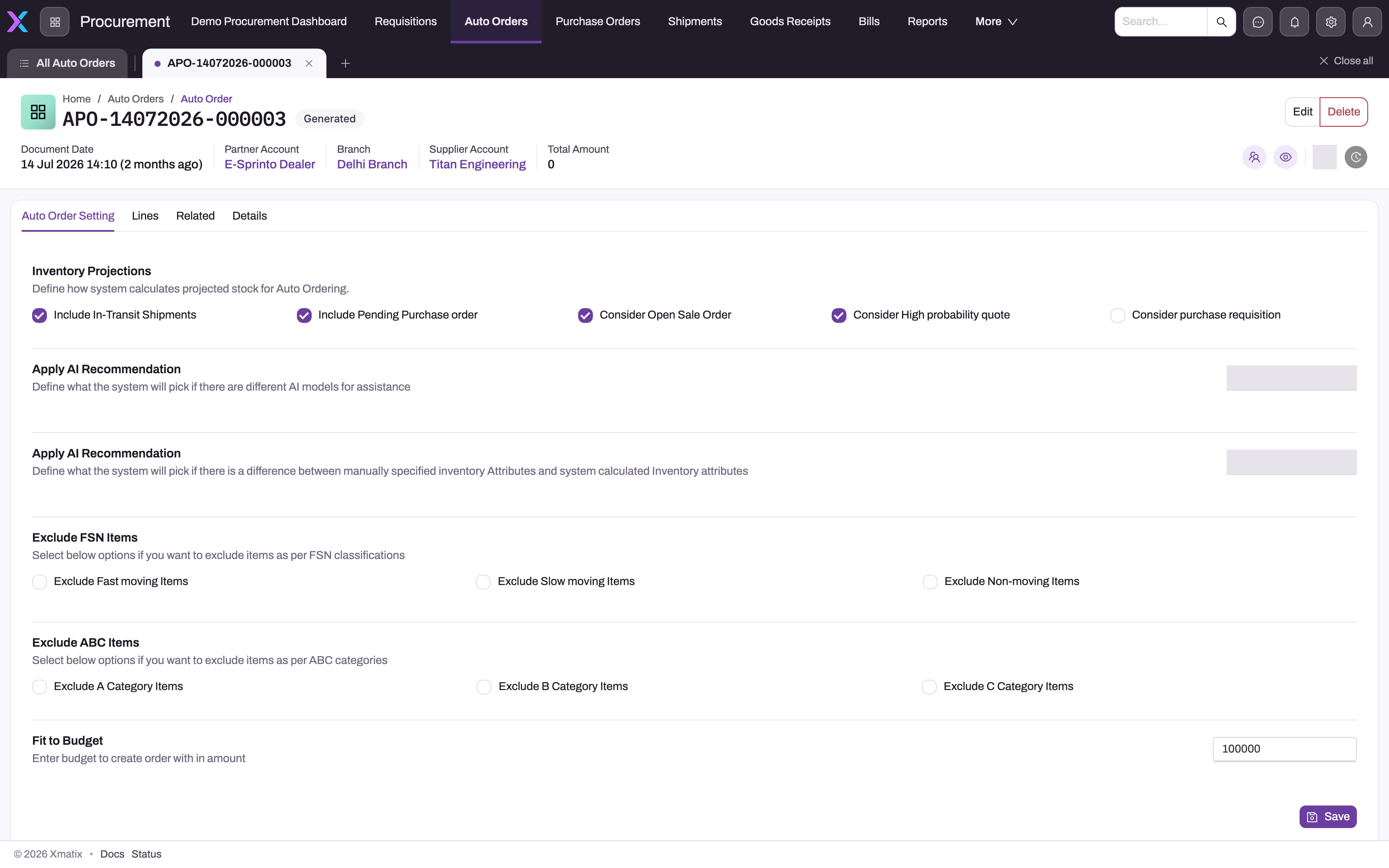
The screenshot shows an earlier version of this panel. The current panel uses the sections listed above.
For Back Order, the panel shows only a note and no switches. The engine still reads the in-transit, pending purchase order and purchase requisition switches and the item filters stored on the record, and all of them are off on a new record. Budget Amount and two of the exclusion switches can also be edited on the Details tab under Additional Details.
Step 3 — Generate the lines
Choose Generate Lines in the header. It deletes the existing lines, builds new ones with the order's engine against current stock and documents, prices them, applies the budget cap and updates the totals, so re-running always reflects your latest settings. It is refused on Template and Template Order types.
If nothing qualifies, the action succeeds and the Lines tab stays empty. See Common problems.
Step 4 — Review and adjust the lines
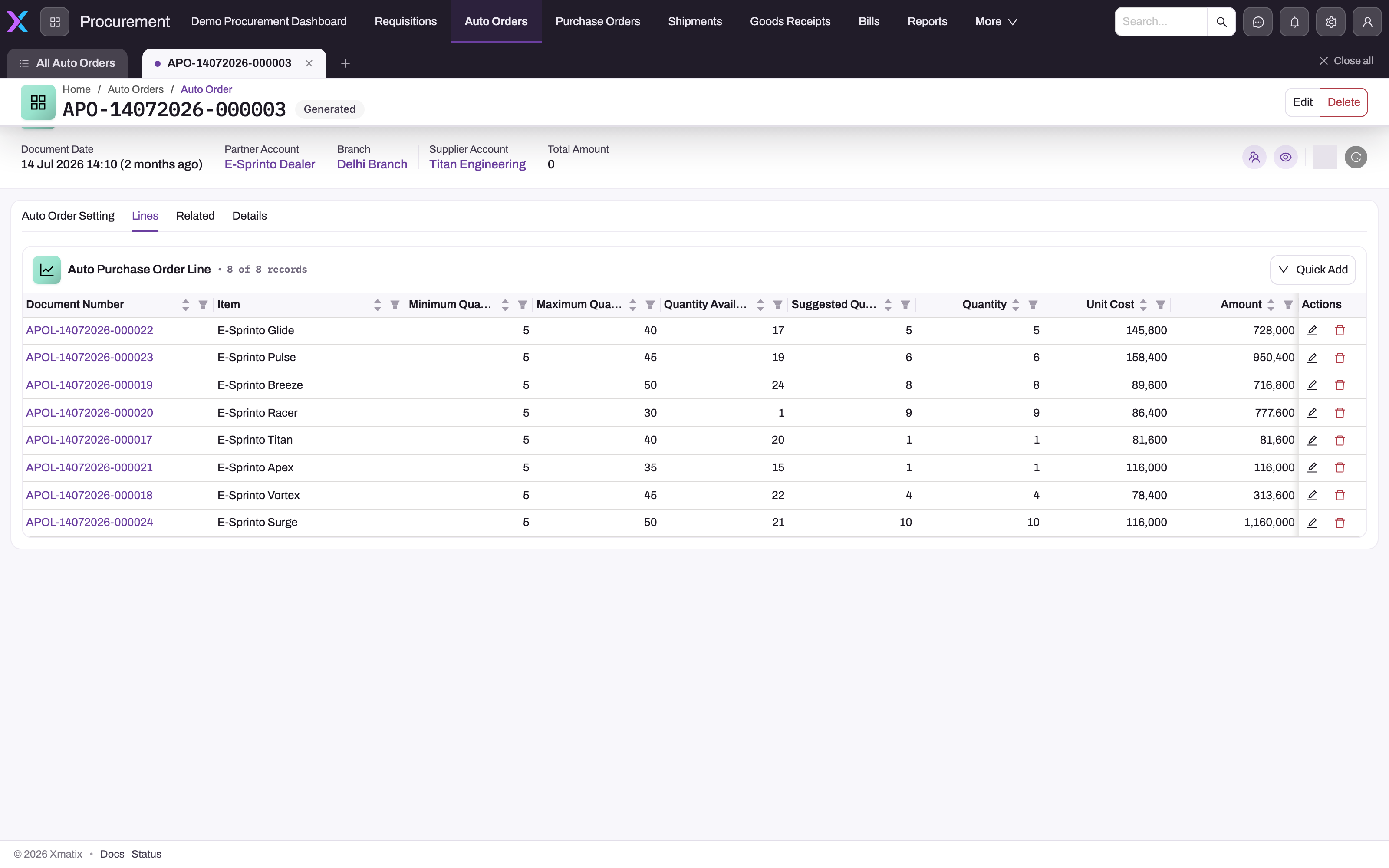
The Lines tab lists Document Number, Item, Minimum Quantity, Maximum Quantity, Quantity Available, Suggested Quantity, Quantity, Unit Cost and Amount. Select a line's number to open its record page, which shows the full snapshot: Projected Quantity, Pending Shipment Quantity, Pending Purchase Order Quantity, Pending Requisition Quantity, Pending Sale Order Quantity, Reorder Quantity, Open Order Quantity, Derived Quantity, Purchase Order Quantity and Pending Quantity. On Back Order lines, Pending Sale Order Quantity holds what the fulfilment line still owes.
The line's record page has three sections: Key Information (Item, Description, SKU, Item Lot Type, Unit Cost, Amount), Quantity Details (the quantities and the snapshot) and System Information (who created and last changed it). Its header has Edit and Delete. The fields on the record page edit in place, and Edit opens a short form with Item, Description, SKU, Item Lot Type, Quantity and Unit Cost. Changing Quantity or Unit Cost recalculates the line's Amount and Pending Quantity. It does not change Derived Quantity, and the line edit does not itself update the auto order's Total Amount; that total is added up again when lines are generated.
Then make your changes:
- Order less of an item: leave the line and use Selective Order in Step 5.
- Order more of an item: on the line's record page, set Suggested Quantity and Quantity to the new figure.
- Drop an item: delete the line from the row's menu.
- Add an item by hand: choose Quick Add (Item, Description, SKU, Item Lot Type, Quantity, Unit Cost). Quantity must be at least 1. Leave Unit Cost empty to take the price list's cost. A hand-added line has no suggested quantity, so Purchase Order skips it until you also set its Suggested Quantity.
- Leave a note for the buyer: type it in Description. It stays on the suggestion line and is not copied to the purchase order.
Step 5 — Raise the purchase order
- Purchase Order creates one purchase order for the auto order's partner account, branch and supplier from every line with pending quantity. Each line takes its Derived Quantity and unit cost.
- Selective Order opens the lines in a table with Document Number, Item, SKU, Quantity, Pending Quantity and Requested Quantity. Enter a requested quantity on the lines you want and confirm. Only those lines are ordered, each at the requested quantity, capped at its Derived Quantity. A requested quantity must be greater than zero and no more than the line's pending quantity.
The new purchase order shows the worksheet in Auto Purchase Order, and its lines roll their quantity back into each suggestion line's Purchase Order Quantity. The purchase order then goes through its normal lifecycle.
An auto order is not locked after a purchase order is raised: Is Order Generated is never set. Before choosing Purchase Order again, check which purchase orders were already raised. Don't run Generate Lines on a worksheet you have ordered from, because it replaces the lines the purchase order came from. Start a new auto order instead.
Step 6 — Build a reusable template
A Template auto order is either a planning template, which holds settings and no lines, or a basket, which holds item lines copied from a purchase order.
Planning template. Create an auto order with type Template. Set its projection, item filters and budget on Auto Order Setting, then choose Save Settings. Each run of Order from Template creates a new Forecasting auto order named after the template with today's date (for example APO-…-20261012). The new order copies the template's branch, partner account, supplier, price list, budget and switches, and is linked back to the template. Its lines are generated, priced and capped at once. The template itself never changes, so it can be used again.
Basket from a purchase order.
- Open the purchase order you buy repeatedly, choose Edit, switch on Is Template and save.
- Create an auto order with type Template and pick that order in Purchase Order. Only purchase orders marked Is Template are offered.
- Save. Any partner account, branch, supplier, price list and price date you left empty is copied from the purchase order, and Remarks notes the source order. The order's item lines are copied in with their quantities and priced again. Description-only lines without an item, and lines with zero quantity, are left out. If the purchase order has no orderable lines, the template is saved with none.
- Choose Save Settings on the template (or Order from Template in the mobile app). Each run creates a Template Order holding a copy of the basket, priced and capped at today's prices. Adjust it on its Lines tab and raise the purchase order as in Step 5.
The basket is copied when the template is created. Later changes to the purchase order do not reach an existing template, so create a new template to pick them up.
Step 7 — Schedule recurring runs (administrator)
The background job Generate forecast auto-order lines keeps suggestions coming without anyone pressing a button. Each run does two things:
- it fills every Forecasting auto order that has no lines yet;
- it spawns one dated order per day from each Template: a Forecasting order for a planning template, or a Template Order for a basket.
To switch it on, go to Setup → Platform → Monitoring → Jobs and, on the Schedules tab, create a schedule for the job with a cron expression. Schedules run in UTC. Use Run now for a single run. Only one run executes at a time, and a template that has already spawned an order today is skipped. The job prices the lines it builds but does not apply the budget cap. Minimum Stock Level, Replenish and Back Order orders are never filled by the schedule.
In the mobile app
Auto orders are also in the mobile Procurement app, with the tabs Auto Order Settings, Lines, Details and Related. The header offers Generate Lines, Order from Template, Edit and Delete. Purchase Order and Selective Order are web-only, so raise the purchase order from the web.
Fields
Create form and header
| Field | What it means | Notes |
|---|---|---|
| Auto Order Type | The engine that builds the lines. | Replenish, Minimum Stock Level, Forecasting, Back Order, Template. Template Order is set by the system. |
| Supplier Account | The supplier the purchase order is raised on. | Suppliers only. Locked after creation. |
| Purchase Order | A marked purchase order whose item lines are copied in. | Shown when the type is Template. Only orders marked Is Template. |
| Partner Account | The company the worksheet buys for. | Partner accounts only. Locked after creation. |
| Branch | The branch whose stock and documents are read. | Must belong to the partner account. Locked after creation. |
| Document Number | The auto order's number. | Assigned on save, series APO by default. |
| Document Date | The date of the worksheet. | Today, set on create. Replenish counts from the branch's latest Replenish document date. |
| Total Amount | Sum of the line amounts. | Recalculated when lines are generated, copied or spawned. |
Details tab
| Field | What it means | Notes |
|---|---|---|
| Total Pending Quantity | Sum of the lines' pending quantity. | Set when lines are built. |
| Status | Draft or Order Generated. | Not set by the actions. See Business rules. |
| Price List | The purchase price list used to price the lines. | Defaults to the default purchase price list. |
| Price As On Date | The date prices are looked up for. | Copied from the template or source purchase order. |
| Last Auto Order Date | Not read by any engine. | Leave empty: today or an earlier date is refused. |
| Budget Amount | The budget cap. | Same as Fit to budget. Cannot be negative. |
| Exclude A Category Items, Exclude Fast Moving Items | Two of the six item filters. | All six are on the settings panel. |
Suggestion line
| Field | What it means | Notes |
|---|---|---|
| Document Number | The line's number. | Series APOL by default. |
| Item, SKU, Item Lot Type | What to buy. | The item must be active and the SKU must belong to it; a SKU is required when the item says so. Item lot type is carried on Back Order and basket lines and picks a lot-specific price, but is not copied to the purchase order. |
| Description | A note on the suggestion. | Not copied to the purchase order line. |
| Suggested Quantity | What the rule computed. | Scaled down by the budget cap. Part of Derived Quantity. |
| Quantity | Your working quantity. | Drives Amount and Pending Quantity. Must be at least 1. |
| Open Order Quantity | Quantity already on purchase orders for the same item. | Minimum Stock Level and Replenish, with the open-purchase-orders switch. |
| Derived Quantity | Suggested Quantity + Open Order Quantity. | What Purchase Order orders. Calculated. |
| Purchase Order Quantity | Quantity already raised on purchase orders from this line. | The total Quantity of those purchase order lines, recalculated when one is added, deleted or its Quantity changes. Cancelling quantity on the purchase order line does not reduce it. |
| Pending Quantity | Quantity − Purchase Order Quantity. | A line is ordered only while this is above zero. |
| Requested Quantity | The quantity to order in Selective Order. | Greater than zero and no more than Pending Quantity. |
| Unit Cost, Amount | Price from the price list; unit cost × quantity. | Zero when the price list has no rule for the item. |
| Minimum / Maximum / Reorder Quantity | Planning numbers used. | Averaged when several planning rows matched (Forecasting). |
| Quantity Available, Projected Quantity | On-hand stock and the netted position. | Forecasting. |
| Pending Shipment / Purchase Order / Requisition / Sale Order Quantity | The pipeline counted. | Forecasting, and Back Order (where Sale Order holds what is owed). |
Business rules
- Creating. Partner account and branch must belong together. Partner account, branch, supplier account and document date cannot be changed once saved. The document number comes from the Auto Order document name setting.
- Generate Lines replaces all lines. It is refused with "Generate Lines is only available for Back Order, Minimum Stock Level, Replenish, or Forecasting auto orders." on a Template, and with "This order's lines were copied from its template and are not regenerated." on a Template Order.
- Order from Template is refused on any type other than Template with "Generate Order from Template is only available for Template auto orders."
- Purchase Order is refused with "No Auto Purchase Order Lines found to create Purchase Order." when there are no lines, and with "No Auto Purchase Order Lines with pending quantity to create Purchase Order." when no line has pending quantity. Lines whose Derived Quantity is zero are skipped without a message.
- Selective Order refuses a requested quantity of zero ("Requested quantity must be greater than zero.") or above the line's pending quantity ("Requested quantity (…) cannot exceed the pending quantity (…).").
- Status. No action sets it. The seeded business rule Set Auto Order Status To Ordered sets Order Generated when the auto order is saved, the lines show purchase-order quantity, and their pending purchase-order snapshot is zero. Forecasting and Back Order lines usually carry that snapshot, so on those orders the status rarely changes. Use the purchase orders raised, not Status, to judge where a worksheet stands.
- Line checks. Every new line, whether generated, copied or added by hand, must have an active item, a SKU when the item requires one, a SKU that belongs to the item, and a Quantity of at least 1 ("Quantity cannot be less than 1."). The quantity check also runs when a line is edited. The messages are "Item is Inactive.", "SKU is required for this item." and "Invalid SKU selected for this item.".
- Validations. "Budgeted Amount Can not be Less than 0". "Last auto order date cannot go beyond today's date" appears for today's date or any earlier date in Last Auto Order Date.
- Clone copies the header only, not the lines.
Example
A distributor's central branch restocks fast-moving spares every Monday.
- The buyer creates
APO-…with Auto Order Type Forecasting, Supplier Account "Northgate Components", and the partner account and branch for the central warehouse. - On Auto Order Setting they include Stock In Transit, Pending Purchase Orders and Open Sale Orders, exclude Non-moving, set Fit to budget to 200,000 and choose Save Settings. The toast reads Auto order lines updated.
- The Lines tab shows twelve lines. One spark plug line has Quantity Available 40, Projected Quantity 25 and Maximum Quantity 120, so Suggested Quantity is 95.
- The priced total was 230,000, so every priced line was scaled by 200,000 ÷ 230,000 (about 0.87). The spark plug line now reads 82.61.
- The buyer wants only eight of the twelve items this week. They choose Selective Order, enter Requested Quantity on those eight lines and confirm. A purchase order is created with Auto Purchase Order pointing at the worksheet.
Training
Practice exercise
In a sandbox, give one item an Item Inventory Attributes row for your branch with Minimum Stock Level 50 and Reorder Quantity 100, and make sure its available stock at the branch is below 50. Create a Minimum Stock Level auto order for that branch and a supplier, then choose Generate Lines.
Expected result: one line for the item with Suggested Quantity and Quantity 100, priced from the default purchase price list. Choose Purchase Order. Expected: a purchase order for 100 of the item on the chosen supplier, showing the auto order in Auto Purchase Order, and the line's Purchase Order Quantity reading 100.
Quick reference
- The type picks the engine: Minimum Stock Level, Replenish, Forecasting, Back Order; Template spawns orders.
- Save Settings saves and then generates (or spawns, on a Template).
- Generate Lines deletes and rebuilds all lines.
- The purchase order takes Derived Quantity (Suggested + Open Order), not Quantity.
- Order less with Selective Order → Requested Quantity.
- A hand-added line needs a Suggested Quantity to be ordered.
- Every line needs Quantity 1 or more, an active item and a valid SKU, or the whole action fails.
- Description and Item Lot Type stay on the suggestion line; the purchase order doesn't take them.
- Nothing locks a worksheet after ordering. Don't regenerate it; start a new one.
- The scheduled job fills empty Forecasting orders and spawns from templates daily, without the budget cap.
Permissions
Auto orders and their lines are entities with their own access in each security profile. Create, edit and delete follow that access. The header buttons are server actions granted per profile on the Actions tab. In the seeded profiles:
| Action | Granted to |
|---|---|
| Generate Lines | Standard User, System Admin |
| Purchase Order, Selective Order | Sales Manager, Standard User, System Admin |
| Order from Template | Procurement, Standard User, System Admin |
| Select as Auto Order Template (purchase order) | No seeded profile |
The seeded Procurement profile has no access to the Auto Order entity itself, so add entity access before relying on its grant. A user without an action's grant does not see its button. See security profiles.
Configuration
- Planning data. Item Inventory Attributes (minimum stock level, reorder, minimum and maximum order quantity, lead time, average consumption, FSN and ABC category), scoped by SKU, branch and partner account. See the procurement configuration reference.
- Per-line opt-out. Exclude In Auto Order on shipment, purchase-order, requisition and sale-order lines keeps them out of the pipeline.
- Numbering. The Auto Order document name setting (series
APO, six-digit counter) under Setup → Feature Hub → Platform → Document Settings. - Price lists. The default purchase price list is set on new auto orders; its rules price the lines.
- Schedule. The Generate forecast auto-order lines job under Setup → Platform → Monitoring → Jobs. The schedule is the on/off switch and the cadence.
- Layouts. In Design Studio you can change the auto order and line layouts. A few things are not on the seeded screens:
- Order from Template is reached on the web only through Save Settings on a Template; add it to the record header if you want a button.
- Select as Auto Order Template is not on the purchase order header and is granted to no profile. The Is Template switch on the purchase order's edit form does the same job.
- An order's Auto Purchase Order field, which names a template to create the order from, is not on the create form. Adding it lets users start a new order from a chosen template: the template's settings are copied in, the fields you typed win, and a basket's lines come with it.
- Business rule. Set Auto Order Status To Ordered sets Status. Change or switch it off under Setup → Process Studio → Business Rules if you track status differently.
Common problems
Generate Lines finished but the Lines tab is empty
No item qualified. Check, depending on the type:
- Minimum Stock Level: there are no planning rows scoped to the branch, or every item is at or above its minimum.
- Forecasting: no planning rows match the branch and partner account, or every projected position is above its reorder point.
- Replenish: nothing was allocated at the branch since its last Replenish order.
- Back Order: no fulfilment line at the branch still owes unbought stock, or supply already on its way covers it.
For every type, the item filters may have removed everything.
"Generate Lines is only available for Back Order, Minimum Stock Level, Replenish, or Forecasting auto orders."
The order is a Template. Use Save Settings (Order from Template) instead.
"This order's lines were copied from its template and are not regenerated."
It is a Template Order. Edit quantities on its Lines tab, or change the template and spawn a new order.
The purchase order has different quantities from the Quantity column
The purchase order takes Derived Quantity: the suggested quantity plus any open order quantity. Use Selective Order to order less, or change Suggested Quantity to order more.
A line I added with Quick Add is missing from the purchase order
Its Suggested Quantity is zero, so its Derived Quantity is zero. Set Suggested Quantity on the line's record page.
Every Unit Cost is zero
The order's price list has no rule for the items. Fix the price list, then run Generate Lines again.
Quantities are smaller than the rule should give
A Fit to budget amount below the priced total scales every priced line down. Raise or clear the budget.
"Quantity cannot be less than 1."
A line's quantity is below 1. On Quick Add or an edit, enter 1 or more. If it appears when you choose Generate Lines or Save Settings, the budget cap or a fractional Forecasting suggestion has brought a line below 1, and no lines were saved. Raise or clear Fit to budget and run it again, or check the planning figures of low-volume items.
Generate Lines fails with "SKU is required for this item." or "Item is Inactive."
An item the rule picked needs a SKU but its planning row or stock record has none, or the item has been made inactive. Give the planning row a SKU, reactivate the item, or remove its Item Inventory Attributes rows, then generate again. The same messages appear on Quick Add.
My Description or lot type is missing from the purchase order
The purchase order line takes only the item, SKU, quantity and unit cost from the suggestion line. Add the note or lot type on the purchase order line.
Pending Quantity did not come back after I cancelled a purchase order line
Purchase Order Quantity adds up the purchase order lines' Quantity, and cancelling does not change it. Delete the purchase order line instead if it was never sent, or order the rest from a new auto order.
"Last auto order date cannot go beyond today's date"
The check refuses today and past dates. Clear Last Auto Order Date; nothing reads it.
A scheduled Forecasting order is over budget
The scheduled job does not apply the cap. Run Generate Lines on the order to apply it.
The Purchase Order picker on the new template is empty
No purchase order is marked Is Template. Edit a purchase order and switch it on.
For suggestions that look wrong, read the line's snapshot first; see troubleshooting.
Common questions
Is this AI demand forecasting?
No. Every engine is a fixed rule over your own stock and documents, and there is no machine-learning model. "Forecasting" means projecting the pipeline forward with the arithmetic shown above, and every input it used is stored on the line it produced. The AI Recommendation field and the inventory attributes conflict choice are stored values that no engine reads, so suggestions are the same whatever they hold. That makes every quantity explainable: open the line and compare its snapshot with the planning row and documents it was built from.
Can a suggestion turn into a purchase without review?
No. Generate Lines, Order from Template and the scheduled job only build suggestion lines. A purchase order exists only when someone chooses Purchase Order or Selective Order on the worksheet, and the seeded mobile app does not offer either. A purchase order raised this way is an ordinary purchase order: it is not sent anywhere until you take it through its own lifecycle. So a daily schedule fills worksheets for review, and buying still needs a person to act.
Why did my worksheet not lock after I raised the purchase order?
The flag meant to lock it, Is Order Generated, is never set, so Generate Lines and Purchase Order stay available. What usually prevents a duplicate order is each line's pending quantity: once a purchase order is raised, Purchase Order Quantity rises and Pending Quantity falls. Check the purchase orders already raised before ordering again, and never regenerate a worksheet you have ordered from, because that replaces the lines the purchase order points at. Start a fresh auto order for the next cycle instead.
What is the difference between a template and a basket?
A planning template holds settings only. Each spawned order runs Forecasting with those settings against today's stock, so the items and quantities change from run to run. A basket template holds item lines copied from a purchase order marked Is Template. Each spawned order, typed Template Order, re-buys that same list at today's prices, whatever the stock levels. Use a planning template for replenishment you want recalculated and a basket for fixed standing orders. Both spawn at most one order per day from the scheduled job.
Do open sales orders matter to every engine?
No. Only Forecasting subtracts open sale orders, because only it projects a stock position. Minimum Stock Level compares today's stock with a threshold, and Replenish buys back what was already allocated. Back Order is driven by the fulfilment lines themselves rather than by sales orders. It nets supply already in transit, on purchase orders or on requisitions, when those switches are on.
What is the Auto Purchase Order Line Relation record?
It is a record type that is defined in the data model but not implemented. Nothing stores it, it is in no app or menu, and no engine creates or reads it. Any attempt to read or save one, for example through the data API or an import, is refused with "Entity type 'AutoPurchaseOrderLineRelation' not found in model." You do not need it to trace an order. A Back Order suggestion line keeps the fulfilment line it covers in Inventory Fulfillment Order Line. The purchase order line raised from a suggestion records that suggestion line and copies the fulfilment line onto itself, so the purchase order line is where you follow the chain in either direction. See the field reference.
Related topics
- Procurement configuration reference: planning attributes, exclusion flags and the scheduled run
- The purchase order lifecycle
- Requisitions: from request to purchase order
- Goods receipts: releasing back orders from received stock
- Fulfilment and picking
- Troubleshooting procurement
- Auto Order reference
- Order — entity reference